Time Machine says the backup failed. Or it sits on Preparing and never finishes. Sometimes the backup disk just drops off the list.
Apple covers this in support article 102220, “If you can't back up or restore your Mac using Time Machine,” dated July 6, 2026. The Mac User Guide has a matching page, “If a Time Machine backup fails on Mac.” Steps below follow both. macOS 27 adds one more trap for older network disks.
Read the error message first
The wording points to the fix. Apple lists the messages one by one.
An error while preparing the backup can come from antivirus software. Update it after a macOS update. Exclude the backup disk from virus scanning. If it continues, Apple says you may need to turn the antivirus off for a while, or uninstall it.
Disk is read-only. That points to a problem with the disk or its file system. Go to Disk Utility, two sections down.
Time Machine can't create a snapshot. The internal disk is probably almost full. Delete some files. On-device AI models also sit on the startup disk. The Apple Intelligence model storage tip shows where that number is in System Settings.
Some files are unavailable. Time Machine retries later on its own. Or unlock the Mac and start a backup by hand. Some encrypted files can't be read while the Mac is locked.
Network disconnection. Third-party firewall software may be cutting the link. Apple's support article names VPN and other security software too.
Check disk space and the connection
Apple wants a backup disk with at least twice the storage of the Mac. A Mac with 1 TB should ideally back up to 2 TB. If the disk is full, exclude items from the backup or move to a bigger disk. With more than one backup on the disk, Apple says a restart may clear the full message.
Cloud sync folders can hold a backup up as well. Keep the Mac on power and online until syncing completes. Or exclude the sync folders for now.
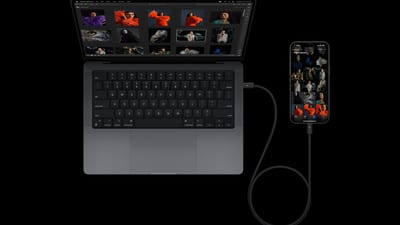
For a wired disk, plug it straight into the Mac. No USB hub. If Time Machine stops halfway, open Finder and check the drive is still listed. iPhone has the same storage trap before a big update. See the Storage Almost Full fix.
Run First Aid on the backup disk
Open Disk Utility. Choose View, then Show All Devices. Select a volume on the backup disk in the sidebar. Click First Aid, then Run. Apple says to repeat this for each volume, then each container, then the storage device itself.
If Disk Utility reports the disk is about to fail, stop repairing. Copy what you can and replace the disk. A network backup that worked before can be checked too. Hold the Option key and choose Verify Backups from the Time Machine menu in the menu bar.
Firmware on the backup disk should be current. That update comes from the disk maker, not from Apple.
Time Capsule and AFP on macOS 27
This part is new. Apple article 102423, “Backup disks you can use with Time Machine,” dated September 14, 2026, says Apple Filing Protocol is not supported in macOS 27 or later.
AirPort Time Capsule uses AFP. So does a USB disk on an AirPort Extreme base station. Apple now marks both as no longer recommended. NAS backup over AFP is also out. A NAS still works if it supports Time Machine over SMB.
Backing up to another Mac on the network is fine when both Macs run macOS 11 or later. If one of them runs an older version, the connection uses AFP and macOS 27 won't take it. So a Time Capsule that worked for years and failed after the upgrade is probably not a broken disk. Move the backup to an external drive on USB-C or Thunderbolt, or to an SMB share.
Erase the backup disk and start over
If nothing else works, Apple's last step is to erase the backup disk, then select it again in Time Machine. Or use a different disk. Erasing deletes every old backup on it. Copy anything you still need first.
Run one full backup before any major update. On iPhone, the software update fix for iOS 27 covers what to do when the install itself gets stuck.
Photo: Apple
Source: Apple Support - If you can't back up or restore your Mac using Time Machine (102220); Backup disks you can use with Time Machine (102423); Mac User Guide - If a Time Machine backup fails on Mac; Disk Utility User Guide - Repair a storage device