Back Tap is still one of the quietest iPhone tools. You double-tap or triple-tap the glass on the back. iOS runs an action you picked in Settings. Screenshot. Lock Screen. Control Center. A Shortcut. Or an accessibility feature.
Apple keeps it under Accessibility, Touch. It works on iPhone 8 and later with iOS 14 or newer. On phones running iOS 27, the same path is still there. Many people never open that row. Then they wonder why a friend’s screenshot comes from a tap, not the side buttons.
Settings path for Back Tap
Open Settings. Tap Accessibility. Tap Touch. Tap Back Tap.
You get two rows: Double Tap and Triple Tap. Tap one. Then pick an action. Or tap None if you want that gesture off.
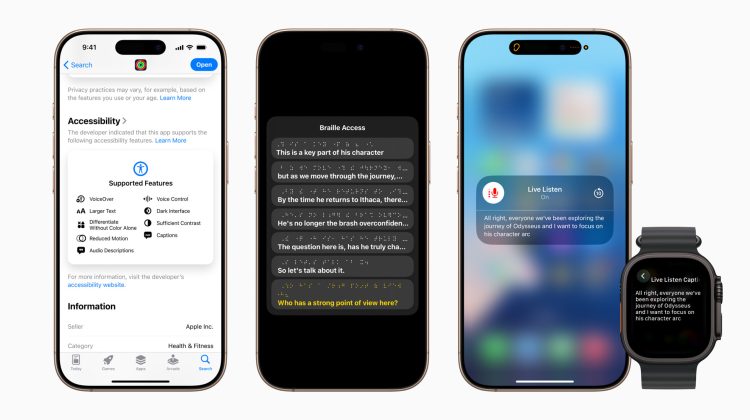
Apple’s support page lists common picks: Screenshot, Lock Screen, Control Center, Notification Center, Mute, Spotlight, Camera, Shazam, and Shortcuts. Accessibility actions sit in the same list, including AssistiveTouch, Magnifier, Reachability, VoiceOver, and Accessibility Shortcut.
After you choose, leave Settings. Double-tap or triple-tap the center of the back. The action should fire.
Double Tap versus Triple Tap
They are separate. You can set Screenshot on Double Tap and Control Center on Triple Tap. Or leave Triple Tap on None so only one gesture is live.
Mixing them up is common. Someone assigns Screenshot to Triple Tap, then taps twice and nothing happens. Check both rows if the gesture feels dead.
A practical pair: Double Tap for Screenshot, Triple Tap for a Shortcut you already built. Fast capture stays on two taps. Heavier automation sits on three. If the side buttons already handle screenshots, put Lock Screen or Mute on Double Tap instead.
Back Tap does not replace AssistiveTouch. It does not change the Action button. Those stay where they are.
Assign a Shortcut or accessibility action
In the Back Tap list, scroll to Shortcuts if you want more than the built-in rows. Pick a Shortcut you already saved. Apple’s Shortcuts guide uses the same Accessibility, Touch, Back Tap path. Select it, then test with a double or triple tap on the back.
You can also map Magnifier, VoiceOver, or Accessibility Shortcut. That matches how Apple describes Back Tap: a quick way to open features you would otherwise dig for.
If you still hide the Messages audio button after the Show in Text Field tip, Back Tap does not conflict. One lives under Apps, Messages. The other lives under Accessibility, Touch.
Thick cases and false broken reports
The most common complaint is that Back Tap stopped working. Often the case is the problem. Soft silicone, thick wallets, or MagSafe stacks can mute the taps. The gesture reads motion through the back. Extra padding dampens it.
Try a firmer double tap near the Apple logo, not the camera island. Remove the case for a ten-second test. If it works bare and fails with the case, the cover is muffling it. A thinner case usually restores it.
Also check that the row is not set to None after a restore or new setup. Reassign Screenshot once to verify. And do not confuse Back Tap with AssistiveTouch. AssistiveTouch floats on the display. Back Tap has no floating control.
Quick check after iOS 27
After you confirm iOS 27 under Settings, General, Software Update, set Double Tap to Screenshot and tap the back twice. You should see the flash and the corner thumbnail. Leave Triple Tap on None, or set Control Center if you want a second gesture.
Readers who already used the Appearance slider tip or the alarm and timer volume tip can treat Back Tap as another Accessibility row to re-check after a firmware pass. Today’s note on iOS 26.7 build 23H24 and iOS 27 build 24A437 is a clean moment to open Accessibility again and confirm Double Tap still points where you left it.
If Screenshot already sits on the Action button or AssistiveTouch, leave Back Tap for Mute or Lock Screen when your hands are on the back of the phone.
Photo: Apple
Source: Apple Support (Use Back Tap on your iPhone), Apple Newsroom (accessibility features, iOS 27 availability)