Apple removed MiniMax's AI companion app Talkie from the App Store worldwide on November 25. The move followed a joint investigation by the Bureau of Investigative Journalism and ABC News, which found the app's characters sent inappropriate messages to minors. Apple told the South China Morning Post it pulled the app for including sexual content, though it did not say whether this related to sexual content served to minors. Talkie still runs on the web and Google Play. A takedown also does not uninstall a copy already on a device. So here are 10 iPhone parental controls, checked against their Apple Support pages on November 27, 2026. Our earlier posts cover the child-safety investigation behind the removal and how to delete Talkie from an iPhone.
1. Set up Family Sharing parental controls on your child's iPhone
Apple's overview page, Set up parental controls to manage your child's iPhone or iPad (105121, October 26, 2026), says Screen Time manages the apps and websites a child can access, who they communicate with, and when they use the device. Start with Family Sharing, a Child Account in the group, the iOS 27 generation parental controls upgrade, and a parent in the child's contacts. Entry: Settings > Family > child's name. Some controls are on by default by region and age and cannot be removed.
2. Create a Screen Time passcode so the settings stay
The Screen Time passcode (126533, October 28, 2026) is not the phone's unlock code. You enter it before any Screen Time change, and a notification arrives when your child uses it. For a Family Sharing child account, reset it on the parent's own device, never the child's. Path: Settings > Family > child's name > Passcode & Management > Lock Screen Time Settings. Apple also wants a recovery contact. Skip that and a forgotten code may never be removed.
3. Turn on Ask to Buy to approve App Store downloads
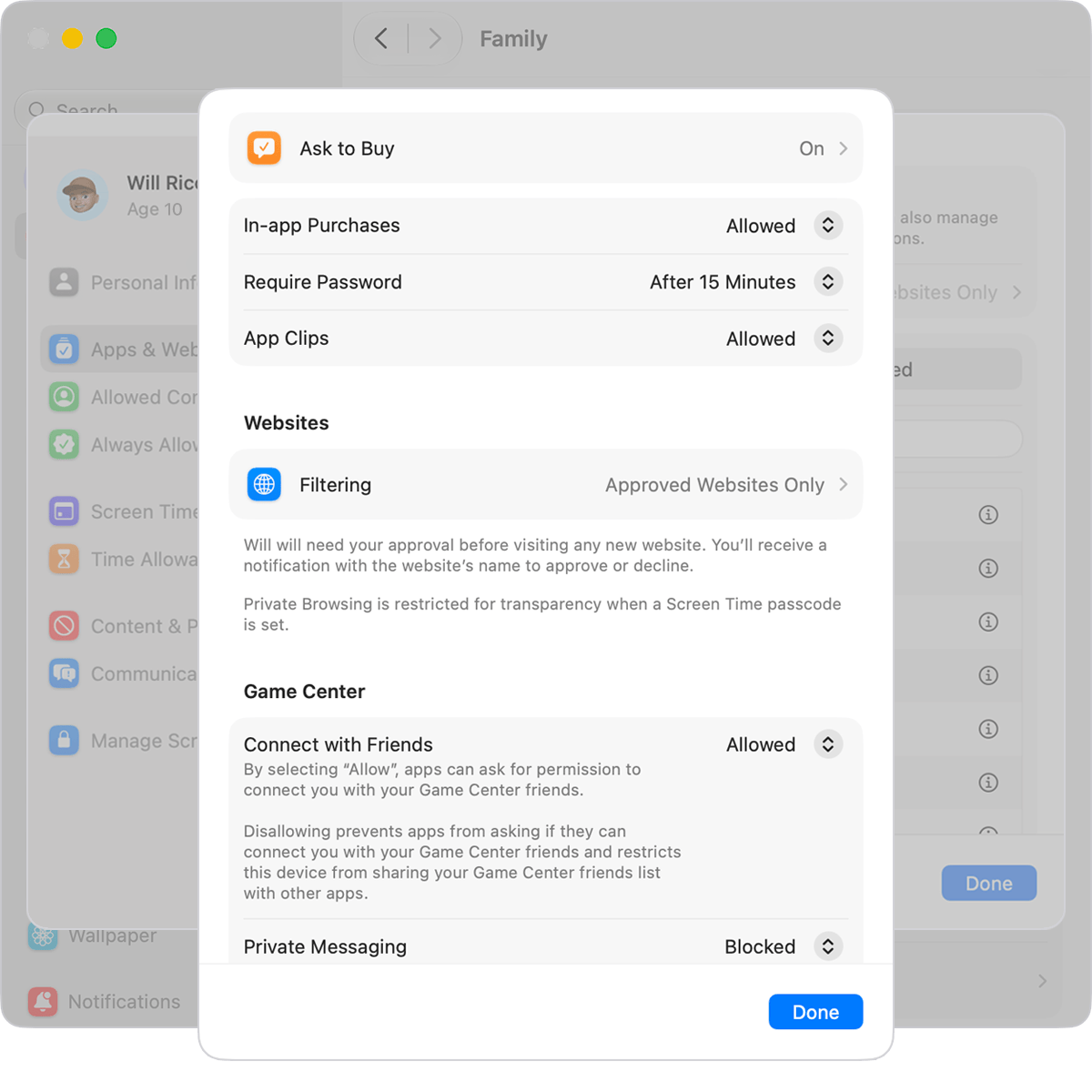
Ask to Buy (105055, September 14, 2026) sends you a request when your child wants an eligible App Store purchase or download. Approve and it downloads. Decline and nothing happens. Redownloads of their own purchases, app updates, and redemption codes skip approval. In some regions it is on by default under 18 and cannot be turned off. Path: Settings > Family > child's name > Apps & Websites > Restrictions > Ask to Buy, then Require Purchase Approval.
4. Block a leftover app in Screen Time
"When you block an app, your child can't use it. The app appears dimmed on the Home Screen, but not deleted," Apple writes in Support 125399 (October 26, 2026). Path: Settings > Screen Time > Family > child's name > Apps & Websites > Allowed, tap the app, then Block App. Which submenu a leftover Talkie install shows under was not verified here. Check Allowed and the age-rating filters yourself.
5. Use Ask to Browse or Limit Adult Websites in Safari
Ask to Browse (127512, October 26, 2026) works in Safari and other supported browsers on iOS 27, iPadOS 27, and macOS 27 after the Screen Time upgrade. It is on by default under 13, and Limit Adult Websites is on by default under 18. Path: Settings > Family > child's name > Apps & Websites > Restrictions > Websites > Filtering, then Approved Websites Only or Limit Adult Websites. Unanswered requests expire after 24 hours. The filter covers Apple devices only. It does not cover Talkie on Google Play or block Talkie's website for you.
6. Set age-based content and privacy restrictions
Content & Privacy Restrictions (105121) set age ratings for apps, music, books, movies and TV shows. The same panel holds Siri limits, privacy limits, and Screen Distance. Game Center sits elsewhere: Settings > Family > child's name > Apps & Websites > Restrictions > Game Center. Most settings apply automatically by age but can be adjusted anytime. A download above the age limit sends a request in Messages, and it expires after 24 hours.
7. Set Time Allowances and Screen Time schedules
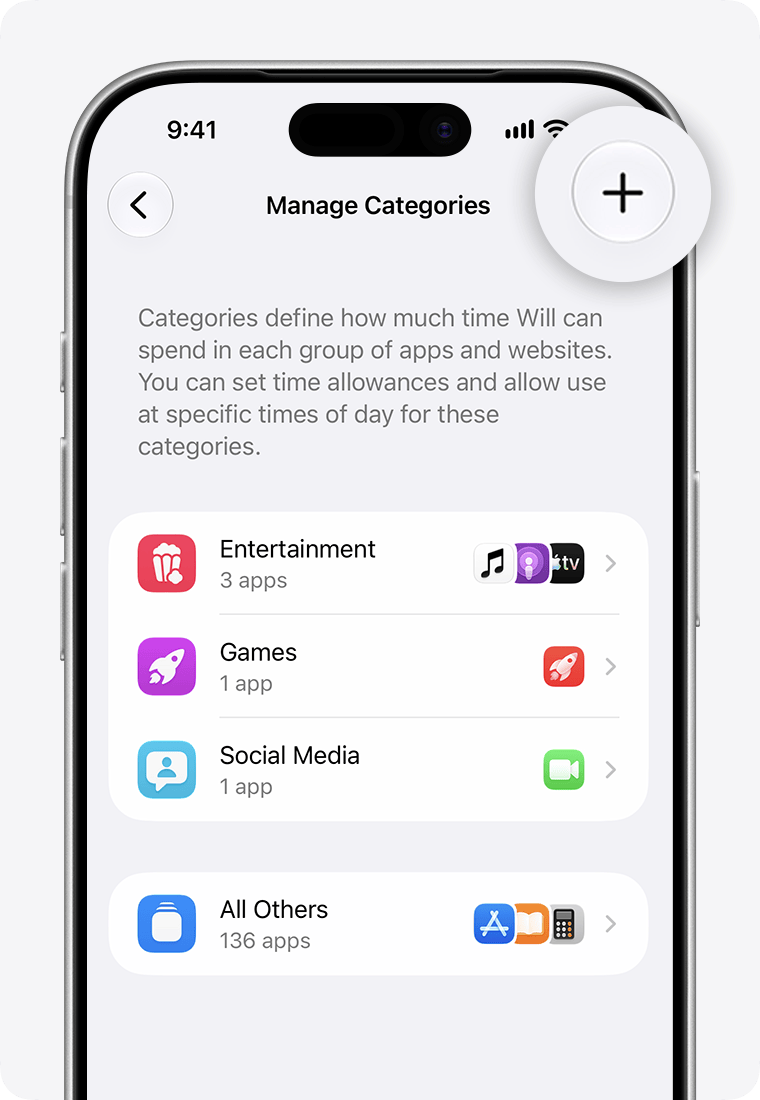
Time Allowances (127452, November 4, 2026) cap daily use in categories like games and social media. Match Screen Time Schedule lets each schedule carry its own limit. Schedules pick which apps are open when, with named Time Windows and different plans for weekdays and weekends. Apps set to Always Allowed still open in emergencies. The limit expires the app. It does not uninstall it.
8. Manage who your child can communicate with
Allowed Contacts (149088, November 3, 2026) decides who a child reaches in Messages, FaceTime and Phone: Contacts Only, Contacts & Groups with at Least One Contact, or Everyone. Turn on Manage Contacts and the child approves it from their own device; with Allow Editing Contacts off, new contacts need a request. A message from a new contact stays hidden until a parent approves. This covers calls and messages, not AI chatbot text.
9. Turn on Communication Safety for sensitive photos and videos
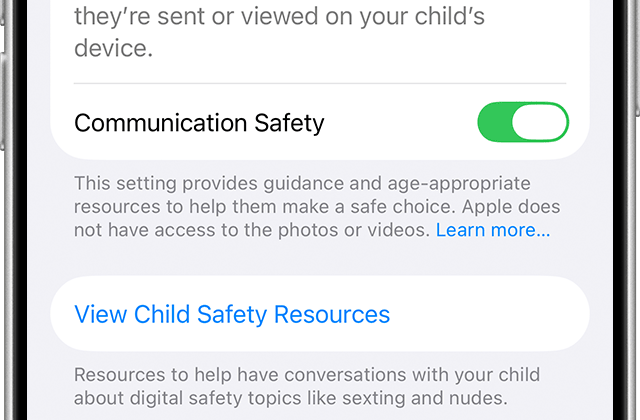
Communication Safety (105069, September 29, 2026) warns and blurs photos or videos containing nudity or gore and violence. Detection runs on-device, and Apple says it gets no access to the photos. Coverage includes Messages, AirDrop, contact posters, FaceTime video messages, Shared Albums, and some third-party share sheets. Gore and violence detection covers FaceTime video messages only, and is missing on Vision Pro. It is on by default under 18. Path: Settings > Screen Time > child's name > Communication Safety. This is not a text filter for chatbots.
10. Turn off In-App Purchases in Screen Time
Screen Time can block in-app purchases outright: Settings > Screen Time > Apps & Websites > App Store > In-App Purchases > Blocked (102470, September 17, 2026). The same page can require a password for future purchases. This device menu is not Ask to Buy. Blocking purchases does not cancel a running subscription. That stays under Settings > [your name] > Subscriptions.
None of these controls reads an AI chatbot's text by itself. That gap is what the Talkie case exposes. If you do one thing tonight, make it the Screen Time passcode.
Photo: Apple support screenshots / Source: Apple Support, 9to5Mac (Nov 25, 2026), AppleInsider (Nov 25, 2026)