Reset Keyboard Dictionary is the fix when autocorrect keeps swapping your words for something else. The path: Settings > General > Transfer or Reset iPhone > Reset > Reset Keyboard Dictionary. Enter your passcode, tap Reset Dictionary, done. Apple's iPhone User Guide says all custom words and shortcuts are deleted and the keyboard dictionary returns to its default state. Nothing else on the phone is touched. English search interest in this reset climbed this week after an X News trend on worsening autocorrect and a viral typing complaint post past 1.6 million impressions. The steps are the same ones Tom's Guide documented on April 2, 2026.
What Reset Keyboard Dictionary deletes and what it keeps
Apple's reset overview puts it plainly: resetting the keyboard dictionary erases only the words you have added. Apps, photos, messages, alarms, accounts stay. The row sits in a menu with much bigger options, and picking the wrong one is the most common mistake. Reset All Settings also wipes network, location, and privacy settings. Erase All Content and Settings removes everything on the phone. Read the row name before you enter the passcode.
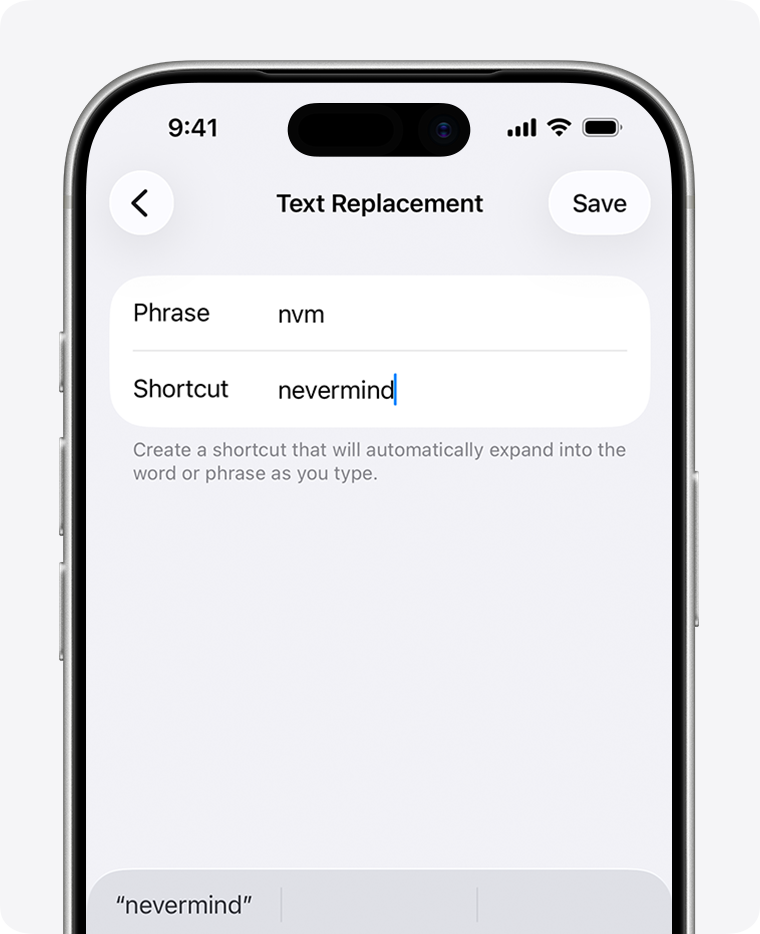
One detail people miss. The User Guide says the reset deletes all custom words and shortcuts, Text Replacement pairs included. If GM expands to Good morning and you want to keep that, write it down first and re-add after, or skip the reset and fix only the shortcut.
Why the keyboard dictionary fills with typos
Apple's own description of the feature explains the mechanism: you add words to the keyboard dictionary by rejecting words iPhone suggests as you type. Every dismissed correction teaches the phone that your spelling was intentional. Tom's Guide reported that iOS 26.4 fixed a bug where fast typing registered wrong inputs, but months of mis-typed words had already been saved as if they were deliberate. So the fix is two steps. Update first (Settings > General > Software Update; the public build as of Nov 7, 2026 is iOS 27.2), then reset. A dictionary reset does not repair a keyboard bug, and an update does not clear learned words.
Text Replacement, Auto-Correction, Predictive: check these first
If only one phrase annoys you, skip the reset. Settings > General > Keyboard > Text Replacement lists every shortcut. Tap Edit, remove the bad one, tap Done. Apple's Auto-Correction page (HT104995) covers adding and deleting these pairs.
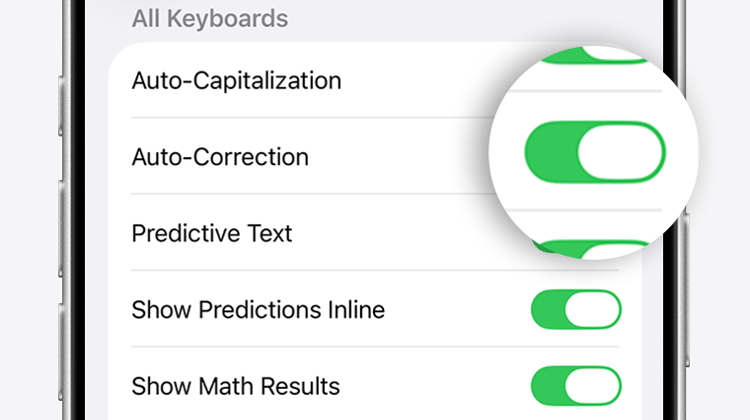
Auto-Correction sits on the same Keyboard screen. Turning it off stops the phone from changing your words. It does not erase what the dictionary learned, and those words are waiting when you turn it back on. Apple documents the reset as the only eraser.
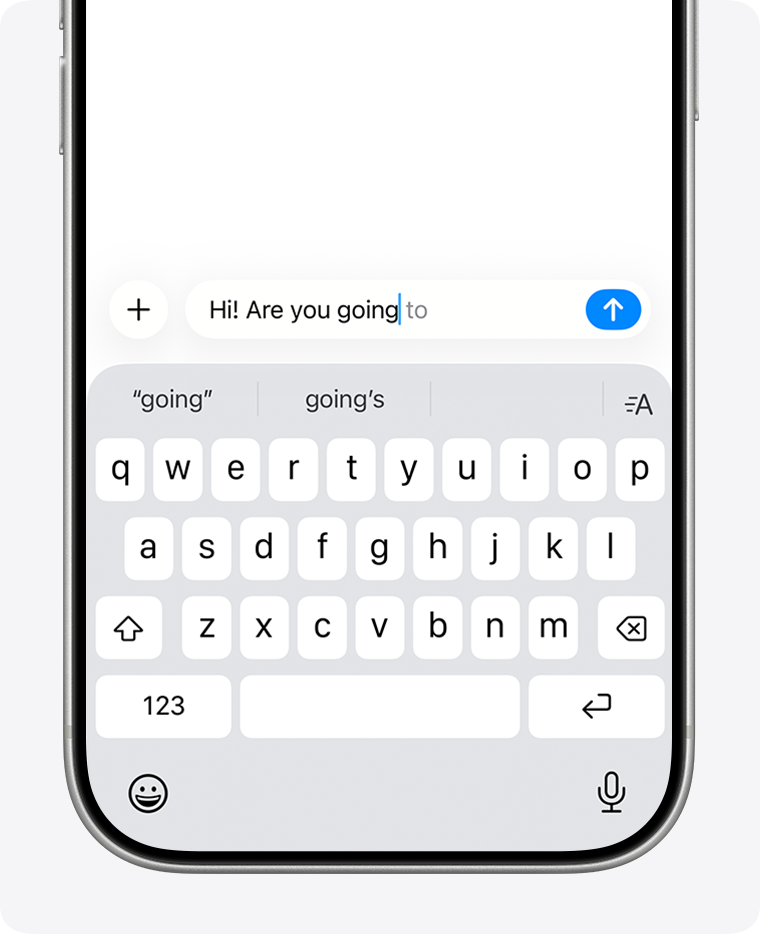
Predictive text has two switches on newer iOS. Settings > General > Keyboard > Predictive controls the suggestion bar, and Show Predictions Inline controls the gray completion text while typing. Apple notes turning Predictive Text off turns off both. Shortcut while typing: touch and hold the emoji or globe key, tap Keyboard Settings. Also look at Settings > General > Keyboard > Keyboards. A wrong language keyboard in use can look exactly like an autocorrect bug.
What the first week after a reset feels like
Autocorrect gets worse before it gets better. Nicknames, slang, unusual names are not recognized until you type them a few times, Tom's Guide notes. The dictionary then relearns from how you type. Apple says if you reject the same suggestion a few times, iPhone stops suggesting it. For another keyboard trick there is the keyboard-as-trackpad tip, and for the earlier input bug, our iOS 26.4 keyboard fix review.
Photo: Apple Support. Sources: Apple iPhone User Guide, Apple Support HT104995, Tom's Guide.