Apple TV 4K (4th generation) goes on sale in stores Friday, November 13 at $299 (U.S.), in one configuration: 128GB, model A3593. Below are 10 things worth setting up first, each checked against Apple's Newsroom, specs, and Support pages as of November 13. Two need hardware older Apple TVs do not have. Those are marked.
1. Confirm the box is Apple TV 4K (4th generation), and the $299 price
The new player carries an A19 chip, Wi-Fi 7 (802.11be, 2x2 MIMO), gigabit ethernet, Bluetooth 6, Thread, and a three-microphone array. The box carries Siri Remote (4th generation, model A3592) and a power cable, no HDMI cable. U.S. pricing is $299, or $49.83 per month for six months through Apple Card Monthly Installments at checkout (0% APR, credit approval, U.S. only). The older 64GB Wi-Fi-only model and the previous $199 and $249 prices belong to earlier generations. Apple's Newsroom announcement and specs page confirm all of this, and we covered the earlier A19 and 8GB RAM report.
2. Turn on Siri AI (beta) in Settings after tvOS 27.2
Siri AI is the new Siri powered by the next generation of Apple Intelligence, and on Apple TV it ships as a beta starting with tvOS 27.2. Go to Settings > General and switch on Siri in the Siri section. The default profile needs a paired Apple Intelligence iPhone or iPad with Siri AI on, a supported language, and current software. The home owner needs the same in the Home app. One trap: several Support pages list tvOS 27.2.1 in the requirements, but as of November 13 the release notes still show tvOS 27.2 (24K122, October 26) as current, so do not hunt for an update that has not shipped. At launch Siri AI is English only in the U.S., Australia, Canada, India, New Zealand, Singapore, South Africa, and the UK, on Apple TV 4K (2nd generation or later). Apple's Siri settings guide has the full switch list.
3. Say "Siri" or "Hey Siri" hands-free (4th generation hardware only)
Three far-field microphones with voice isolation sit in this box, with echo cancellation against the audio that is playing. In Settings > General > Siri, open Talk to Siri and pick "Siri" and "Hey Siri", or "Hey Siri" alone. Far-field support varies by region and language: the tvOS main language has to be Mandarin Chinese, Dutch, English, Finnish, French, German, Hebrew, Norwegian, or Swedish. Older Apple TV 4K units run the Siri AI software but have no built-in far-field mics.
4. Ask Siri AI for full-screen search and follow-up questions
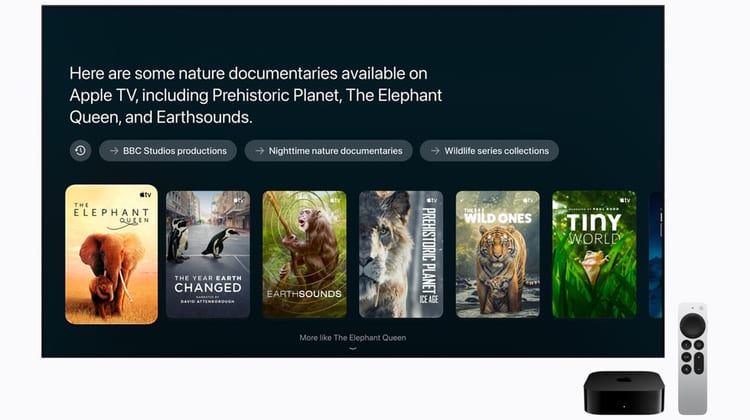
Ask "What Apple TV shows won at the Emmy Awards this year?" and Siri AI fills the screen with poster art from the Apple TV app plus suggestions like "More award-winning comedies." While something plays, follow-ups such as "Where was Pluribus filmed?" land in a small overlay so the picture keeps running. On a results page, "Tell me more about the third one" and "Only show me ones with..." keep the search going. With an Apple Intelligence iPhone on the profile, personal-context plays work too: "Play the show Alinda recommended." Reviewers have questioned answer accuracy; that is their testing, not an Apple promise.
5. Find the lost Siri Remote with Find My
If the Siri Remote (4th generation) is paired with an Apple TV 4K (3rd or 4th generation) and Siri AI is on, ask "Where's my remote?" and the remote rings. On iPhone, open Find > Devices, tap the remote, then Find; this needs iOS 27.2 or later and a sign-in as the default profile or a family member of it. Precision Finding shows direction and approximate distance only on iPhone 17 or later (not the 17e), iPhone Air, or iPhone Duo. Older iPhones and the 2nd and 3rd generation remotes get near, far, and here only, and play-a-sound is the newest remote alone. Apple's remote finding guide lists every combination.
6. Set up four-speaker HomePod surround
Apple TV 4K (4th generation) is the first to drive a four-speaker surround group. Three official mixes: four HomePod mini 2, four HomePod (2nd generation), or two HomePod (2nd generation) in front with two HomePod mini 2 behind. Put the speakers in the same room and network, then Settings > Video and Audio > Audio Output > Create Surround Group, follow the placement steps, and choose Start Tuning. The speakers detect their positions and calibrate timing and levels themselves. During playback, hold the remote for Control Center and switch Surround Sound to Whole Room Audio, adjust Spatialize Stereo, and set rear level. First-generation HomePod mini is not in this setup.

7. Add Apple TV 4K to a Home room so it works as a home hub
HomePod and HomeView become home hubs during setup. Apple TV has to join a room first: Settings > AirPlay and Home > Room, then pick or create one. Only the home owner can do this, and if the room will not stick, check Settings > Profiles & Accounts to confirm you are the default user. Remote accessory control, shared access, and automations all need a hub, and Thread Matter accessories need a Thread hub: HomePod mini, or Apple TV 4K (3rd generation or later) with the Wi-Fi + Ethernet configuration. Doorbell alerts can show on the TV, and HomeKit Secure Video gains Apple Intelligence camera descriptions only after a compatible iPhone or iPad and a qualifying iCloud+ plan are set up. HomeView's own software moved this week: HomeView Software 27.2 ships nine security fixes.
8. Personalize Memories, Slideshows, and Portraits screen savers
Hand-picked iCloud photos can play on the TV without exposing the whole library. Settings > Screen Savers > Memories & Slideshows > Select Photos, confirm on iPhone or iPad, then choose Daily Memories, Favorite Memories, Shared Albums Activity, or Collections. Portraits (Apple TV 4K 2nd generation or later) has its own Select Photos step: People, Pets, Nature, Cities, or Collections, with a Change Every interval. Apple also promises a screen saver shuffle that rotates categories, but has not published where the switch sits. Only the default profile syncs photos for screen savers.
9. Check 4K HDR and AV1 output, then turn on Enhance Dialogue
Video tops out at 2160p at 60fps, SDR or HDR, with Dolby Vision (Profile 8.1 and 5), HDR10, HDR10+, and HLG. The codec list covers AV1, VP9, HEVC, H.264, and MPEG-4, and the A19 has a dedicated AV1 decoder for lower-bandwidth streaming. HDMI Quick Media Switching smooths format changes, and 21:9 and other cinema aspect ratios work on compatible projectors and displays. 4K and HDR playback need a 4K HDR TV and your own HDMI cable. For clearer speech, turn on Enhance Dialogue under Settings > Audio Options or the playback controls. It works on TV speakers, HDMI receivers, Bluetooth including AirPods, and HomePod.
10. Make FaceTime calls on the big screen with Continuity Camera
With a compatible iPhone or iPad and Apple TV 4K (2nd generation or later) on current software, Continuity Camera carries FaceTime and photos onto the TV. Dedicated Continuity Camera keeps the iPhone connected and ready, under Settings > Remotes and Devices. tvOS 27.2 adds FaceTime links for joining calls straight from Apple TV, and calls can include third-party sign language interpretation and captioning services. Read that carefully: an in-call service, not built-in sign language translation, and a different feature from sign language interpretation in the Apple TV app.
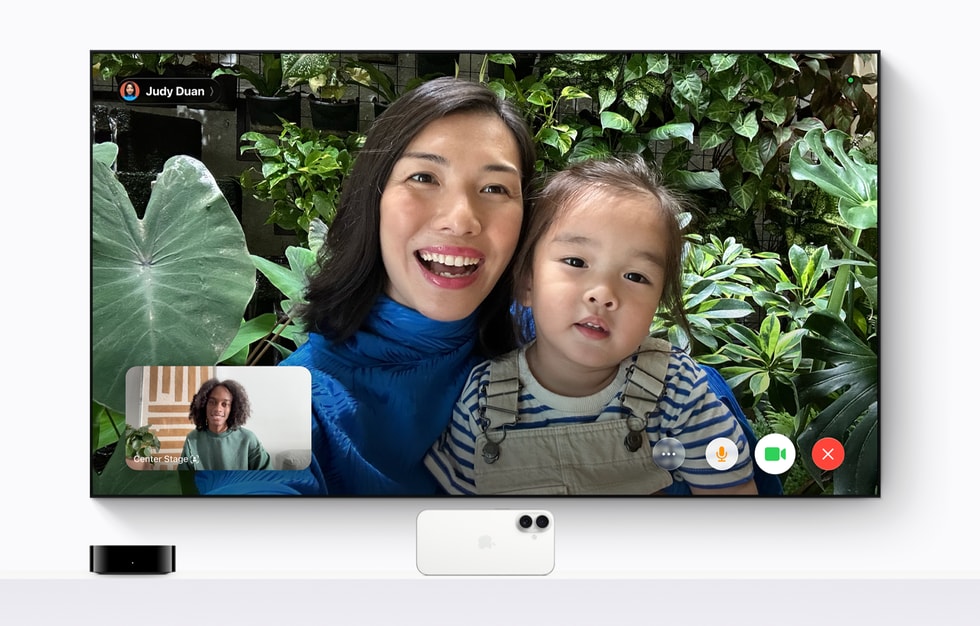
Photo: Apple. Source: Apple Newsroom, Apple Support, and the Apple TV 4K specs page, retrieved November 13, 2026.