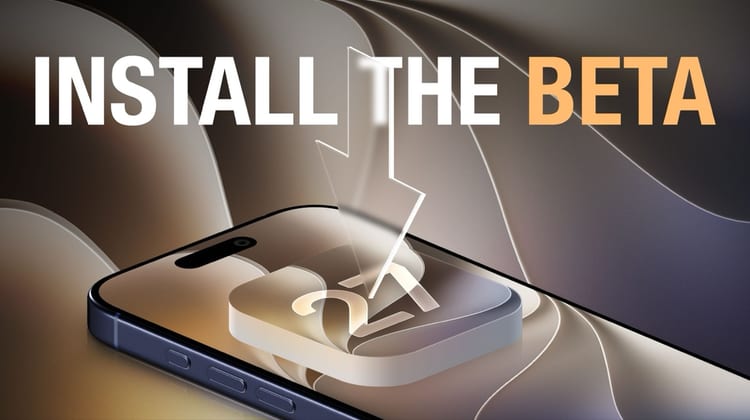
iOS 27.3 public beta 1 has been open to public testers since November 5, and MacRumors expects the final release in December. The install is one Settings screen. Everything people get wrong sits around it: the backup that decides whether you can go back, which Apple Account you enroll with, and what Beta Updates > Off does. Here is the full Settings path. What is inside the update is in our iOS 27.3 public beta overview. Developers have been on the same build since the November 3 seed, beta 1, build 24C5037i.
Make a Finder backup on a Mac first; a beta backup cannot go backwards
Apple's beta FAQ asks for a backup before installing. The strong version is a local one. Plug the iPhone into a Mac, open Finder, click the device in the sidebar, and pick the option to back up all of the data on the iPhone to this Mac. Check Encrypt local backup for Health and password data, then click Back Up Now. The backup date appears above the Manage Backups button. That copy is archived. Later backups do not overwrite it, and it is the one you restore if the beta goes wrong. iCloud is weaker here. Backups rotate, and Apple Support is blunt: any backup made while on the beta will not restore to an earlier iOS version. The recovery-mode restore later also needs a computer. Sort that before enrolling.
Sign up at beta.apple.com with the Apple Account the iPhone uses
The program is free. No fee, no compensation. Open beta.apple.com on the iPhone, sign in with an Apple Account, and accept the Beta Software Program Agreement. Use the same account that shows under Settings > [your name]. Enroll with a different one and the Public Beta row in Software Update can fail to show up at all.
Apple's own advice is to install betas only on devices that are not business critical. Listen to it. Supported iPhones start at iPhone 11 and include iPhone SE (3rd generation), per the MacRumors install guide. Not every feature rides along. Apple Intelligence parts need iPhone 15 Pro or newer, and Health Age draws on Apple Watch data. For what to open first, see the redesigned Health features to try.
The Beta Updates picker: select iOS 27 Public Beta, then install from Software Update
- Open Settings > General > Software Update and let the check finish.
- Tap Beta Updates, then select iOS 27 Public Beta. The developer track is a separate row. Do not pick it unless you meant to.
- Tap Back and wait for Software Update to offer iOS 27.3.
- Tap Download and Install (it may read Update Now), enter the passcode, agree to the terms, keep the iPhone on Wi-Fi and charging.
Missing the Beta Updates row? MacRumors documents the fix: Settings > General > Software Update > Automatic Updates, turn off Download iOS Updates, tap Back, reopen Software Update. The row should appear. Already on the public beta track? None of this applies. iOS 27.3 turns up in Software Update directly.
Beta Updates > Off stops future betas; it does not remove the one you installed
Leaving the beta queue is one tap: Settings > General > Software Update > Beta Updates > Off. That is all it does. The beta stays on the iPhone, and the next shipping release installs from Software Update when Apple ships it.
Going back to shipping iOS 27.2 before then takes the long road. Apple Support documents it: put the iPhone in recovery mode, click Restore on the computer to erase it and install the current non-beta iOS, then set up from the archived backup you made before the beta. A beta-era backup will not restore onto the older build. This is the mistake that strands people: skip the pre-beta Finder backup and the only way off the beta is a clean install.
Apple wants the bugs too. Feedback Assistant ships inside the beta and opens from the Home Screen.
Photo: MacRumors (featured), Apple (inline). Source: MacRumors, 9to5Mac, Apple Support, Apple Beta Software Program.