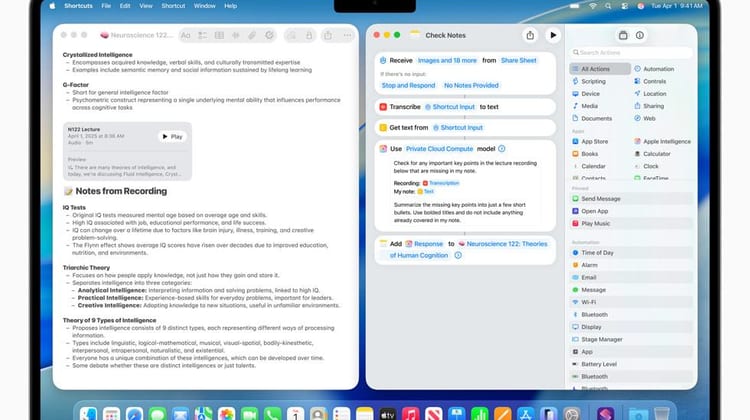
Shortcuts on the Mac has an action called Use Model. It sends a prompt to an Apple Intelligence model or ChatGPT and hands the answer to the next action. On Apple's Shortcuts User Guide page for macOS 27, the action now lists four model choices. The steps below follow that guide page.
Apple Intelligence has to be turned on first, and the Mac must support it. The on-device model also uses local disk space. We showed where to check that in Apple Intelligence model storage in System Settings.
Four models in the Use Model action
The guide lists them like this.
- On-Device. The Apple Intelligence model on the Mac itself. No network connection is needed. Apple calls it ideal for straightforward requests or simple conversions.
- Cloud. Apple's Private Cloud Compute, for complex requests "while protecting your privacy," the page says.
- Cloud Pro. Also Private Cloud Compute. It has extended context and is meant for larger tasks than Cloud.
- Extension Model. This one is ChatGPT.
Only On-Device keeps the prompt on the Mac. The other three send the request out. For ChatGPT, the extension setup is the same one we covered in turn on ChatGPT with Apple Intelligence on macOS 27.
The WWDC25 screenshot at the top still reads "Use Private Cloud Compute model." The macOS 27 guide says Cloud and Cloud Pro.
Build Apple's weather test shortcut
Apple gives a small example with only three actions.
- Open the Shortcuts app and click the plus button in the toolbar to start a new shortcut.
- Search for Get Current Weather and double-click it. If Shortcuts asks for your location, click Allow Access.
- Search for Use Model, double-click it, then choose On-Device.
- In the text field below "Use model," type a prompt. Apple's sample is "Write a concise, funny summary of today's weather with emoji."
- Search for Show Content, double-click it, then select Response.
- Click the Run button to test.
There is no save step. The shortcut is saved automatically. Ready-made examples sit in Gallery, in the sidebar, under the Apple Intelligence category.
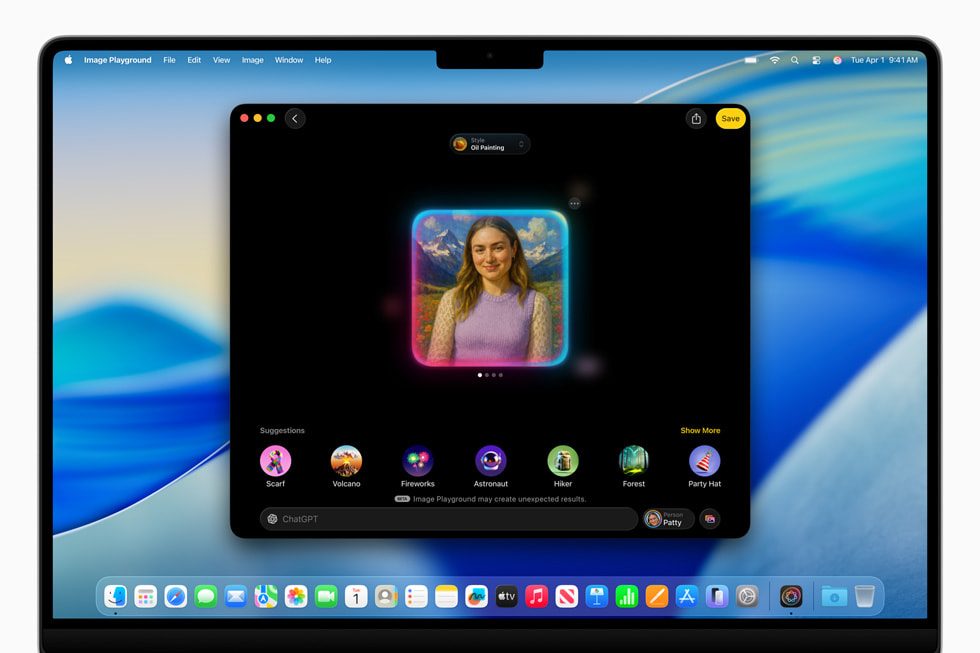
Photo: Apple
Follow Up, input and Output
Apple says the prompt can include variables, outputs from earlier actions, calendar events, reminders and photos.
To turn on Follow Up, click the arrow next to "Use model," then select the Follow Up checkbox. When the shortcut runs, it shows the model's response first. You can ask for changes before the final response moves to the next action.
Apple says responses are optimized for the action they pass to. To force a format, click the Output pop-up menu in the Use Model action and choose one.
Cloud and Cloud Pro have one more setting, Broad World Knowledge. Apple says it adds current events and real-world context. Choose Cloud or Cloud Pro in the action and turn on use Broad World Knowledge in its options. On-Device does not have it.
Daily limits on the Cloud models
The footnote on the same page matters. Apple says server-side Apple Intelligence features have daily usage limits, and it names "AFM 3 Cloud models in Shortcuts" in that list. Limits can vary by feature, request complexity and system demand. Apple says expanded access will come for a fee in the future. No price is on the page.
So a shortcut that runs many times a day is better on On-Device when the job is short. For longer text, Cloud Pro is the choice Apple points to. The Writing Tools menu still covers one-off proofreading without building anything.
Language is the other check. Apple Intelligence needs the Siri and device language set to a supported one. The page lists 16 languages, among them English, Japanese, Korean and both Simplified and Traditional Chinese. Some features are not in every region.
For an open-weight model with no Apple servers and no quota, see our guide to run a local LLM on Apple silicon with Ollama.
Photo: Apple Newsroom (macOS Tahoe 26 announcement, June 2025)
Source: Apple Shortcuts User Guide for Mac, "Use Apple Intelligence in Shortcuts on Mac"; Apple Support, "What's new in Shortcuts for iOS, iPadOS, macOS, watchOS, and visionOS 26"