One of the quickest “trackpad conversions” doesn’t involve buying anything new: on an iPhone, you can repurpose the keyboard itself to move the text cursor and select text—using a long-press on Space and finger movement to position the caret. That’s effectively a precision pointing device built into the UI, not the hardware.
What “keyboard as a trackpad” really means (and what it doesn’t)
There are two very different ideas people lump together under “turn keyboard into trackpad.” The first is software cursor control—the keyboard area becomes a surface where gestures translate into caret movement and selection. The second is device-sharing—your physical keyboard and pointer (mouse/trackpad) are used to control another device’s screen, making an iPad feel like it’s part of the same workspace.
The iPhone approach is the purest example of keyboard-as-trackpad: you’re not turning keys into sensing hardware; you’re triggering a cursor-movement mode where your finger position in the keyboard region maps to text editing behavior. By contrast, Apple’s Universal Control is about using a Mac’s input to control an iPad “as if they were one setup,” combining the Mac’s keyboard with its mouse/trackpad (or equivalent pointer) to control the iPad’s interface.
iPhone: using the keyboard as a hidden trackpad for text editing
The practical recipe is surprisingly specific. You long-press the Space Bar to activate cursor-movement mode. Once that mode is on, you move your finger to reposition the text caret; selection follows the same idea—your touch gestures replace the need to tap precisely on a small caret handle.
The big advantage is not just convenience; it changes how you edit. On an iPhone, dragging the caret can be fiddly because small UI elements don’t always line up with your thumb’s precision. Cursor-movement mode effectively gives you relative control over the editing point: your finger motion becomes a navigational instrument, which makes tasks like correcting a typo in a long sentence or jumping between words faster than repeated taps.
A common failure mode is forgetting you entered cursor-movement mode and then tapping keys expecting normal typing. Treat it like a “mode switch”: when you’re done moving/selecting, lift and return to typing. If you find yourself accidentally entering the mode, adjust your thumb placement on the Space Bar—long-press requires sustained contact.
iPad with an external keyboard + trackpad: when hardware input becomes the editing interface
If you want the most “trackpad-like” experience on an iPad, the cleanest path is using an external iPad keyboard that includes a built-in trackpad. The benefit is straightforward: your hand posture stays stable, and you get true trackpad gestures—like scrolling and right-click—instead of relying on mode-based cursor control.
There’s also a workflow difference. Cursor-movement mode on iPhone is optimized for text editing. A keyboard with a trackpad changes the scope to full navigation: selecting UI elements, scrolling through documents, and clicking context menus become repeatable muscle-memory actions. That matters when you’re working in spreadsheets, PDFs, or long email threads where precision selection and fast scrolling are the difference between “editing” and “reworking.”
When choosing an iPad keyboard with a trackpad, focus on three practical criteria: gesture reliability (scroll behavior should feel consistent), right-click support (especially for context menus), and layout ergonomics (trackpad placement relative to the keys impacts how quickly you can move from typing to navigation). A trackpad that’s too small or awkwardly positioned often forces you back into tapping—undoing the point of the upgrade.
Mac + iPad: turning one setup into the “trackpad” layer for both devices
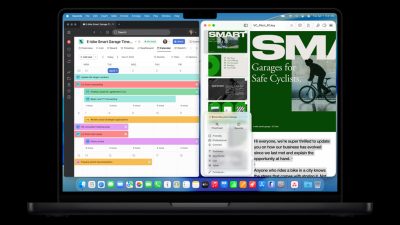
Universal Control is the closest thing to a true, cross-device keyboard+pointer conversion. With it, you use a Mac’s keyboard and mouse/trackpad to control an iPad as if they were one combined workspace—moving the pointer across devices and dragging items between them, while also typing with the shared keyboard.
The key insight is that Universal Control doesn’t just “send clicks.” It creates a continuity layer for interaction. That means editing on the iPad can feel like editing on a single screen: you drag content, reposition UI elements, and type without switching input methods or re-learning selection behavior. For many people, that continuity is what feels like “my keyboard became a trackpad”—because the pointer and selection mechanics are now governed by the most capable input device in your setup.
If you’re deciding between Universal Control and a hardware trackpad keyboard, consider what your work actually demands. Universal Control shines when you bounce between macOS and iPadOS repeatedly—copying text, dragging files, and editing content in both environments. A trackpad-equipped keyboard shines when you want iPad-only mobility with consistent gesture behavior and minimal dependence on a Mac.
Actionable takeaways (and a forward-looking way to think about input)
Start with the smallest change that solves your pain. If your main frustration is text cursor positioning on iPhone, use the long-press Space Bar cursor-movement mode and treat it as a precision tool for selection. If you’re working on iPad for longer sessions—documents, spreadsheets, or anything with lots of UI selection—prioritize an external keyboard with a real trackpad so scrolling and right-click behave like you expect. And if your workflow spans Mac and iPad, set up Universal Control so your Mac’s keyboard and mouse/trackpad effectively become the “control surface” for both screens.
The larger trend here is that “trackpad capability” is increasingly software-defined. Whether it’s a mode inside the iPhone keyboard or a cross-device continuity feature on macOS, the direction is clear: interaction surfaces are becoming dynamic—less about what the hardware is named, more about what the system can translate your gestures into.