Apple’s “hidden” iPhone features aren’t just obscure Easter eggs—they’re increasingly where the real control goes. The clearest example is iOS 26.4, which—according to reporting—adds two concealed controls to dial back the intensity of Liquid Glass effects, letting some users reduce both bright visual effects and motion changes without switching their entire experience off.
That trend matters: Apple is gradually moving from “wow-factor visuals” to “user-tunable intensity,” and it’s doing it through settings that many people never discover. Even super-users, one major roundup claims, don’t know all of the 30 lesser-known iPhone tips it collected—especially the ones tied to accessibility, privacy, and productivity workflows. In practice, the most valuable hidden features tend to fall into the same buckets: comfort controls, privacy leverage, and speed shortcuts.
1) The “hidden” comfort controls: when visuals and motion get too much
Liquid Glass has been a signature aesthetic on newer iOS hardware, but the downside of any expressive UI is fatigue—especially if you’re sensitive to motion, bright animations, or both. iOS 26.4 reportedly answers this with two buried settings designed to soften the experience: one to reduce bright effects, and another to adjust motion changes.
The power here isn’t merely cosmetic. Brightness and motion intensity can affect how quickly you read UI elements, how often you reach for “Reduce Motion”-style accessibility options, and whether you feel confident using the device for longer sessions (commutes, work blocks, evening scrolling). Hidden controls like these are best understood as a “middle layer” between full accessibility toggles and default settings—fine-grain control without the binary on/off experience.
What you should do: treat iOS updates like feature audits. In the days after installing iOS 26.4, go to Settings and actively search for visual/motion terms you might normally ignore. Apple’s naming isn’t always obvious because these aren’t marketing features—they’re tuned for comfort, so they’re likely to be worded like preferences rather than brand statements.
2) Privacy and accessibility moves you can actually feel day-to-day
Most “hidden feature” lists focus on clever gestures or obscure menus. But the better ones quietly improve how safe and accessible your phone feels in real use. A roundup built around 30 hidden iPhone features for Apple’s 50th anniversary frames many of its picks around accessibility, privacy, and productivity—categories that only matter when you need them.
Think about how privacy features actually show up: in whether apps can keep acting after you’ve moved on, whether your interactions are visible across contexts, and whether permissions feel predictable. Hidden controls often exist to clarify those boundaries—like turning off unneeded tracking behavior, tightening what data can be read, or changing how system prompts behave.
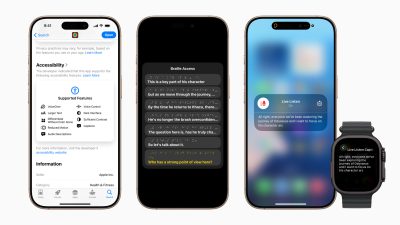
Accessibility features can be equally “invisible” until you need them. Many users rely on the same two toggles repeatedly (like increasing text size or reducing motion), but hidden accessibility settings typically target second-order annoyances: how notifications interrupt you, how quickly you can navigate, or how confidently you can use the phone in low-vision or noisy environments. The “best” hidden accessibility controls aren’t the flashiest—they’re the ones that reduce friction so you don’t have to change your behavior.
What you should do: run a permission reality check. After every major iOS release, review recent permissions and notification access—not once, but in two passes. First pass: remove anything you didn’t explicitly use in the last month. Second pass: look for features that affect behavior (background activity, notification delivery style, or access scope). Hidden settings are often written in a way that assumes you’ll only find them when you’re already annoyed—so preempt that.
3) Productivity and “micro-automation” hidden behind plain menus
“Hidden” productivity features tend to be less about secret buttons and more about workflow engineering—small changes that shave seconds until they become a new habit. A listicle claiming to deliver 10+ hidden features in iOS 26 highlights that many capabilities are “brief explained,” which is a useful clue: Apple isn’t hiding them to make them mysterious, but because they’re buried in sections people don’t revisit after setup.
Another guide geared for day-to-day usefulness—positioned as “hidden iPhone features you’ll actually use every day” in the iOS 26.4 era—leans toward practical picks rather than novelty. That’s the key: the best hidden features aren’t the ones you show friends. They’re the ones you return to because they reduce context switching.
Even when a feature sounds small, its compounding effect is real. Consider how often people retype tasks, re-check settings, or juggle multiple accounts. Hidden productivity controls—especially those around quick access, notification management, and system-level automation—can make your phone feel less like a collection of apps and more like a single tool that adapts to you.
What you should do: identify one repetitive action you do daily (e.g., checking messages, starting a call, capturing notes, switching focus modes). Then search Settings for related keywords and look for anything that changes behavior automatically (timing, defaults, permissions, or routing). The goal is not to find “cool.” The goal is to remove the step you’re currently doing out of habit.
4) The “hidden” AI direction: Siri integrations that could reshape the ecosystem
Not all hidden features are about comfort or privacy. Some are about who controls the brain. A report about iOS 27 suggests Siri “extensions” could allow Siri to integrate with other AI chatbots installed from the App Store—specifically framing potential support for tools from Google Gemini and Claude.
If that plays out, it changes the hidden structure of Siri: instead of being a single baked-in assistant, Siri becomes a coordinator that can delegate to multiple models. That matters because different models excel at different tasks—coding, summarization, long-form reasoning, or creative generation. A “Siri extension” model could let you keep your everyday Siri muscle memory while changing the underlying intelligence.
Here’s the practical implication: users won’t just gain features; they’ll gain routing control. You’d be able to decide which assistant handles which class of request, potentially reducing hallucinations and improving reliability by choosing the best-fit tool for the job. The risk, of course, is complexity—permissioning, data handling, and UI clarity become harder when multiple AI providers are involved.
What you should do now: don’t wait for iOS 27 to start thinking about how you want AI to behave on your phone. Decide which tasks you trust Siri with today (navigation, reminders, quick summaries) and which tasks you currently avoid because of accuracy concerns. When integrations arrive, you’ll want to map “task type → assistant choice” rather than letting the default behavior decide for you.
Key takeaways: how to find hidden features without becoming a tinkerer
Hidden iPhone features in 2026 are increasingly about control: softer visuals via iOS 26.4 comfort settings, tighter daily privacy and accessibility behaviors, and productivity improvements buried in menus you only check once. Separately, the reported direction toward Siri extensions in iOS 27 hints that the “hidden” future may be less about knobs and more about which intelligence your assistant can access.
Action plan: after your next iOS update, search Settings for terms tied to what affects your life (motion, notifications, permissions, accessibility). Then test one hidden comfort or workflow tweak for a full week—because the real measure of a “hidden feature” isn’t discovery; it’s whether it changes how the phone feels when you’re busy.