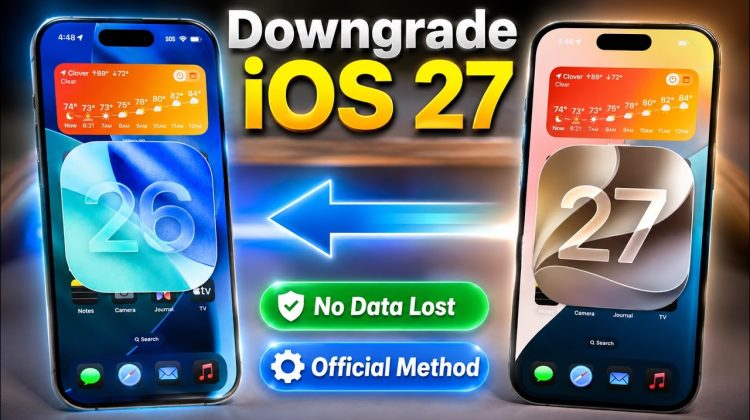
Downgrade iOS 27 to iOS 26 without losing data using the official Apple-supported restore method. In this step-by-step guide, you’ll learn how to safely remove the iOS 27 beta, restore your iPhone to the current public iOS version, and recover your data using an archived backup. Perfect for iPhone users dealing with beta bugs, battery drain, app crashes, or performance issues after updating to iOS 27.
Before you start, make sure you have a proper backup, because Apple’s official beta removal process requires erasing and restoring the device, then setting it up from a backup when available. Apple also explains that iPhone data can be restored from iCloud backup during setup.
Watch till the end to avoid common downgrade mistakes and protect your photos, apps, messages, and settings.
📌iTunes : https://www.apple.com/itunes/
📌IPSW iOS 26 : https://ipsw.me/
📌If iTunes is installed from Apple Website :
%appdata%Apple ComputerMobileSync
📌If iTunes is installed from Microsoft Store :
%USERPROFILE%AppleMobileSync
00:00 Intro — Why Downgrade iOS 27 to iOS 26.5
00:35 Turn Off Find My iPhone First
01:00 Download Official iTunes for Windows
01:31 Connect iPhone to iTunes
01:54 Back Up Your iPhone Data Using iTunes
02:29 Downgrade iOS 27 to iOS 26
02:49 Download IPSW iOS 26
04:02 Restore
04:49 iPhone Restore Process
05:15 Choose Transfer Apps & Data From PC
05:40 Fix “Backup Cannot Be Restored Because iPhone Software Is Too Old”
06:07 Edit Info.plist Product Version to iOS 26.5
07:20 Reopen iTunes & Restore Backup
07:43 Wait for iPhone Restore Progress
08:04 Final Setup & Data Sync
08:17 Success Downgrade iOS 27 to iOS 26 Without Losing Data
💬Join Free iSolution Discussion : https://t.me/isolutional
*Disclaimer : This video is intended for education and knowledge.
Join this channel to get access to live support :
https://www.youtube.com/channel/UCKkwP91xNE4jfdvN8k-CDhg/join
if you have any question, please leave your comment below.
Email : royjunaidi@icloud.com
instagram : instagram.com/royjunaidi
#ios27
#ios26
#downgrade