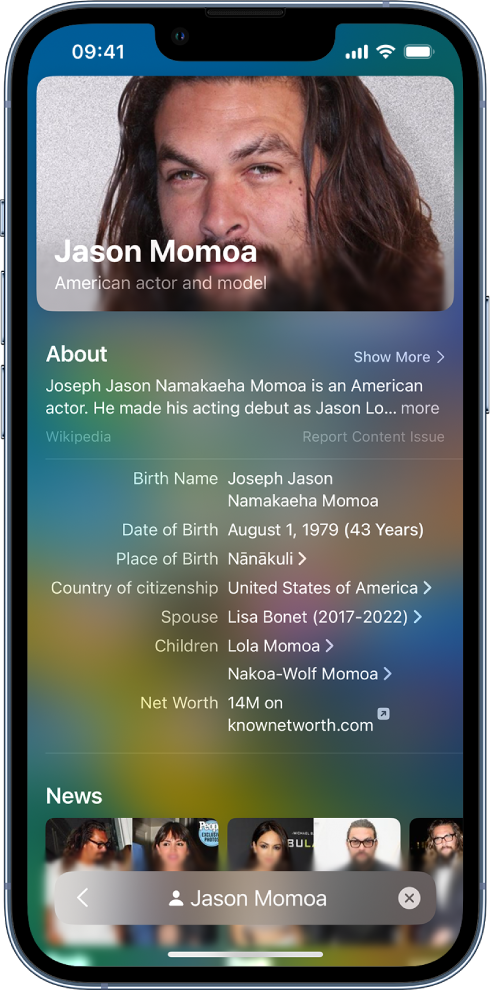
When using the iPhone, it is necessary to know the powerful “Search” function. Users can swipe down on the home screen or lock screen to open the search function. In iOS 16 and newer versions, it also supports the display at the bottom of the home screen , just tap to get started.
With the iPhone’s search function, users can easily search for application and contact information, as well as search for content in apps such as “Mail”, “Messages” and “Photos”, and even use “Live Text” to search for text in photos. You can also look up stock and currency information, and perform calculations, including unit conversions. Support for finding and opening web pages, opening apps, and finding images in your photo library, across your system, and on the web. Search returns rich results in a full scrolling window, including contacts, musicians, actors, TV shows, movies, businesses, and sports leagues and teams.
If you need to hide the search button on the home screen to avoid turning on this function by mistake, you can turn off “Show on home screen” under Search in the iPhone Settings-Home screen.
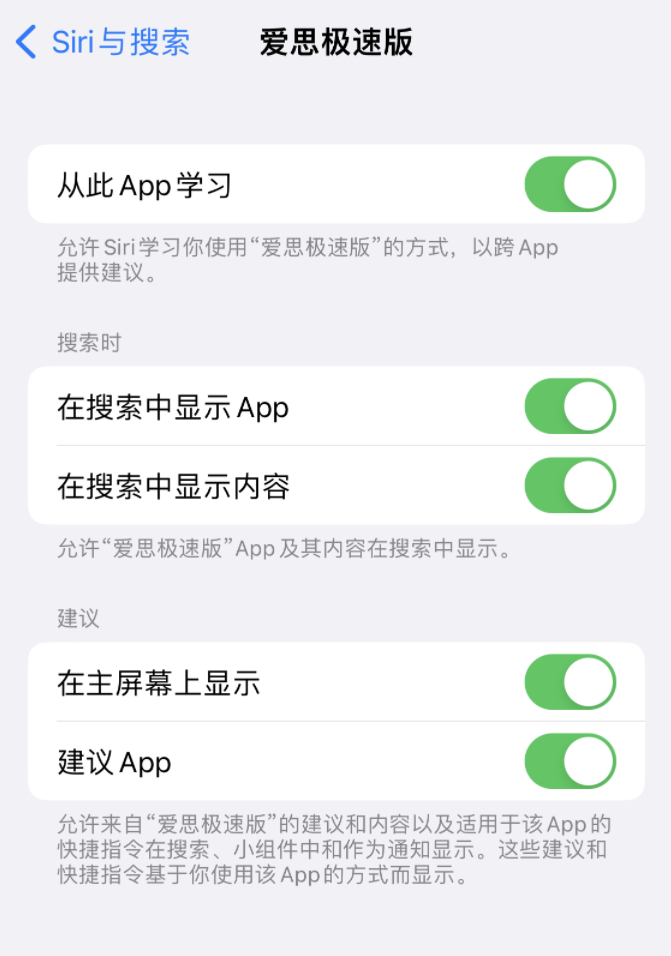
In order to make the search function on the iPhone more useful, you can make the following settings:
Choose apps to include in Search
1. Go to “Settings” – “Siri & Search”.
2. Scroll down, tap the app, then toggle “Show Apps in Search” on or off.
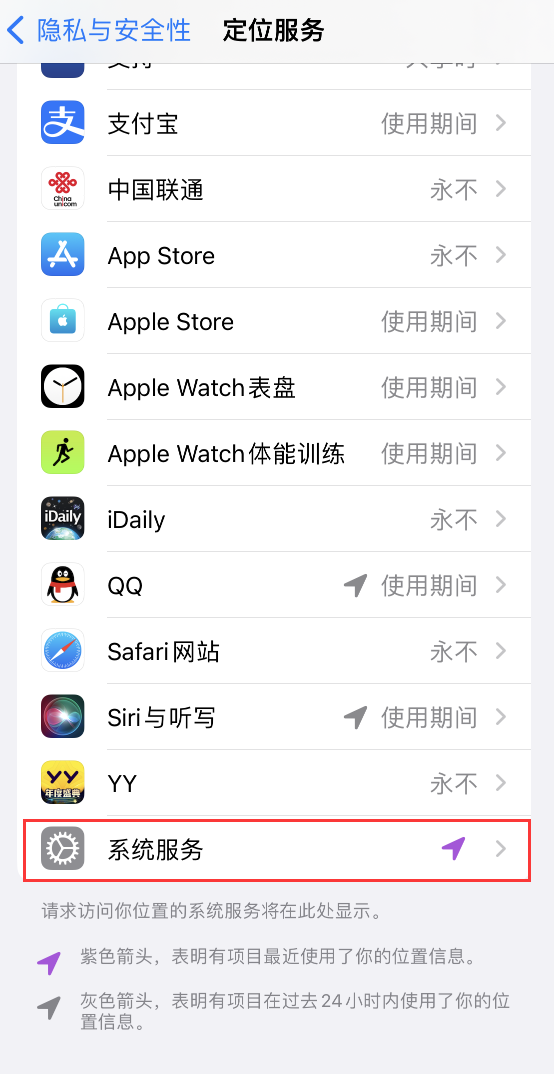
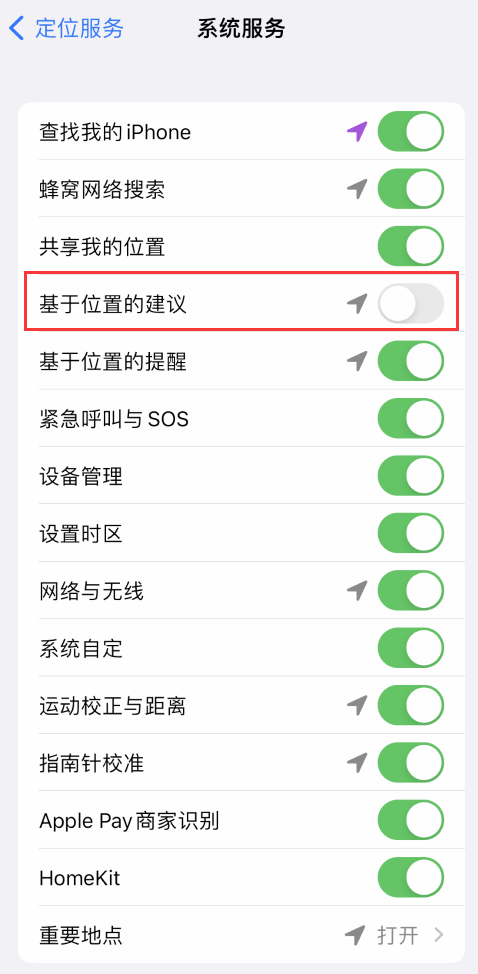
To turn off location-based suggestions if desired
1. Go to “Settings” – “Privacy and Security” – “Location Services”.
2. Tap “System Services”, then turn off “Location Based Suggestions”.
add dictionary
On iPhone, you can add dictionaries to use in searches.
1. Go to “Settings” – “General” – “Dictionary”.
2. Select a dictionary.

Search in App
Many of the apps that come with the iPhone have a search bar or button to help you find content within the app. For example, the Maps app lets you search for a specific location. Notes supports searching for content that contains text.
1. In the App, tap the search bar or the magnifying glass icon. If you don’t see the search bar or button, swipe down from the top.
2. Type your search content, then tap “Search”.