A UK tribunal ruled on November 19 that the Home Office must admit it sent Apple a secret Technical Capability Notice about iCloud data. The ruling is procedural. It did not bring Advanced Data Protection back for new UK users, and the legality of the order is still undecided. What you can do now is check your own account. Below are 10 iCloud privacy settings from Apple's own support documents, with exact menu paths.
1. Review Apple's iCloud data security overview
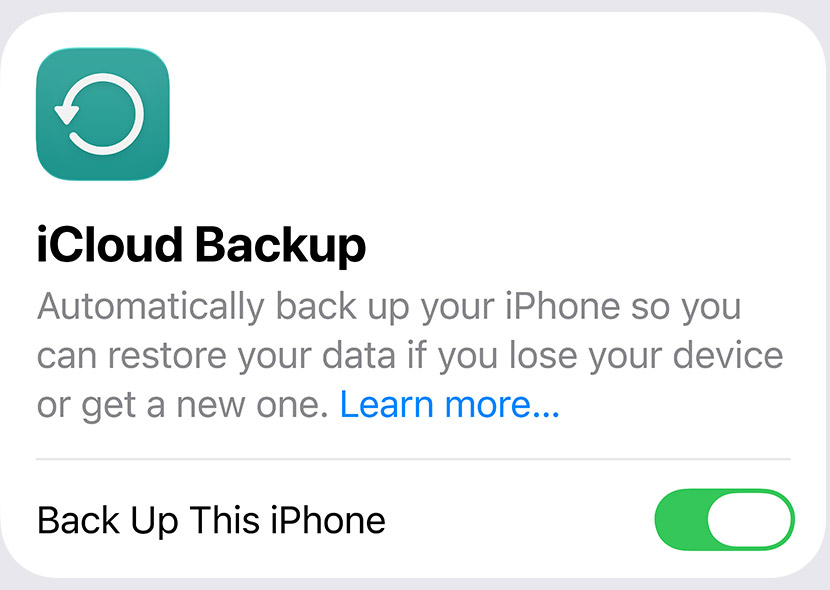
Apple's iCloud data security overview starts with the default: standard data protection encrypts data in transit and on Apple's servers, with keys kept in Apple data centers so an account can be recovered. 15 categories are end-to-end encrypted even at this level, including Health and passwords in iCloud Keychain. Advanced Data Protection is the optional upgrade, extending end-to-end encryption to 25 categories such as iCloud Backup, Photos and Notes. Backup failures are a separate problem, and our iCloud Backup failed or not enough storage fix covers them.
2. Check whether Advanced Data Protection is available in your country
Availability comes before setup. Apple's UK notice says UK customers can no longer turn on Advanced Data Protection, and repeats that Apple has never built a backdoor or master key to any product or service. New UK users lost the switch in February 2025, and the November 19 ruling did not restore it. Apple says the feature continues to be available everywhere else in the world.
3. Turn on Advanced Data Protection on iPhone or Mac
If your region still offers it, the switch is under Settings > [your name] > iCloud > Advanced Data Protection. Tap Turn On Advanced Data Protection and the setup guide walks you through the checks: two-factor authentication, a device passcode, and iOS 16.2, iPadOS 16.2 or macOS 13.1 or later on every signed-in device. A recovery contact or recovery key must be in place before the switch unlocks. Turning it on for one device covers the whole account, and iCloud.com web access goes off by default.
4. Add up to five recovery contacts
Advanced Data Protection depends on you holding the keys, so Apple asks for a way back in first. A recovery contact is a person who can get you a recovery code when you are locked out. They cannot open your account or read your data, and Apple does not know who your contacts are. You can add up to five under Settings > [your name] > Sign-In & Security > Recovery Contacts.
5. Set a recovery key and treat it like a password
The other option is a recovery key, a 28-character code used with a trusted phone number and an Apple device. Apple's warning is blunt: setting a key turns off the standard account recovery process, and if you lose access to the account without the key, you are locked out permanently. Print it or write it down, keep copies in more than one place, and never store it in iCloud itself.
6. Turn on two-factor authentication
Two-factor authentication is the base layer, and Advanced Data Protection will not turn on without it. Signing in on a new device takes your account password plus a six-digit code shown on a trusted device or sent to a trusted phone number. Turn it on under Settings > [your name] > Sign-In & Security. Accounts created with two-factor cannot remove it later.
7. Turn off iCloud.com web access
Web access decides what shows up when you sign in at iCloud.com. On iOS 16.2, iPadOS 16.2 or macOS 13.1 and later, turn it off under Settings > [your name] > iCloud > iCloud.com. Advanced Data Protection turns it off by default. If you switch it back on, every new data category on iCloud.com needs approval from a trusted device first, and iCloud Keychain passwords and Health data never appear there at all.
8. Turn on iCloud Private Relay in Safari
Private Relay is an iCloud+ feature, and it does not encrypt backups. Apple's Private Relay page says Safari requests pass through two separate relays, so no single party, Apple included, sees both who you are and which sites you visit. It is not available in all countries or regions, and it only covers Safari traffic. On the current beta there is also the Global Privacy Control setting iOS 27.3 adds to Safari.
9. Use Hide My Email for signups
Hide My Email is the second iCloud+ tool on this list. It generates random addresses that forward to your inbox, so a store or newsletter never sees your real one. Manage every address under Settings > [your name] > iCloud > Hide My Email. When you use Sign in with Apple, hidden addresses end in @private.icloud.com or @privaterelay.appleid.com, and Apple says it does not read relayed mail.
10. Turn on iCloud Keychain sync
Passwords in iCloud Keychain are end-to-end encrypted with or without Advanced Data Protection, and Apple's UK notice confirms the withdrawal does not touch this category. On iPhone, turn on sync under Settings > [your name] > iCloud > Passwords, then tap Sync this iPhone. It needs two-factor authentication and current software. Keychain then fills in passwords, passkeys and Wi-Fi logins across your approved devices, and shared password groups work on iOS 17 and macOS Sonoma or later.
Photo: Apple. Source: Apple Support 102651, 122234, 108756, 102641, 109345, 102660, 102630, 102602, 105078 and 109016, plus MacRumors for the February 2025 timeline.