The juice jacking story of the week is a power bank. A post claiming a $19 power bank at a Guangzhou airport copied an iPhone's data after the owner tapped Trust drew about 2.2 million views, and a trending thread followed. The claim is not verified. Replies and community notes call the attached Claude Code dump staged, and no Apple statement confirms the incident. What is confirmed is the fix behind it. Apple documents exactly which prompt to refuse and which setting closes the data channel on public chargers.
The Guangzhou airport power bank claim stays unverified
X's trending feed picked up the claim on November 6. The seed post from 0xGoldTooth showed a Claude Code session that the poster said captured iPhone data from a cheap airport power bank. Multiple replies called the dump staged, and Apple's support library contains no reference to the case. Treat the incident as a claim, not a confirmed attack. The prompt it describes is real, though, and Apple explains what that prompt does.
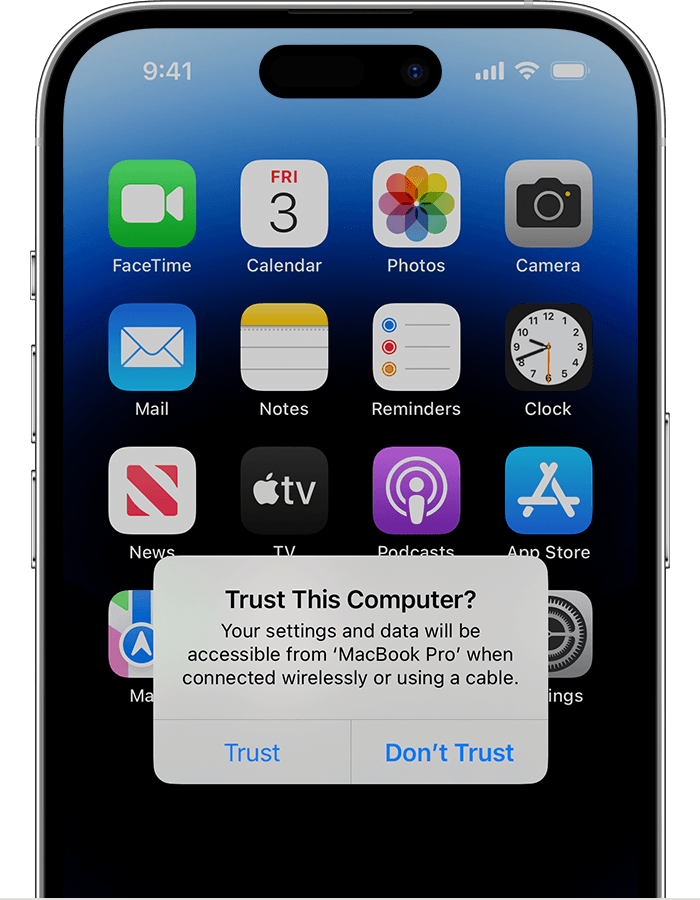
Tap Don't Trust on the alert, then unplug
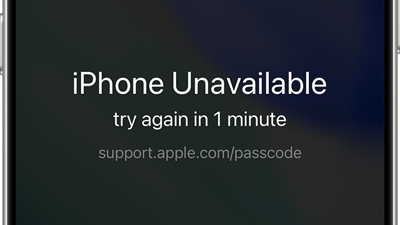
When an iPhone connects to a computer or another device for the first time, an alert asks whether to trust it. Apple's Trust This Computer alert page lists what trust grants: a trusted computer can sync with the phone and read photos, videos, contacts, and other content. Tap Don't Trust and that access is blocked. The alert simply returns on every later connection.
Charging does not need trust. Apple states the device charges as usual from a USB power adapter even when accessory data is blocked. If you already tapped Trust on a charger you do not trust, there is no one-tap revoke for that accessory. Reset Location & Privacy (Settings > General > Transfer or Reset [device] > Reset > Reset Location & Privacy) forgets every trusted computer at once.
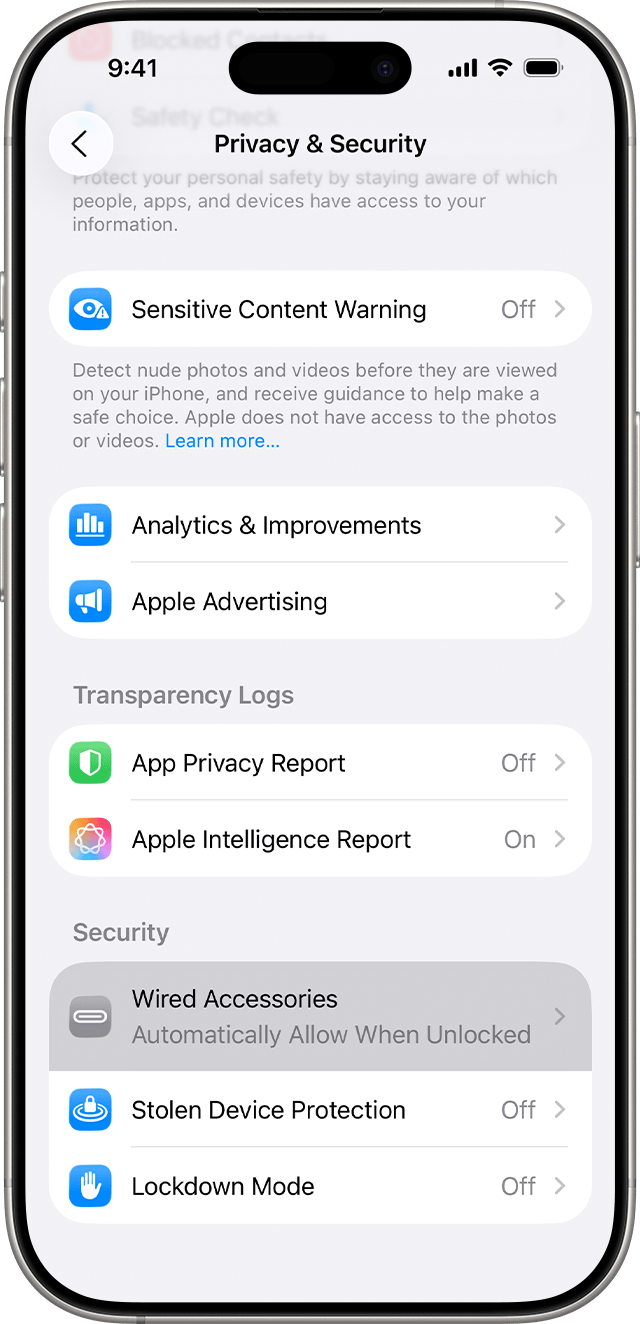
Wired Accessories is the setting that asks first
On USB-C iPhones and iPads, open Settings > Privacy & Security, scroll to Security, then tap Wired Accessories. Apple's Wired Accessories support page (published October 23, 2025) lists four choices: Always Ask approves every accessory every time, Ask for New Accessories approves a new one only on first connect, Automatically Allow When Unlocked is the default, and Always Allow approves everything. For travel, Ask for New Accessories or Always Ask is the safer pair.
Lightning iPhones get fewer options. Apple's table lists only Automatically Allow When Unlocked (default) and Always Allow for the Lightning connector, so those owners lean on the unlock rule below. Storage accessories always require an unlock before use, whatever the setting.
What the one-hour lock rule already blocks
Apple's platform security guide on data connections adds a second layer. If more than an hour has passed since the iPhone locked or since an accessory's data connection ended, no new data connection is established until the device is unlocked. Accessories that connected before while unlocked stay remembered for 30 days. An unknown accessory that tries to open a data connection during that window inactivates accessory data connections until unlock. A locked iPhone sitting through a long airport wait is already a hard target. The Wired Accessories setting decides what happens when the unlocked phone is in your hand.
For the next trip: wall power and your own cable
The boring defense is the cheap one. Put the official adapter into an AC wall outlet, or carry your own power bank. If only a public USB port is available, a charge-only cable (a data blocker) leaves no data pins for the port to use. None of these products carry an Apple endorsement. Set Wired Accessories to ask before the trip and a suspicious prompt becomes your alarm. For a wet port instead of a shady one, see the Liquid Detected alert fix that blocks charging. If the computer side is where trust went wrong, our earlier USB trust fix covers a Mac that does not recognize the iPhone, and the security settings checklist after an Apple threat notification is the wider sweep.
Photo: Apple (iPhone lineup, Trust This Computer alert, Wired Accessories settings). Source: Apple Support HT202778, Apple Support HT111806, Apple Platform Security guide.