
![[Practical Teaching]128GB/256GB must-see!](https://iphonewired.pages.dev/wp-content/uploads/2026/05/1779847614825_edit_6654172264069-800x500_c.jpg)
When everyone uses their mobile phones, they are most afraid of seeing the “insufficient storage space” warning pop-up. Especially for users with 128GB or 256GB capacity, even if they do not download large games, the space will be completely swallowed up without realizing it. In fact, the real “food capacity monster” is often the communication software you use every day and the photos you take over the years. This time I will teach you three simple steps to perform a deep “spring cleaning” on your phone, thoroughly clean up the hidden cache junk of WhatsApp and WeChat, and make good use of cloud backup to easily free up dozens of GB of space!
The first trick: WhatsApp deep slimming method
WhatsApp is filled with pictures of elders, funny short videos and recordings from various groups, which will silently occupy the phone’s capacity. Simply deleting conversations won’t solve the problem; you need to target large files.
1. Find and delete large hidden files
WhatsApp has built-in very useful storage space management tools, which can see at a glance which groups or files take up the most space:
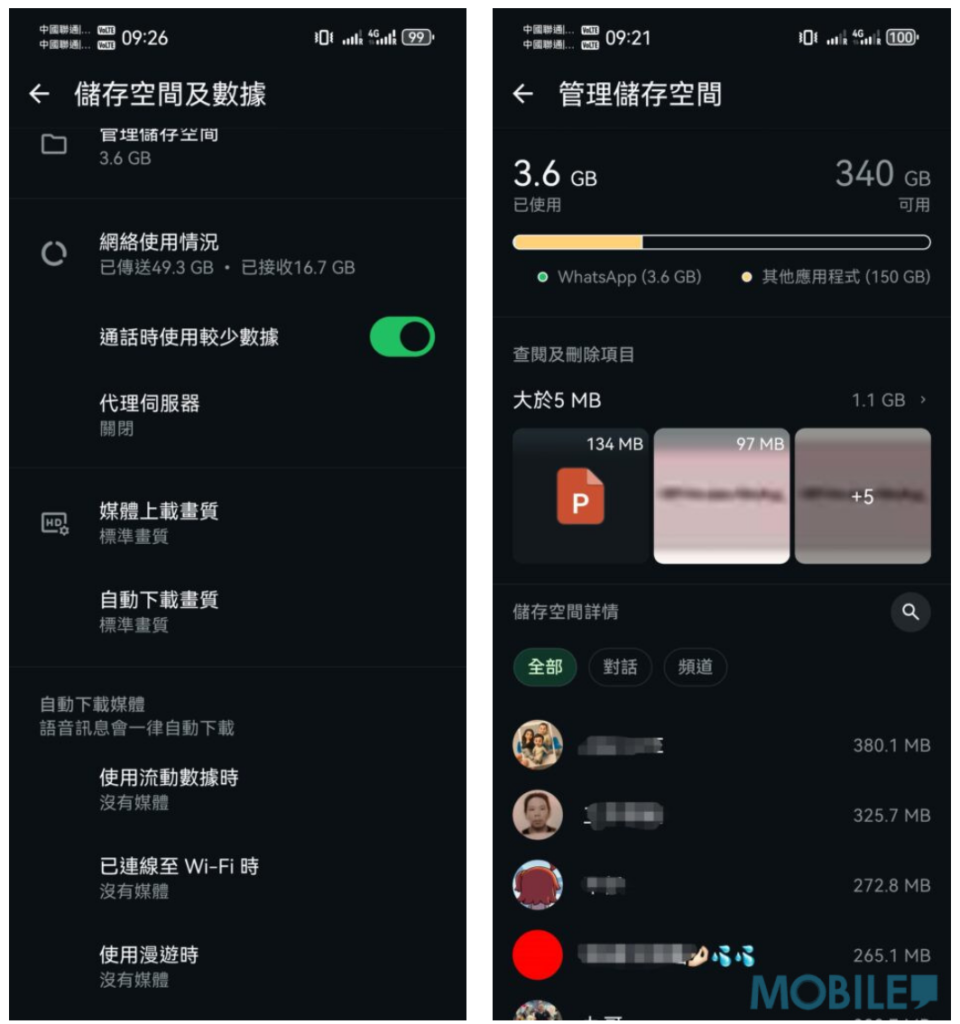
- Steps: Open WhatsApp and go to “Settings” > “Storage & Data” > “Manage Storage”.
- Operation: After entering, you will see a list of files “larger than 5 MB” and the occupancy ratio of each conversation group. Click in to batch select and delete HD videos and old photos that you no longer need.
2. Cut off the source: turn off “automatic download”
After cleaning, you must prevent junk files from accumulating again at the source:
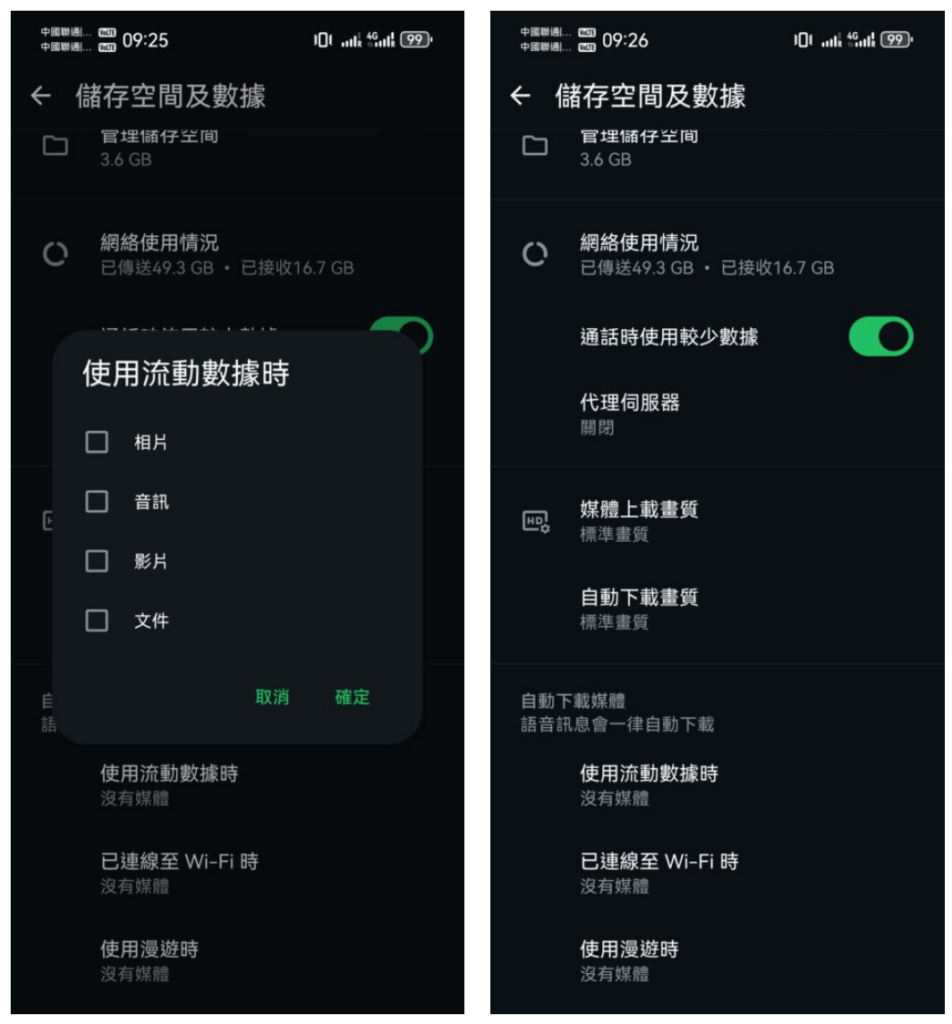
- Steps: On the “Storage & Data” page, find the “Automatically download media” option.
- Operation: It is recommended to set all photos, audios, videos, and files to “Do not automatically download” (or only download when Wi-Fi is available). In the future, when you encounter pictures or videos of interest, you can manually click them to download them, which can significantly save unnecessary space consumption.
The second trick: Completely clear WeChat hidden cache
If you need to communicate with relatives and friends in the Mainland or handle work, WeChat is indispensable on your mobile phone. WeChat’s caching mechanism is amazing. In many cases, even if you don’t actively download it, it will automatically store a large amount of app data and browsing history in the background.
1. Safely clear the Cache
Many people are afraid that pressing the wrong button will clear important chat history. In fact, it is absolutely safe as long as you target the “cache”:
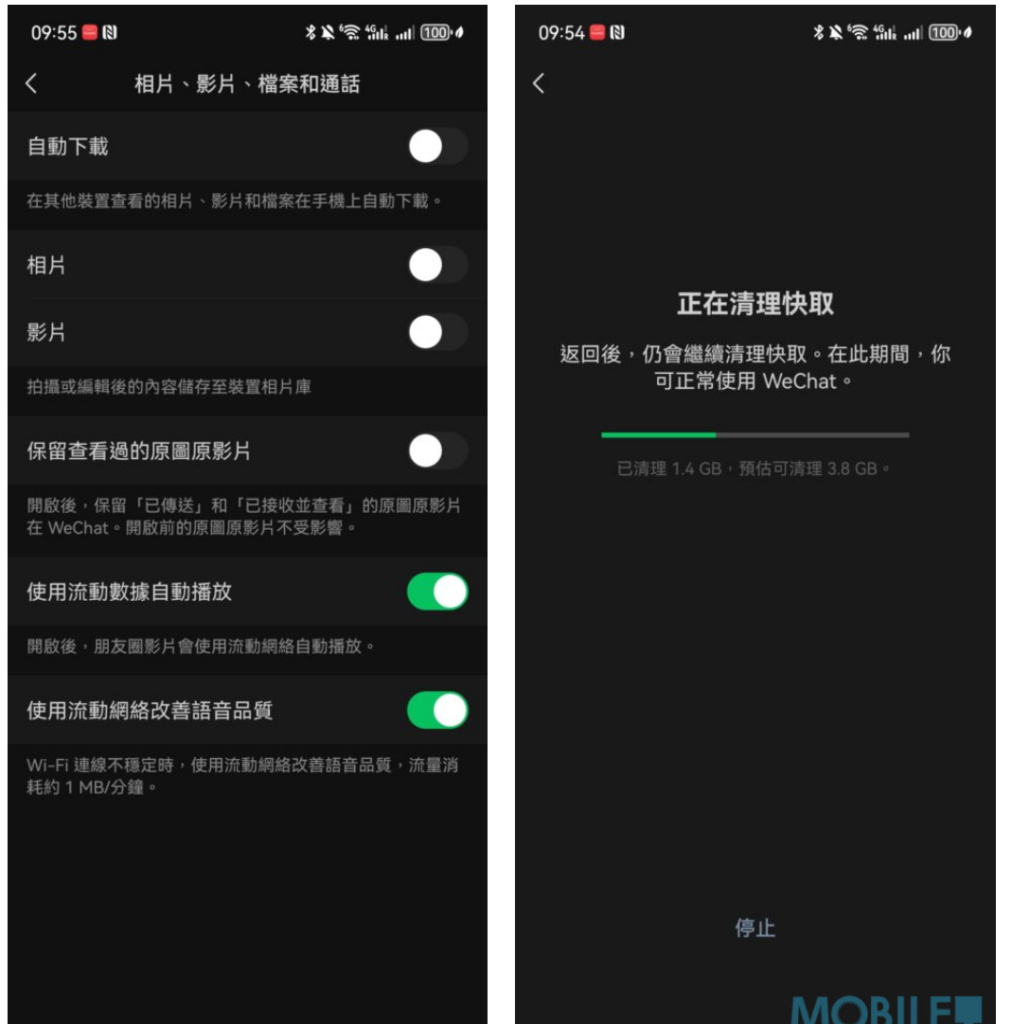
- Steps: Open WeChat and go to “Me” > “Settings” > “General” > “Storage Space”.
- Action: The system takes a few seconds to calculate the capacity. After the calculation is completed, click “Go to Cleanup” next to “Cache”. This step will not delete your chat history, contacts or collections, it will only clear the temporary garbage generated when the application is running. Usually this step can immediately free up 2GB to more than 5GB of space.
2. Turn off automatic saving of “Photos, Videos, Files and Calls”
When you use the built-in camera to take photos or send them to friends on WeChat, the system will by default store an additional copy of these files in the mobile phone album, resulting in a waste of “double copies”.
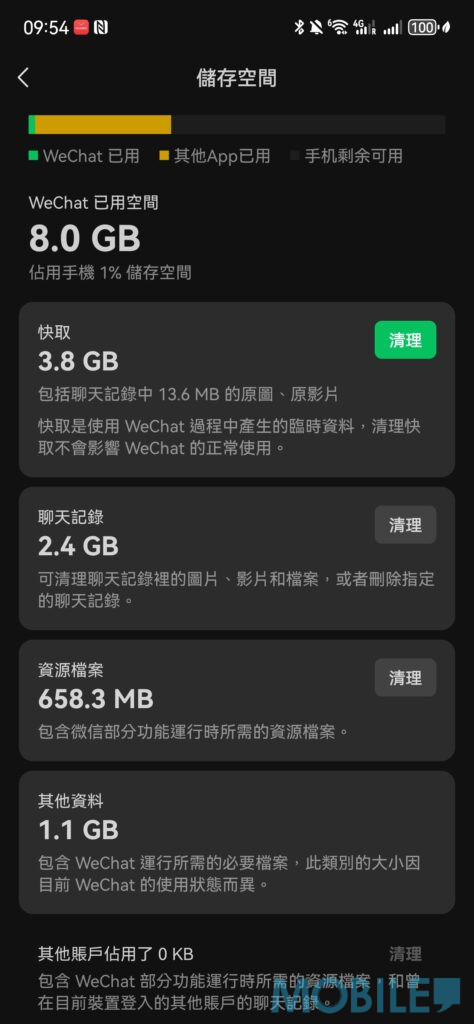
- Steps: Go to “Settings” > “General” > “Photos, Videos, Files & Calls”.
- Operation: Turn off all the switches for “Automatic Download”, “Photos” and “Videos”.
The third tip: Make good use of cloud photo albums to “free up space” with one click
Once the messaging apps are cleaned up, another space-hogging culprit is your phone’s photo album. Instead of manually deleting photos every few months, make a habit of taking advantage of cloud backups.
1. Enable Google Photos automatic backup
No matter which brand of mobile phone you use, Google Photos is currently the most convenient cross-platform choice (of course, brands such as SAMSUNG and HONOR also provide their own cloud service solutions, which can also be used as backup options).

- Steps: Download and open Google Photos, log in to your Google account.
- Operation: Click on the personal avatar in the upper right corner, select “Photo Settings” > “Backup”, and turn on the switch. It is recommended to choose automatic backup in a Wi-Fi environment.
2. The magical “Free up space” button
This is the ultimate killer trick! After confirming that all photos and videos have been successfully backed up to the cloud, you can let the system automatically delete the original files on your phone:
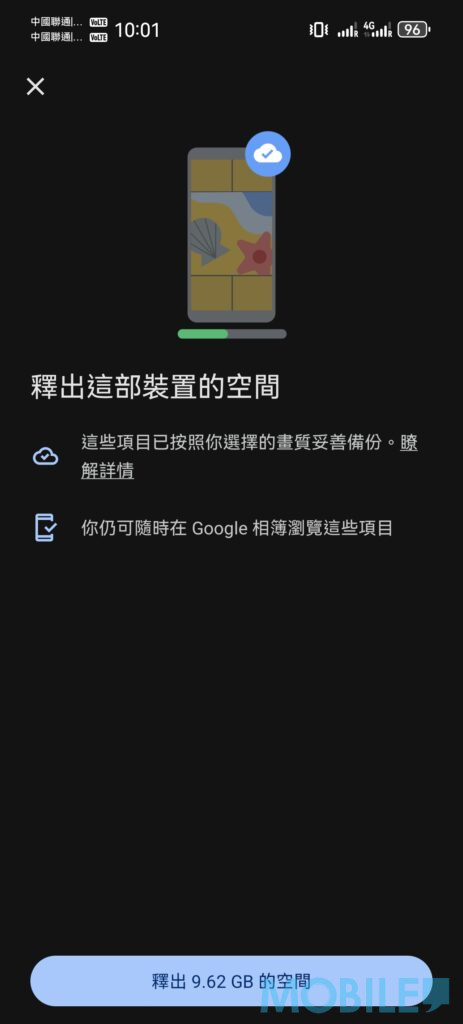
- Operation: Click on the avatar in the upper right corner of Google Photos and select “Free up space”. The system will automatically detect media files that have been safely backed up in the cloud and delete them from the local storage space.
- Effect: Since the photos are all in the cloud, you can still preview and download them at any time in the App, but the physical space on your phone will increase instantly, easily freeing up dozens of GB of capacity!
Summary: As long as you develop a habit and follow the above three steps to perform “general cleaning” once a month, a 128GB or 256GB mobile phone will definitely be enough to meet daily needs, and the system will operate more smoothly!