Apple often pushes system update notifications for the new version of iOS 18 from time to time. However, some iPhone users may wish to temporarily or permanently stop iOS 18 system update notifications due to personal preferences or other needs. Below, we will share how to block OTA updates for iOS 18. Allows you to permanently cancel and turn off update notification reminders that will keep popping up on your iPhone.
Why do you need to block iOS 18 system update reminder?
Although the iPhone system can turn off automatic downloading and installation of iOS updates by default, it still cannot block the iOS 18 update prompt, causing the upper right corner of the setting to continuously display a small red dot that needs to be updated. If you feel that the current iOS 18 system is considered stable And to save power, if you don’t plan to upgrade your iPhone, you can use this tutorial to block iOS 18 system updates.
How to block iOS 18 OTA system update notification tutorial
This article provides guidance on blocking iOS 18 update tips. It is also suitable for use on iPadOS 18. The complete instructions for blocking iPhone and iPad system OTA operations are as follows:
Step 1. Download iOS 18 block update OTA description file
- Version support: iOS 18 or older versions
- Description file deadline: August 22, 2026
Open iOS 18 OTA directly through iPhone to block update URL (need to use Safari browser to open)
After opening the blocked update link directly through the iPhone’s built-in Safari browser, will a prompt “Download iOS18_OTAB.mobileconfig” pop up? Click “Download” and select the “blue download button” in the lower left corner.
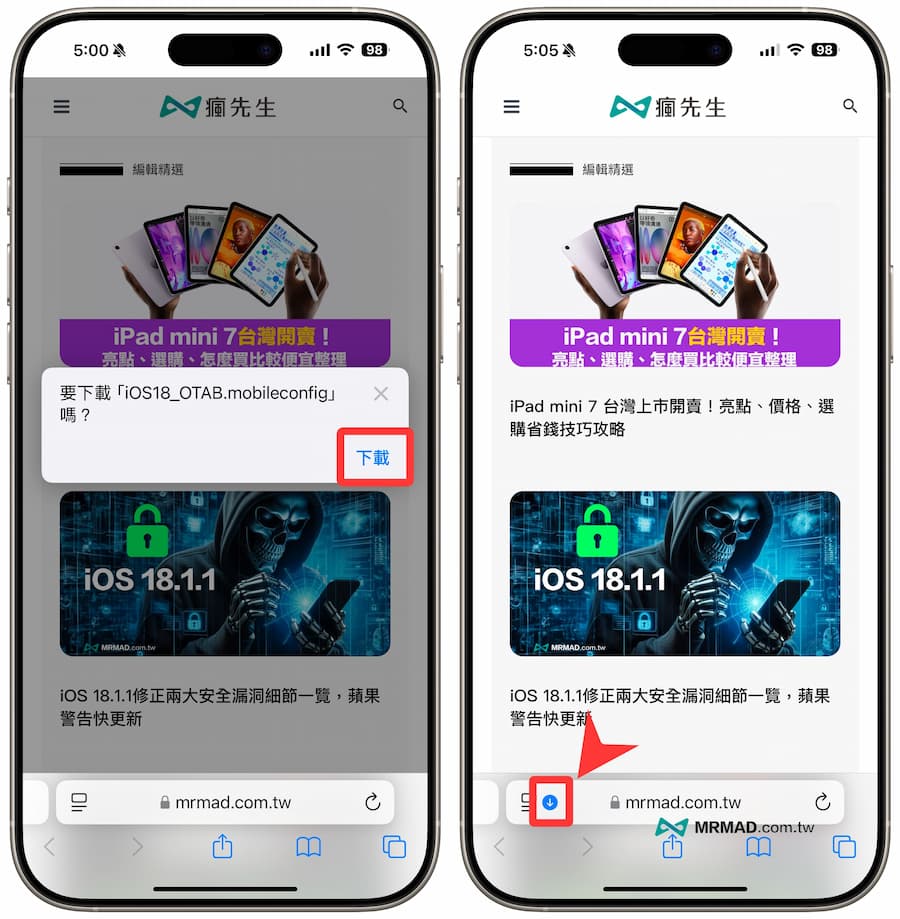
After clicking “Download Item”, find the “magnifying glass” on the right side of the newly downloaded iOS 18 OTA blocking description file from the download list.
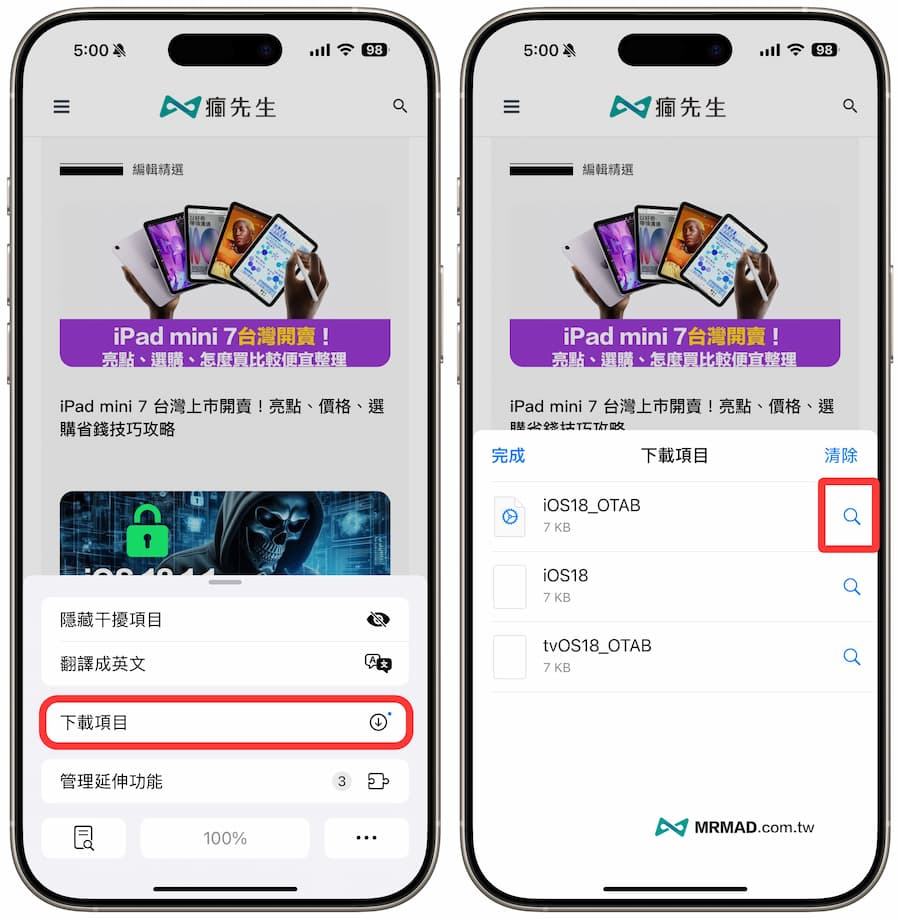
Directly click on the newly downloaded description file to execute, and a prompt will be displayed “On which device should the description file be installed?” 』After selecting “iPhone”, you can click to close.
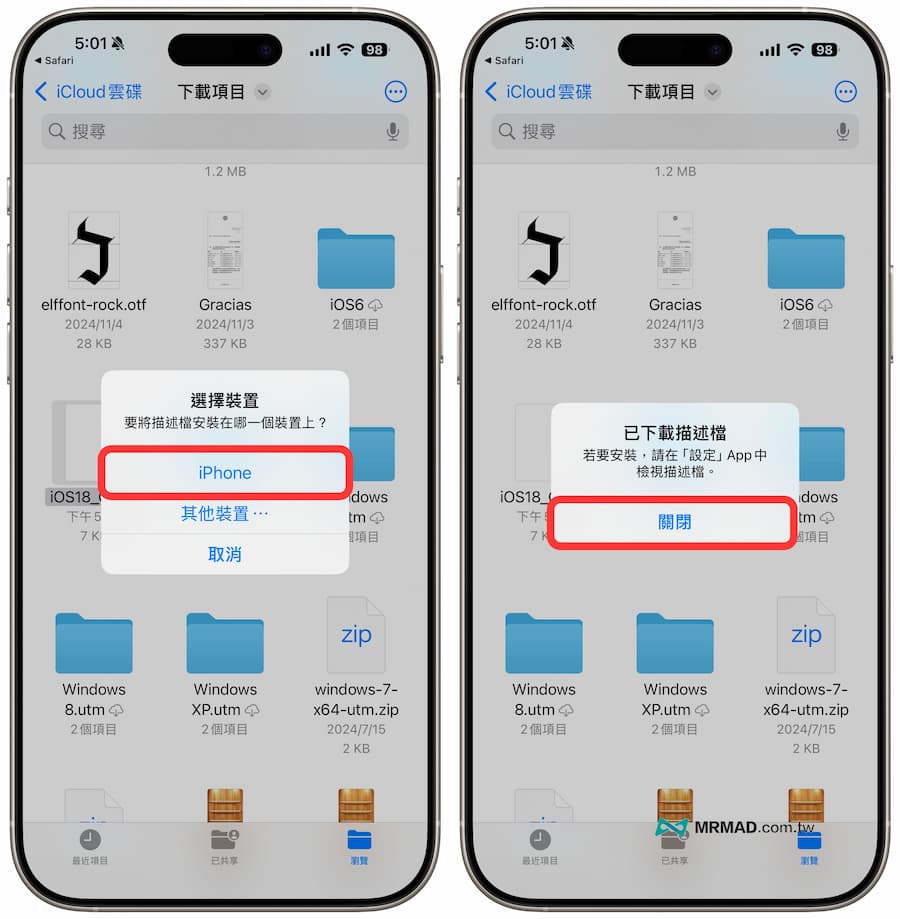
Step 2. Install Block iPhone Update Profile
Directly open the iOS built-in “Settings” App, click “Downloaded Profile”, the “Installation Profile” page will open, click “Install” in the upper right corner, and then you will be asked to enter the unlock password.
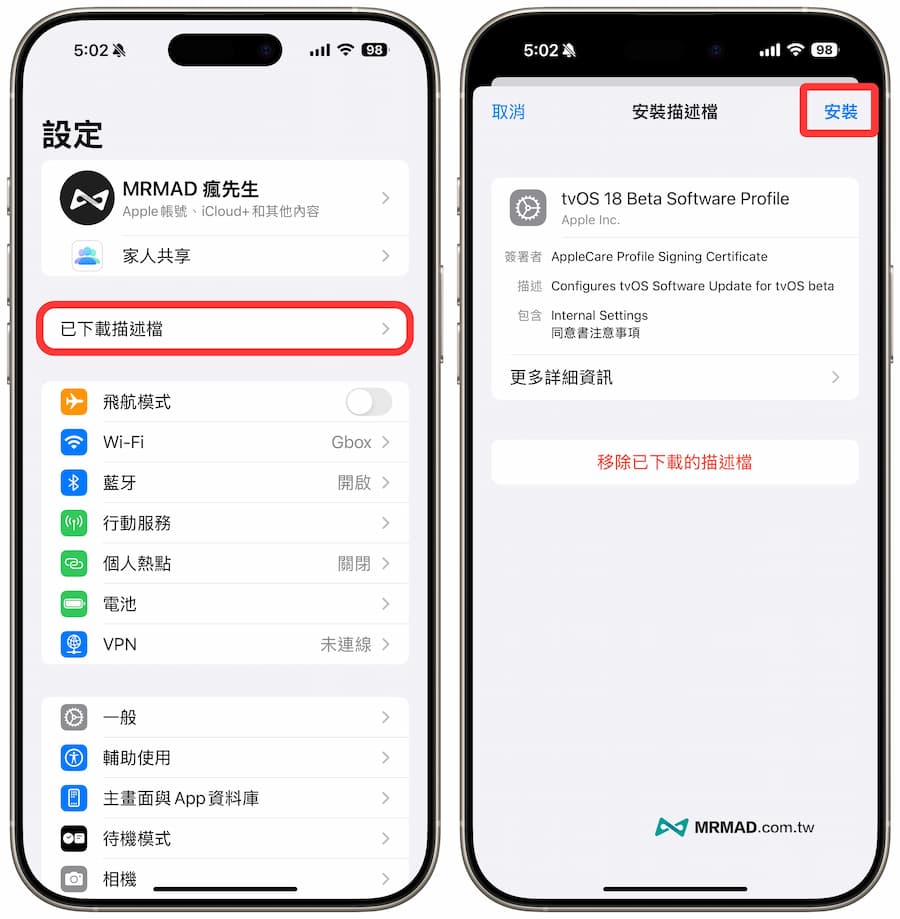
Next, you will see the license terms. Just click “Install” to start installing the iPhone blocking OTA description file. Finally, press “Restart” to automatically restart. (The tvOS 18 Beta profile will be installed and can also be used on the iOS 18 version)
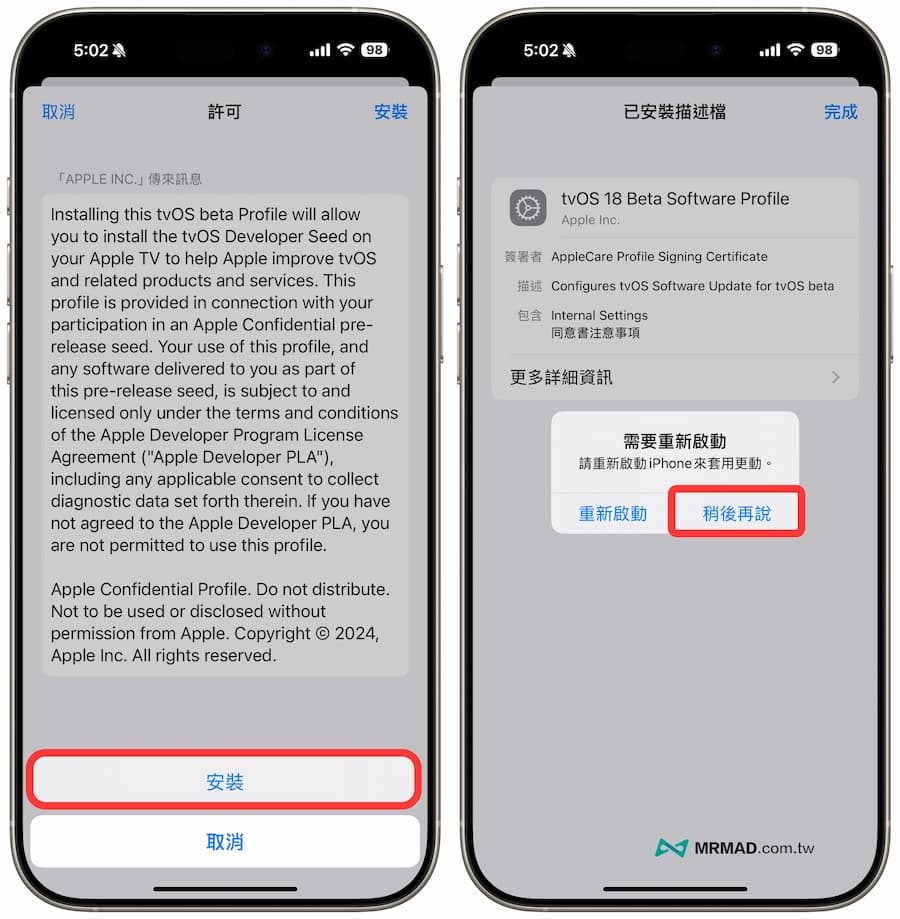
After installing the iOS 18 OTA description file that prevents updates, enter the software update page in the iPhone settings again, and the iOS 18 update will no longer pop up. This allows the iPhone to stay in the old version of iOS 15 permanently, and it will not pop up when a new version is pushed later. System update reminder.
Is it safe to turn off iOS 18 system updates?
Some people may be worried about whether there is a risk in installing iOS 18 description files that block system updates? The main reason is that these description files are signed by Apple’s official certification, which is quite safe and there is no need to worry about being tampered with.
What is the principle used to turn off the iOS 18 OTA update prompt using the description file?
Since iOS and tvOS are two different operating systems, some small codes can be shared. Since the bottom layer is the same on both sides, installing the tvOS description file in the iPhone system will make iOS mistakenly think that it is tvOS that is being checked. OTA updates, of course, even if there is an update to tvOS, the message received on the iOS side will not meet the upgrade conditions, and the iPhone system update and upgrade will naturally be permanently turned off.
The only drawback is that the tvOS description file has an expiration date. Usually, you only need to reinstall the description file for the iPhone after the expiration date. This article will also update the description file after the expiration date. Come back and read this article again when the time comes. Teaching installation.
What is the Feedback App that appears on the iPhone desktop?
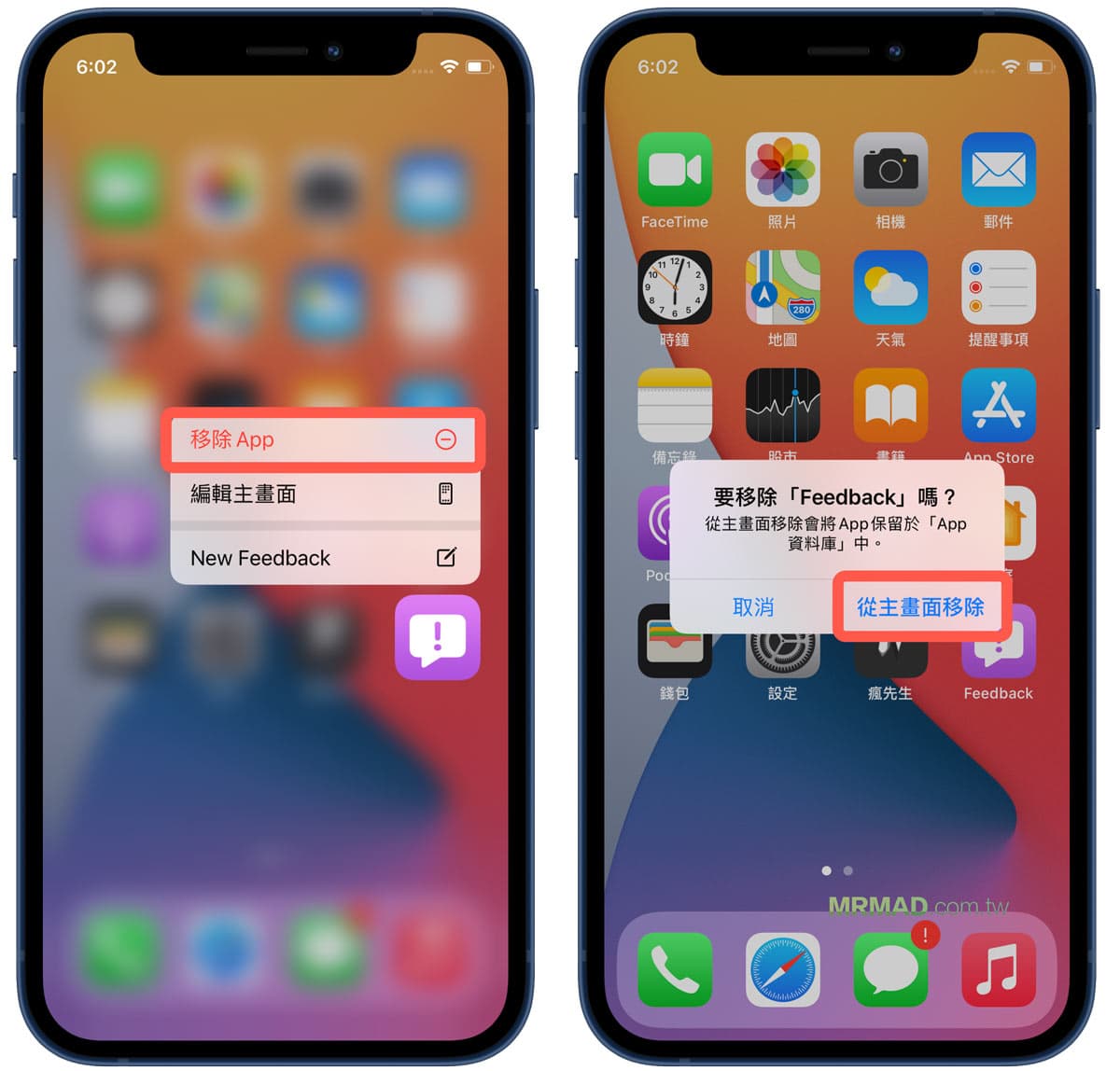
Since the anti-blocking OTA update is to install the tvOS 18 description file, the “Feedback” App will naturally appear. In fact, this tool is a feedback assistant. It will appear when you install the beta version description file. If you don’t want to see this App, you can remove the App and delete it. “Remove from Home Screen” will no longer be seen on the iPhone home screen.
Skills tutorial: 👉 How to use iPhone feedback? iOS must learn to report bugs in beta version
How to restore iOS 18 system upgrade reminder?
Suppose you want to upgrade the iOS 18 system later, how to restore the OTA upgrade reminder? In fact, this can be achieved by deleting the iOS 18 beta profile.
Go directly to iOS “Settings” > “General” > “VPN and Device Management”, click on the “tvOS 18 Beta Software Profile” profile, click “Remove Profile”, a popup will pop up asking you to enter the iPhone unlock password, complete the input Just click “Remove”.
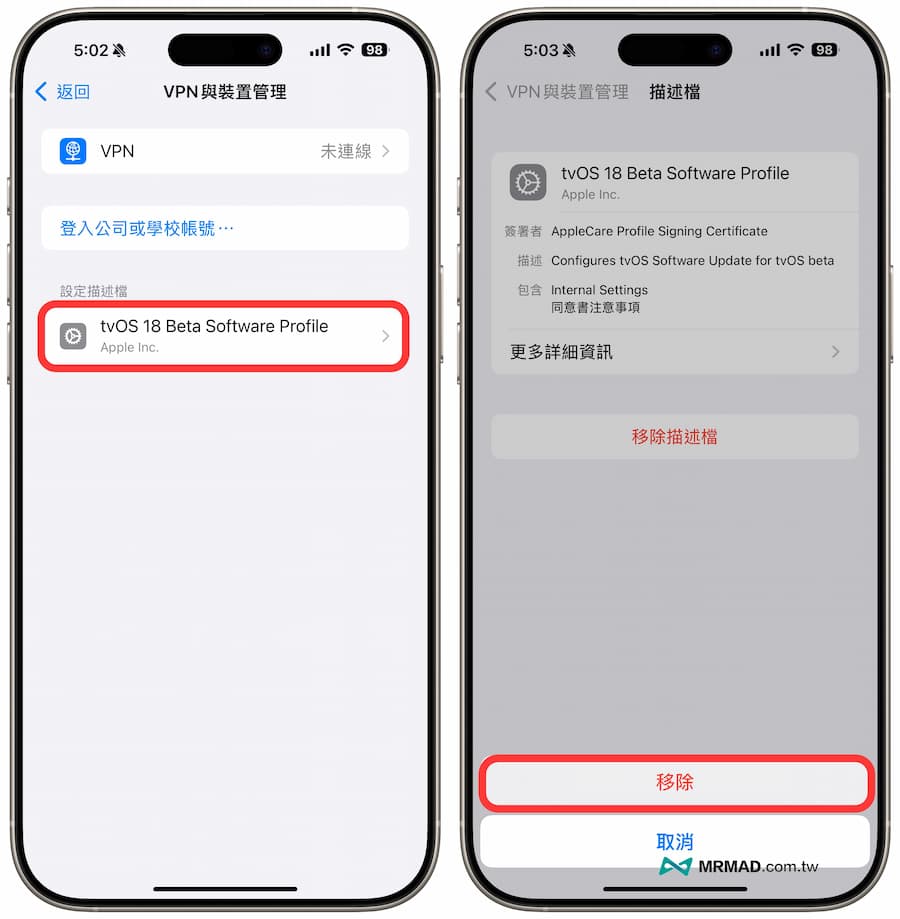
After completing the above steps, open the software update in iOS settings again, and the iOS 18 update prompt will be displayed normally.