Have you ever encountered pointers floating randomly when using Google Maps or Apple Maps to navigate, or serious errors in iPhone positioning when checking in on FB, Instagram, or using the search function? Even though you are in the city, the GPS shows you are on the next street? These problems usually occur after an iOS update, or when the positioning settings are lost. In fact, there is no need to rush to send it for repair or complain about errors caused by the upgrade. Just go through the 10 most effective iPhone positioning correction methods. No matter which iPhone model you are using, you can quickly fix the GPS drift problem through the following steps.
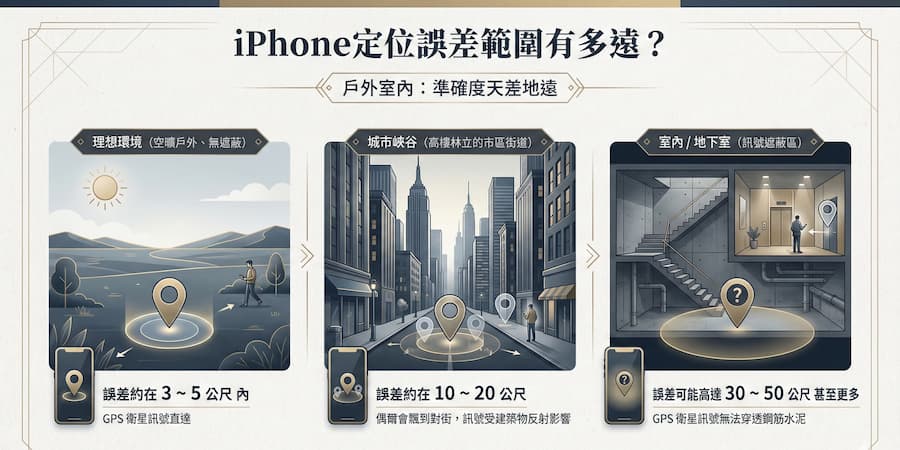
How far is the iPhone positioning error range?
Before starting to fix it, first understand what normal errors are. Not all positioning deviations are faults, depending on the iPhone model and the surrounding environment.
There is a huge difference between outdoor and indoor accuracy.
According to Apple developer documents and actual measurement data, the positioning accuracy of iPhone in different environments is as follows:
- Ideal environment (open outdoors, no shelter): The error is about 3 ~ 5 meters.
- Urban canyons (urban streets lined with high-rise buildings): The error is about 10 to 20 meters, and it occasionally drifts to the opposite street.
- Indoor/basement (signal shielded area): The error may be as high as 30 ~ 50 meters or more, because the GPS satellite signal cannot penetrate reinforced concrete.
Differences in iPhone single-frequency and dual-frequency GPS hardware
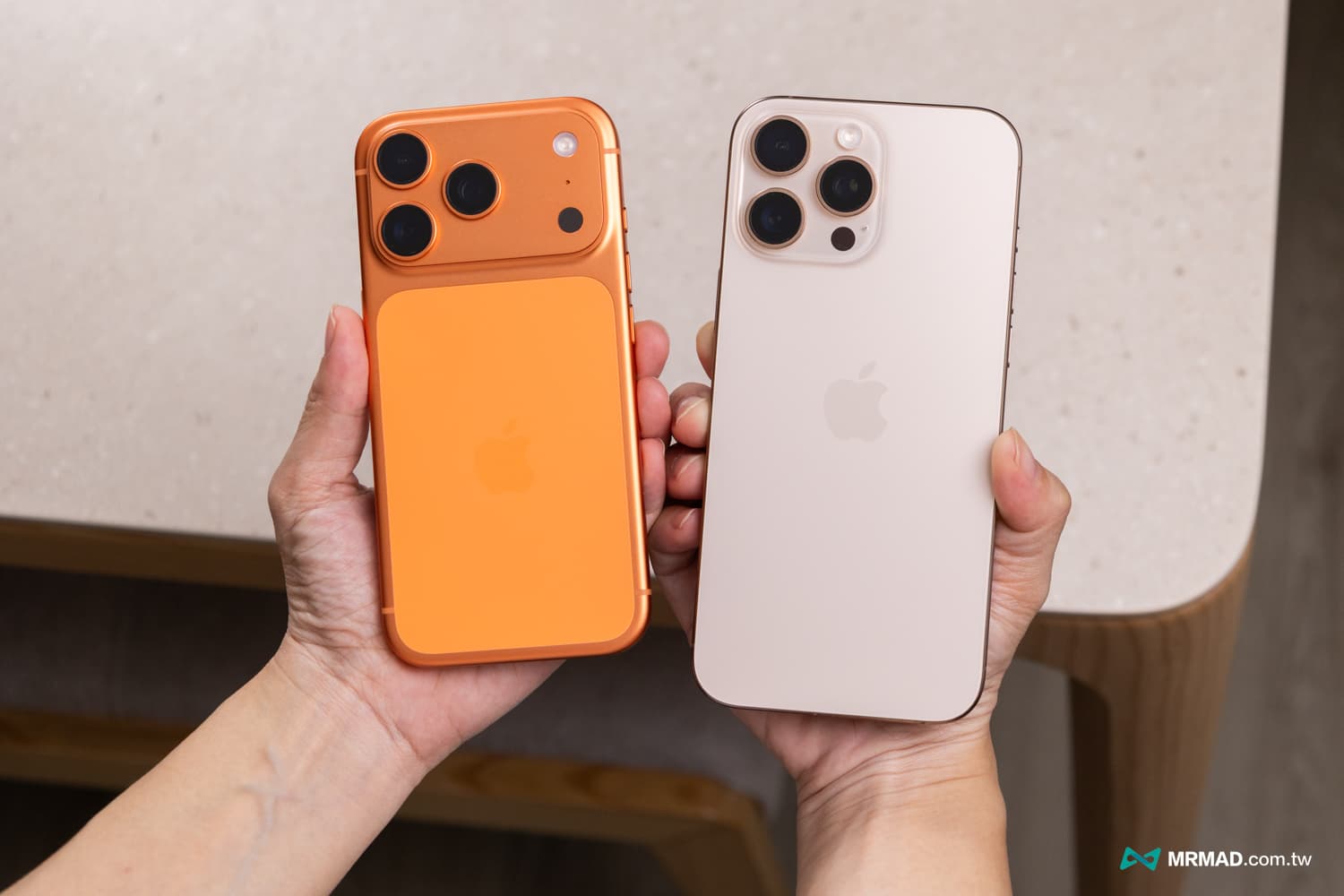
The positioning capabilities of the new iPhone are much more powerful than those of the old model.
- Older iPhones (such as before iPhone 13 and iPhone SE): Only support single-frequency GPS (L1 band); in urban areas, they are easily affected by signals reflected by buildings (multipath interference), causing vehicles to “drift” during navigation.
- New iPhones (iPhone 14 Pro series, iPhone 15/16/17 full series or new models): Support dual-frequency GPS (L1 + L5 bands); usually the L5 band can more effectively penetrate clouds and filter reflection noise from buildings. Even in Taipei’s Xinyi District or under a viaduct, the positioning error can usually be controlled within 3 meters.
How to determine if iPhone positioning is broken?
Open Google Maps or Apple Maps and look for a light blue shaded circle around the blue dot representing your location.
- The circle is very small: it means the positioning accuracy is high. If the position is still wrong at this time, it is usually a map problem.
- A large circle means that the mobile phone cannot capture enough satellites and the error range is large. Please try moving to a window or outdoors.
Usually iPhone positioning uses satellites, base stations or WiFi positioning, and the GPS coordinates of the current location are calculated through triangulation. In addition to relying on GPS for accurate positioning, AGPS and mobile phone positioning are also required. If you find that iPhone positioning and navigation may drift or be inaccurate, you can solve it through the following methods.
The first stage of iPhone positioning correction: quick check and basic settings
Most of the problems that cause inaccurate iPhone positioning are caused by iOS privacy or power-saving settings. Please check the following three points first:
1. Check whether the App has enabled accurate location permissions
Starting with iOS 14, Apple allows users to choose whether to provide precise coordinates for individual apps. If you accidentally turn off this switch, whether you use Google Maps, Apple Maps or other third-party apps, you can only capture the approximate range of where you are, and it can easily drift to other locations, which of course will lead to inaccurate GPS positioning.
To improve the positioning problem, just turn on the iPhone’s precise positioning function, which will allow the App to position more accurately and avoid wandering problems.
- Operation path: Go to iOS built-in “Settings” > “Privacy and Security” > “Location Services”.
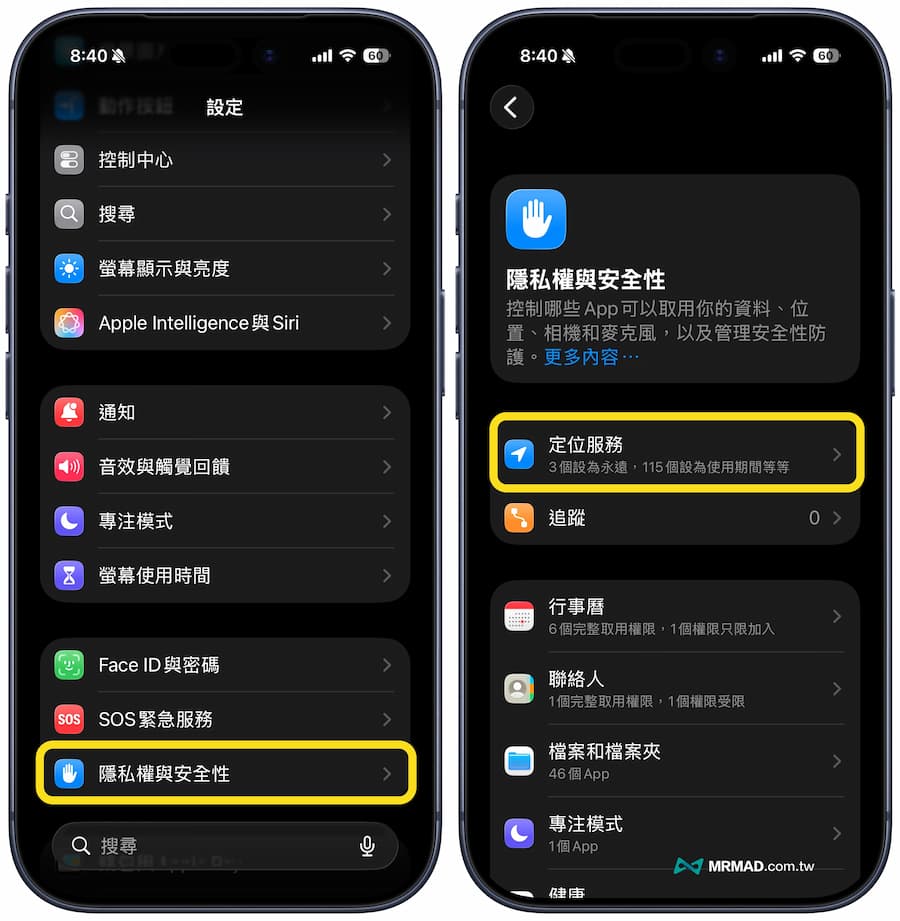
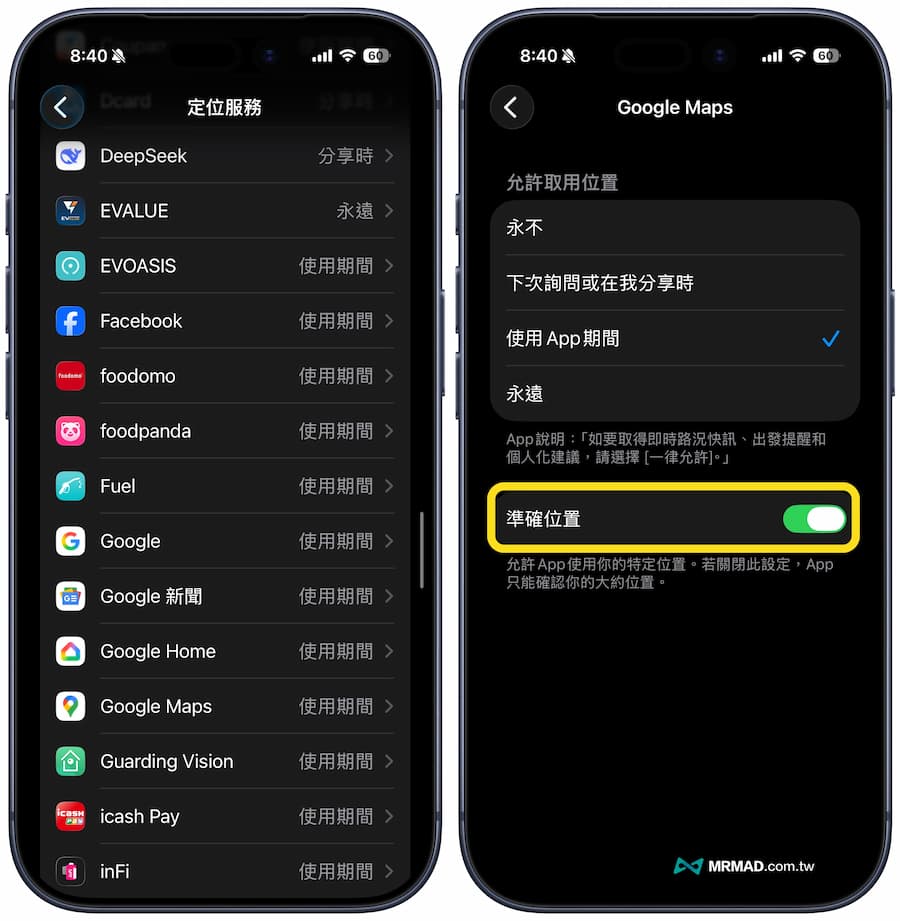
Find the problematic App (such as Google Maps) and confirm that the “Accurate Location” switch is turned on in green. This will improve the erratic navigation or inaccurate positioning of your iPhone.
2. Be sure to turn on the Wi-Fi function (even if not connected)
Even if you are not using WiFi network outside, you can still turn on the iPhone’s WiFi function, which will help improve mobile network GPS positioning.
And don’t think that turning on WiFi must be connected to be effective. This is not the case. In fact, the iPhone does not need to be connected to a Wi-Fi network. When the satellite signal is blocked indoors or between high-rise buildings, the phone will scan the surrounding Wi-Fi base stations to perform triangulation positioning to improve GPS accuracy and avoid random drifting.
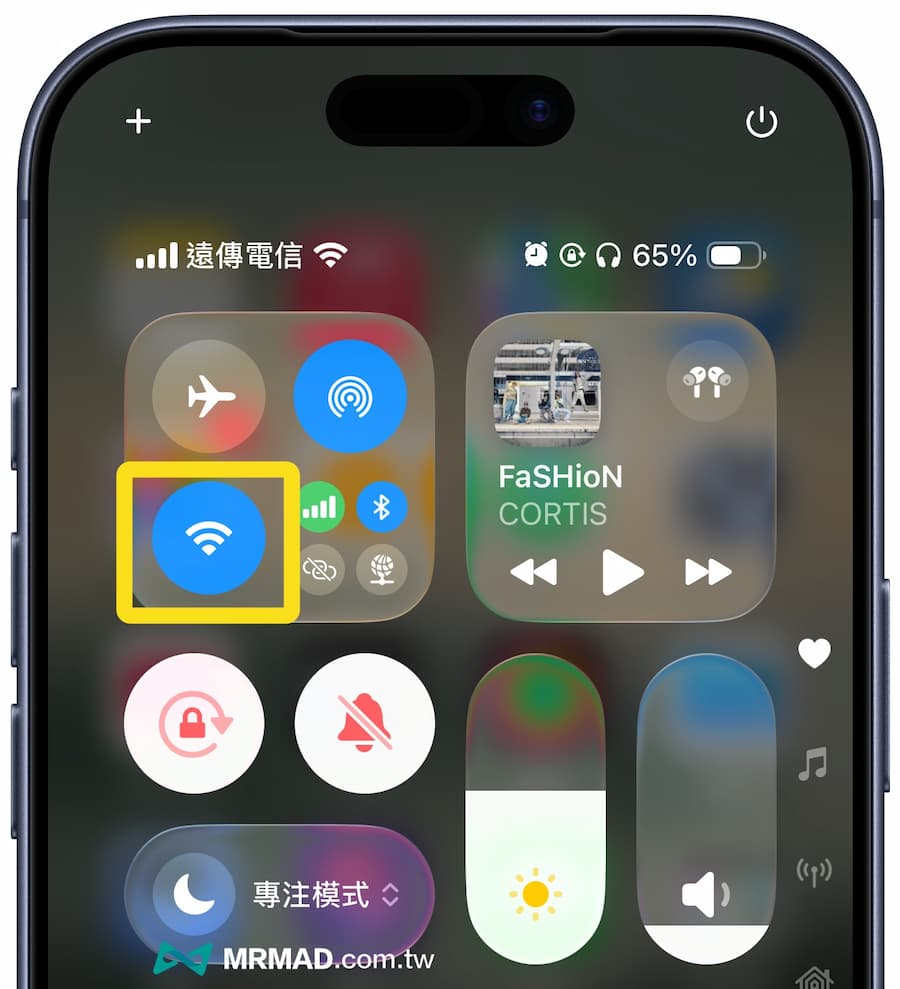
Just pull down the control center on your iPhone and turn on the “WiFi” function. It is recommended to turn on the mobile network, Wi-Fi and GPS at the same time when driving for navigation or when you want precise positioning.
[Important]You don’t need to connect to any Wi-Fi network. You only need to light up the Wi-Fi icon in the iPhone control center and let the mobile network chip start scanning the environment to greatly improve the GPS positioning accuracy.
For some tips on iPhone positioning, you can also learn about it below:
- GPS positioning: Send signals to the ground through five major satellite positioning orbiting the earth, and use cross-connection to find the location.
- A-GPS positioning: Download the ephemeris data first to speed up the initial positioning of GPS positioning.
- Wi-Fi positioning: Detect the MAC location of surrounding wireless network base stations and compare the coordinates in the database.
- Mobile phone base station positioning: Rely on the mobile phone base station (Cell Tower) to compare the database and signal strength, and confirm the current location through triangulation.
The second stage of iPhone positioning correction: eliminating environmental and hardware interference
If the settings are correct but the iPhone positioning still fluctuates, please check whether “physical factors” are causing the signal to be blocked.
1. Remove the metal protective case or magnetic accessories
As long as the iPhone protective case uses a metal frame or heat-insulating paper containing metal components, it will usually block and interfere with the GPS signal. You can temporarily remove the iPhone case and check whether the car window uses metal heat-insulating paper. Take the phone to an open space outside the car to test the iPhone positioning and check whether it can return to normal.
 The picture shows AULUMU A17 super porcelain heat dissipation color-changing mobile phone case – liquid luminous + Ohsnap Snap Grip 5 ultra-thin charging ring buckle (does not affect GPS positioning)
2. Avoid the urban canyon effect
Usually in city centers with many high-rise buildings, under viaducts or in tunnels, poor satellite signals will produce refraction and reflection, causing the iPhone’s positioning to misjudge the distance and drift. If this is the case, it will usually recover automatically after leaving the area; in this case, you can rely on the Wi-Fi assisted positioning mentioned above, which is more effective than pure GPS.
 The picture shows MOFT iPhone 17 mobile phone case
3. Check mobile network signal strength
Usually, the accurate positioning of the iPhone still relies on data from both the mobile network and WiFi. If the iPhone is not connected to the Internet and the signal is poor, it will also result in the inability to accurately position. If you have to rely solely on the GPS position, you will have to wait for a while and rely on offline maps to navigate. This usually happens when some telecommunications signals are difficult to receive in mountainous areas, so you can ask friends around you to provide hot spots to solve the problem.
The third stage of iPhone positioning correction: advanced system repair
If the above method does not work, it means that there may be an error in the positioning database or temporary file within the iOS system.
1. Reset location services and privacy
You can try to reset the iPhone location service data once, which can also improve the temporary storage error of the iOS system itself. This will not delete the photos or data in the phone, but will only reset the location permissions of all apps and the location data learned by the system back to the original factory state.
- Operation path: Go to iOS built-in “Settings” > “General” > “Transfer or Reset iPhone” > “Reset” > “Reset Location Services and Privacy”, enter the unlock password and click “Reset Settings”.
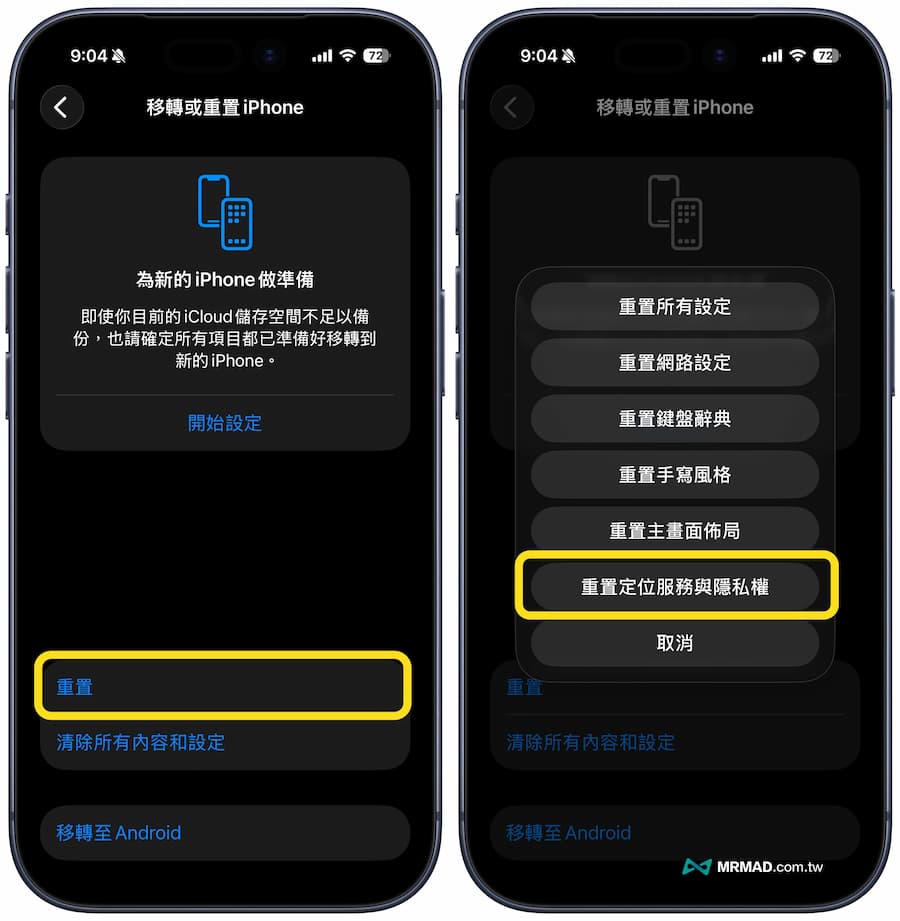
Subsequently opening Google Maps, Apple Maps or third-party apps will require re-authorization of positioning or privacy permissions.
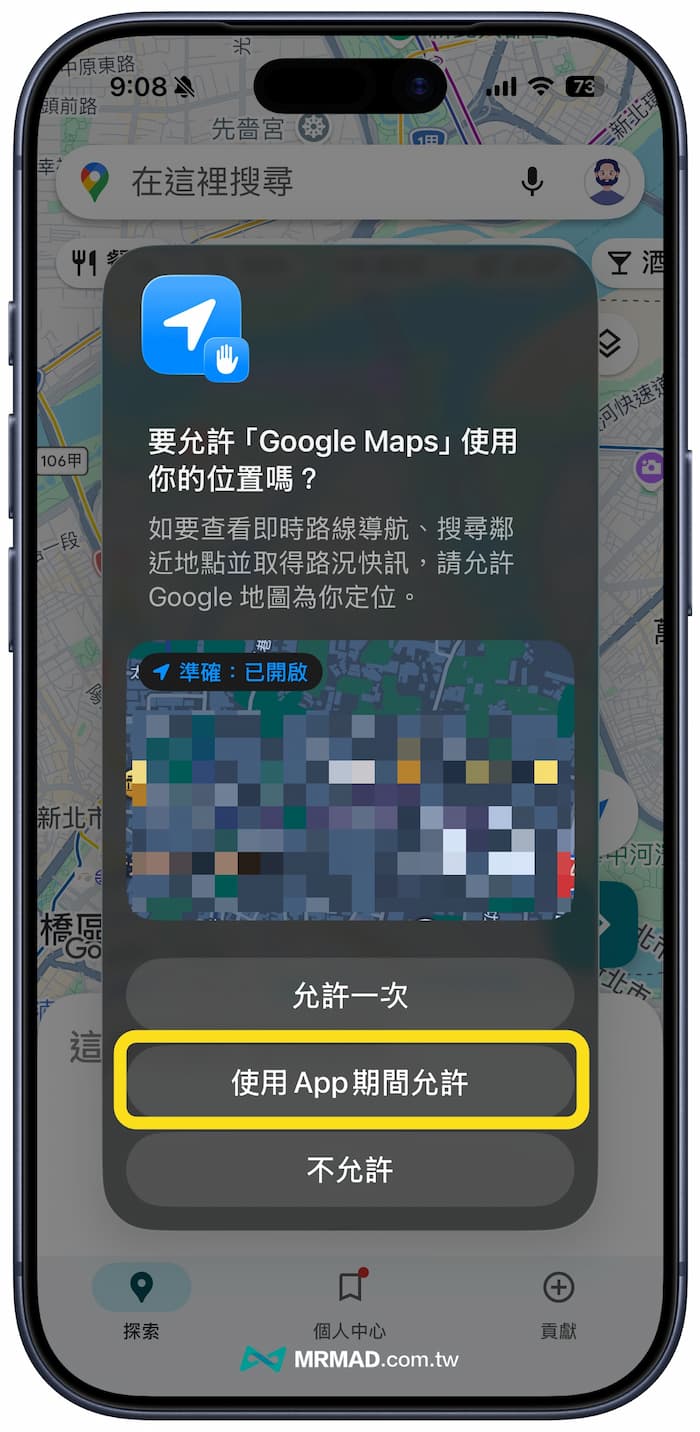
2. Check iOS system service settings
Sometimes the necessary functions of iPhone positioning are accidentally turned off. You can use the following method to turn on the underlying system correction function of iOS to restore it to normal.
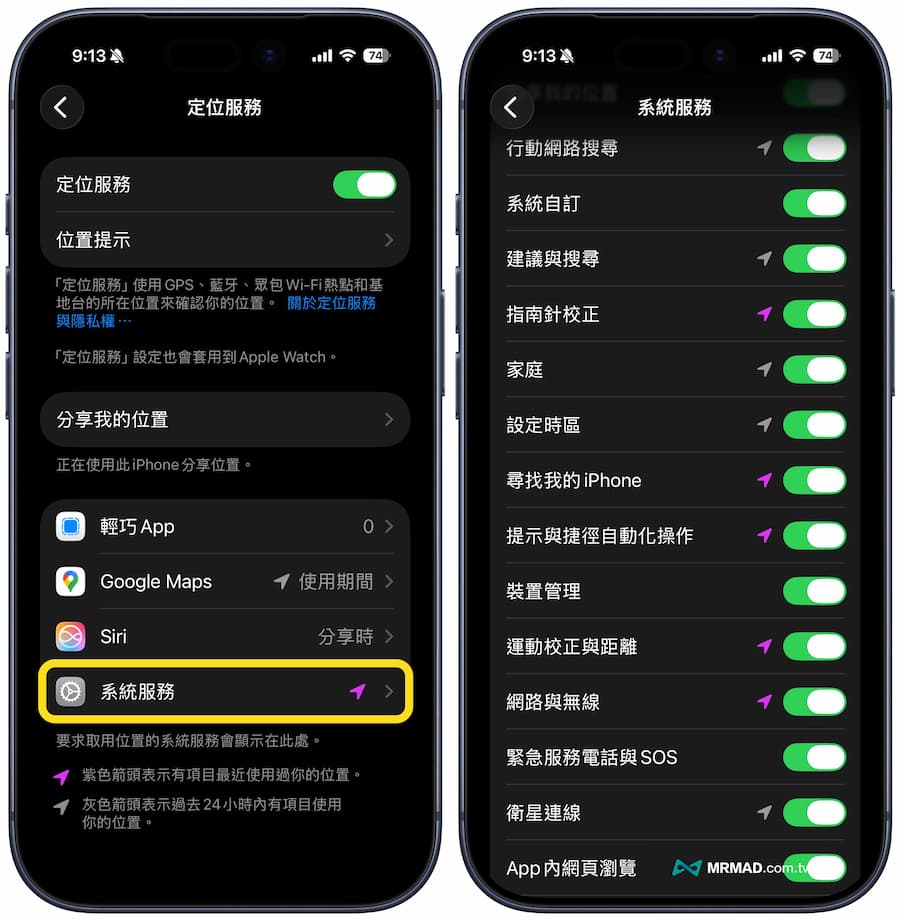
- Operation path: “Settings” > “Privacy and Security” > “Location Services”
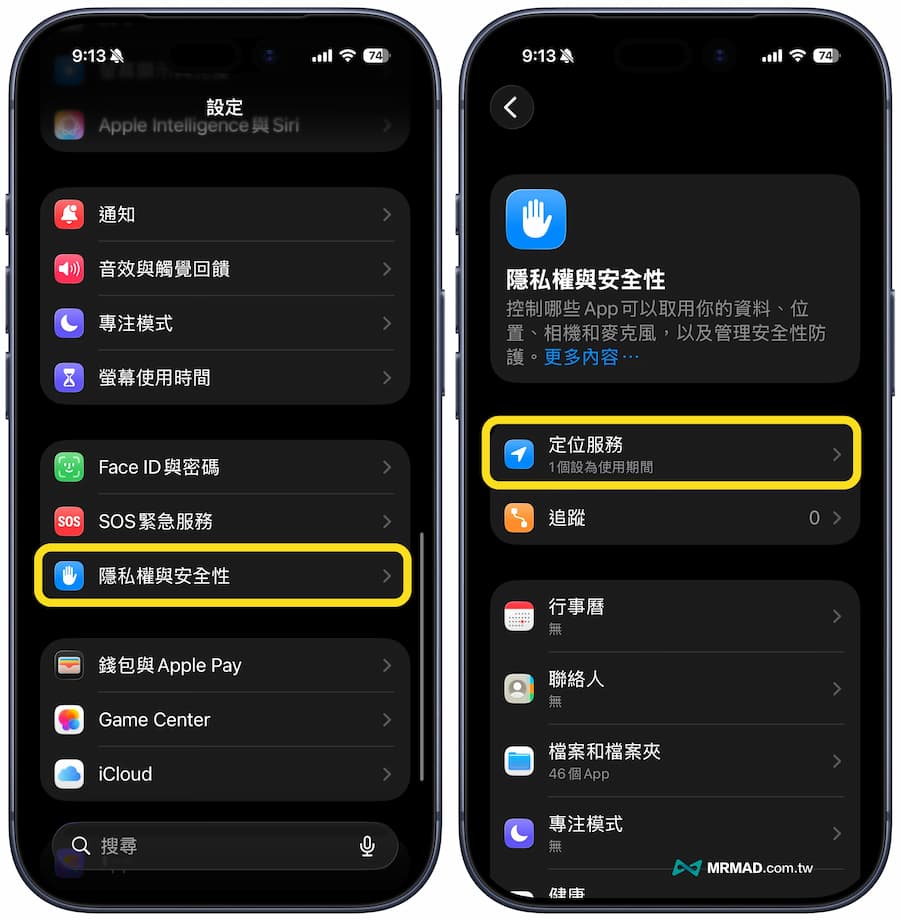
Scroll to the bottom and click “System Services”, and check whether “System Customization, Compass Correction, Set Time Zone, Important Locations” are all turned on.
3. Confirm system date and time
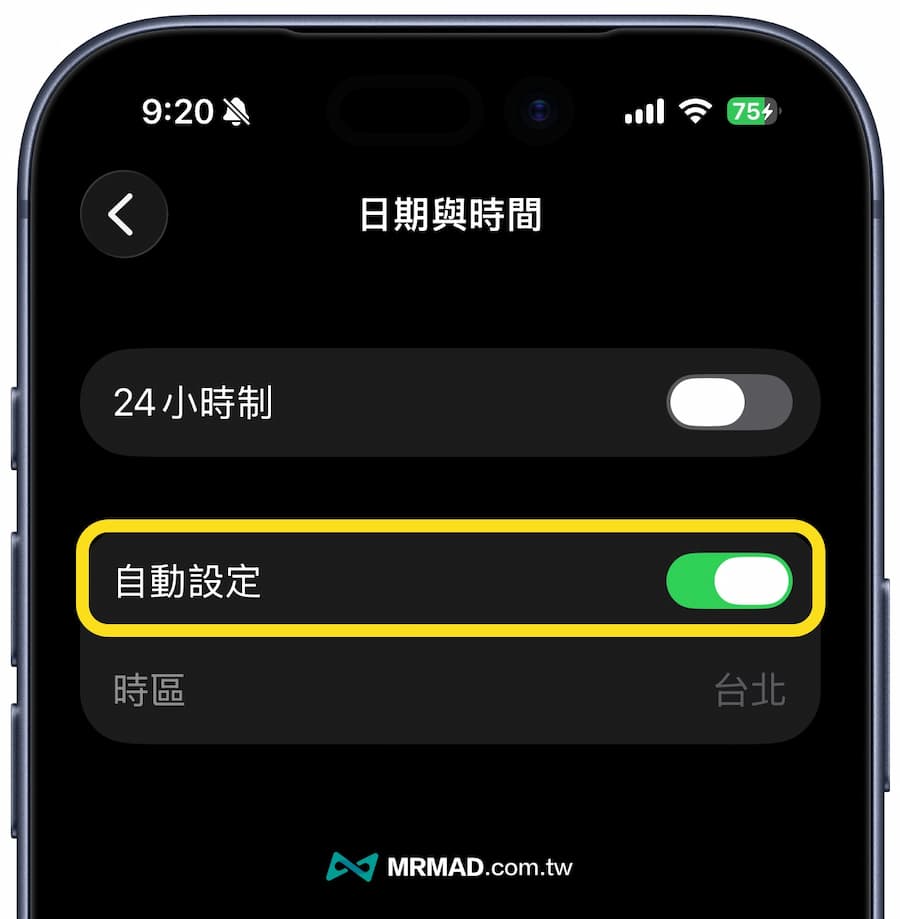
Finally, make sure the iPhone time and region are set correctly. It may be because you accidentally manually adjusted the settings, causing the iPhone time zone to run out. It is recommended to check through the following method first.
Go to iOS “Settings” > “General” > “Date and Time” to confirm whether “Automatically set” is turned on and whether the time zone is Taipei.
4. Force restart iPhone
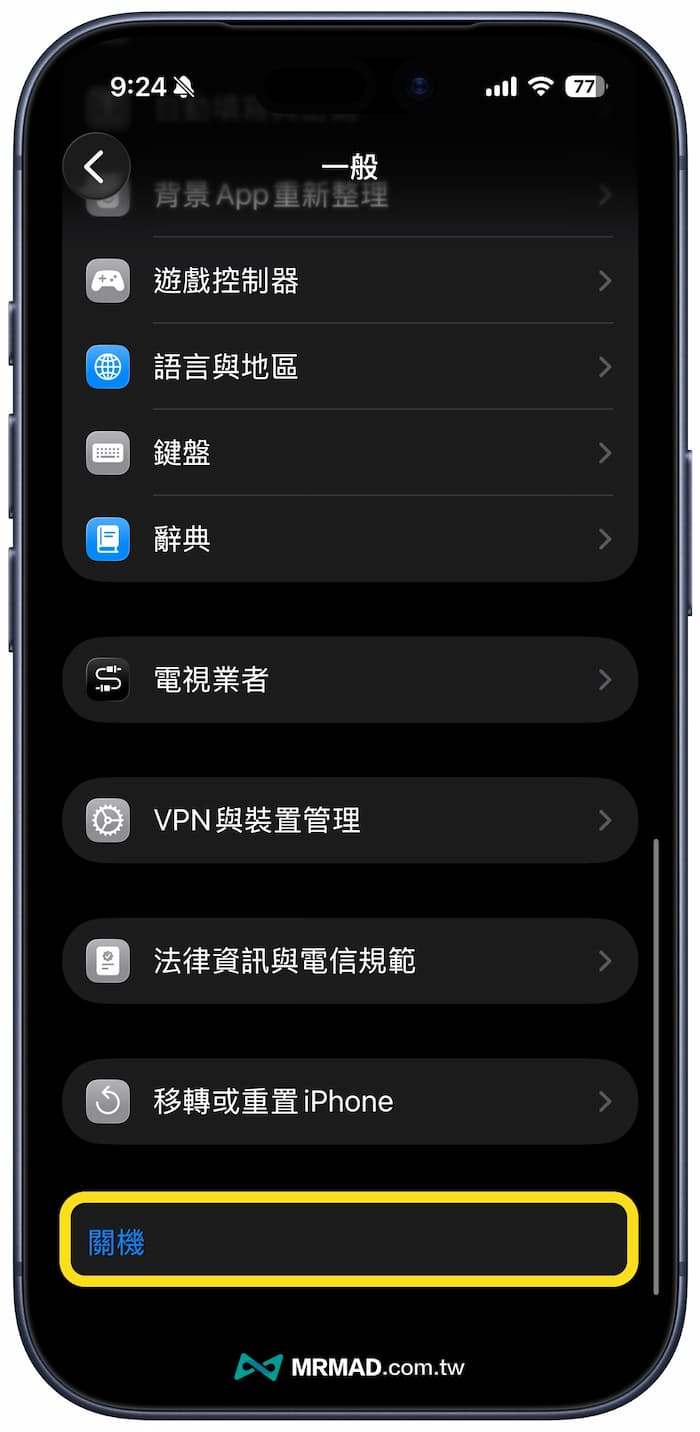
After the above settings are completed, it is recommended to force restart the iPhone. This can also ensure that some bugs will appear if the iPhone system runs for too long.
Go directly to iOS “Settings” > “General” and scroll to the bottom. You will see the “Shutdown” button. Click it to shut down and then turn it on manually.
The fourth stage of iPhone positioning correction: send for repair
If you are still unable to locate your phone in an open place, without a protective case, and after resetting the system, it is most likely that the GPS antenna module on the iPhone motherboard is faulty. This is more common on phones that have been dropped or dampened. It is recommended to make an appointment at an Apple store or authorized repair center for hardware testing.
Common iPhone positioning inaccurate QA issues
Why is iPhone positioning still very slow even if 5G/4G is turned on?
If you are in a dead spot, your phone will prioritize searching for signals instead of positioning. In addition, if “low power mode” is turned on (the battery turns yellow), iOS will reduce the update frequency of the GPS chip in order to save power, causing navigation delays. Be sure to turn off Low Power Mode when navigating.
Will changing the iPhone battery affect GPS positioning?
Usually not! However, if it is not repaired by the original factory, and the technician did not fasten the iPhone GPS antenna contact during assembly, or used a metal shielding sticker, it may indeed lead to poor signal reception.
If you want to know more Apple information, iPhone teaching and 3C information skills, please follow us
Crazy Mr. FB fan group,
Subscribe to Mr. Crazy Google News,
Telegram,
Instagramas well as
Subscribe to Mr. Crazy YouTube.