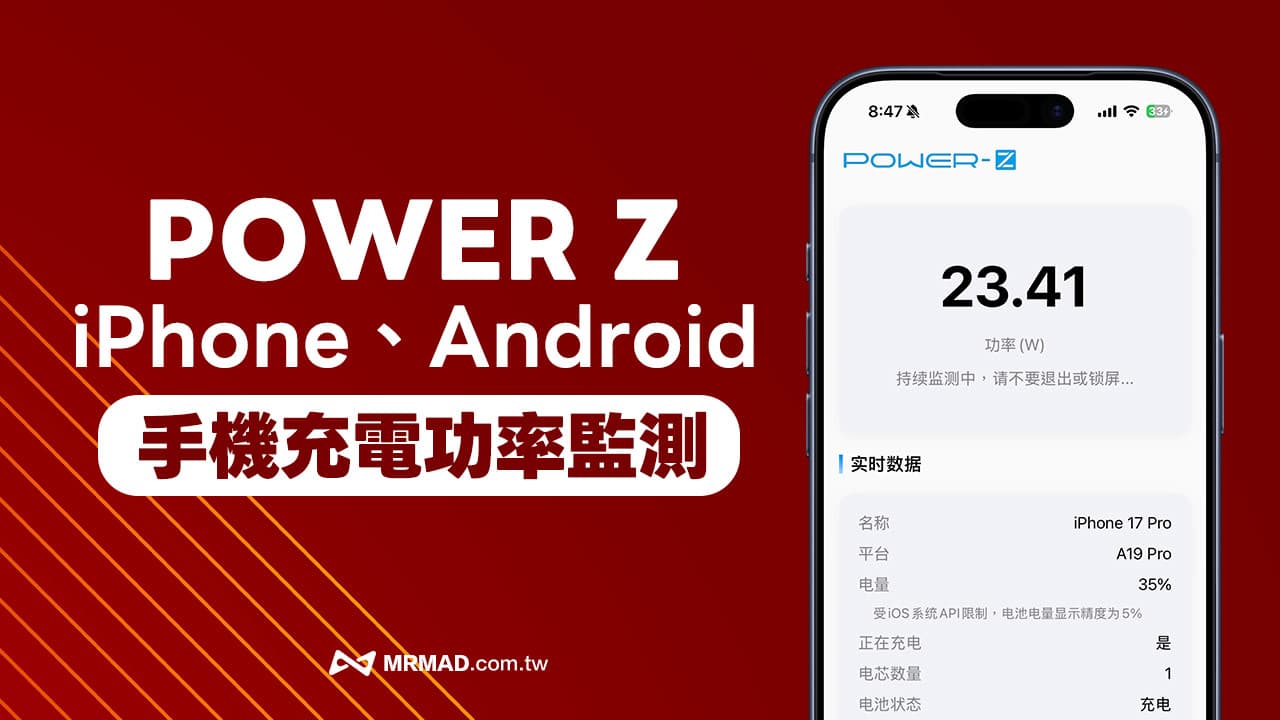
In the past, if you wanted to check the instant charging voltage, current and wattage of an Android or iPhone phone, you usually needed to purchase a hardware tester. Although it was professional, the operating threshold and cost were too high for ordinary users. Now POWER-Z finally launches the side charging wattage App! Now, whether you are an iPhone or Android user, as long as you download this POWER Z App, your phone can be transformed into a professional dashboard to monitor charging efficiency and battery status in real time.
What is POWER Z App? What information can be displayed?
POWER Z App was originally designed to be used with hardware testers, but now it opens up iOS and Android software monitoring functions. Mainly by reading the power management data (PMIC) inside the Android and iPhone mobile phone systems, the original system code is directly converted into data that ordinary people can understand.
Usually through this mobile phone charging wattage monitoring POWER Z App, the following three major pieces of information can be seen:
- Instant charging power (W): Check whether the fast charging speed marked on the charger has been reached.
- Battery detailed data: including voltage (V), current (A) and real-time battery temperature.
- Battery health dashboard: Displays the current battery capacity and cycle status (supported by some models).
What devices does POWER Z App support?
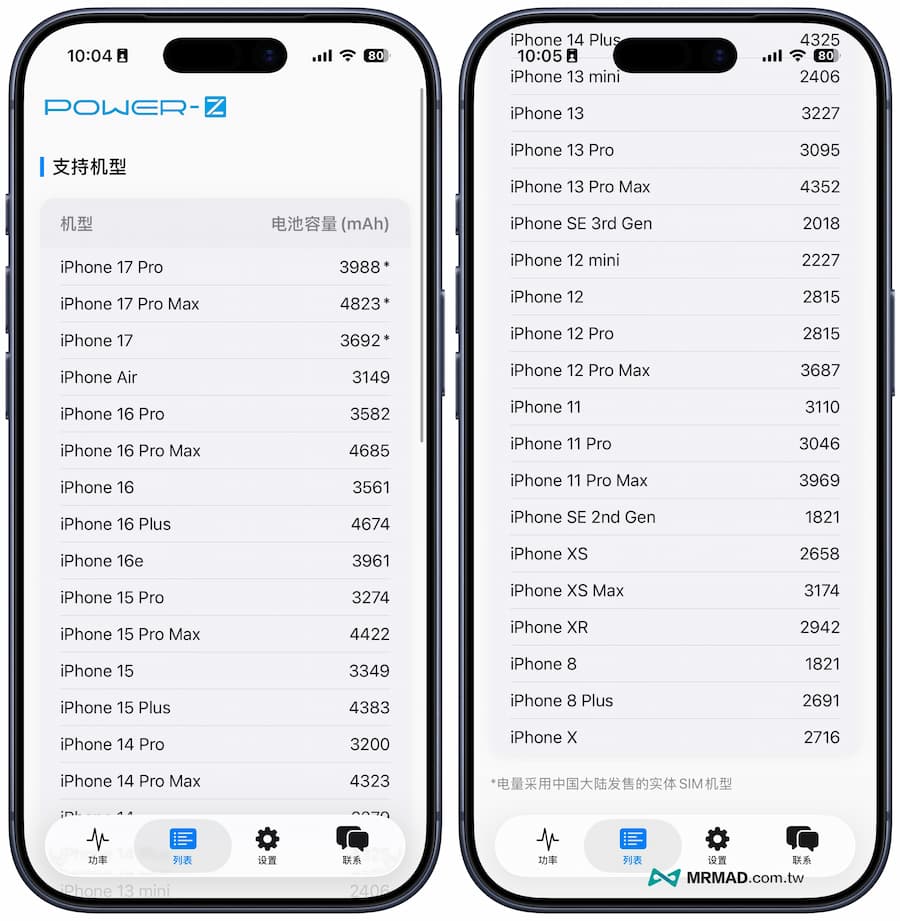
Currently, the iOS version shows that it supports iPhone devices. The POWER Z App can only test iPhone 8 series or above models at a minimum, and will also fully list the actual battery capacity of each iPhone model.
How to monitor mobile phone charging wattage and speed through POWER Z App?
Many people will find that the charging wattage measured using the POWER Z App does not change? The main reason is that the operation method is wrong. If you want to measure the charging speed of an iPhone or Android phone, use the following method:
Step 1: Keep the App running in the foreground
After opening the POWER Z App, connect the charging cable or MagSafe charger to your iPhone or Android phone and let the phone start charging. Do not lock the screen or switch to other apps during the process. The screen must be kept bright.
Step 2: Wait for the charging wattage to be displayed
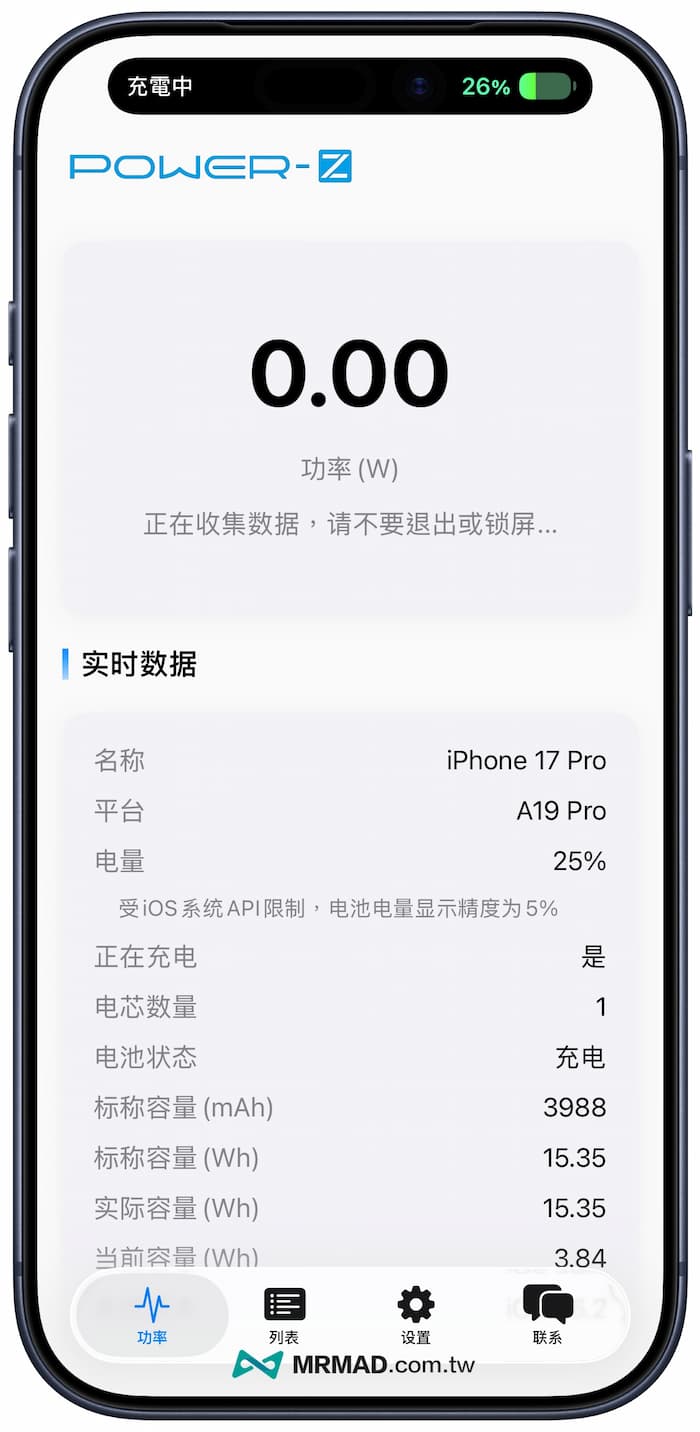
After you need to wait for a while for the POWER Z App to read the data, you will see the current charging wattage. However, there are two different restrictions between iOS and Android systems:
If it is an Android phone, the data is displayed almost instantly, and real-time wattage fluctuations can be quickly seen.
However, due to the API permission restrictions of the iOS system, the iPhone cannot directly read the underlying real-time current. It must calculate the average value through an algorithm. As a result, after plugging in the power, it usually takes 1 to 2 minutes for the data to start displaying, and it will take several minutes before it is refreshed.
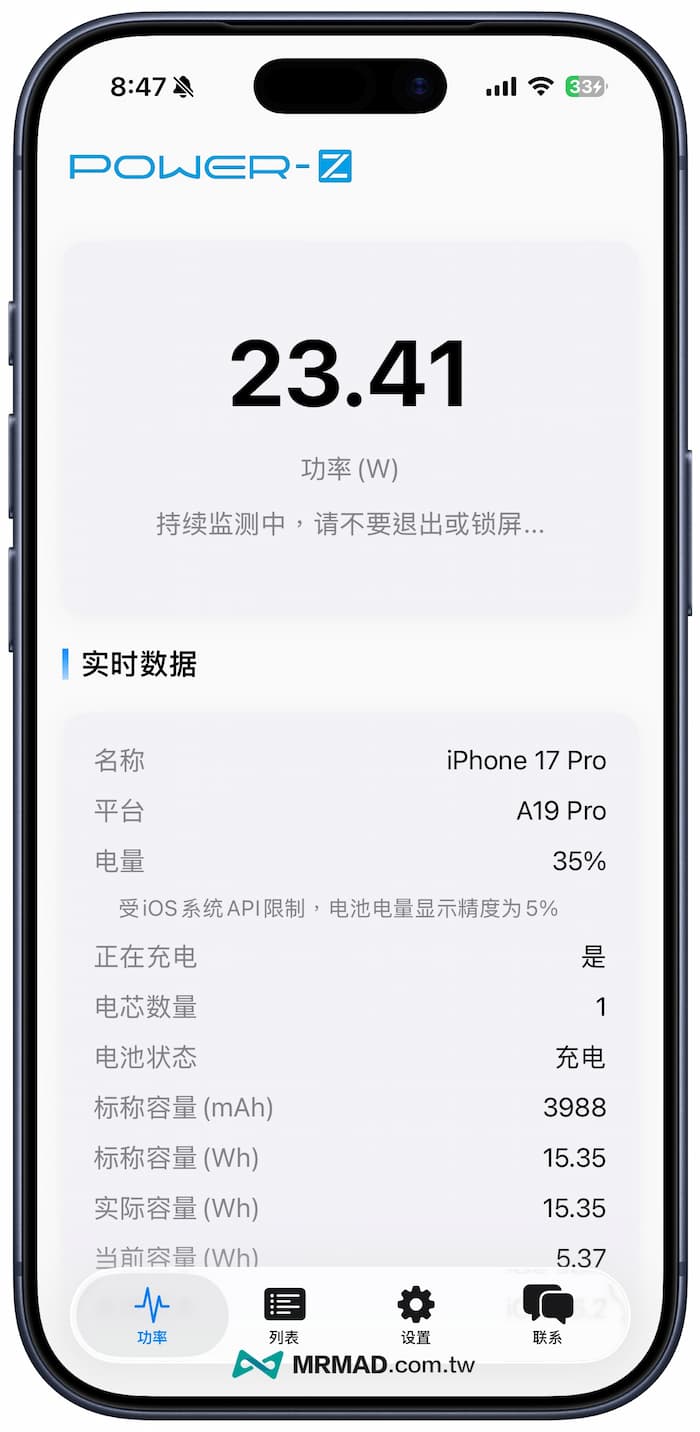
Adjust POWER Z App battery health and battery capacity
Since the POWER Z App directly uses the SIM card battery capacity data of the Chinese version of iPhone by default, if you have a SIM card-free version, you can also adjust the mAh battery capacity value through the settings, and you can even manually customize the battery health data. The charging data will be more accurate when detected through the APP.
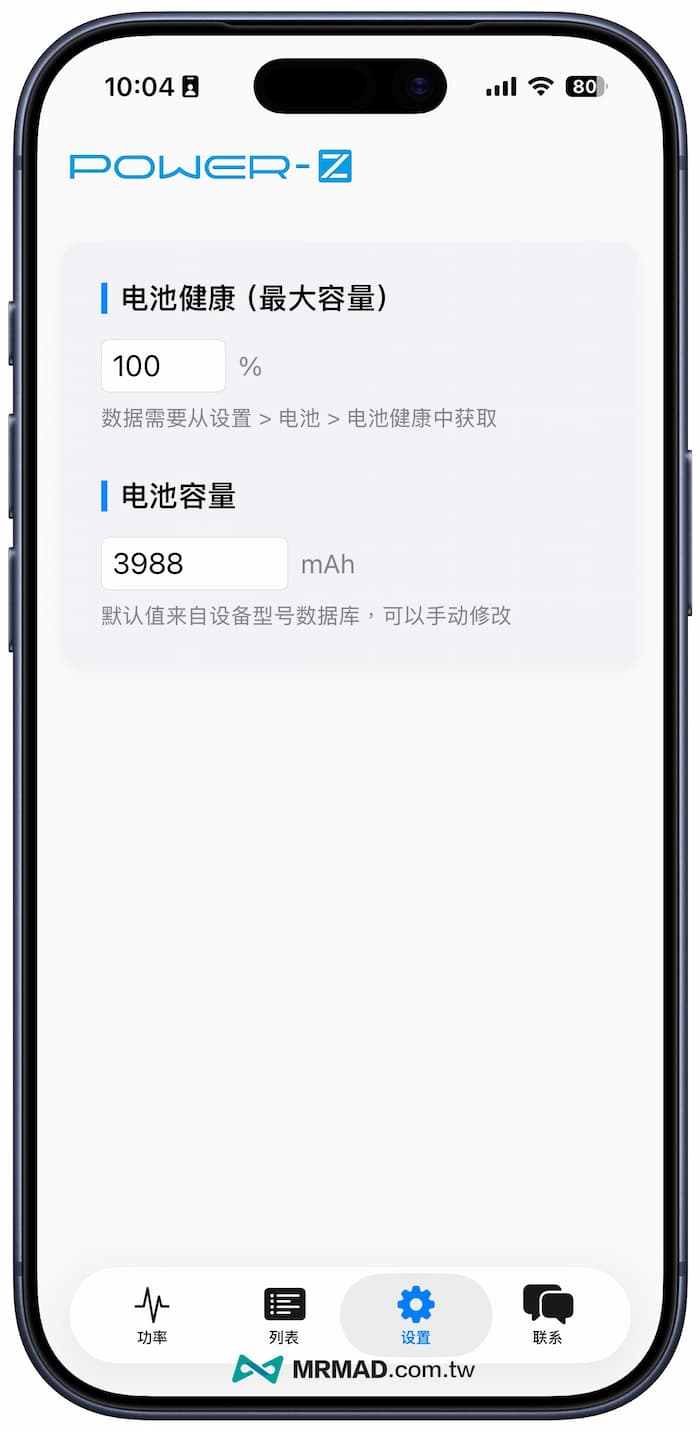
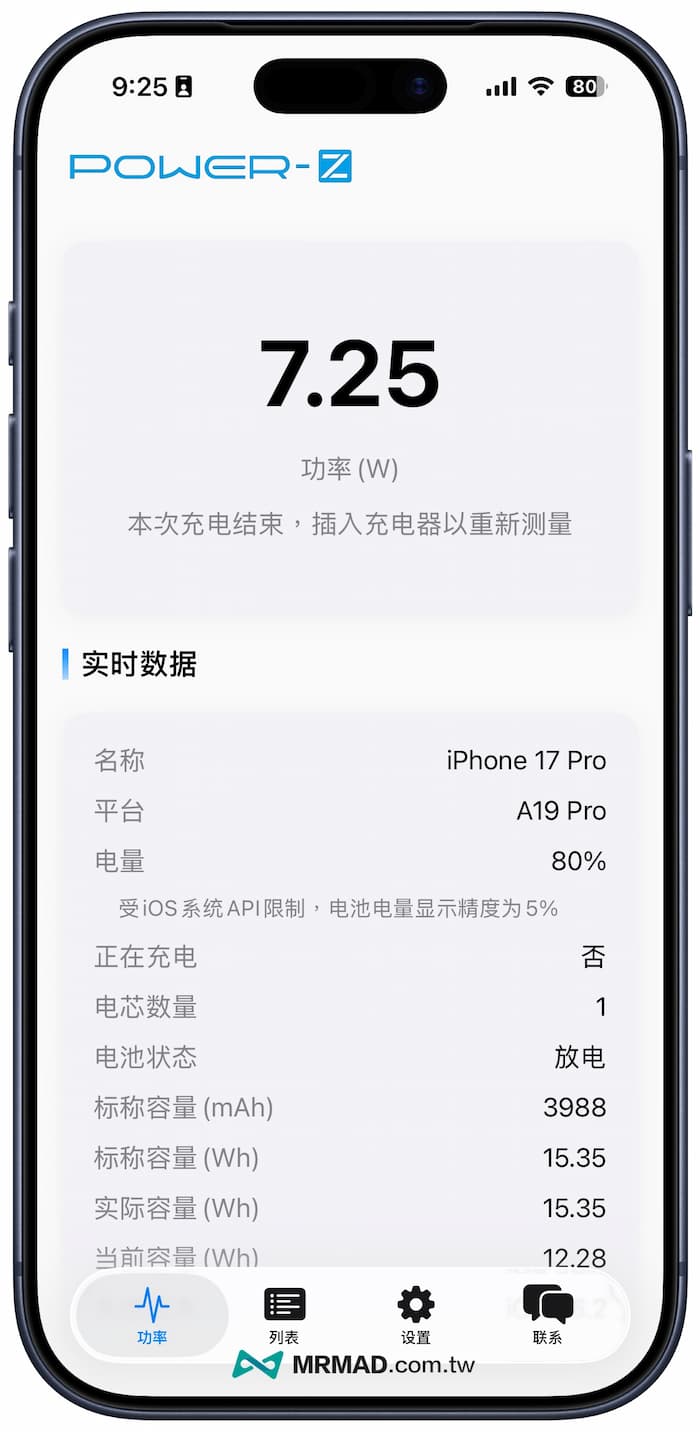
Actual measured POWER Z App data: iPhone 17 Pro with Qi2 wireless charging
In fact, Mr. Crazy used an iPhone 17 Pro with a wireless charger that supports the Qi2 protocol (or MagSafe) for testing. During the fast charging stage when the battery level was less than 50%, the App showed that the average power fell between 13W and 14.5W, which is quite close to the 15W upper limit of the Qi2/MagSafe theoretical value. This confirms that the reference value of the App is quite high. The only problem is that due to system limitations, the charging power cannot be updated in real time.
POWER-Z App download and installation
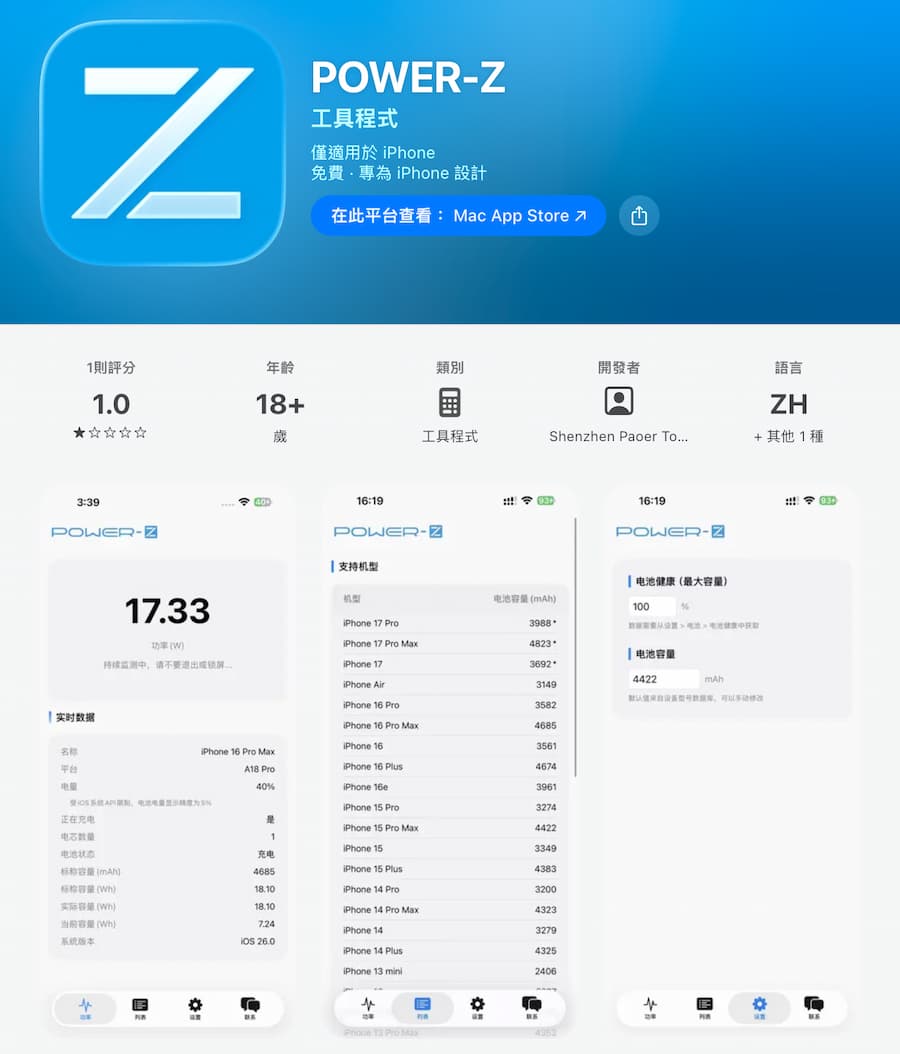
At present, the POWER Z App software has been officially launched on both platforms. You can click to download according to your own device:
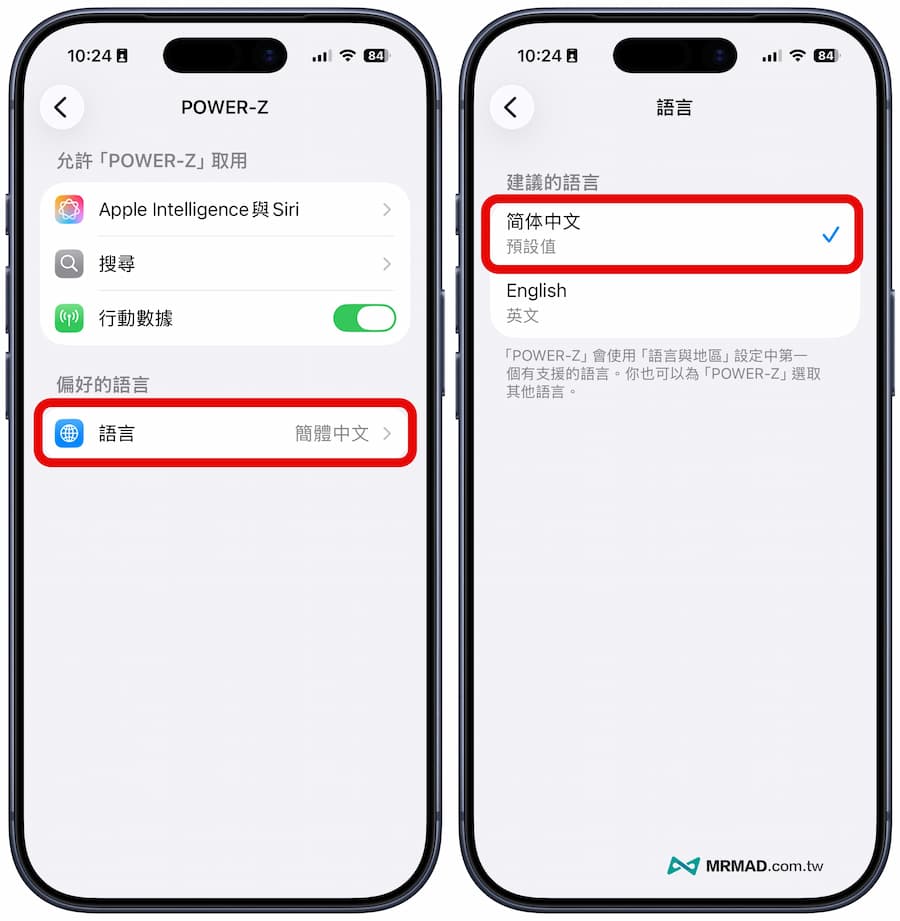
How to change the POWER Z App interface to Chinese?
If you open the POWER Z App and the default interface is displayed in English, Chinese will not be displayed. In fact, this needs to be changed in the system settings. The steps to modify the Chinese language of the POWER Z App are as follows:
- Enter the iPhone’s built-in “Settings” App
- Scroll to the bottom and click the “APP” menu
- Find the “POWER-Z” App
- Click “Language” at the bottom
- Change directly to “Simplified Chinese” (Traditional Chinese is not currently supported)
Finally, open the App again and you will see the familiar Chinese interface.
POWER Z App detects charging FAQs
Why does the POWER Z App display 0W after the iPhone is plugged in?
The iOS system requires time-accumulated data to calculate the average. Please keep the screen on and stay on the App screen, and wait patiently for about 60 to 120 seconds for the data to appear.
Will installing POWER Z App cause battery consumption on my phone?
Power is only consumed when the POWER Z App is open and the screen is always on. The iOS system will freeze it during daily background operations, so you don’t have to worry about draining your phone’s battery after installation.
Summarize
Although the POWER Z App on iOS is limited by the system mechanism and cannot refresh in seconds like a hardware tester, for the vast majority of ordinary users who just want to confirm whether the fast charging head is broken and want to know whether the wireless charging is full, this is a free and highly valuable monitoring tool. If you are curious about the charging efficiency of your mobile phone, it is strongly recommended to download it and give it a try!
If you want to know more Apple information, iPhone teaching and 3C information skills, please follow us
Crazy Mr. FB fan group,
Subscribe to Mr. Crazy Google News,
Telegram,
Instagramas well as
Subscribe to Mr. Crazy YouTube.