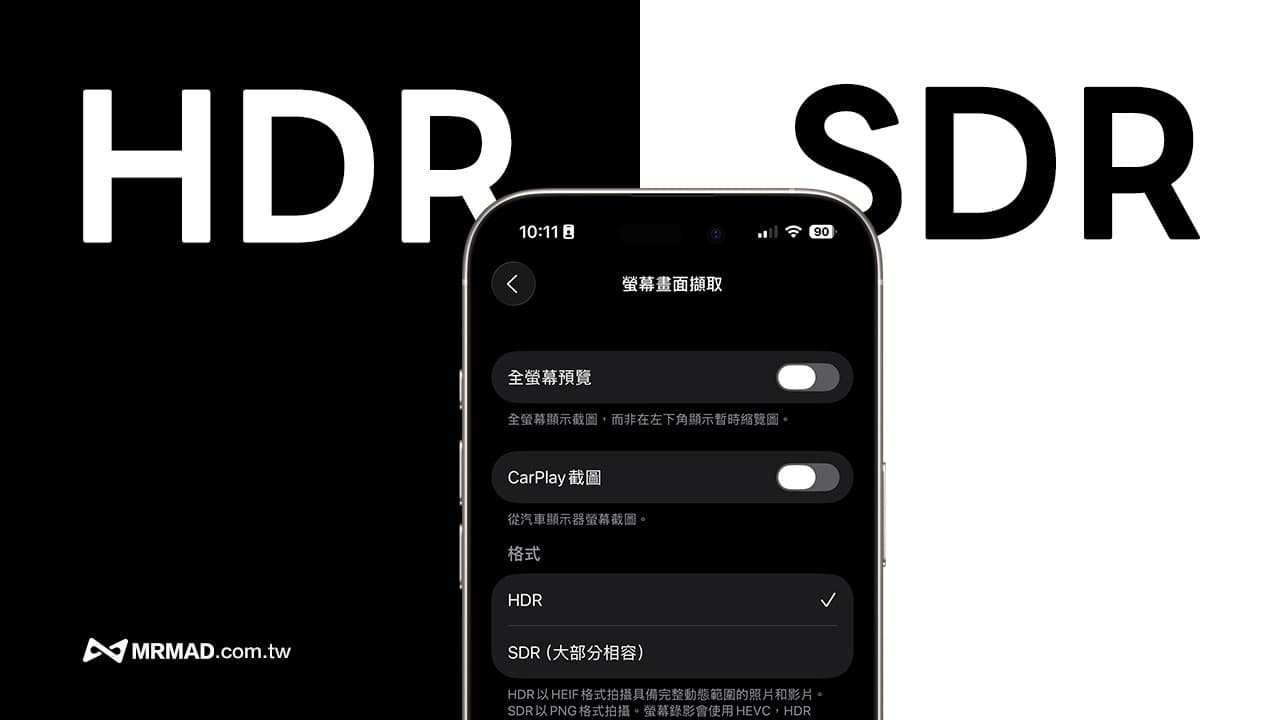
In the latest release of iOS 26 new version, Apple has also quietly added a new feature for iPhone screen HDR screenshots, which can mainly support HDR (high dynamic range) screenshots and recording. This new feature allows users to retain more details and color levels when capturing iPhone HDR image images, which will bring many benefits to content creators and developers.
What is the function of iPhone HDR screenshot?
Apple said that iPhone HDR screenshots mainly avoid particularly effective when dealing with high contrast images. For example, bright application interfaces with dark backgrounds, HDR video playback images, and even high-resolution photos can avoid traditional SDR (standard dynamic range) screenshots, which will cause iPhone screenshots to be overexposed or dead black, allowing the screen content to be presented with higher fidelity.
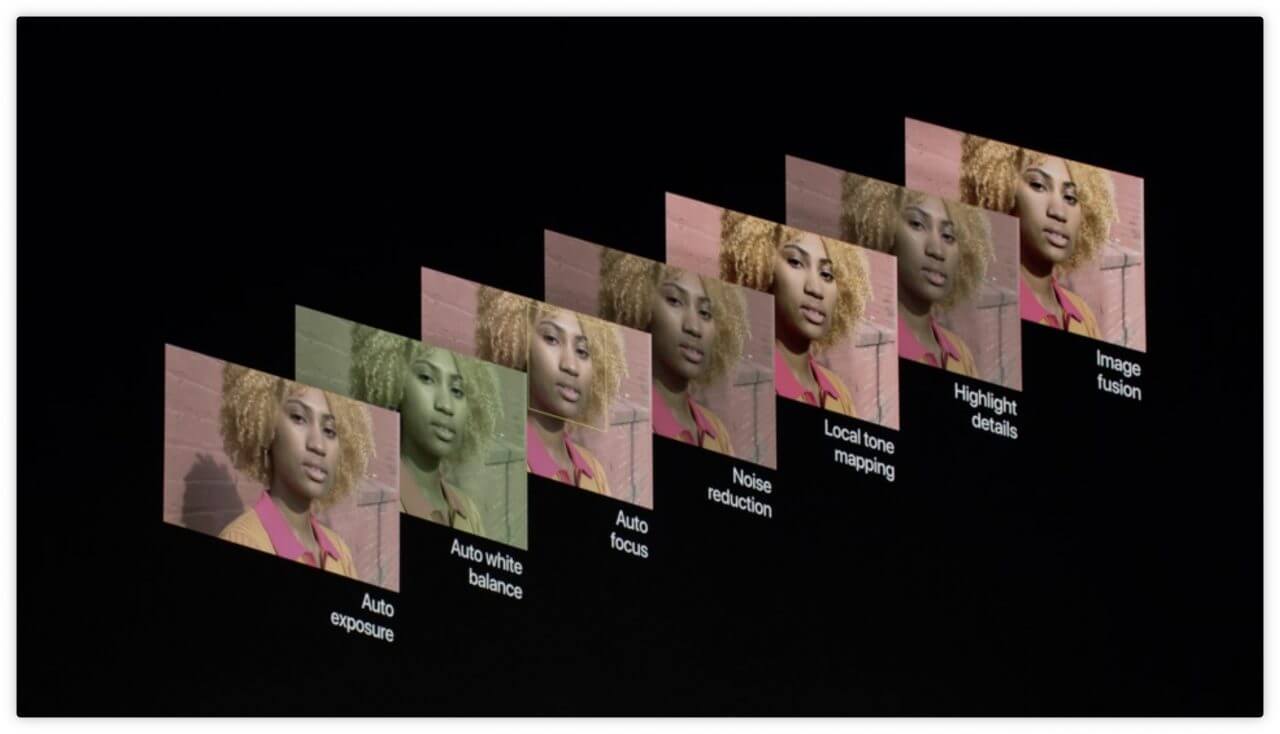
How to enable iPhone HDR screenshots on iOS 26?
Currently, the iPhone HDR screenshot function can only be upgraded to iOS 26 or new version to use. If it matches the version, you can directly switch the SDR and HDR screenshot formats through the following methods:
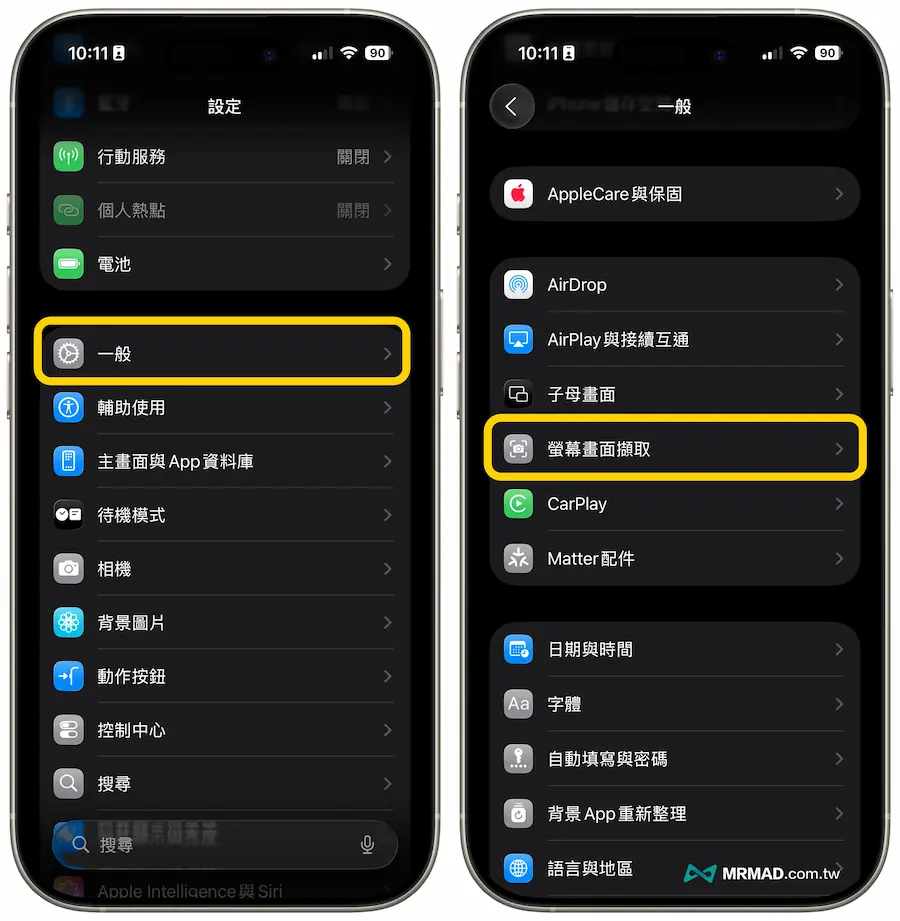
Step 1: Enter the screen capture settings
First, open the built-in “Settings” app through your iPhone, click “General” and select “Screen Screen Capture”.
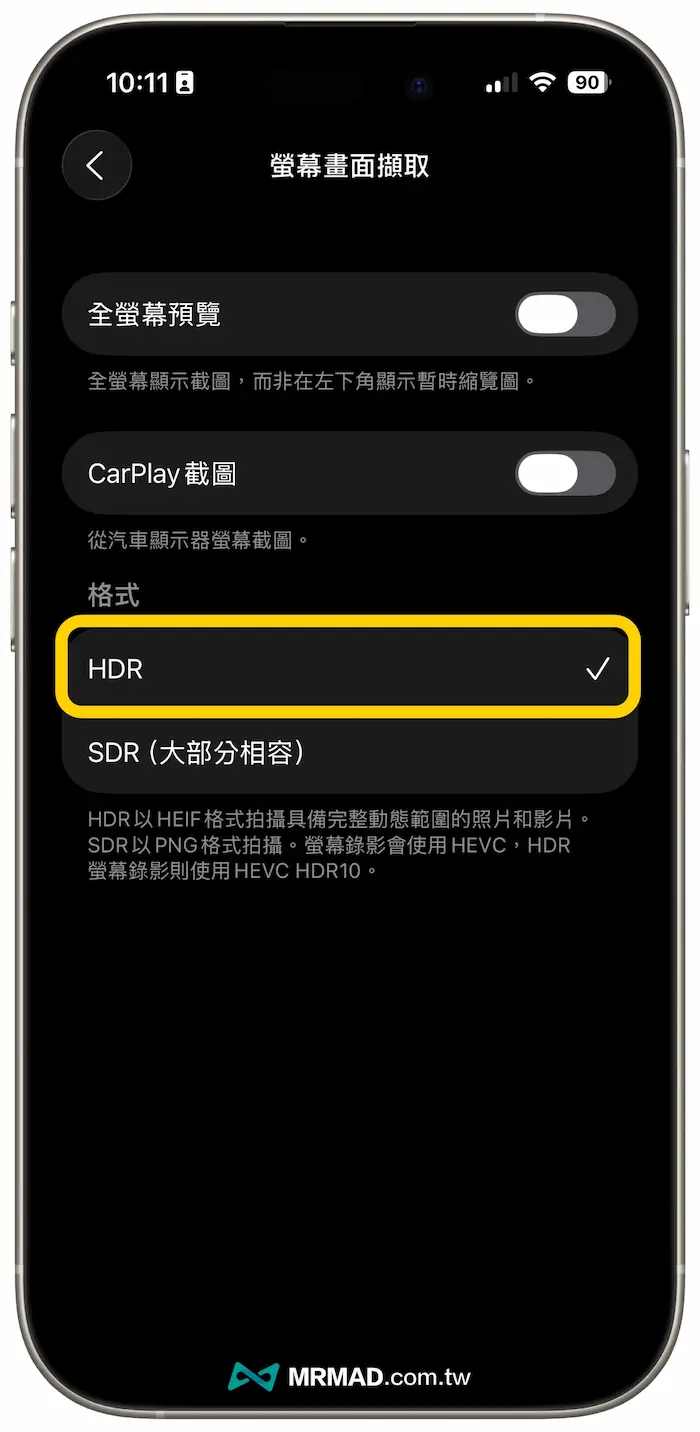
Step 2: Change to HDR screenshot format
As long as the iPhone screenshot is changed to HDR, all subsequent system screenshots will be stored in HDR format, and the screen recording will be in HEVC HDR10 format.
What is the difference between iPhone screenshot HDR vs SDR format?
Storage format and compatibility
- HDR Screenshots: It retains a wider dynamic range and color details, including brighter highlights and deeper dark details, especially suitable for high contrast screenshots or HDR video screenshots.
- SDR screenshot: It is a traditional display standard, with limited brightness, black position and color information, and is not suitable for high dynamic range content.
Storage format and occupancy size
Below we compare iPhone HDR screenshots with SDR format screenshots. When using HDR screenshots, they will be stored in HEIF format, while SDR screenshots will be stored in PNG format. If compared with screenshot file size, it can be clearly found that HDR screenshots occupy less than SDR.
- HDR screenshot format: iPhone saves the screenshots as HEIF format, and the file size is relatively small.
- SDR screenshot format: The screenshot is saved in PNG format, and the file size is relatively large.
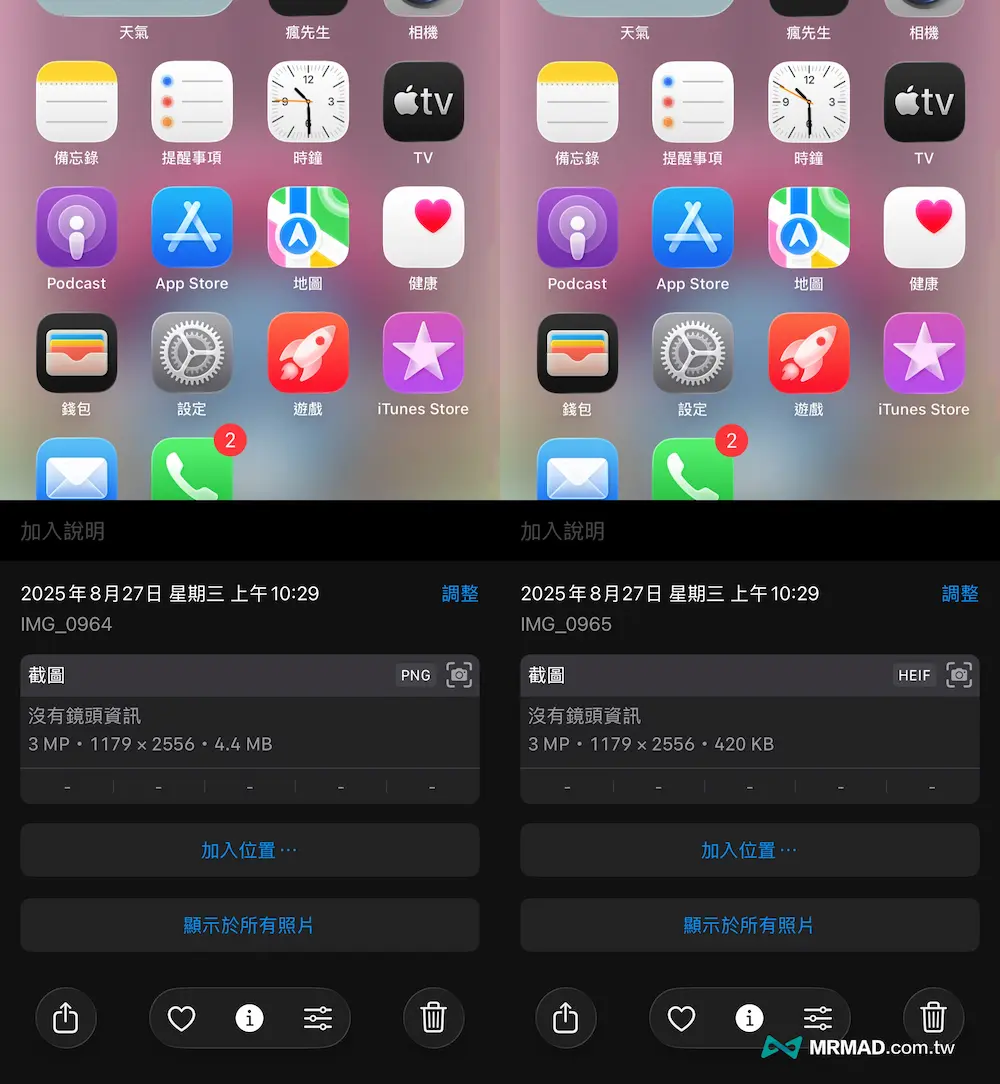 SDR screenshot format on the left image and HDR screenshot format on the right image
The HDR and SDR screenshot formats are also used to store photos in the album. It is obvious that if you switch to HEIF format to store screenshots, the image quality and details will be better, the high dynamics and the wider color gamut will be brighter and better than SDR in terms of photo screenshot performance.
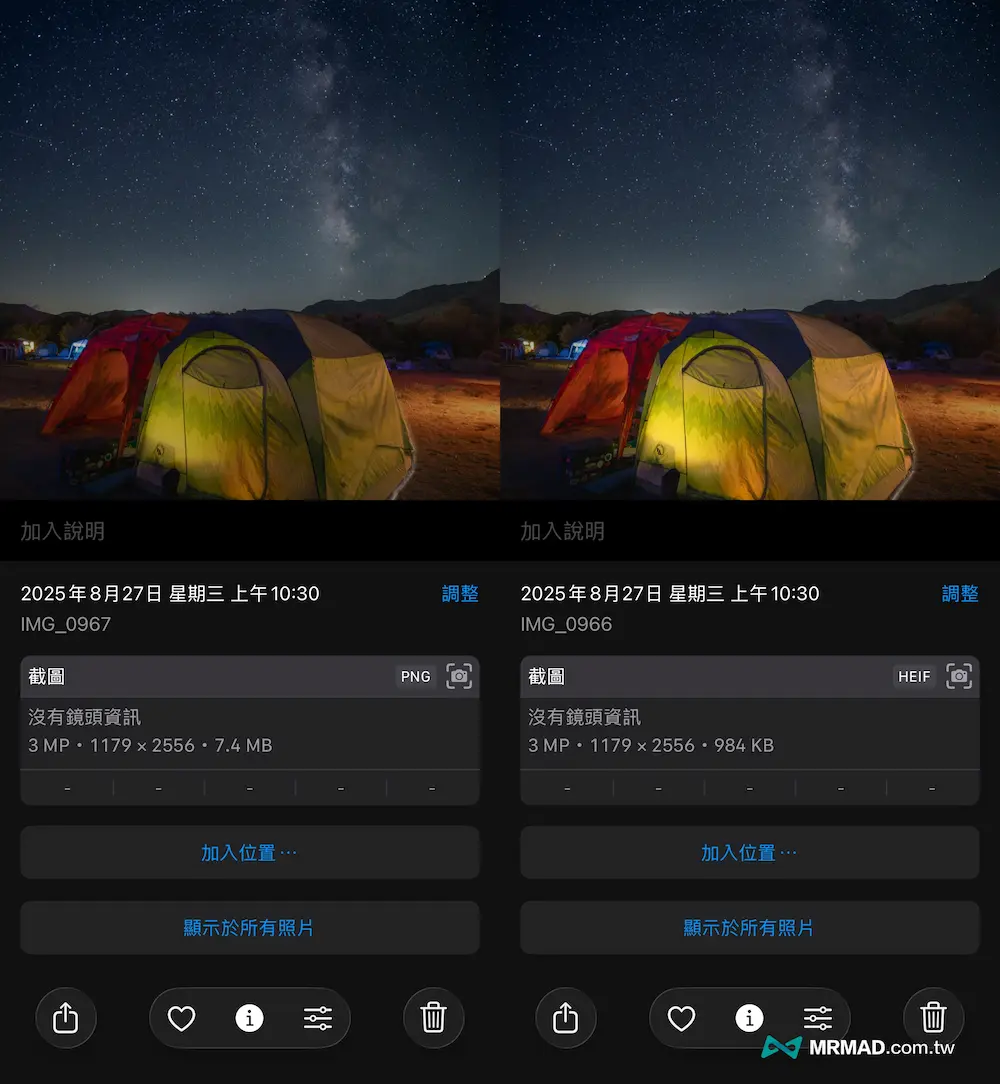 SDR screenshot format on the left image and HDR screenshot format on the right image
Summarize
In addition to the HDR screenshot function, iOS 26 has also added several practical functions in the “Screen Capture” setting, including:
- Full screen preview: Let the screenshots be previewed in large images instead of traditional small thumbnail floating windows
- Automatically identify content: Automatically analyze object information in the screen after screenshot
- CarPlay screenshot control: whether the switch allows the capture of the on-board system screen
Overall, although the update of iOS 26 is not a major revision, it continues to polish details in practicality, especially providing more advanced options in daily operations such as screen capture. It can also be seen that Apple attaches great importance to iPhone users.
If you want to know more about Apple information, iPhone teaching and 3C information skills, please follow us
Crazy FB Fan Group,
Subscribe to Mad Google News,
Telegram,
Instagramas well as
Subscribe to Madness YouTube.