
 A little tip for the Safari surfers among you: In Apple’s own browser, you can personalize the start page and design it according to your wishes. In addition to reading lists, favorites & Co., e.g. You can also choose your own background image, for example. If you also like to use the Safari app for your trips to the Internet, you should be familiar with the following setting options.
Personalize the Safari start page – how it works
Maybe you don’t know it yet, but for a while now you’ve been able to customize the Safari app’s home page—the layer that appears when you open a new tab—to suit your personal needs. This allows you to customize what you see on the Safari home page. You do this as follows:
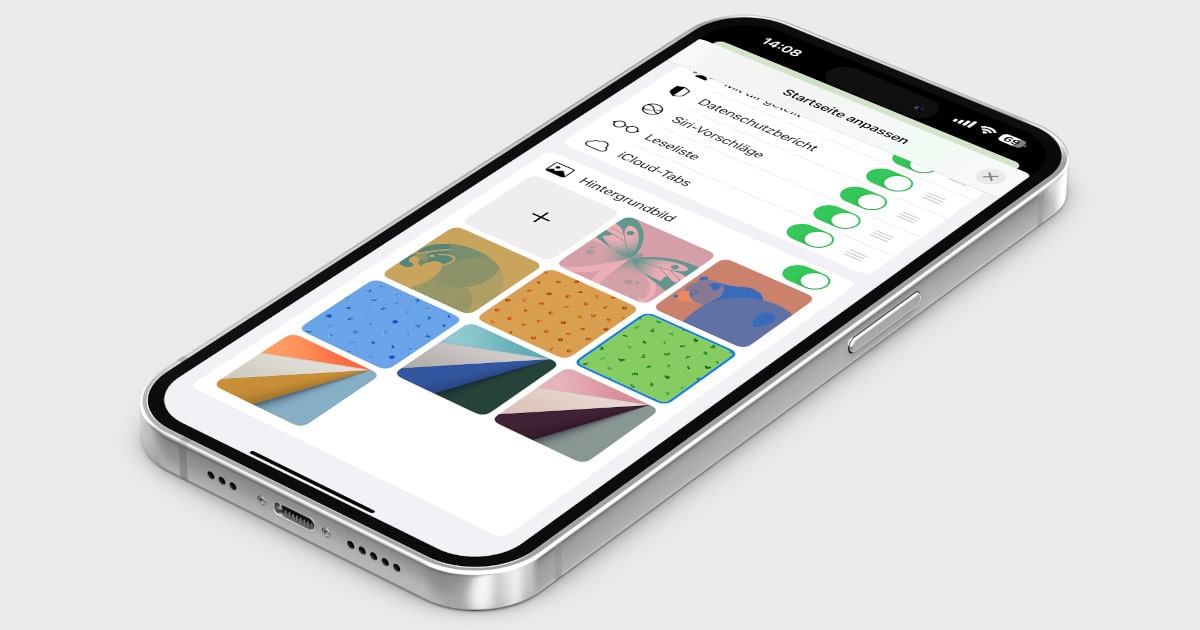
Open the Safari app and start a new tab by tapping the plus sign in the bottom left of the tab overview. Then go to the “Edit” button at the bottom and select in the “Customize start page” menu which sections you want to see there from now on. Among other things, you can place favorites, frequently visited websites, a data protection report and your reading list on the start page. With a tap on the switch to the right, you activate the respective option (green background) or switch it off (grey background).
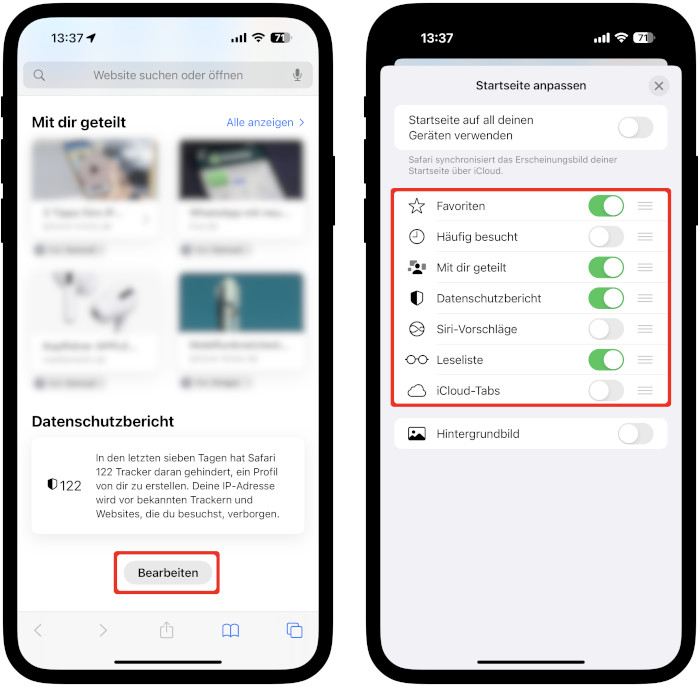
If you also have an iPad and/or a Mac, you can use the entry at the top to sync the appearance of your Safari homepage across all your devices via iCloud.
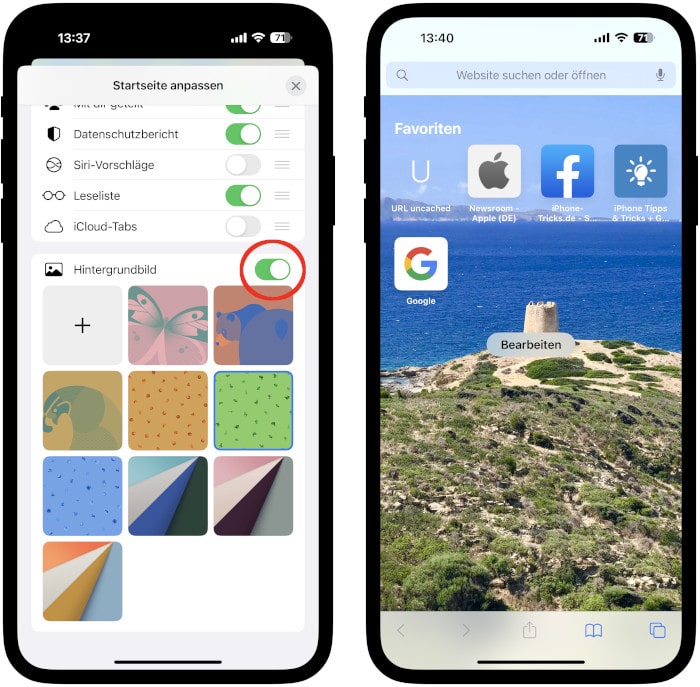
At the bottom you will also find the entry “Background image”. With a tap on the button to the right, you can take a wallpaper from the pre-made selection. The plus at the top left takes you to your photo library, where you can set a picture from your photo collection as the background for the Safari start page. This allows you to customize the look of your Safari app even more.
Source: iPhone Tricks