
Posts posted on X can be edited for a certain period of time.
You can add text to the post and relocate the media, which will make it even more fulfilling.
Editing a post requires subscribing to X Premium, but even with the free version there is a similar way to editing.
This time, we will introduce how to edit a post with X.
What is the editing function for X posts?

X’s Post has a feature that allows you to modify it only for a limited number of times and hours after it has been published.
Specifically, you can edit up to five times, including relocating text and media, within an hour of publication.
However, there is a small number of characters that can be edited, and only a single post with up to 140 characters is required.
The revised post displays a pencil icon, allowing you to see at a glance whether it has been changed or not.
The change history is also displayed, so even if you edit it by mistake, you can rest assured that you can return it to its state before the edit.
Requires X Premium subscribe
In principle, you must subscribe to X Premium, a paid plan, to edit your post.
You can hide ads and post long and long videos, making it easier to use X.
The monthly fee for X Premium is 980 yen for the browser version and 1,380 yen for the official app version.
Steps to edit a post

To edit the post, you must use the same device as when you sent it.
Please be careful if you change your model after sending it, you will not be able to edit the post.
Incidentally, if you send it from the web version, you can edit it by logging in to X, so this might be a better deal if you want to edit it after changing your model.
You can edit a post by following the steps below:
- Tap the three-point leader “…” in the top right corner of the post you want to edit.
- Select Edit Post from the menu
- Edit Post
- Once you’ve finished editing, tap the “Update” button.
- A button called “Last Edit:
” will appear below the post, so check your edit history from there.
If you post within an hour of publishing, you can quickly fix it using this method.
How to edit posts when using the free version of X

It’s often thought that post editing is a feature only available on X Premium, but in fact, the free version of X can be done in a way similar to post editing.
However, to edit with the free version X, you will need to follow a few steps.
Here are three ways to edit a post using the free version of X.
Edit Method 1: Delete the post and then repost
If you have made a mistake in the content of your post and want to make a major correction, we recommend deleting the post and posting again.
You can repost from an edit by following the steps below:
- Tap the three-point leader in the top right of the post you want to delete.
- Tap “Delete” at the top
- After reading the warning “Would you like to delete the post?”, select “Delete”

Once the deletion is complete, post a new post that you edited to make the previous update.
Edit Method 2: Reply to what you want to edit
If you want to correct a small mistake in words, we recommend replying.
Editing via reply can be done in the following two steps:
- From the menu of the post you want to edit, tap “Calendar” on the far left.
- Write the content you want to add or edit, then tap “Post.”
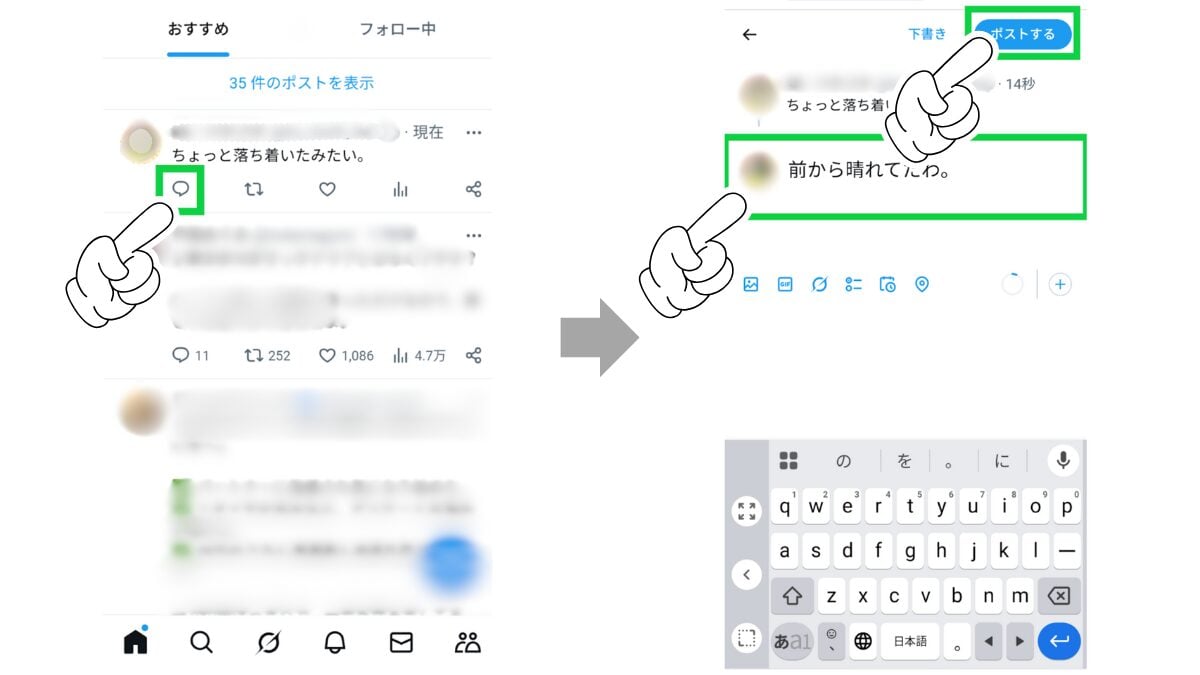
The reply text will be displayed directly below the original post, making it easy to read and understand the relevance.
Editing Method 3: Add in quote repost
If you want to add more content to the original post and make them more interested, we recommend using a quoted post.
Editing using a quote repost can be done in the following three steps:
- Tap the repost in the center left from the menu of the post you want to edit.
- The options will appear, so tap “Quote”
- Write the content you want to add or edit, then tap “Post.”
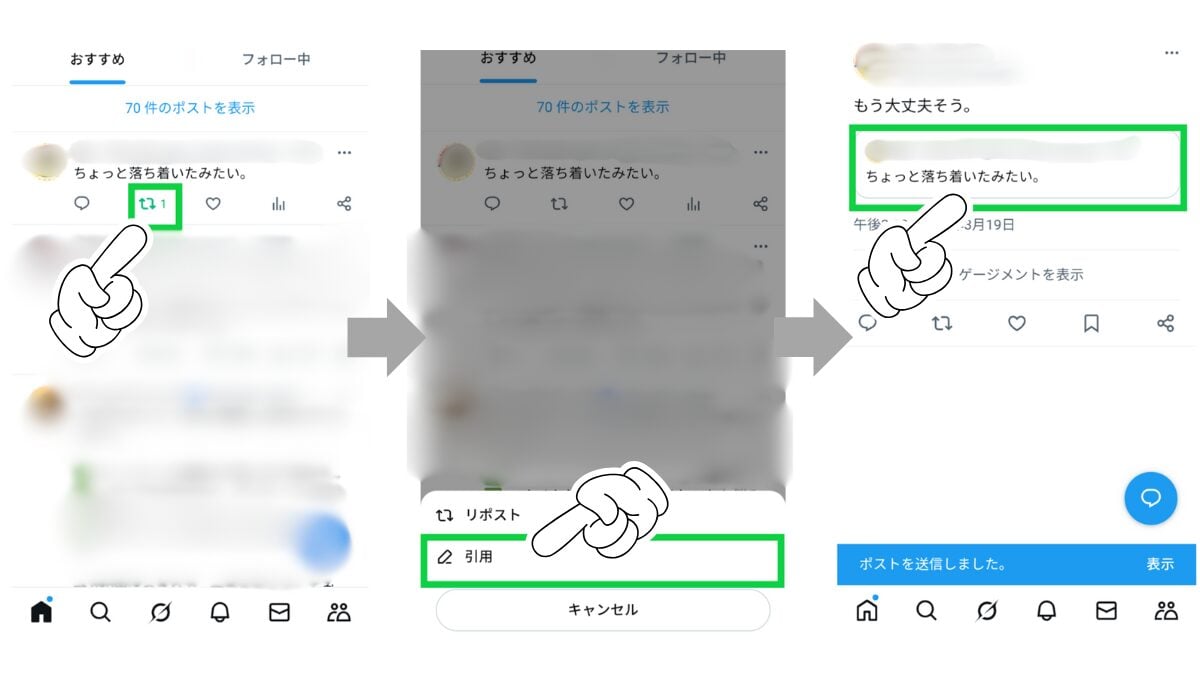
Reposts can also be used for past posts, so you can also get your attention again.
Frequently asked questions (FAQ)

Here are three frequently asked questions when editing a post.
Q1: Will followers find out if you edited or edited posts?
A: Yes. Posts edited with X Premium will display edited icons and edit history, so followers are likely to be noticed.
If you don’t want to be too exposed, you should reduce the number of edits as much as possible.
Q2: What types of posts can I edit with X Premium?
As already explained, X Premium can only be edited on a single post with up to 140 characters.
Please note that you cannot edit threads, replies, promotional posts, etc.
It also does not support posting from the X Pro Account, a plan for business users and creators.
It’s better to just assume that this is for editing a solo post.
Q3: Why can’t I edit posts freely in X?
Some people may think that if you can edit the post freely it would be easier, but there is a reason why editing is being restricted.
Posts can be easily spread by embedding reposts and site guides, so if editing restrictions are lifted, there is a risk that personal information will spread.
Therefore, lifting editing restrictions will continue to be a difficult task in the future.
summary
We’ve introduced how to edit posts in X.
Post editing requires subscribe to X Premium, and you can edit a single post up to five times within an hour of publication.
In addition, the free version X can also be edited by reposting after deletion, or by adding information in reposting or quote replies.
By correcting typos and associating them with posts, you will be able to get another chance to attract attention even if you have posted in the past.
Let’s become more skilled in editing posts and make them popular!
Source: iPhone Mania