
If you want to share photos with friends or groups via LINE, the “album” function is useful to actually use.
You can organize and manage your photos, so you can keep important data forever.
In addition to how to make a LINE album, we will explain in detail the basics of how to use it, such as adding and saving, and points to be careful about.
We will also introduce more serious ways to use it, such as saving videos and transferring them to other chat rooms, so use this as a reference to mastering your LINE album.
What is a LINE Album? Introducing the main features!
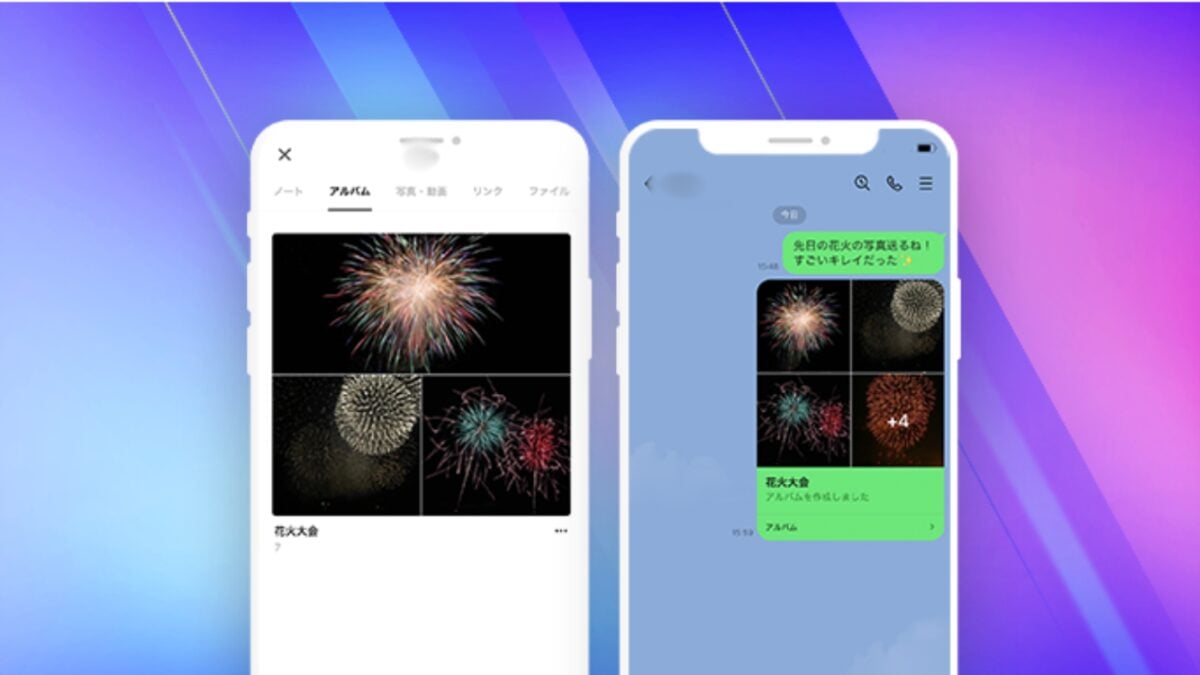
With LINE Album, you can save all of the photos sent and received.
It is also recommended for sharing photos of travel within a group.
Here are two other great features:
Features 1: There is no shelf life so you can continue to share photos
Photo retention period is not set in LINE albums.
Therefore, you can view photos at any time, unless you delete them.
However, if you share it within a group, anyone can edit or delete it, so be careful not to delete it suddenly.
It is best to store it in a place where you can manage it yourself, such as a photo album in the cloud.
Features 2: Does not overload the storage capacity of your device
Images from LINE albums are stored on LINE servers, not on devices.
Therefore, if you have extra photos taken on a trip or other trip, you can save them in a LINE album to reduce the capacity.
You can create 100 albums, so you can store up to 100,000 images.
Make use of LINE albums so you can keep memories with your close friends forever.
How to make a LINE album

The following is how to make a LINE album:
1. Tap the menu button on the top right of the chat screen
2. Open the menu and tap “Album” from it.
3.Tap the + button at the bottom right to create a new album
4. Select the photo you want to share in the album and tap “Next.”
5. Enter the album name and tap “Create” if there are no mistakes.
6. New album creation is complete
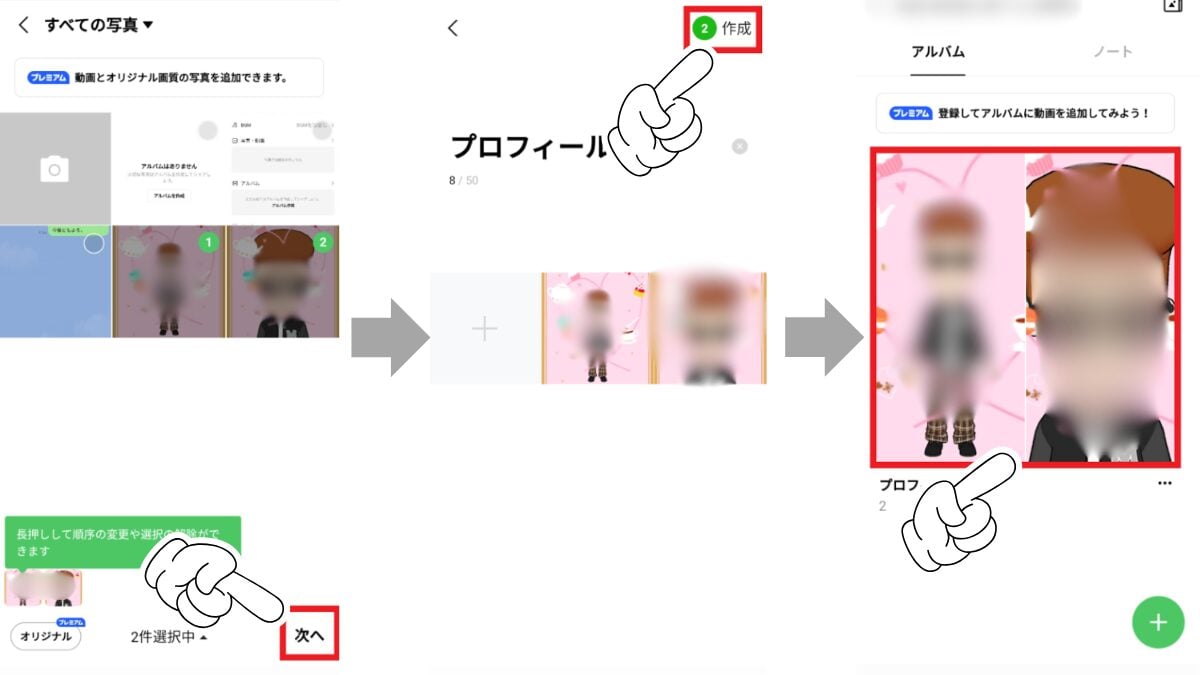
You can save photos sent and received during the talk by pressing and tapping “Album.”
Basic usage of LINE albums

In addition to creating new ones, there are many ways to use LINE albums.
Among them, I will introduce two useful ways to use it, so please use it well.
How to use 1: Add photos to an existing LINE album
You can add photos not only to newly created ones, but also to existing albums.
The steps are as follows:
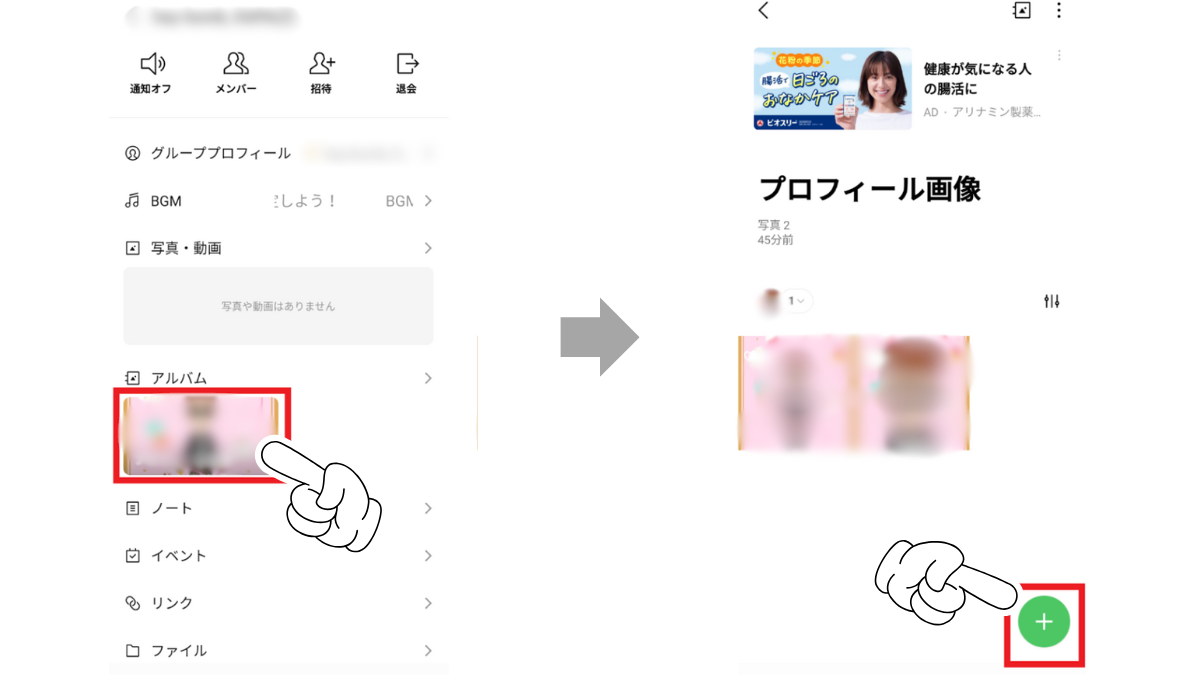
1. Open the menu, select the album you want to add a photo to, and tap
2. Select the photo you want to add to the album from your device, check it, and then tap “Next.”
3. If there are no mistakes in the contents, tap “Add” in the top right corner.
4. If you see the message “Added” then it’s done.
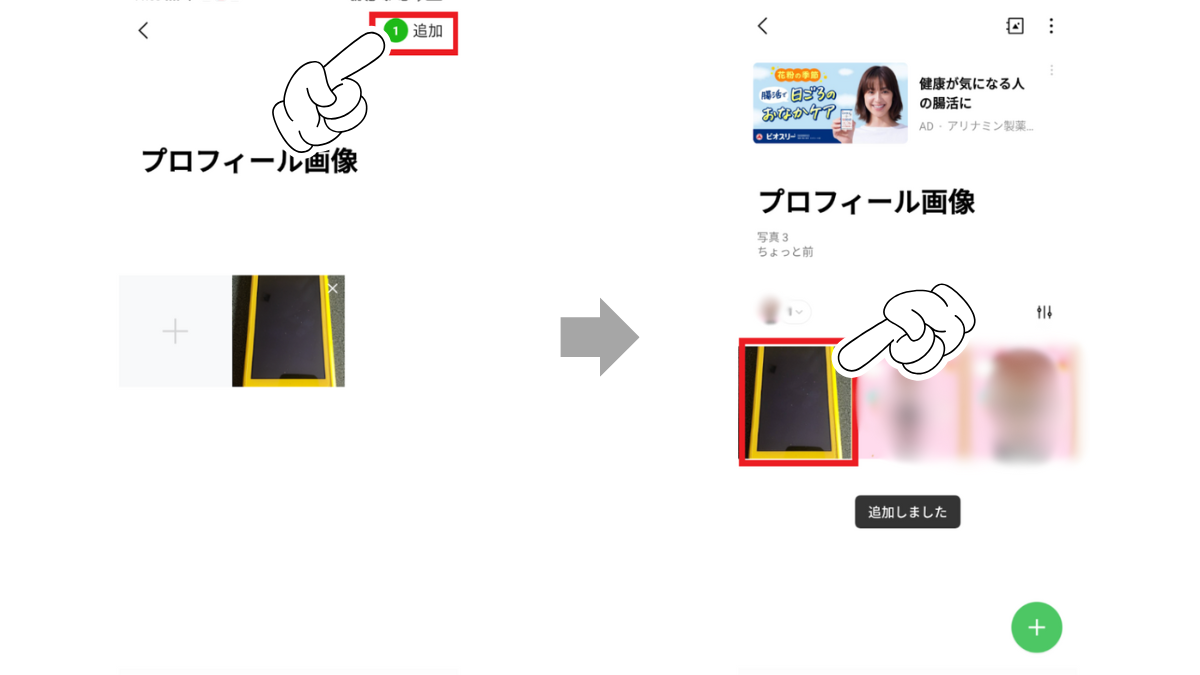
Once saved, a notification of posting will be displayed just like when creating a new one, so you can see at a glance whether the posting was successfully delayed.
How to use 2: Save (download) LINE Album photos to your device
Photos stored in the album can be downloaded to your device.
You can choose individually, multiple copies, or whole albums, so download them in the way that suits you.
However, downloaded photos will be stored in internal storage, so be careful not to overload the capacity of your smartphone.
Even if you download photos from the album, you won’t be notified to the other party or group members, so there’s no need to worry about them being discovered.
Frequently asked questions (FAQ)

Here we will introduce three frequently asked questions when using LINE albums.
Q1: What is the difference between LINE albums and LINE Notes?
A: LINE Album and LINE Note have different functions that can be used even with similar names.
Notes are intended to store notes, check location information, and albums are intended to organize and store photos.
Only photos can be saved in an album, so it’s a good idea to use a notebook for other savings.
Q2: Can LINE albums also save files such as PDFs?
A: No. Only photos can be saved in LINE albums, so you cannot save them in file formats such as PDFs.
It is not possible even with LINE Notebooks, so it seems that files cannot be used on LINE in the first place.
If you really want to save a PDF, it’s best to create a shared link with your friends on Google Drive or other means and use it for group chats.
Q3: What if you want to transfer your LINE album when changing your model?
A: LINE albums are saved on the cloud, so data can be transferred even if you change your model.
If you install LINE on your new device and log in with the same account, you will see the previous synced album data.
However, if it is deleted when changing your model, it cannot be restored, so please be careful when transferring your LINE album.
summary
In addition to how to make a LINE album, we have explained in detail the basic usage such as adding and saving, as well as precautions.
There is no set retention period for photos in LINE Albums, so you can organize them and save them each time.
Therefore, even if you take a large amount of photos, there is no need to worry about the data becoming degraded and you will not be able to save it.
It’s easy to add new albums, but it doesn’t support saving in file formats such as PDFs, so you should consider them to be used to save photos.
The data from LINE albums is saved in the cloud, so it’s also nice that you can continue to use the data after changing your model.
Use these as a reference to make use of LINE albums so you can keep precious memories with your family and friends forever!
Source: iPhone Mania