Have you ever had trouble with your iPhone screen suddenly going dark?
It can be frustrating when you’ve been using your device as usual and suddenly the display becomes difficult to see.
In fact, many of the reasons why your iPhone screen goes dark are due to simple settings or functions.
You can quickly get things back on track by simply adjusting a few settings, such as automatic brightness adjustment and low power mode.
In this article, we will explain some easy solutions that anyone can follow, so you will be able to calmly deal with any sudden troubles that arise.
Please be sure to watch until the end.
5 reasons why your iPhone screen goes dark and how to fix it
There are five main reasons why your iPhone screen may go dark:
- Brightness adjustment function
- Automatic lock function
- Low Power Mode
- White Point
- Dark Mode
We will explain the detailed causes and solutions for each.
Automatic brightness adjustment function
If your iPhone screen suddenly goes dark, it’s most likely due to the “Auto-Brightness Adjustment” feature.
This feature senses the light around you and automatically adjusts the screen brightness to suit your environment.
For example, the screen will be dimmer in a dark room and brighter in a bright place.
However, sometimes it can overreact and become too dark.
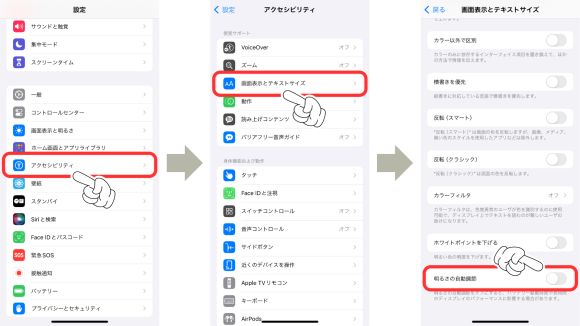
You can fix this by turning off “Auto-Brightness” in the “Accessibility” settings.
Below, we will explain the specific countermeasures along with the actual operation screen.
- Select “Accessibility” from Settings
- Select “Display and text size”
- Turn off “Auto-brightness” and you’re done
Automatic lock function
To save power, iPhone has an “auto-lock” feature that automatically darkens and locks the screen if no operations are performed for a period of time.
If your screen suddenly goes dark without any operation, it is most likely due to auto-lock.
By default, the screen will go dark after one minute of inactivity, but this time can be changed in the settings.
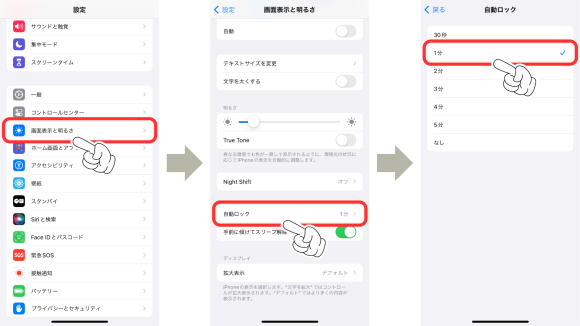
You can adjust the auto-lock time from “Display and Brightness” in Settings, so give that a try.
Below, we will explain the specific countermeasures along with the actual operation screen.
- Select “Display and Brightness” from Settings
- Select “Auto-Lock”
- Set “Auto-lock time” and you’re done
Low Power Mode
“Low power mode,” which conserves battery power, is also one of the reasons why the screen becomes dark.
When this mode is turned on, the screen brightness will automatically be adjusted to be darker than usual to save battery.
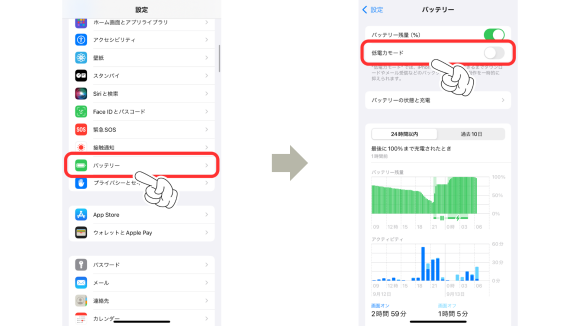
Check if Low Power Mode is enabled in the “Battery” settings and disable it if necessary.
Below, we will explain the specific countermeasures along with the actual operation screen.
- Select “Battery” from Settings
- Turn off “Low Power Mode” and you’re done
White Point
The “White point adjustment” function reduces the brightness of the white part of the screen and reduces strain on your eyes.
When this is on, the screen may appear darker overall.
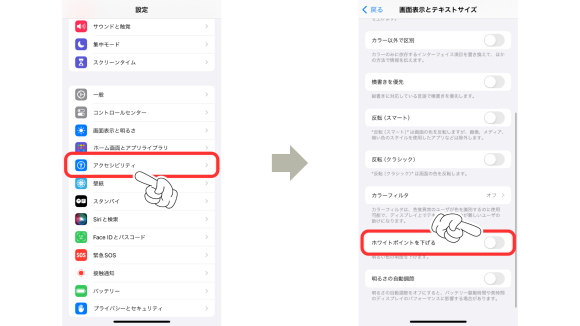
If you feel that the white point is causing the screen to be too dark, check the white point adjustment in “Accessibility” in Settings and turn it off if necessary.
Below, we will explain the specific countermeasures along with the actual operation screen.
- Select “Accessibility” from Settings
- Turn off “Reduce White Point” and you’re done
Dark Mode
“Dark Mode” is a mode that changes the iPhone screen to a dark color scheme.
This function is designed to make it more comfortable to use the device at night or in dark places, but the screen may appear dark during the day or in bright places.
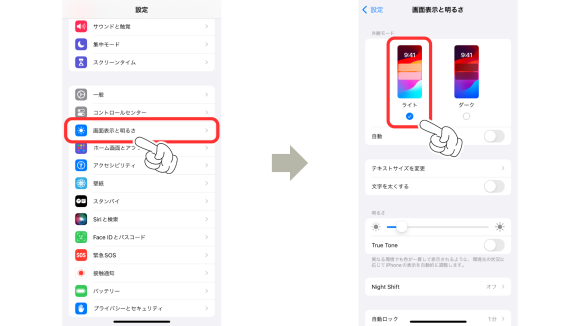
If your screen is dark due to dark mode, you can restore brightness by switching to “Light mode” from “Display and Brightness” in Settings.
Below, we will explain the specific countermeasures along with the actual operation screen.
- Select “Display and Brightness” from Settings
- Change the appearance mode to “Light mode” and you’re done
summary
The reason why your iPhone screen goes dark is often due to a surprisingly simple setting.
Many issues can be resolved by simply checking your settings, such as automatic brightness adjustment, low power mode, auto-lock, white point, and dark mode.
By trying out the solutions outlined in this article, you should be able to get your display back to normal in no time.
If your screen goes dark, don’t panic. Check the causes one by one and try to resolve the problem.
Just by adjusting the settings a little, you’ll be amazed at how comfortable it will be!
Source: iPhone Mania