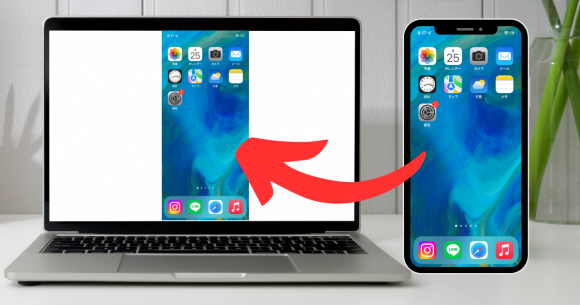
Have you ever wanted to display your iPhone screen on a TV or projector to enjoy content on a larger screen?
The iPhone mirroring function comes in handy in such situations.
This feature makes it easy to display photos, videos, and app screens on an external display.
In this article, we will provide a thorough and easy-to-understand explanation of the iPhone mirroring function, from an overview to how to use it, using images.
Master smart ways to use your iPhone and expand its possibilities even further!
What is iPhone mirroring function?
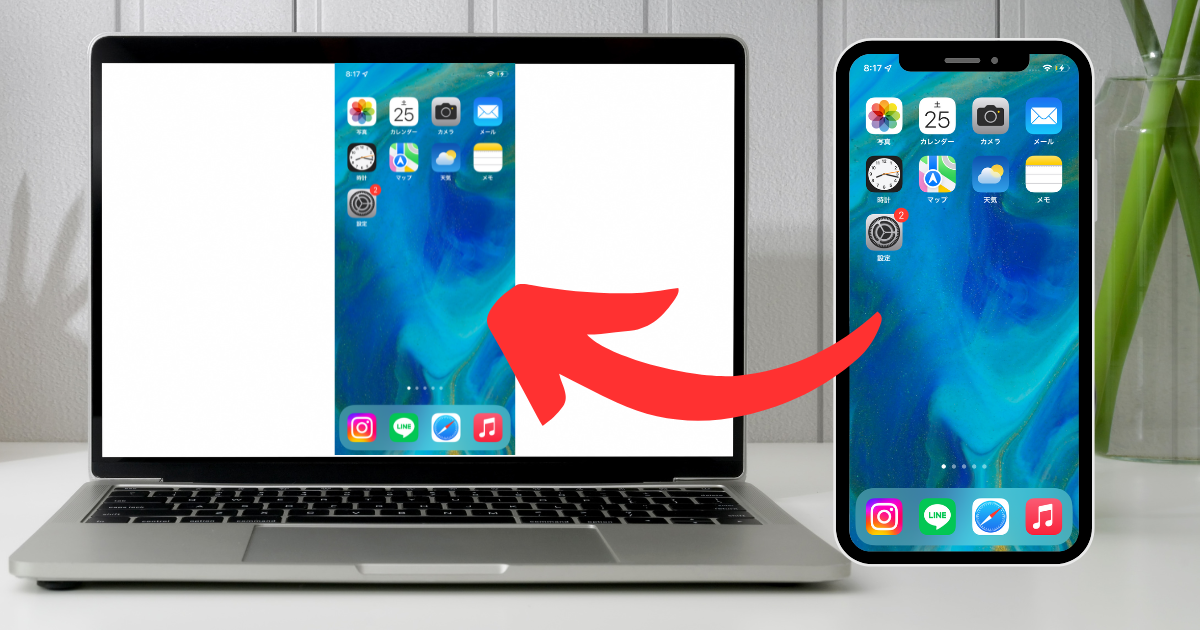
The mirroring function allows you to display the same content on your smartphone or computer screen on an external display such as a TV or projector.
This allows you to enjoy photos, videos, app screens, and more on a large screen.
For iPhones, it is common to mirror wirelessly using AirPlay, but wired output is also possible using a dedicated app or conversion adapter.
Pre-settings for iPhone mirroring
Use AirPlay to wirelessly mirror your iPhone screen on other devices.
AirPlay is a feature that allows you to stream photos, videos, and music from your Apple device to compatible devices.
A Wi-Fi environment is required to use this service, so be sure to make the following settings in advance.
- Turn on the AirPlay receiver
- Connect your iPhone and receiving device to the same Wi-Fi
Let’s take a closer look at the steps on the actual receiving device (Mac).
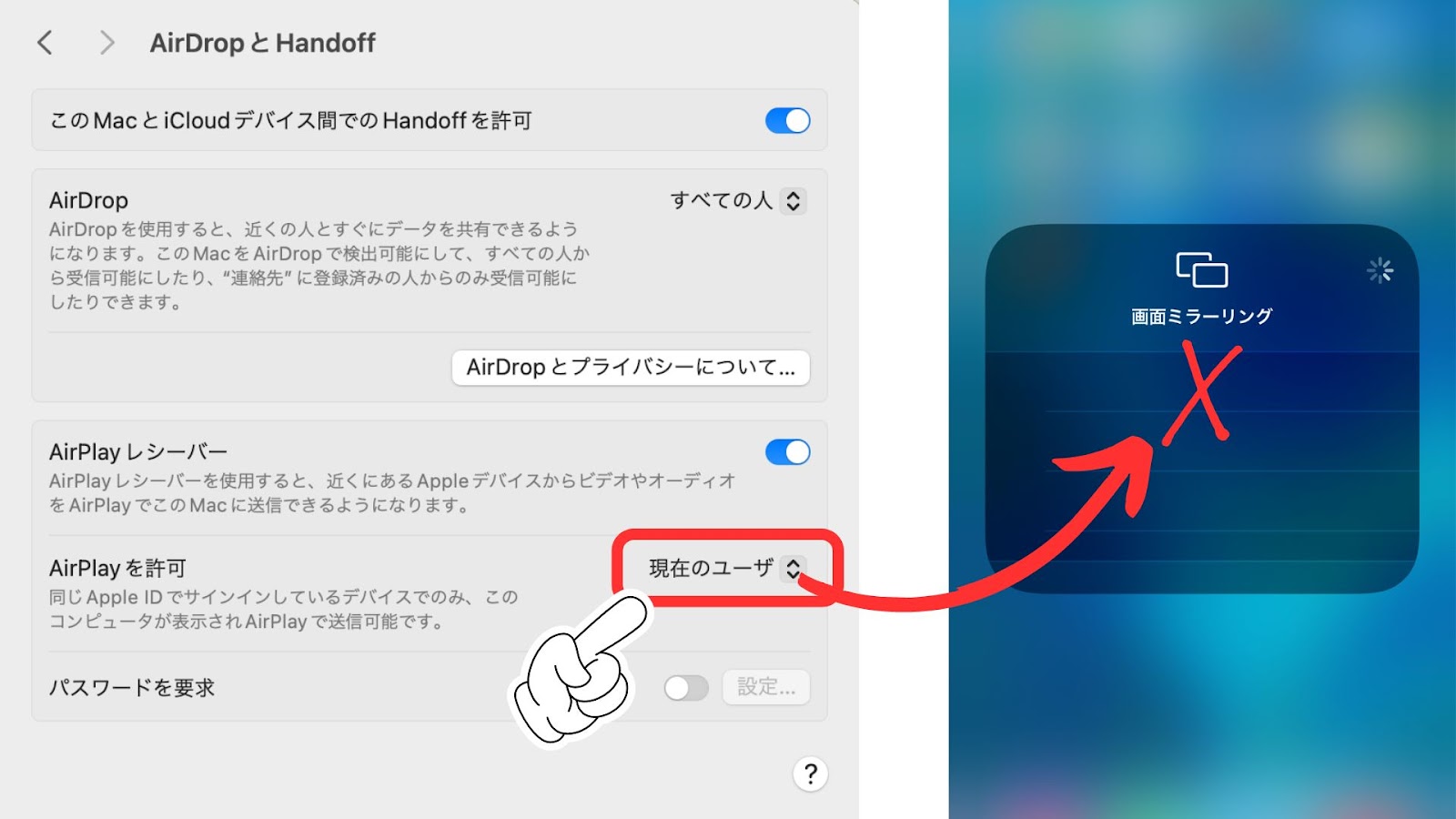
1. Click the “Apple logo” in the upper left corner of your Mac and select “System Preferences”
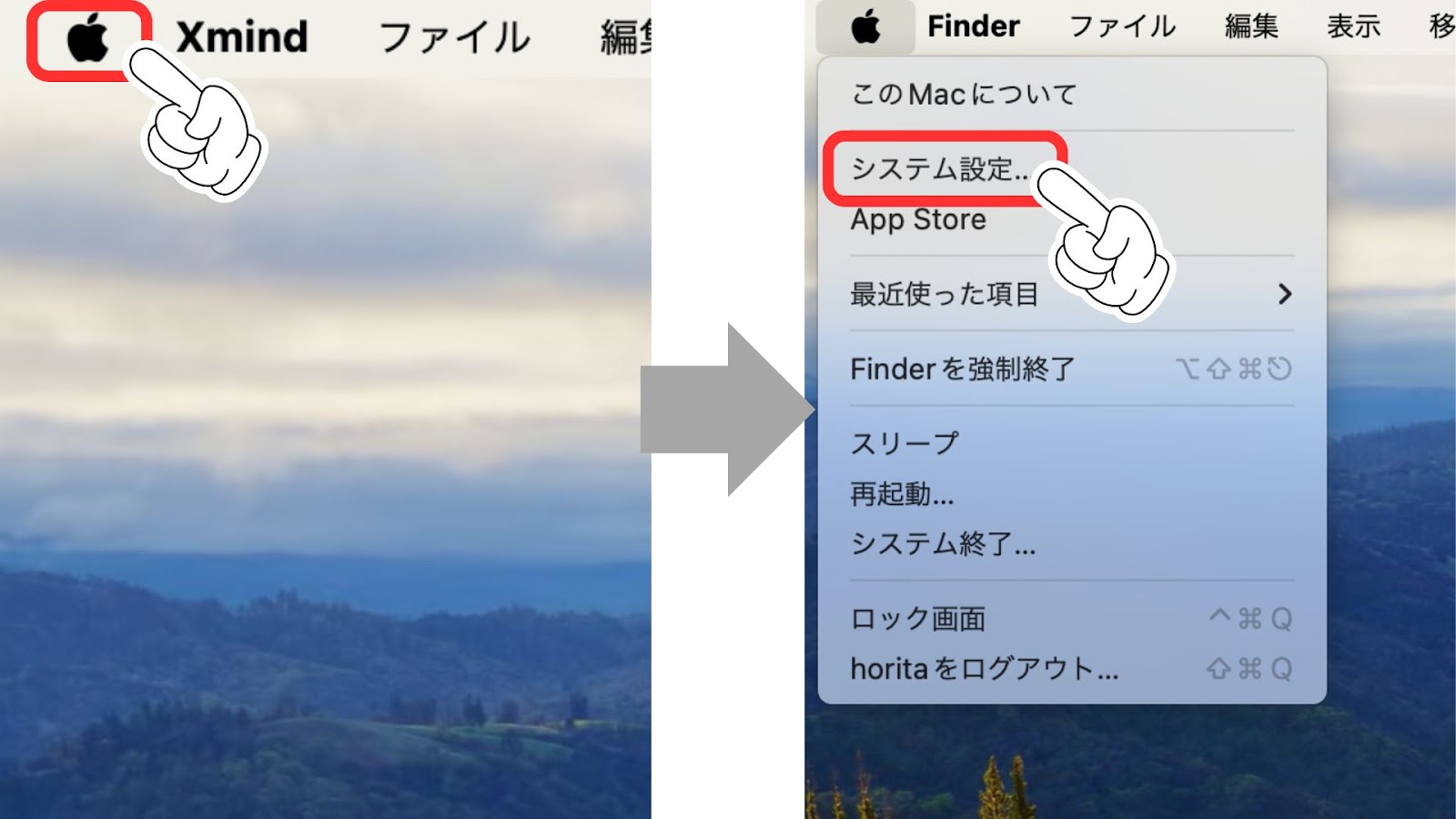
2. In “System Preferences” > “General” > “AirDrop and Handoff”
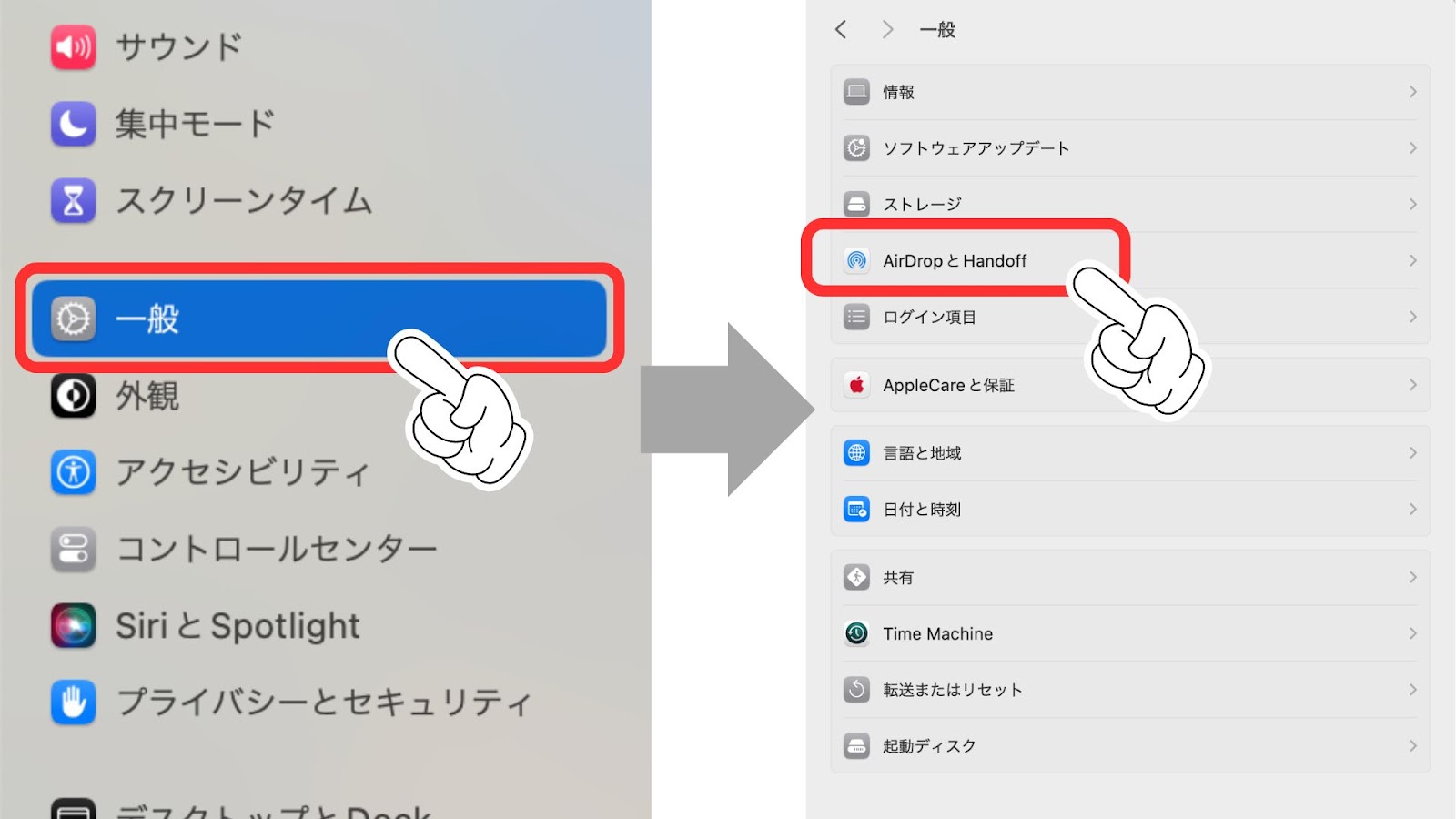
3. In “AirDrop and Handoff”, turn on “AirPlay Receiver”
4. Under “Allow AirPlay,” select “Anyone on the same network.”

5. Allow everyone on the same network and set a password
If the “Allow AirPlay” section says “Everyone on the same network,” then it’s OK.
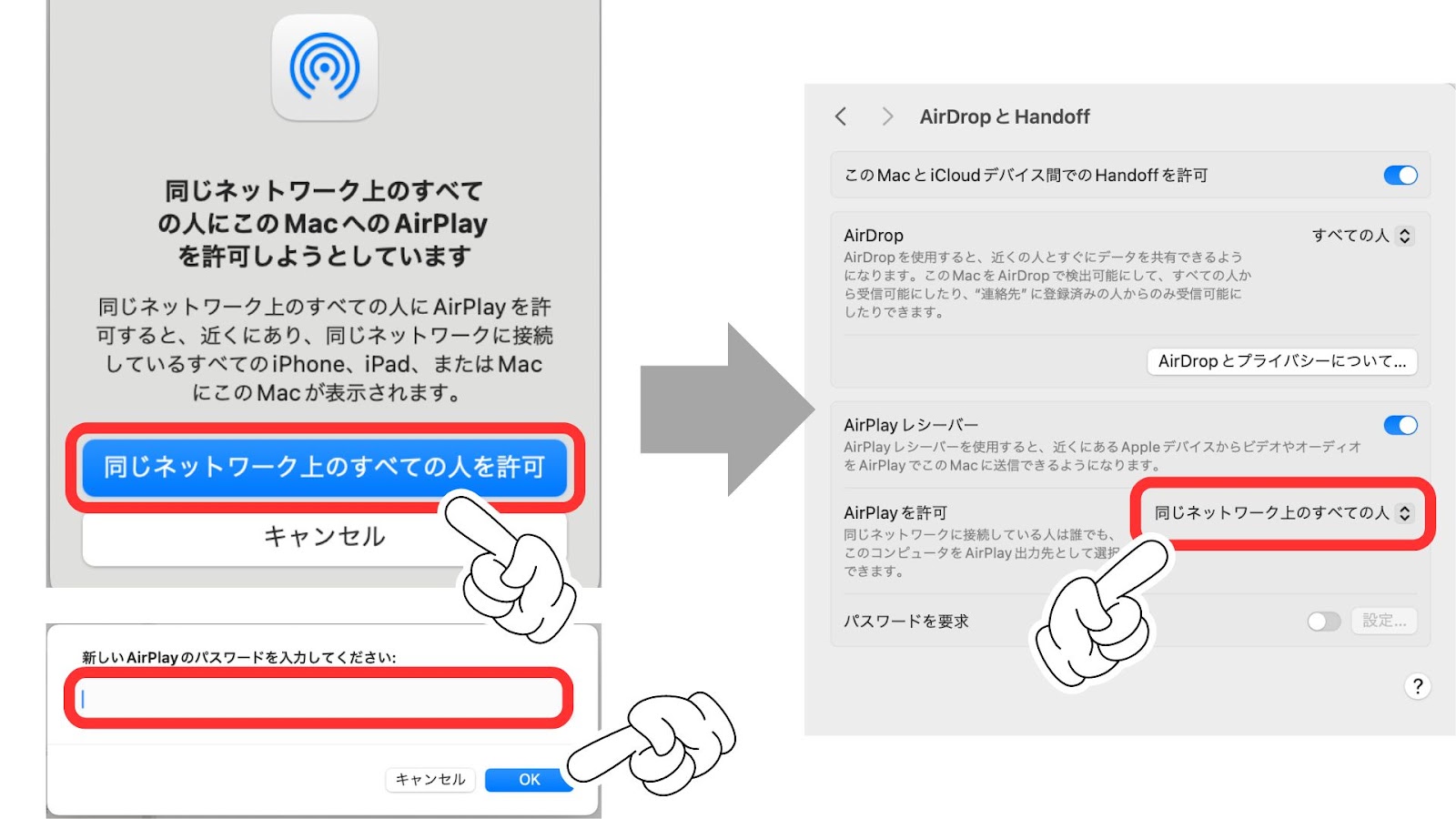
With these settings, you will be able to mirror from your iPhone.
If the “Allow AirPlay” section is set to “Current User,” it will not appear in iPhone screen mirroring and you will not be able to connect.
How to use iPhone mirroring function
From here, we will explain how to use AirPlay to output to a Mac or Apple TV by actually using an iPhone.
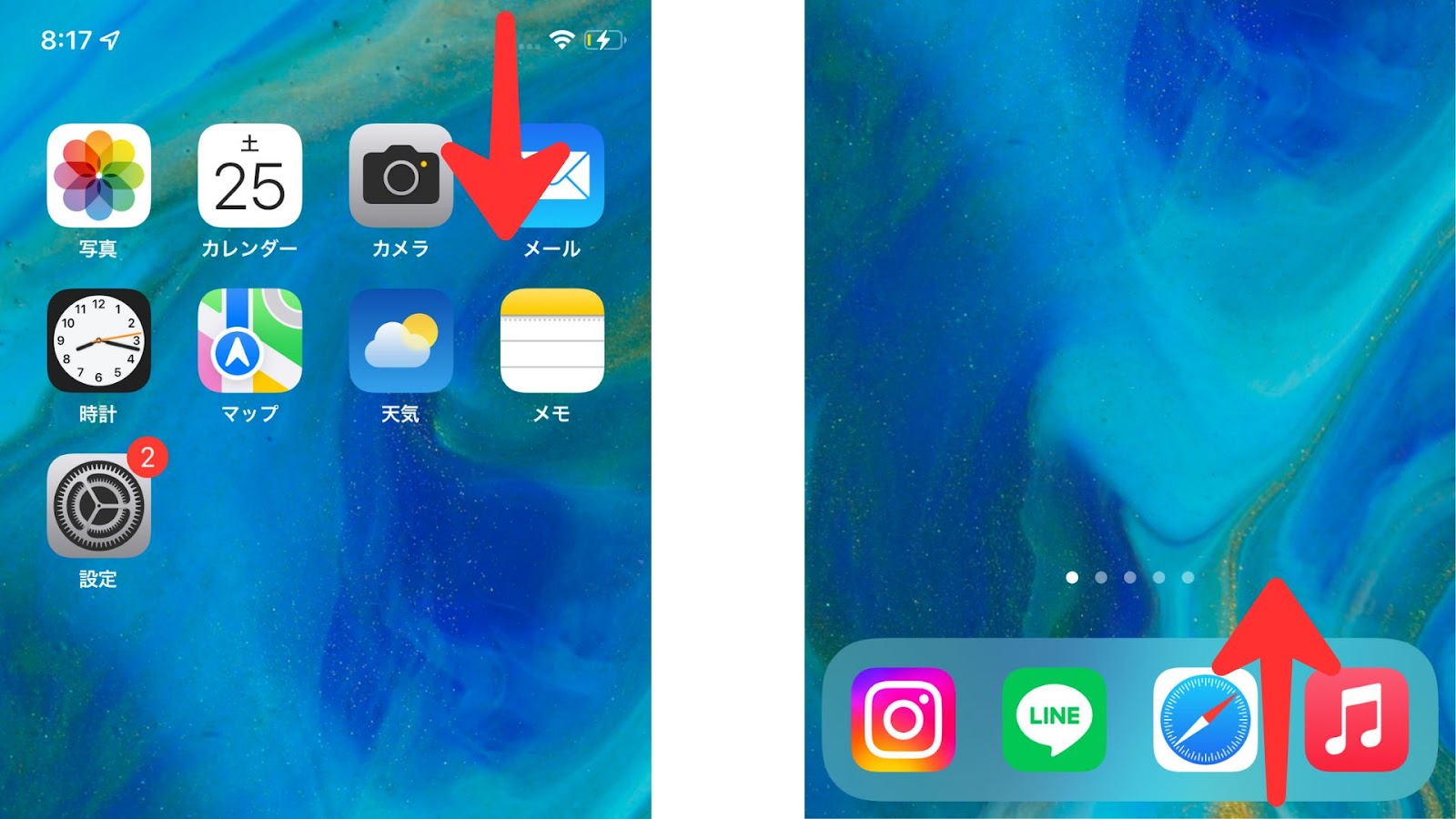
1. Open the Control Center on your iPhone
If you don’t have a home button, swipe down from the top right of the screen.
If you have a home button: swipe up from the bottom of the screen
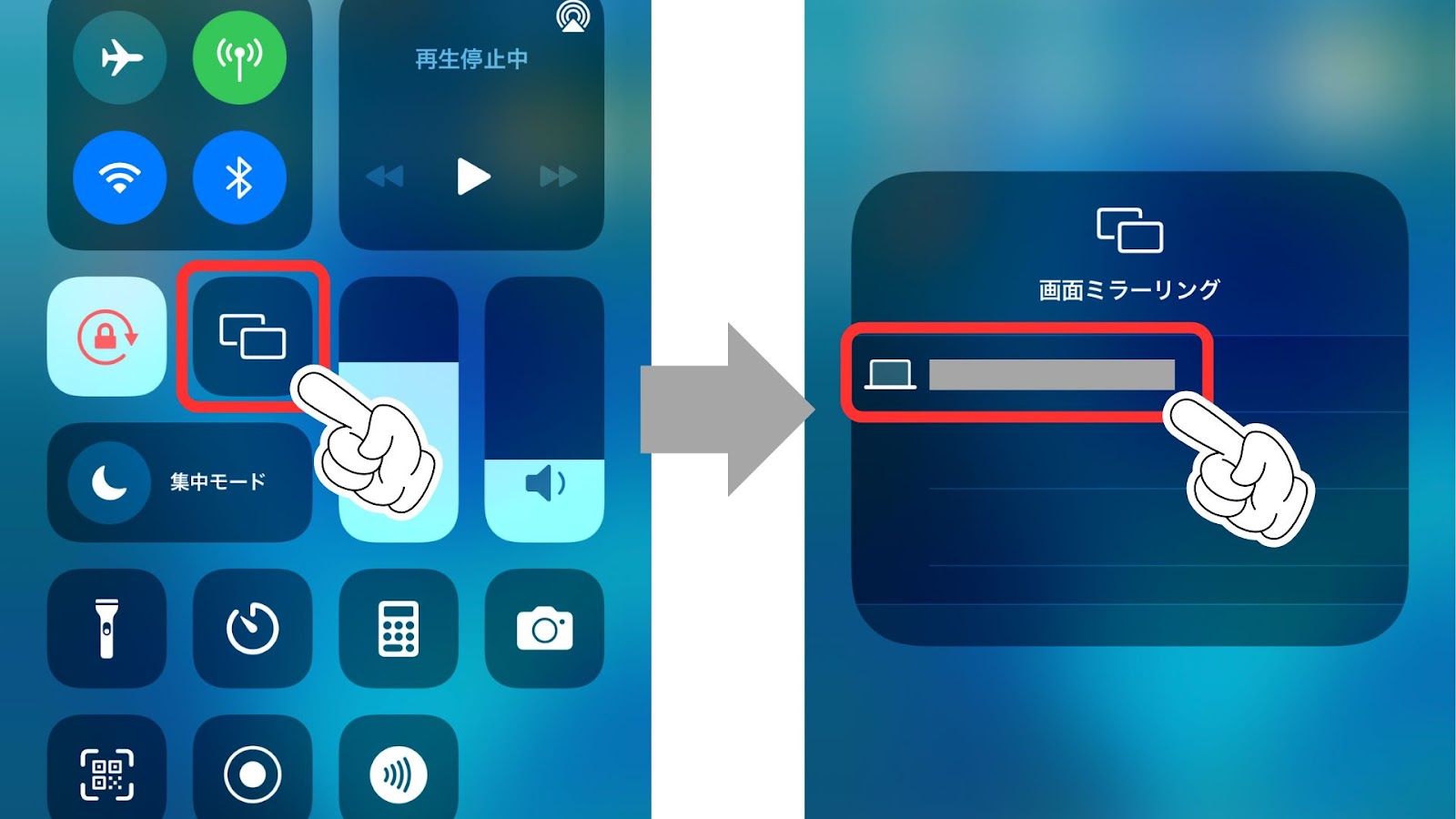
2. Select “Screen Mirroring” → “Device”
When the Control Center appears,
- Tap the square icon “Screen Mirroring”
- Tap the device you want to connect to.
3. Start mirroring
After a while, your iPhone screen will be displayed on the selected device as shown below.
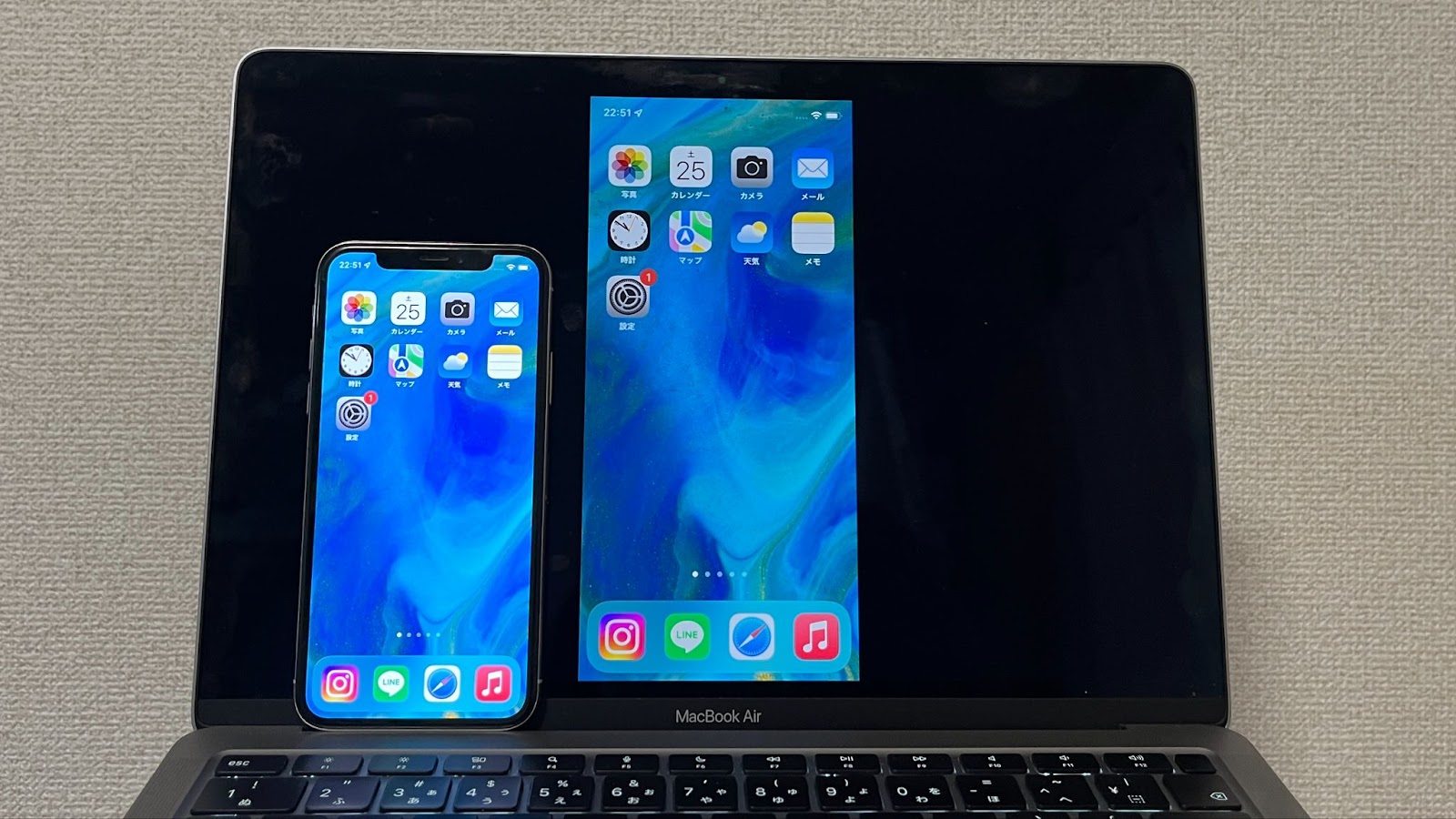
In this way, you can easily mirror your iPhone screen.
How to disable mirroring on iPhone
If you want to disable the mirroring function on your iPhone,
- Open the Control Center on your iPhone
- Tap the square icon “Screen Mirroring”
- Tap “Stop mirroring”
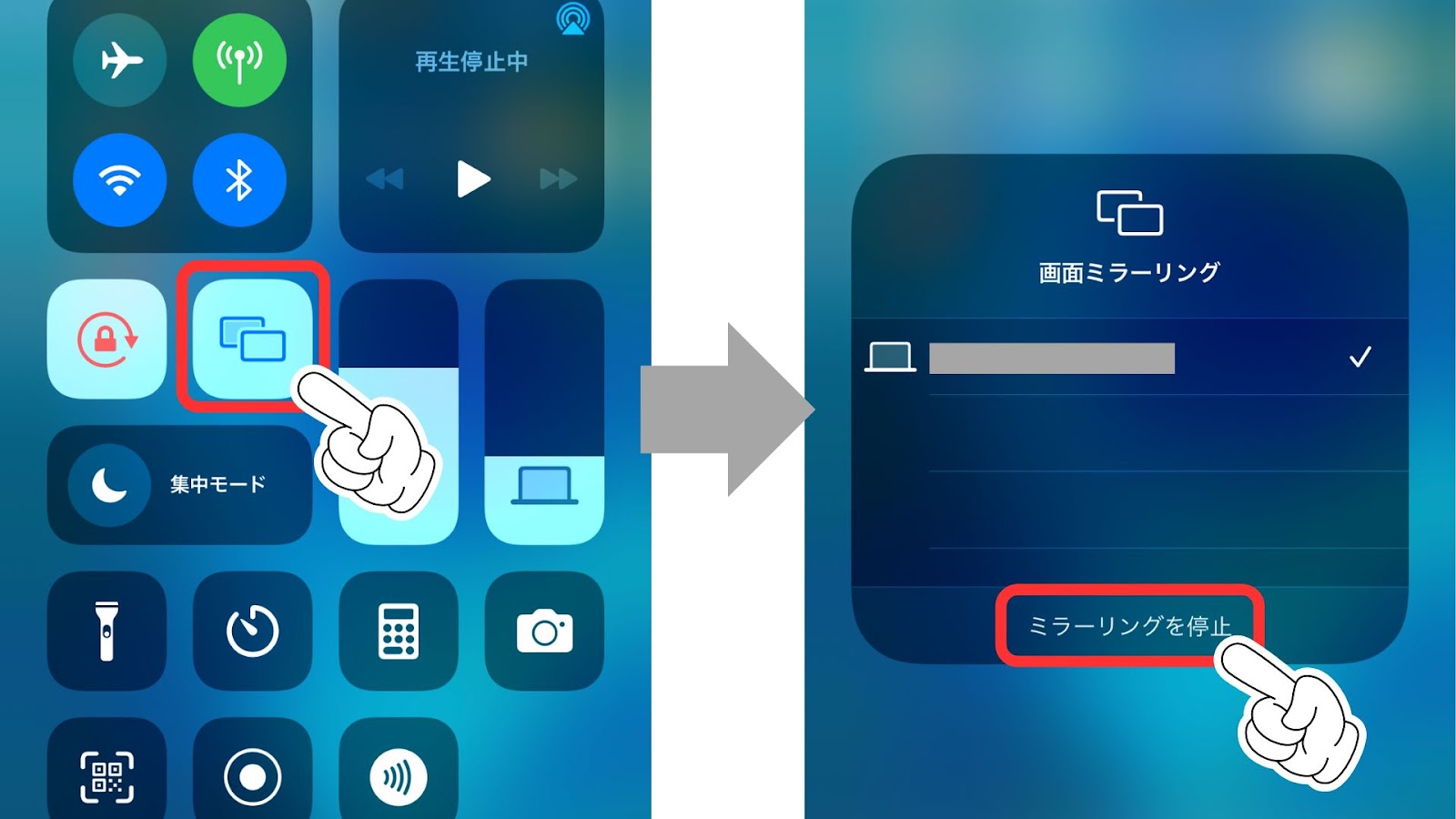
This will disable the mirroring function on your iPhone.
[Extra Edition]How to use iPhone mirroring function
In addition to using AirPlay to output to a Mac or Apple TV as mentioned above, there are two other ways to use the mirroring function:
- Output using a dedicated app (wireless)
- Output using a conversion adapter (wired)
I will explain each one as a special feature.
How to output using a dedicated app (wireless)
This requires a dedicated app, but it is basically free to use.
The method for outputting using the dedicated app is as follows.
1. Install the appropriate app
For smart TVs that do not support AirPlay, a dedicated app will be used.
First, install the corresponding app on the receiving device.
2. App Settings
The apps you use and the setup methods vary depending on your device.
Set up the app using the instructions or online guide.
3. Check the connection
Once you connect your iPhone to a display or projector via the app and complete the settings correctly, you’ll be able to output the iPhone screen.
In this way, you can easily display the iPhone screen on an external display by using a conversion adapter or a dedicated app.
How to output using a conversion adapter (wired)
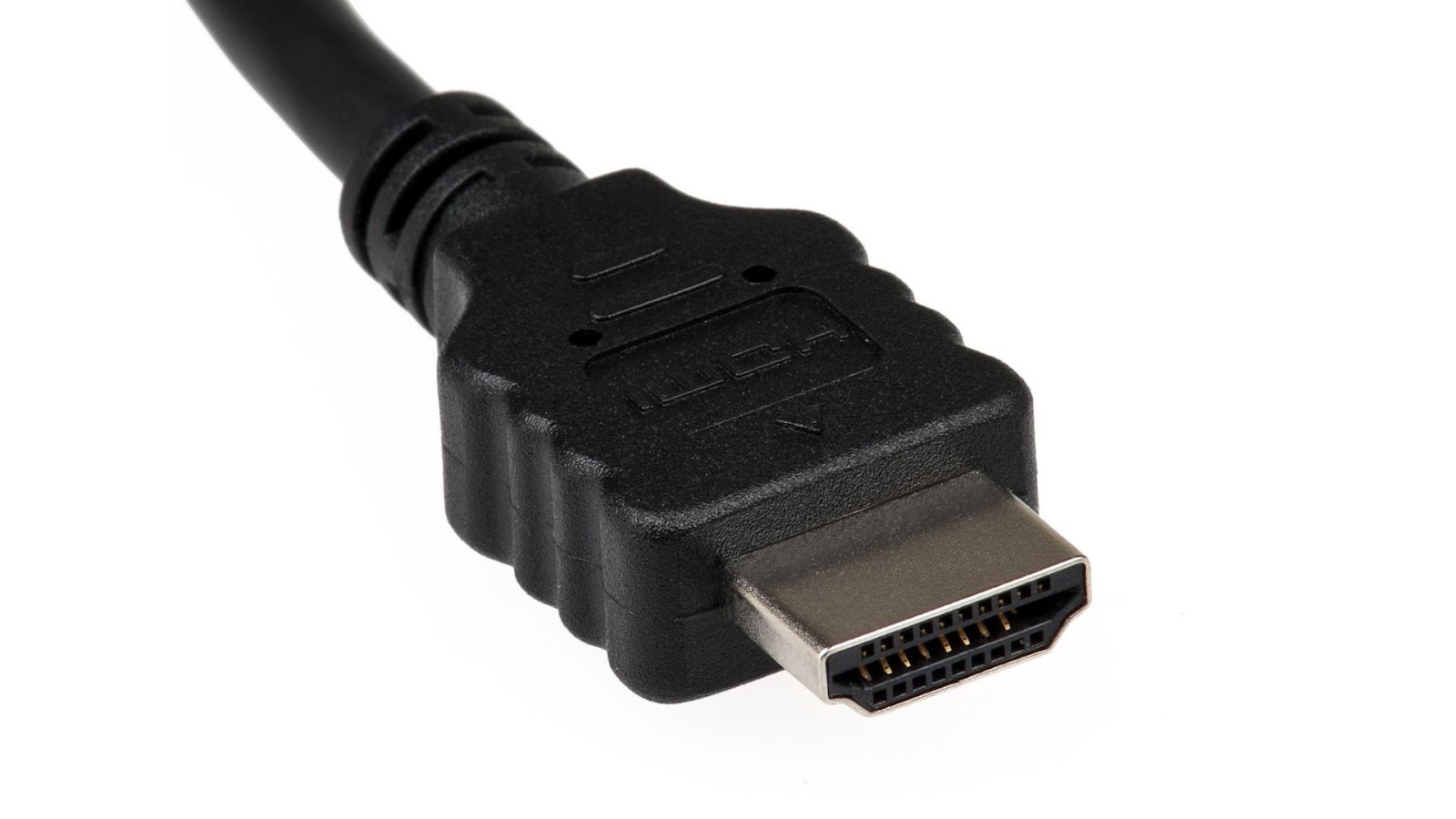
Since it is wired, you will have to pay for a conversion adapter, but it is recommended for those who already have one.
The method for output using a conversion adapter is as follows.
1. Prepare the necessary adapters
Use a genuine Apple adapter.
For example, there is the “Lightning – Digital AV Adapter” (for HDMI) and the “Lightning – VGA Adapter” (for VGA).
2. Connect the cables
Connect the corresponding cable (HDMI or VGA) to the conversion adapter, then connect the cable to a display or projector.
3. Connect the iPhone to the adapter
Connect the iPhone to the adapter.
Your iPhone screen will now be displayed on a display or projector.
Genuine Apple adapters are more expensive than other generic adapters, but their quality and compatibility are guaranteed.
If you want to reliably output your screen via a wired connection, you may want to consider purchasing this.
summary
We have provided a detailed explanation of the iPhone’s mirroring function, using images, from an overview to specific instructions on how to use it.
Using the iPhone’s mirroring function, you can easily enjoy photos, videos, and app screens on a large screen.
Follow the steps outlined in this article to make full use of your iPhone’s mirroring function.
Share and enjoy your iPhone content on a big screen with your family and friends!
Source: iPhone Mania