A scam has been reported in which when browsing a website on an iPhone, a screen that appears to show that a large amount of payment has been completed using Apple Pay or a screen that pretends to be authenticated using Face ID suddenly appears.
In reality, no billing or authentication takes place, and all screens shown are fake. The aim is to trick users into making phone calls, pretending to be from Apple Support, and asking for personal and credit card information. We will explain how to tell the difference between genuine Apple Pay and what to do when a fake screen appears.
How to get someone to call you with a fake Apple Pay charge
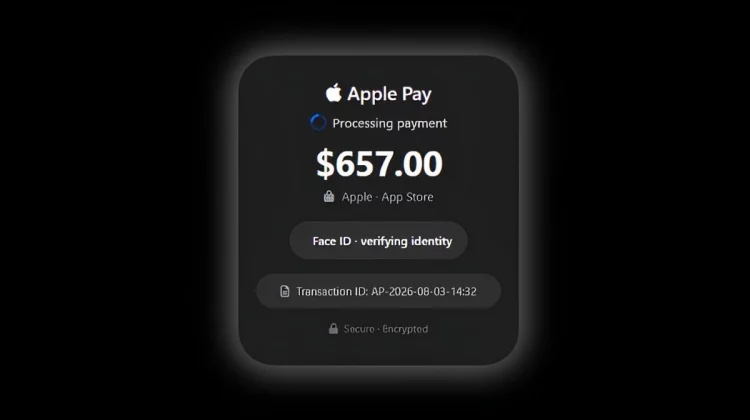
The reported fake screen appears to show that a $657 payment has been completed on the App Store, with the words “Verifying your identity with Face ID” displayed below. Fixed preset strings are used for amounts and transaction numbers. Therefore, the feature is that the same content is displayed to all users.
The spinner that pretends to be processing will disappear in about 2.8 seconds. When a user opens the transaction details, the system uses the browser’s text-to-speech feature to read out, “An unauthorized charge has been made.” If you press “back” on your browser, you’ll receive a stack of warnings that it’s dangerous to leave the page. The system is designed to make users feel anxious and urge them to call the displayed number urgently.
There is no billing or biometric authentication involved in this scheme. All screens and sounds are effects created on the web page. The purpose is to panic users and make them call a fake support desk.
Consultation regarding the rapidly increasing number of “false warnings”
The technique of displaying a fake warning and having the user call the support desk has been a technique that has received many consultations in Japan as a “support scam.” The Information-technology Promotion Agency (IPA) responded to a total of 3,832 consultations from April to June 2026. This is an increase of approximately 8.5% compared to the previous three months.
Of these, the number of consultations related to false alarms pretending to be virus infections was the most common at 1,428, an increase of approximately 23.7% from the previous period. Even after the arrest of the suspect was reported, the number of consultations seems to be on the rise again. The method of inciting anxiety with false warnings and leading the attackers to make phone calls is also common to the methods reported this time.
Another method of pretending to be Apple support is to ask the owner of a stolen iPhone for the passcode. False warnings that have become known in Japan have mainly been those displayed on computer screens. This latest method is unique in that it is designed for smartphones, imitating the iPhone and Apple Pay screens.
How to distinguish from genuine Apple Pay/Face ID
How can I tell the difference between the real Apple Pay and this fake screen? The main differences are:
| item | Authentic Apple Pay | This fake screen |
|---|---|---|
| Authentication screen | Payment screen displayed by iOS system | Reproduced in HTML on a web page |
| Operations until payment | Check the contents and authenticate with Face ID etc. | Display “Completed” without authentication |
| support number | It does not appear on the payment screen | Display your phone number prominently |
| Operation to close the page | No warnings are displayed to prevent operation | Preventing withdrawal with repeated warnings |
One of the major ways to tell is whether the Face ID screen is displayed within the web page. The real biometric authentication screen is displayed by iOS, so it is not embedded within the web page you are viewing.
With genuine Apple Pay, the user confirms the payment details and authenticates with Face ID or passcode before the payment is completed. If you see “Payment Completed” even though you haven’t authenticated, suspect it’s a fake screen. Another feature that is not found on real payment screens is that the phone number of the support desk is displayed in a large size.
Correct response when displayed
If you receive a fake billing screen, please do the following:
- Do not press buttons or links on the page
- Close the corresponding tab from Safari’s tab list
- Do not call the number displayed
- Check your purchase history for actual billing status.
Don’t touch any buttons or links on the page, and close the tab in Safari’s tab list. If you are asked to leave the page, select the Leave option. By not calling the displayed number and not entering any personal information, you can prevent a fake support representative from asking for important information.
If you are unsure whether you were actually charged, please check your purchase history from the Settings app or App Store account screen. iOS27 also adds a new mechanism that allows compatible apps to detect signs of fraud based on user operations and display warnings. However, it does not automatically block all fake screens displayed on the web.
If you allow the other party to perform remote control or install software as instructed, first disconnect your device from the Internet and delete the software. Then, change your Apple Account, bank account, etc. passwords from another secure device, and consult your credit card company or police if necessary.
Scams using false alerts have become sophisticated in replicating iPhone screens. To prevent damage, it is important to follow the on-screen instructions and not to make a call in a hurry.
Photo:Malwarebytes
Source: iPhone Mania