On the iPhone’s Wi-Fi settings screen, you can only see connection settings such as IP address and DNS address, and cannot see link speed or RSSI (signal strength). By using an app called WiFiman, you can see detailed connection status such as link speed that could not be seen in the settings.
Regular speed tests only give you actual measurements.
Speed test apps and sites that measure internet speed can only measure actual internet speeds, which are very helpful in real-world environments. Therefore, when the Internet is slow, it is difficult to identify the cause, such as whether the Internet line itself is slow or the connection between the iPhone and the Wi-Fi router is poor.
With WiFiman, you can check detailed information about your network.
There are plenty of iPhone Wi-Fi analysis apps, but most don’t allow you to view link speed or RSSI. This is because due to iOS limitations, these data cannot be retrieved directly from the app.
Link speed is the speed between a device and a Wi-Fi router, and if this link speed is slow, the internet connection speed will be slow even if you have a 10Gbps internet contract. RSSI refers to the signal strength of Wi-Fi, and you can roughly tell the signal strength from the Wi-Fi mark, but RSSI is displayed numerically.
WiFiman uses iPhone shortcuts to obtain and display detailed network information. WiFiman is an app developed by Ubiquiti, a network equipment manufacturer founded by former Apple engineer Robert Pera. As expected, the person who first noticed the use of shortcuts was a former Apple engineer.
Information you can check with WiFiman
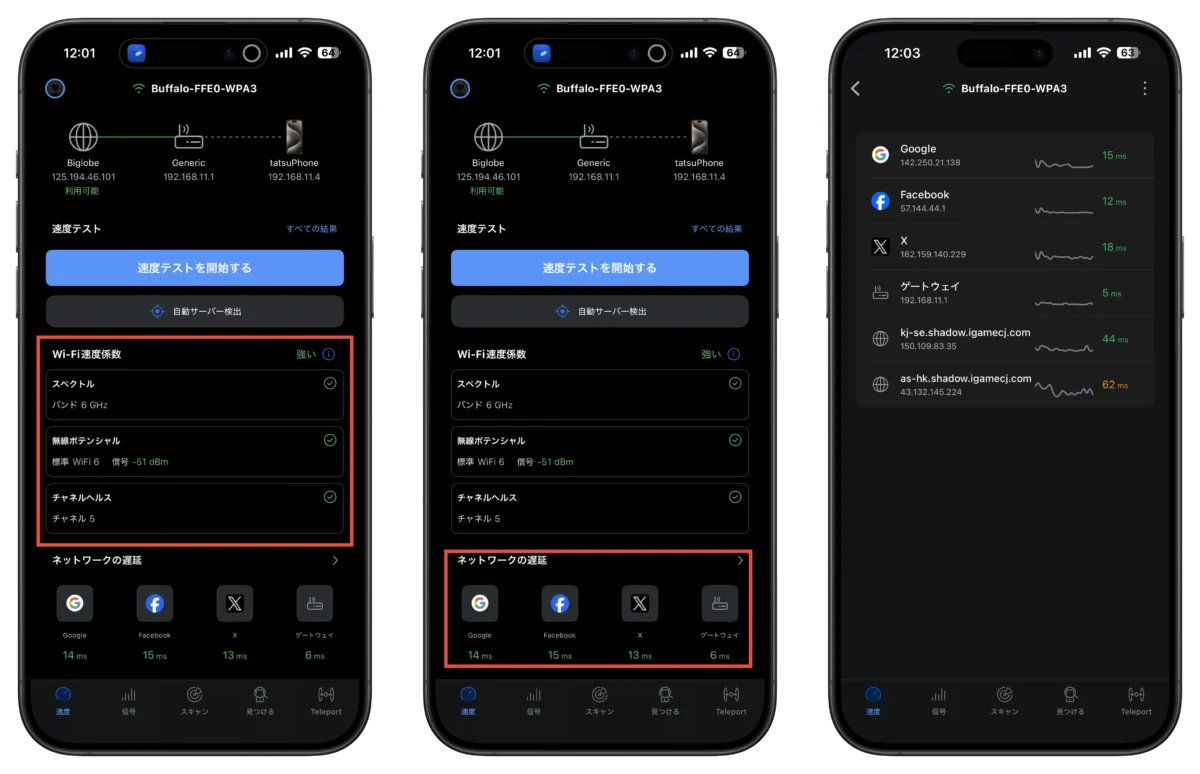
When you start WiFiman, the “Speed” tab will be opened and you can check the route information first. Information about your iPhone, gateway, and provider will be displayed. You can check the details of each device or gateway by tapping on them.
“Speed Test” allows you to measure the actual internet speed. You can measure your internet speed by tapping “Start speed test”. Furthermore, in the speed test, you can install WiFiman on another device and launch it to measure the speed between devices via Wi-Fi.
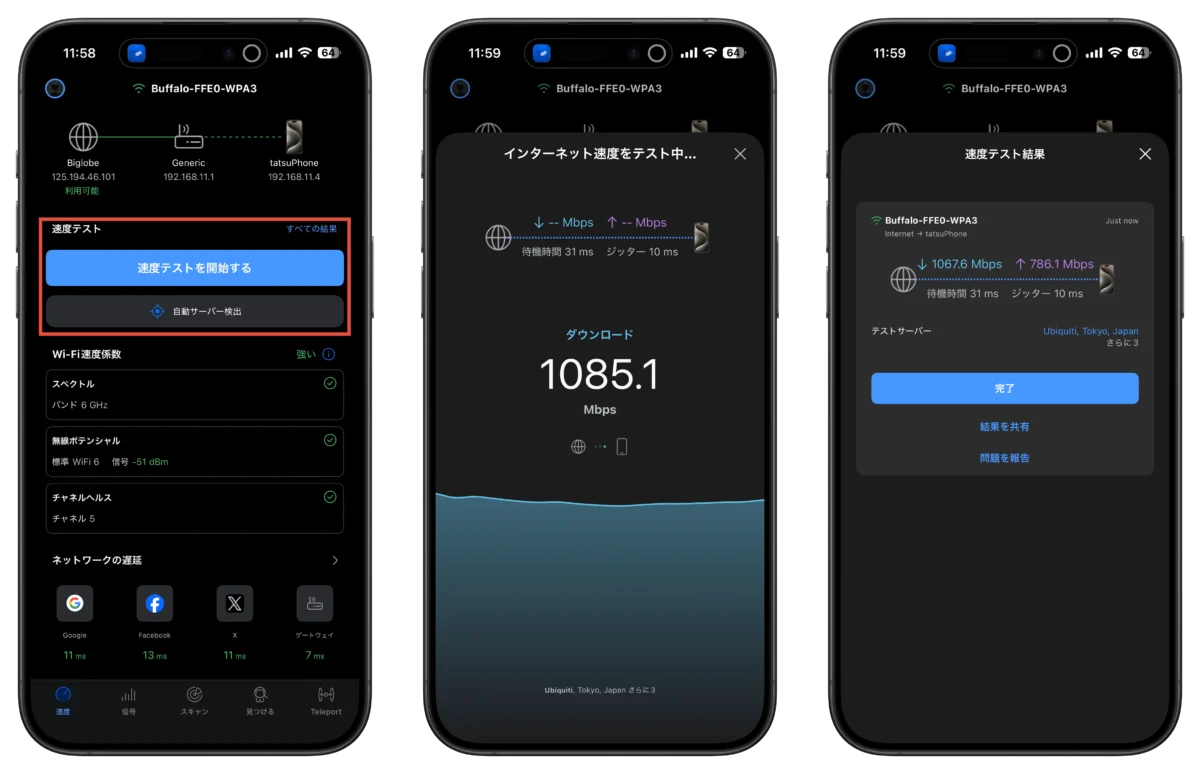
In “Wi-Fi speed coefficient”, you can check information such as frequency (2.4GHz, 5GHz, 6Ghz), Wi-Fi standard (Wi-Fi 7, etc.), signal strength (dBm), channel used, etc. This is obtained using shortcuts.
You can check the ping value with major services under “Network delay”. You can also add online games that you are playing.
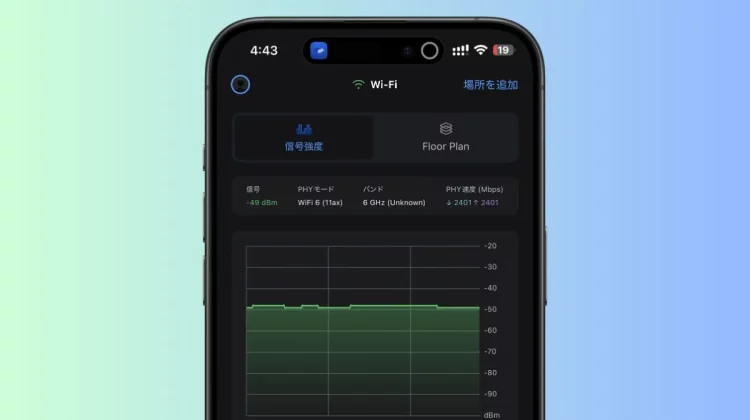
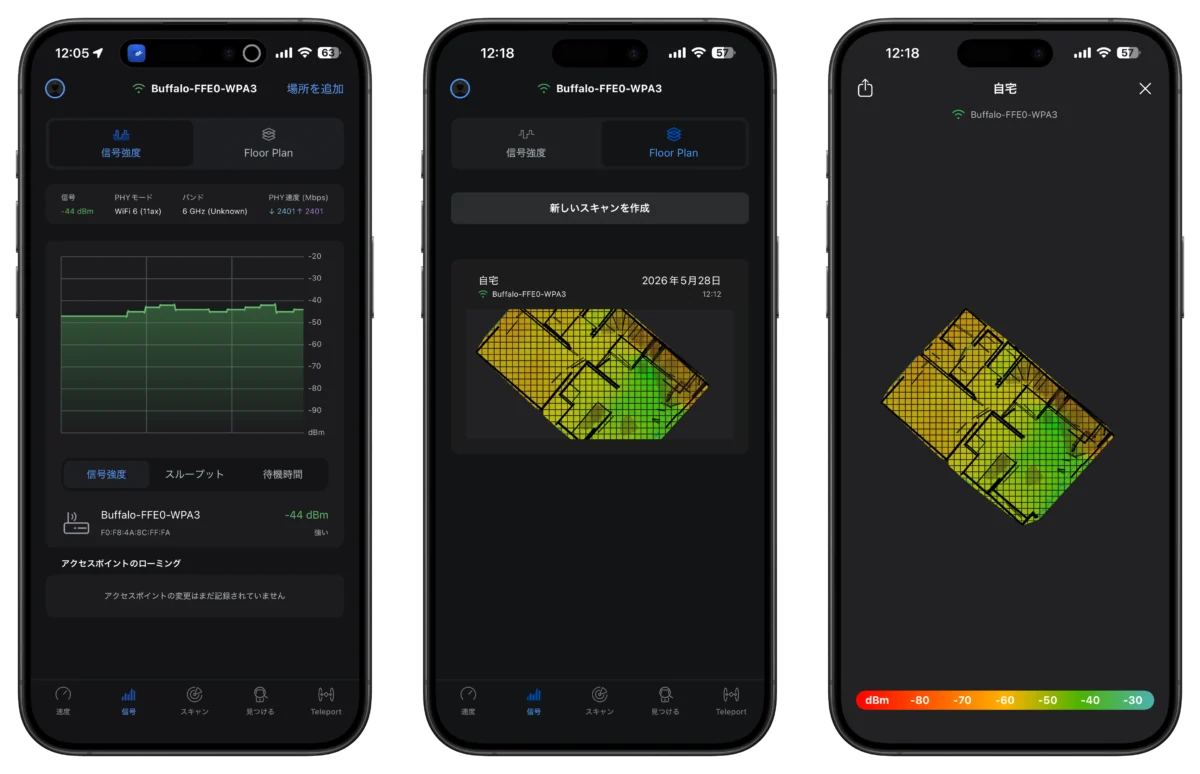
In the “Signal” tab, you can check the link speed from “PHY Speed (Mbps)” in addition to the signal strength and Wi-Fi standard. You can also check the signal strength and ping changes on a graph display. You can save the signal strength of that room by clicking “Add location” in the upper right. “Floor Plan” allows you to create a floor map of radio wave strength.
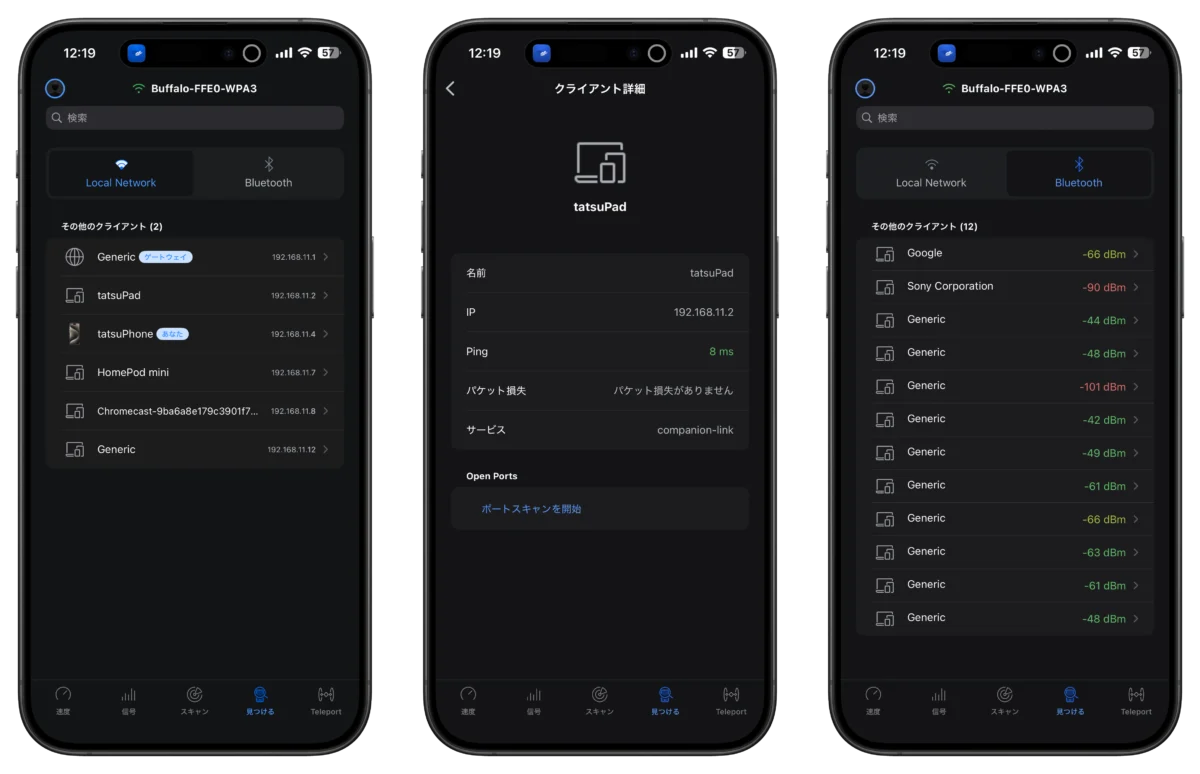
The “Find” tab allows you to check information about other devices on the same Wi-Fi network. You can also check ping, service, and port scan by tapping each device. You can also check the signal strength of your Bluetooth device.
How to use WiFiman
The first time you need to add a shortcut, tap “Enable WiFiman Shortcuts” to go to the Shortcuts app, return to WiFiman again, and be prompted to install WiFiman shortcuts. Tap “Install” and tap “Add shortcut” to complete adding the shortcut.
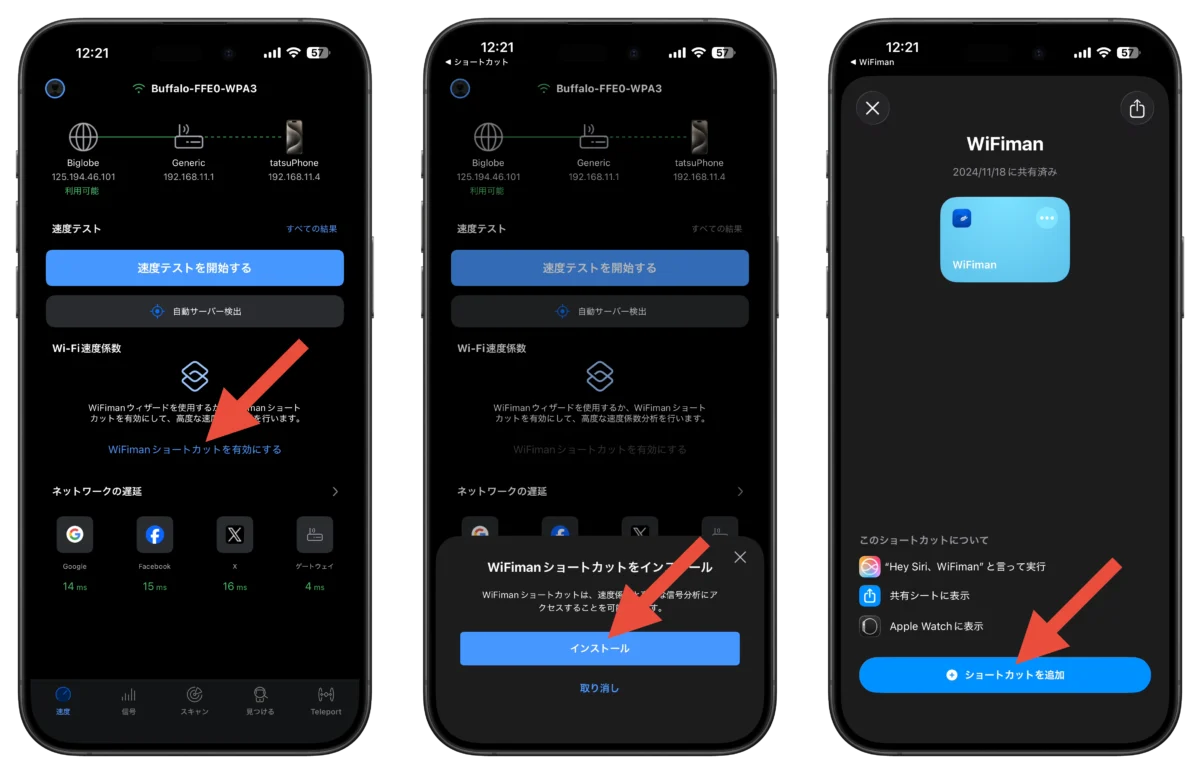
Return to WiFiman again and tap “Enable WiFiman Shortcut”, you will be asked for permission to perform the action, so tap “Allow”. Next, you will be asked for permission to share, so tap “Always Allow”. Now you can check the Wi-Fi signal strength, link speed, etc.
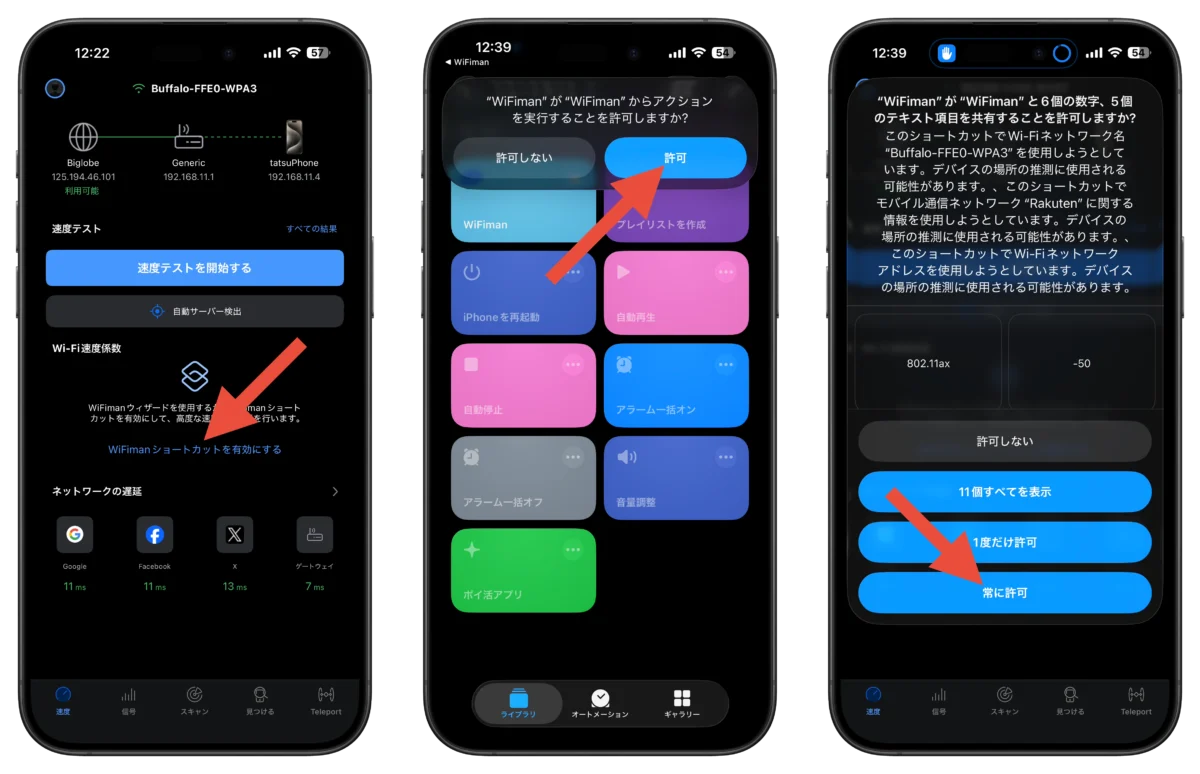
From the next time onwards, when you start WiFiman and tap “Enable WiFiman Shortcuts”, you will be taken to the Shortcuts app, the shortcut will be executed, and you will automatically return to WiFiman without any permission required.
Ubiquiti WiFiman App – App Store
I have previously written an article that tested iPhone’s Wi-Fi 7 on a 10Gbps line, so please take a look.
Is iPhone’s Wi-Fi 7 slow? Surprising specifications and speed discovered by testing at 10Gbps
Source: iPhone Mania