Command–Space bar opens Spotlight. You type Calculator, or a file you know is there. Nothing useful shows up. Or apps vanish from the list after a macOS update.
Apple covers this in support article 102321, “About Spotlight indexing and search results on Apple devices,” dated August 25, 2026. Steps below follow that page. Labels in System Settings may say Spotlight or Siri & Spotlight, depending on the build.
Wait for indexing after an update
Spotlight rebuilds its local index when you first set up the Mac, after a software update, and when files change. Apple says that first pass can take hours or even days, depending on how much data sits on the disk.
Indexing finishes faster when the Mac is idle, plugged into power, and on Wi-Fi or Ethernet. While it runs, you may see a progress indicator at the top of the Spotlight window. Mail can also note that indexing is incomplete.
If search went soft right after you installed a point update, leave the Mac awake on power overnight before you rebuild anything. A full disk slows other background jobs too. When Storage Almost Full blocks iPhone updates, the same idea applies: free space first. See the Storage Almost Full fix.

Check which result types are turned on
Open Apple menu, System Settings. Click Spotlight, or Siri & Spotlight, in the sidebar.
Review the toggles for the kinds of content you expect. If Apps is off, Calculator will not appear even when the app is installed. Turn on the categories you need, then try Command–Space bar again.
On iPhone the matching pane is Settings, Search. This piece stays on the Mac path.
Rebuild the index with Search Privacy
Apple’s supported rebuild for stubborn file search is in Search Privacy, sometimes labeled Spotlight Privacy.
Still in Spotlight settings, scroll down and click Search Privacy. Drag the disk you want to reindex, such as Macintosh HD, into the list of locations Spotlight is prevented from searching. Or click the add button (+) and pick the disk or folder.
Wait a few seconds. Select that same disk or folder in the list. Click the remove button (−). Click Done, then quit System Settings.
Spotlight starts reindexing that disk or folder. Keep the Mac awake and on power while it works. The progress indicator in the Spotlight window is the usual sign it is still going.
If Search Privacy shows an unknown or permissions error
Apple notes that an “unknown” error, or a permissions error, can mean your user account does not own some items on that disk or folder. Fix ownership for those items first, then repeat the add-and-remove steps.
If the Mac’s startup volume itself looks damaged, search problems can be a side effect. Run First Aid before another rebuild. Steps for that are in the Disk Utility First Aid in Recovery guide.
Backup failures are a separate track. When Time Machine sits on Preparing or fails outright, use the Time Machine backup failed fix instead of Spotlight Privacy.
After the rebuild
Open Spotlight again. Search for an app you use every day, then for a file in Documents you know by name.
If results still look empty, confirm the disk is not still listed under Search Privacy. Anything left in that list stays excluded. Remove it, quit System Settings, and give indexing more time on power.
Apple says the index stays on the device. It is not shared with Apple or your other devices. Siri can read from the same index when it answers on the Mac.
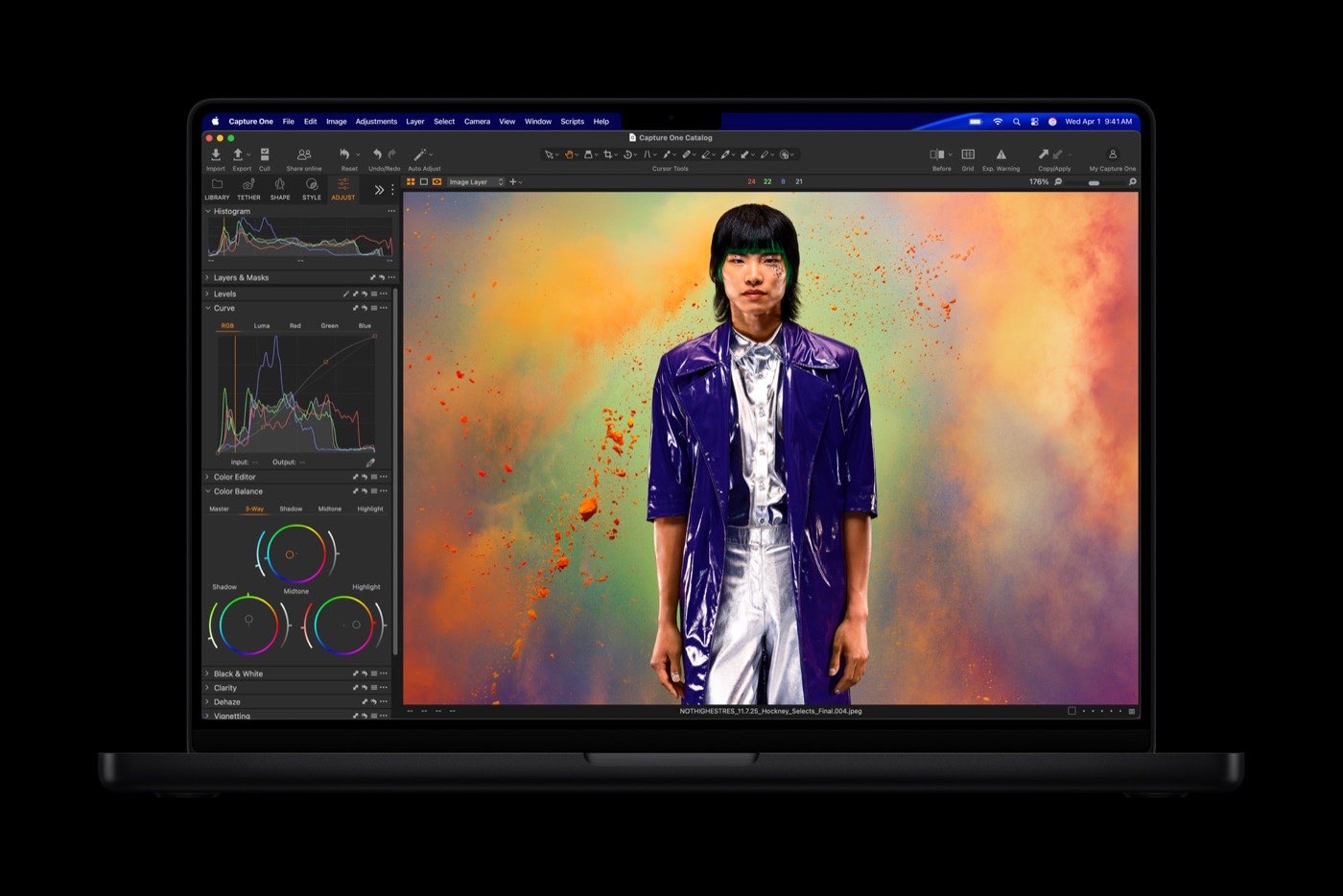
Photo: Apple Newsroom / Mac mini M6, MacBook Pro M5 Pro and M5 Max
Source: Apple Support - About Spotlight indexing and search results on Apple devices (102321)