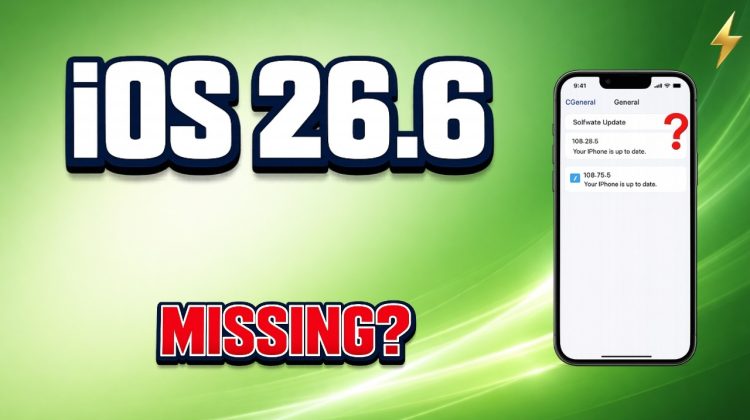
Apple released iOS 26.6 on July 27, 2026, but what if your compatible iPhone still says it’s up to date? The update may be hidden by your current iOS branch, beta software, storage problems, network issues, or device-management policies.
In this guide, I’ll show you how to check your current version, compatibility, Beta Updates, available storage, a failed downloaded update, and the official computer-update option.
✅ Step 1: Open Settings – General – About
✅ Step 2: Check the exact iOS version already installed
✅ Step 3: Confirm that your iPhone supports iOS 26
✅ Step 4: Open Settings – General – Software Update
✅ Step 5: Connect the iPhone to reliable Wi-Fi
✅ Step 6: Connect it to power when updating
✅ Step 7: Open Software Update – Beta Updates
✅ Step 8: Check whether you’re already on a newer beta branch
✅ Step 9: Don’t expect Beta Updates – Off to downgrade iOS
✅ Step 10: Open Settings – General – iPhone Storage
✅ Step 11: Make enough free space for the update
✅ Step 12: Delete only the downloaded update package if it repeatedly fails
✅ Step 13: Return to Software Update and download it again
✅ Step 14: Check whether the iPhone is managed by work or school
✅ Step 15: Use a Mac or supported Windows software if OTA updating still fails
✅ Step 16: Avoid unofficial firmware, profiles, and update tools
⚠️ Tip: If your iPhone already runs a newer beta version, simply switching Beta Updates to Off does not install iOS 26.6 over that newer build. Apple says turning beta updates off stops receiving future betas; returning immediately to the current public release can require restoring the device, which erases it. Back up important data before considering that route.
Apple officially released iOS 26.6 on July 27, 2026. iOS 26 supports the iPhone 11 family and newer models, plus iPhone SE 2nd generation and later. Older unsupported models may therefore receive a different software path rather than iOS 26.6.
If an update downloads but repeatedly fails, Apple’s official troubleshooting procedure is Settings – General – iPhone Storage – select the update – Delete Update, then return to Software Update and download it again. This removes the downloaded iOS installer—not your personal photos, messages, or other normal user data.
For managed school or workplace devices, administrators can defer software updates for 1 to 90 days, so a publicly released update may intentionally remain unavailable on that iPhone. Don’t remove management profiles just to force the update.
🕒 Chapters:
00:00 iOS 26.6 update not showing
00:26 Check your installed iOS version
00:49 Confirm iPhone compatibility
01:16 Check Software Update and connection
01:42 Check Beta Updates
02:08 Newer beta versus public iOS 26.6
02:28 Check iPhone storage
02:55 Delete a failed downloaded update
03:25 Check work or school management
03:42 Update through a computer
04:10 Avoid unofficial firmware and profiles
04:28 Complete troubleshooting recap
04:54 End
Does your iPhone say it’s up to date, show a newer beta version, or download iOS 26.6 but fail during installation? Comment below.
If you want more technical guides: @TechFix-Guides
#ios266 #ios26 #iphoneupdate #iosupdatenotshowing #softwareupdate #iphone #iosupdate #iphonefix #betaupdates #iphoneupdatefailed #appleupdate #iphoneproblems #techfix #2026