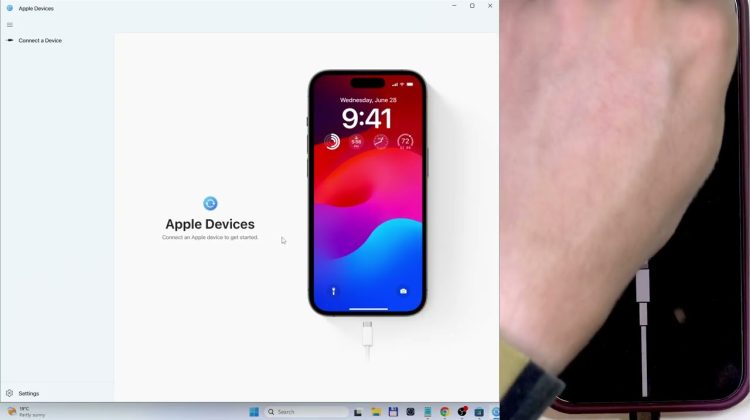
In this video I show a simple, step‑by‑step way to downgrade an iPhone from iOS 27 beta back to iOS 26 using a computer. This method works for iPhone 11 and newer and requires a Mac (Finder) or a Windows PC with the Apple Devices app from the Microsoft Store. I explain important backup warnings, how to enter recovery mode, how to use Finder or Apple Devices to Restore, and what to expect during activation and Apple ID verification. Note: this downgrade works before the official iOS 27 release (September 2026) and will erase your phone, so follow the backup tips first.
How to downgrade iPhone from iOS 27 beta to iOS 26?
How to put iPhone in recovery mode for downgrade from iOS 27?
How to backup data before downgrading iOS 27 on iPhone?
0:00 Intro and why you might want to downgrade
0:20 Backup warnings – iCloud backups from iOS 27 cannot restore to iOS 26
3:03 How to enter recovery mode (power + volume, then loading recovery options)
4:24 Prepare your computer – Mac Finder or Apple Devices app on Windows
5:25 Connect iPhone with a data cable and locate device in Finder/Apple Devices
6:47 Click Restore iPhone — download and install iOS 26
8:50 Activation lock and Apple ID sign‑in (must use previously linked account)
10:03 Finished — confirm iOS 26 is installed and initial setup
#iPhone #iOS27 #iOS26 #Downgrade
Find out more:
https://www.hardreset.info/devices/ios/ios-27/
Follow us on Instagram ► https://www.instagram.com/hardreset.info
Like us on Facebook ► https://www.facebook.com/hardresetinfo/
Tweet us on Twitter ► https://twitter.com/HardResetI
Support us on TikTok ► https://www.tiktok.com/@hardreset.info
Use Reset Guides for many popular Apps ► https://www.hardreset.info/apps/apps/