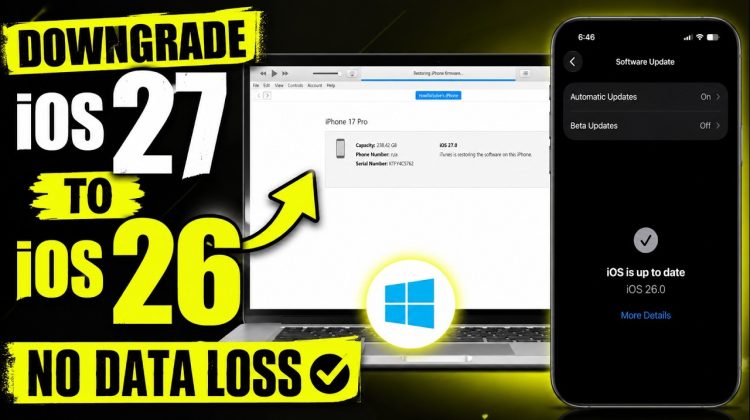
Step by step Downgrade iOS 27 beta to iOS 26 on Windows using iTunes. Downgrade Windows 11, windows 11 On iPhone 17 (Pro, Max), iPhone 16 (Pro, Max), iPhone 15 (Pro, Max).
00:00 intro
00:22 Back up iPhone
01:39 Download ipsw
02:06 Restore ipsw on iPhone
03:52 Setup and Sync iCloud Data
Without losing your data, you may be able to downgrade from iOS 27 to iOS 26 using a Windows laptop or desktop computer.
A downgrade requires a factory reset, which will erase all data except your eSIM.
That’s why you need to create a complete backup before starting the process.
To back up your iPhone to iCloud, open the Settings app.
Tap your Apple ID profile at the top, then scroll down to iCloud.
Under Saved to iCloud, tap See All and turn on Sync for all the items you want to keep up to date.
Next, tap iCloud Backup and turn on the Back Up This iPhone toggle.
To create a full backup, tap Back Up Now. Depending on your internet speed and the amount of data on your device, this process may take anywhere from a few minutes to over an hour.
If you don’t plan to upgrade iCloud storage or don’t have enough available iCloud space, you can create an offline backup on your Windows PC instead.
First, connect your iPhone to your Windows PC using a USB cable.
Unlock your iPhone and tap Trust when prompted to allow your Windows computer to access your device.
Enter your iPhone passcode to verify and complete the connection.
Open iTunes, and your iPhone will appear in the upper-left corner. Click it to open the device summary page.
Under the Backups section, click Back Up Now and wait for the backup process to finish.
Now, the second step is downloading the IPSW file to your Windows computer.
Go to ipsw.me and locate the IPSW file for your iPhone model. I’m downloading the file for my iPhone 17 Pro.
Click the download button and wait for the file to finish downloading. The IPSW file is usually around 10 GB, so it may take some time.
Now, the third step is restoring the IPSW file to your iPhone.
Hold down the Shift key on your keyboard and click Restore iPhone to browse for the IPSW file you downloaded.
Before you begin, you should turn off Find My on your iPhone. Open the Settings app on your iPhone.
Tap your Apple ID profile at the top, then scroll down and select Find My.
Tap Find My iPhone and turn off the Find My iPhone toggle. Enter your Apple ID password to verify and disable Activation Lock.
Now you’re ready to restore the IPSW file on your iPhone.
Hold down the Shift key on your keyboard and click the Restore iPhone button in iTunes.
Select the IPSW file and click Open to begin the restore process.
The installation may take some time. During the process, your iPhone will restart several times, so do not disconnect the device or try to turn it on manually.
Wait until you see the Hello screen, then begin setting up your iPhone using the same Apple ID you used before.
You can then restore your previous iOS 26 backup during the setup process.
At this time, you cannot restore an iOS 27 backup onto an iPhone running iOS 26.
Apple does not allow a newer backup file system to be restored onto an older version of iOS.
To use an iOS 27 backup, you’ll need to wait until the public release of iOS 27 or a compatible iOS 27 beta version becomes available.
As you can see, my iPhone has successfully been downgraded to iOS 26.5.1, the latest public release.
To start syncing your data again, open the Settings app, sign in with your Apple ID if needed, enable iCloud, and allow your photos, videos, notes, contacts, and other data to download from iCloud.
downgrade ios 27 to 26,
downgrade ios 27 to 26 on Windows,
downgrade ios 27 to 26 on Laptop,
downgrade ios 27 to 26 on PC,
downgrade ios 27 to 26 on Computer,
downgrade ios 27 to 26 on Windows 11,
downgrade ios 27 to 26 on Windows 10,
downgrade ios 27 to 26 Using iTunes,
Restore ipsw file in iTunes,
Restore iOS 27 ipsw file in iTunes,
Downgrade iPhone on Windows,
Downgrade iOS 27,
Install iOS 26 on Windows,
Install iOS 26 Using iTunes,
If you have any questions, leave a comment below. Don’t forget to like, share, and subscribe for more Free Tech Guide video updates.
My Favorite Gadgets:- https://www.amazon.com/shop/howtoisolve
Subscribe on YouTube: https://www.youtube.com/freetechguide?sub_confirmation=1
#ios27 #ios27bata #remove #windows