I don’t know if you have found that the iPhone phone signal is full, or are curious about whether the mobile network telecom signal is currently used. If you want to have a deeper understanding of the current 4G/5G network situation, you must learn how to get the iPhone into engineering mode and view the mobile network signal strength value through “Field Test Mode”. This function has been re-revised after iOS 18 version and becomes simpler inquiry. This article will fully understand the values of the engineering mode diagnostic tool.
What is the iPhone engineering model? Why check the signal strength?
iPhone engineering mode is an iOS system hidden function, which allows users to view the connection status between their mobile phones and the base station through Field Test Mode, including frequency bands, base station information, network type, etc. It can be used to analyze the effectiveness of the 4G/5G network in the current region, and can also confirm whether the network is stable. Especially when the network speed is slower or the signal is unstable, you can manually test it yourself.
How to enter iPhone engineering mode (site test mode)?
1. Turn off the WiFi connection first
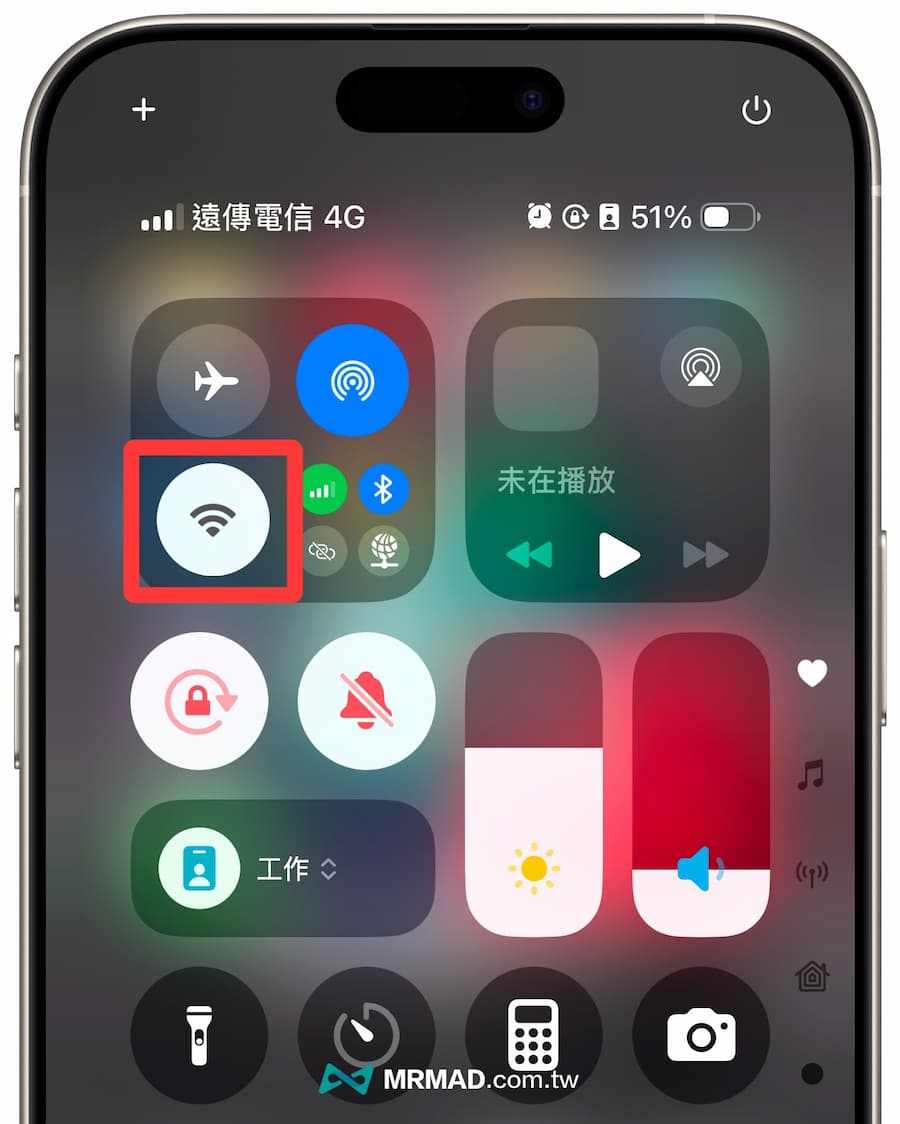
First make sure the iPhone is in the mobile network (4G or 5G) state so that the signal can be accurately measured. Pull down from the upper right corner to call out the control center and turn off the WiFi connection first.
2. Turn on the telephone APP to enter the command
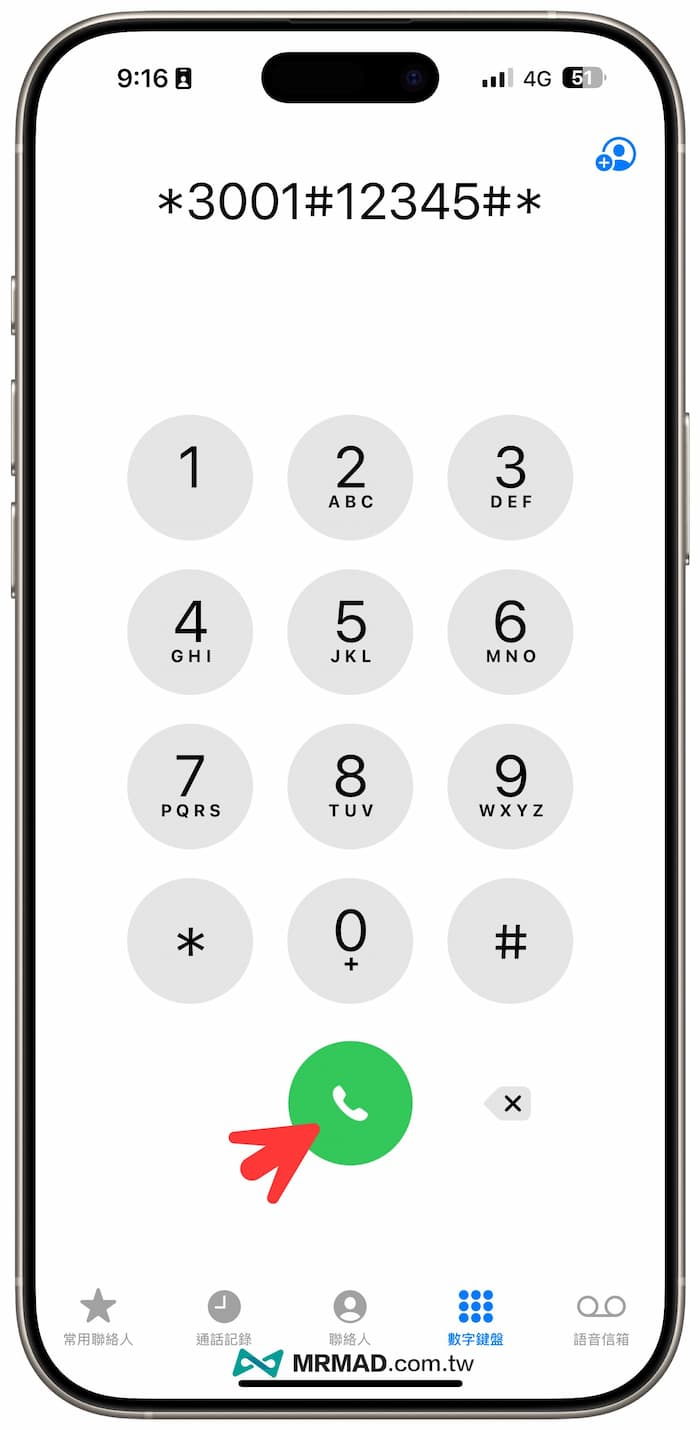
Open the built-in “Telephone” APP on the iPhone, press “*3001#12345#*” on the numeric keypad dialing page, and click the “Call Button”.
3. Enter engineering mode
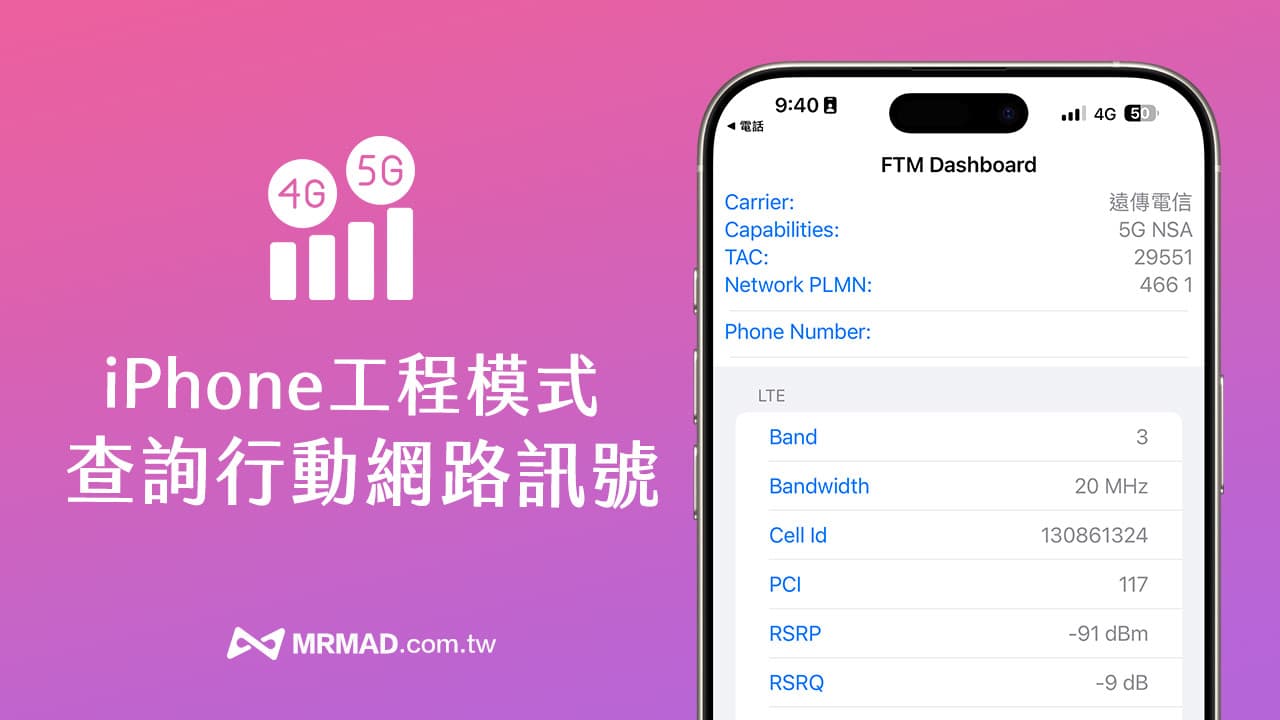
After success, it will automatically enter the iPhone engineering mode page, and multiple values in the field test mode “Field Test Mode” (FTM Dashboard) will be displayed, which will display the signal strength, usage frequency band and LTE signal information of the currently connected mobile network base station.
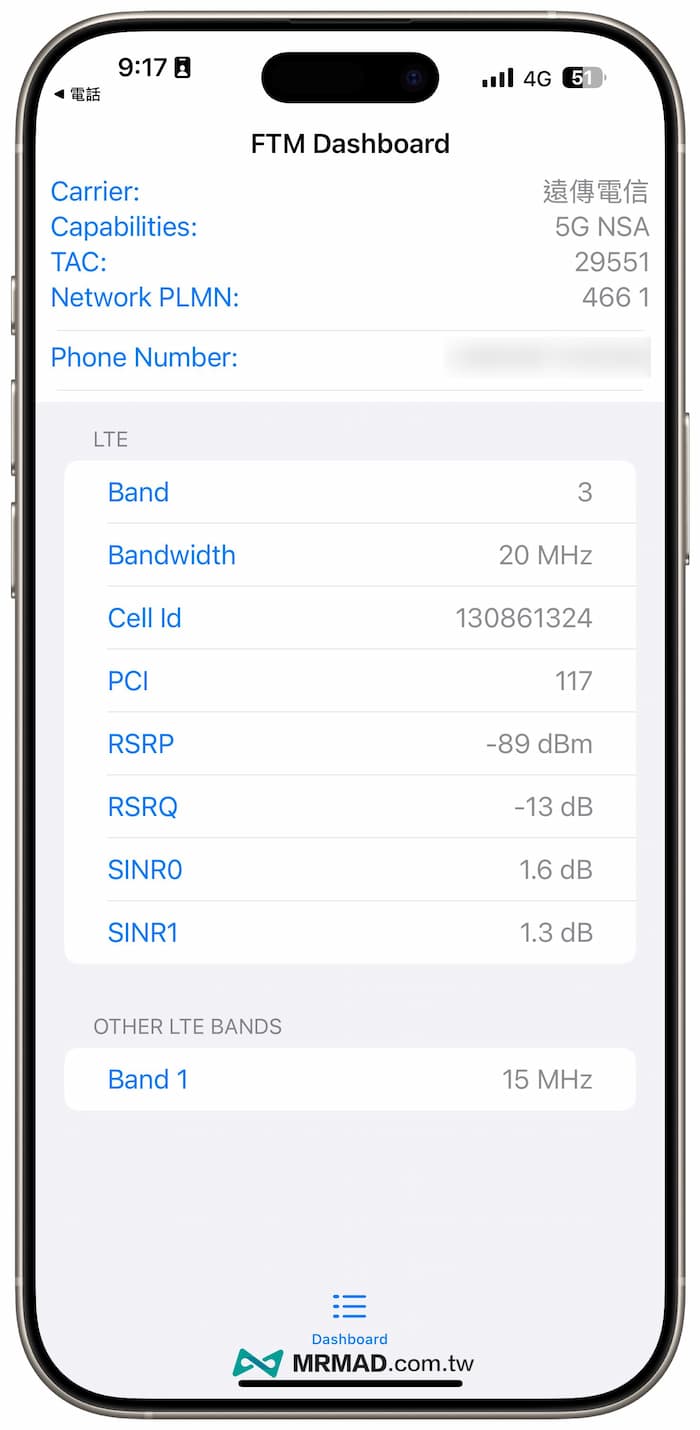
How to view the value of the signal intensity of the mobile network on iPhone?
After entering the iPhone engineering mode, the FTM Dashboard page will display the connection signals of multiple action networks and the main base station, and the functional intentions and numerical significance of these projects are explained below.
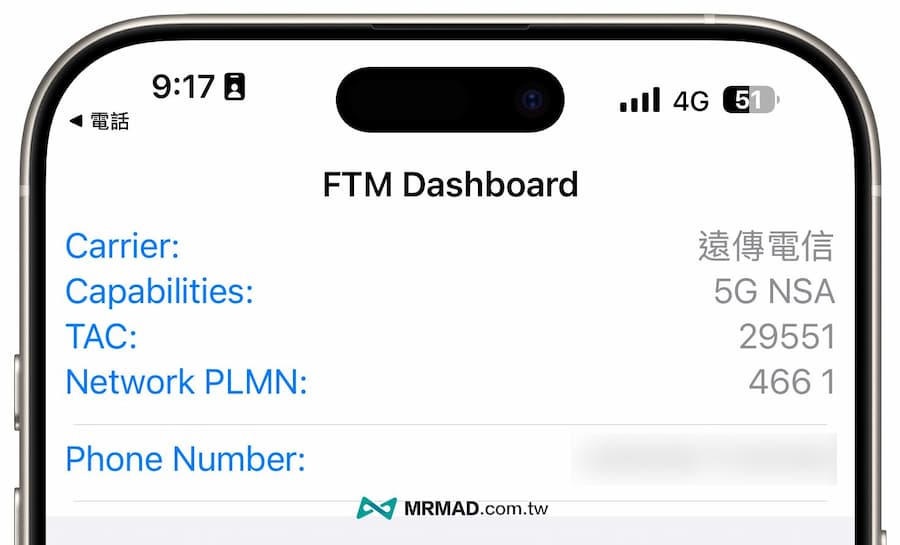
LTE Basic Information
- Carrier (Telecommunication operator): It will display the telecommunication network operators to which the iPhone device is currently connected.
- Capabilities: If shown, 5G NSA means that the current 5G network is used, and it still relies on 4G LTE as the core network to operate.
- TAC (Tracking Area Code): The value can be used to determine the current action tracking area of the device, which is equivalent to using this value to determine the location of the area.
- Network PLMN (Public Land Operation Network): Usually 466 represents Taiwan’s national code for the mobile network, followed by the number is the Telecom Network Code (MNC).
- Phone Number: Displays the phone number currently used for SIM/eSIM cards.
LTE signal information
- Band: The LTE frequency band that the equipment is mainly connected to
- Bandwidth: The current bandwidth of LTE channels.
- Cell ID (cell identification code): represents the LTE base station ID to which the device is currently connected, and each base station has a unique identification code.
- PCI: Physical cell identification code, used to identify different cells when the equipment switches between base stations.
- RSRP: represents the LTE signal strength, and the value will be in dBm decibel milliwatts.
- RSRQ: RSRQ represents signal quality, with values in dB (dB), usually ranging from -3 dB (optimal) to -20 dB (worst).
- SINR0, SINR1: SINR represents the signal to noise ratio (signal interference ratio). The higher the value, the clearer the signal.
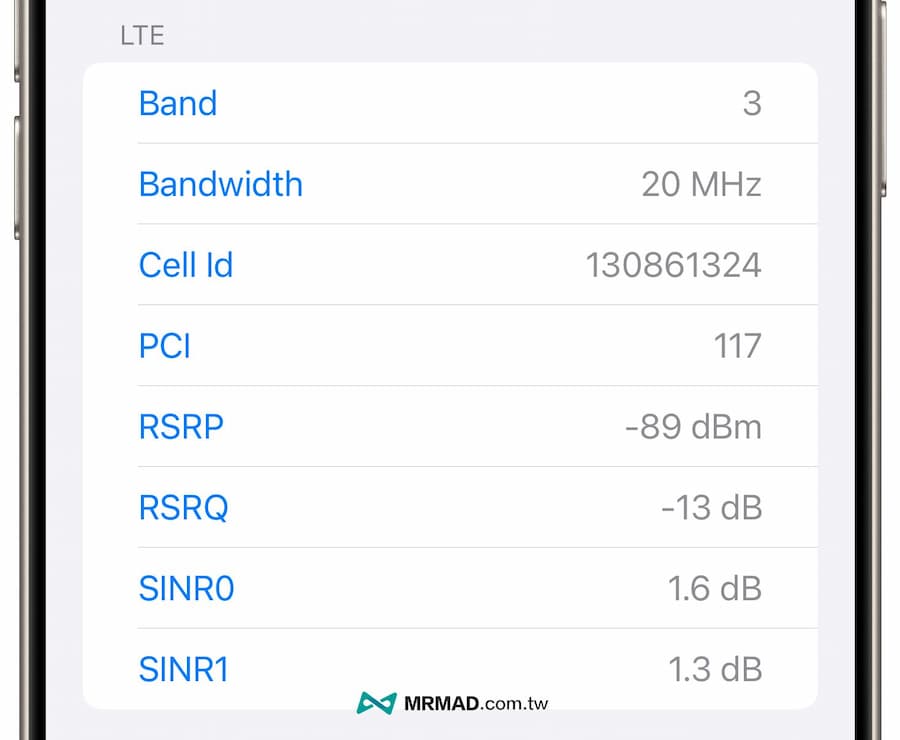
To confirm the current signal quality of the iPhone’s mobile network, you can directly view the RSRP and RSRQ displayed in the engineering mode (Field Test Mode) to judge. The corresponding tables of signal strength and signal quality are as follows:
RSRP signal strength value represents meaning
| RSRP(dBm) | Signal strength |
|---|---|
| -80 or more | Very strong |
| -90 ~ -80 | good |
| -100 ~ -90 | generally |
| -110 or less | Extremely poor |
RSRQ signal quality value represents meaning
| RSRQ(dB) | Signal quality |
|---|---|
| -10 or more | excellent |
| -15 ~ -10 | good |
| -20 ~ -15 | generally |
| -20 or less | Extremely poor |
SINR signal interference ratio value represents meaning
| SINR(dB) | Signal quality |
|---|---|
| More than 20 | excellent |
| 13 ~ 20 | good |
| 0 ~ 13 | generally |
| 0 or less | Extremely poor |
Other LTE bands
The other frequency band blocks at the bottom will show that the current iPhone device supports Carrier Aggregation, that is, use the frequency bands at the same time to increase the network speed and increase the download speed. Usually, the frequency band and bandwidth will be displayed after a period of time, and will vary according to the frequency bands supported by each telecom operator, and will also change over time and region.
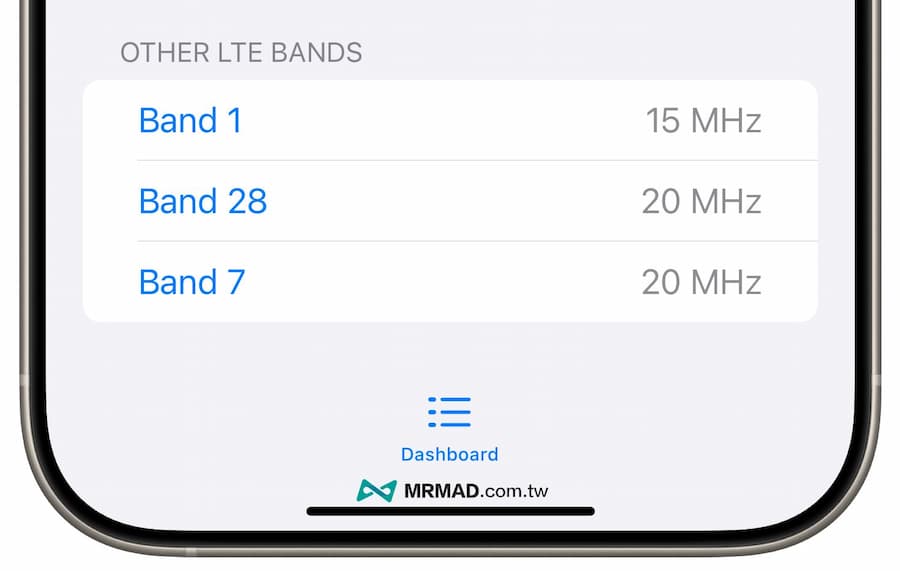
Summary of iPhone engineering mode functions
Usually, the strength of the iPhone mobile network can be checked through engineering mode, so that you can better understand the operating principles of the mobile network, and easily master the quality of the connection between the mobile phone and the base station, and help you determine the main reason for the iPhone signal deterioration. If you plan to change to mobile network telecommunications, you might as well learn this trick and go to various stores to apply for trial and confirm the network status. Next time you encounter signal problems, you don’t have to rely on the number of signal grids to guess!
Of course, if you think the iPhone signal is poor, you can also try to improve it through another solution. For details, please refer to “Different iPhone signal and poor reception of messages? 10 ways to enhance and solve signal strength.
Further reading: