Many iPhone users often report that personal hotspots cannot be connected, are disconnected frequently or are unstable, or even fail to connect successfully. Even after the iPhone is upgraded to the latest iOS, these problems will still occur. If you want to To solve the problem of iPhone personal hotspot not being able to connect, you can use these 10 solutions to improve it.
How to solve the problem of iPhone personal hotspot not connecting?
1. Restart personal hotspot
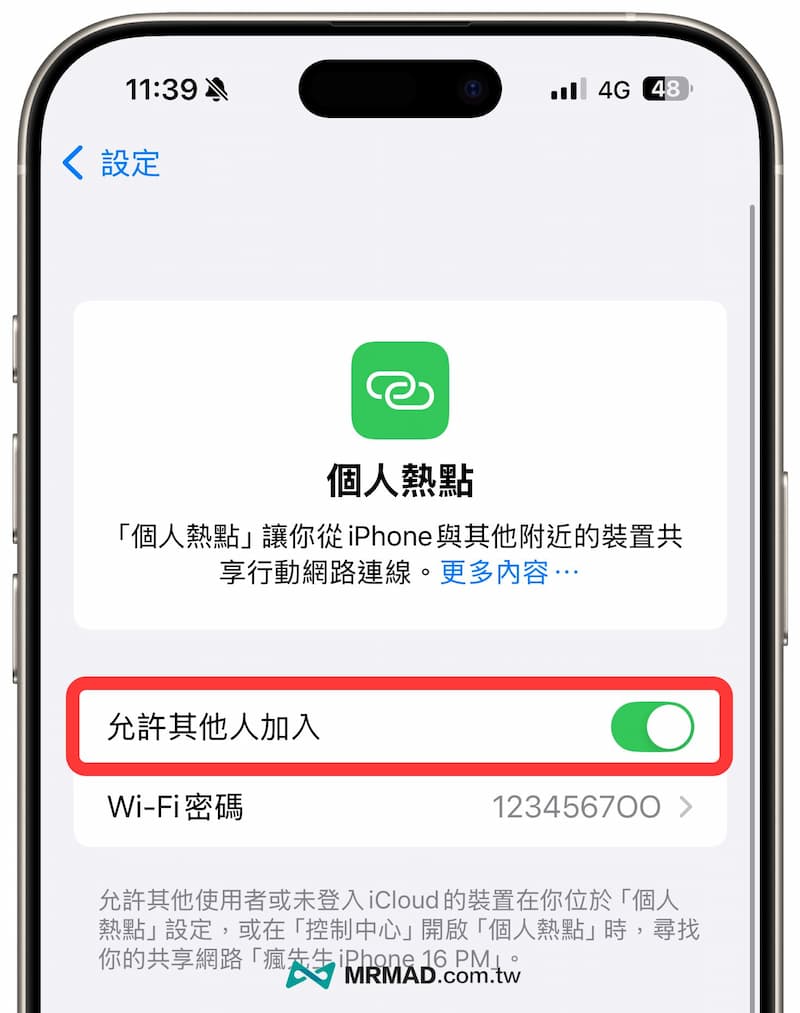
The simplest and often most effective method is to restart the iPhone hotspot function. Go to iOS “Settings” > “Personal Hotspot”, turn off “Allow others to join”, wait 5 seconds and then turn it back on. This operation can reset the hotspot connection. , solving most temporary problems.
2. Turn on personal hotspot to maximize compatibility
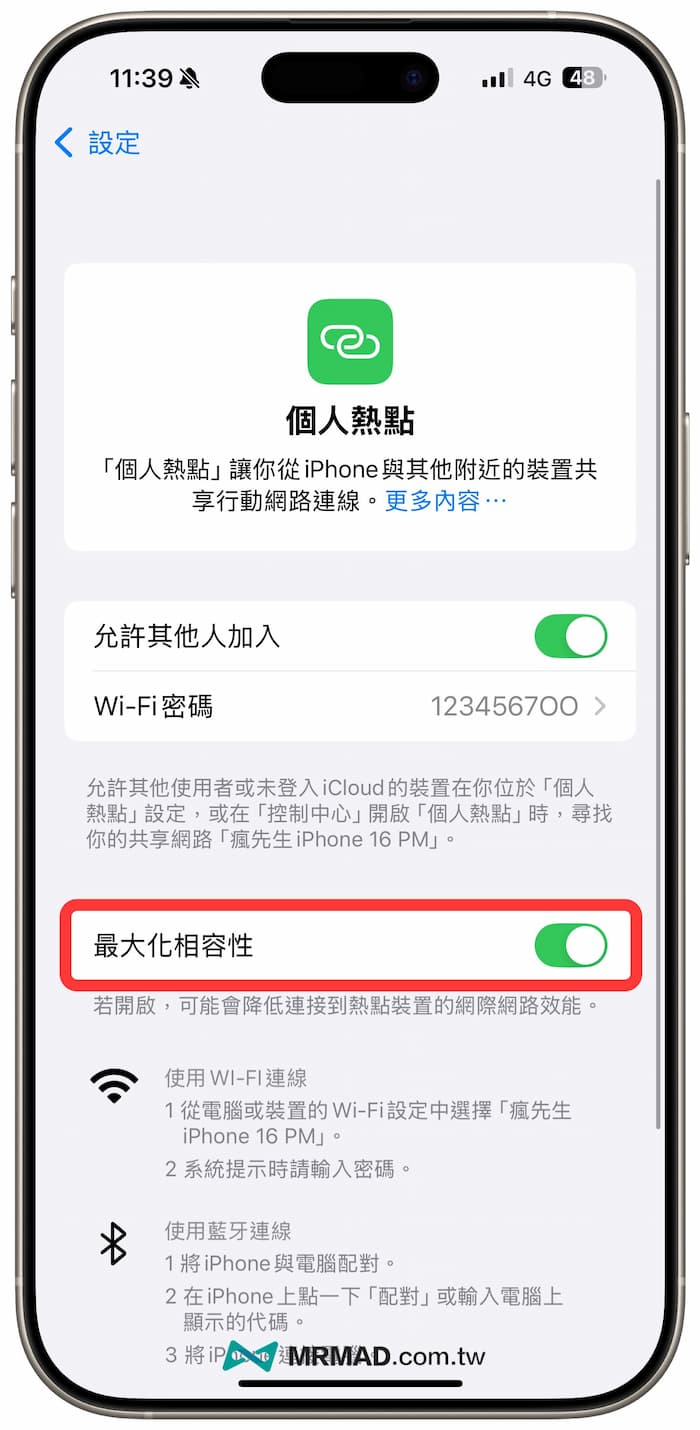
If your iPhone opens a personal hotspot to connect to other devices, but cannot see the hotspot or cannot connect to it, check whether the “Maximize Compatibility” function setting is turned on. This function is mainly available for the iPhone 12 series or new models. Supports 5GHz Wi-Fi hotspot sharing, but for older laptops, mobile phones, tablets and other devices, the hotspot problem will not be visible. You need to turn on compatibility before the iPhone personal hotspot is forced to use the 2.4GHz Wi-Fi band. , the other device can see the hotspot in the WiFi list!
3. Check the personal hotspot settings in the control center
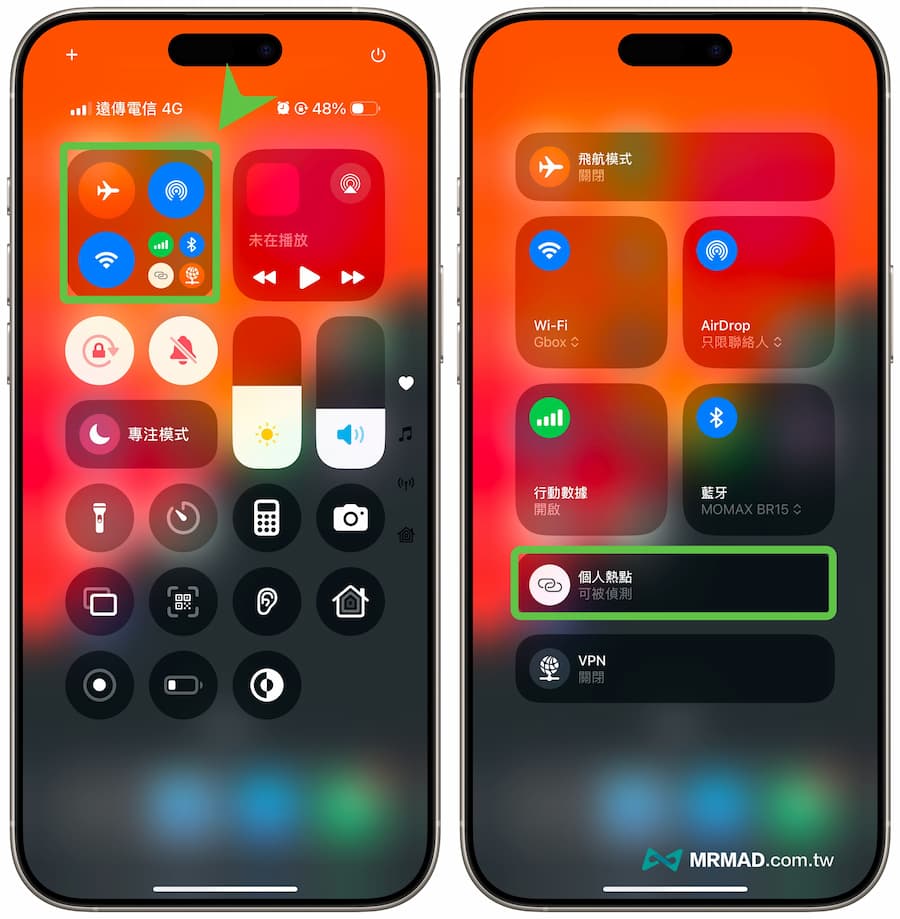
If other devices still cannot find the iPhone personal hotspot, you can slide out of the control center and click on the network settings card in the upper left corner (long press) to confirm whether the personal hotspot in the lower right corner is turned on. If this function is not turned on, then other Computers or devices are very difficult to find.
4. Rename the iPhone device
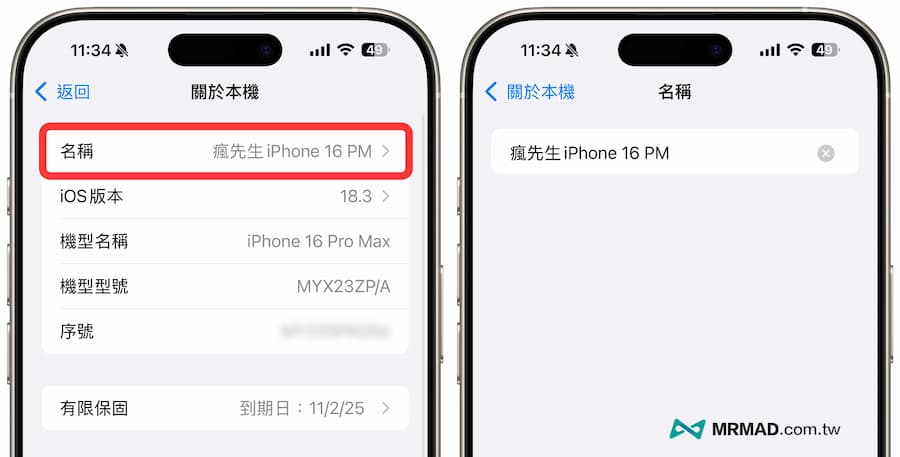
If the iPhone hotspot is easily unable to connect, you need to change the device name and reopen the personal hotspot to successfully connect. Mr. Crazy has actually tested this method as the fastest way to solve the problem of hotspot failure.
5. Reset network
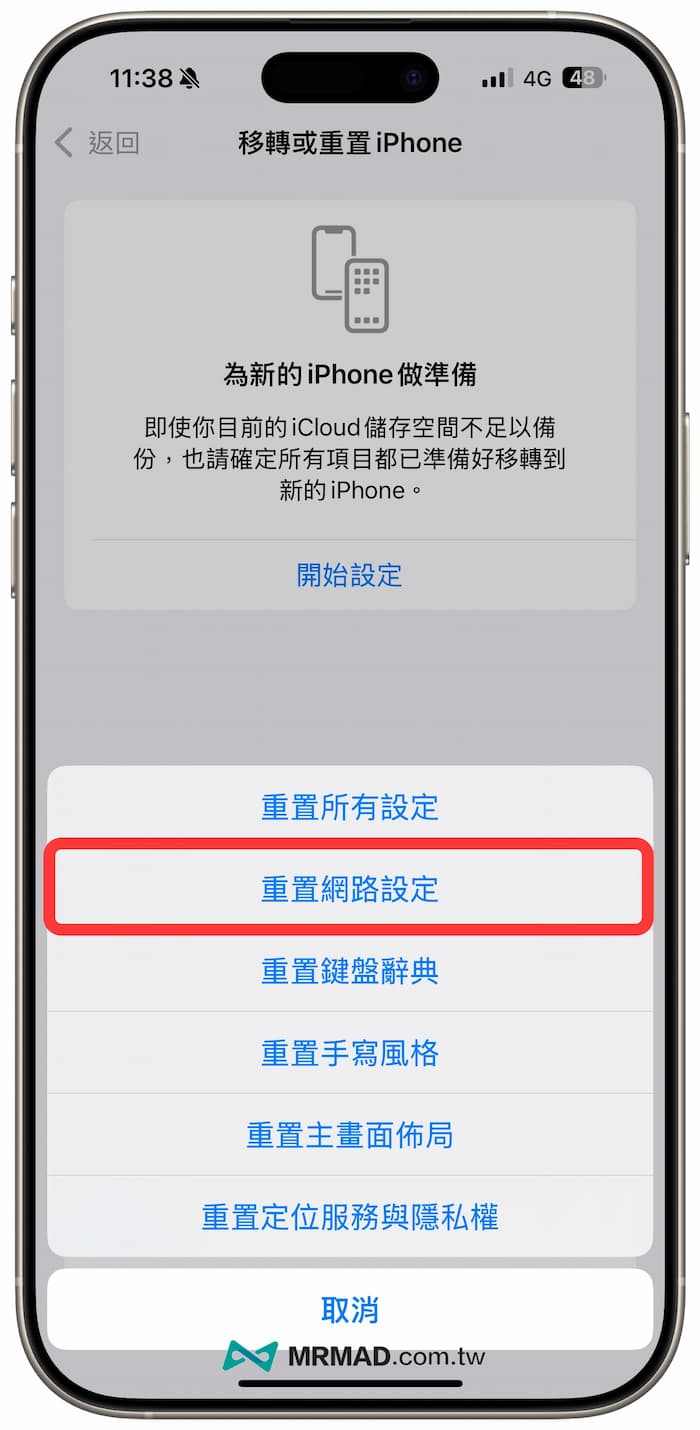
If the iPhone hotspot frequently disconnects or cannot be connected, you can try to reset the iPhone network settings back to the original default values, as follows:
- iOS 14 or older versions: iOS “Settings” > “General” > “Reset” and click “Reset Network Settings”
- iOS 15 or newer versions: iOS “Settings” > “General” > “Move or Reset iPhone” Click “Reset” > “Reset Network Settings”
Using the above method will only delete all the network settings of the iPhone and return it to the factory default values. It will not delete any data on the iPhone. For details, please refer to “iPhone Reset Comprehensive Guide”.
6. Restart iPhone
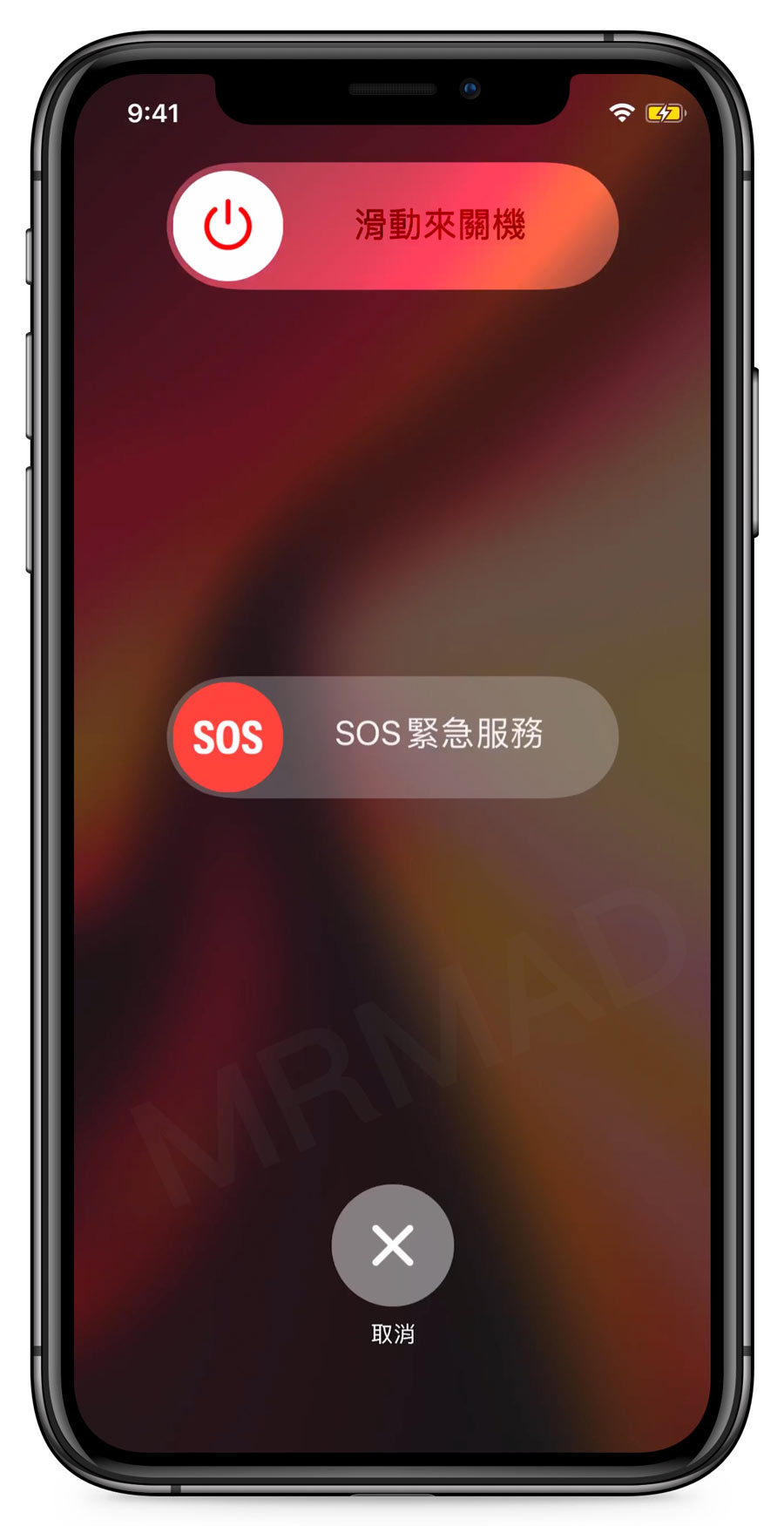
Sometimes the hotspot cannot connect error occurs. When this happens, restarting the iPhone first can often solve unexpected errors or exceptions in the iOS system.
7. Check whether the mobile network signal is abnormal
Sometimes, depending on the current location of the iPhone, the 4G/5G mobile network may be unstable, which may cause the hotspot to be slow or unstable. It is recommended to improve this through the following article:
8. Use Bluetooth instead of Wi-Fi
If you continue to have problems with your Wi-Fi hotspot, try tethering using Bluetooth. Although the speed may be slower, the connection is usually more stable. Pair the device in “Settings” > “Bluetooth” and enable tethering.
9. Update to the latest iOS version
In the end, all you have to do is wait for Apple to release updates for the iOS system. It is usually not recommended to keep the iPhone on the lowest version. This method will not solve the problem of iOS hotspots being unable to be shared. Instead, it will lead to system instability and security concerns.
10. Clean up iPhone storage space
If the iPhone storage space is insufficient, it may also affect system performance, including the hotspot function. You can check and clear the iPhone storage space to ensure that there is at least 10-15% available space.
Function summary
If there is a problem that another iPhone or Android phone cannot connect to the iPhone hotspot, you can use this article to compile 10 tips to solve the problem of iPhone hotspot failure:
- Restart personal hotspot
- Turn on personal hotspot to maximize compatibility
- Check personal hotspot settings in Control Center
- Rename iPhone device
- Reset network
- Restart your iPhone
- Check whether the mobile network signal is abnormal
- Use Bluetooth instead of Wi-Fi
- Update to the latest iOS version
- Clean up iPhone storage space
Further reading: