
In the era of information explosion, we are exposed to all kinds of English information every day, but most people are accustomed to opening a translation app and inputting it word by word or uploading pictures to complete the translation. This time I want to share a super convenient iPhone screenshot translation shortcut script. You can tap the back of the phone three times or press the iPhone action button to instantly translate the English displayed on the screen into Chinese.
iPhone screenshot translation shortcut script download
First, open and download the “One-Click Screenshot Translation” iOS shortcut script (connected at the back) through the iPhone’s built-in Safari browser. Directly click the “Add Shortcut” button to download and add the script to the iPhone’s shortcut database. . If the iPhone has not installed the “Shortcut App”, you must first download it separately through the App Store (Click here to download Shortcut App).
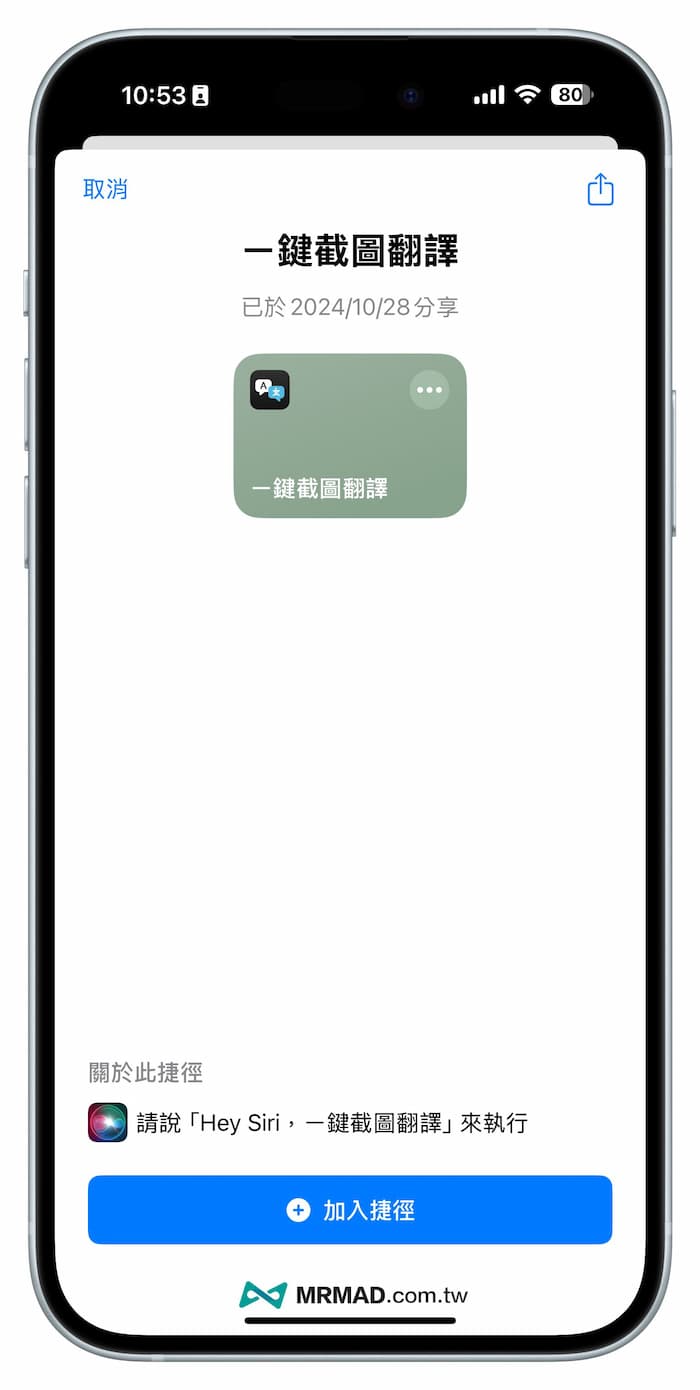
⛔️ If the “This shortcut cannot be opened because your shortcut security settings do not allow untrusted shortcuts” situation appears when downloading the iOS shortcut script, you can solve it through “Another method (click me)”; if the shortcut is open The download page pops up with “Unable to connect to the shortcut database”. Click the refresh button below and it will display normally.
Shortcut script download👉 One-click screenshot translation shortcut
How to set up the one-click screenshot translation function on iPhone?
After downloading the iPhone screenshot shortcut script, you need to enable the translation shortcut function by tapping the phone three times. If it is an iPhone 15 Pro or iPhone 16 series, you can also trigger it through the action button. Set it according to your preference through the following steps. Certainly.
Method 1: Enable the translation shortcut by tapping the back three times
If you want to tap the back of your iPhone three times to trigger the translation shortcut function, directly open the iOS built-in “Settings” APP, and select “Accessibility” to find “Touch”, slide to the bottom and click “Back Tap”.
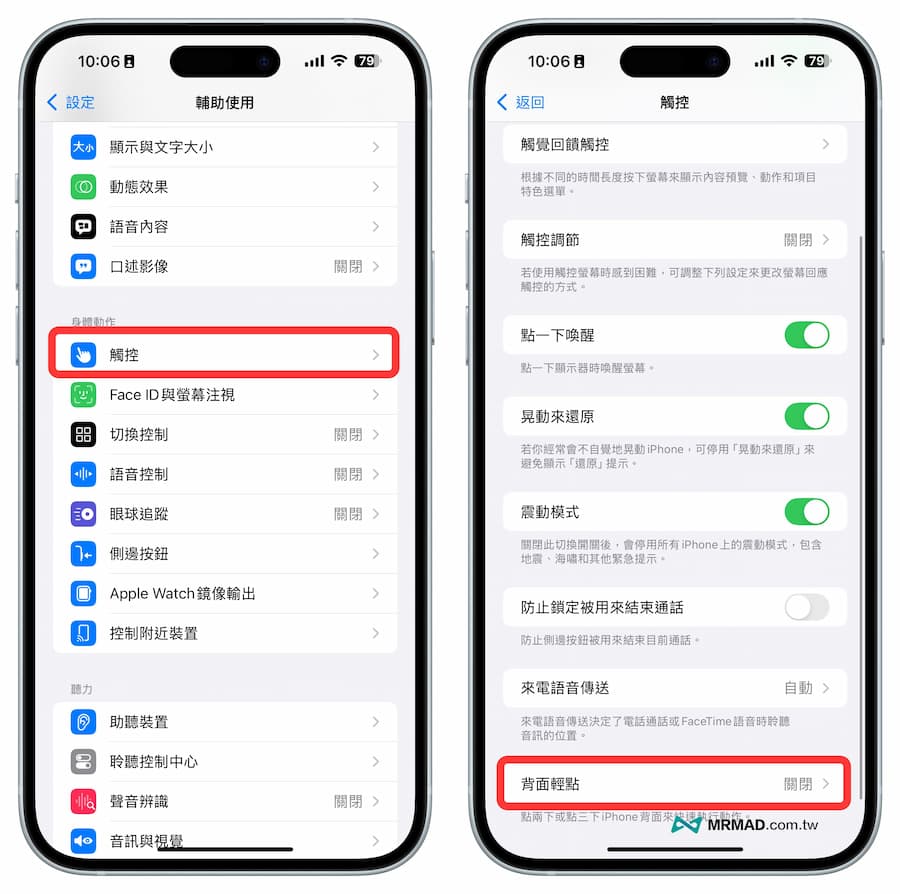
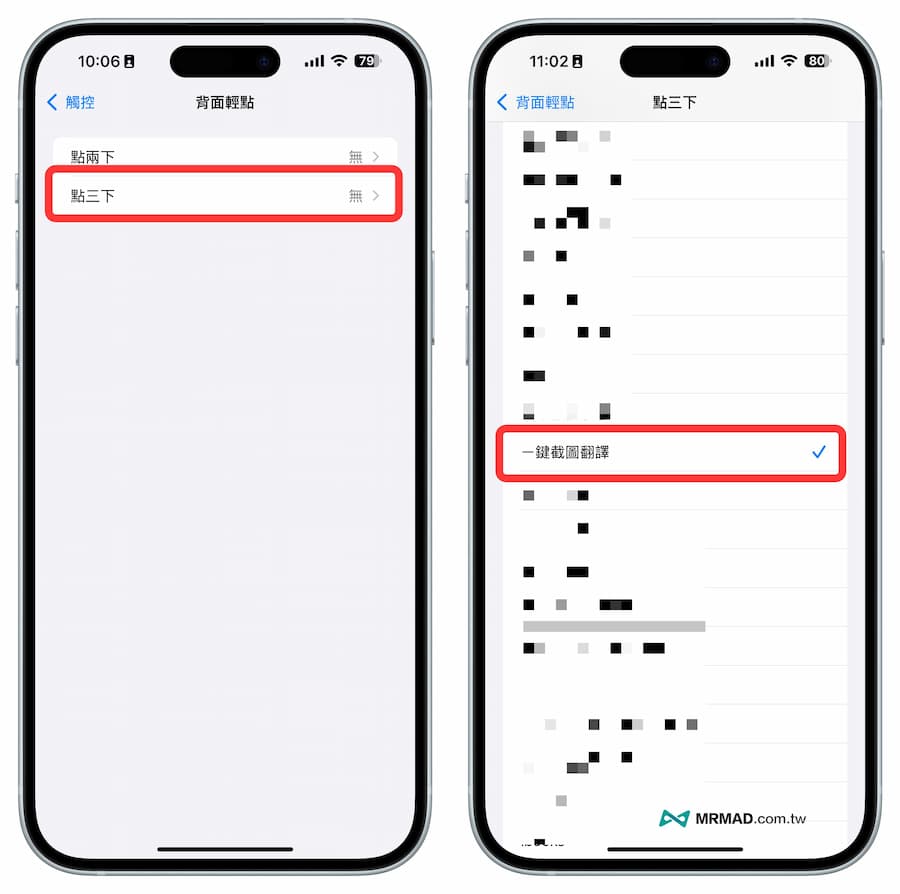
And after selecting “three taps”, set the function to “One-click screenshot translation”, and then you can trigger the function through the back of the iPhone.
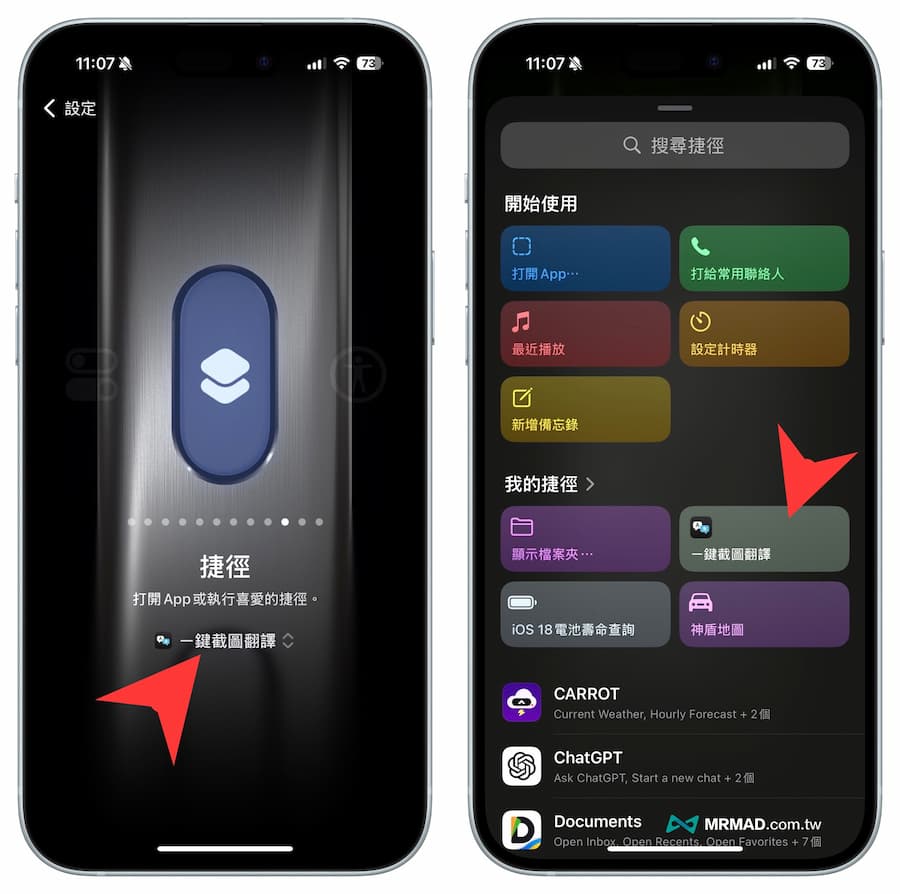
Method 2: Trigger the screenshot translation shortcut through the action button
If you use the iPhone 15 Pro series and the entire iPhone 16 series, which are equipped with “action buttons”, you can also trigger the “one-click screenshot translation” shortcut function from the action button settings.
If you are not familiar with the operation of iPhone action buttons, it is recommended to learn about “How to set up iPhone action buttons?” through another tutorial. 10 must-learn custom function techniques”.
Tutorial on how to enable one-click screenshot translation function on iPhone
If you see an all-English message or APP menu and want to translate it into Chinese, you can directly tap the back of the iPhone three times to quickly translate, or directly press the iPhone action button to trigger the screenshot translation function.
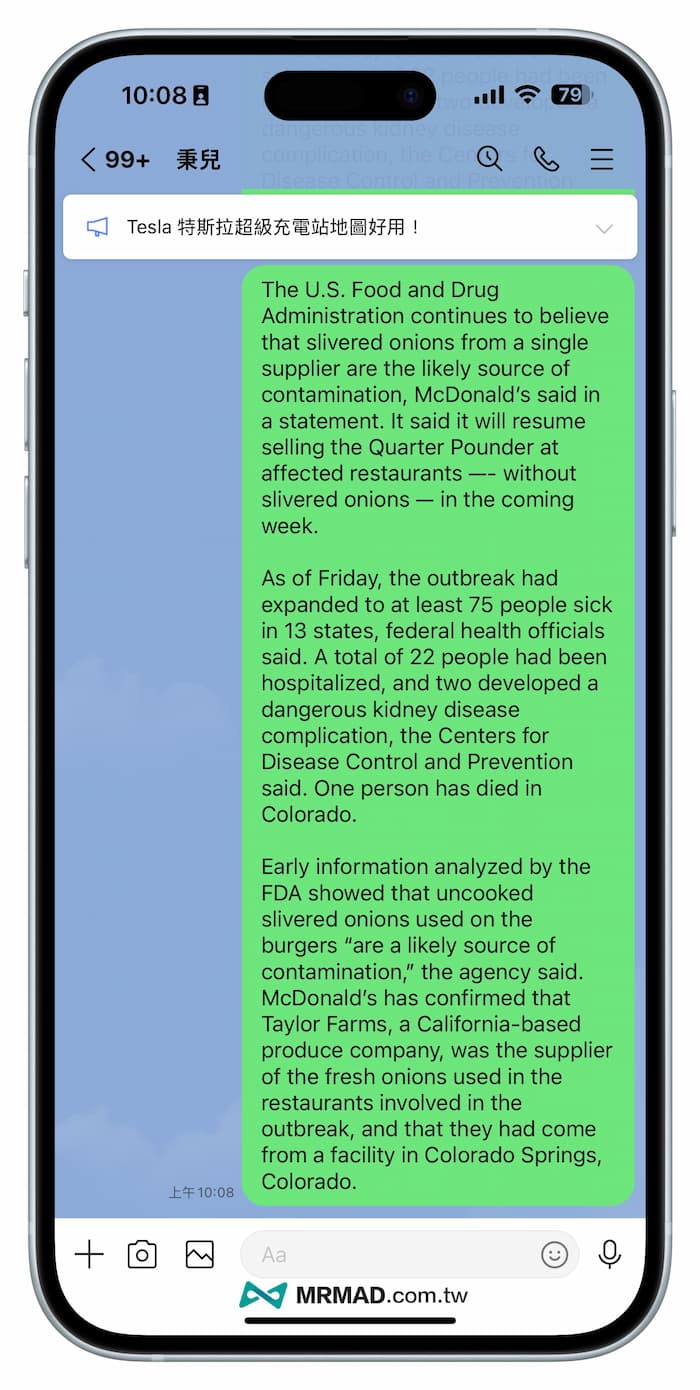
After the translation shortcut script is triggered, the iPhone screen will be captured and the English will be translated into Chinese immediately through the built-in translation, thus saving the time of opening the translation APP.
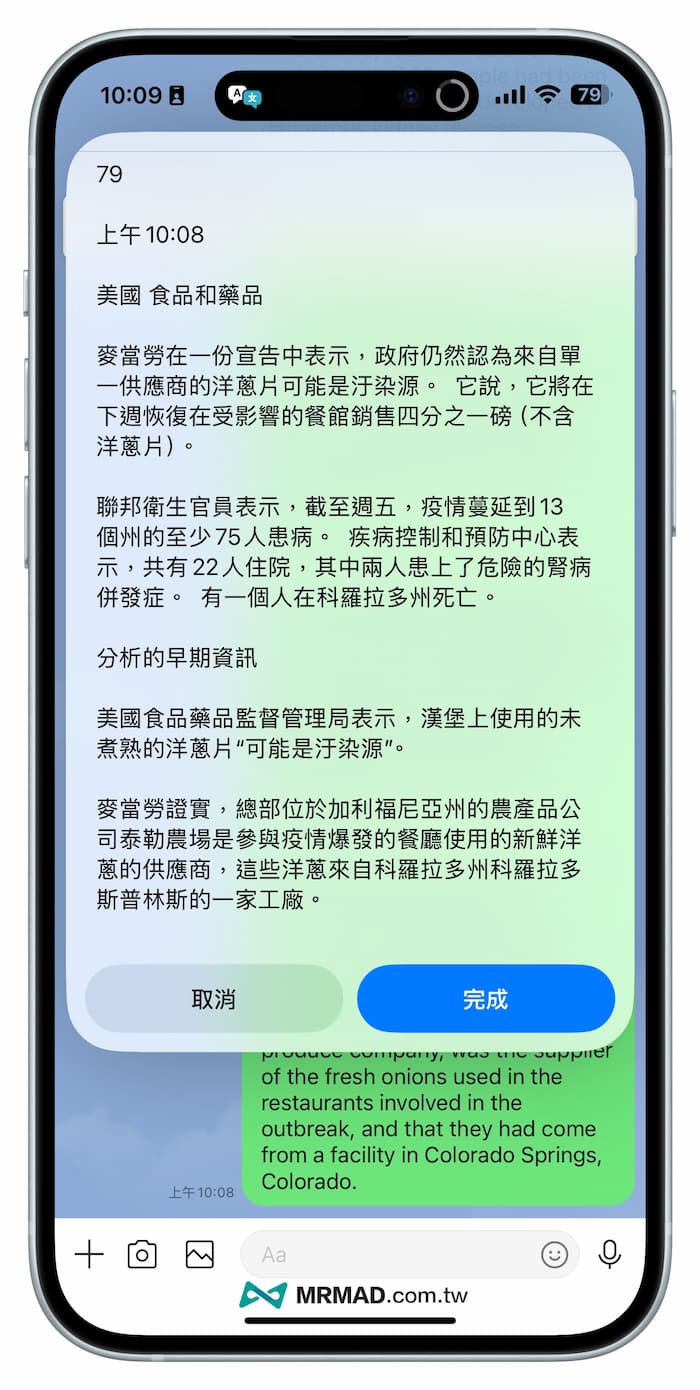
For details, you can see the dynamic video operation effect of the “iPhone one-click screenshot translation function” below.
Of course, it can also be used in third-party apps without Chinese culture. As long as you tap three times on your iPhone or use the action button to trigger the screenshot translation shortcut script, you can immediately translate the menu into Chinese. Isn’t it super convenient?
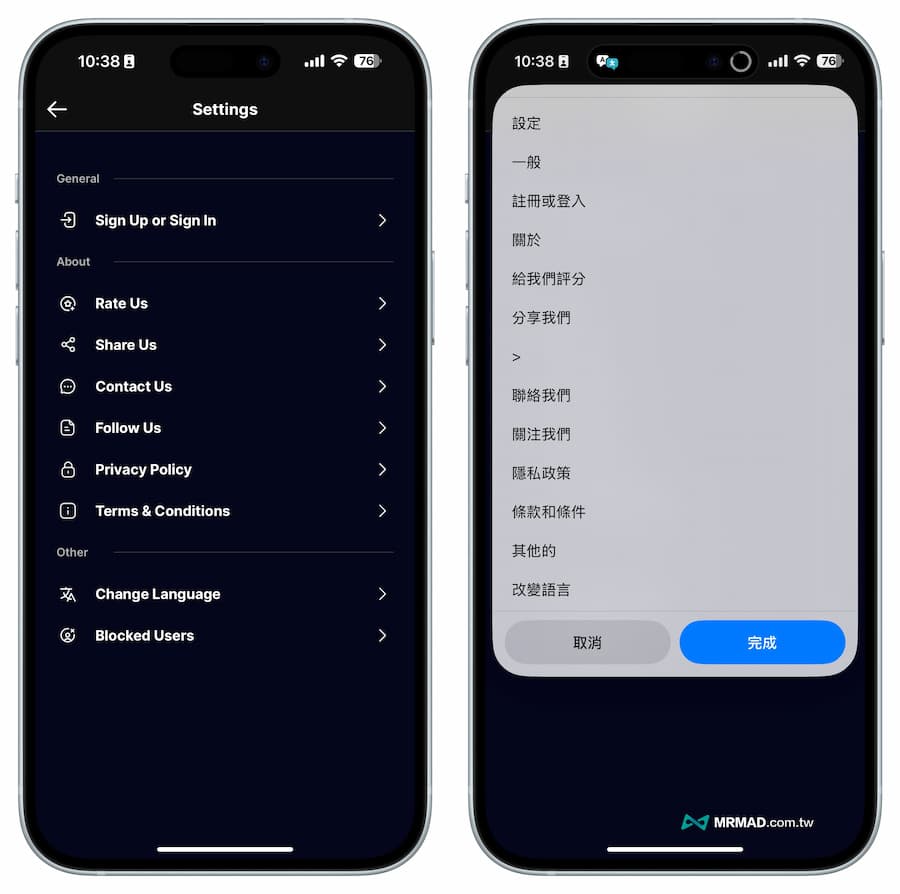
Function summary
The one-click screenshot translation shortcut script for iPhone shared in this article is a very practical and powerful function. As long as there is English content or menus that you cannot understand, whether it is an APP or a game, you can directly translate English into Chinese through this method.
Further reading: