Are you tired of being unable to capture the picture when taking selfies with your mobile phone, or not being able to find anyone to take photos when taking group photos? The iPhone’s voice-activated camera function will completely change your camera experience! With simple settings, you can easily achieve long-distance shooting. Let’s share how to set up the voice-activated camera function through iPhone. In various special scenes, you can capture wonderful moments just by talking as you like.
What is iPhone voice-activated photography?
The iPhone’s voice-activated camera function allows you to set specific voice commands so that the phone automatically executes shooting after receiving the command. You do not need to tap the screen or press the iPhone 16 shooting button to trigger the camera function.
The iPhone voice-activated camera function is very suitable for the following situations:
- Long-distance selfies: No need to worry about the selfie stick being long enough. As long as you set the voice command, you can easily capture the picture you want.
- Group photo with multiple people: You no longer need to bother others to help press the shutter. Just speak the voice command to take a photo loudly, and everyone can be in the frame together.
- Special scene shooting: For example, when shooting night scenes and sports scenes, voice-activated photography allows you to capture the moment more conveniently.
iPhone voice-activated camera settings teaching tips
1. Enter iOS Assisted Voice Control settings
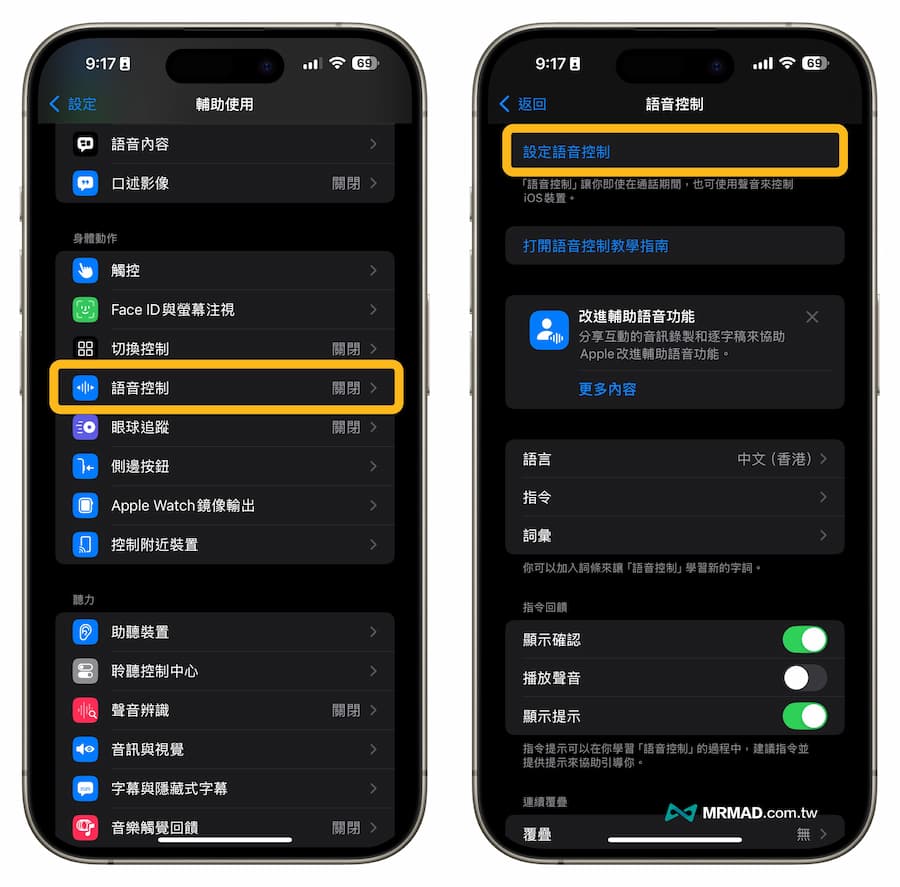
Open the iOS built-in “Settings” app, click “Accessibility” > “Voice Control”, and enter the “Set Voice Control” setting.
2. Turn on voice control function
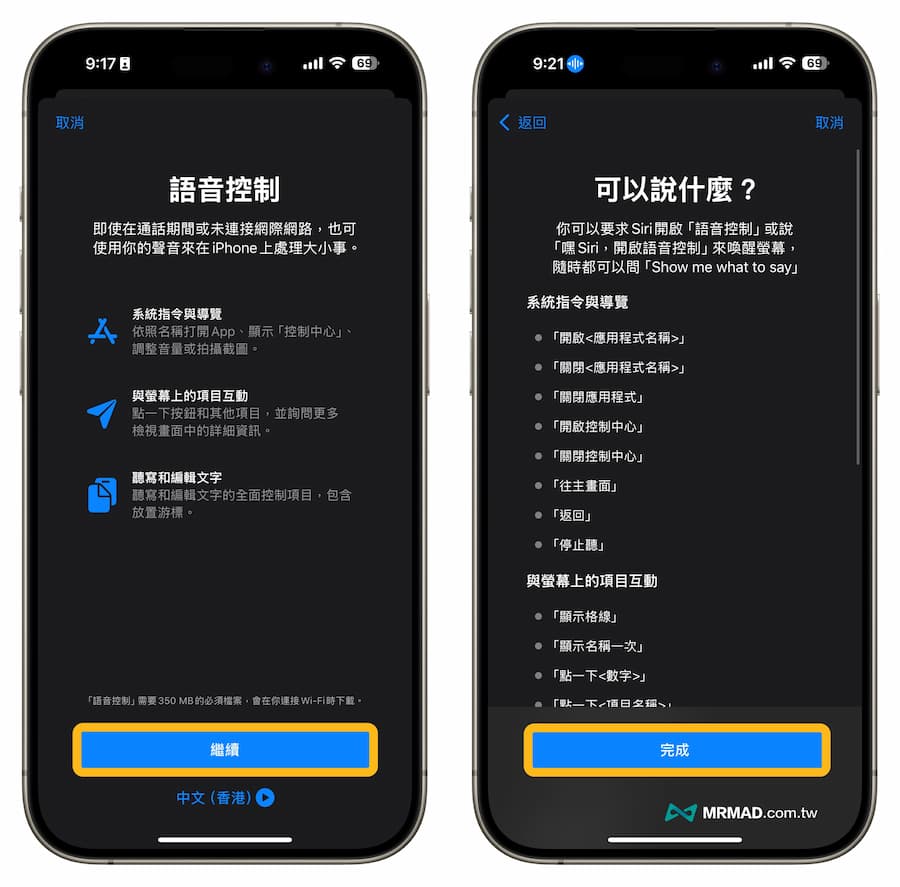
By default, voice control will not be activated. Simply click “Continue” to set up voice control, and then press “Finish” to officially activate the iPhone voice control function.
3. Customize voice control language
In the voice control page, click on the “Language” menu and download the “Chinese (Hong Kong)” language pack (you need to click on the cloud icon on the right) until a check mark appears, which means the download is complete.
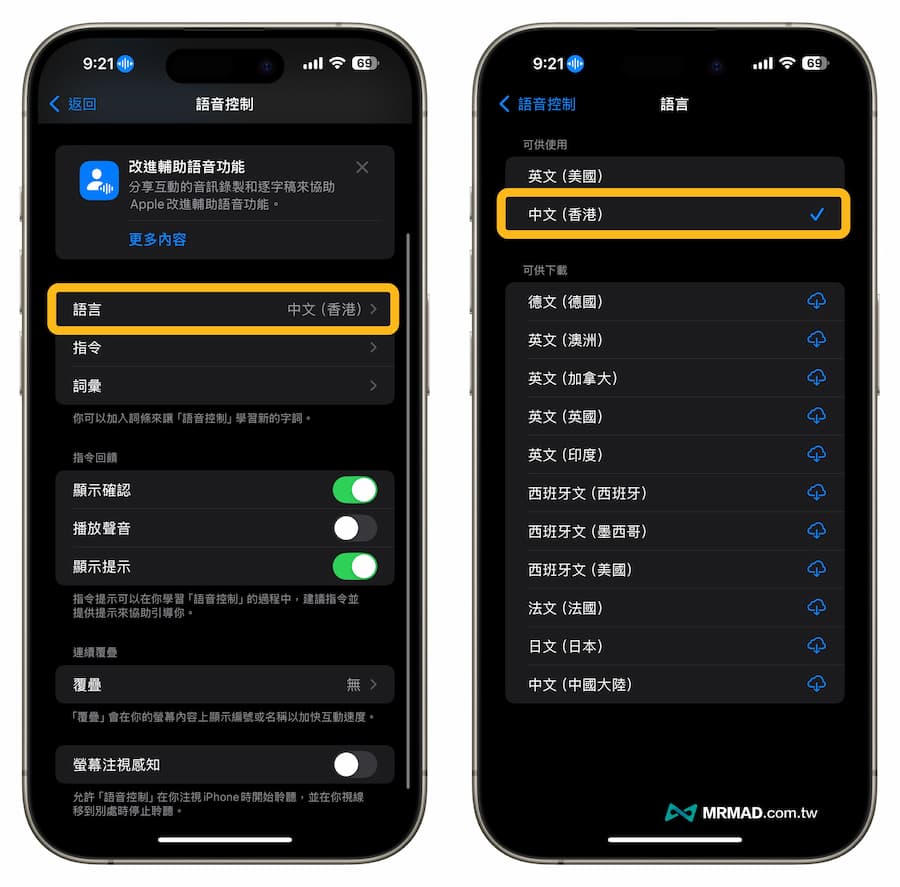
4. Added voice control command for taking pictures
Click “Commands” from the voice control page and select “Add Command”.
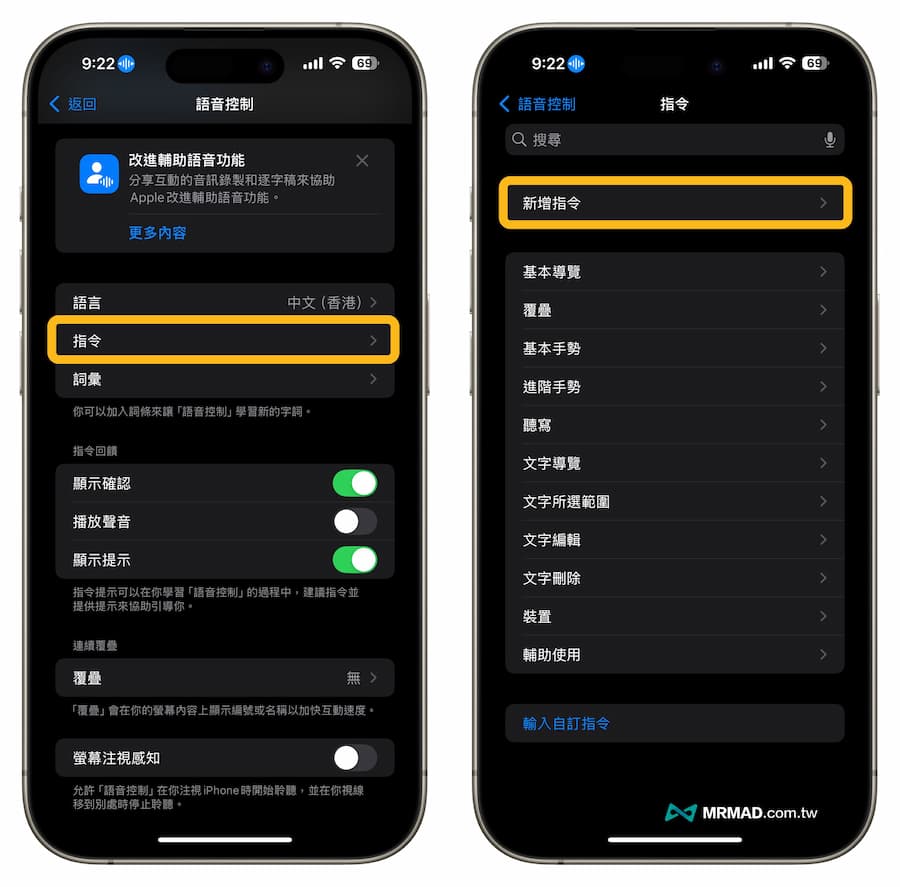
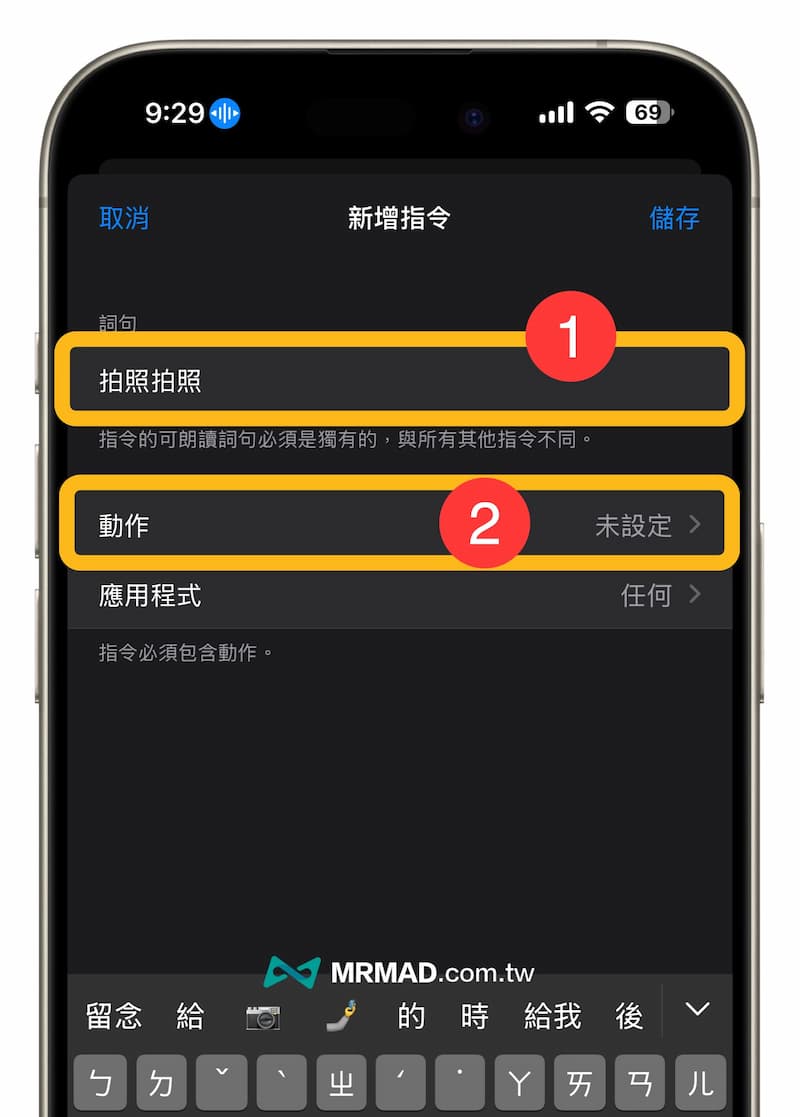
You can enter “take a photo and take a photo” in the “Words” field or customize the Chinese words to trigger voice photos. You can also input them directly using your voice. Finally, you can click “Action” to start setting gestures.
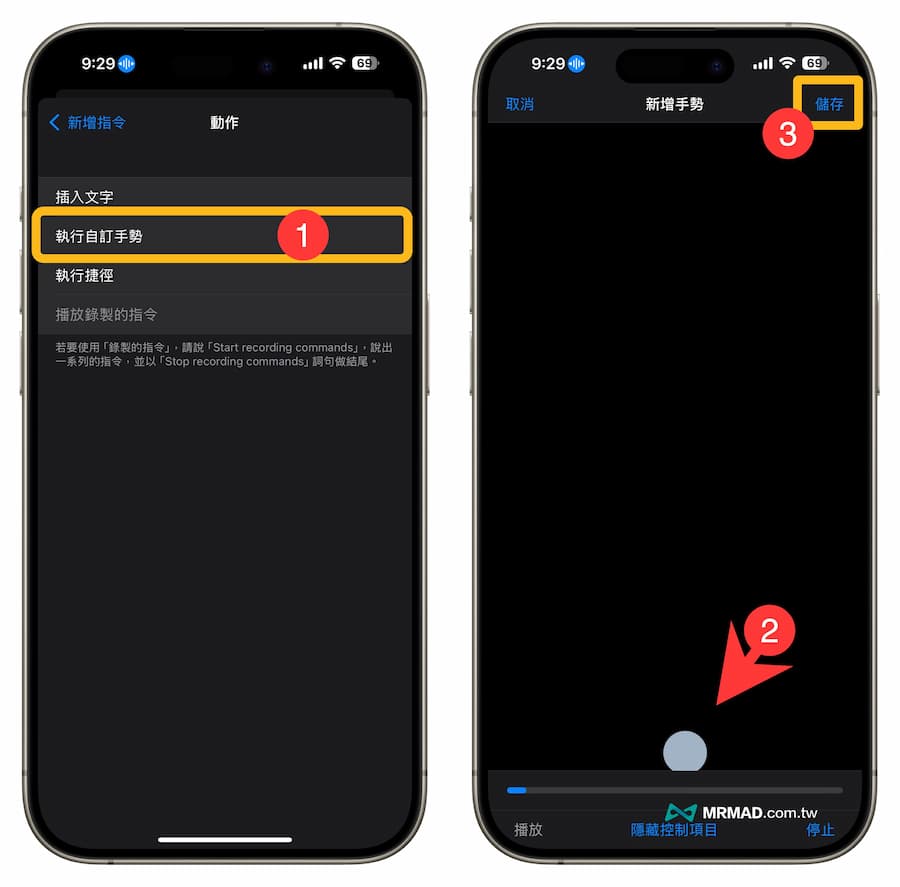
5. Set and execute camera gestures
Next, select “Perform custom gestures” in the action command. Next, you will see the screen for adding new gestures. You can probably grab the position of the shutter button of the camera (such as the position in the picture), click on the screen, and a small white dot will appear on the screen. Finally, click “Save” in the upper right corner.
Note: You need to set gestures, mainly what actions you want to perform on the screen after being triggered by voice, and you need to simulate pressing the camera shutter button, so you need to create a “simulate finger click on the camera shutter button” gesture.
–
Tips: If you are worried about misalignment, you can switch to the “Camera APP” and confirm the position of the camera shutter button. You can mark it with a small label or pen, so you don’t have to worry about misalignment.
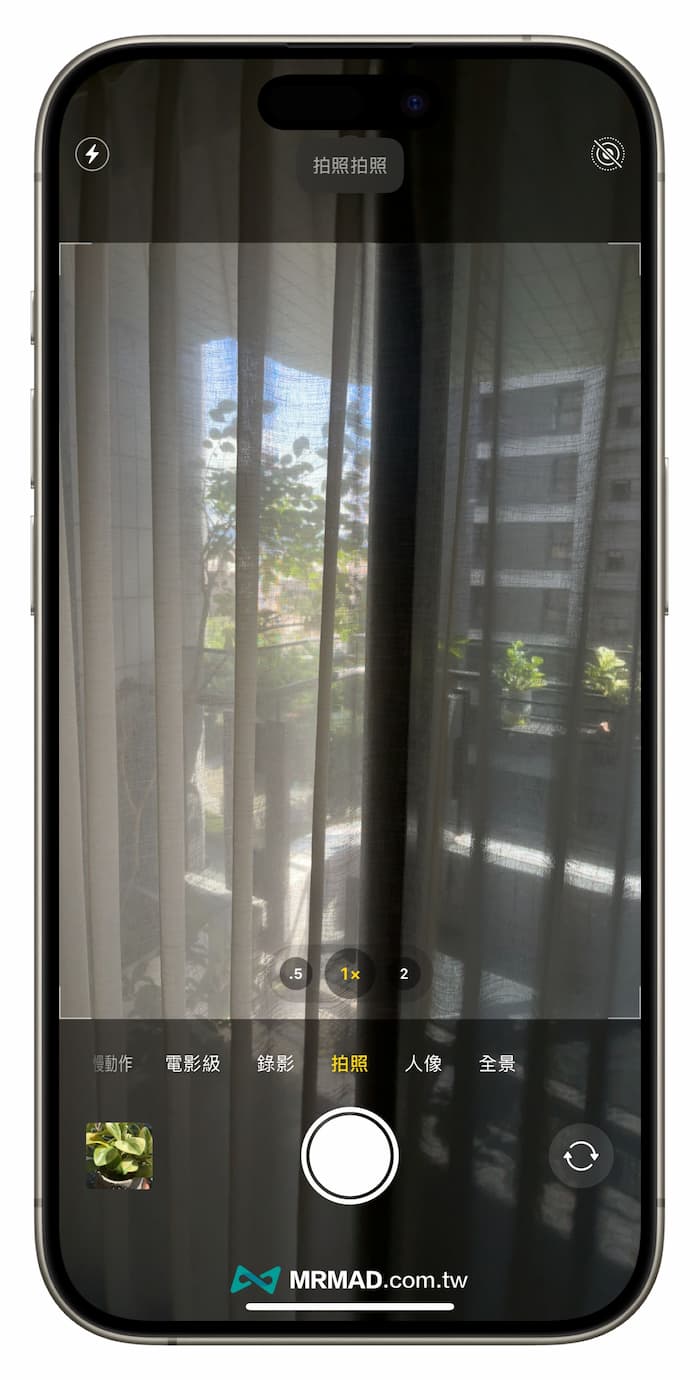
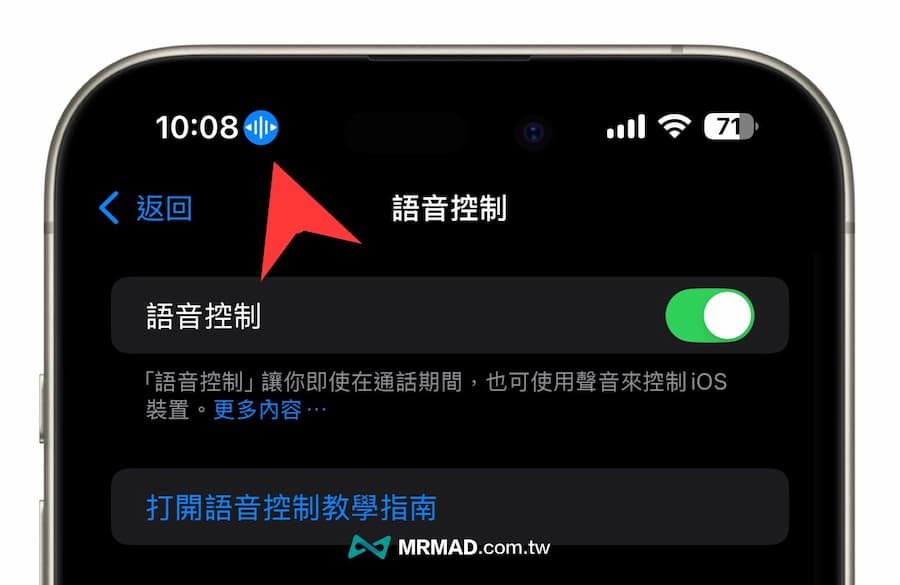
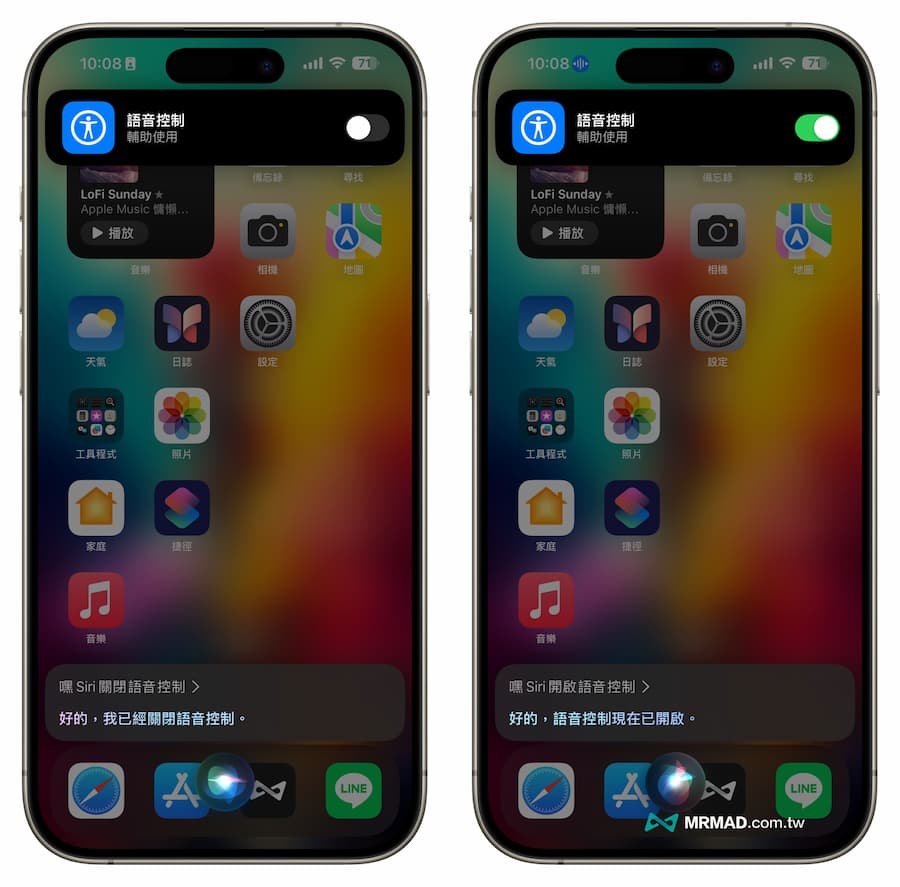
After completing the gesture operation, you can click “ Open the iPhone’s built-in “Photography APP” and say “Take a photo” loudly to the iPhone (customized voice command). After the system receives the voice command, the newly set voice photo key will appear at the top when the recognition is successful. Words will be automatically photographed immediately, allowing you to realize the “voice control iPhone camera function” without having to press the camera shutter button with your fingers! Convenient enough, right? But extra attention should be paid. When you want to use iPhone voice control, the surroundings should not be too noisy, and the speaking volume should be loud and the pronunciation should be standard. You can be about 4 to 5 steps away from the iPhone, and the iPhone can successfully recognize the voice and it will automatically Voice command executed! As for whether wearing AirPods can be controlled directly through the microphone? According to Mr. Crazy’s actual test, there is no way. The main voice control radio is still on the iPhone device. There is no way to use AirPods to remotely control the iPhone to take pictures. When you learn to use voice control to implement “iPhone voice-controlled photography”, you will definitely find out why the “blue voice microphone” icon always appears in the iPhone status bar? In fact, this is a “voice control” function. If you don’t need to use the voice-controlled camera function, you can use Siri to quickly switch it on and off. After you no longer need to use the “iPhone voice-activated camera” function, you can say “Hey Siri ~ turn off voice control” to the iPhone to turn off the “blue microphone”. If you need to use “iPhone voice-controlled photography” next time, just say “Hey Siri~turn on voice control” directly to Siri, and you will be able to have your iPhone automatically press the camera shutter button with your voice. The voice-activated camera function of iPhone is not only a simple camera tool, but also a brand-new way of interaction. If you find that no one can press the shutter button for you, and through this function, you can free your hands, just say loudly You can immediately realize the selfie function of your mobile phone by issuing a command. If you haven’t tried this function yet, you might as well spend a few minutes to set it up. I believe you will fall in love with this function. Further reading: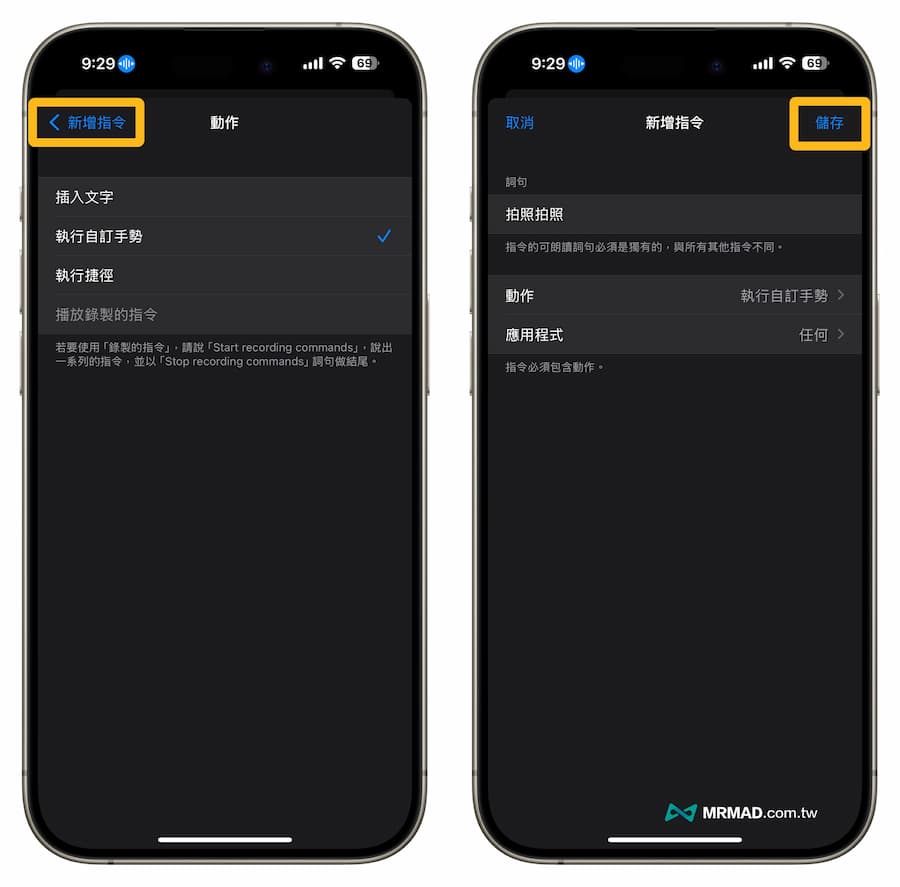
How to use voice-activated photography on iPhone?
How to turn off the blue pattern in the upper left corner of iPhone?
Function summary