Sharing a multifunctional and powerful iPhone YouTube shortcut download script, you can easily download your favorite YouTube videos to iPhone in just a few steps without relying on third-party apps. This YouTube shortcut also supports up to 8K HDR You can download ultra-high-definition videos, convert YouTube videos to music, or download video thumbnails and subtitles. It is currently the most powerful YouTube download shortcut script for iOS.
If you want to download YouTube videos through iPhone shortcuts or convert YouTube videos into music, you only need to install this “Universal YouTube Download Shortcut” to easily achieve it with one click. It can be said to be the most powerful YouTube shortcut download tool in 2024, suitable for iPhone and iPad. The device can be used as long as there is an installation shortcut.
YouTube Download Shortcut iOS Conditions of Use
- Version support: iOS 15 or newer version (also supported by iOS 17 and iOS 18).
- Supported models: iPhone, iPad, iPod touch.
- The device needs to be installed first a-Shell mini“and”Scriptable” The App can execute normally.
Features of universal YouTube download shortcut
- Supports YouTube high-resolution video downloads up to 8K (4320p).
- Supports downloading MP4 (AVC or AV1) or WEBM format, HDR format videos.
- Supports converting YouTube videos to music formats (M4A, WEBM, MP3).
- Supports YouTube thumbnail download.
- Supports YouTube subtitle SRT file download.
Universal YouTube shortcut download for iPhone
Open and download the “Universal YouTube Shortcut” shortcut script (linked at the back) through the iPhone’s built-in Safari browser, and directly click the “Add Shortcut” button to download and add the script to the iPhone’s shortcut database; if If you have not installed the “Shortcut App” on your iPhone, you must first download it separately through the App Store (Click here to download Shortcut App).
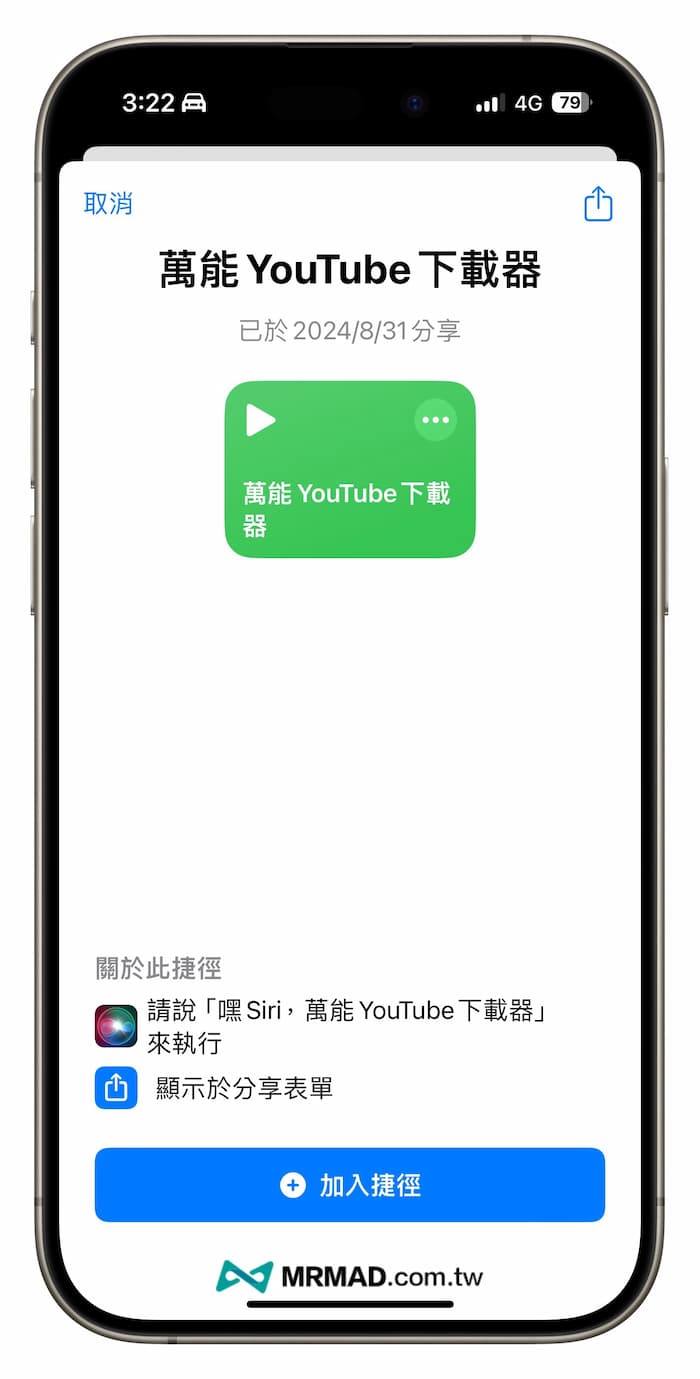
⛔️ If the “This shortcut cannot be opened because your shortcut security settings do not allow untrusted shortcuts” situation appears when downloading the iOS shortcut script, you can solve it through “Another method (click me)”; if the shortcut is open The download page pops up with “Unable to connect to the shortcut database”. Click the refresh button below and it will display normally.
- Update date: August 31, 2024
Shortcut script download👉 Universal YouTube download shortcut
How to download YouTube videos via iPhone shortcut?
1. Share and activate YouTube video download shortcuts
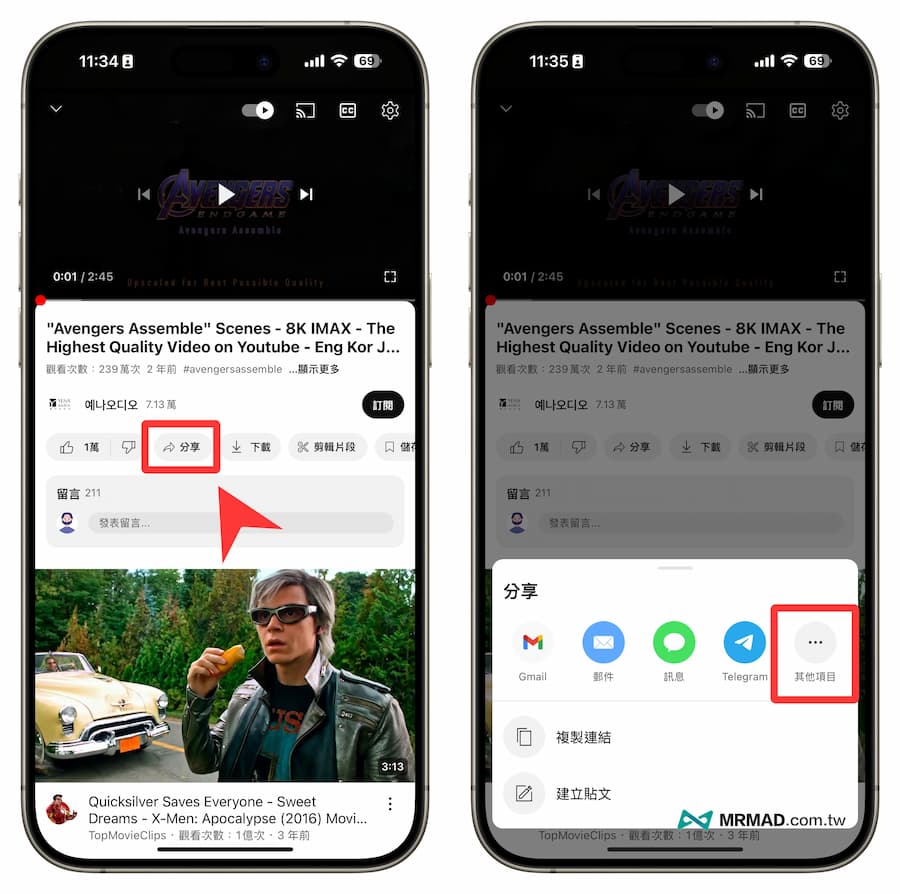
First, open the screen of the YouTube video you want to download on your iPhone, click the “Share” button, and then select “Other Items”.
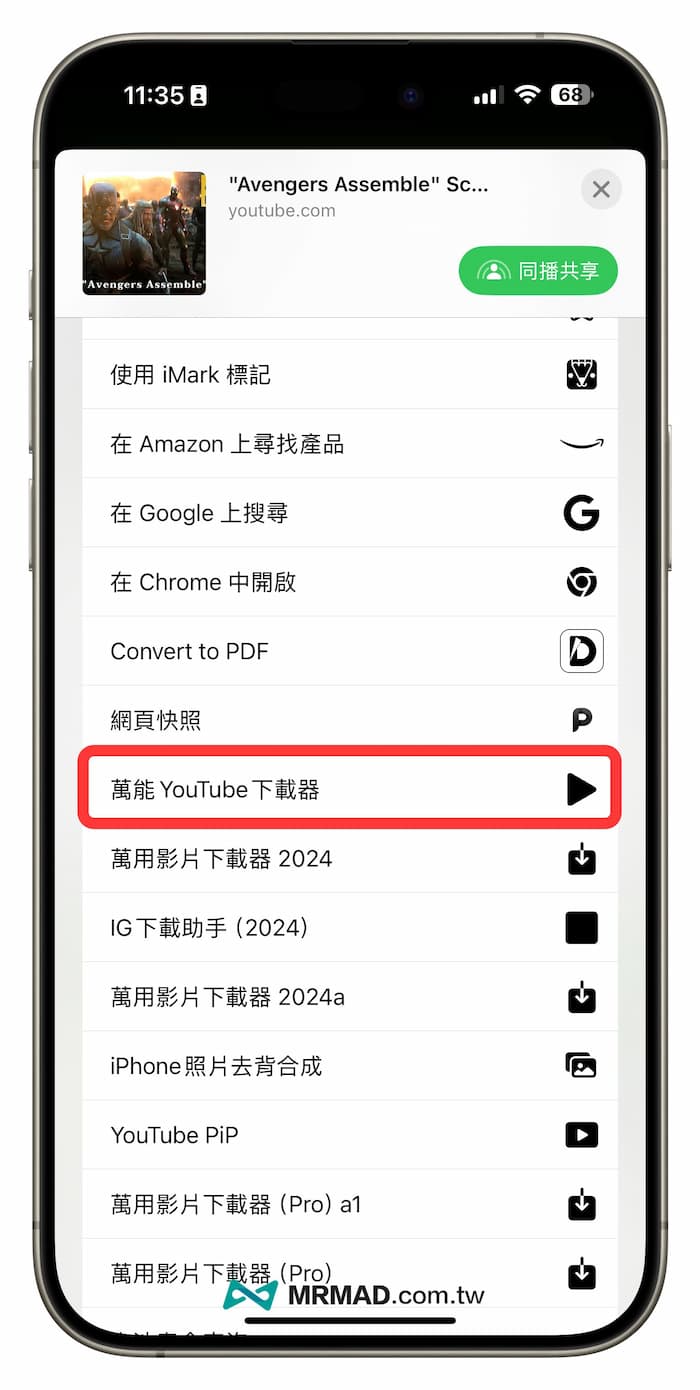
In the sharing page menu, directly click on the “Universal YouTube Downloader” shortcut that you just downloaded and installed. If you don’t see it, manually open the shortcut App and execute the script once.
2. Select YouTube video resolution
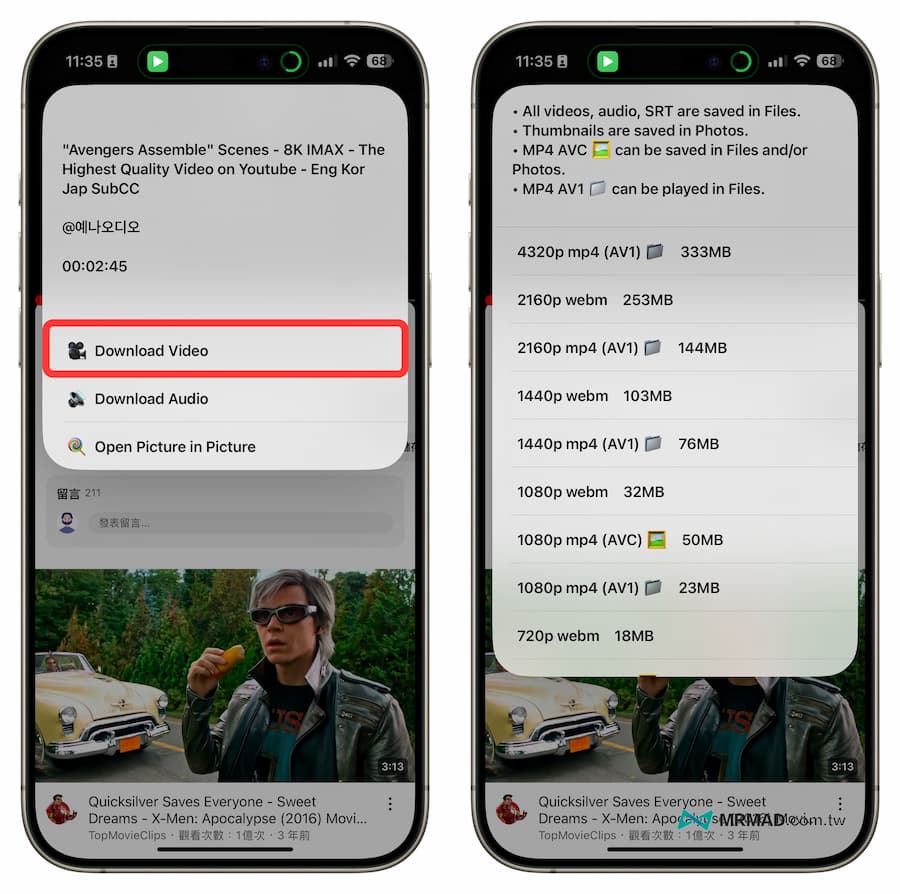
After activating the YouTube shortcut download script, you will first be prompted to download videos, music or thumbnails. Click “Download Video” directly to select the resolution of the YouTube video you want to download. The menu will be displayed according to the resolution provided by the original video. , which can reach up to 8K ultra-high definition video. (It is recommended to choose MP4 format)
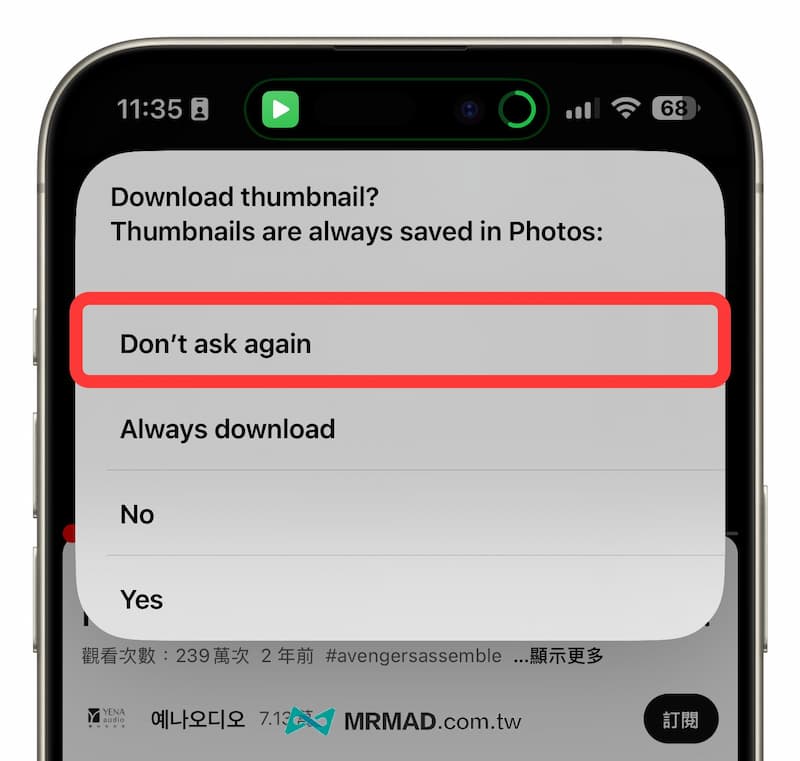
During the first activation process, a popup will pop up. Do you want to download YouTube video thumbnails? You can just click “Don’t ask again” without needing it.
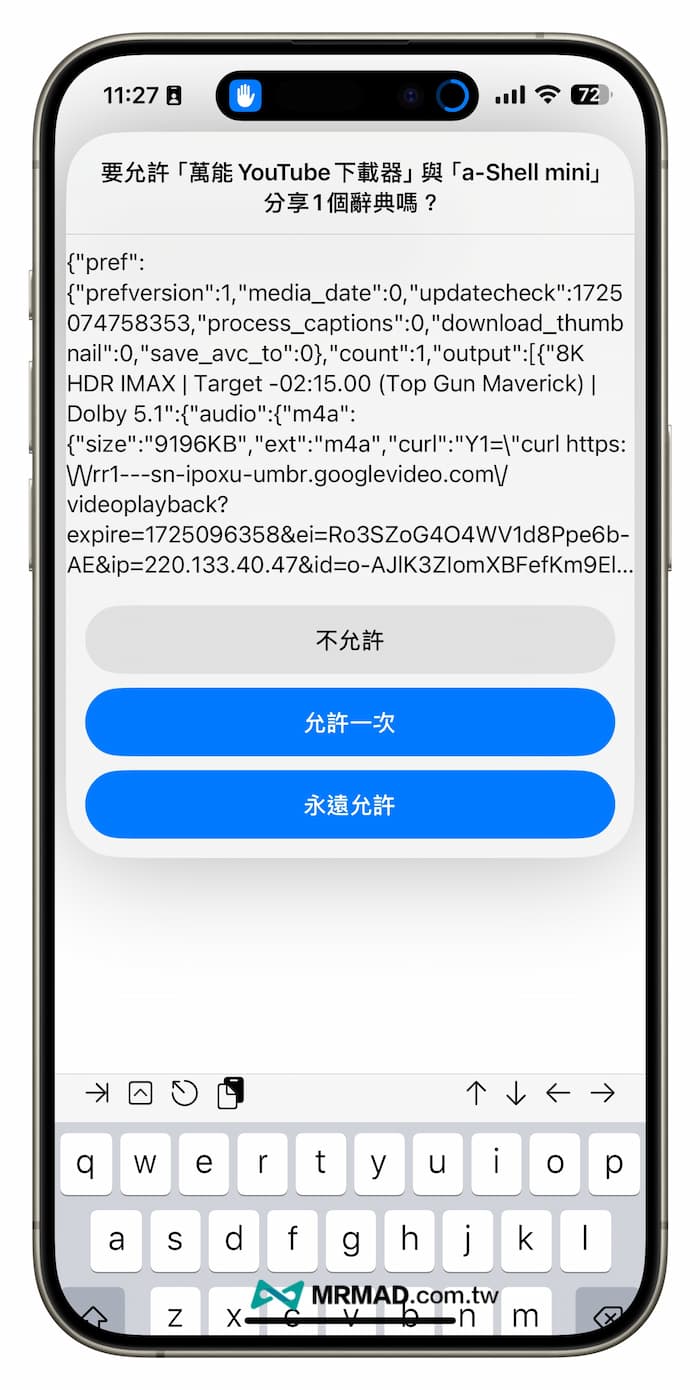
[Reminder]When executing the “Universal YouTube Shortcut” shortcut script, a privacy-related prompt will pop up when downloading. Please be sure to click “Always Allow” for normal operation.
3. Start downloading YouTube videos
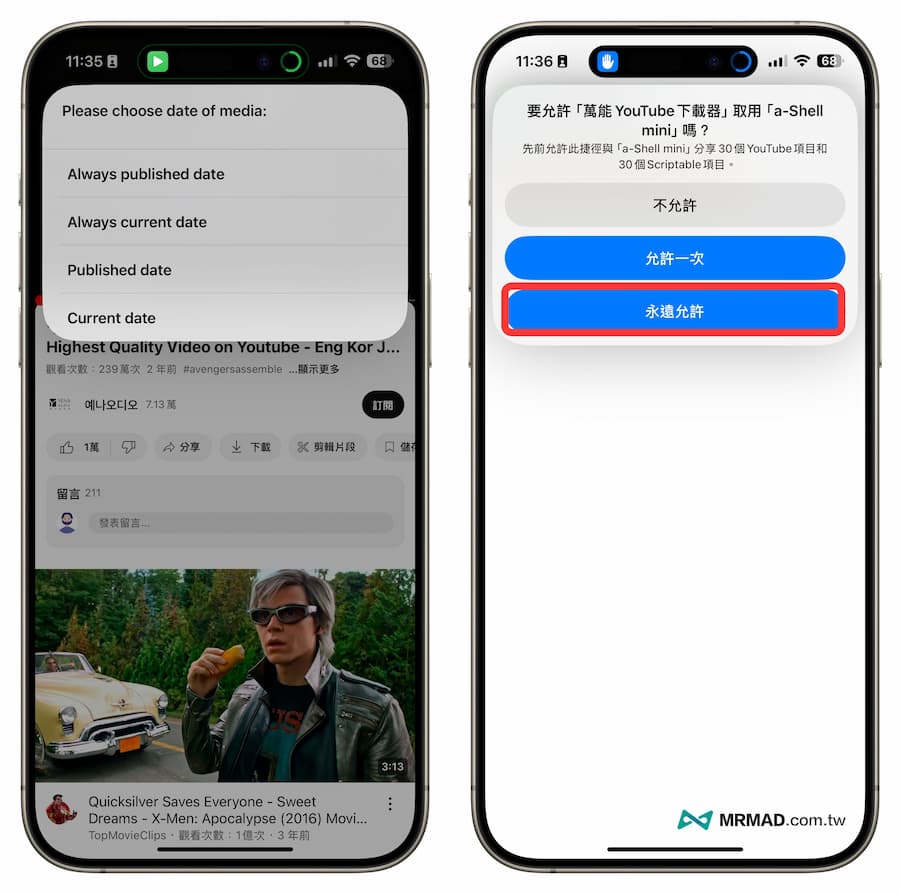
Next, the audio and video source to be selected will be displayed. Just click “Always published date” to continue. A prompt window will pop up asking you to use the a-Shell mini tool to perform the download operation. Click “Always Allow” and the prompt window will not pop up.
It will download YouTube videos through a-Shell commands and wait for the SW-DLT download script to run full. The speed is actually very fast.
4. Select the video storage folder location
After the download is completed, if you select a YouTube video with a resolution of 1080p or above, you cannot save it directly to the built-in photo album. You will be prompted to select the folder location where you want to save the video. Select “On My iPhone” and enter a custom folder. Name like “YouTube”.
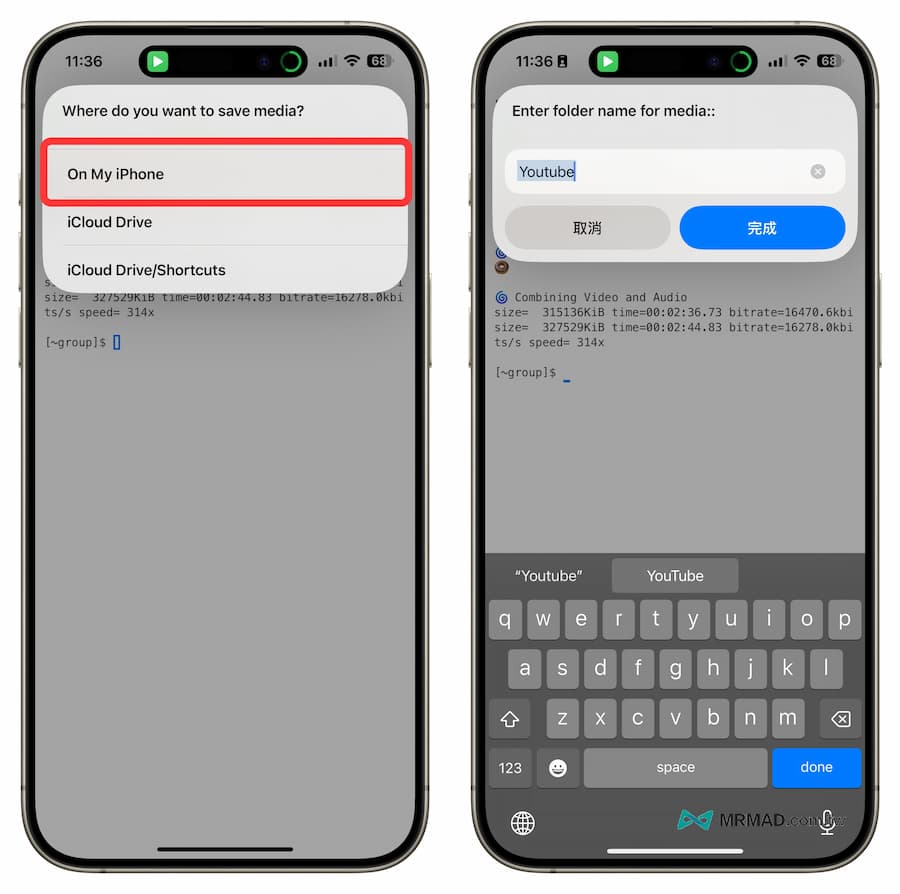
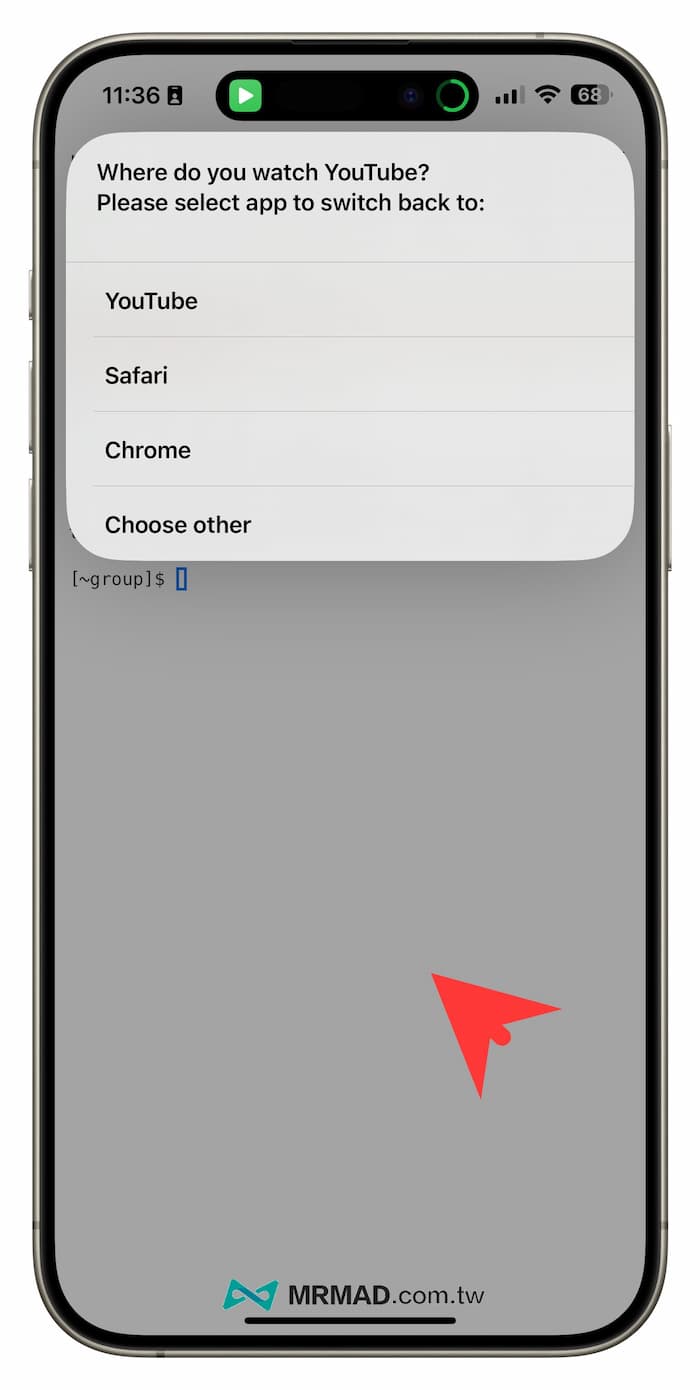
Finally, I saw this prompt about whether to open YouTube. The main reason is that the video has been downloaded. There is no need to continue to select. Just click on the blank space below to end the shortcut script.
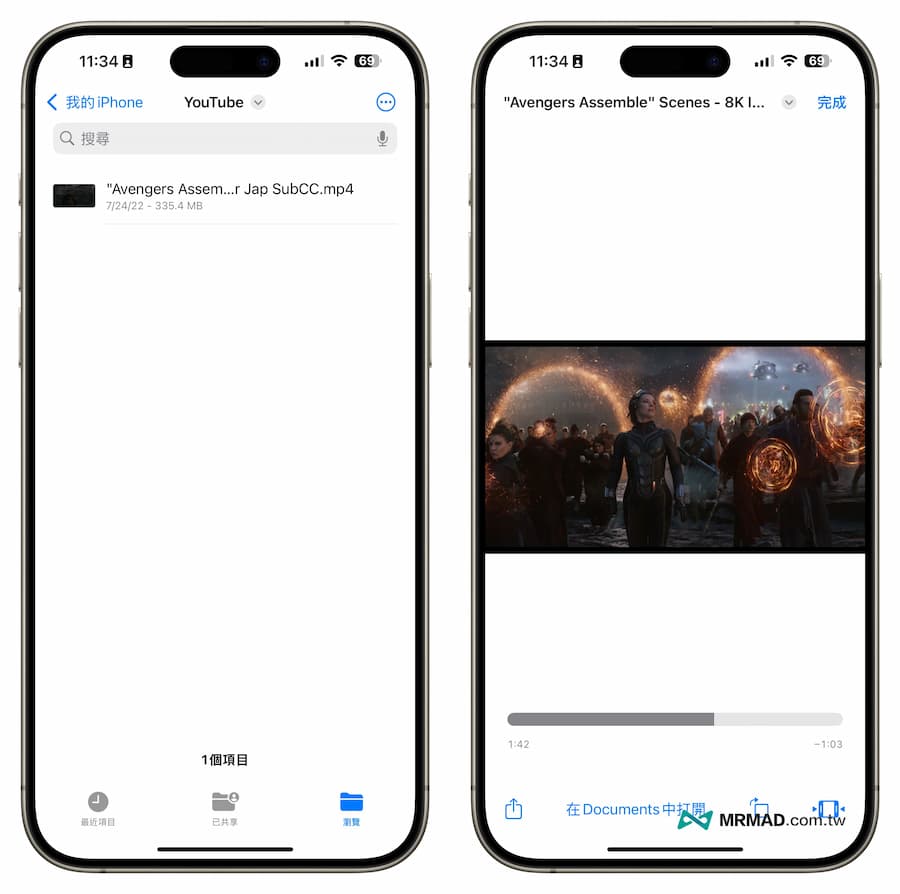
5. Open the file to browse videos
If you download a YouTube video above 1080p, it will be saved directly to the iPhone’s built-in “File App”. After you find the newly created “YouTube” folder in “My iPhone”, you will see the saved MP4 video file. Actual test on iOS 18 It is also no problem to play 8K MP4 directly on the system.
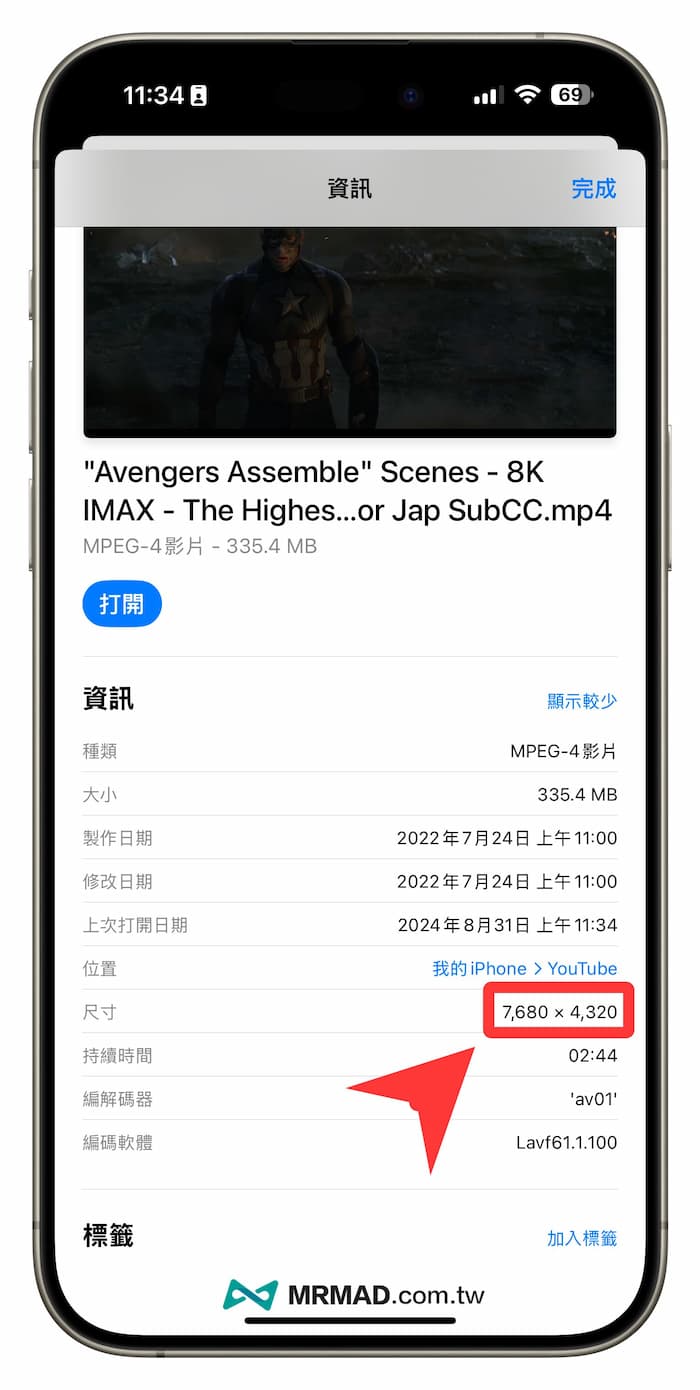
Confirm the YouTube video resolution information. It is true that the downloaded product of this shortcut can support 8K Ultra HD resolution videos.
How to download YouTube music via iPhone shortcut?
If you want to convert YouTube videos to music, you can also do it through this “Universal YouTube Download Shortcut”. The operation method is as follows:
Share a video to launch the YouTube shortcut downloader
Open the music YouTube video you want to download directly through the YouTube App, click the “Share” button directly, and swipe right to the bottom and click “Other Items” to find the “Universal YouTube Downloader” shortcut function option from the sharing menu.
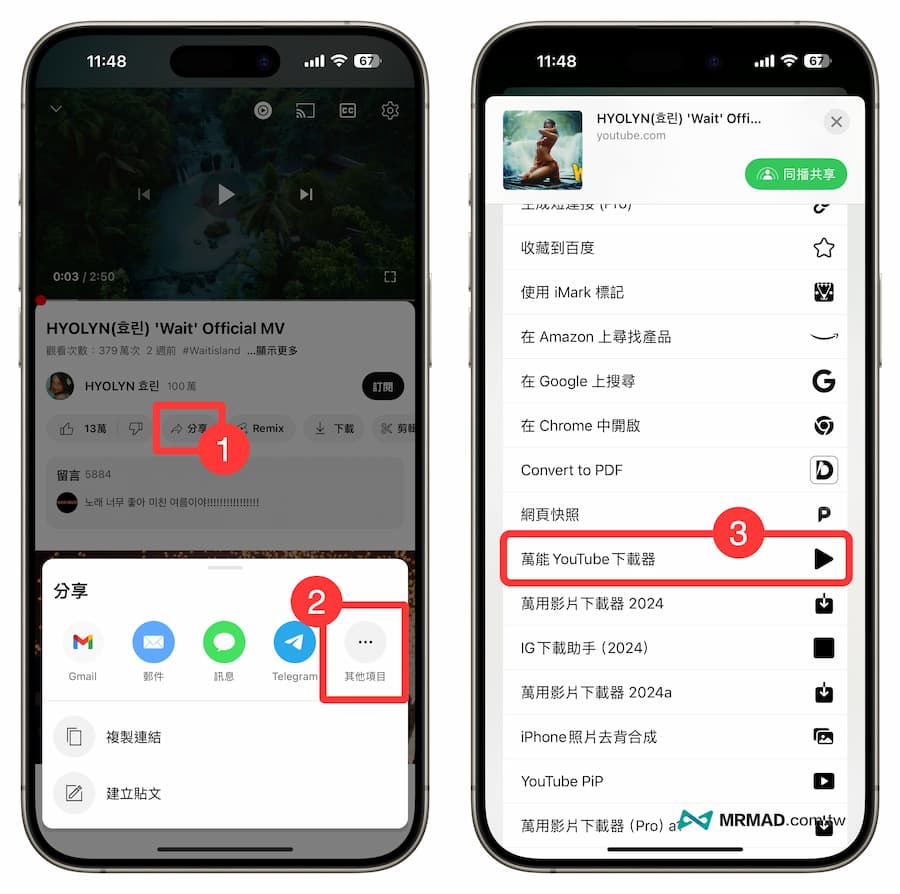
Activate Youtube video to music function
Click “Download Audio” from the YouTube download shortcut menu to choose the music format you want to convert to M4A or MP3.
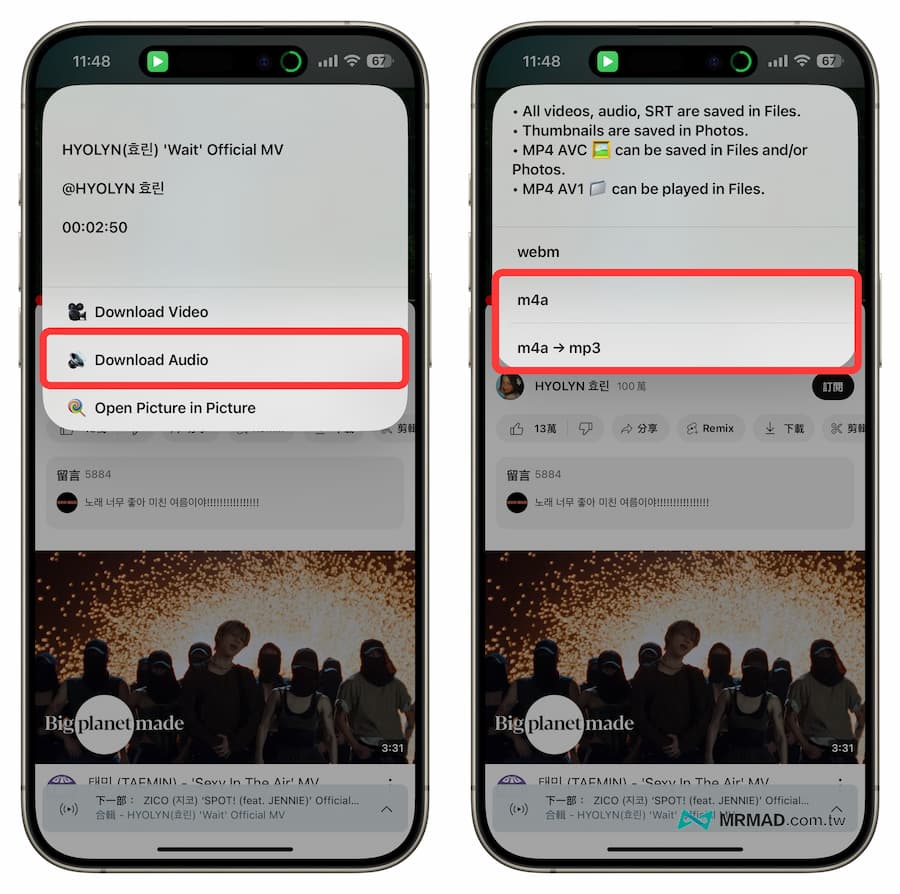
4. Select the music storage folder location
When the download is completed, a popup will appear as to which folder location the music should be stored in. Select “On My iPhone” and enter a custom folder name such as “MP3” to continue.
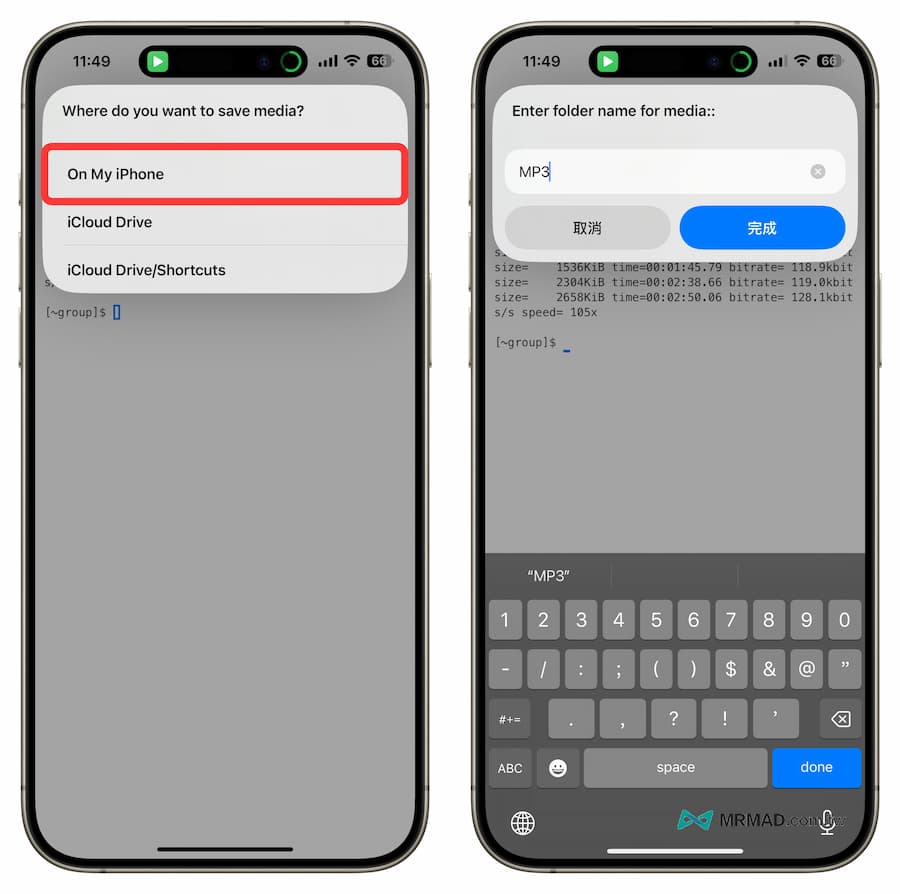
5. Open the file to browse music
YouTube music files will be saved directly to the iPhone’s built-in “File App”. After you find the newly created “MP3” folder in “My iPhone”, you will see the stored music files.
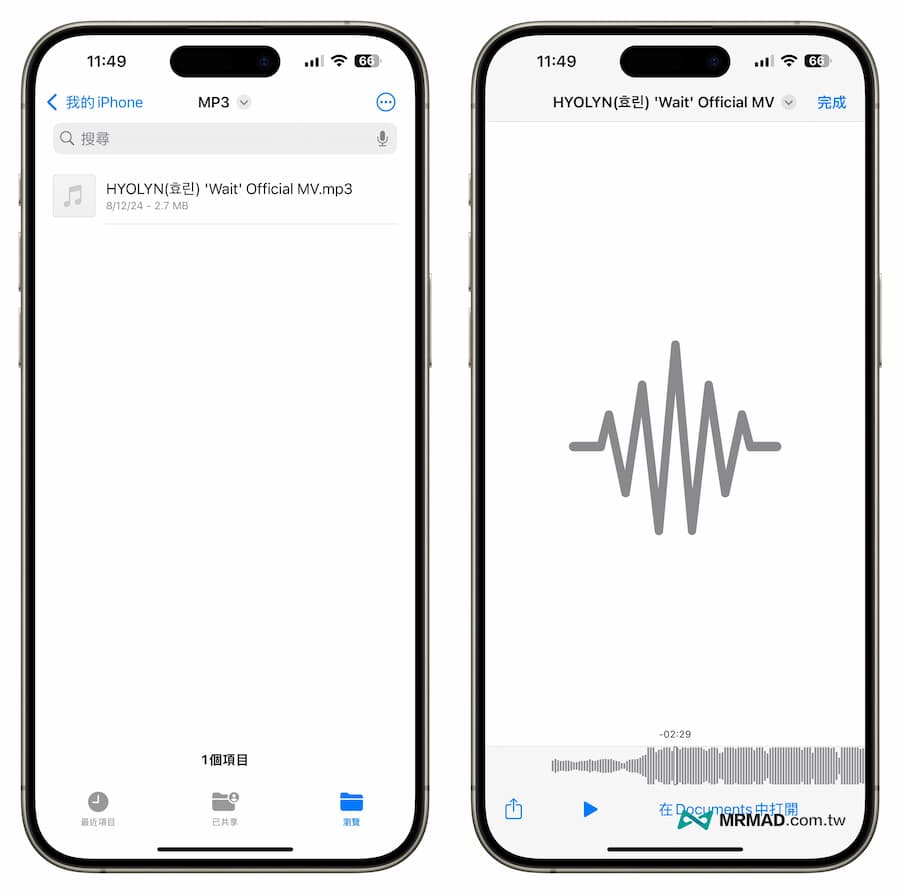
Please be reminded that the limitations of the iPhone itself are that it does not allow users to directly put MP3s into the music app using the phone, unless they are synchronized through a computer or imported using third-party tools. If the downloaded YouTube music can be used with a third-party music player, Read the sound effects in the file directly through the App. The operation method will be shared later.
How to use iPhone to manage and play offline music downloaded from Youtube?
Music files are first stored in the iOS File App, and the built-in File App is not a perfect playback and management tool. It is recommended to use another “cloud music“App to manage music downloaded from Youtube, and can also be used as a music player.
Open the Cloud Music App and click “Resources” > “iCloud” in the lower left corner. The file list will automatically open. Find the music folder you just downloaded and click on the music.
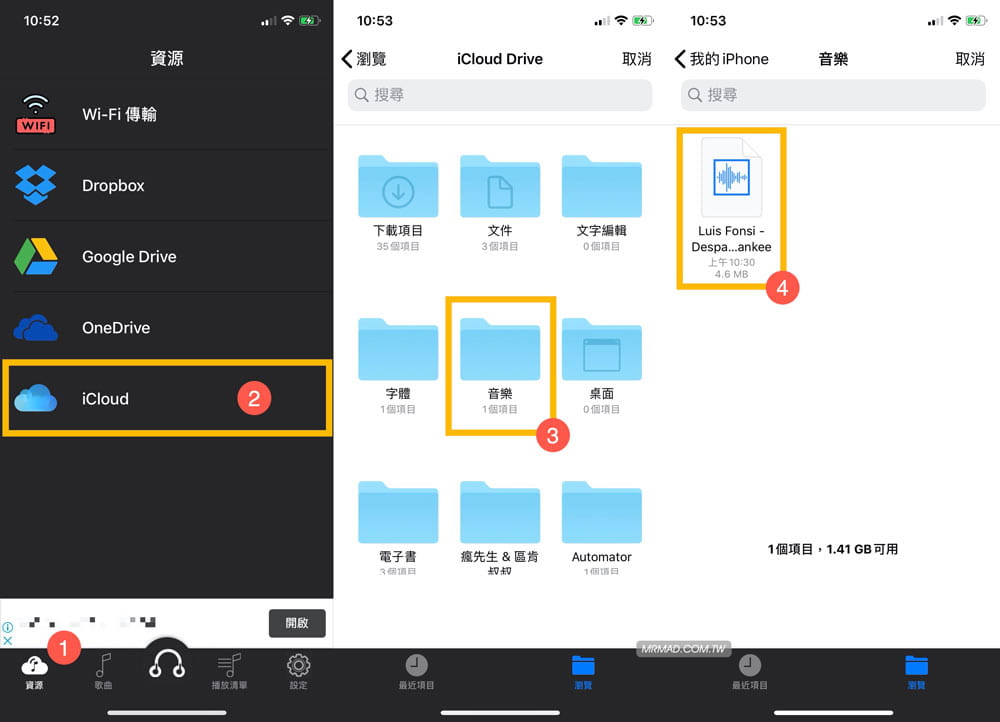
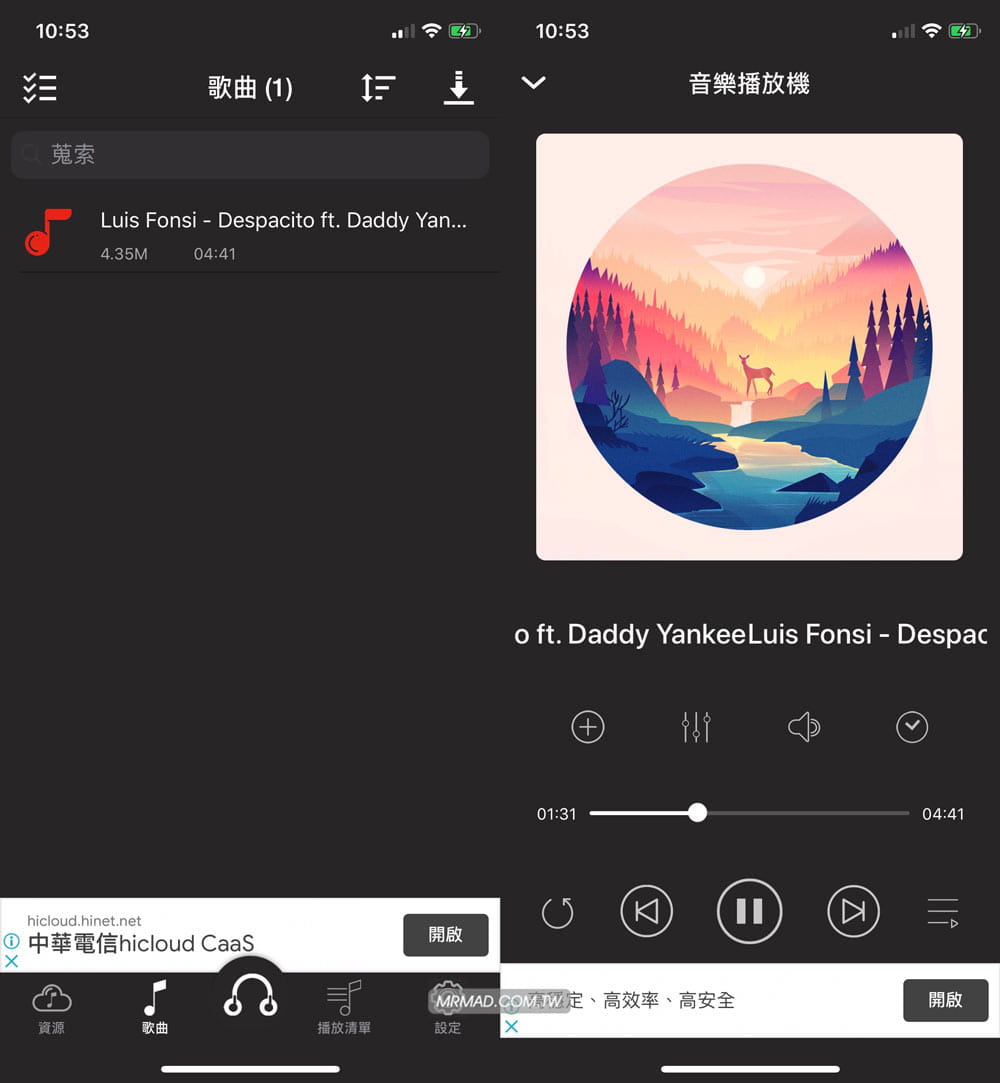
It will be loaded directly into this music App player, so that you can play it through this music, and even have functions such as sleep timer, unlock screen and continue playing in the background, list sorting, random play, etc.
Frequently Asked Questions about iPhone Youtube Video One-Click Download Shortcut
Is iPhone YouTube shortcut script download safe?
It is 100% safe. It is safer and faster than downloading from the web. After all, the web version of YouTube download function may also pop up various advertising traps, but the YouTube shortcut script does not have these concerns.
What should I do if Shortcut YouTube cannot be downloaded?
If you find that the YouTube video shortcut script cannot be downloaded, you can confirm the script update time and download it again. If it fails, you can write to Mr. Crazy. (Or through another YouTube video shortcut script)
Does YouTube shortcut also support downloading MV music videos?
Can! Almost all YouTube videos can be downloaded, and there will be no problem of download failure caused by MV music copyright.
Why can’t 4K and 8K YouTube videos be put into the photo album?
Due to format support issues, if you download 4K or 8K YouTube videos, they must be saved in the “File App” and can be played through a third-party video player.