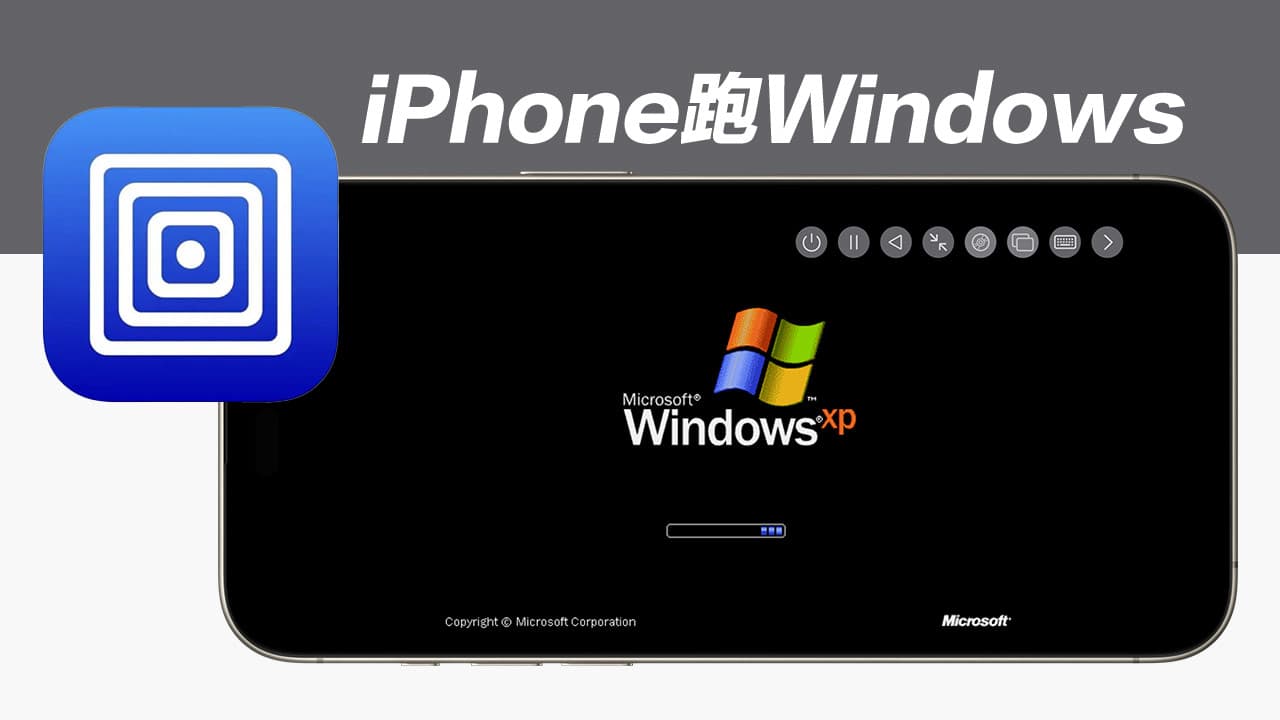
iPhone and iPad have powerful performance and smooth usage experience. Due to the inherent limitations of iOS/iPadOS systems, it has been impossible to directly install and run Windows systems on these devices in the past. With the development of virtualization technology, Apple has also officially allowed UTM virtualizers Being on the App Store solves this major problem and provides new solutions.
UTM SE is the first PC virtual machine software through the App Store platform, which allows users to install and run Windows, Linux or other old systems through iPhone or iPad devices. If you want to experience the Windows system on Apple mobile devices, this is the best solution at present. The best choice, this article will share how to use UTM SE to install and run Windows system on iPhone or iPad.
What is UTM SE virtual machine?
「UTM SE: Retro PC emulator“It is an open source PC simulator based on QEMU, which can support multiple architectures such as x86, PPC and RISC-V. It can install older systems such as Windows, Linux, macOS, DOS and so on through UTM SE, allowing users to directly install it through Run various PC software and old games on your iPhone or iPad.
How to install Windows system on iPhone using UTM SE virtual machine
1. Install UTM SE virtual machine tools
First, you can download and install the UTM SE virtual machine App directly through the App Store on your iPhone or iPad device. The system requirements require iOS 14, iPadOS 14 or above new versions to support it.
2. Download the Windows ISO image file
In addition, you must first download the ISO image file of the Windows XP system, which will be needed when installing the virtual machine later. Currently, Microsoft’s official website does not provide the Windows XP ISO installation file, so you can download it directly from the URL below.
Can’t download Windows 7 or Windows 11 ISO files? At present, Mr. Crazy has tested UTM SE and runs Windows XP with the highest smoothness. Higher system versions have more problems, consume a lot of memory, and may even freeze when running.
3. Obtain the UTM resource library system configuration file
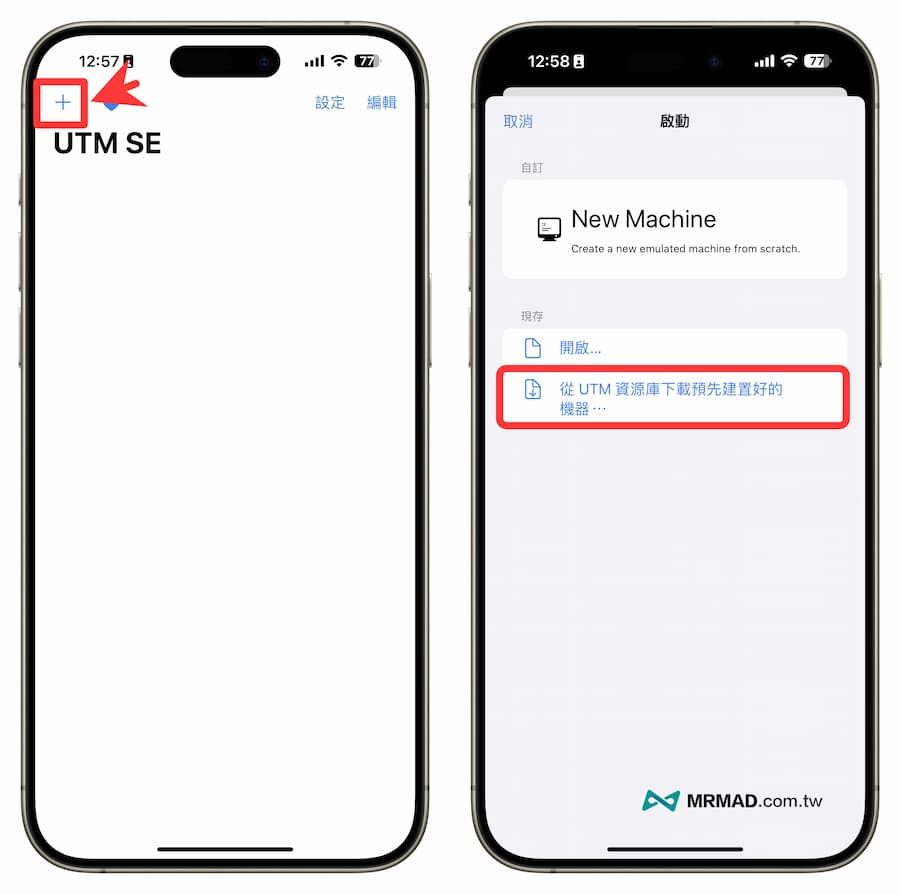
While downloading the Windows ISO, you can first open the UTM SE application, click the “+” button in the upper left corner, and select “Download pre-built machine from UTM resource library”.
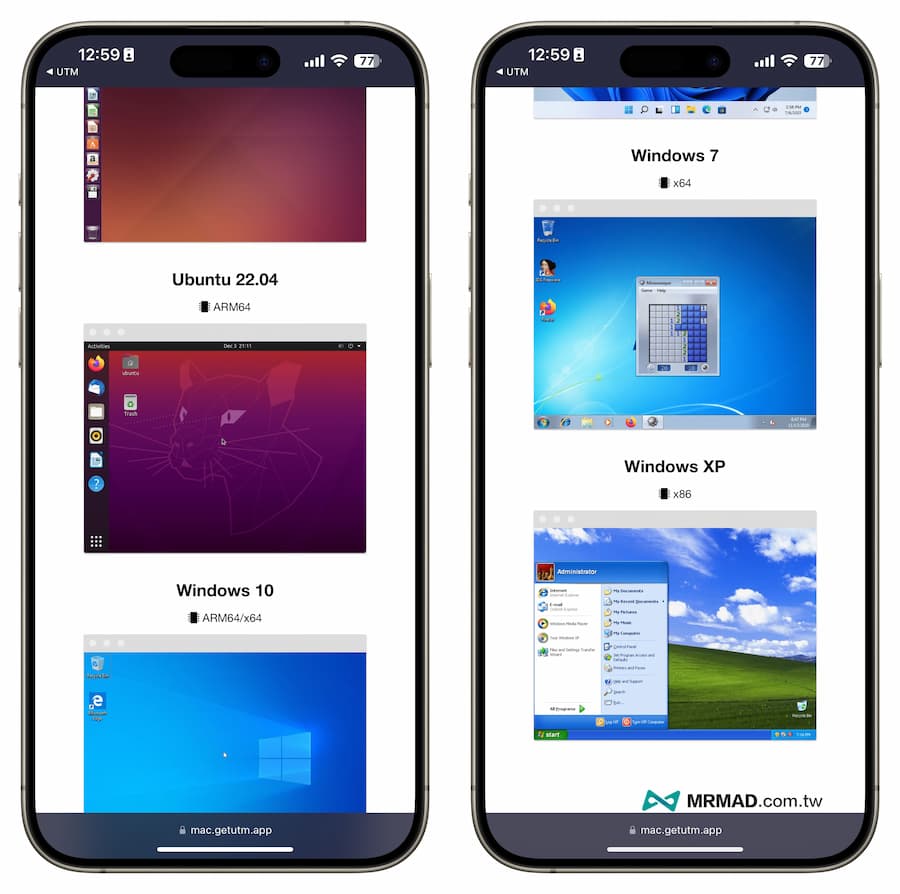
There will be many UTM virtual machine configuration files provided. There are Ubuntu, Debian, Linux, ReactOS, ArchLinux, Windows 7, Windows 10, and Windows 11 systems to choose from. Find Windows XP directly and click on the picture to enter.
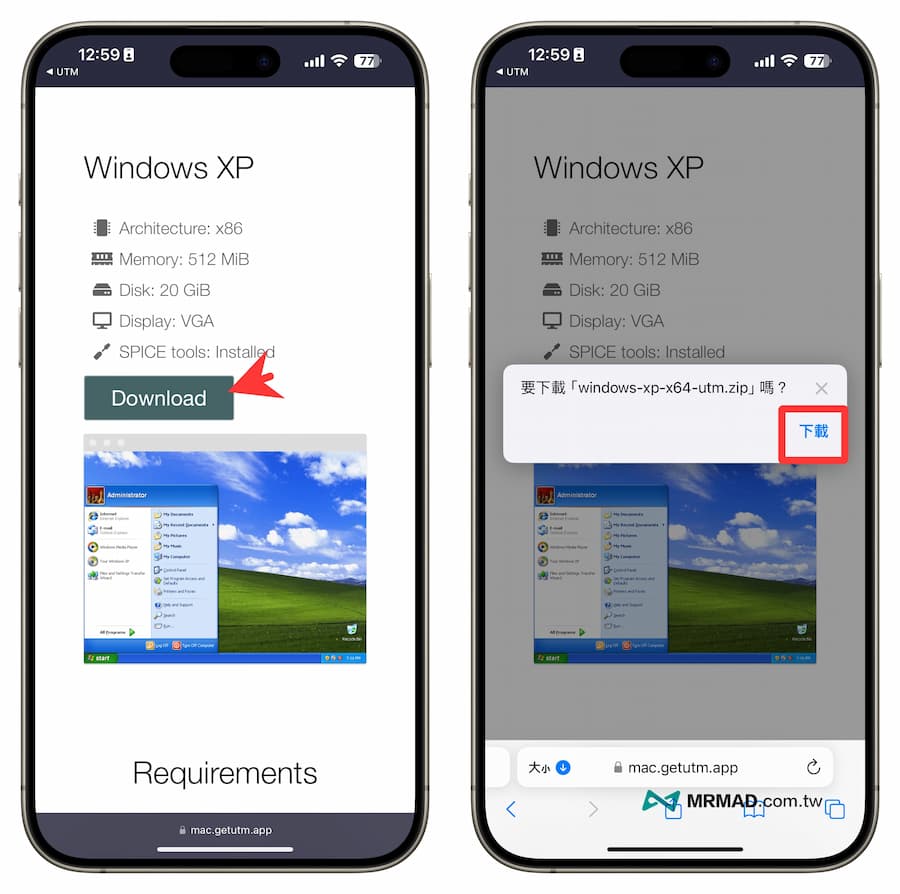
Usually the UTM virtual machine will list the system requirements. For example, Windows XP only requires 512MB of memory and 20GB of hard disk space to run. It is a version that does not consume too much hardware resources. Click “Download” to The UTM configuration virtual system configuration file is downloaded to the device.
If you choose Windows 11 directly, the system memory requirement is 8GB. Currently, only the iPhone 15 Pro series can barely support it, but don’t forget that 8GB will be divided by the iOS system. Running with a virtual machine can easily cause insufficient memory, or even This causes system lag, so it is recommended to just run XP.
Open the built-in “File App” and find the downloaded item folder, click on “Windows-xp-x64-utm.zip” to decompress it, and long press the “Windows XP.utm” settings file to select “Move”.
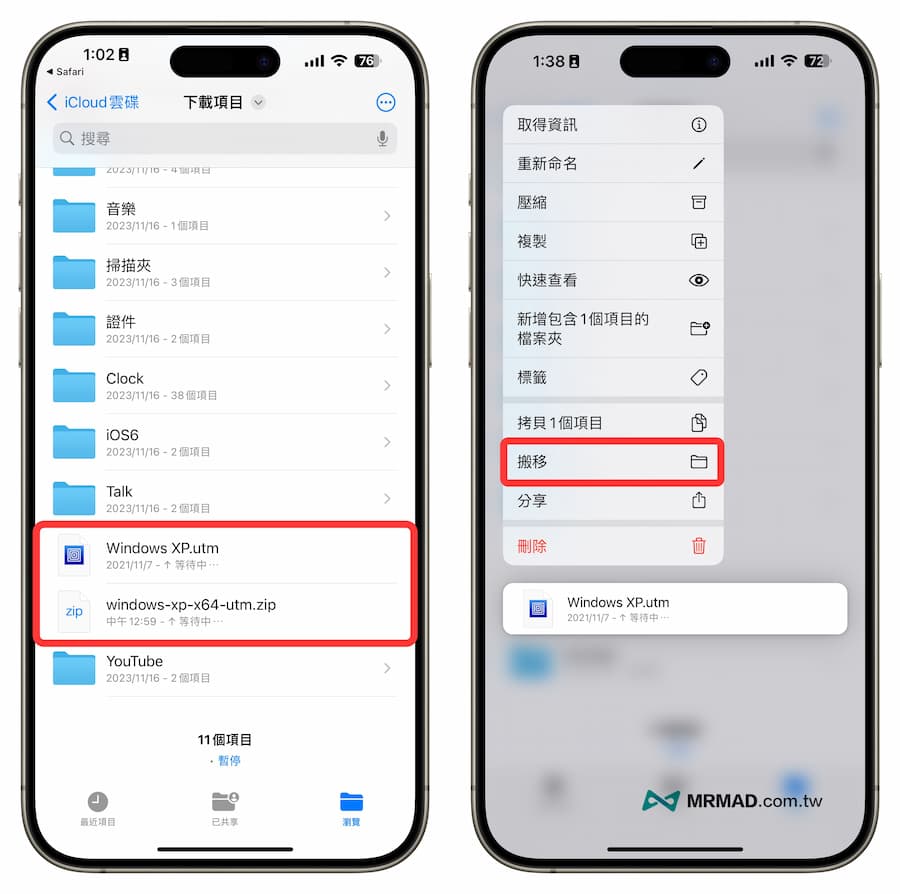
Put it under the “My iPhone/UTM” folder to facilitate subsequent management and avoid accidental deletion.
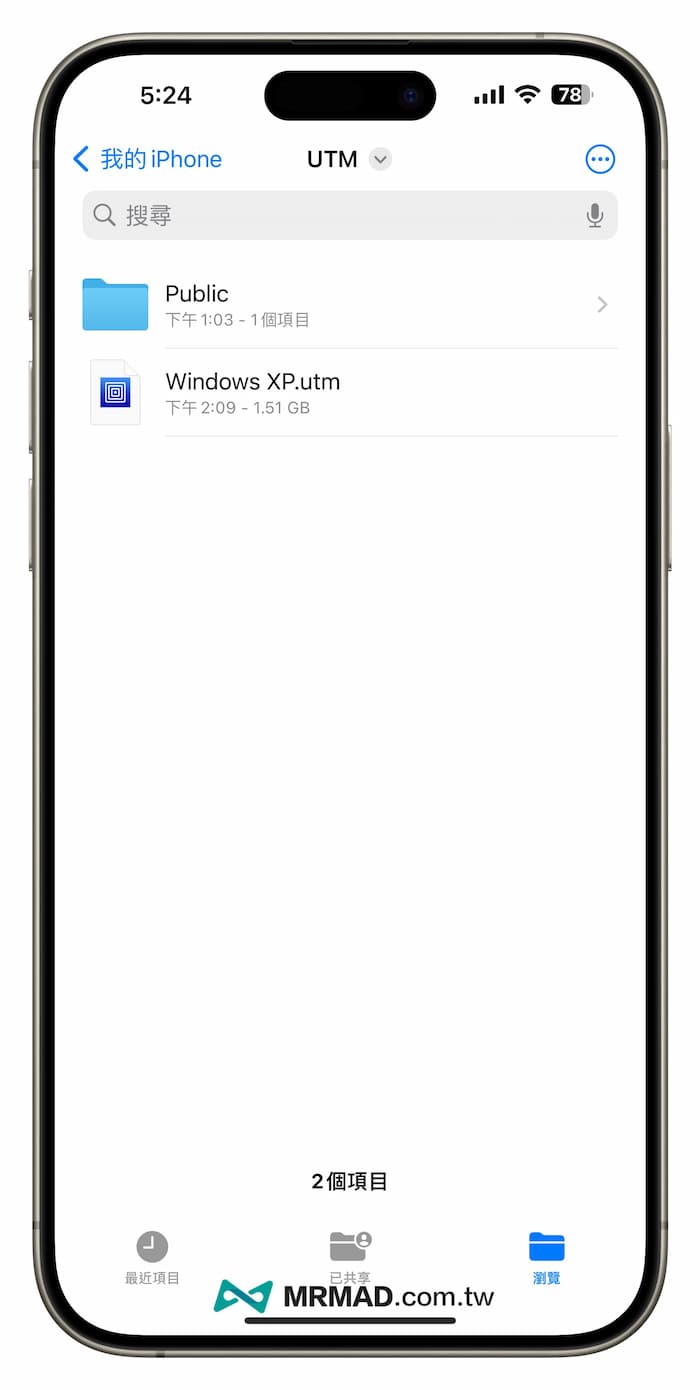
4. Establish a Windows virtual environment
From the UTM SE App new menu, click “Open” and select the Windows XP.utm file you just downloaded.
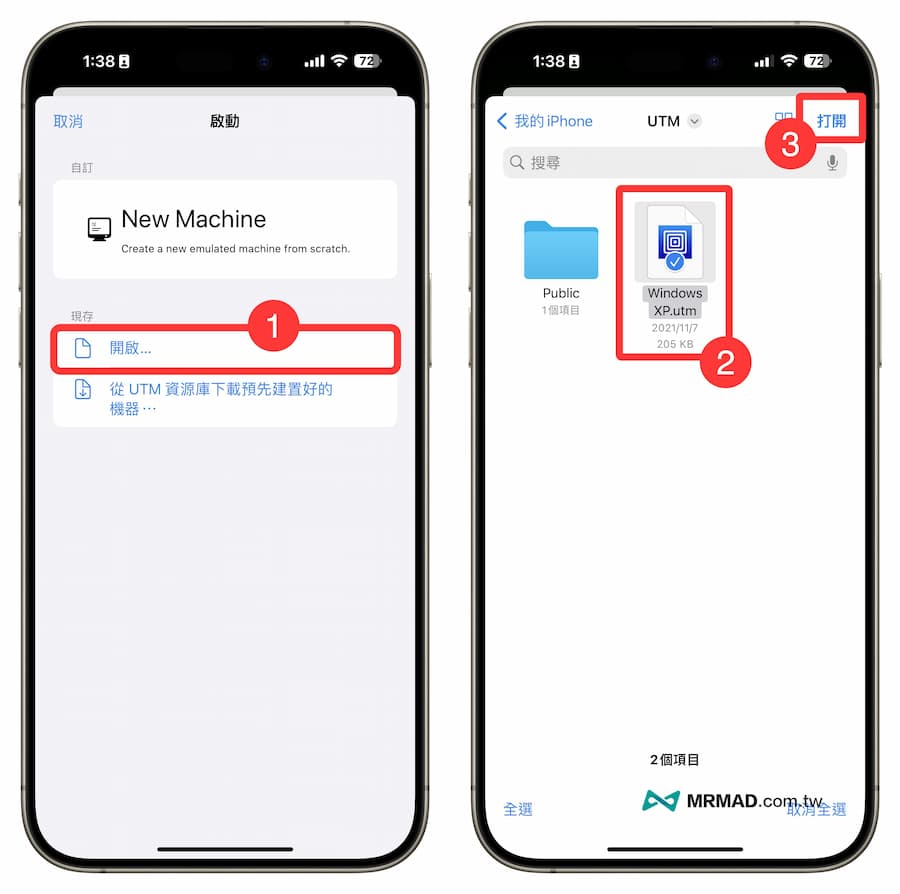
5. Mount Windows ISO file
The Windows XP configuration provided by the basic UTM resource library will have all the virtual machine settings set up. Just select “CD/DVD” at the bottom and browse to mount the Windows XP.iso file you just downloaded.
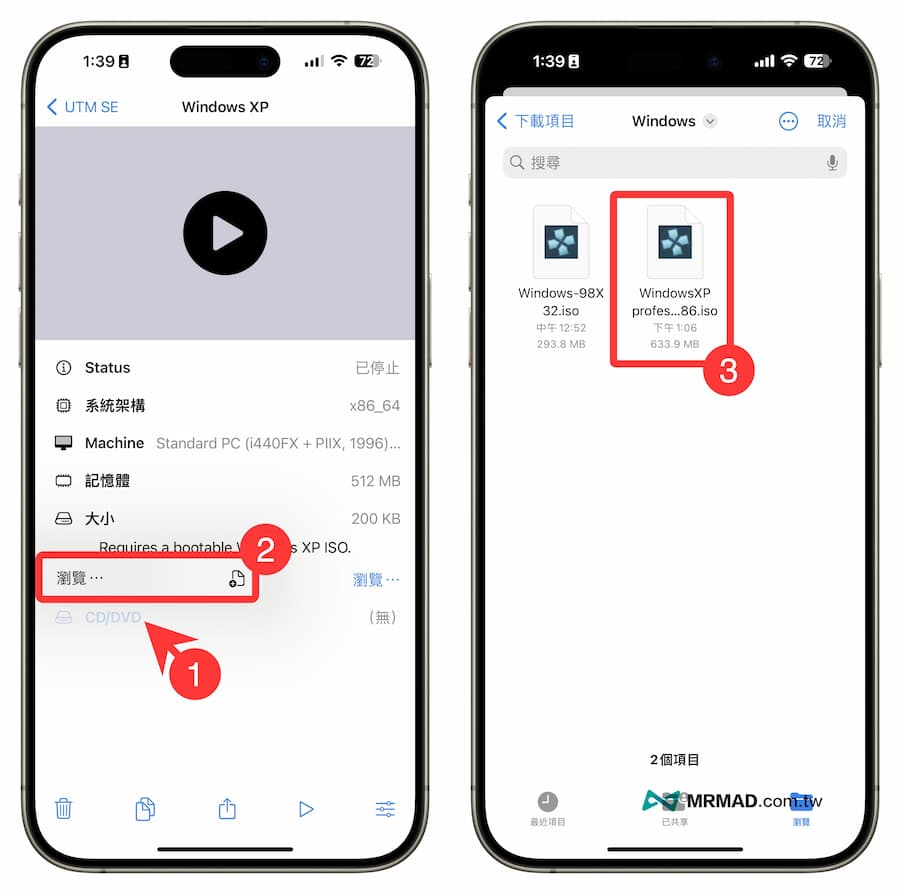
6. Start installing Windows system
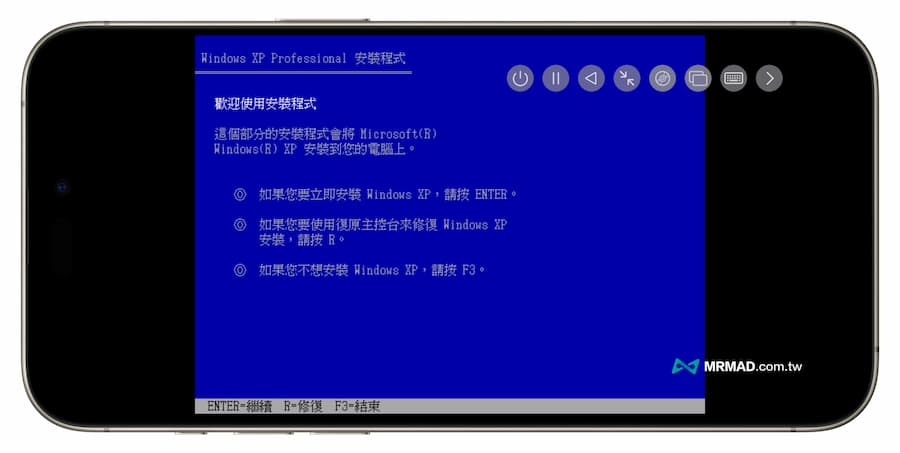
Click directly to start the created Windows virtual machine, and the installation screen will appear on the iPhone system. You can expand the toolbar menu in the upper right corner.
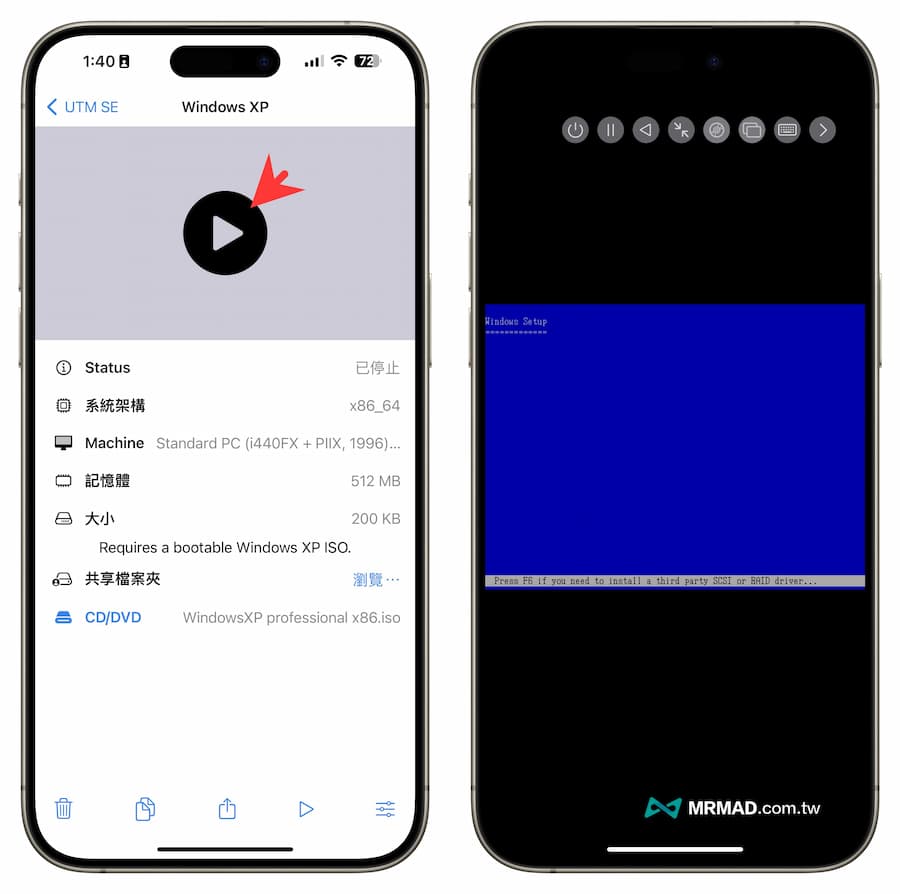
Just follow the prompts on the screen to install Windows. If asked to press ENTER to continue, click the virtual keyboard in the upper right corner and press “return”.
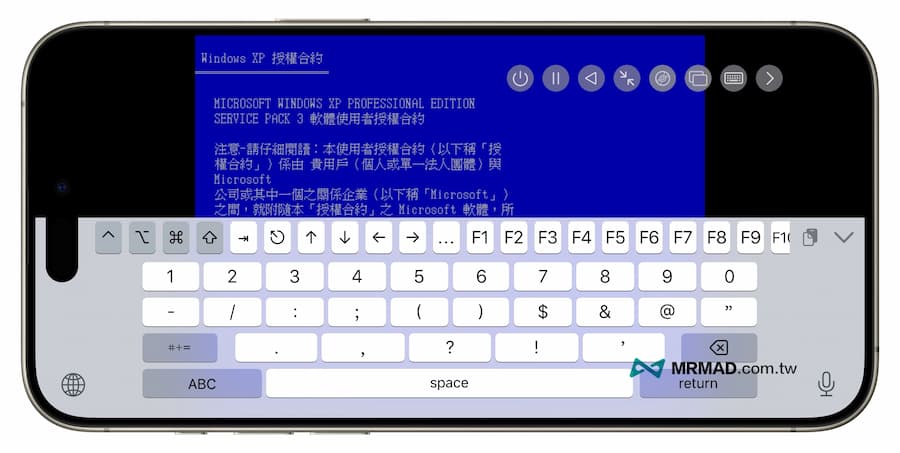
During the authorization contract process, you will need to press the “F8” key. This requires placing the iPhone in landscape orientation and calling the virtual keyboard to switch to the numeric keys to display the F8 key.
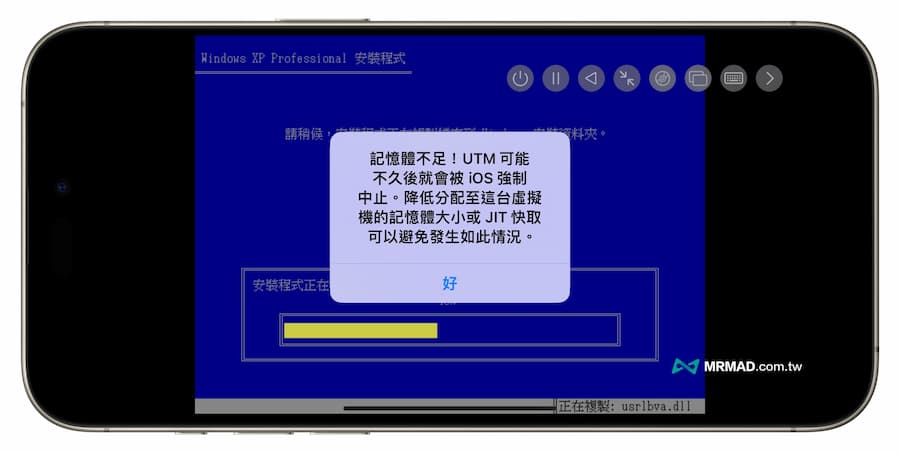
The initial installation of Windows operation.
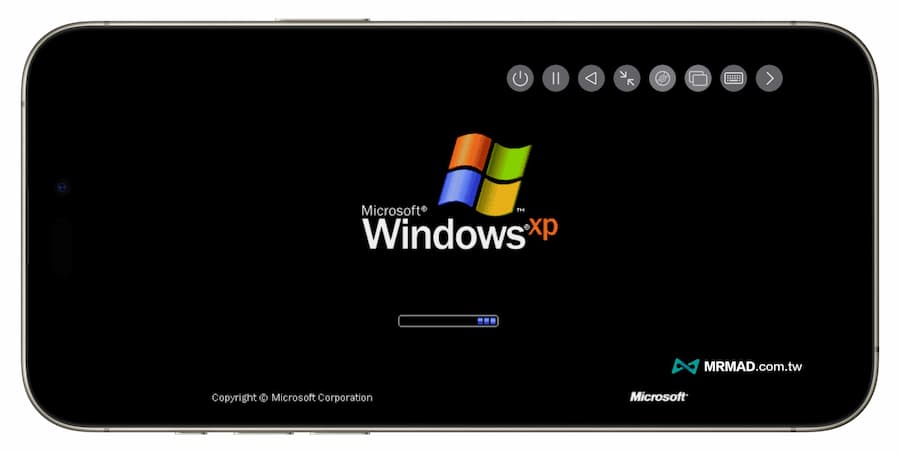
After an hour, you will see the familiar and classic Windows XP startup screen.
Next, follow the prompts to control the mouse by sliding your finger. Clicking on the screen simulates a left-click. During the process, remember to enter the Windows XP serial number. Just follow the instructions as shown in the tutorial pictures.
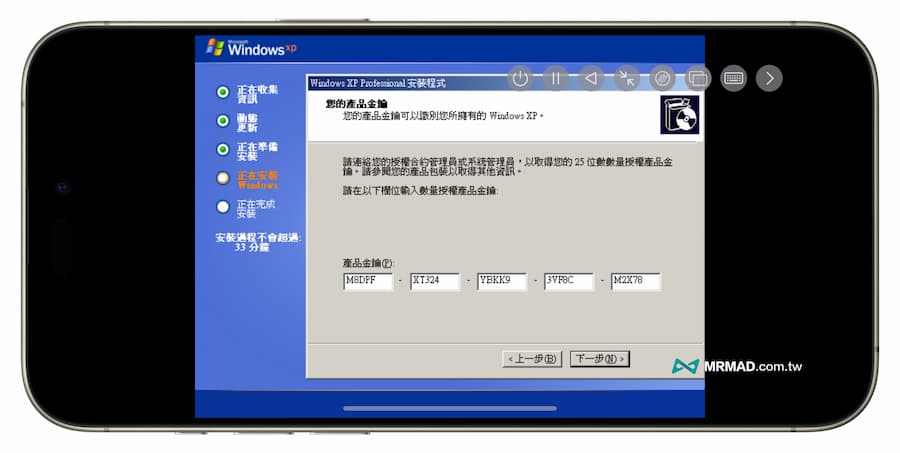
7. Execute Windows system from iOS
The entire installation of Windows XP system on iPhone takes about 2 hours, and the overall operation smoothness is pretty good. There will be lags in certain operations, which is inevitable. The main reason is that Apple currently does not allow App Store applications. Support JIT compilation (Just-In-Time), causing the iPhone to be unable to run at full speed on the virtual machine.
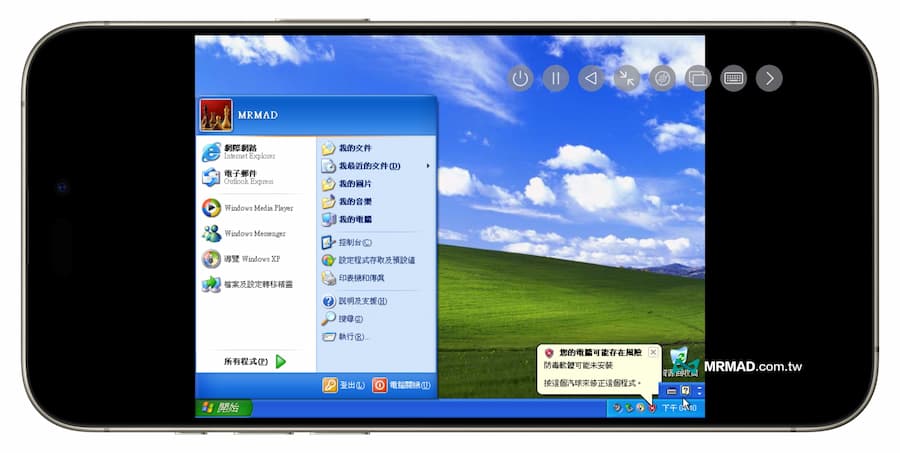
Even the Windows XP system running on the minimum requirements will still be stuck. So do you know what will happen if you run a higher system? Stuttering, crashing, etc. will occur. As for whether I can run the game, it is currently stuck in the UTM SE App and cannot share folders to iPhone. If you know how to set it up, please share it with us.
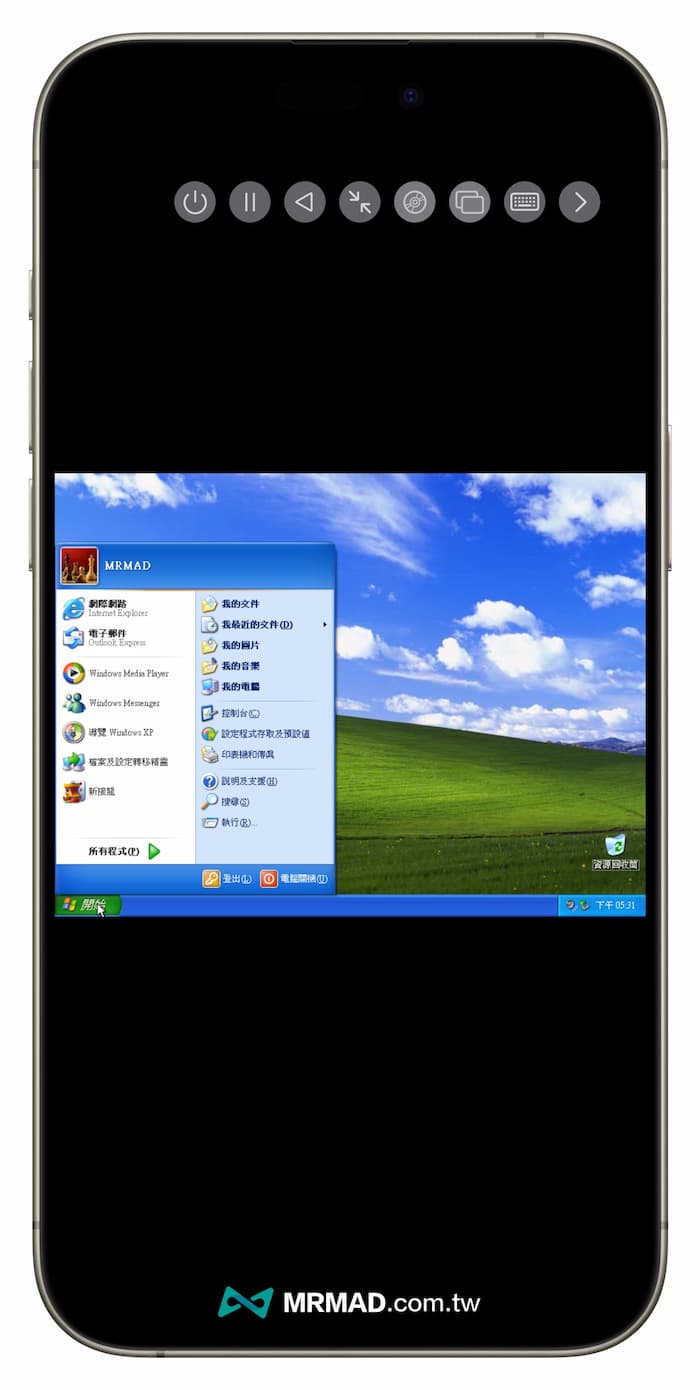
It is understood that most UTM is composed of QEMU It is an open source hosted virtual machine that can perform hardware virtualization. It cannot use the KVM accelerator and can only be used with the TCG accelerator to perform dynamic code conversion and JIT compilation. As a result, running Windows can only achieve 70% of the original performance.
Function summary
The above is the method for installing and running Windows on iPhone with UTM SE virtual machine. If you want to play DOS or classic old games on the old system, this method is no problem. However, in terms of screen operation, iPad is more suitable for running Windows. , because the screen is closer to the ratio of the traditional operating system, and the operation with the virtual keyboard and mouse is smoother. The entire installation method is the same for iOS and iPadOS. You can test it yourself.
Further reading: