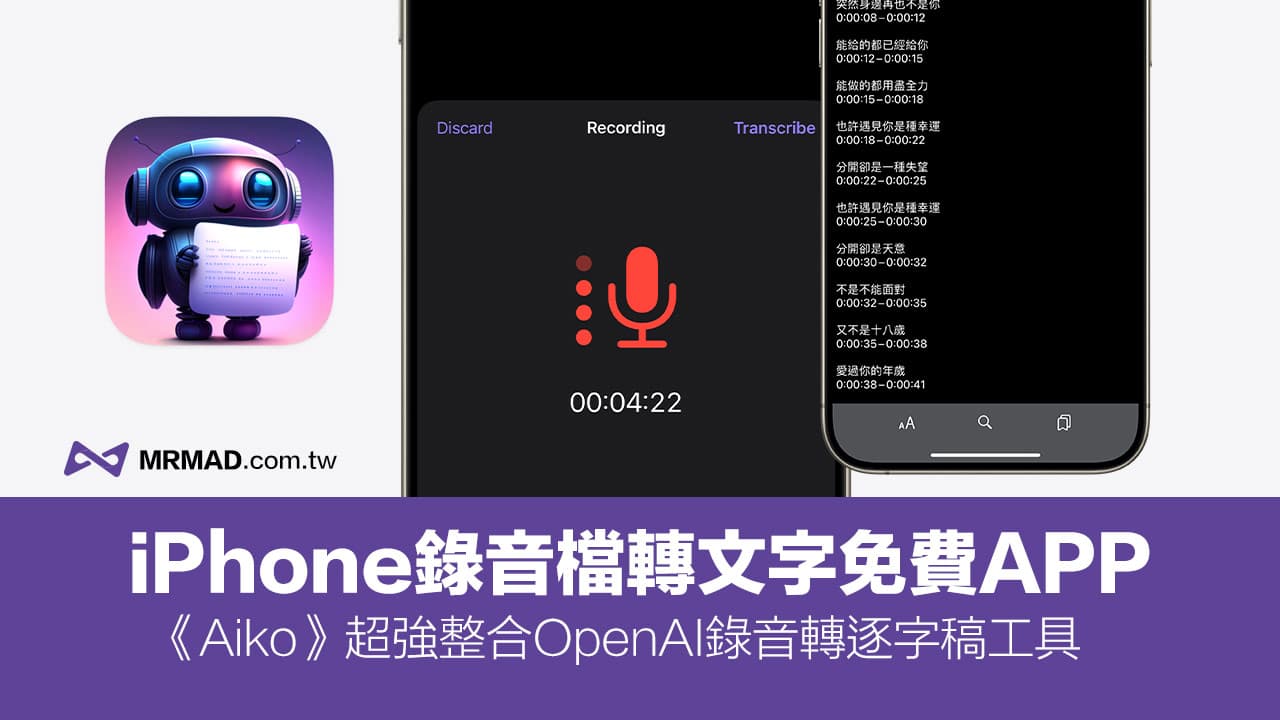
Whether at work or study, we often record through iPhone. However, by default, the iOS system can only use voice memo and shortcut script to convert the voice of the recording file into a text file. If you want to quickly record on iPhone To convert files to text, you can now use “Aiko”, a free iPhone recording file to text APP, equipped with the ChatGPT conversion function. The speech-to-text operation is simple and highly accurate. It is also the most convenient and easy-to-use tool for iPhones currently.
“Aiko” iPhone audio recording file to text free tool
“Aiko” is a free recording-to-text APP for iPhone. It also integrates Open AI’s Whisper speech recognition and transcription machine learning models. It can support the conversion of recording files in more than 100 different languages into pure text verbatim transcripts, and focuses on this model. The application focuses on accuracy rather than efficiency, and can convert all iPhone recordings or recorded voices into text files.
If you need to convert iPhone recording files to text and quickly process dictation, interviews, classes or meetings, it is recommended that you directly use the free and powerful iPhone recording to text tool “Aiko” App to enable recording or reading through your phone. Convert the recording file into text, and subsequent processing of the recording file to summarize the key points will be faster and more convenient.
How to use the iPhone recording-to-text APP “Aiko”
1. Open the recording file or recording mode
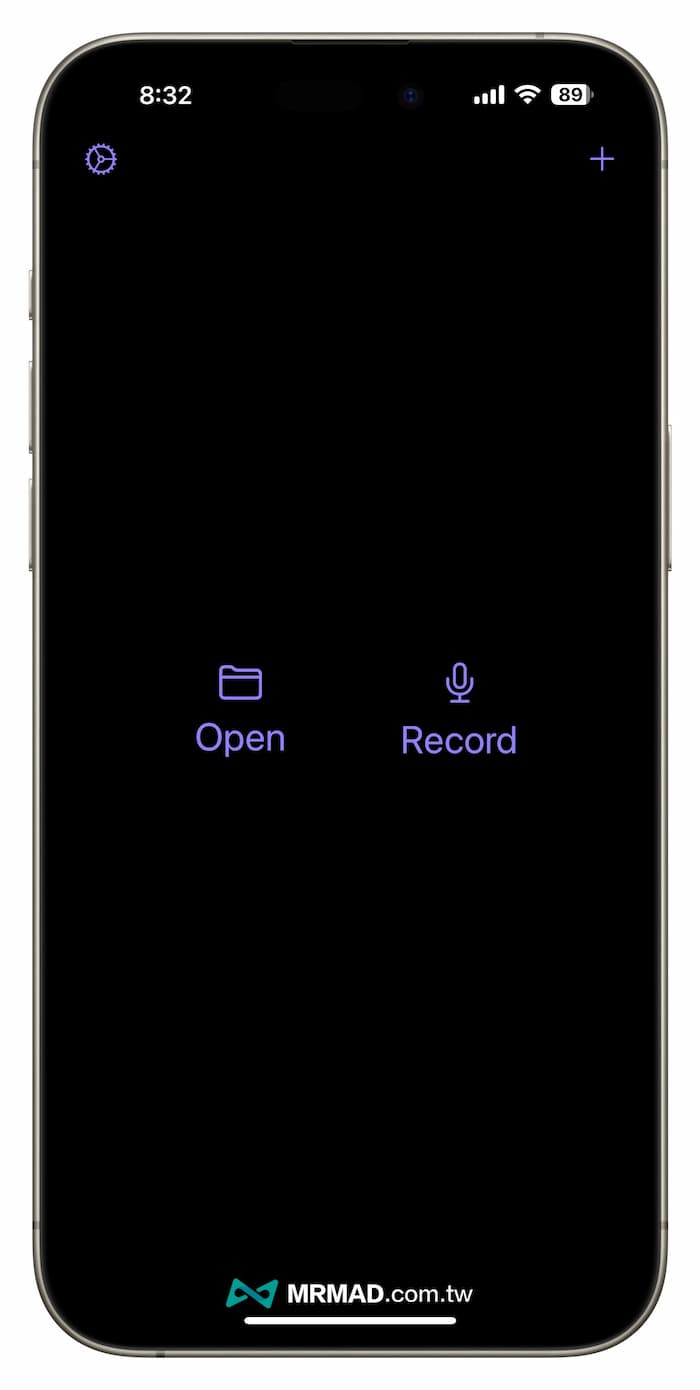
After downloading, installing and opening the “Aiko” App directly from the App Store on your iPad or iPhone, you will be prompted to choose to open the “Recording File” on the main screen, or to activate the “Recording Mode” on your iPhone.
2. Start recording with iPhone
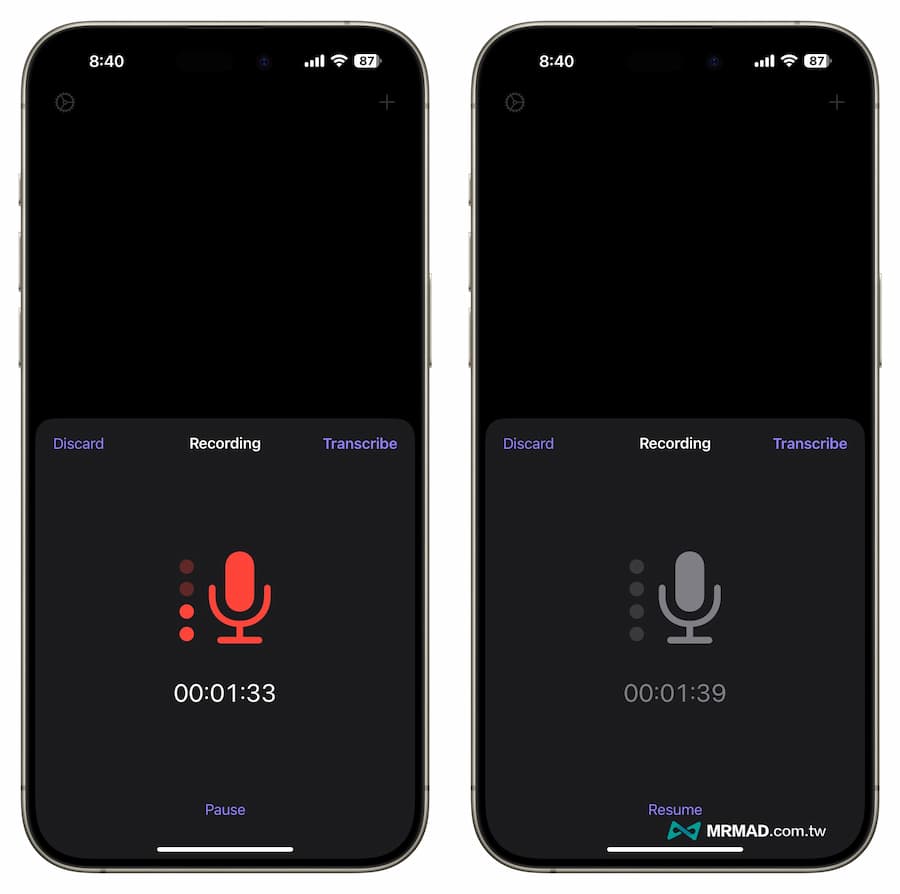
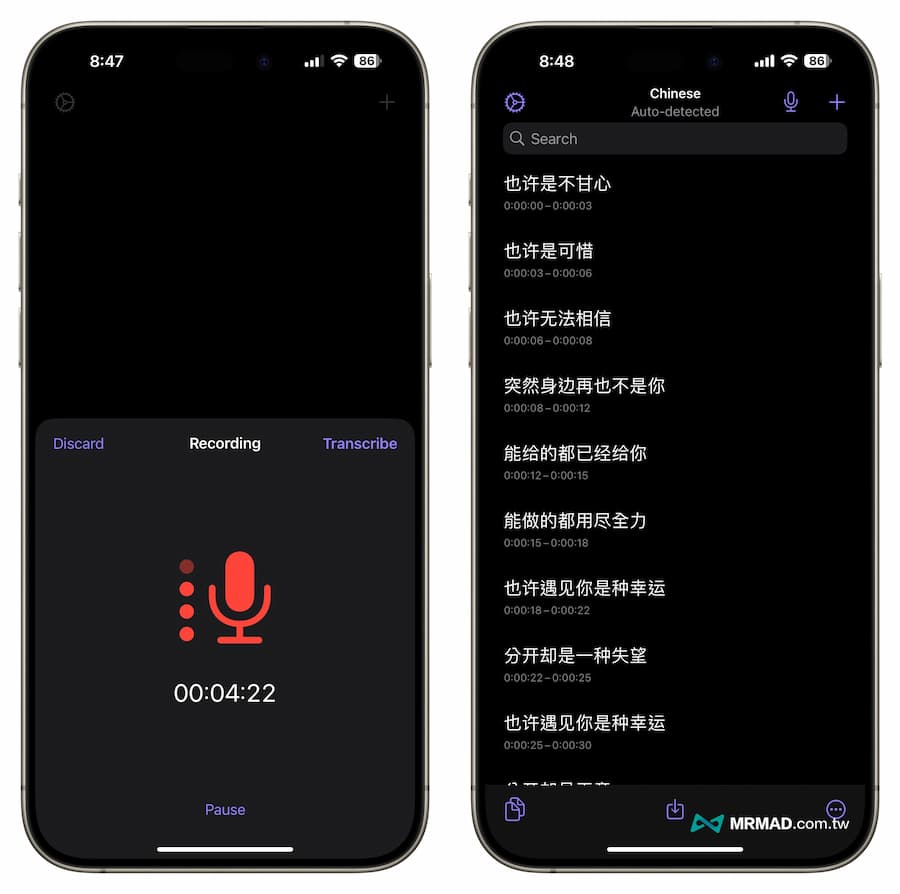
After activating the recording mode, you can point the iPhone in the direction of the sound source to be recorded. Even if it automatically enters the standby screen during the recording process, the recording will continue.
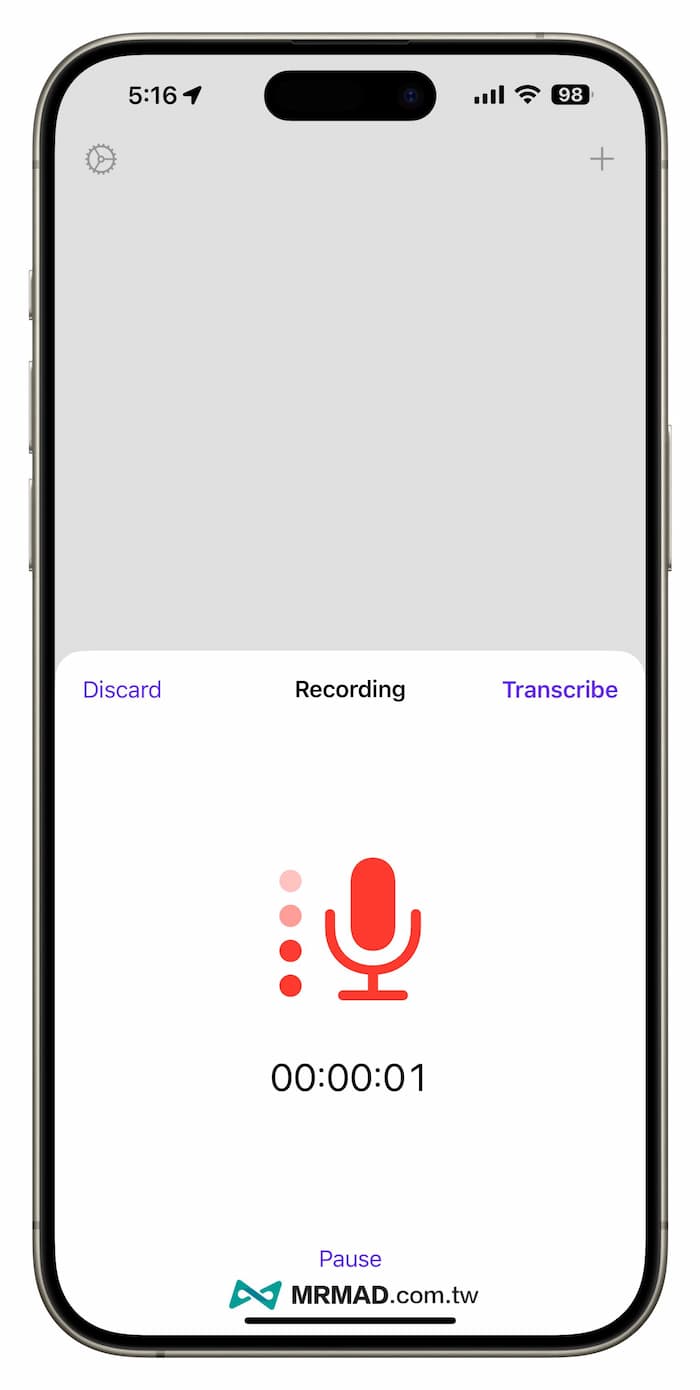
If you want to stop recording halfway, click “Pause”. If you want to continue recording, click “Resume” to continue. If you want to cancel and re-record, click “Discard”. Finally, after recording, click “Transcribe” in the upper right corner to turn on text.
3. Convert iPhone recording files into transcripts
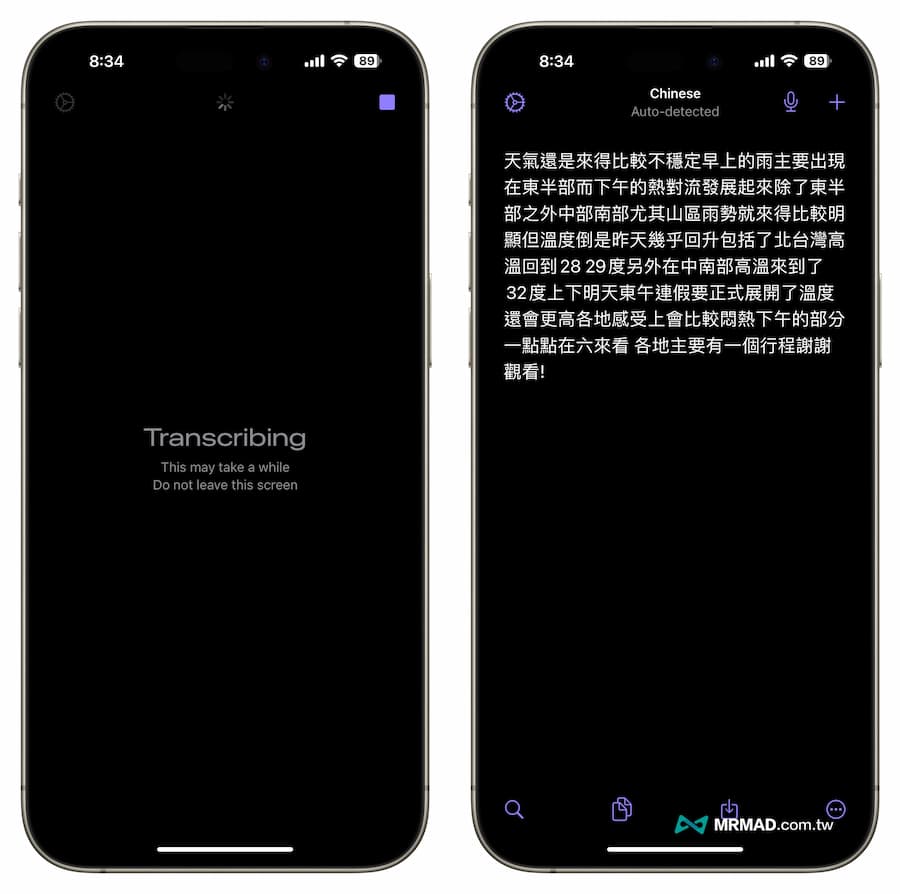
Then Open AI’s Whisper model will be used to convert speech to text. The process will automatically convert speech into text in just a few seconds. For example, the iPhone on the right is used to record news and weather forecasts. It is quite accurate in recognizing both text and numbers. The only difference is Punctuation will not be added automatically.
4. Set automatic segmentation of voice text
If you want the converted text of the recording to be automatically segmented, you can click “Settings” in the upper left corner of the Aiko App. Just turn on “Show timestamps” and “Reduce repetitions”, and the other functions do not need to be adjusted.
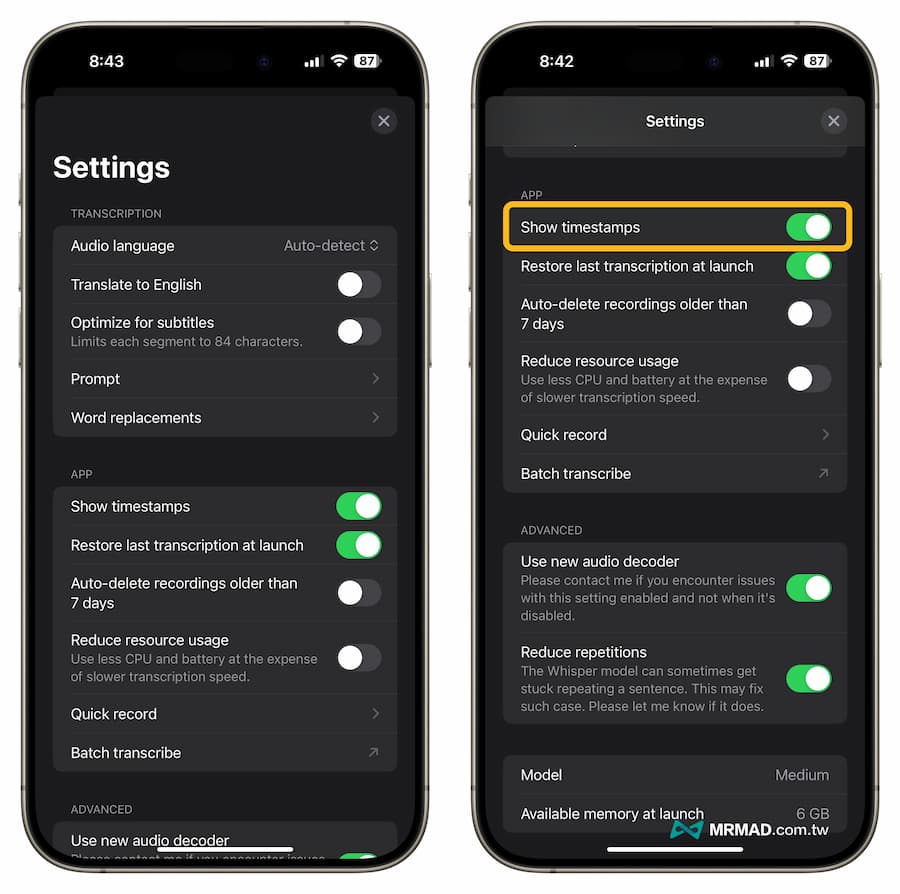
By the way, I would like to share the Aiko setting menu description for your reference:
- Audio language: Set the language to be output. Chinese is only Chinese and cannot be set to Traditional or Simplified.
- Translate to English: Only open it unless you want to directly translate Chinese or other languages into English.
- Optimize for subtitles (optimize subtitles): Do not turn it on by default and maintain direct speech to subtitles.
- Prompt: Customize the prompt text that you want to tell the AI to process.
- Word replacements: You can customize which words will be automatically replaced.
- Show timestamps: Allow subtitles to automatically break lines with time stamps.
- Restore last transcription at launch: Restore the last transcription at launch.
- Auto-delete recordings older than 7 days: Automatically delete recordings older than 7 days.
- Reduce resource usage: Reduce computing resources to downclock the iPhone.
- Quick record: Add a quick start recording function to the home screen or lock screen (detailed instructions will be provided at the end of the article).
- Batch transcribe: A large number of batch transcriptions need to be matchedshortcut scriptdeal with.
- Use new audio decoder: Use a new audio decoder.
- Reduce repetitions: Reduce the repetition of a certain sentence (recommended to turn it on).
Use the iPhone again to record the audio through the Aiko App and convert it into text. Finally, it will be automatically segmented according to the time and seconds, and the speech-to-transcript function can be realized. However, some Chinese will be automatically recognized as Simplified Chinese. Subsequently, you can manually simplify and Traditional Chinese. The conversion is easily solved.
5. Export recording or subtitle files
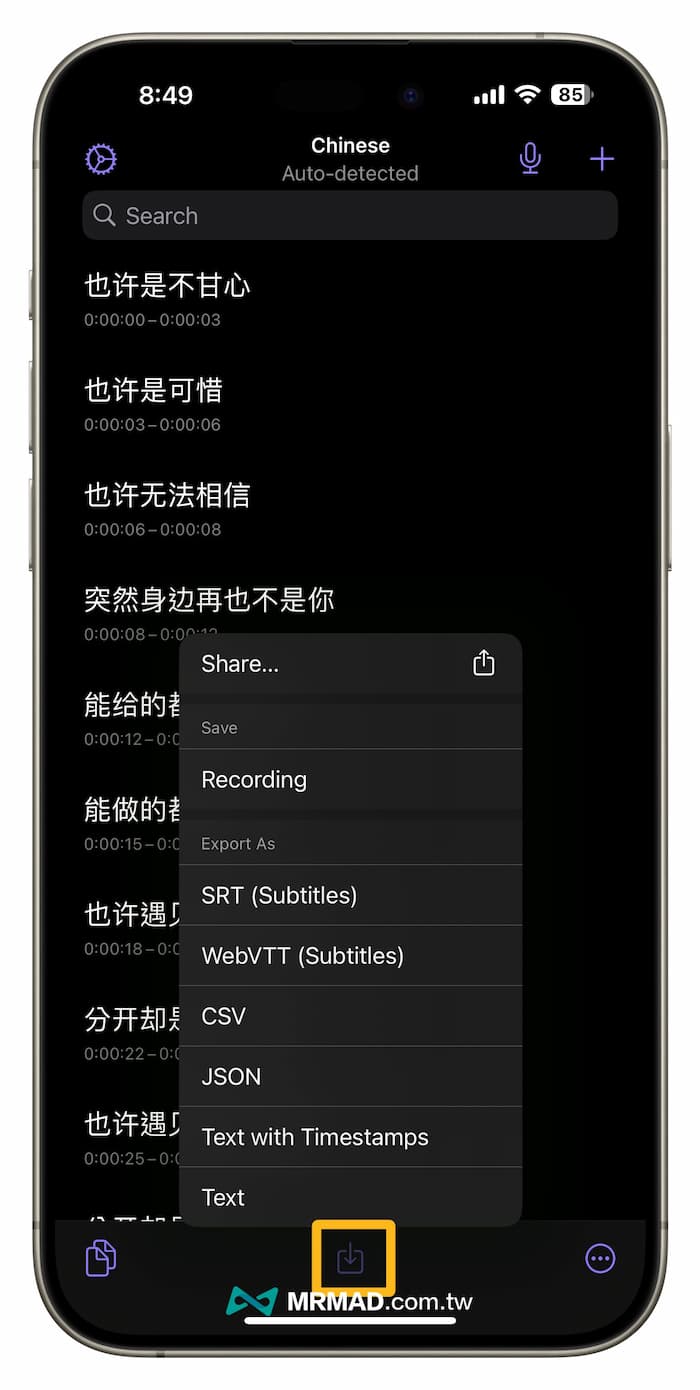
The developer stated that the Aiko App does not provide text editing, so the verbatim draft can only be exported directly and then edited through other apps.
If you want to export, you can click the share button at the bottom of the center. “Recording” at the top can save the recording file directly. If you want to export the verbatim transcript, there are many formats to choose from, including SRT, WebVTT, CSV, JSON, Text or when you have time. subtitles.
“Aiko” Is the iOS voice file converted to text highly recognizable?
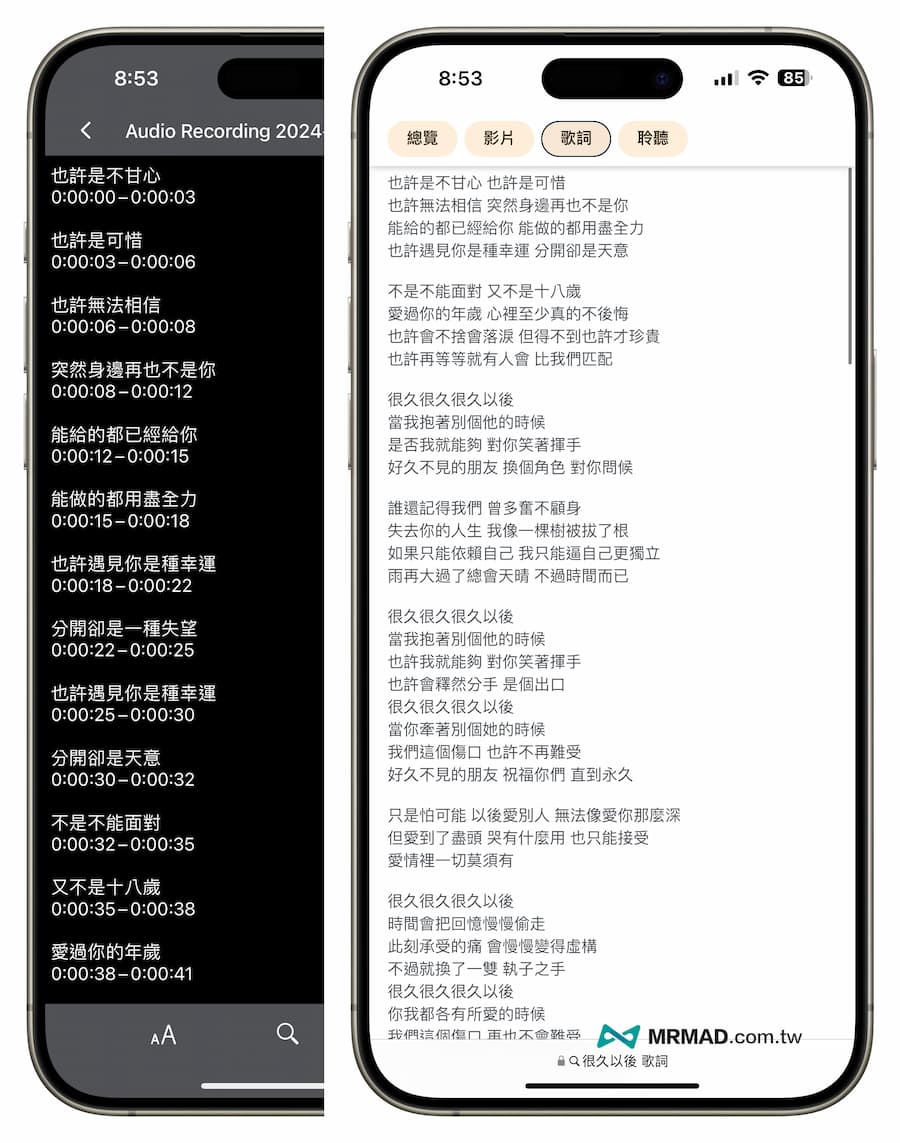
The final result of recording Deng Ziqi’s MV music directly through the Aiko App is as follows. After comparison, it was found that Open AI’s Whisper speech recognition capability is very accurate and there are few recognition errors.
Create a quick launch of Aiko recording desktop shortcut function
If you want to quickly start the Aiko recording function, you can also directly use it with “Aiko shortcut script” to achieve it, just click “Add Shortcut” to get it.
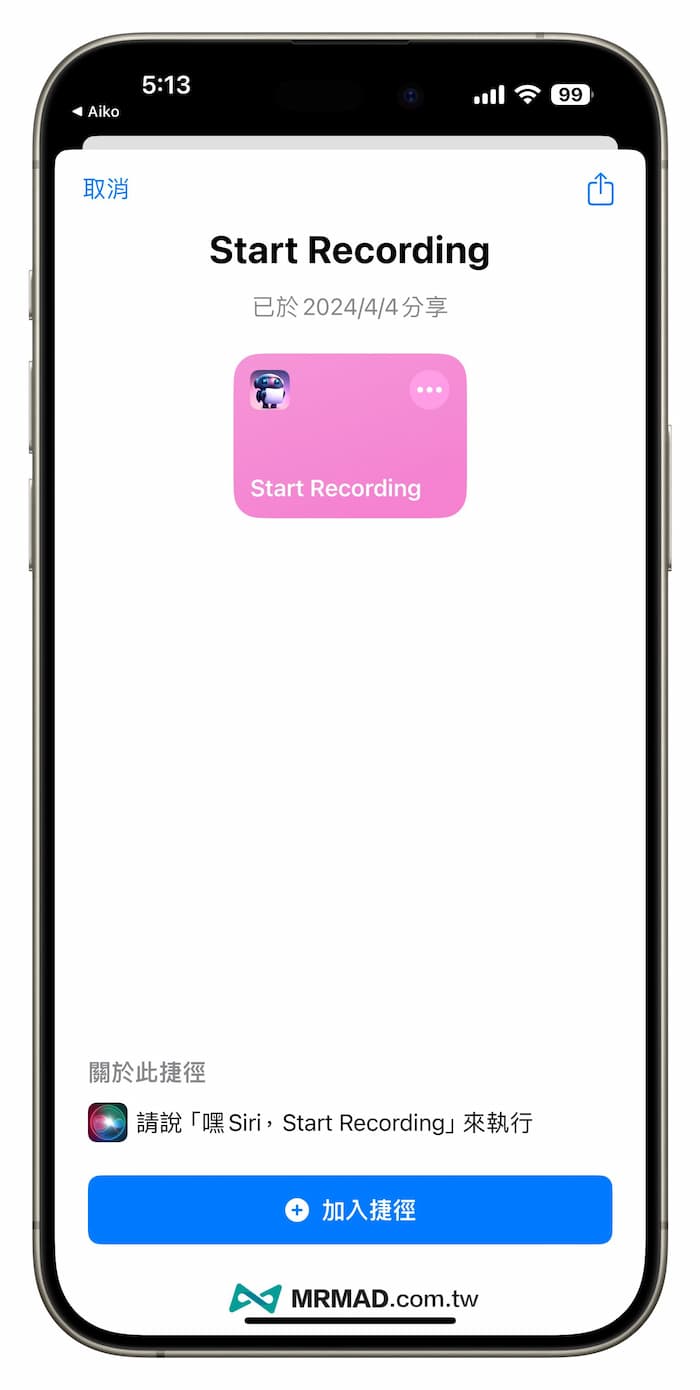
When the shortcut is added to the Aiko recording script, long press the “Start Recording” script and select “Share”, and click “Add to Home Screen”.
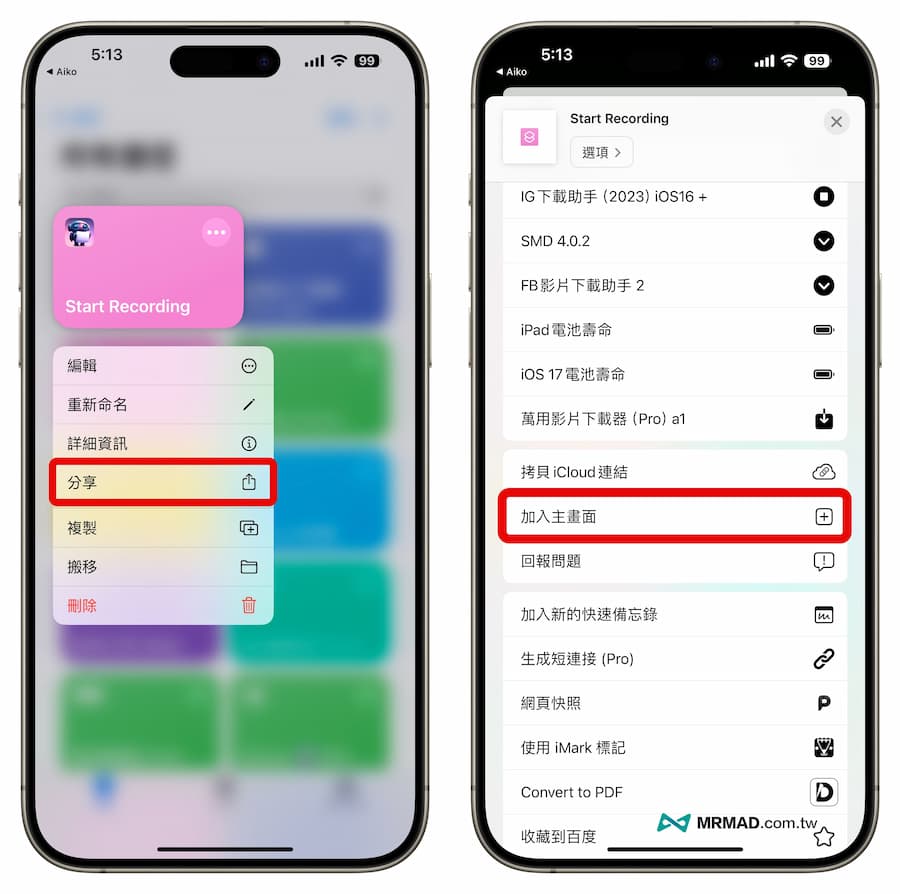
Customize the App name and icon to be displayed on the main screen. Finally, click “Join” in the upper right corner. To quickly start the Aiko recording function, click the script created on the desktop to quickly start.
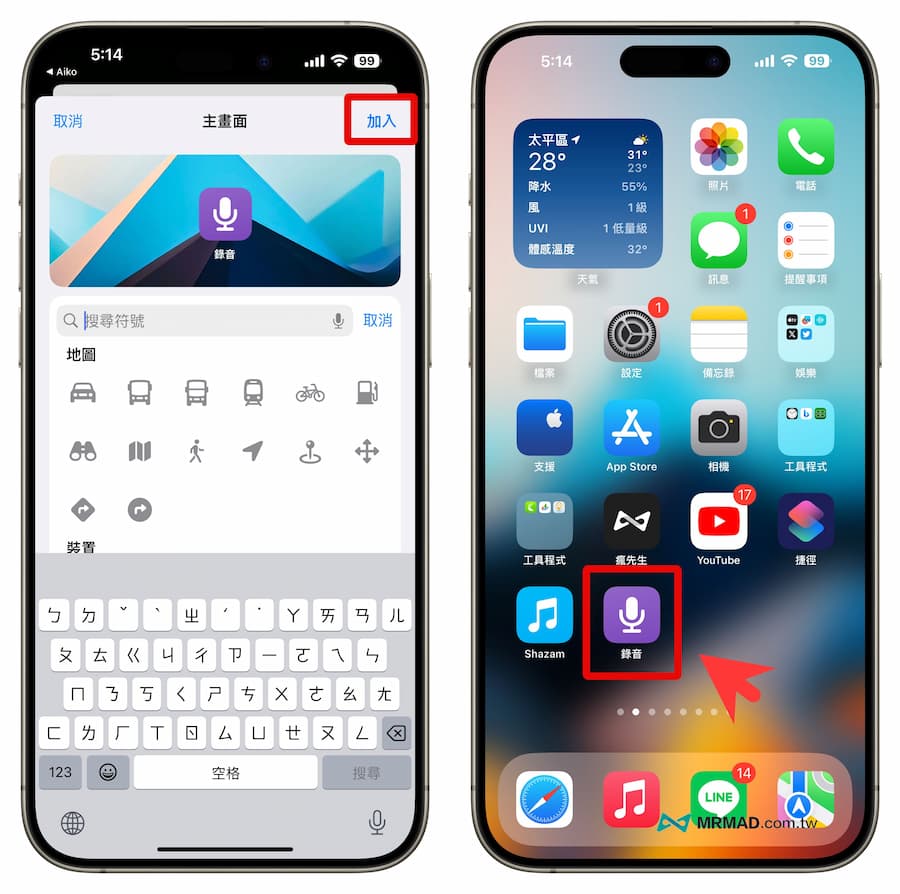
It can quickly record and convert iPhone to text, eliminating the need to open the Aiko App to create a recording. Of course, it can also be used with the “LockFlow” tool to quickly start recording by directly placing the shortcut on the iPhone lock screen.
Functional conclusion
The above are free tips for converting iPhone recording files to text. Please note that the accuracy is higher than converting iOS voice memos to text. After all, the current Siri dictation voice-to-text function is not as accurate as Open AI. If you find a shortcut script recognition There are a lot of mistakes, but I recommend everyone to use the free and powerful iPhone recording or text converting tool “Aiko”. You don’t need to buy additional software or a voice recorder to do it.
Further reading: