The iPhone’s built-in Shortcut App provides a variety of super practical functions. You can use the “Make GIF” shortcut function, allowing users to easily convert iPhone videos to GIF files, and you can also choose high image quality. This article will introduce two iPhone GIF shortcuts, share how to use and adjust settings, and also generate GIF files with different resolutions.
GIF files are a very popular image format that are often used on social media, blogs, forums and other platforms to present information in a vivid and interesting way. If you want to convert iPhone videos to GIF files without distortion, you can do it directly through the built-in “Shortcut” App without installing a third party. Below are two ways to use iPhone video to GIF shortcuts.
Shortcut script tips for converting iPhone videos to GIF
If you want to convert iPad or iPhone videos to GIF images, you only need to download the iPhone GIF shortcut script, and you can quickly convert videos into GIF images with one click. The following is a third-party offline conversion method that requires no installation:
1. Install the video to GIF script from the shortcut database
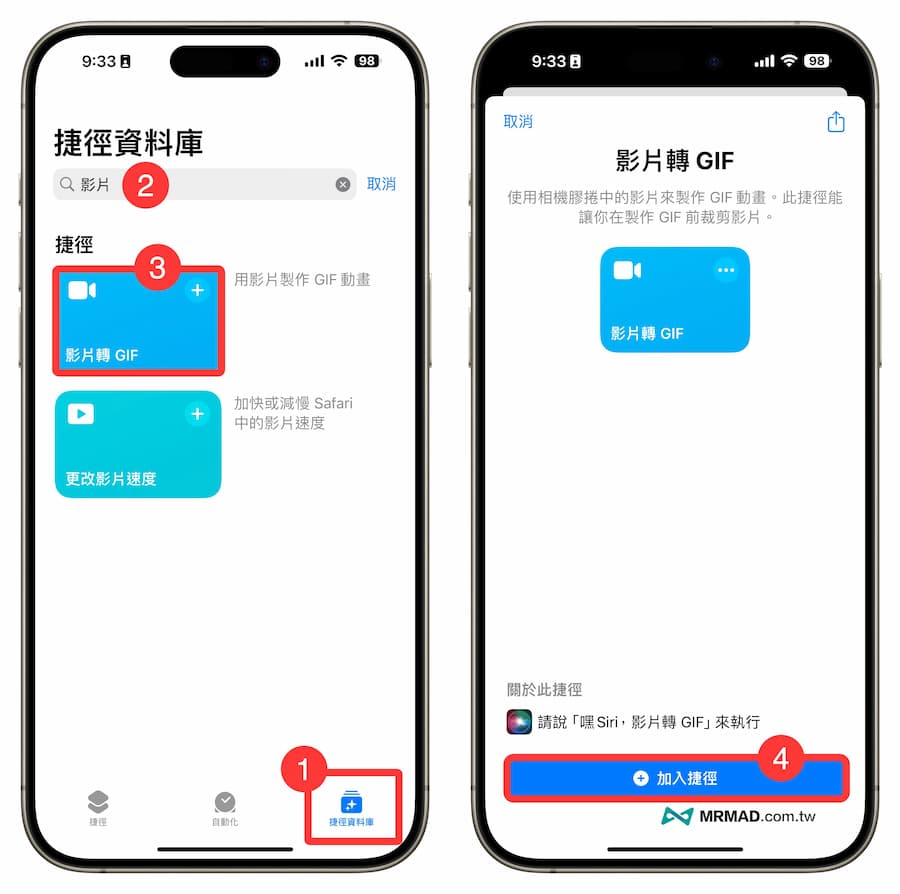
Open the iPhone’s built-in “Shortcuts” App and click “Shortcuts Database” in the lower right corner. If you have not used the Shortcuts App, you need to download it separately through the App Store (Click here to download Shortcut App).
Search the “Video” keyword directly from the shortcut to find the “Video to GIF” shortcut script. After clicking the “Add Shortcut” button, you can download the Video to GIF shortcut script to the “My Shortcuts” database.
2. Use shortcuts to convert videos into GIF animations
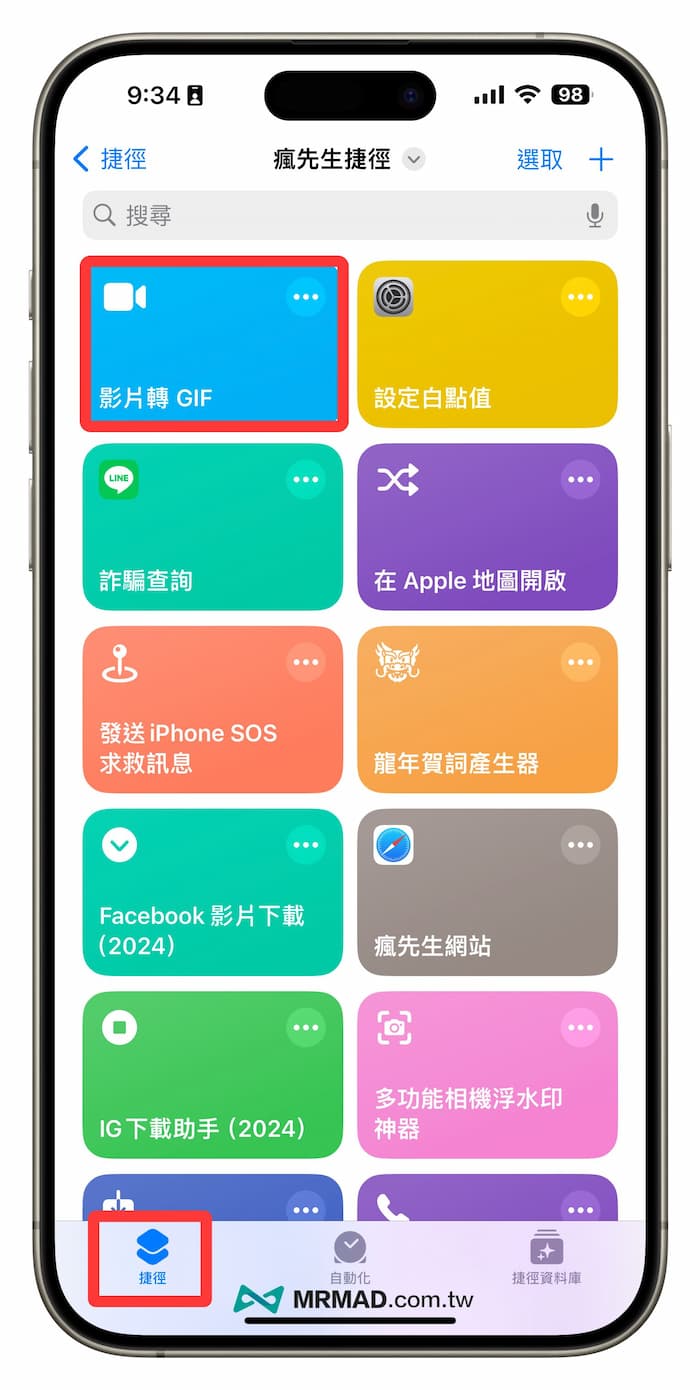
Next, switch to the “Shortcut” page and click to execute the “Video to GIF” shortcut script.
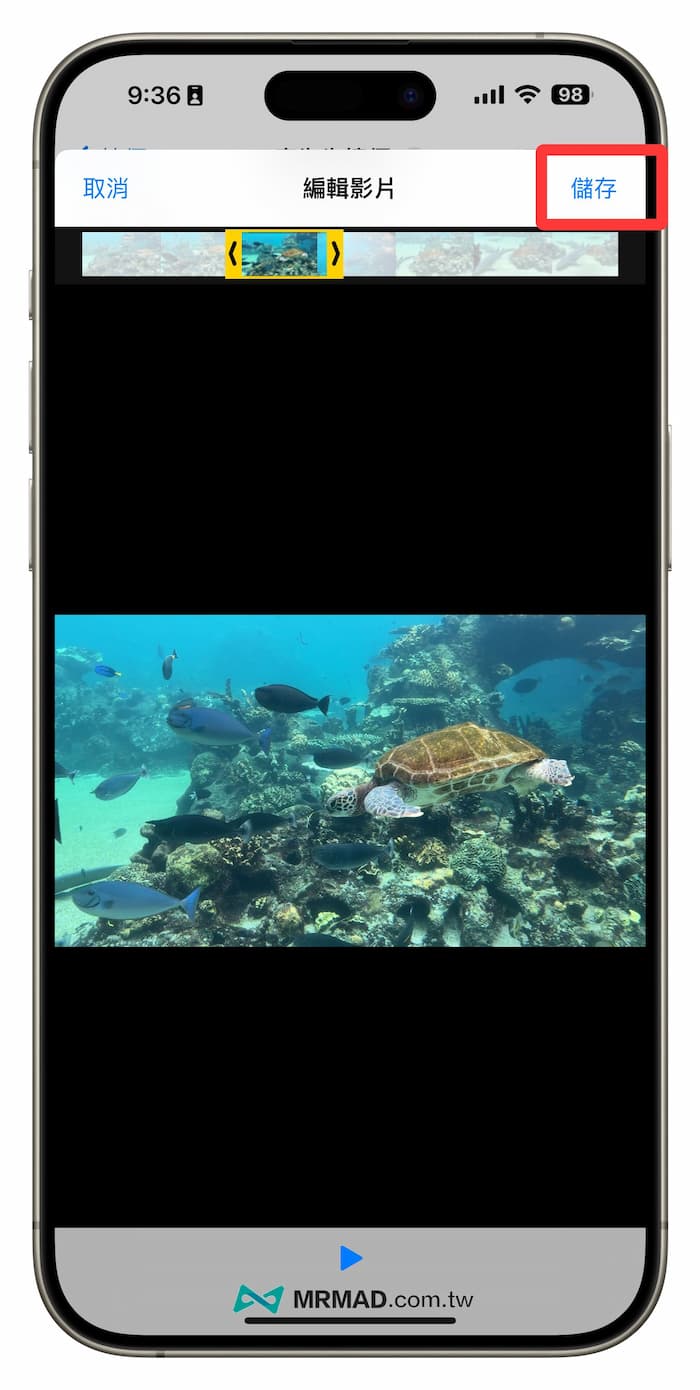
If the video is too long, you can directly use the video editing function. Swipe the top directly to select the paragraph to be trimmed. It is recommended that the number of seconds is not too long to avoid the video file taking up too much space. Finally, select “Save”.
3. Convert mobile videos to GIF format
The shortcut will immediately convert the video to GIF format. Finally, click the “Down Arrow” icon at the top and select “Save to Photos” to save the GIF to the iPhone’s built-in photo album. Then you can open the built-in photo album. View GIF.
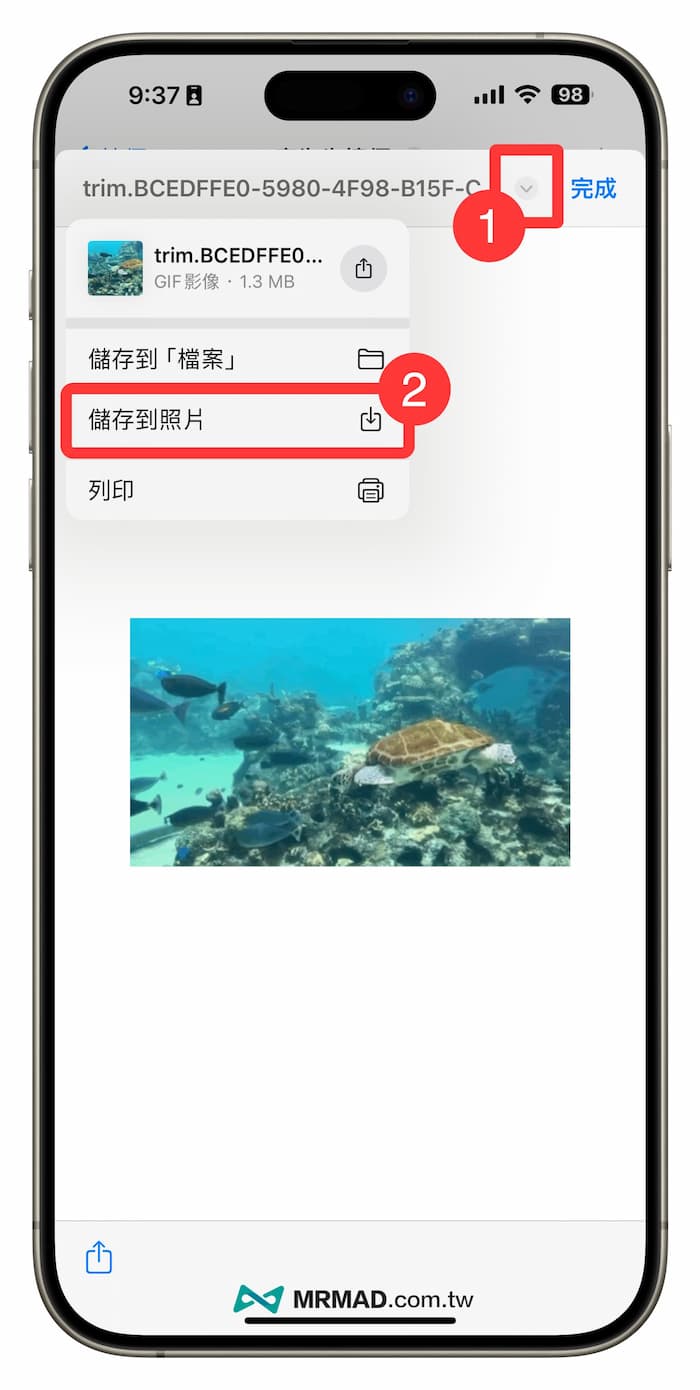
Tutorial on shortcuts for making high-quality GIF from iPhone videos
If you want to use your iPhone to make videos and convert them to high-definition GIFs, you can directly use the “Better GIF Maker” high-definition, undistorted GIF shortcut script shared below. In addition to outputting high-quality images, you can also crop, resize, and change The speed and the speed of changing the frame rate are relatively more powerful than the official video to Gif shortcut.
Download high-quality iOS video to GIF shortcut script
Open and download the “Better GIF Maker” shortcut script (linked at the back) through the iPhone’s built-in Safari browser, and directly click the “Add Shortcut” button to download and add the script to the iPhone’s shortcut database; if it is an iPhone If you have not installed the “Shortcut App”, you must first download it separately through the App Store (Click here to download Shortcut App).
This high-quality GIF shortcut script will use ffmpeg to convert the video at the highest quality, and requires additional installation “a-Shell mini” can be converted.
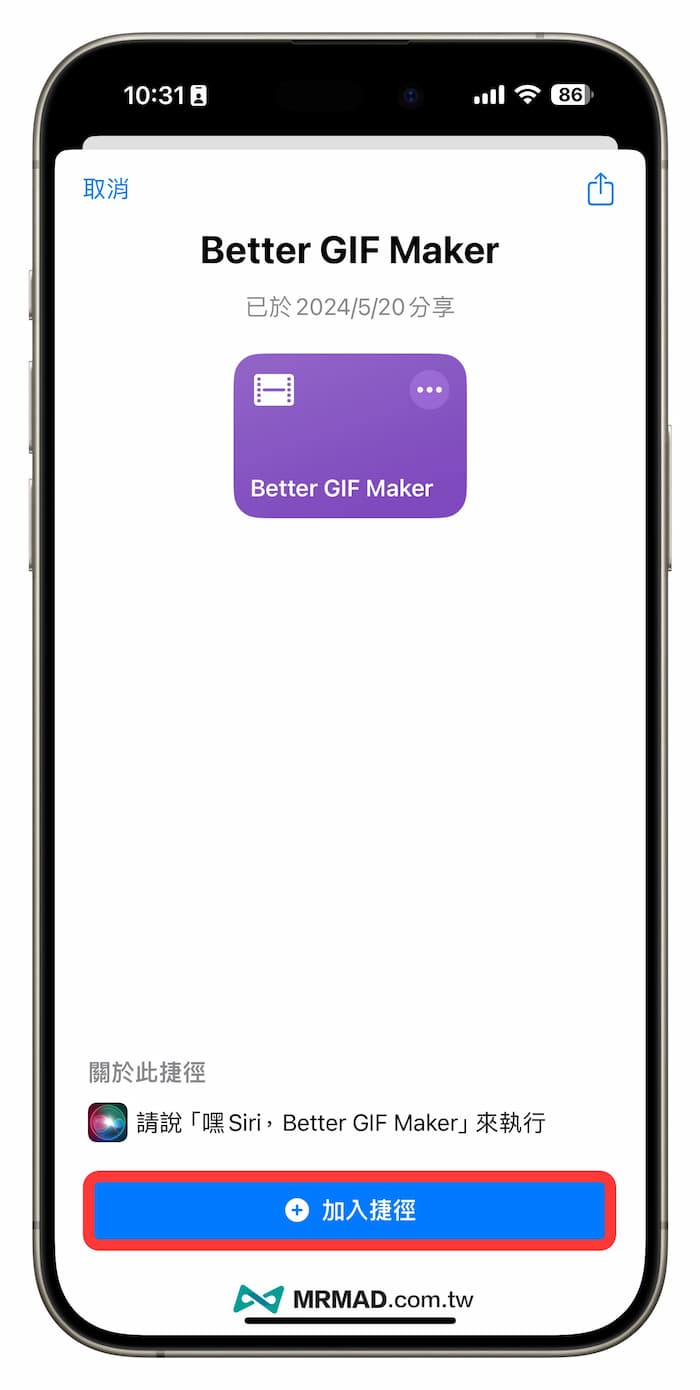
⛔️ If the “This shortcut cannot be opened because your shortcut security settings do not allow untrusted shortcuts” situation appears when downloading the iOS shortcut script, you can solve it through “Another method (click me)”; if the shortcut is open The download page pops up with “Unable to connect to the shortcut database”. Click the refresh button below and it will display normally.
- Script developer: gluebyte
- Compatibility: iOS 14, iOS 15 or newer versions
- Update date: May 20, 2024
Shortcut script download👉 High-definition iPhone video to GIF shortcut
How to use iPhone video to GIF shortcut
1. Execute the video to GIF script
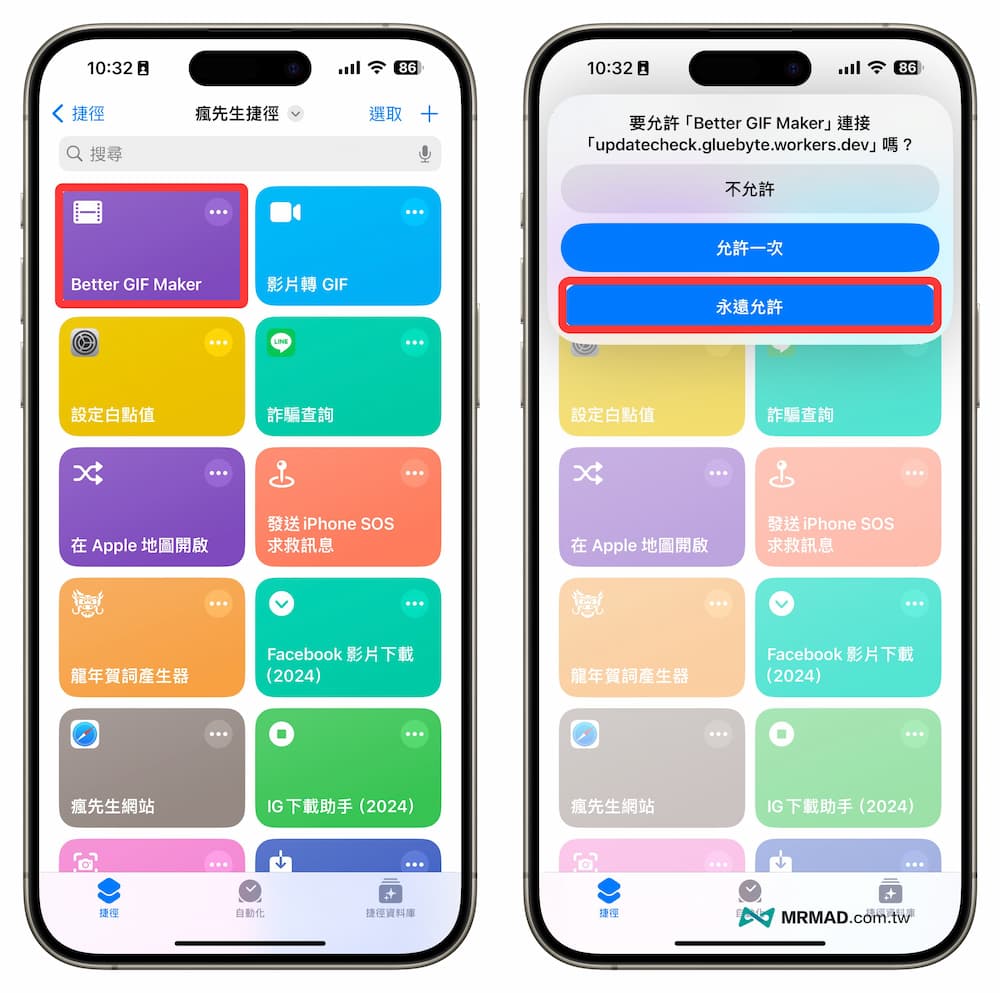
Directly open the iPhone’s built-in “Shortcut App” to execute the “Better GIF Maker” shortcut script. Starting from iOS 14, Apple will be more cautious about the security review of shortcuts. As long as there is an external connection, a prompt will pop up. Currently, all connections are checked. It’s quite safe. If you see the connection, just click “Always Allow”.
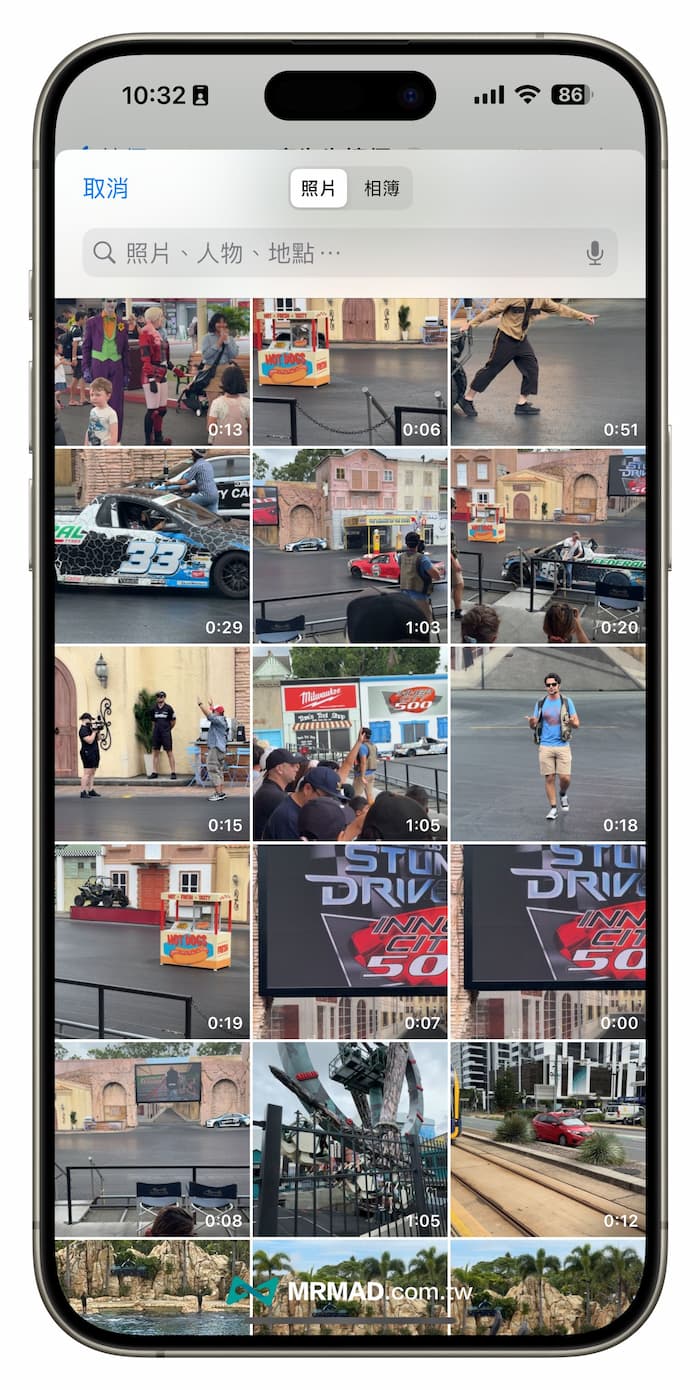
2. Select the video file to convert
The photo browsing screen will then open, and you can directly select the video you want to convert to GIF.
3. Select GIF to crop, resize, change speed and frame rate
You will see the video to GIF function menu, which can be adjusted for the following five functions:
- Cropping: Custom crop the video segments you want to convert.
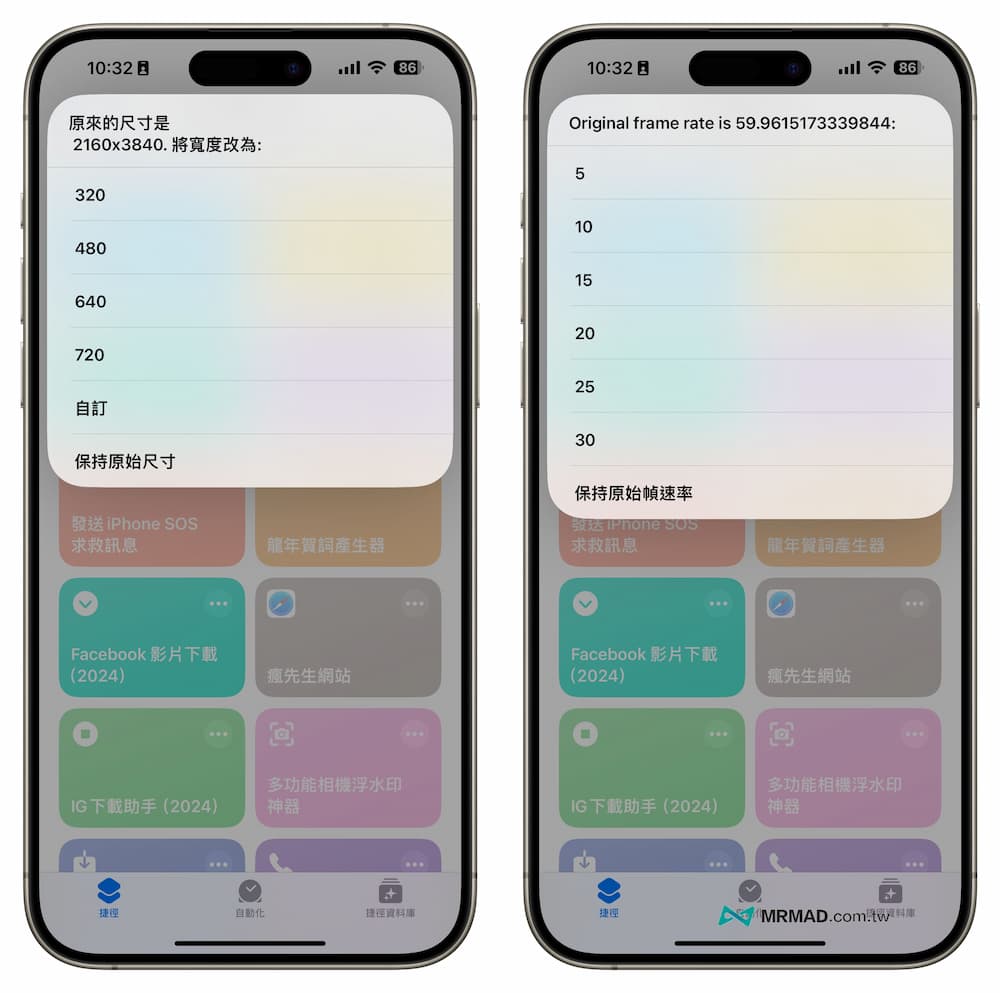
- Resize: Modify the size of the converted GIF image.
- Change speed: adjust the output GIF animation speed.
- Change frame rate: Customize the frame rate of selected GIF animations.
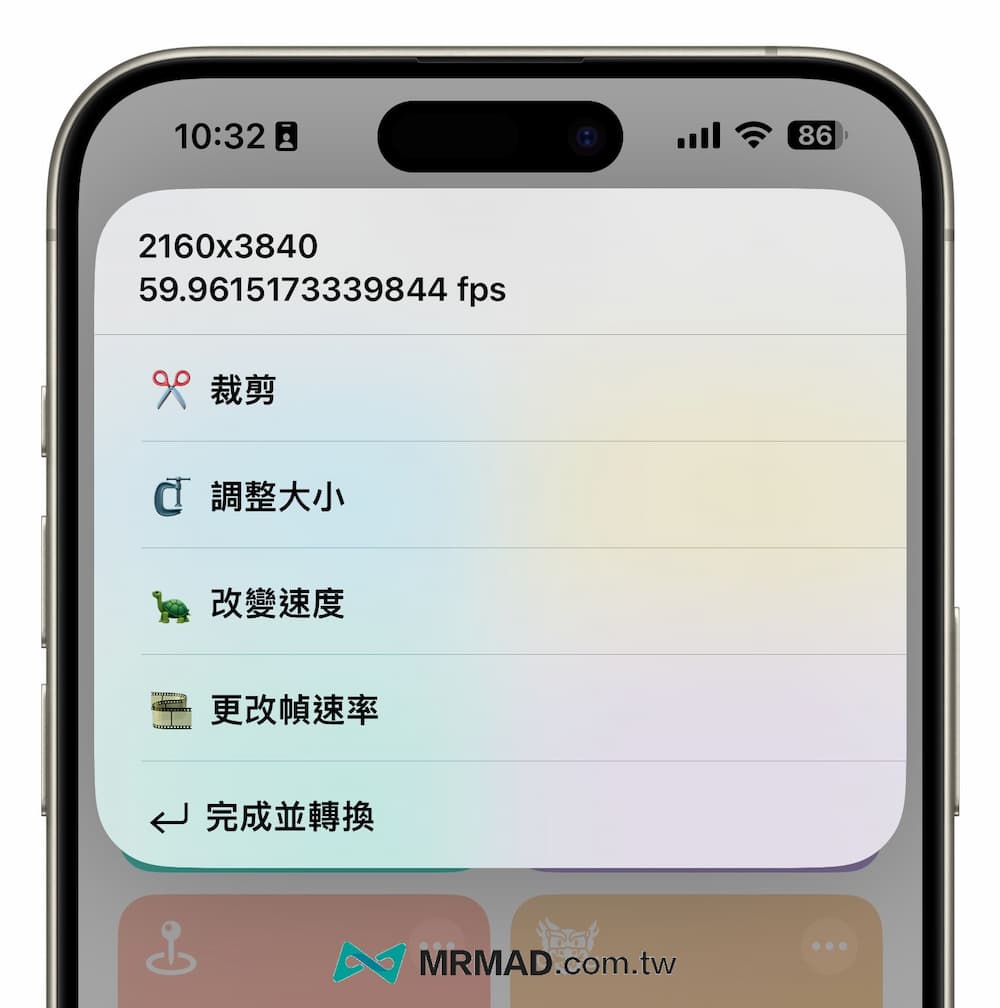
It is recommended that the GIF dynamic image size be set to a maximum of 720 and the frame rate be changed to 15. It is not necessary to set it too high to avoid the image file being too large after the video is converted to GIF.
4. Convert GIF via Shell video
After setting everything, click “Finish and Convert” to continue. The process will also pop up. Do you want to use the a-Shell mini tool to convert? Click “Always Allow” and there will be no further prompts.
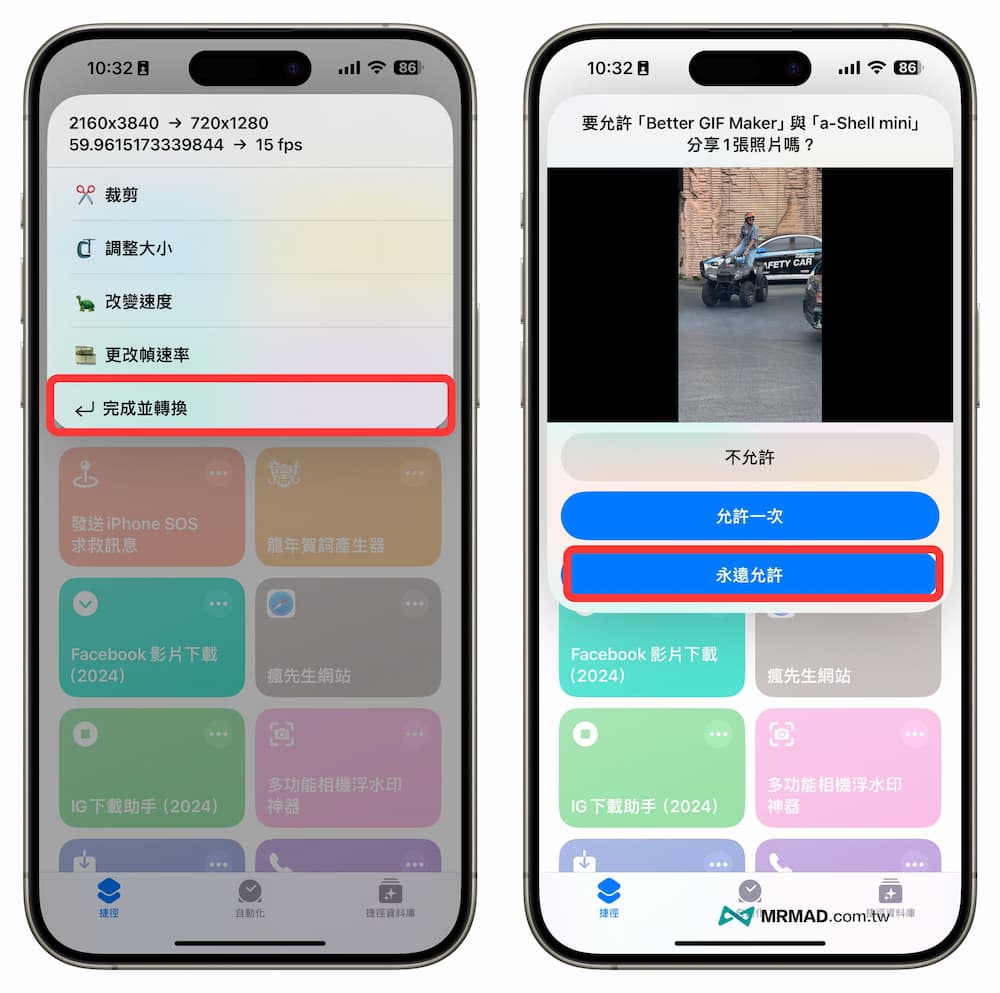
Then the shortcut will directly use the a-Shell mini tool to convert the video into GIF format, and the image quality is relatively better than the original and other GIF shortcut scripts.
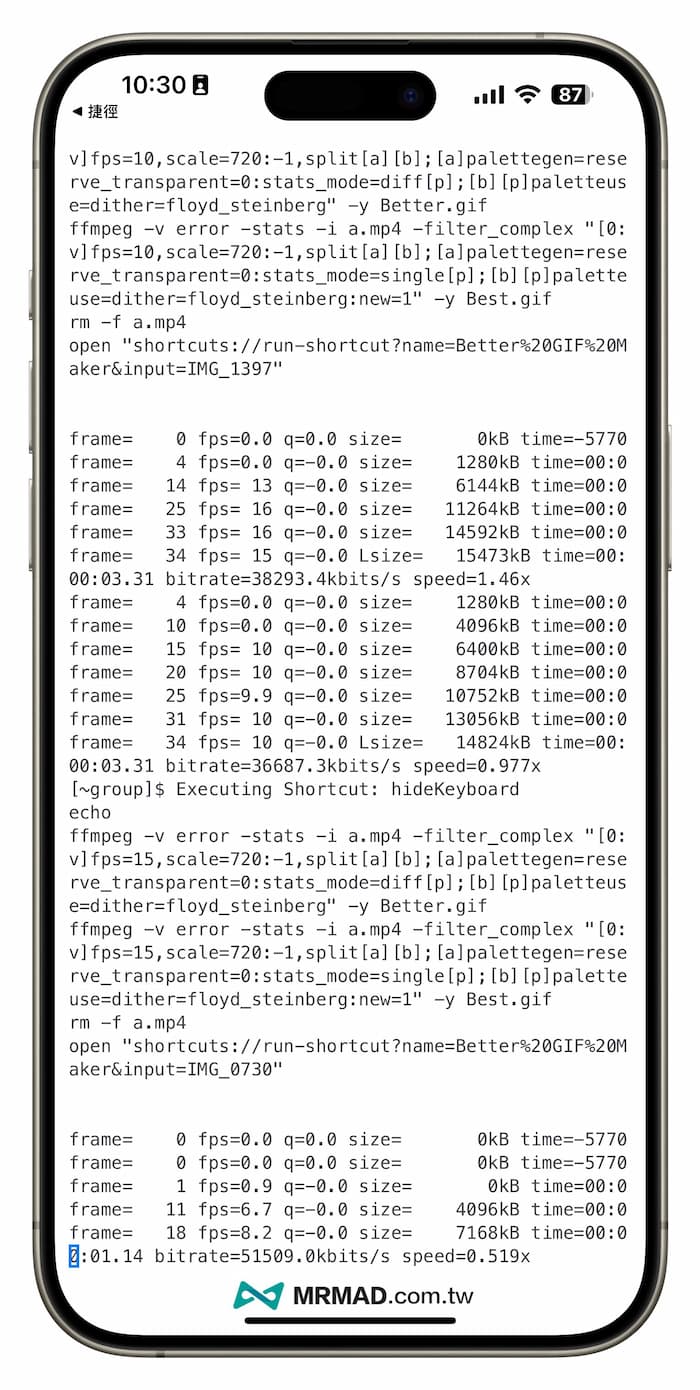
5. Save GIF quality
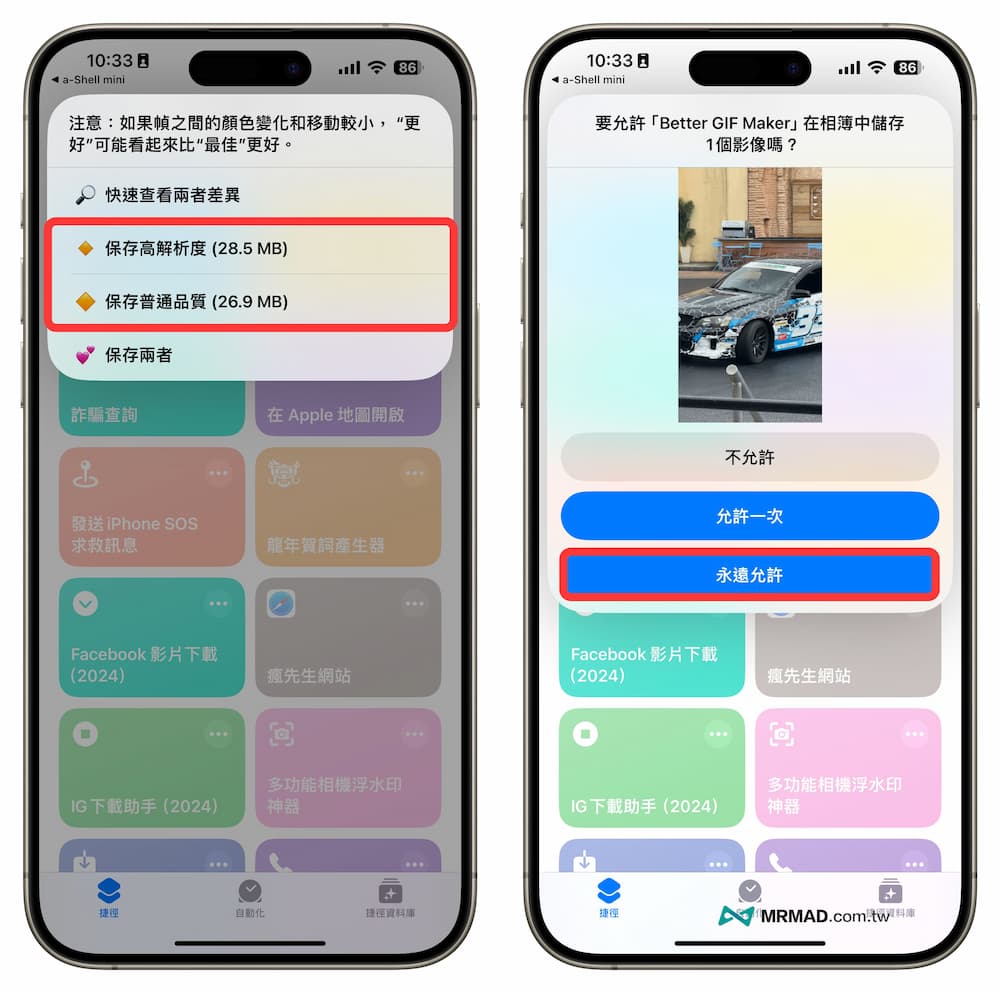
Finally, you will see the resolution of the converted GIF image. You can choose high resolution or normal image quality according to your needs, or you can directly choose to save both formats. Similarly, if you want to save the GIF to the album with the shortcut script, remember to click “Always Allow” , you can save the GIF to the built-in photo album normally.
Summary of iPhone video to GIF function
If you want to convert iPhone videos to GIF, you only need to use a shortcut script. In addition to using the video to GIF shortcut script provided by the official shortcut database, if you want advanced GIF editing functions, it is recommended to use high-quality GIF directly. The shortcut script “Better GIF Maker” allows you to customize crop size, resize, change speed and change frame rate speed.
More shortcuts to share: