Many people are curious about adding iPhone web pages to the desktop and are confused, especially because some websites or web services do not launch exclusive apps. In fact, you can also add iPhone web pages to the mobile phone through the built-in Safari browser. As for the home screen, this article will share two practical techniques that can put a web page or website directly on the iPhone desktop, so that you can open the web page with one click later and enjoy an app-like experience.
How to put a web page on the desktop on iPhone?
If you want to put an iPhone webpage on the desktop or add a Safari webpage to the home screen, you can use the two methods shared in this article to achieve it. The first method is to directly use Safari browserThere is a built-in function to add the home screen. The second is to use iPhone shortcut script to achieve it, and you can also customize multiple web pages.
Tip 1: Use iPhone web pages to join the home screen
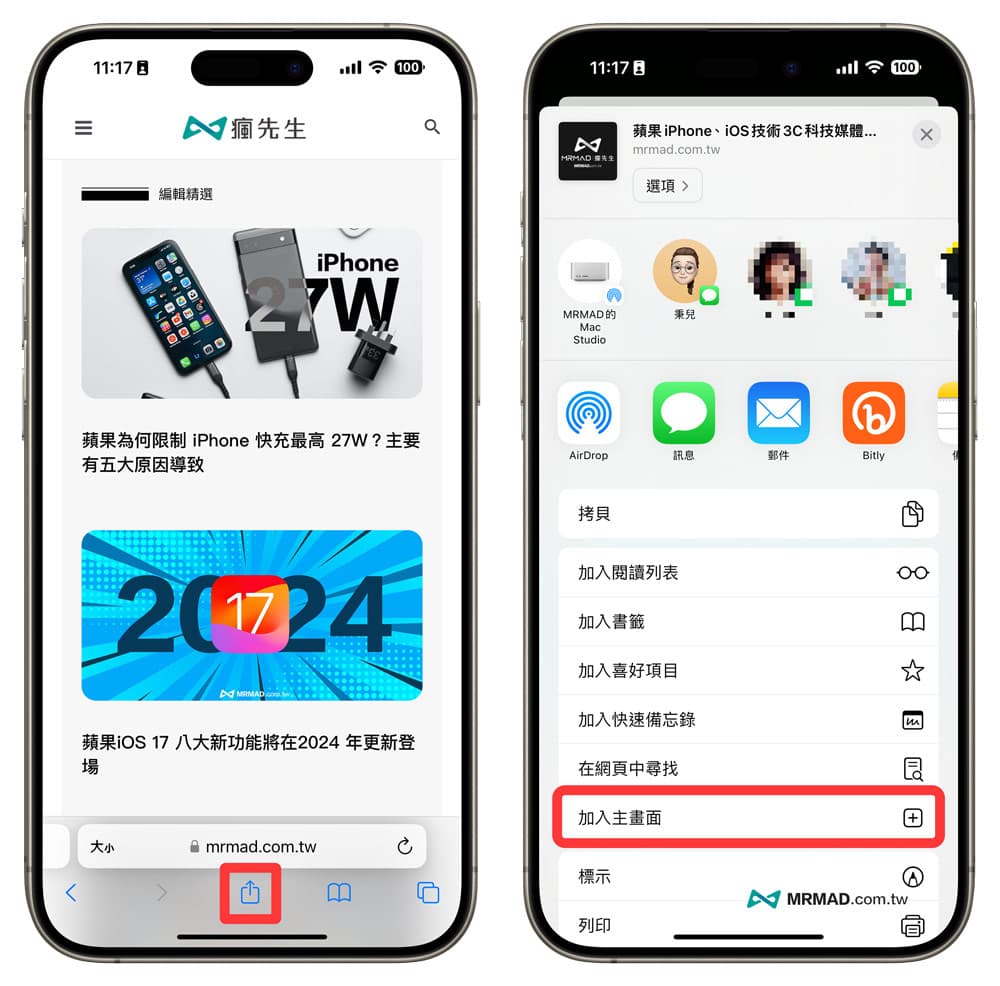
Directly open the iPhone/iPad built-in browser Safari App, first enter the web page (website) where you want to create an iPhone desktop, click the “Share” function on the toolbar, and select “Add to Home Screen”.
Note: If the toolbar at the bottom of Safari disappears or is not visible, you can slide the web page up and it will appear.
Next, you will see the prompt settings for adding the iPhone web page to the home screen. You can customize the name to be displayed on the desktop, and then click “Add” in the upper right corner. Return to the iPhone desktop and you will see the icon button of the iPhone web page you just added. Follow up Quickly open web pages.
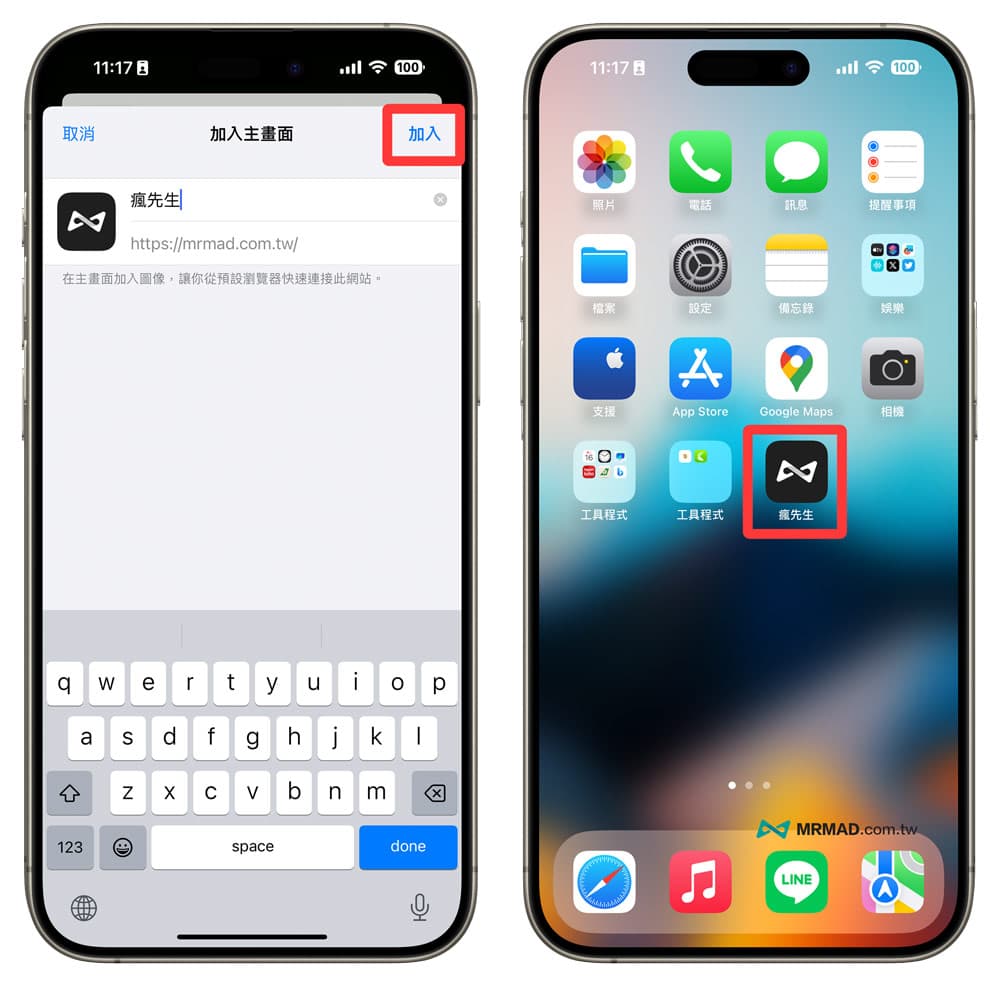
After successfully adding the iPhone webpage to the home screen, you may find that the screen does not seem to change when you open the webpage later. The main reason is that when the iPhone webpage is added to the desktop, the webpage will be temporarily saved. If the website or webpage is frequently updated, you need to manually click it. Refresh to get the latest information on the page.
Tip 2: Use iOS shortcuts to create web desktop scripts
In addition, you can also use iOS “Shortcut App” Create a quick web page script to add iPhone web pages to the desktop. However, making iOS shortcuts will be a little more complicated. The advantage is that you can customize the desktop APP icon, customize the name, and avoid temporary storage of web page data.
The following will teach you how to make iPhone web pages as desktop shortcuts. Just follow the steps of the “Quickly Open Web Pages” shortcut below to achieve this:
Step 1. First open the iPhone “Shortcuts App”, click the “+” in the upper right corner of the main screen of all shortcuts to add a new shortcut, and click “Add Action”.
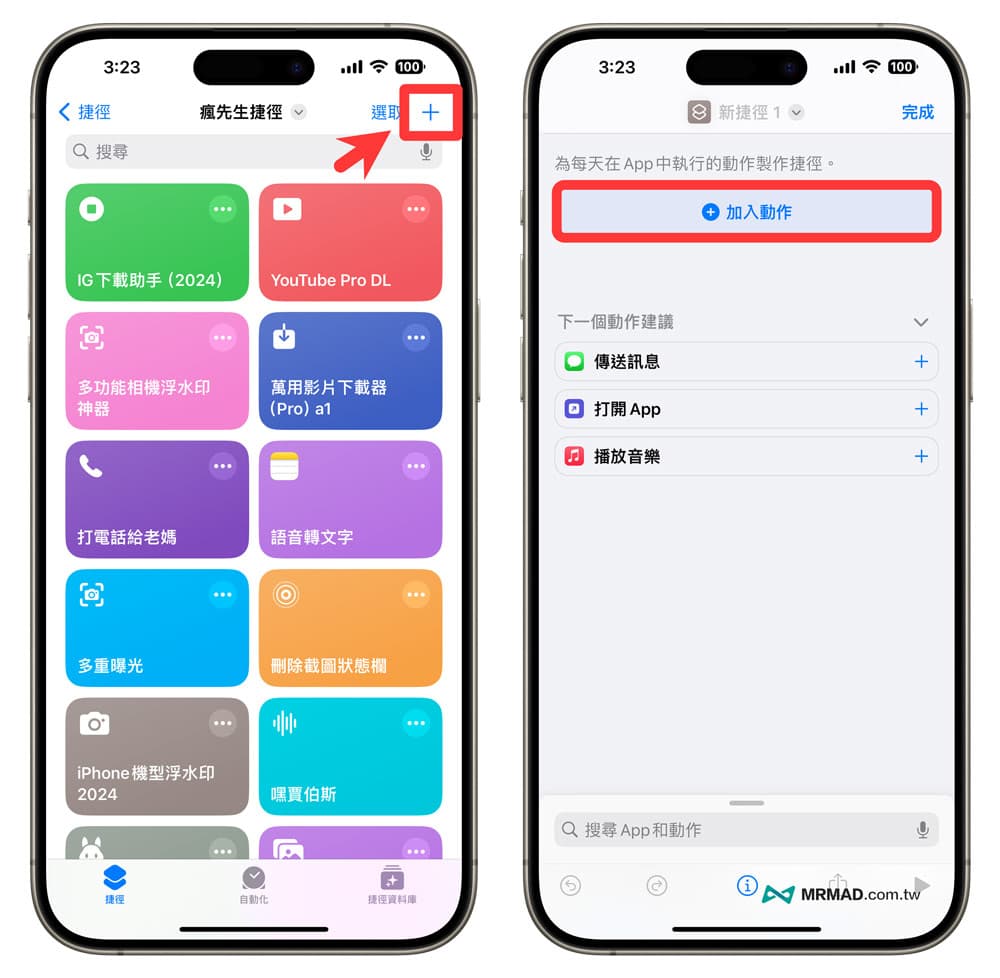
Step 2. Enter “Url” in the search action field at the bottom. After clicking the “Open URL” action command below, it will be automatically added to the shortcut script. Click the light blue text of the URL to enter or paste the iPhone webpage you want to open. URL, click “Finish” in the lower right corner after confirmation.
Note: If you want to open multiple web pages at one time, you can also click the “+” on the right to add multiple web links.

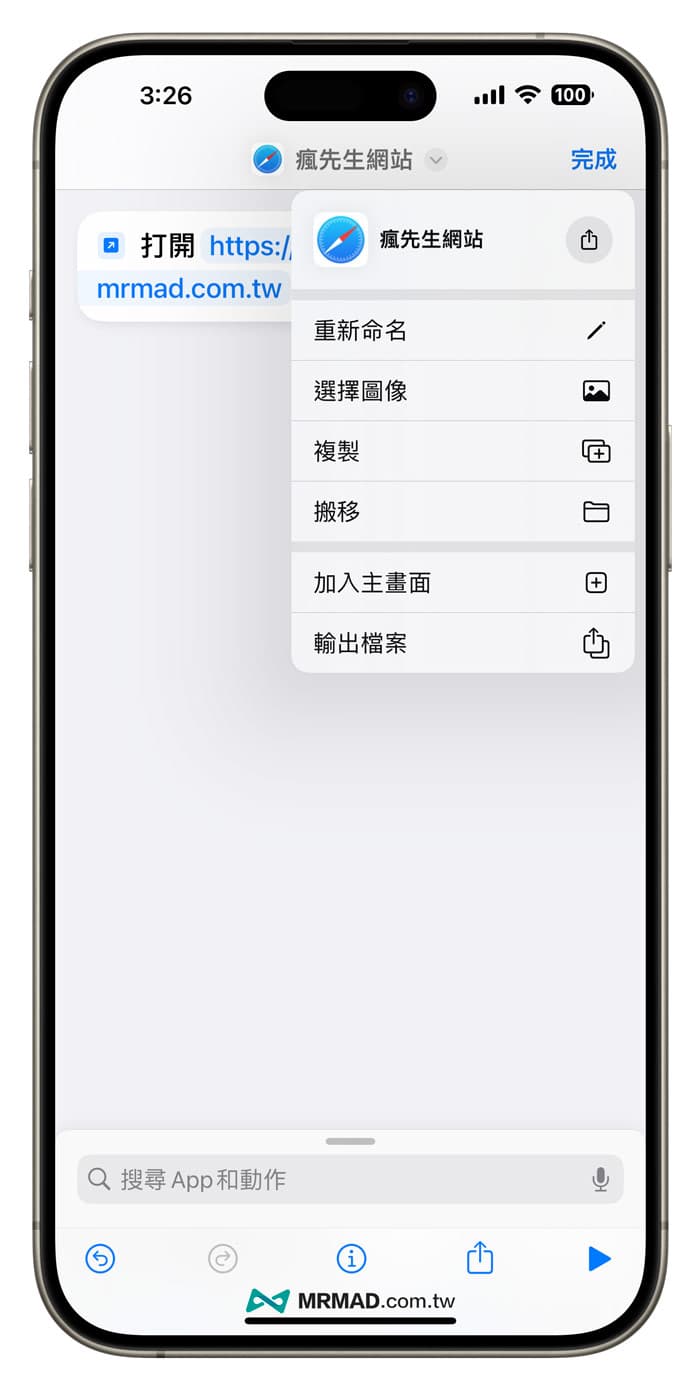
Step 3. Click the “V” button above and select “Rename” to change the shortcut script name to a more easily identifiable one. As for the image, you do not need to modify it now. You can add it to the iPhone desktop and customize it later.
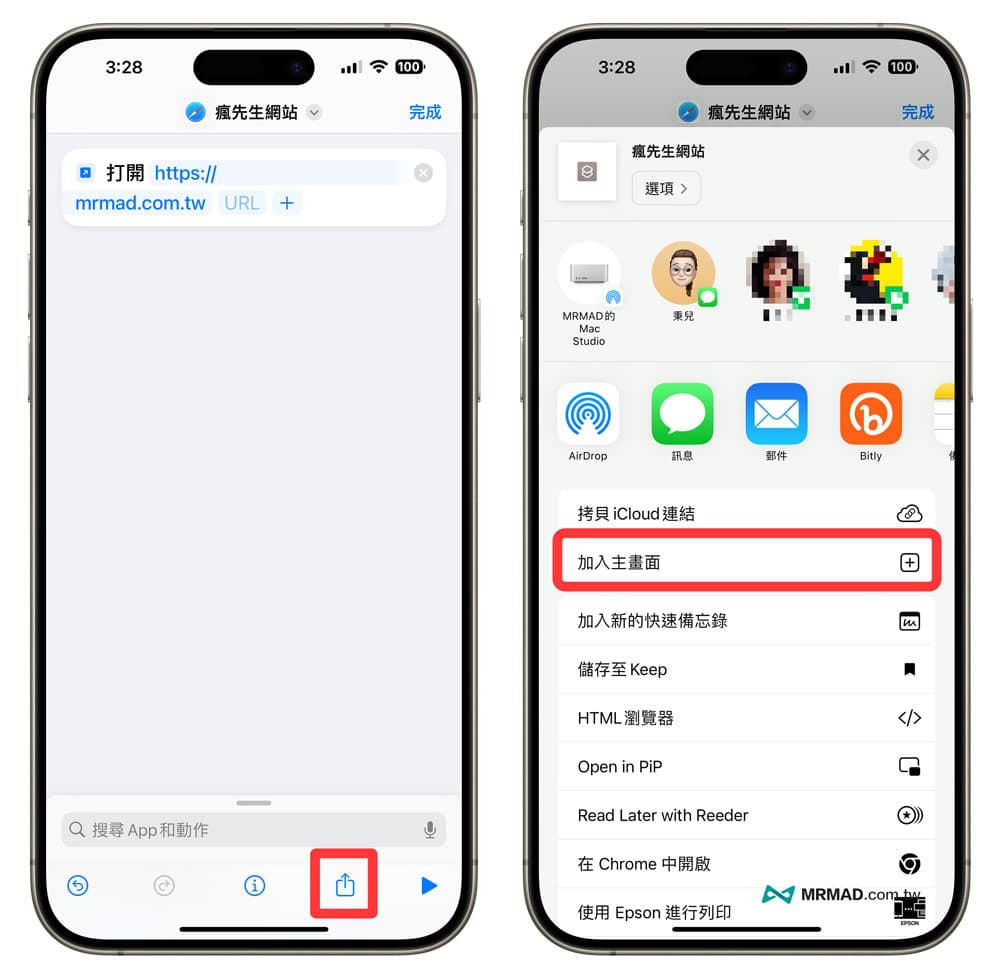
Step 4. After all settings are completed, you can click the “Share” button at the bottom and select “Add to Home Screen”.
Step 5. You can customize the App icon style to be displayed on the iPhone desktop, and you can also customize the App display name. Finally, click “Add” in the upper right corner, and you will see the newly added shortcut bookmark on the iPhone desktop. Click on it. Ability to quickly open web pages.
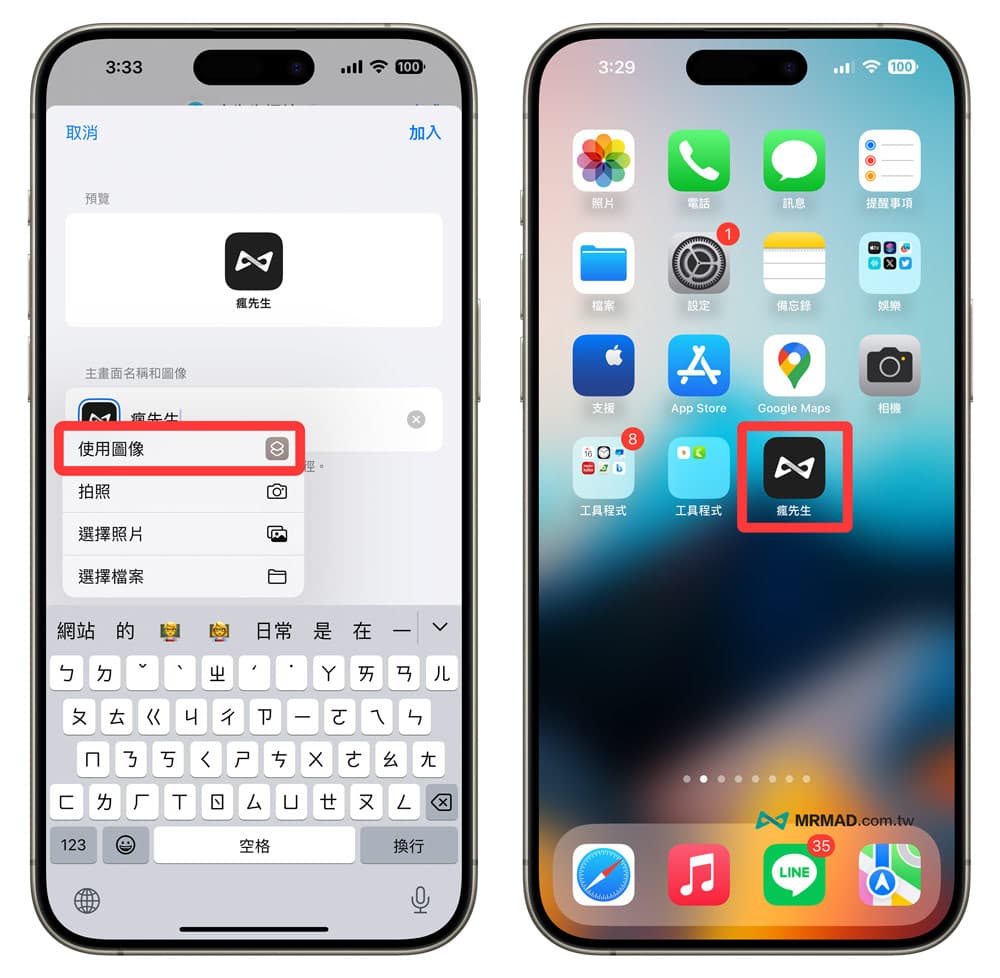
If you execute the shortcut for the first time, you may be asked whether you want to allow the connection? After clicking Allow, it will not appear again next time. After the above settings are completed, the iOS shortcut script can be implemented to put the iPhone screen on the desktop.
Is the iPhone webpage added to the main screen missing?
If you find that the function of adding iPhone web pages to the home screen has disappeared, you can try the following methods to solve the problem:
- Through the Safari share menu, scroll down to the bottom of the list, click “Edit Action”, and then click “Add to Home Screen” to display it normally.
- Restart your iPhone once
- Close Safari browser from the background and reopen it
What is the difference between the two functions of placing iPhone web pages on the desktop?
Since the Safari browser itself has the function of adding iPhone web pages to the home screen, why do we need to use more complicated iOS shortcuts to create desktop shortcuts? The two functions seem to have the same final result. The main difference is that the web shortcut script is suitable for websites that are frequently updated. On the contrary, Safari’s built-in adding the main screen will encounter the temporary web page. For example, Mr. Crazy’s website has new articles every day, so you need to use it. Shortcut scripting would be more suitable.
- Safari has built-in addition to the home screen: suitable for static web pages that are not frequently updated.
- Shortcut web script added to the main screen: suitable for websites that need to be updated frequently
Through the two methods shared in this article to put iPhone web pages on the desktop, whether you use Safari’s built-in add to home screen function, or use iOS shortcut desktop shortcuts to create a shortcut script that quickly opens web pages with one click, you can add iPhone web pages to the home screen. Effect.