
In iOS 17, Apple has added a new custom auxiliary access “elderly mode” function, which can make the app icon button on the mobile phone desktop bigger and the system style more simple, very suitable for elders who usually only use a few simple iPhones Item functions and operations.
If the elders in the family don’t use the various functions of the iPhone, quickly help them set the “iOS 17 Elderly Mode”. Not only the buttons are large and the fonts are large, but also many interface functions are simplified, the operation will be easier, and it can prevent presbyopia Don’t know, let’s learn how to set iOS 17 senior mode skills for elder iPhone through this article!
How to enable Elderly Mode in iOS 17?
The “iOS 17 Elderly Mode” that Apple added to the iPhone is mainly realized by using the custom auxiliary access function. This function mainly simplifies the introduction of users who have disabilities with smartphones. It is very suitable for grandpas, grandmas or older elders , Most of the mobile phones are used for making calls, sending text messages or chatting on LINE. Simplifying the functions of mobile phones allows them to quickly get started with iPhone functions.
- System requirements: iOS 17 or above models
Step 1. Set up custom auxiliary access
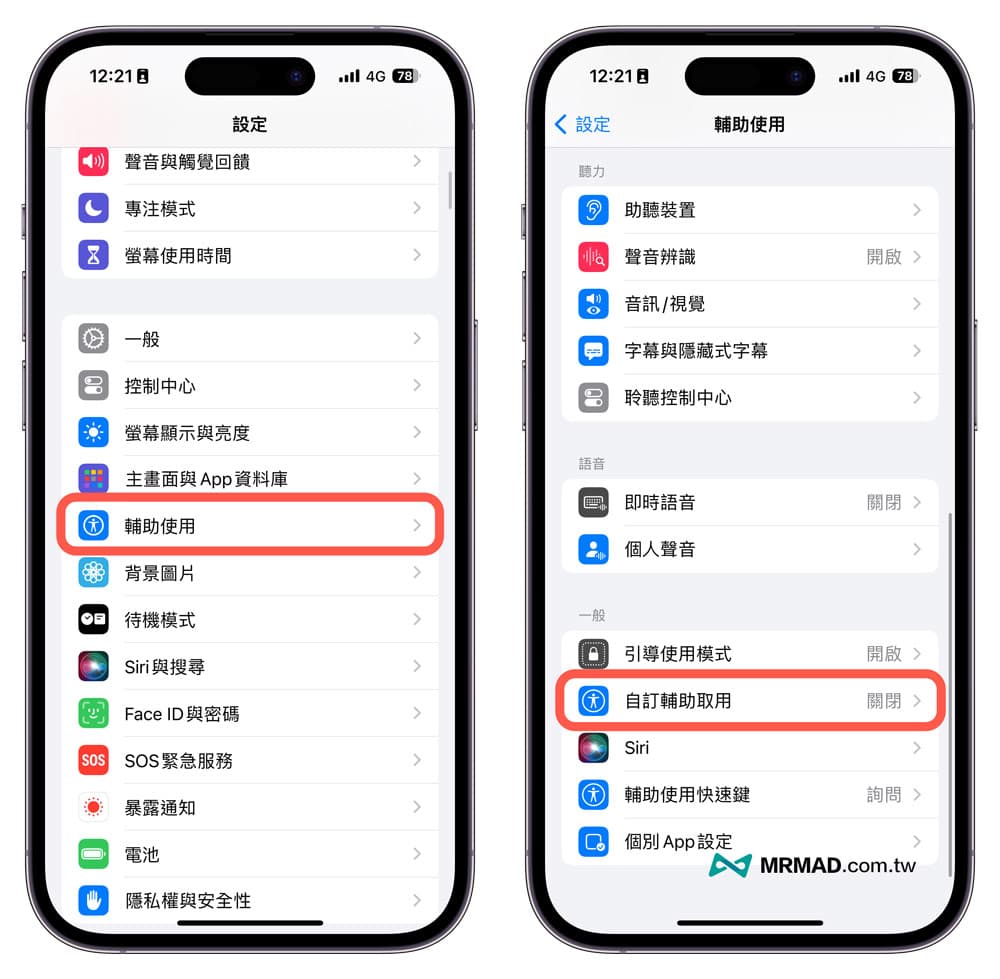
Open the built-in “Settings” App from the iPhone, and select “Auxiliary Use”, and then find “Custom Subsidy Access”.
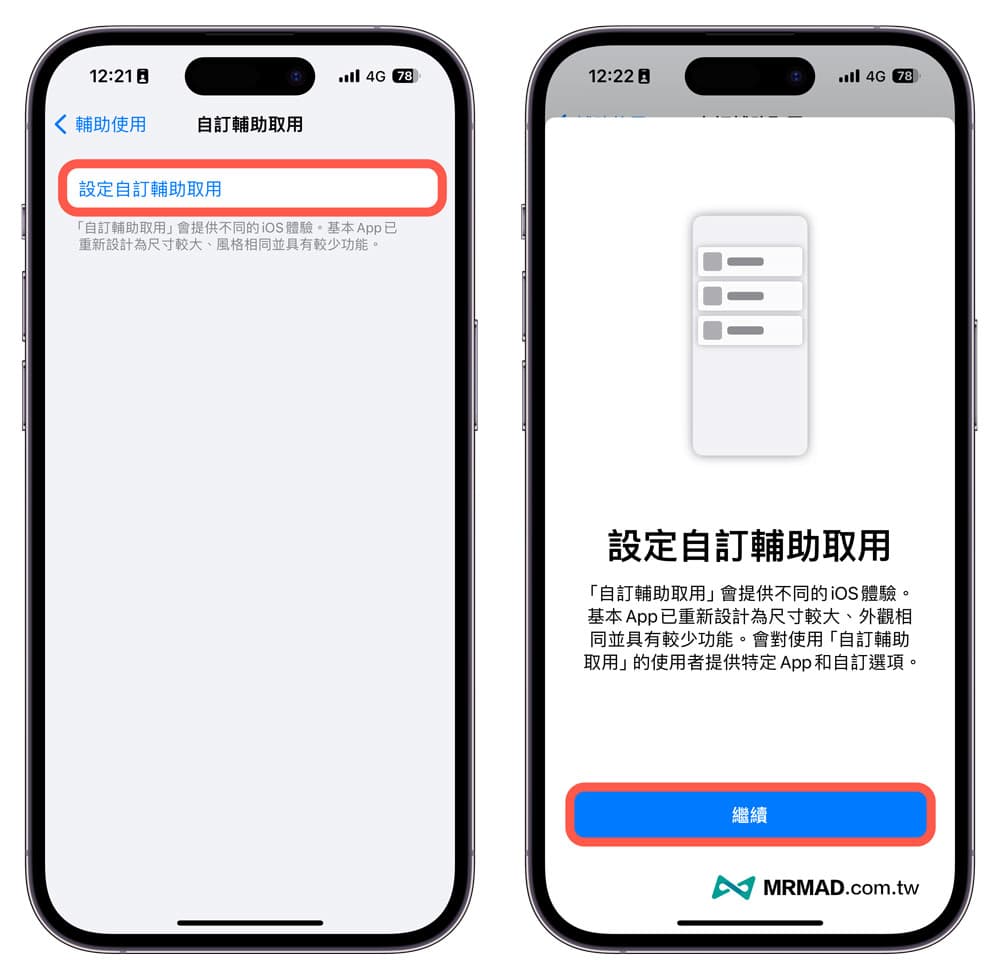
After clicking “Setup Automatic Assisted Access”, you will enter the prompt screen for setting sub-defined auxiliary access, click “Continue” to start.
Step 2. Bind Apple ID account
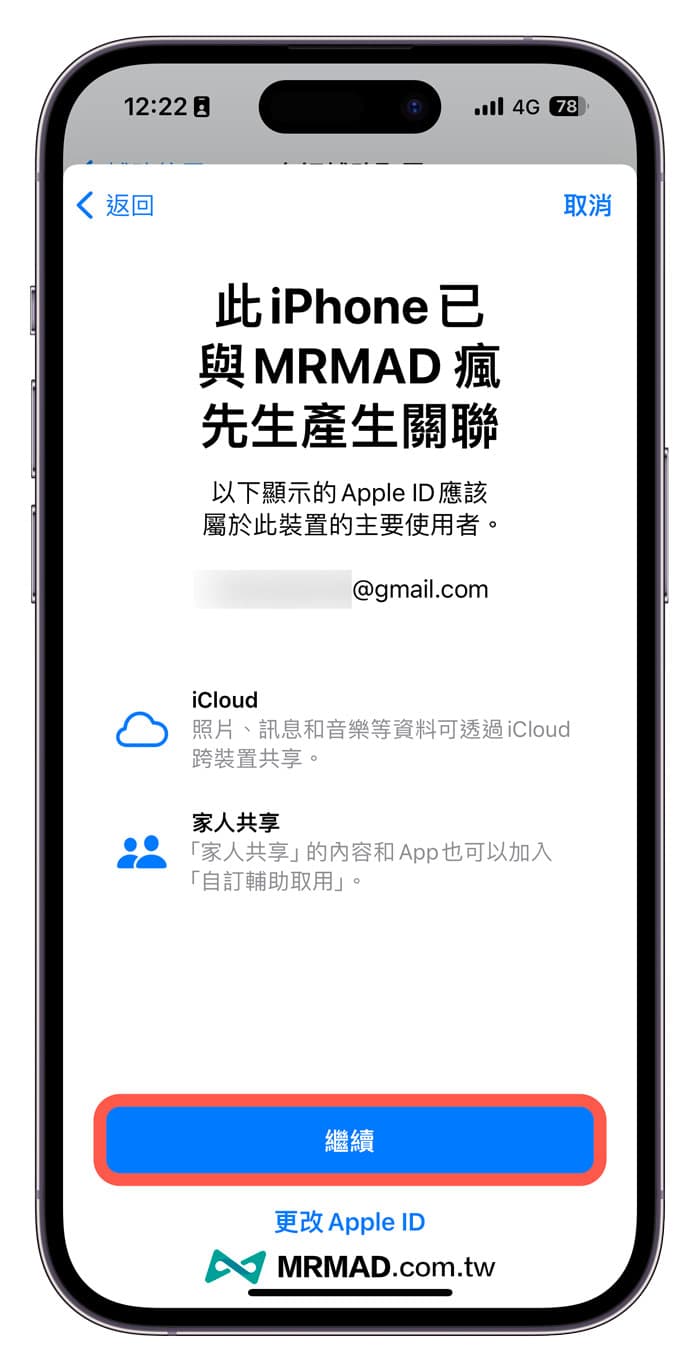
The first setting will first need to be associated with the Apple ID data, as long as you make sure that the currently synchronized Apple ID account is correct, you can click “Continue”.
Step 3. Select the App function on the main screen
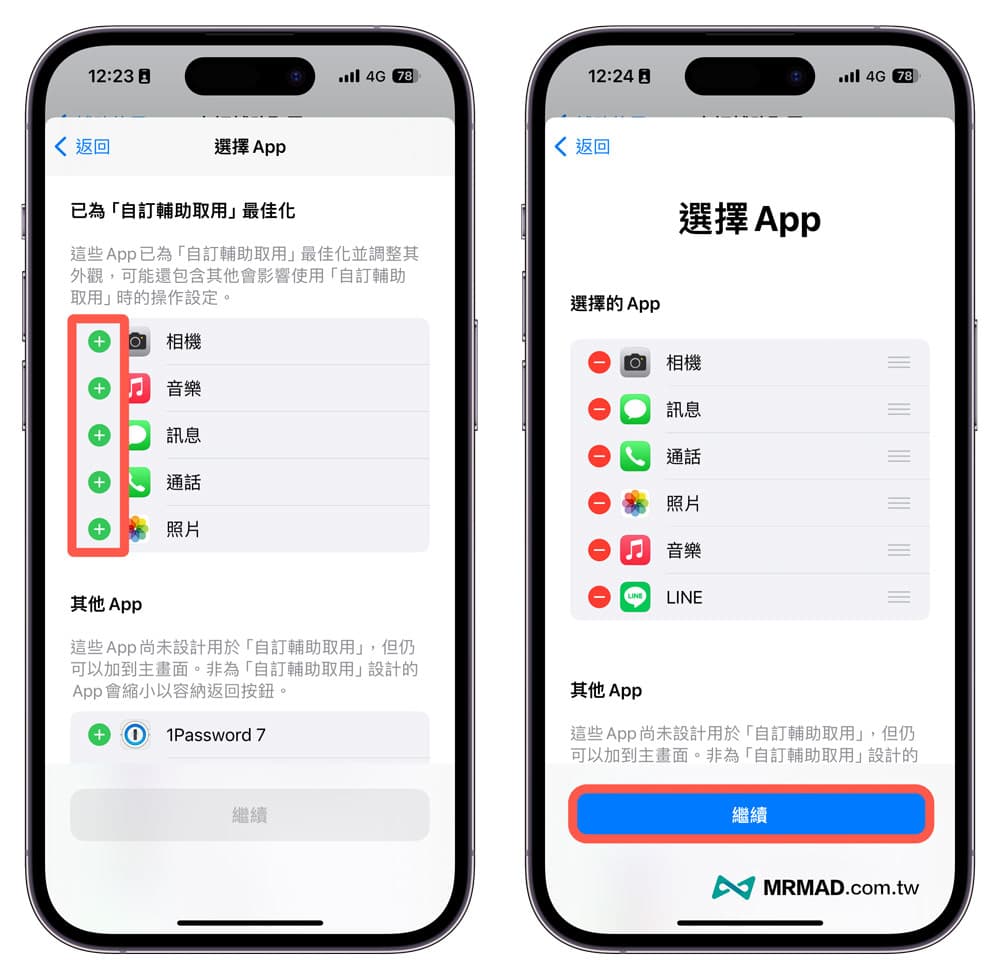
In the setting of the App selection page, you can customize which App icons to appear on the iPhone desktop, just click the “+” on the left to enter the relevant setting screen. At present, only built-in applications can meet the optimized appearance of “custom auxiliary access”, including camera, music, messages, calls and photos. It is also possible to force other apps to be added, and the screen will be automatically adjusted.
Step 4. Customize Appearance Display
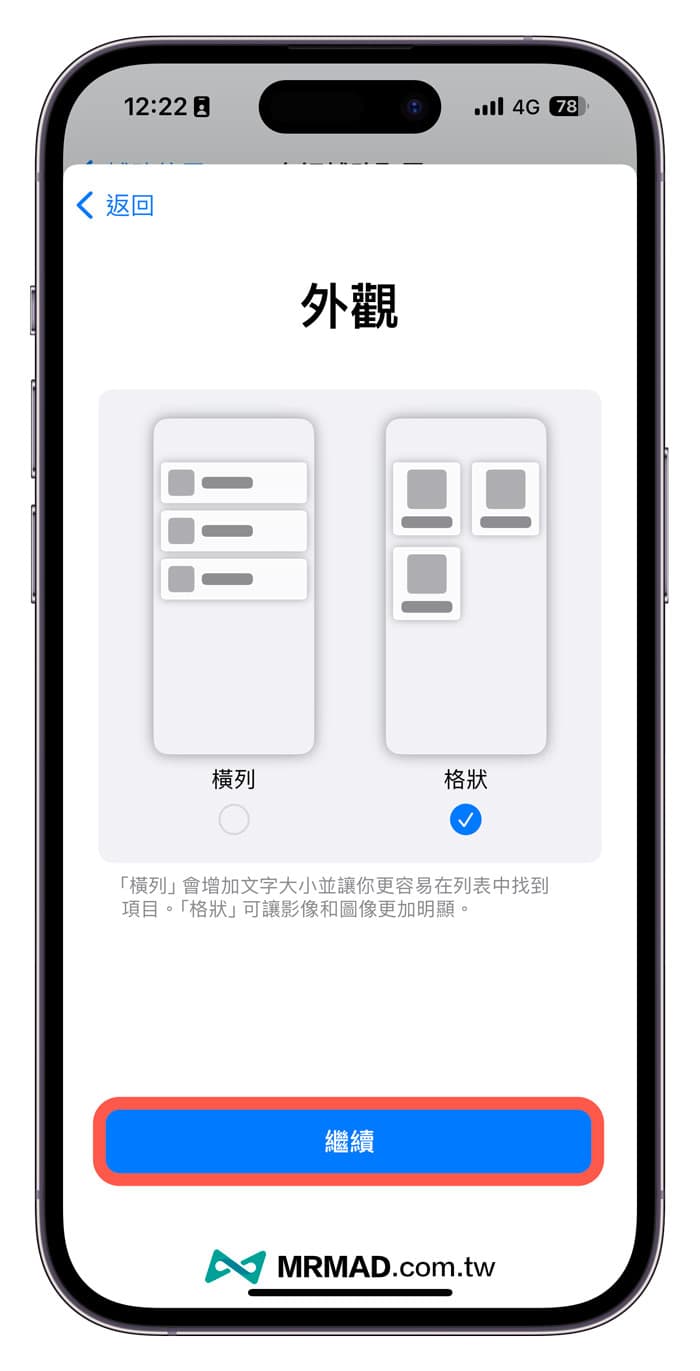
In the elderly mode setting, you can customize the main screen to be displayed in “horizontal column” or “grid”. Usually for elders, it is recommended to use the “grid” button to be larger and clearer.
Step 4. Functional Considerations
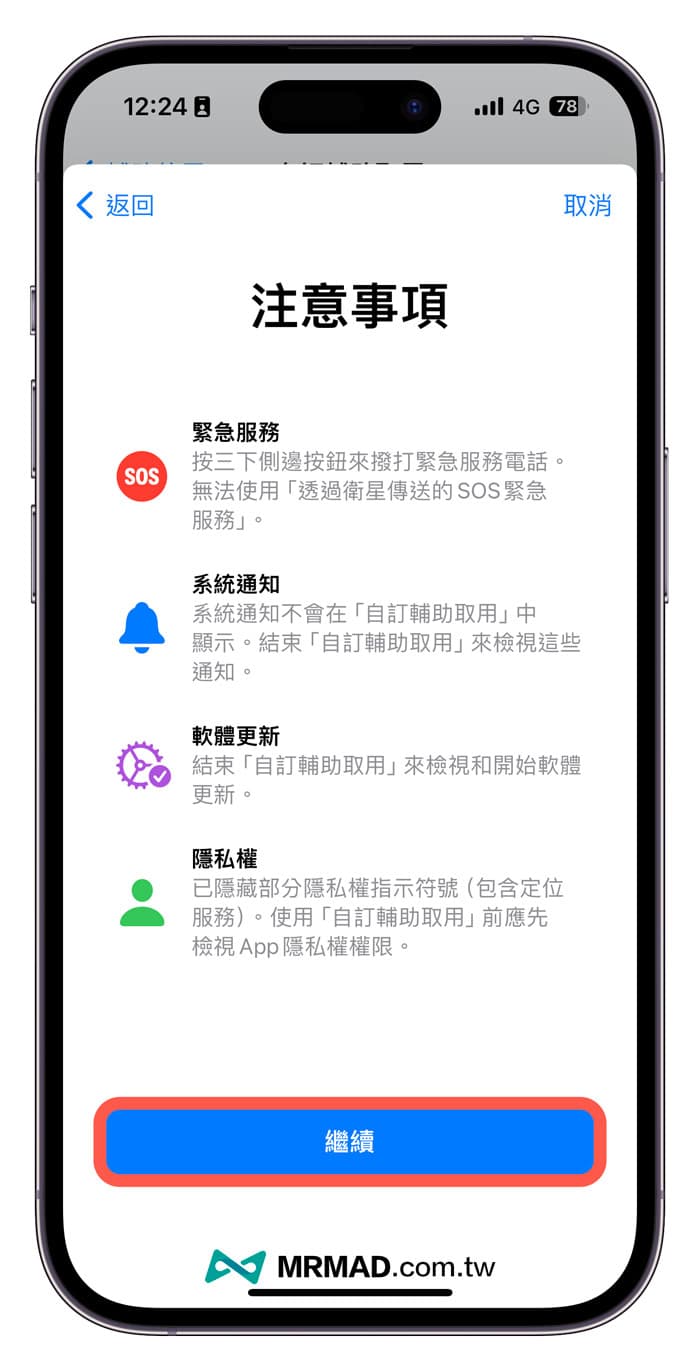
Then you will see the precautions page for the elderly mode, which will mention the functions of “emergency services, system notifications, software updates and privacy”, which cannot be enabled or displayed in the “custom auxiliary use” state.
- Emergency services: can only activate emergency phone services by pressing the side button three times, cannot use satellite to transmit SOS emergency services
- System notifications: “Custom Assistance” will not display system notification number reminders, but will only pop up system notification prompts in the upper right corner of the application.
- Software Update: System software cannot be updated in “Custom Accessibility” mode.
- Privacy: The top status bar will automatically hide some privacy symbols, such as GPS location services.
Step 5. Set a custom auxiliary access password
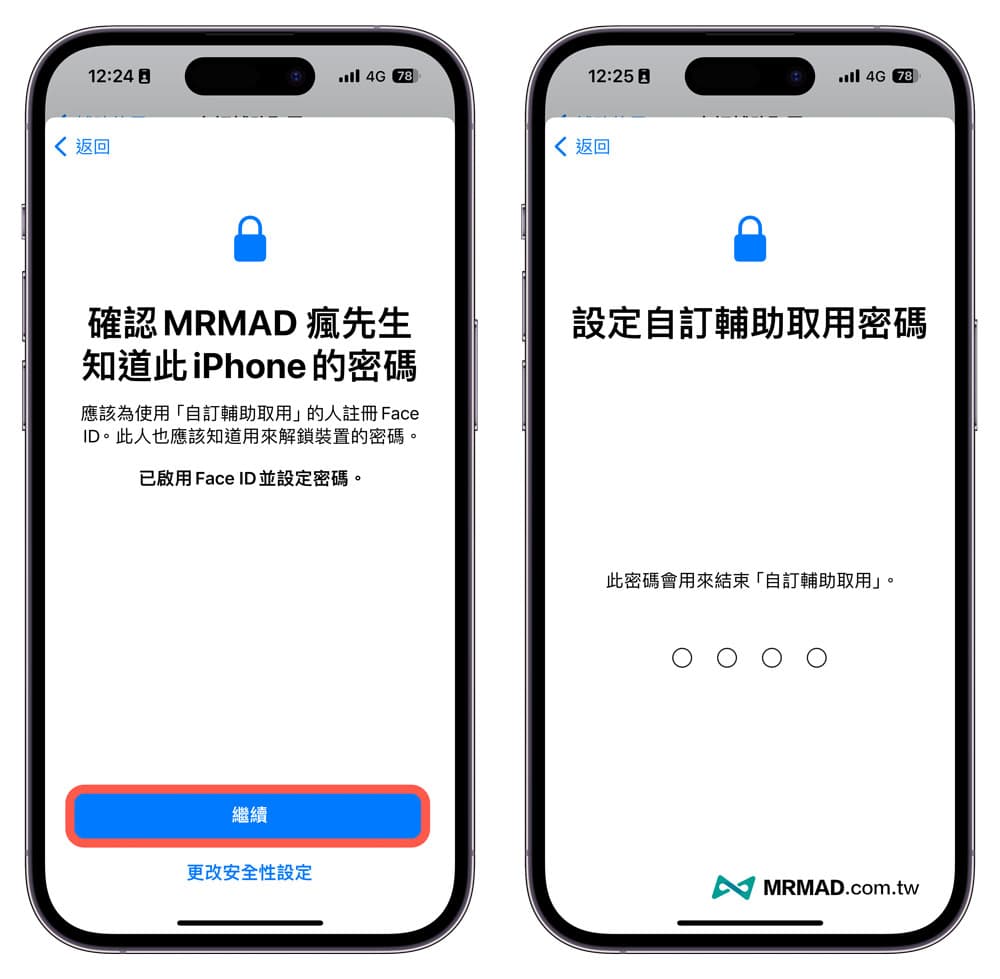
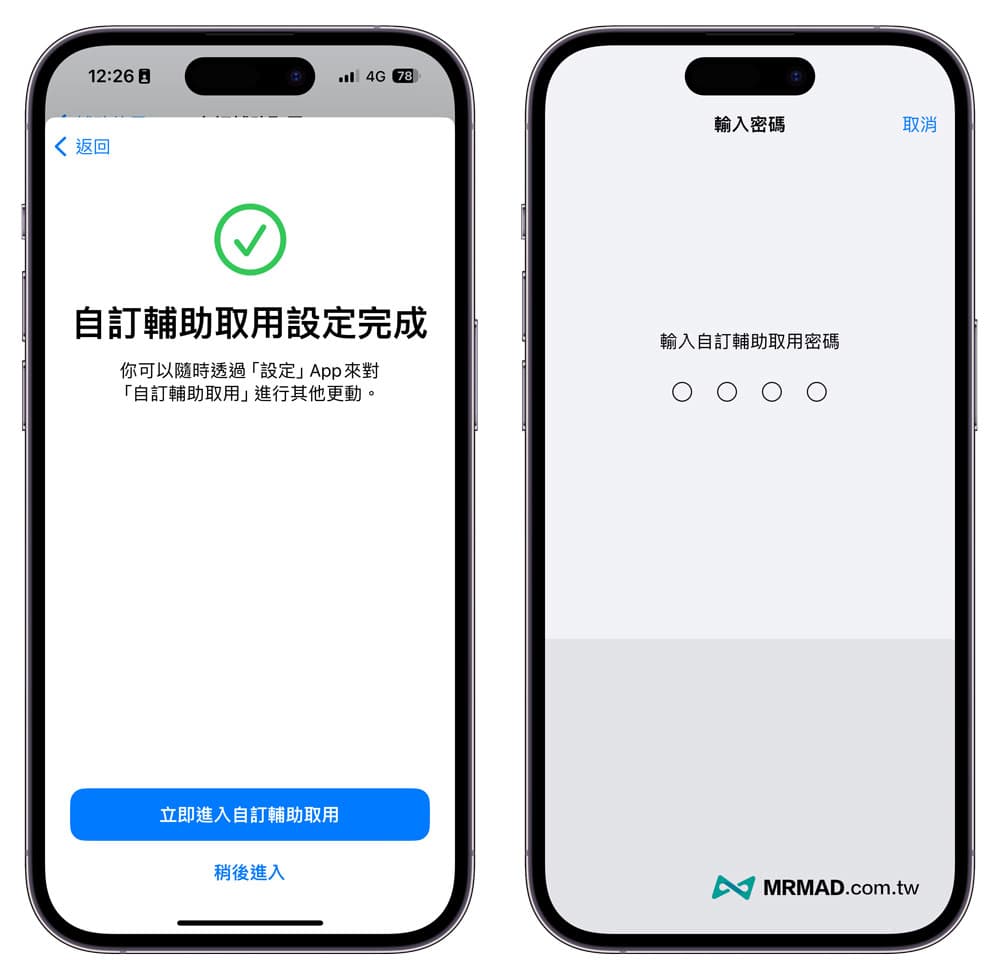
The screen will ask you to enable Face ID facial recognition and set a password first, and also manually enter the password (four digits) to activate the custom subsidy access.
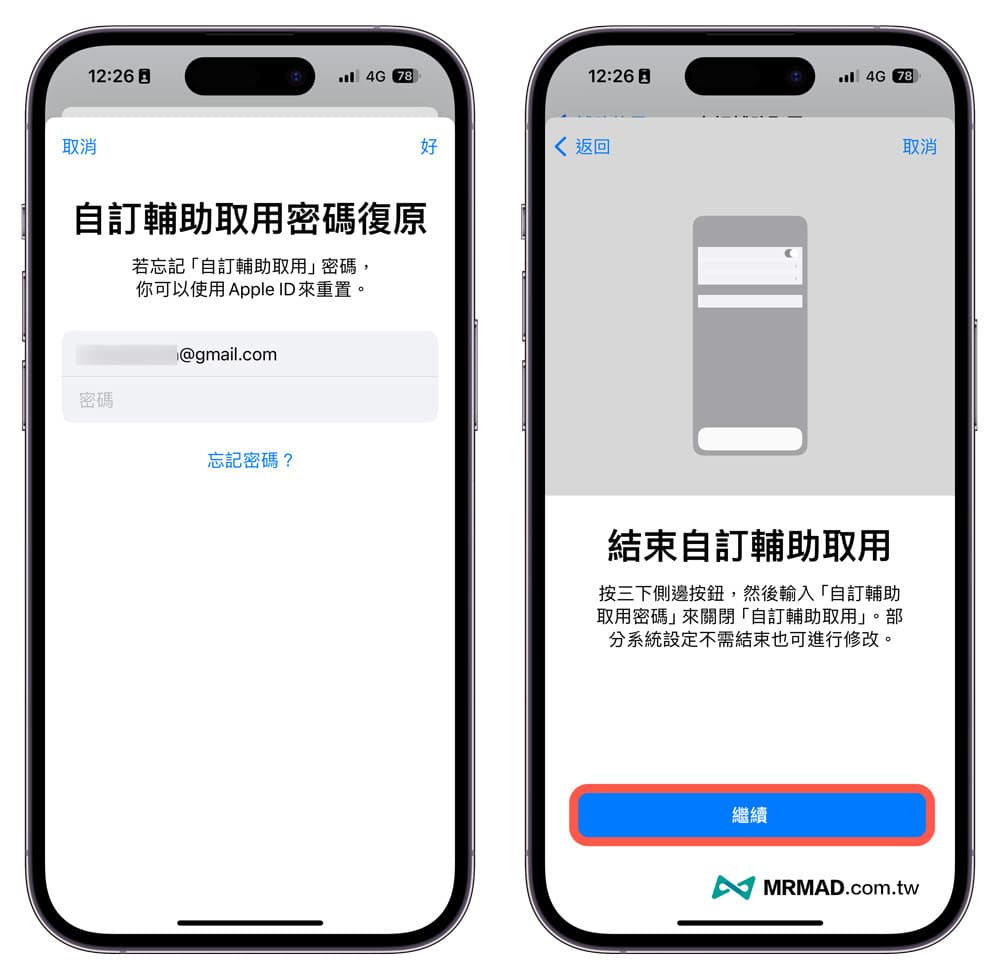
Finally, you need to enter the Apple ID account password to prevent users from forgetting the custom auxiliary access password, and you can also reset the password with the Apple ID. Finally, you will see the custom subsidy access settings.
How to enable Elderly Mode on iPhone?
After completing the custom auxiliary access settings, you can press the power button on the side of the iPhone three times to enter the iOS 17 elderly mode. During the activation process, you will also need to enter a custom password to switch modes.
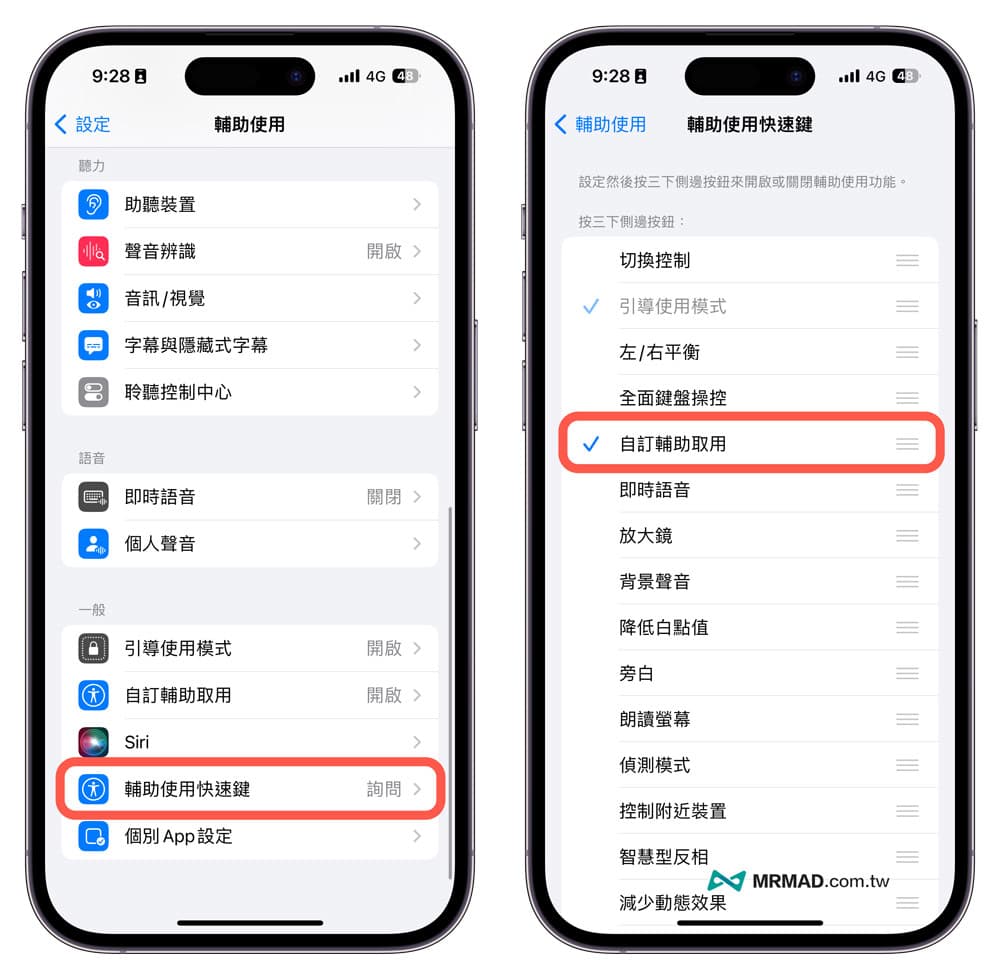
If you find that pressing the iPhone’s power button three times does not activate the elderly mode normally, you can go to “Settings” > “Auxiliary Access”, click “Shortcut Keys for Subsidized Access”, and make sure that only the “Custom Accessible Access” function is checked.
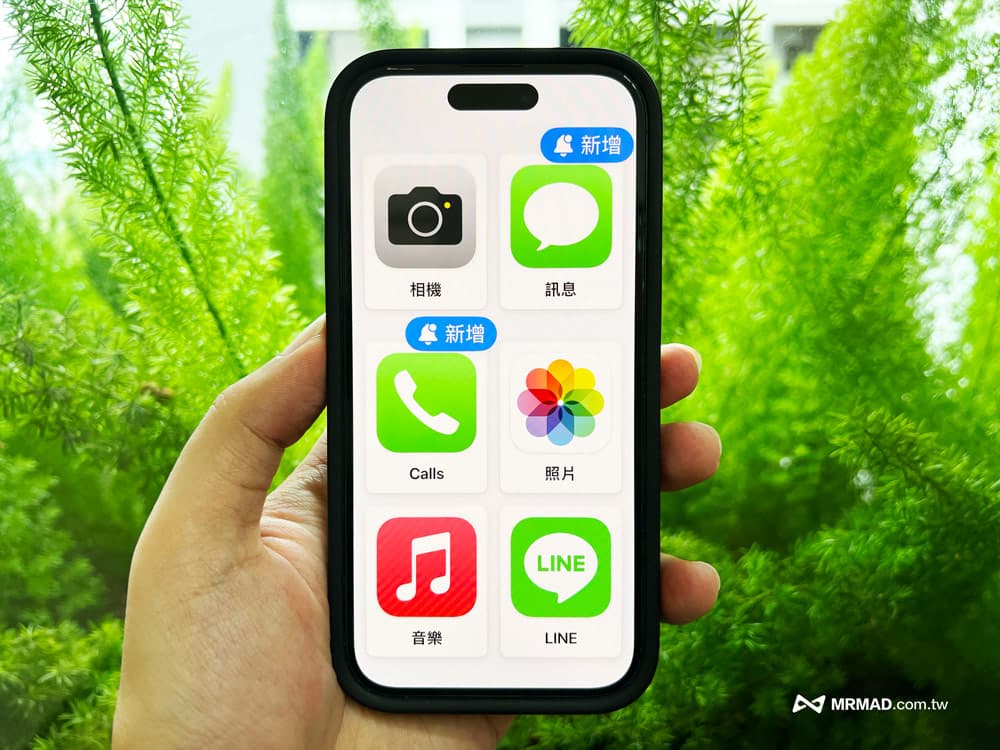
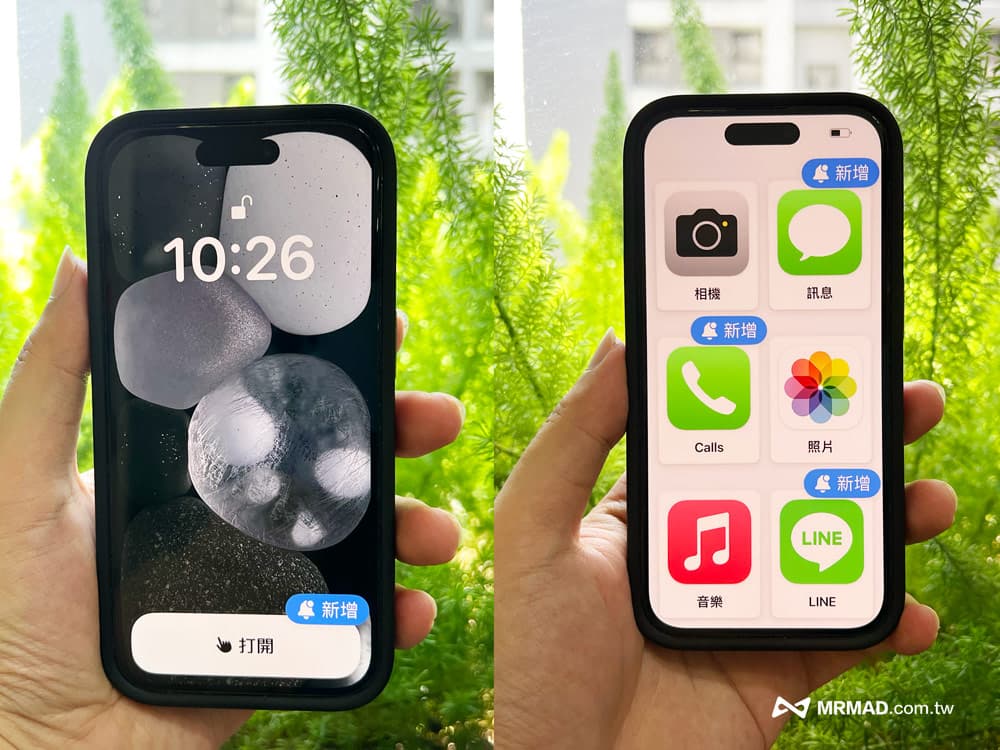
When entering the iOS 17 elderly mode (customized auxiliary access), you will find that the main screen of the iPhone will only display the big button of the newly customized APP application. The mobile network signal and the bottom dock will be automatically hidden.
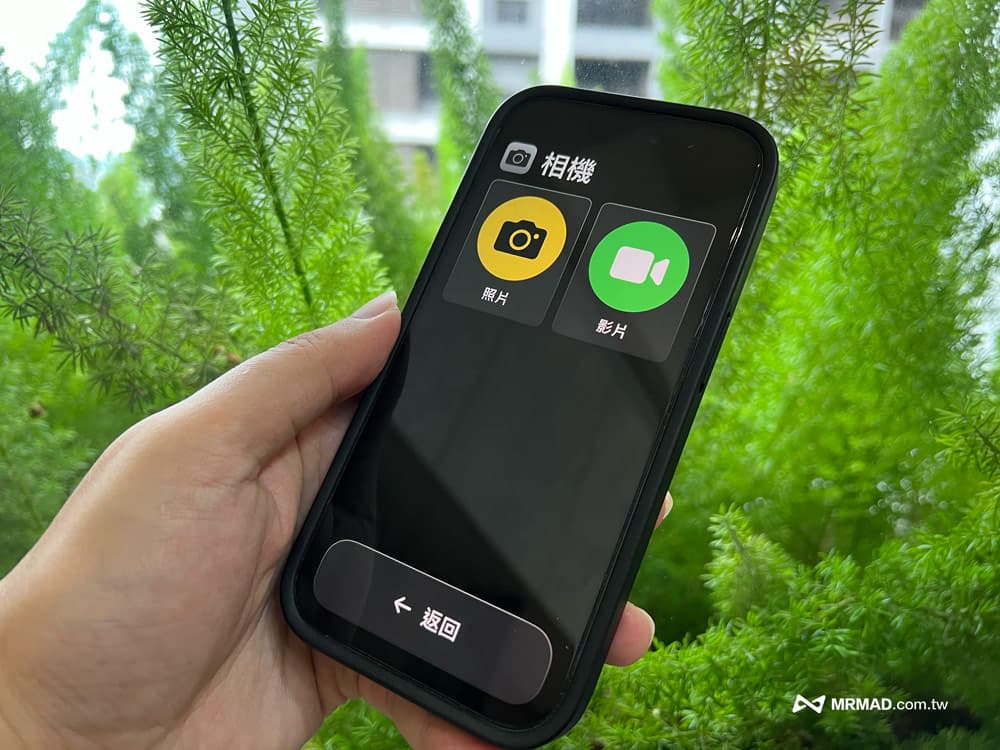
If the camera function is turned on, only two function buttons for taking photos and video recordings will be displayed, mainly to simplify the function settings, and there will be no too complicated operation screens.
If Phone is selected, the Contacts menu will also be displayed according to the customized application settings.
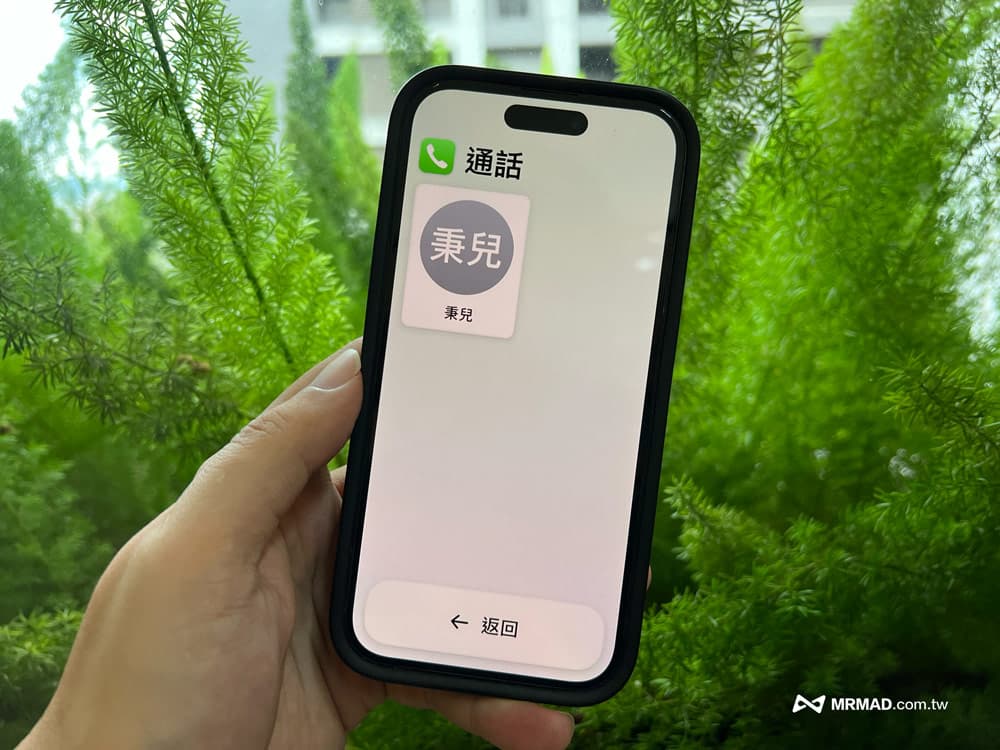
If you open an application that does not meet the optimized appearance of “Custom Assisted Access”, such as the LINE screen, it will return to the screen of the old Touch ID fingerprint recognition model, and the display screen will also be maximized.

How to turn off iPhone Elderly Mode?
If you want to exit or turn off the iPhone elderly mode, just press the power button on the side of the iPhone three times, and you will be prompted to enter the custom auxiliary access password to turn it off.
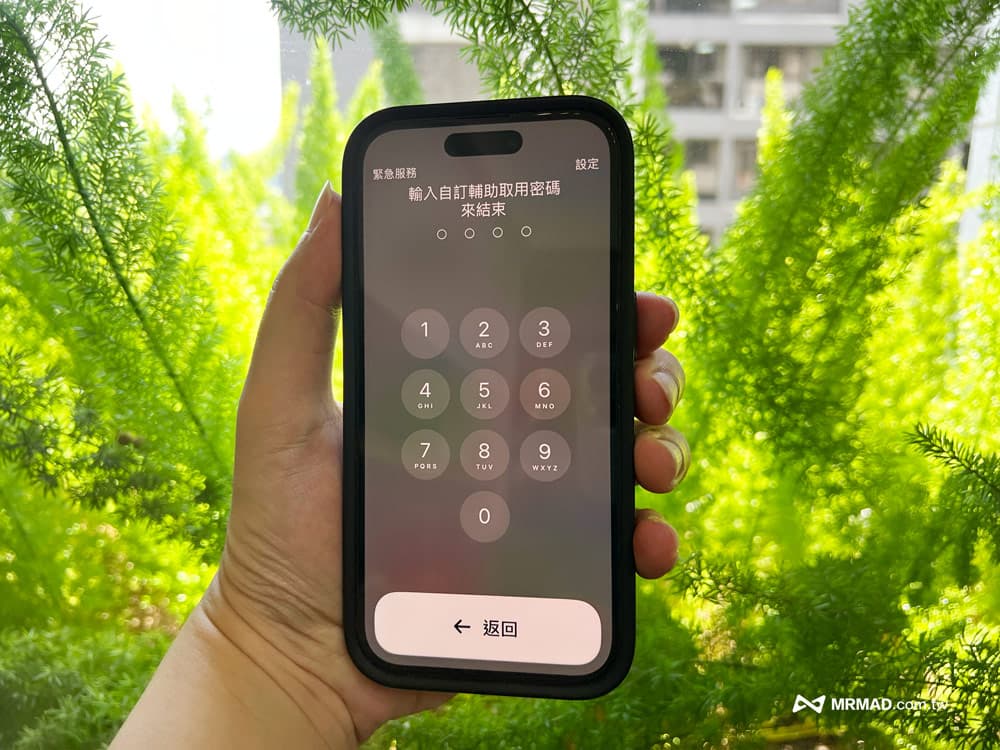
How to set up iPhone elderly mode (customized subsidy access)?
If you want to adjust the iPhone “Elderly Mode” application and related settings later, you can also go to the iOS “Auxiliary Access” setting and click “Custom Assisted Access”. You can adjust it for all applications, or click Add or delete “Management App”.
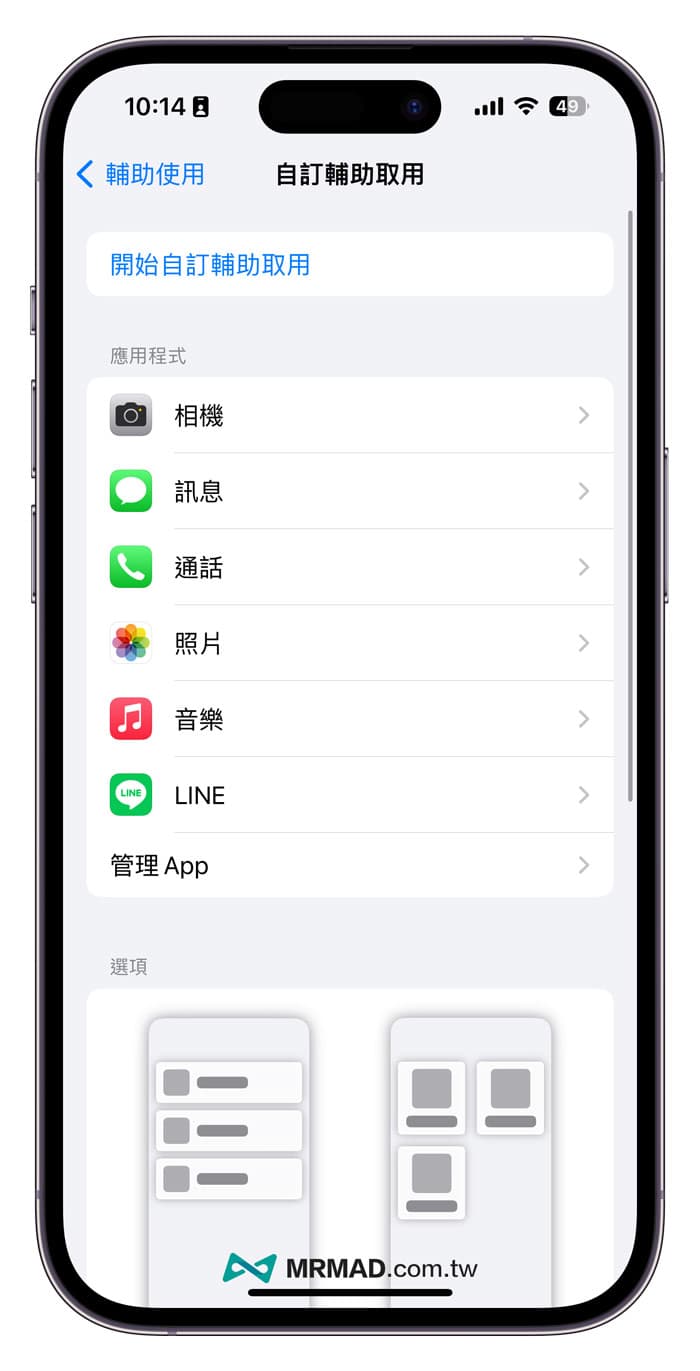
You can also modify the horizontal or grid display of the main screen at will, and you can also customize the background image, volume buttons, lock screen time, battery level, Siri and notification badges, and password settings.
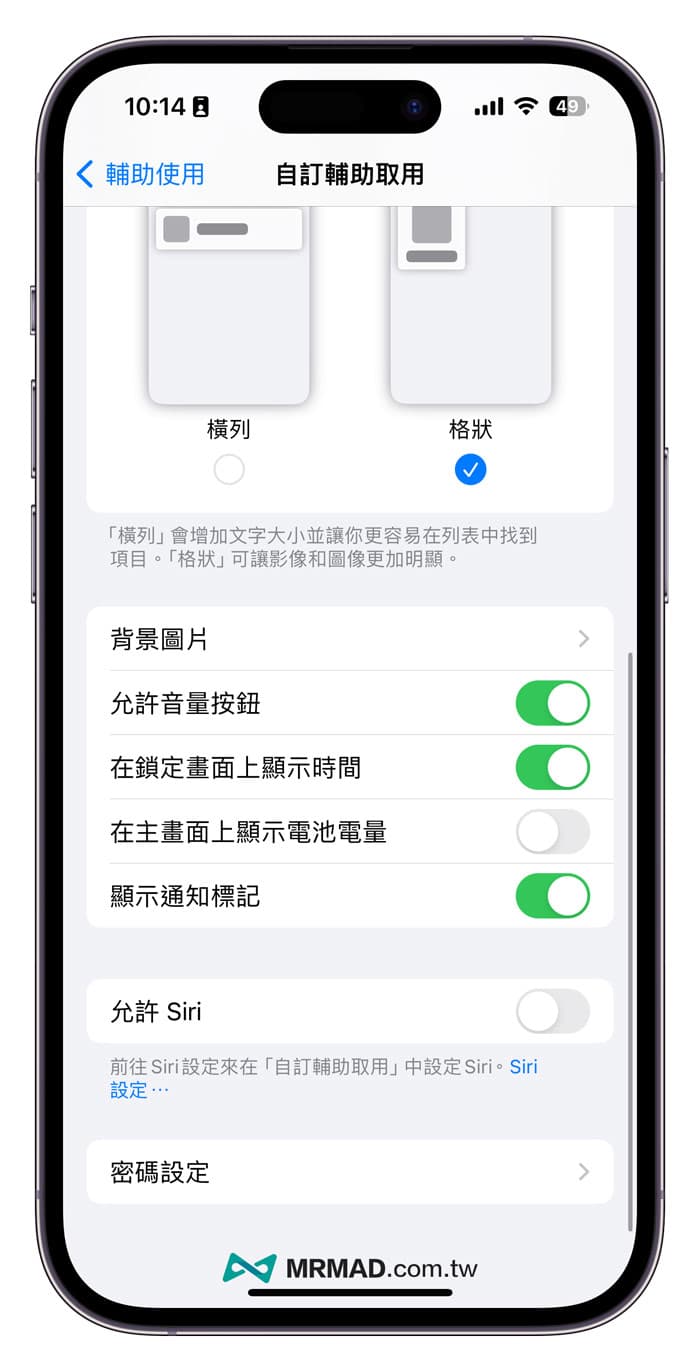
It is recommended to turn on “Display battery power on the main screen” and set the “Background image”, so that the main screen can also display battery information in the elderly mode, but the percentage cannot be displayed; setting the background image can make the background of the unlock screen more comparable It will not be monotonous.
function summary
iOS 17 “Elderly Mode” can make the system enter the simplest mode. If the elders in the family usually only answer calls, take pictures, view photos or use LINE, or find that the screen buttons are too small, you may be able to help them enable “custom assistance” Access” setting, you can let the elders learn to use the iPhone easily and quickly.
If you find that the elders are still not used to the “customized auxiliary access” mode, you can try another article “How to set the iPhone elderly mode?” 20 Special Adjustment Strategies for Recruiting Filial Piety and Elders” can maintain the original exquisite main screen and functions, making it more comfortable and not monotonous for the elders to use.
iOS 17 new features sorting
iOS 17 Tips and Teach