
iOS 27 adds more complete AI editing tools to the iPhone’s built-in photo app. In addition to upgrading the original clearing function, the new version of Apple Intelligence also adds “space reconstruction” for photo AI retouching, which allows you to directly change the camera angle after taking a photo. What exactly is the photo AI reconstruction function in iOS 27? How is it different from ordinary cutting? Mr. Crazy will help you fully reveal the secret in this article!
What is iOS 27 photo reconstruction? How is it different from traditional cutting?
The “spatial reconstruction” AI retouching in iOS 27 photos is different from traditional cropping. Cropping can only reduce the scope of the photo. Spatial reconstruction will analyze the subject, depth of field and spatial relationship in the photo, and then simulate viewing the same scene from different positions.
Through spatial reconstruction, you can touch and drag on the screen to change the angle of the photo presentation. For example, when the subject of a portrait happens to overlap with the building behind, you can slightly move the viewing position; when taking architectural or travel photos, you can also re-adjust the relative position of the subject and the background.
If when taking a photo, the person in front of you happens to be blocking Taipei 101 behind you, use iOS 27 Space Reconstruction to swipe to the left, and the subject and background in the photo will be staggered like 3D, directly helping you to reveal the blocked 101!
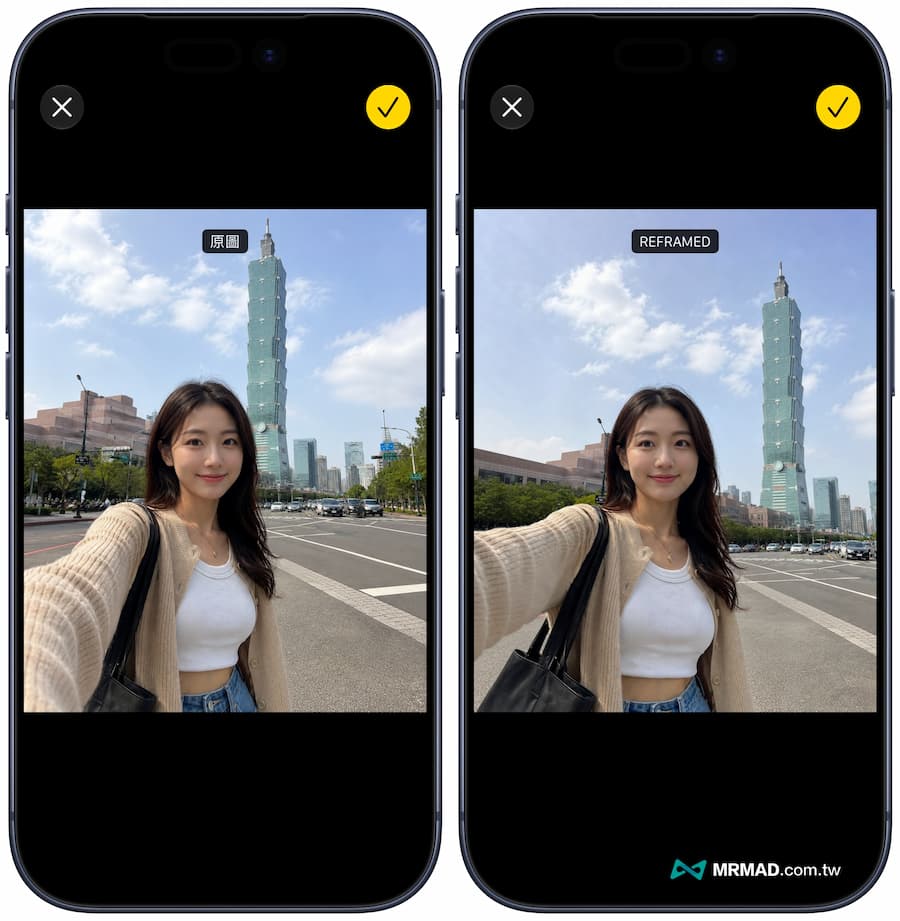 The picture on the left is the photo before correction, and the picture on the right is the correction effect of the reconstructed photo in iOS 27
When the perspective is changed, areas without image data may appear at the edge of the original photo, and Apple Intelligence will generate the content that needs to be supplemented. Apple also said that spatial reconstruction is based on the spatial model technology accumulated by Apple Vision Pro.
How to use the iOS 27 space reconstruction function to adjust the photo angle?
This feature is now available in iOS 27. As long as your iPhone supports Apple Intelligence, you can experience it directly. Follow the steps below:
⚠️ The current function is still in the iOS 27 Beta testing stage. After the official version is launched in the future, the menu name or position may be slightly adjusted.
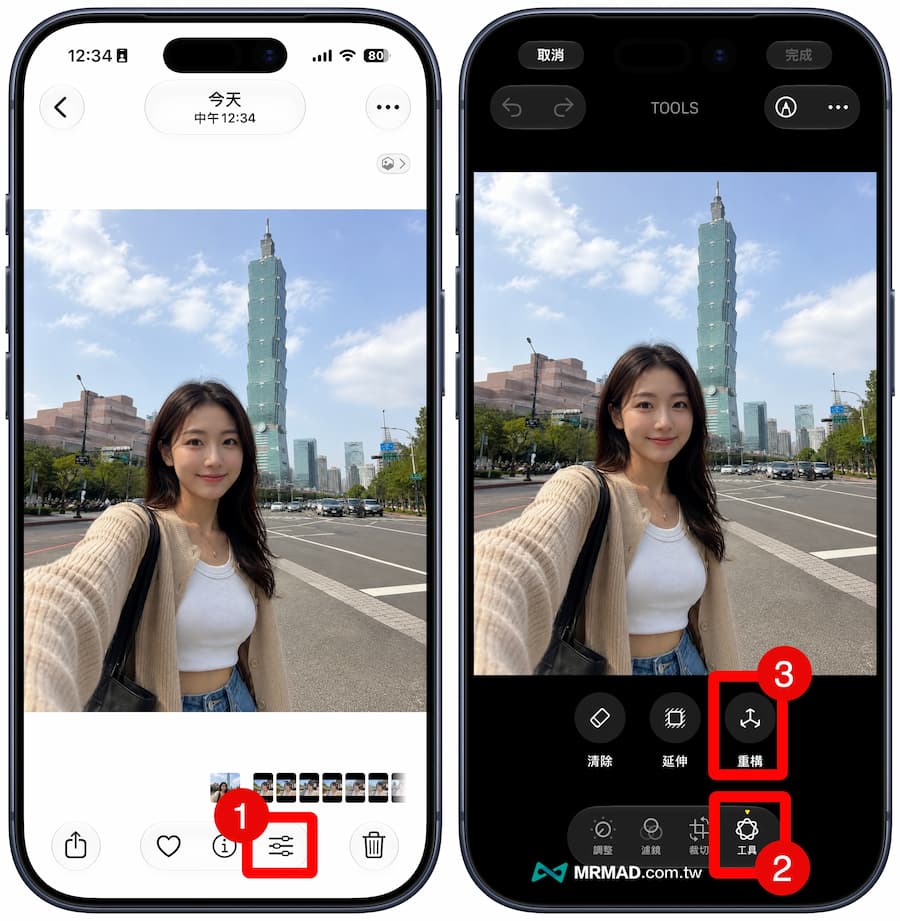
- Step 1: Open the iPhone’s built-in “Photos” app and find the photo you want to save or adjust the composition.
- Step 2: Click “Edit” (three lines adjustment icon) at the bottom of the screen.
- Step 3: Switch to the “Tools” menu on the far right.
- Step 4: Click the “Spatial Reconstruction” button.
- Step 5: At this time, the screen will slightly enter the state of preparation for analysis. This is normal because Apple Intelligence is using the iPhone’s NPU chip to perform calculations and analyze the 3D spatial structure of the photo.

- Step 6: Next, use two fingers to drag left and right on the photo, zoom or pan, and you will find that the background and characters in the photo start to come alive and produce a three-dimensional perspective rotation. Just adjust it to the perfect angle you are satisfied with, and finally press “Reconstruct”.
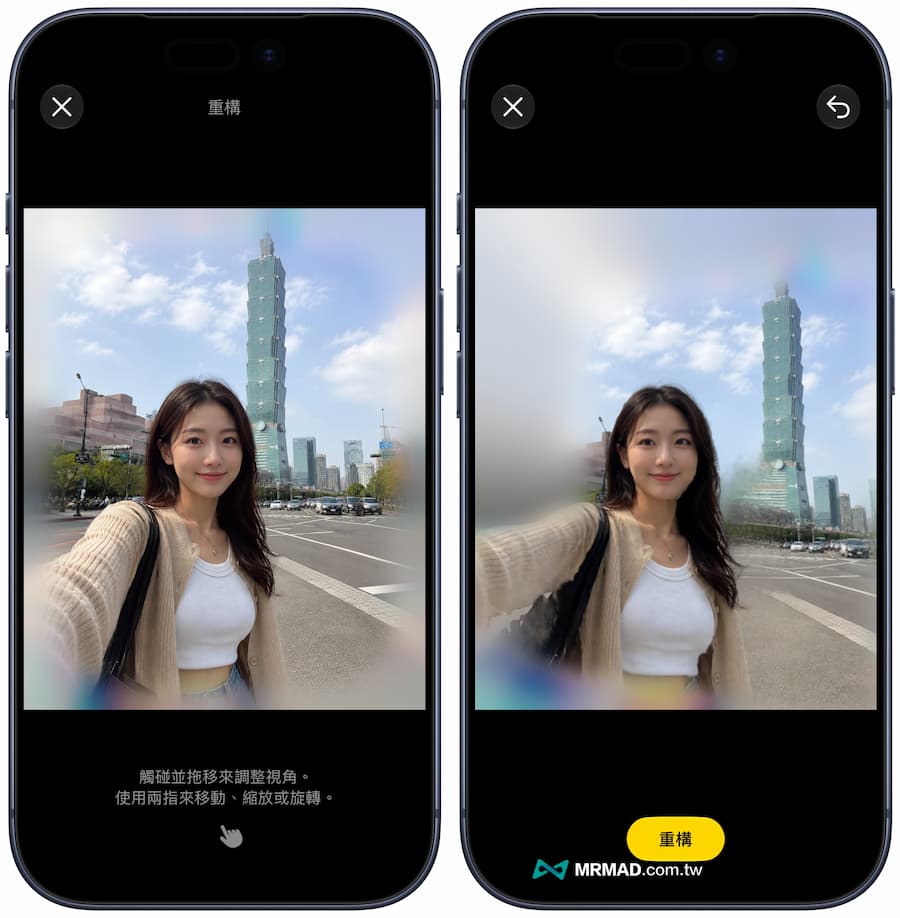
- Step 7: Finally, you will see that AI uses spatial reconstruction to regenerate the photo. You can observe the details of the edges that are automatically filled in by AI. It will usually be filled in automatically. Click “Save” and you’re done!

Will the photo space reconstruction in iOS 27 be overturned? Be sure to avoid these 4 types of photos!
Although this new AI photography function is too cool to have friends, Mr. Crazy would like to remind everyone after the actual test that it is mainly positioned to fine-tune and improve composition, and does not really take you through time and space to go back in time and take photos again.
Because the edges and blocked images are calculated by AI, if the photo contains the following four major landmine elements, the AI calculation will be very easy to overturn, resulting in distortion of the image or abnormal limbs:
- Complex character limbs: For example, in photos of intertwined hands and feet during dancing or sports, AI can easily compensate for the deformation of an extra hand or fingers.
- Modern buildings with dense and complex lines: lattice windows and dense iron rolling doors, the lines are easily skewed when AI supplements the drawing.
- A large amount of text and signboards: AI is currently not perfect enough to generate traditional Chinese or specific signboard fonts, and it is easy to deform like ghost characters.
- Large areas of obstruction: If you take photos through thin branches or nets, the AI will go crazy.
Therefore, it is recommended that after using Space Reconstruction, you must zoom in to check the edge details and make sure there is no sense of violation as a technological mirage before sharing!
If you want to know more Apple information, iPhone teaching and 3C information skills, please follow us
Crazy Mr. FB fan group,
Subscribe to Mr. Crazy Google News,
Telegram,
Instagramas well as
Subscribe to Mr. Crazy YouTube.