Lack of storage space on iPhone is a nightmare for many people, especially when you check and find that Apple Music has silently taken up hundreds of GB of space! In fact, you can use Apple Music’s storage space optimization function and five techniques to prevent your iPhone’s space from being filled up with music.
Why does Apple Music take up iPhone storage space?
Before starting to learn about Apple Music’s optimization of storage space, you must first understand why the space is eaten up. There are three main reasons:
- Lossless Audio file is too large: The capacity of a high-resolution lossless song may be more than 10 times that of normal audio quality.
- Automatic download function: The system may be smart enough to download all the songs you add to the database for you.
- Streaming cache (Cache): Even if you only listen (stream) online, the system will leave temporary files on your phone to make your next listening experience smoother. This is why the “files and data” will become fatter and fatter.
To put it simply, Apple Music users have always been able to download songs, playlists and albums to iPhone or iPad for offline listening. However, in the long run, these files may quietly occupy a large amount of storage space and affect device performance.

What is the optimal storage space for Apple Music?
In order to solve the problem that Apple Music takes up too much storage space on the iPhone, Apple has also launched the “Apple Music Optimize Storage Space” function on the iOS version to help users automatically clear unplayed downloaded music to free up space for new content when storage space is insufficient.
This Apple Music storage space optimization feature is integrated into the iOS “Music” app. Users can set the minimum storage space threshold for retaining music according to their needs. Once the upper limit is reached, the system will automatically begin to remove unused music files, and the entire process does not require manual intervention.

How to turn on Apple Music’s storage space optimization mechanism
However, please note that the Apple Music storage space optimization function is turned off by default and needs to be manually configured to enable it. Otherwise, it will continue to occupy unlimited space. The method to enable Apple Music storage space optimization is as follows:
Step 1: Open music settings
First open the iPhone’s built-in “Settings”, scroll down and select “App”, and search directly to find “Music”.
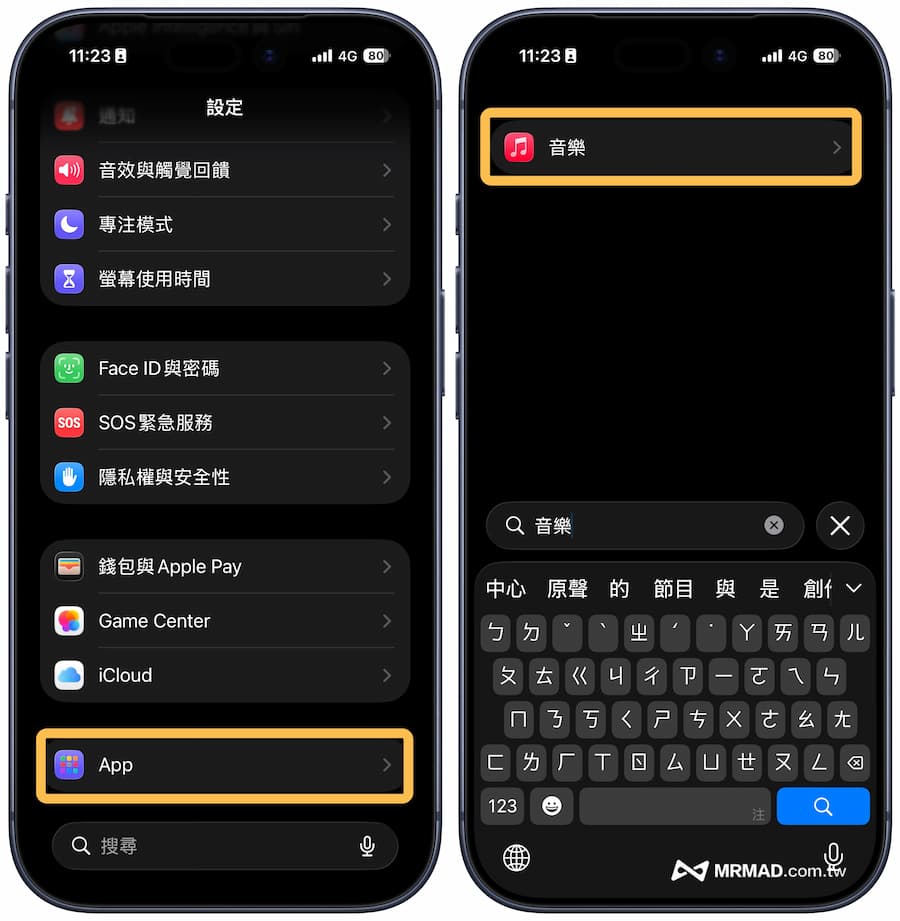
Step 2: Set up optimal storage space
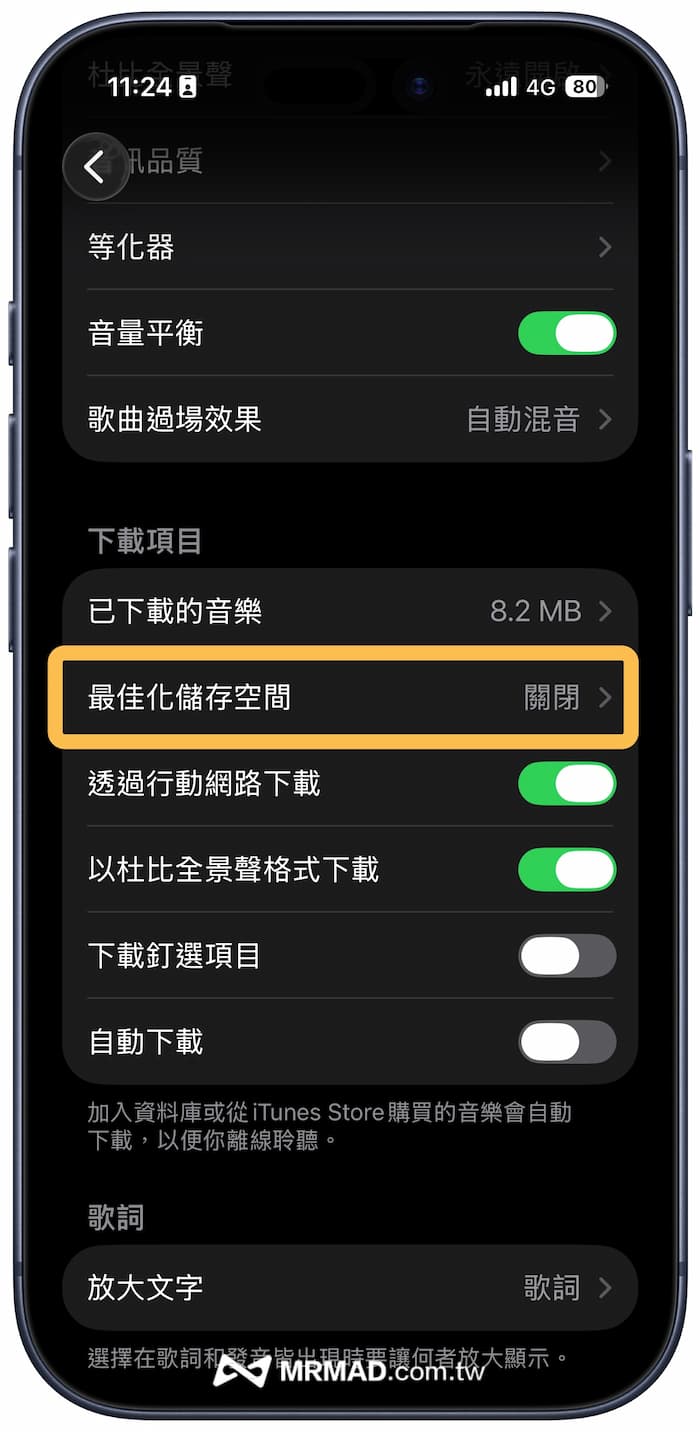
From the downloaded items section, find “Optimize Storage”.
Step 3: Customize Music Storage Limits
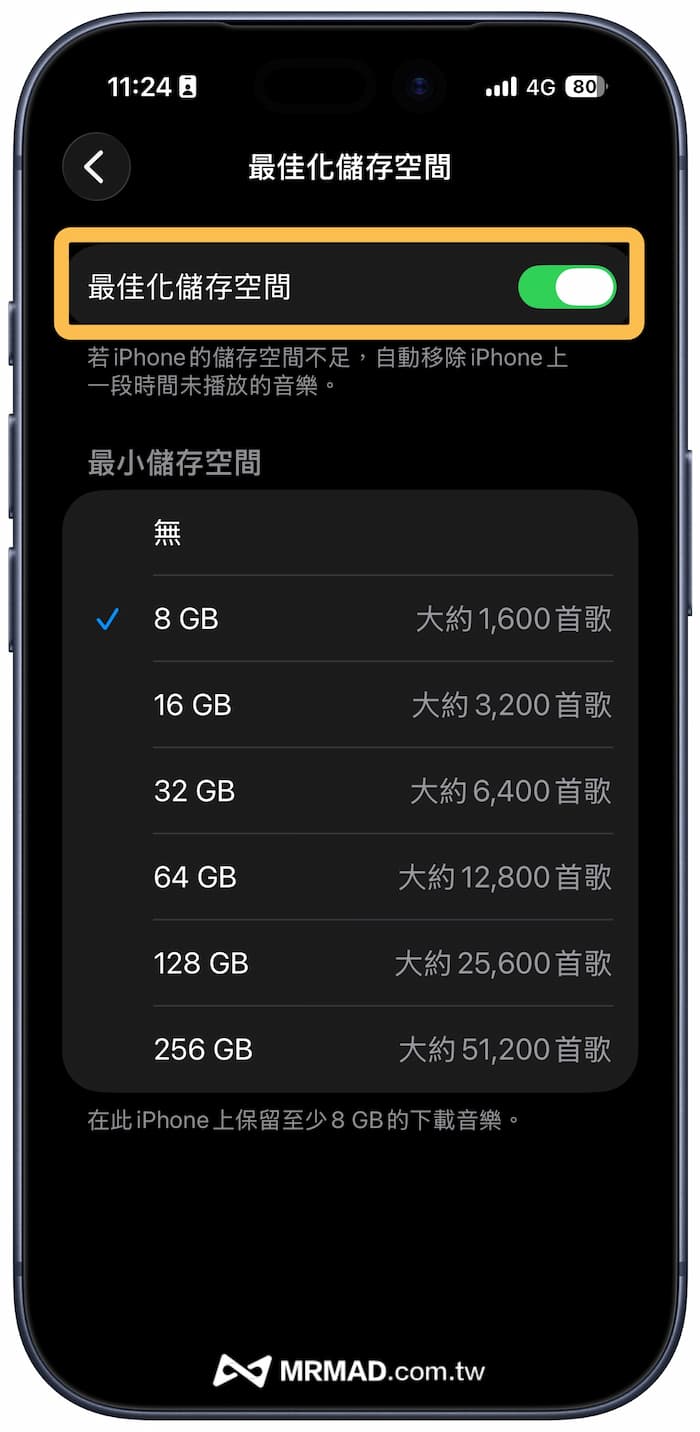
First turn on the “Optimize Storage Space” switch, and the “Minimum Storage Space” option will appear below (such as 4GB, 8GB, 16GB…). The number here does not mean to limit the maximum amount of Apple Music, but “the capacity that is guaranteed not to be deleted.”
If the iPhone storage space is only 128GB, it is recommended to choose 4GB or 8GB (which can store about 800-1600 songs). The smaller the storage space, the more actively the system will automatically delete songs to free up more space when there is insufficient space.
Release more ways to temporarily store music on Apple Music
Tip 1: Turn off lossless sound quality
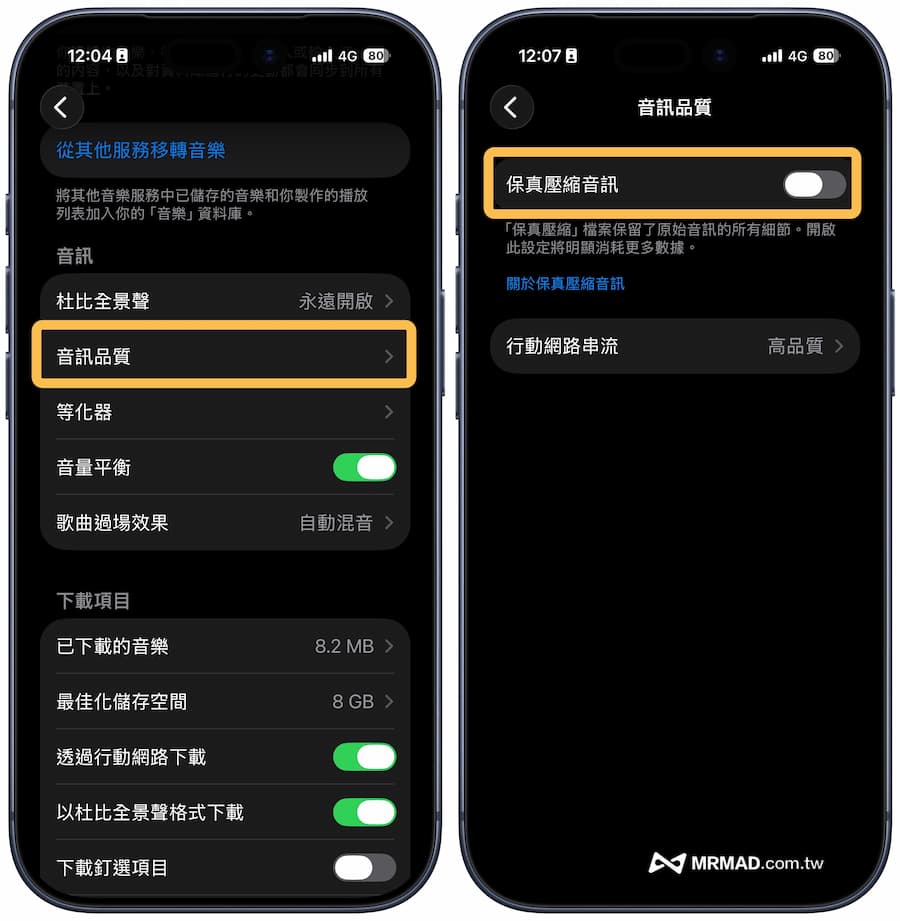
Many audiophiles turn on Apple Music high-resolution fidelity compression in pursuit of sound quality. However, if you use AirPods Pro / AirPods or ordinary Bluetooth headphones to listen to songs, you can’t actually hear the difference in lossless sound quality. This is mainly due to the limitation of Bluetooth transmission. Turning it on is just a waste of space. You can set it according to the following method:
From iPhone “Settings” > “Music” > “Audio Quality”, turn off “Fidelity Compressed Audio”.
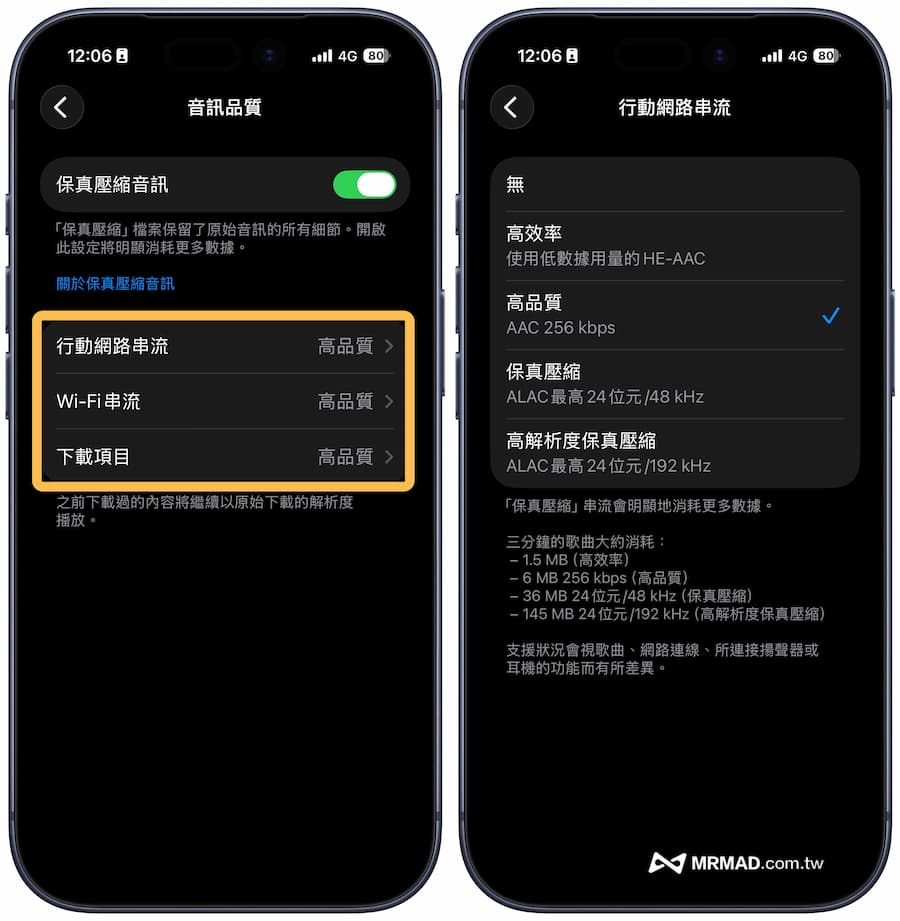
Or go inside and change “Mobile Network Streaming” and “Download Items” to “High Efficiency (HE-AAC)” or “High Quality (AAC 256kbps)”.
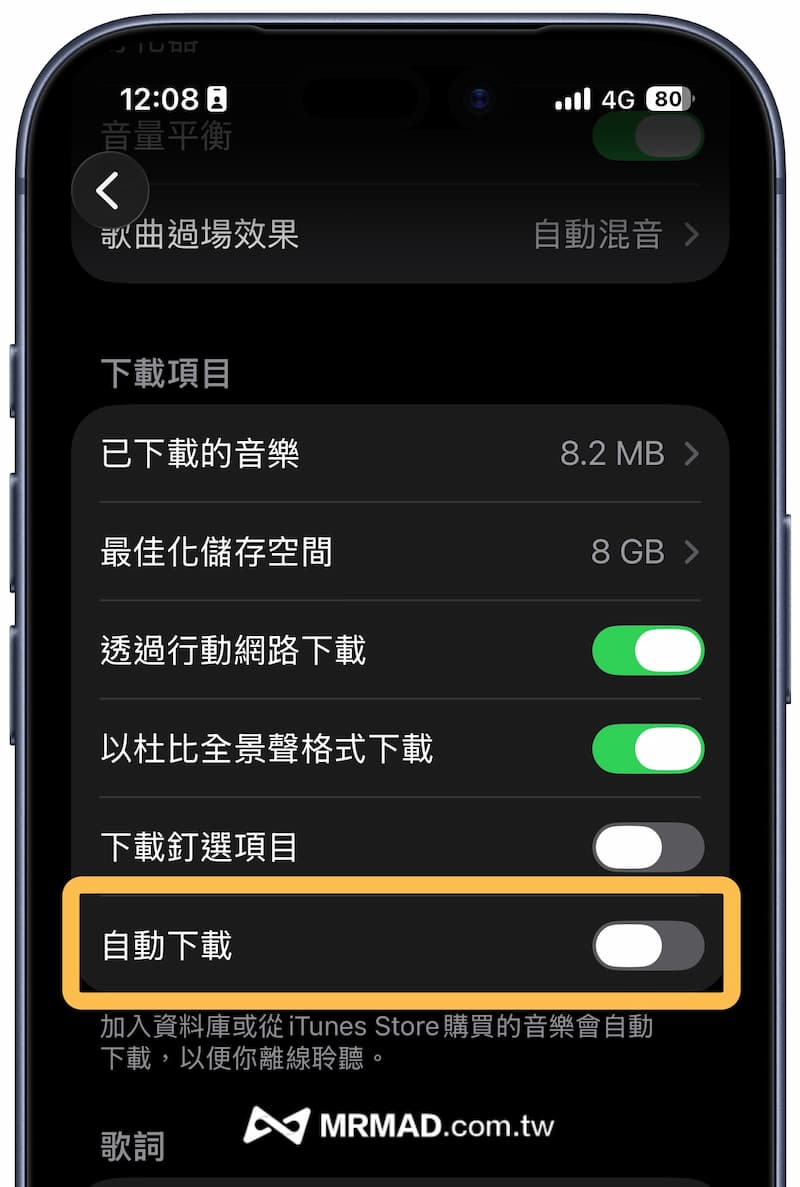
Tip 2: Disable automatic download of Apple Music albums
Apple Music goes back to the previous level and checks whether “Auto Download” is turned on. It is highly recommended to turn it off and only manually download the albums you really want to listen to offline to avoid adding it to the database by clicking on it and taking up space.
Force clearing Apple Music cache to free up more iPhone storage space
If after completing the above tips, you check the iPhone storage space and find that Apple Music’s “Files and Data” still takes up several gigabytes, then the “Cache” is stuck! Since iOS does not provide a button to clear the cache of Apple Music, Mr. Crazy teaches you a way to reset it without deleting the app.
- Go to iPhone’s built-in “Settings” > “App” > “Music”.
- Find “Sync Database” and “Close” it.
- Wait for about 1 minute or restart the iPhone (it is recommended to restart the iPhone for best results).
- Come back here and reopen “Sync Database”.
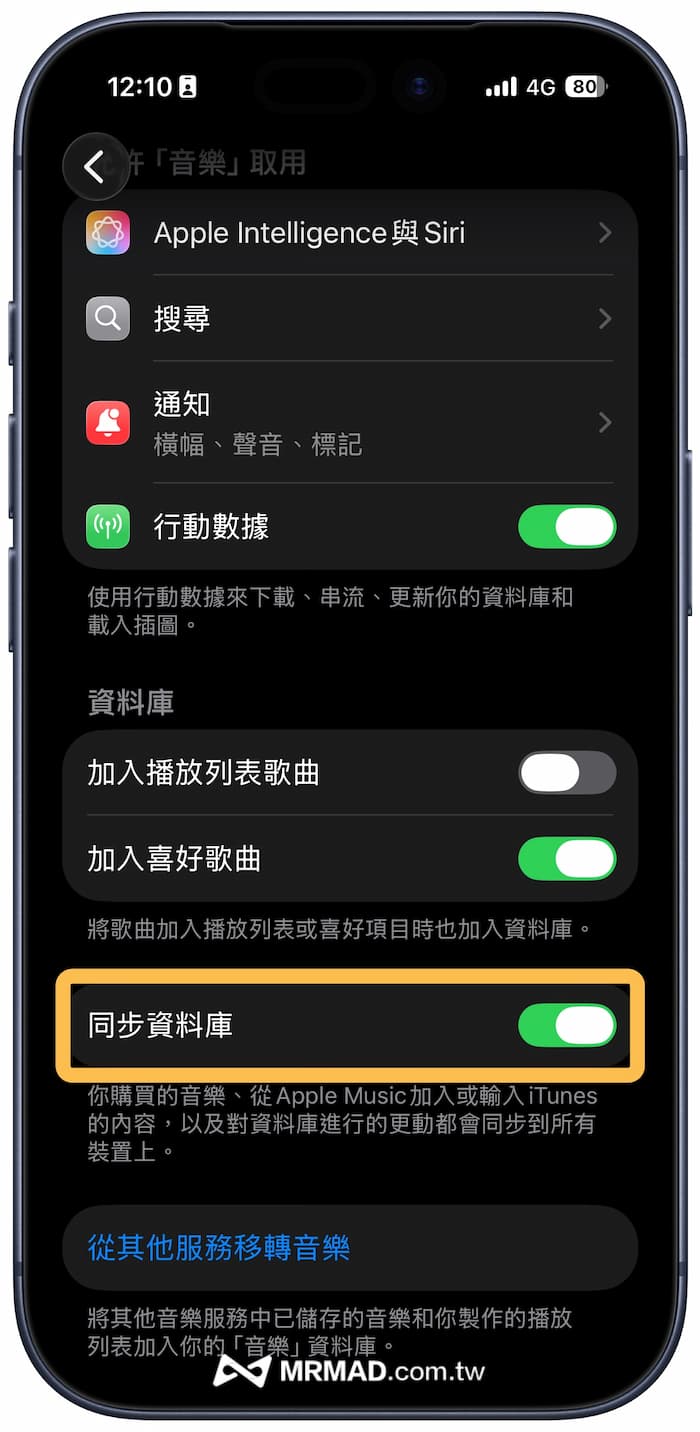
This action will force iOS to recheck the database with Apple servers, and in the process, old album covers and temporary files will be “flushed”. You will find that the space occupied by Apple Music is instantly released!
If you want to know more Apple information, iPhone teaching and 3C information skills, please follow us
Crazy Mr. FB fan group,
Subscribe to Mr. Crazy Google News,
Telegram,
Instagramas well as
Subscribe to Mr. Crazy YouTube.