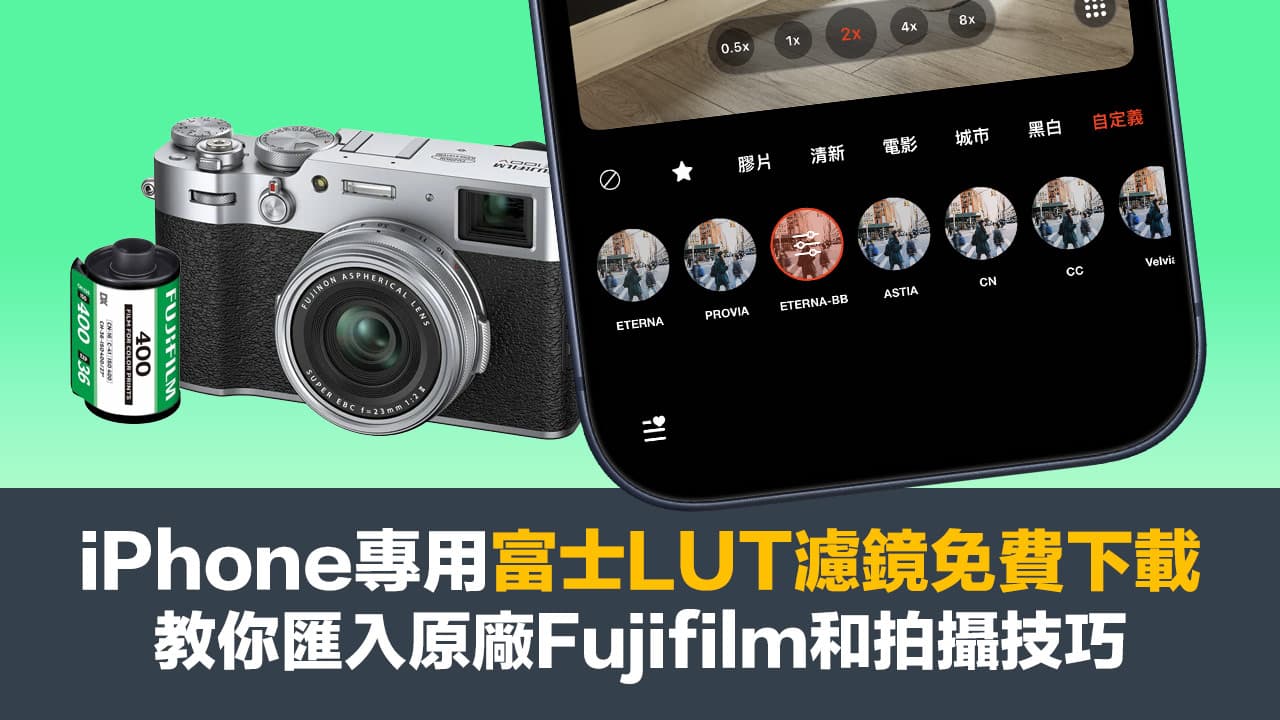
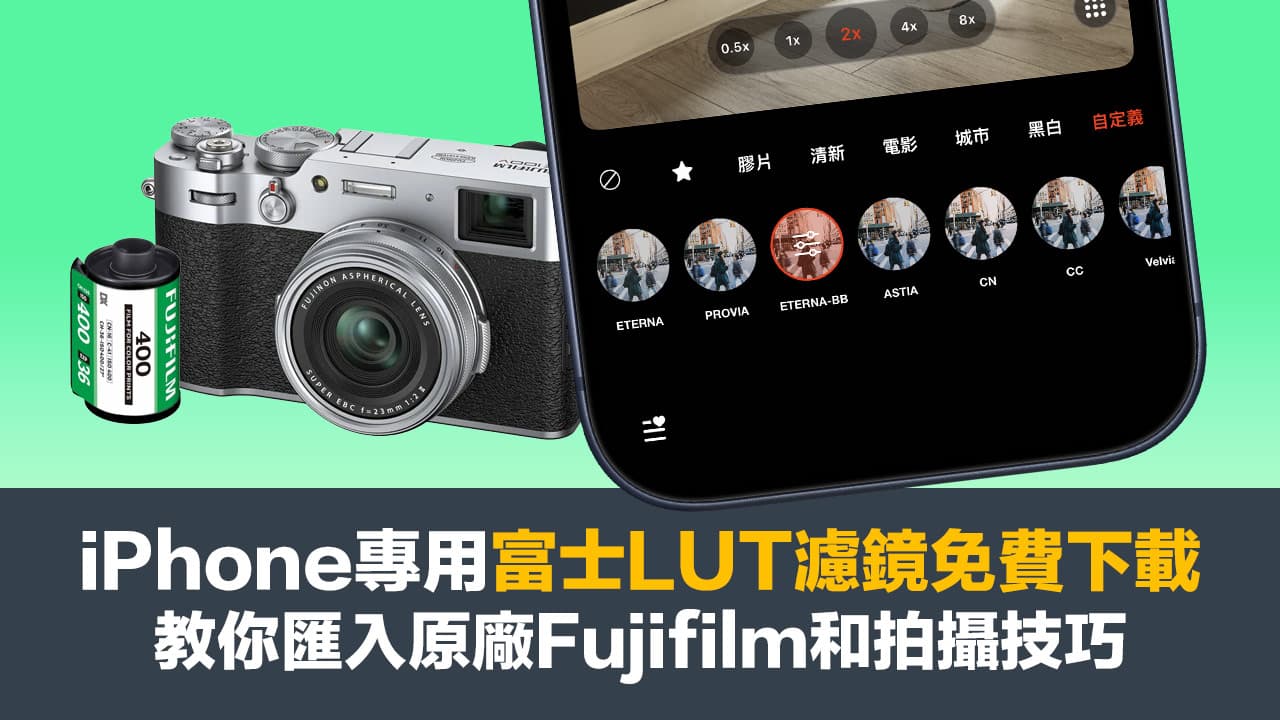
Fujifilm has officially opened its own film-style LUTs for free download. No matter photography novices or mobile phone shooting users, they can easily import classic Fuji filter tones into iPhone photos or videos to create an image quality comparable to that of Fujifilm cameras. The following is a tutorial on how to import the original Fuji LUT into the iPhone camera, so that you can also use the original Fuji filter style, whether you are taking pictures or recording videos with your iPhone.
What are LUTs and Fuji filter styles?
LUT (Look-Up Table) is a color correction tool that remaps image color data into specific hues. The Fujifilm LUT launched by Fujifilm mainly simulates its well-known film series, such as Velvia, ASTIA, Classic Chrome, ETERNA, etc., allowing works shot with digital cameras and even mobile phones to present a style full of Fujifilm films.
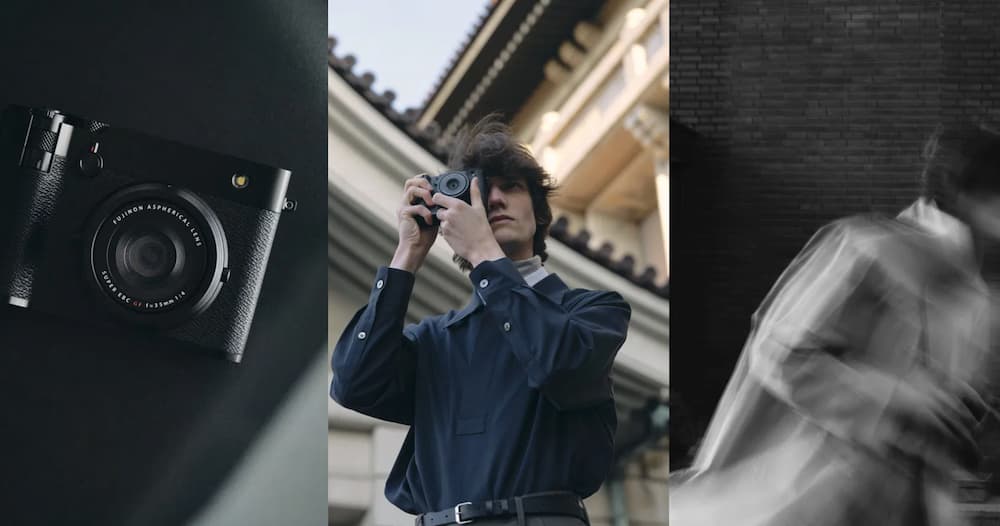 Picture source fromfujifilm official
How to download Fujifilm LUT for iPhone for free
Fujifilm currently releases a variety of classic film LUTs (.cube format) for free on its official website. The open resources are quite complete and cover many of Fujifilm’s popular camera series:
- Movie camera: GFX ETERNA 55 (a top-notch movie camera worth about 120,000 yuan)
- Medium format series: GFX100 series
- X series cameras: XH series, XT series, XS series, XE series
- Popular models: X100VI and other classic models
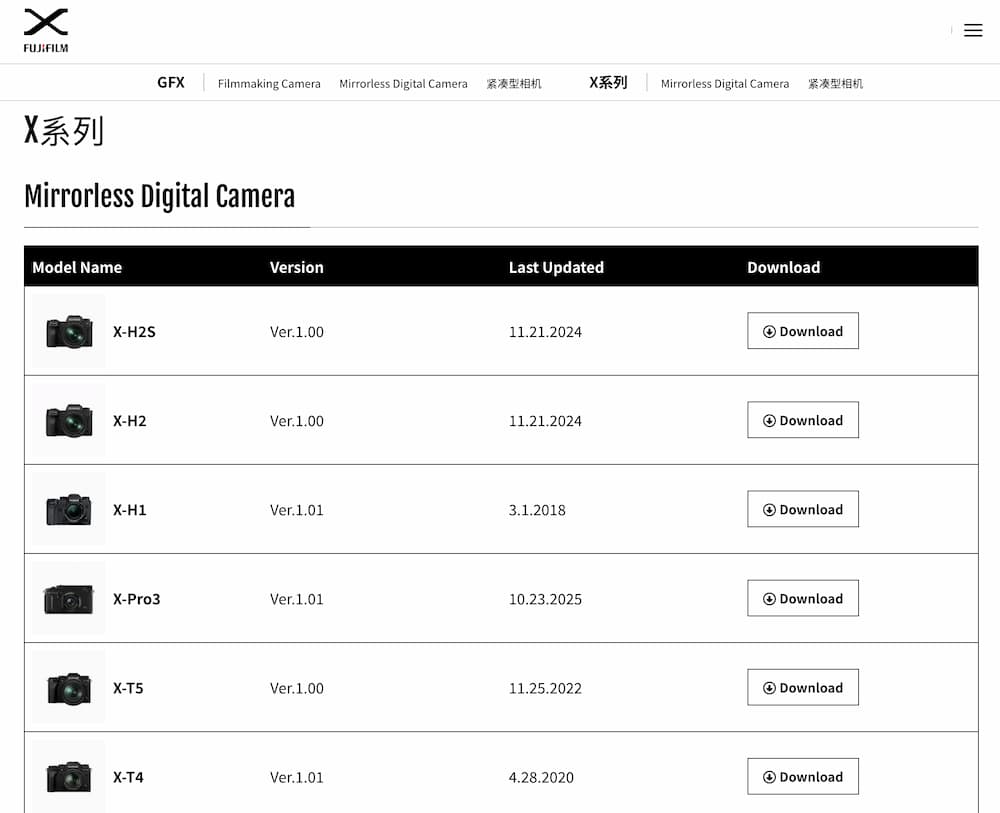
👉 Go to Fujifilm LUT official website
The above LUTs are developed based on Fujifilm’s wide color gamut F-Log2 C color science, which can accurately restore Fujifilm’s unique color style and support cameras and various image editing software. (The download location will be provided later in the tutorial)
How to import Fujifilm LUT to iPhone shooting tips?
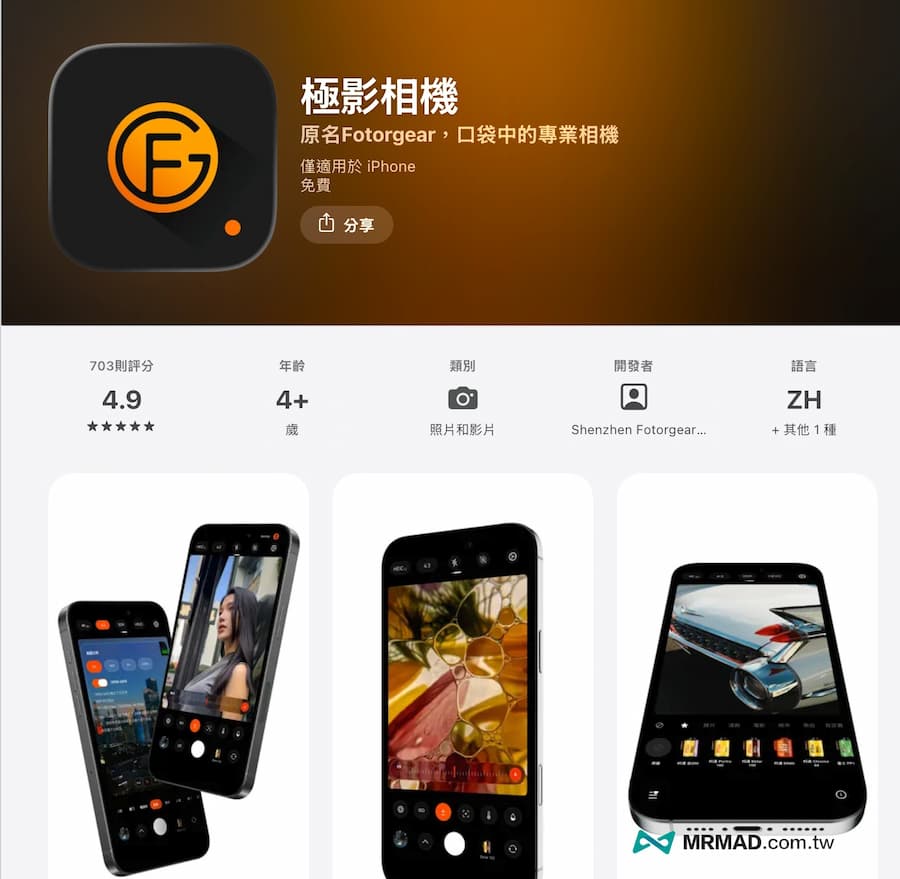
Step 1: Install supported LUT camera via App Store
First, download and install the “Jiying Camera App” through your iPhone. Currently, this is a free and third-party professional camera tool that supports importing LUT files.
Step 2: Download Fujifilm LUT for iPhone
Click to download directly through iPhone’s built-in browser Safari “Fujifilm LUT files for iPhone”, and click the download button in the upper right corner, and choose to download the file directly.
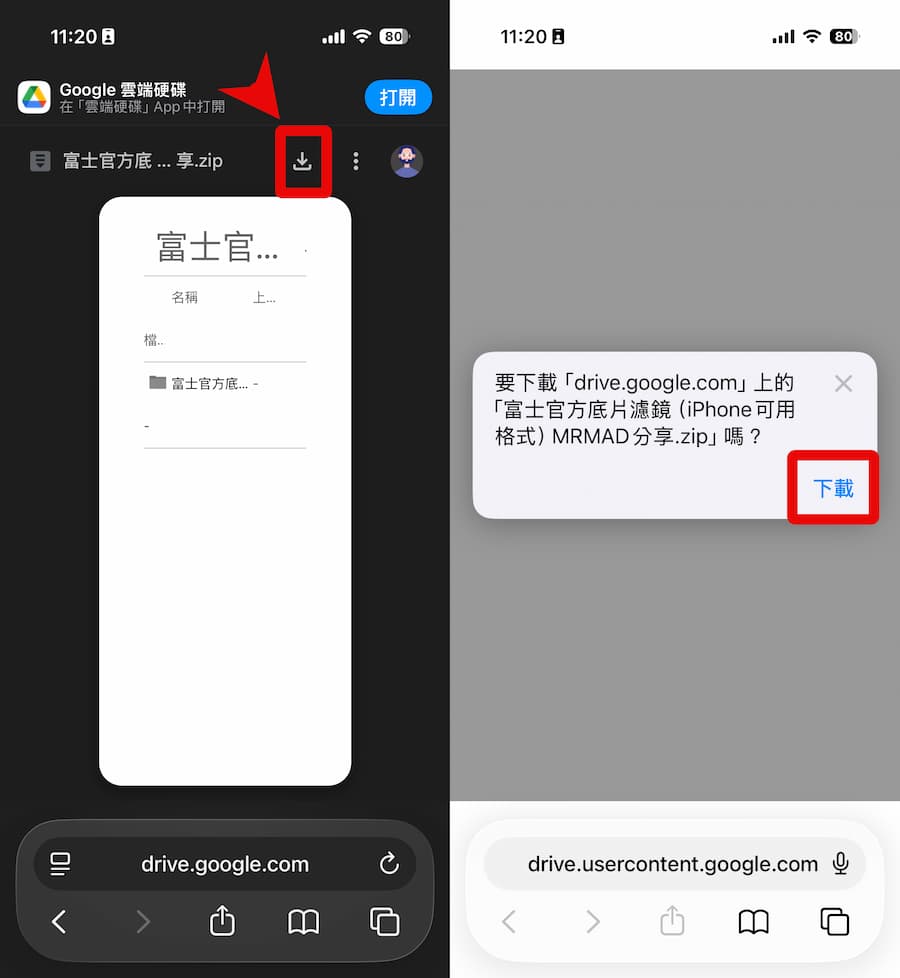
After downloading the Fuji LUT file package, click on the Safari browser and a download prompt will appear. Click and select “Download Item”.
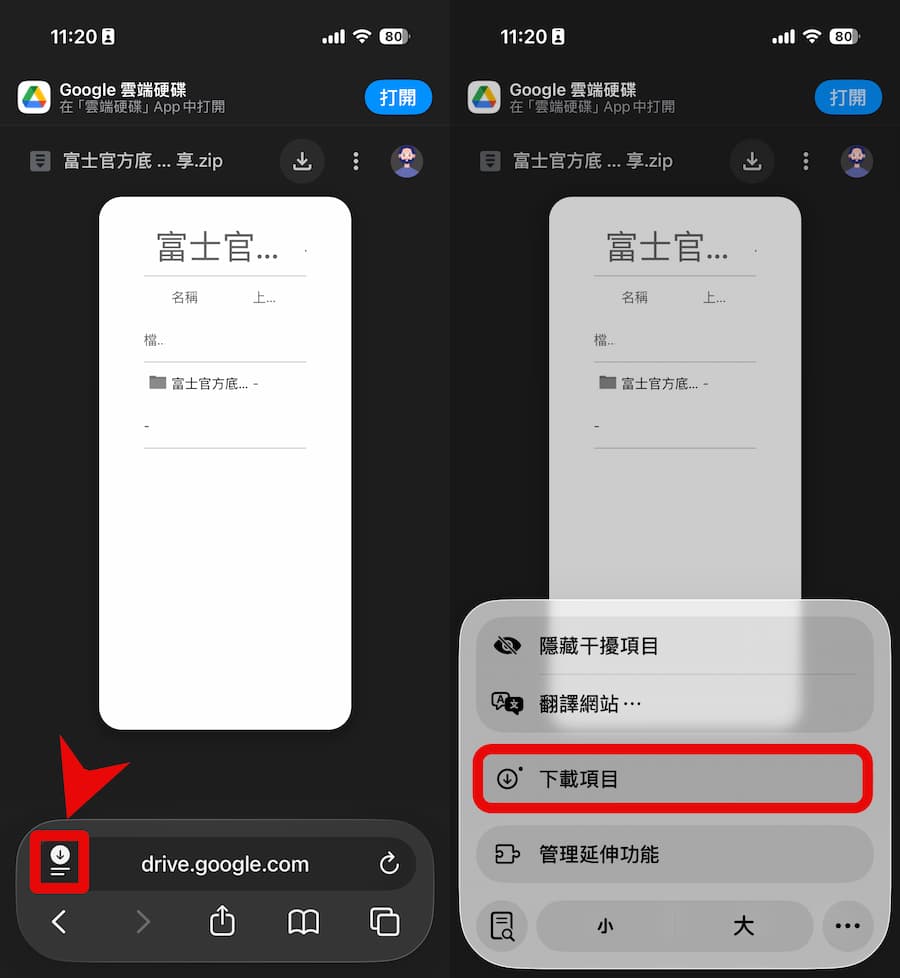
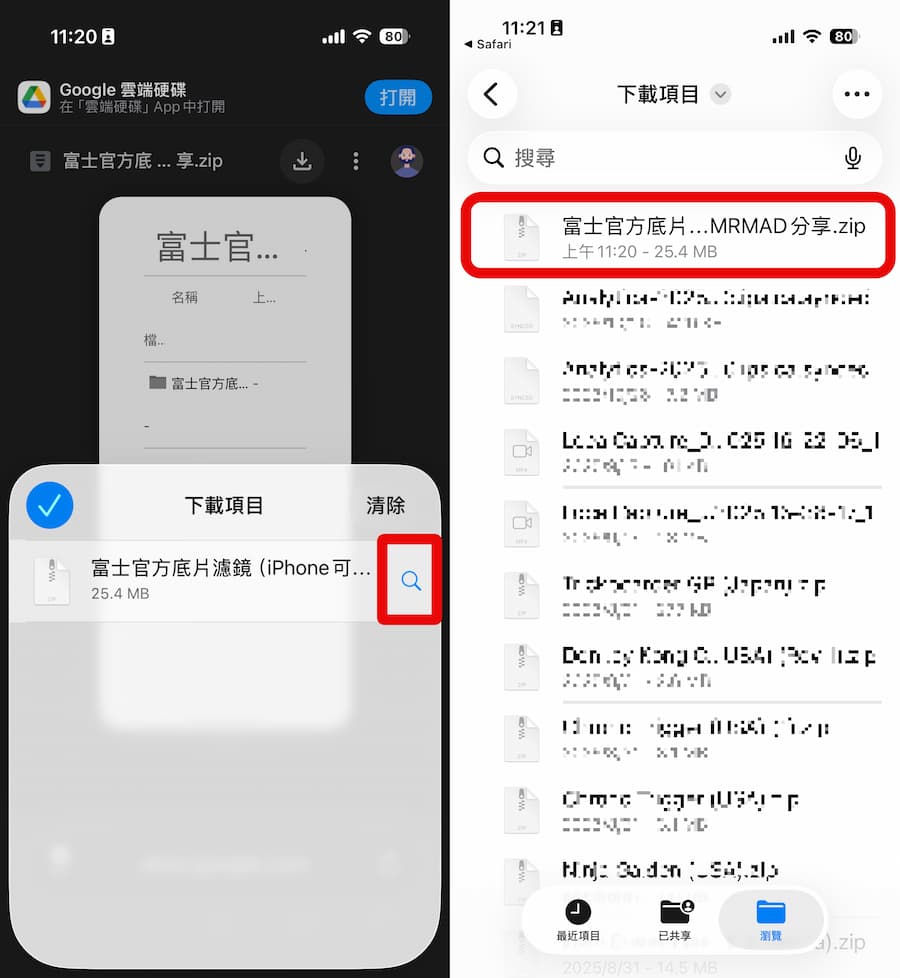
You will see the newly downloaded Fujifilm official film filter in the download list. Click the magnifying lens icon on the right to automatically open the built-in “File App” location. Usually the compressed file will be saved in the download item.
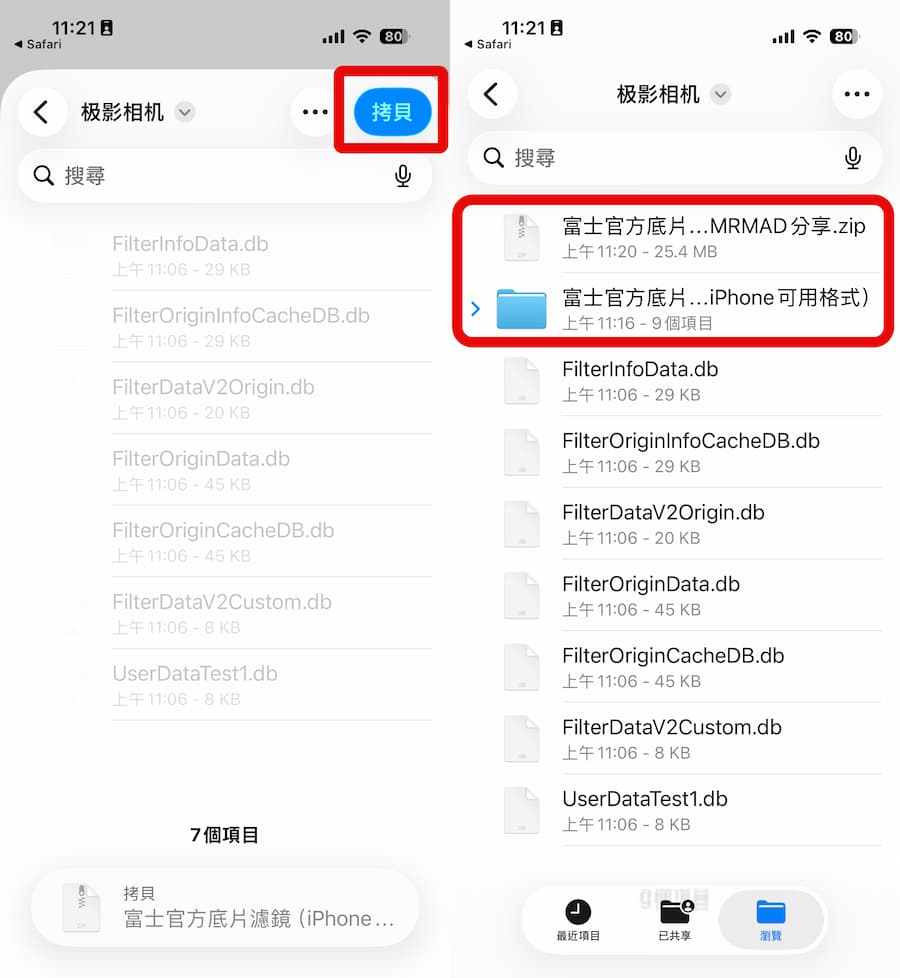
Next, long press the zip package and select “Move” to move it to the folder location where you want to save it, or you can also save it to the “My iPhone/Jiying Camera” folder.
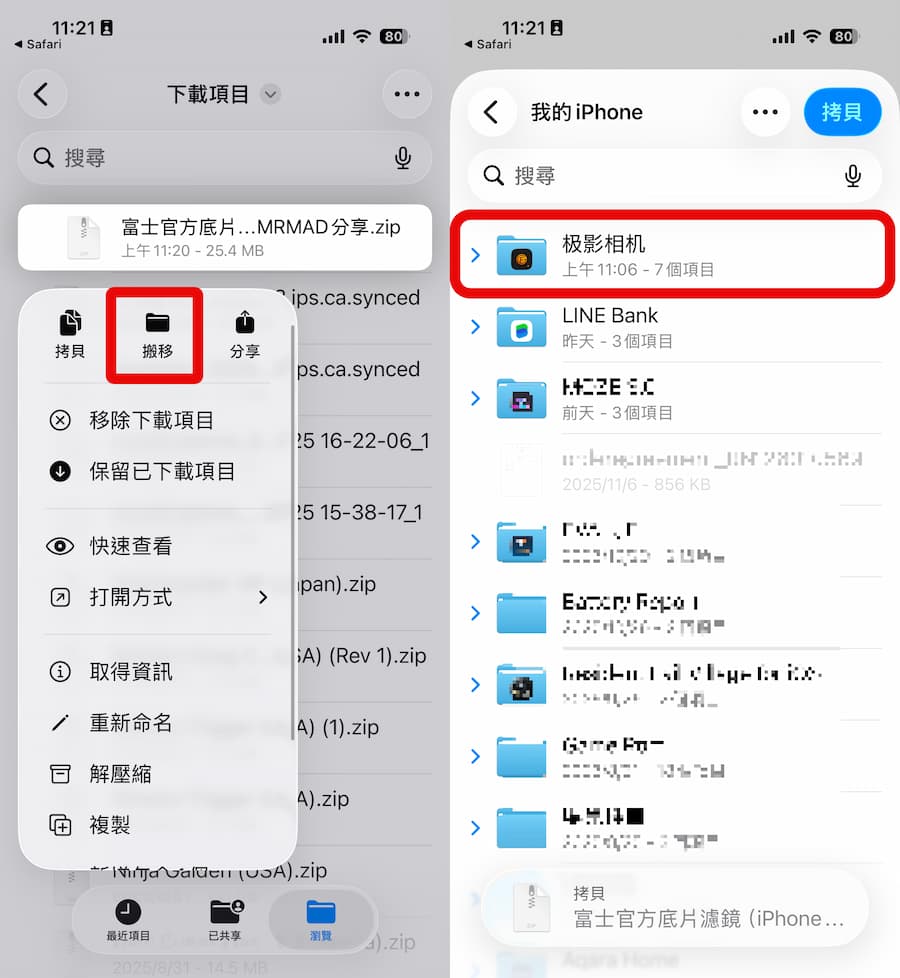
Finally, press copy, and a copy will be directly copied to the target folder. Finally, just click on the zip package and it will be automatically decompressed into a folder.
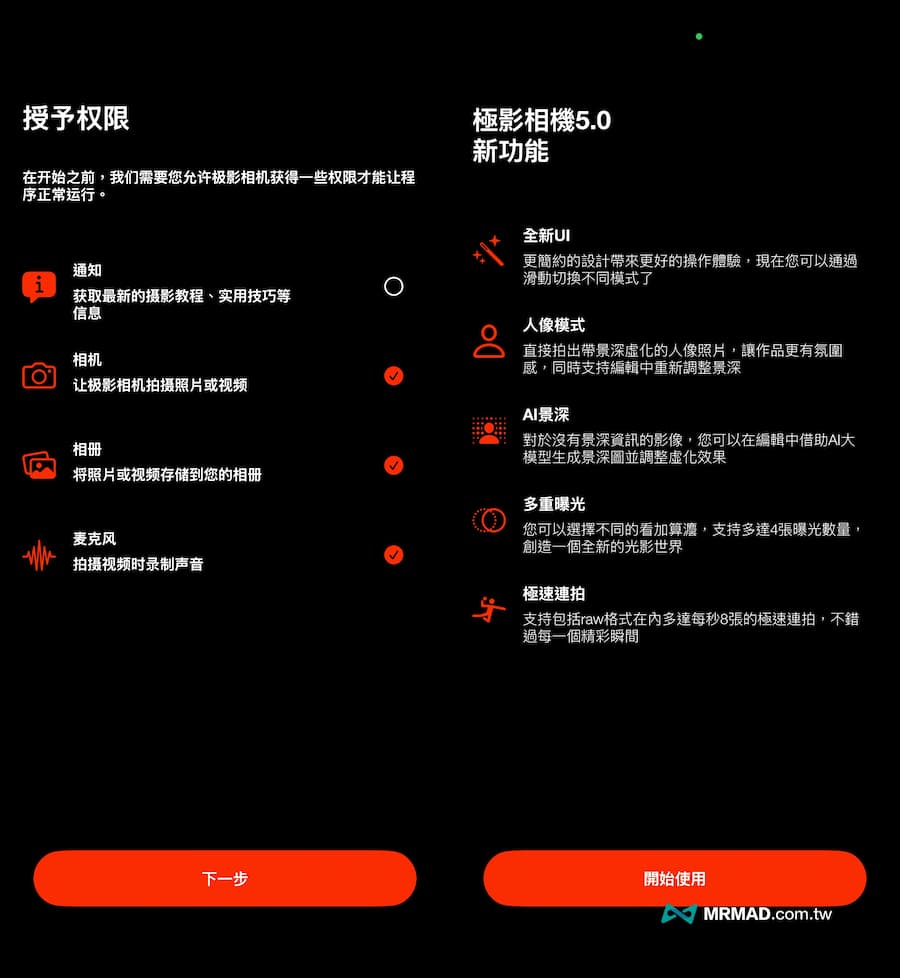
Step 3: Allow camera permissions
Next, after opening the newly downloaded Jiying Camera App, a pop-up window will pop up asking you to allow camera, photo album, and microphone recording permissions. Once you allow them, you can start using it.
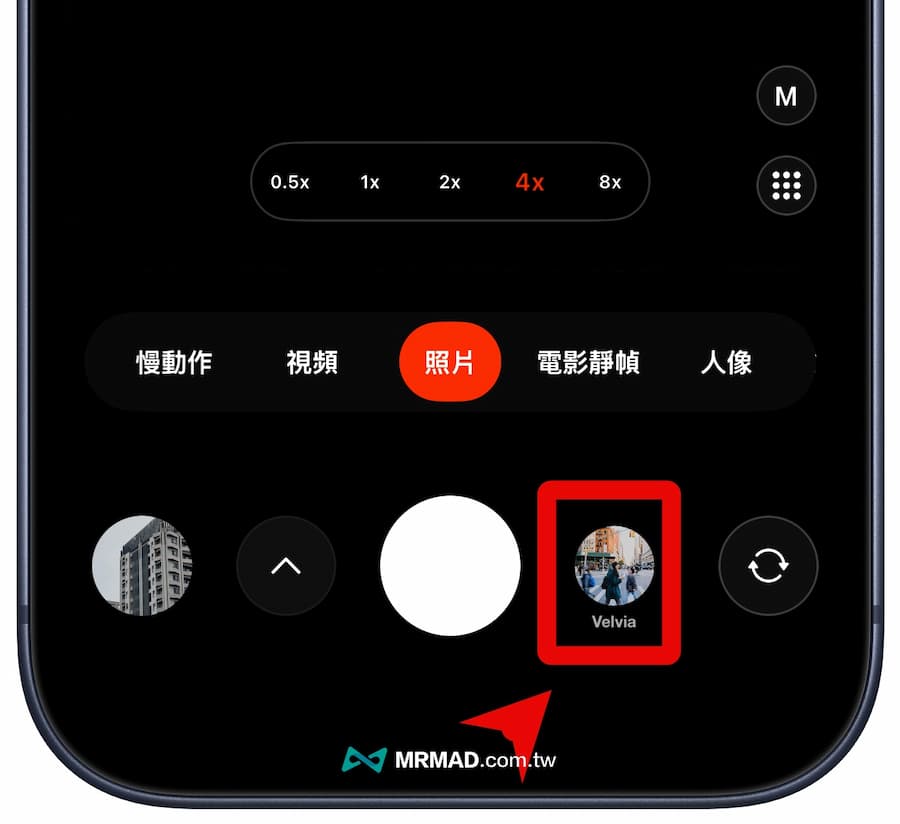
Step 4: Import LUT filter file
Then you can import the Fuji LUT filter file you just downloaded, and click the “Filter” icon under the Jiying camera. The position will be to the right of the central white point.
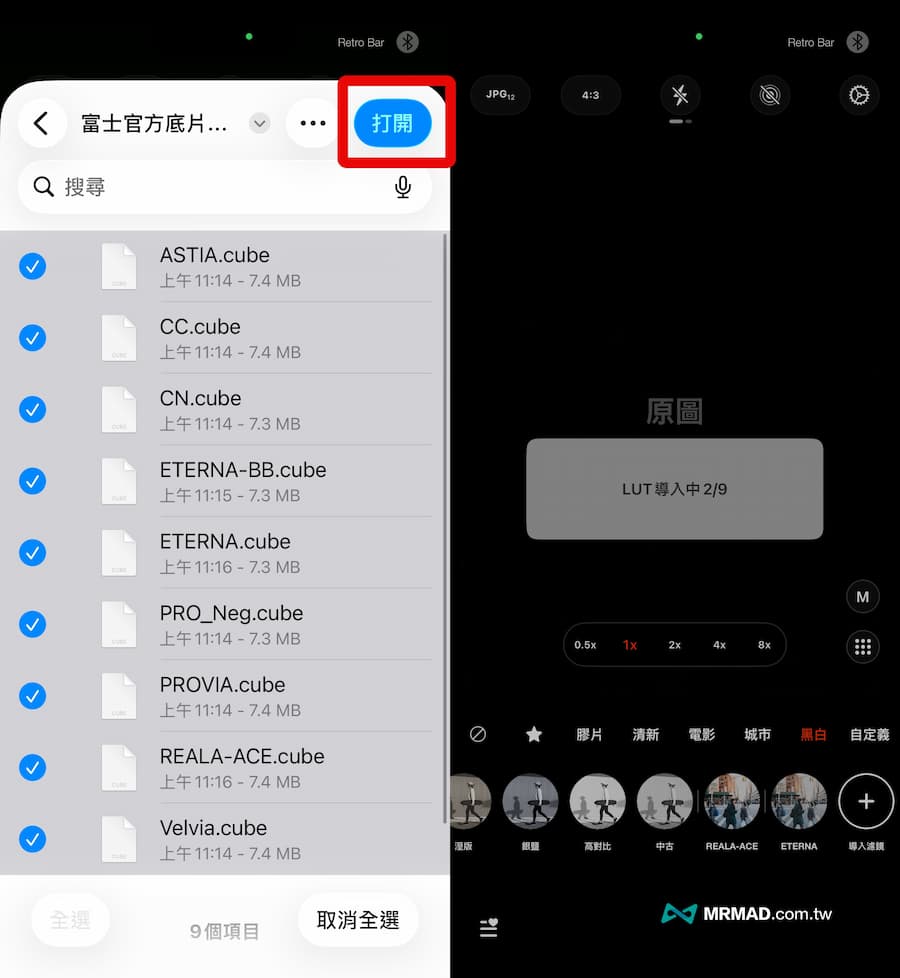
Click “Customize” on the far right, click “Import Filter”, and then select the “.cube” format.
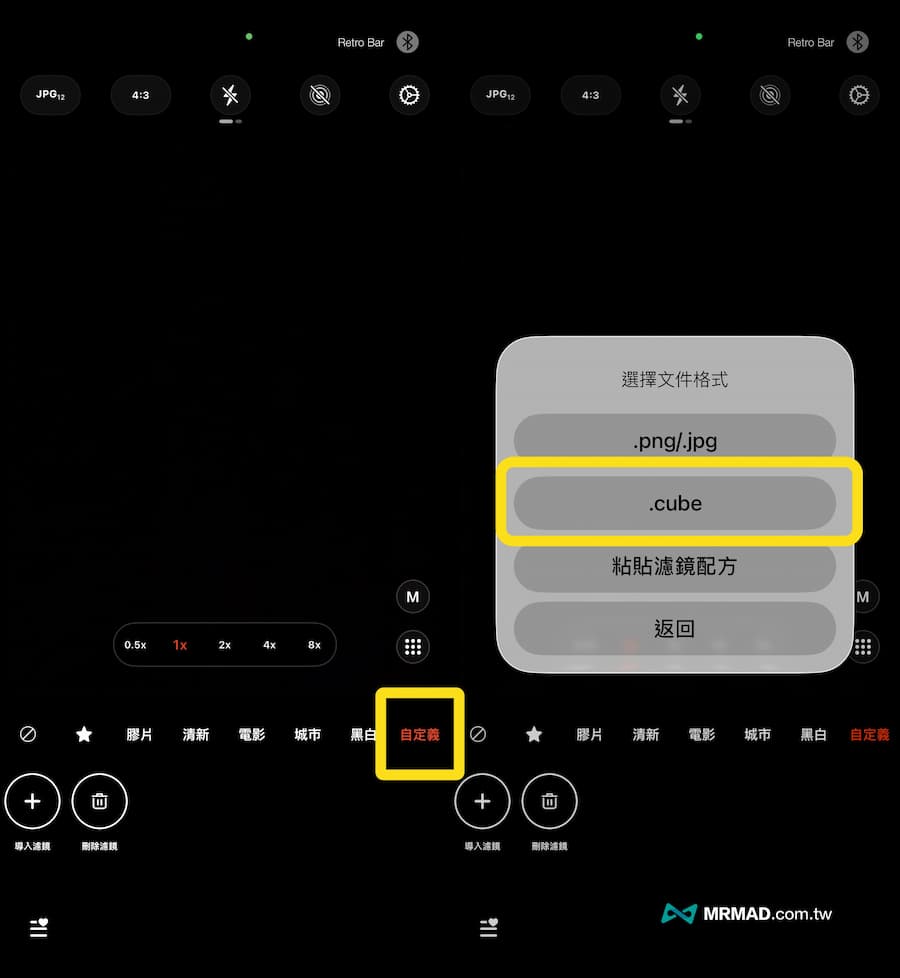
Find the newly extracted Fuji filter file (.cube) format under the folder. Check 9 items in total and click “Open” to start importing the LUT into the camera app.
Step 5: Use iPhone to shoot Fujifilm style
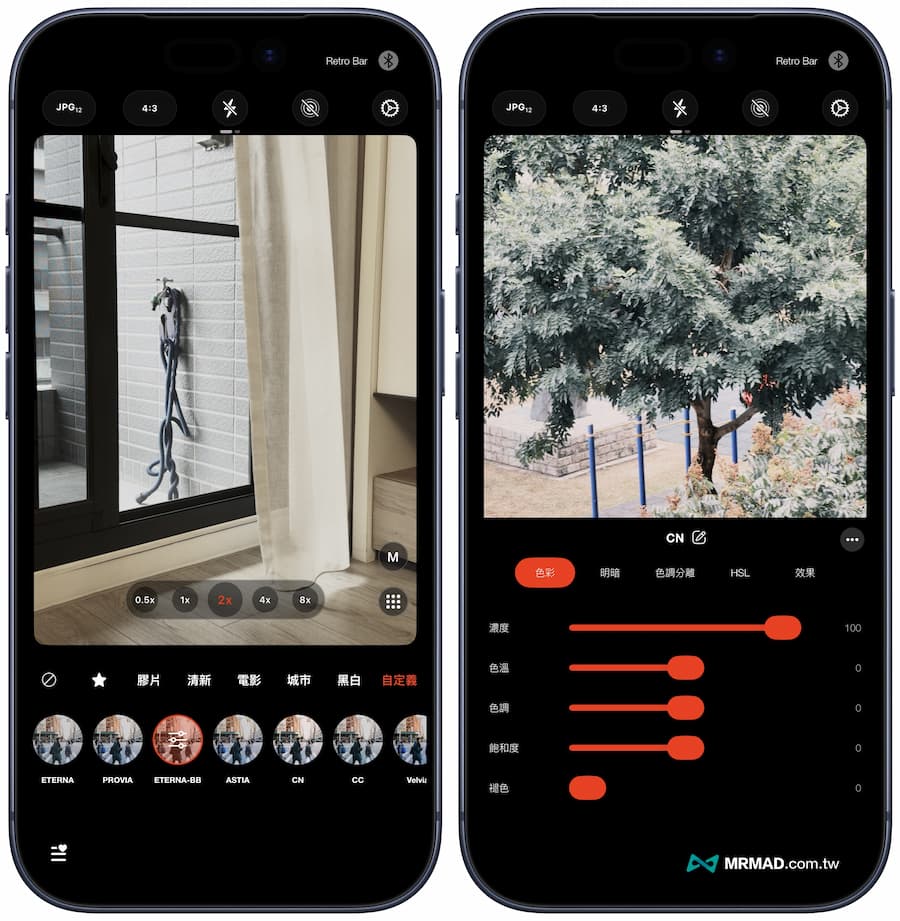
After the final import is completed, you can click on the Fuji film filter style you want to shoot with your iPhone from the customization, and you can even manually adjust the parameters.
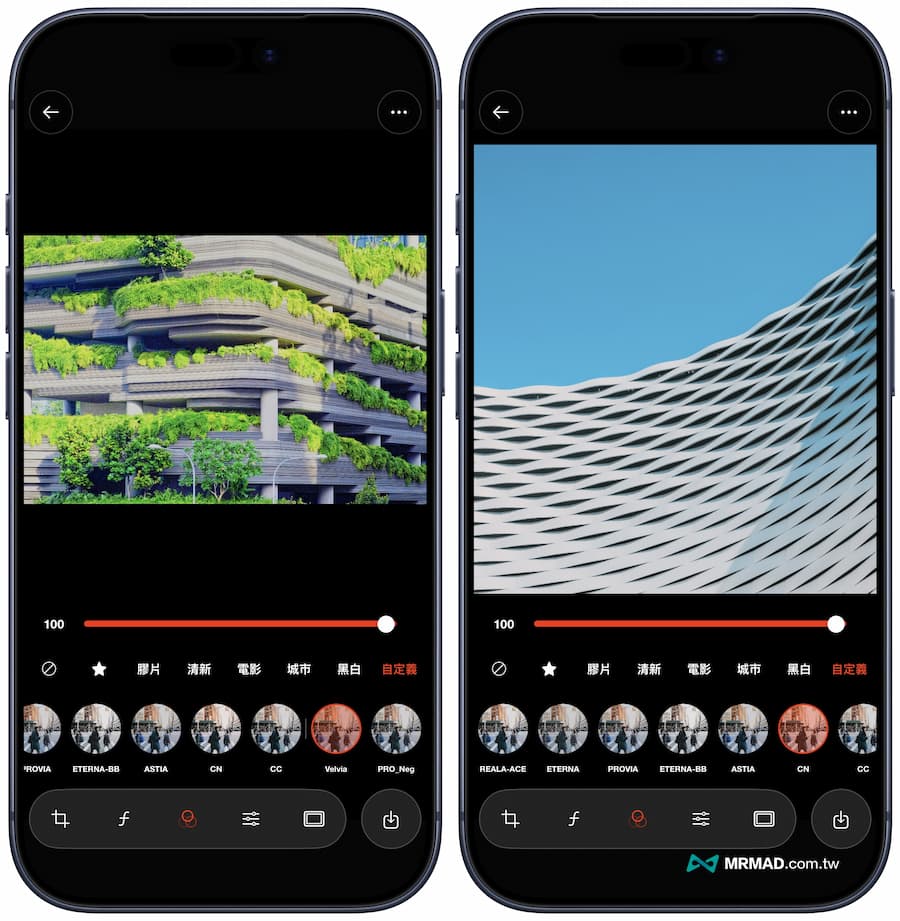
You can also directly import previously taken photo files and apply Fuji filter effects. This Jiying Camera App is powerful and easy to use.
Function summary
Through the above method, you can apply the LUT filters officially shared by Fujifilm directly to your iPhone camera, which will save you money on buying a camera and also allow you to easily capture rich Fuji film style.
If you want to know more Apple information, iPhone teaching and 3C information skills, please follow us
Crazy Mr. FB fan group,
Subscribe to Mr. Crazy Google News,
Telegram,
Instagramas well as
Subscribe to Mr. Crazy YouTube.