Apple officially launched its own “Apple Intelligence” and took the lead in introducing multiple AI functions to iPhone, iPad and Mac devices! In addition to being able to use writing tools, there is also a practical function called “Summarize”, which can automatically sort out the key points of long emails, web articles, notes, messages and other text content, helping users grasp the core of information more quickly and improve work efficiency.
6 tips for teaching Apple Intelligence summary function
In the digital era bombarded by a large amount of information, Apple Intelligence is positioned by Apple as a daily assistant AI that can automatically streamline text content in the background and present key summaries in concise sentences without disturbing the user.
The summary function is also one of the core features of Apple Intelligence. This function can be turned on through iPhone, iPad or Mac devices. But where can the summary be used currently? Here are five application scenarios where you can quickly grasp the key points through the Apple Intelligence summary function:
Email summary
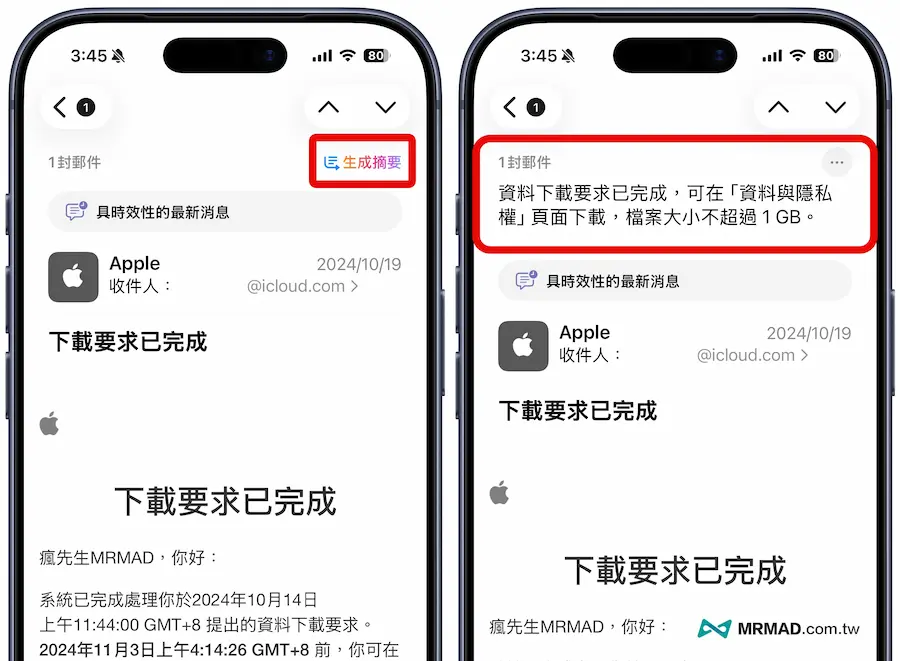
Just open the system’s built-in email app, click on any email, and click the “Generate Summary” button in the upper right corner, and AI will automatically generate a summary of the key points of the email.
Notification Summary
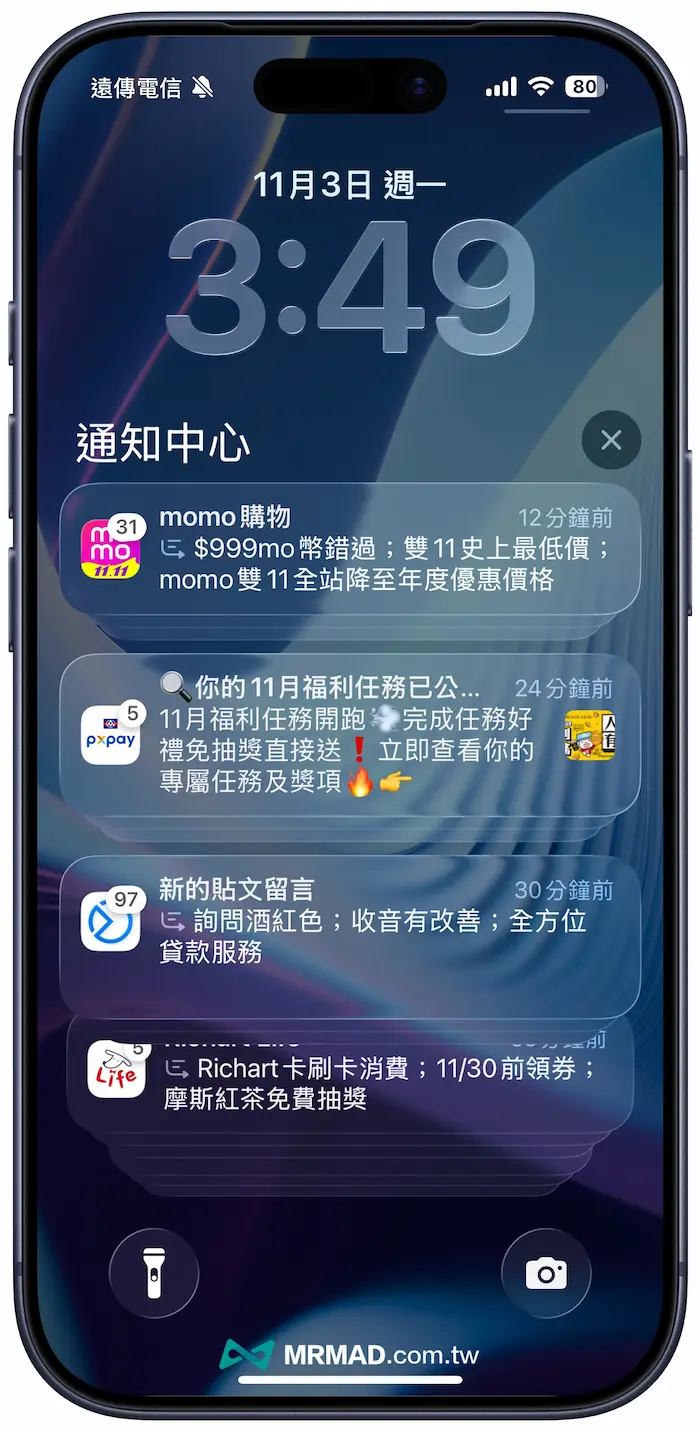
Even the notification center on the iPhone lock screen can also integrate summary descriptions. If a large number of messages are poured in at the same time, the system will automatically generate a brief summary based on the length and complexity of the content, and display it simultaneously in the “Notification Center” and the conversation list page. Usually, a “summary icon” will automatically appear if there is a summary. You can also click to expand to display all original prompt messages.
iMessage summary
Apple Intelligence can also summarize the text conversation content of the built-in “Message App”. When the user receives a text message, the system will automatically generate a brief summary description on the list based on the iMessage content.
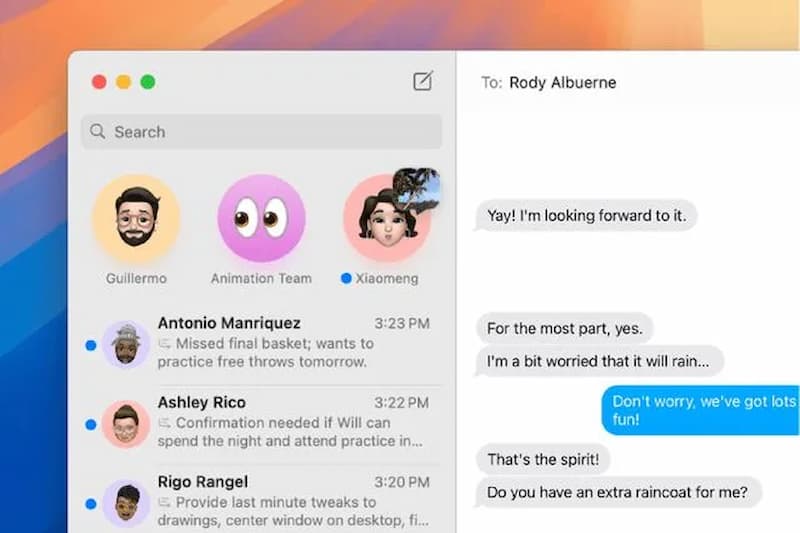
Safari web page summary
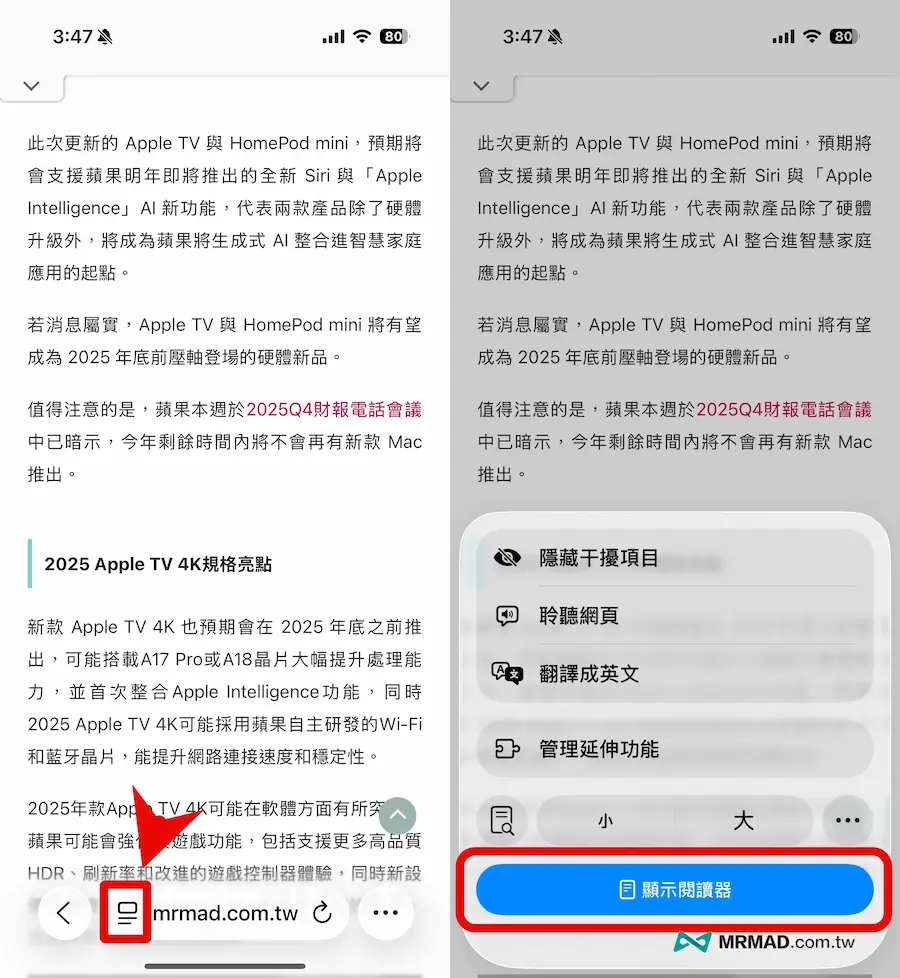
You can also browse the web on your iPhone to quickly generate key summaries in web articles. Just open the Safari browser and click on the toolbar icon in the lower left corner to open the “Show Reader”.
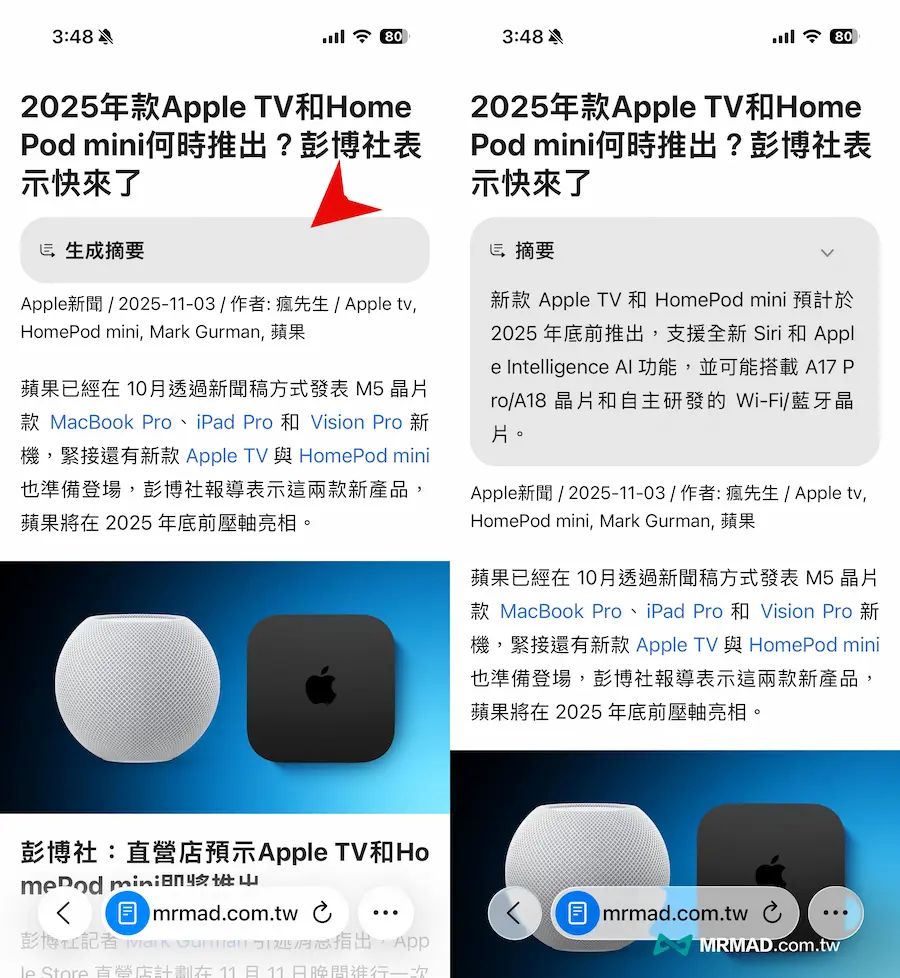
Then you will see the “Generate Summary” function at the top of the web page. After clicking it, a summary description of the web page will be generated through Apple Intelligence.
If you are a Mac user who wants to turn on the macOS Apple Intelligence web page summary function, you must go to “Edit” > “Writing Tools” > “Summary” in the menu bar.
Summary of memo
Memo also integrates Apple Intelligence, which can summarize the content of the note. It can be used whether it is text typed by yourself or pasted from other APP applications. As long as the apple Intelligence icon appears on the keyboard after selecting the text, you can directly click it, and click “Summary” from the “Writing Tools”.
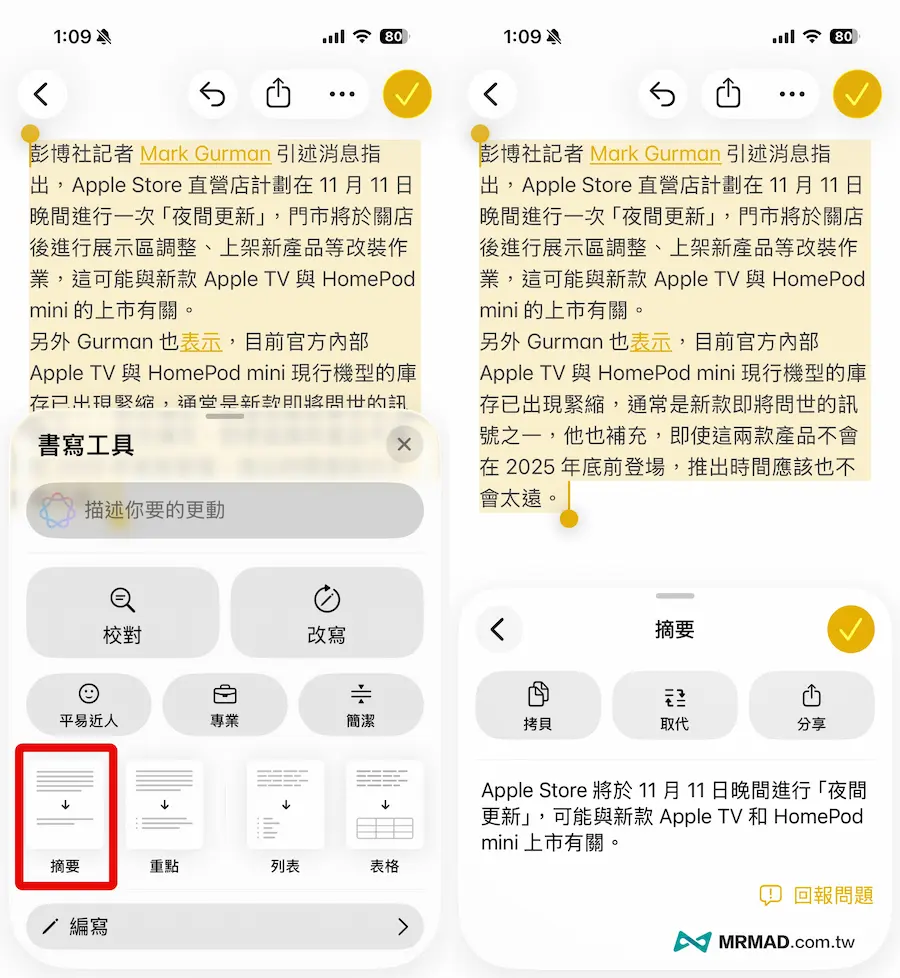
LINE or third-party APP summary
In fact, as long as a third-party app can use the Apple Intelligence writing tool, it can also support the “summary” function. For example, if you have a relatively long post in a LINE chat room, you can also directly click “Select and Copy” and open the “Writing Tool”.
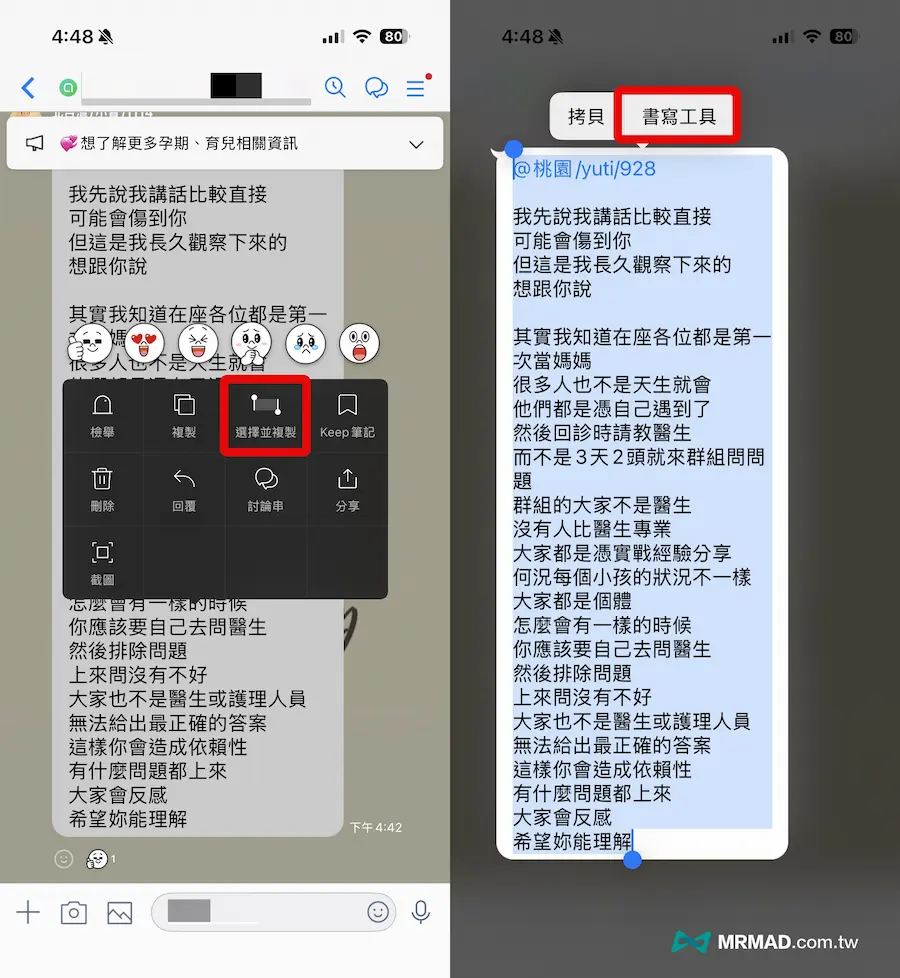
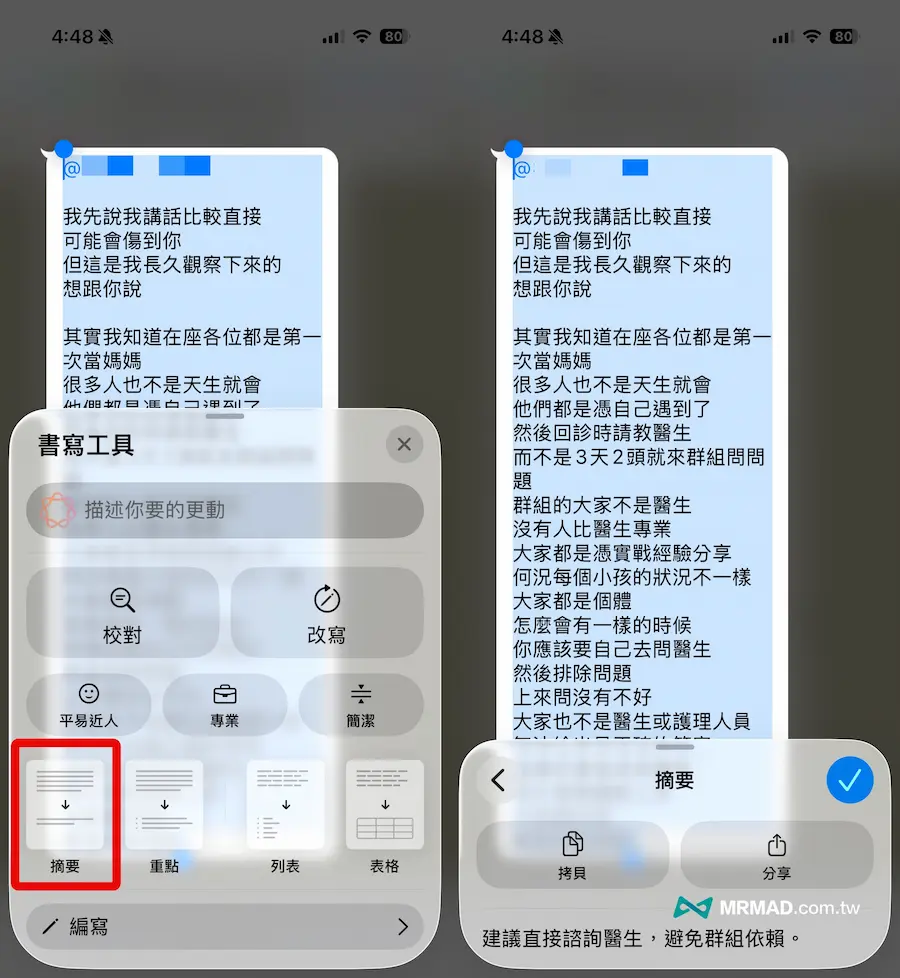
After clicking the “Summary” function, the text in the chat room will be directly summarized in key points, and other operations such as Gmail or any APP can be operated in the same way.
Report Apple Intelligence summary errors to Apple
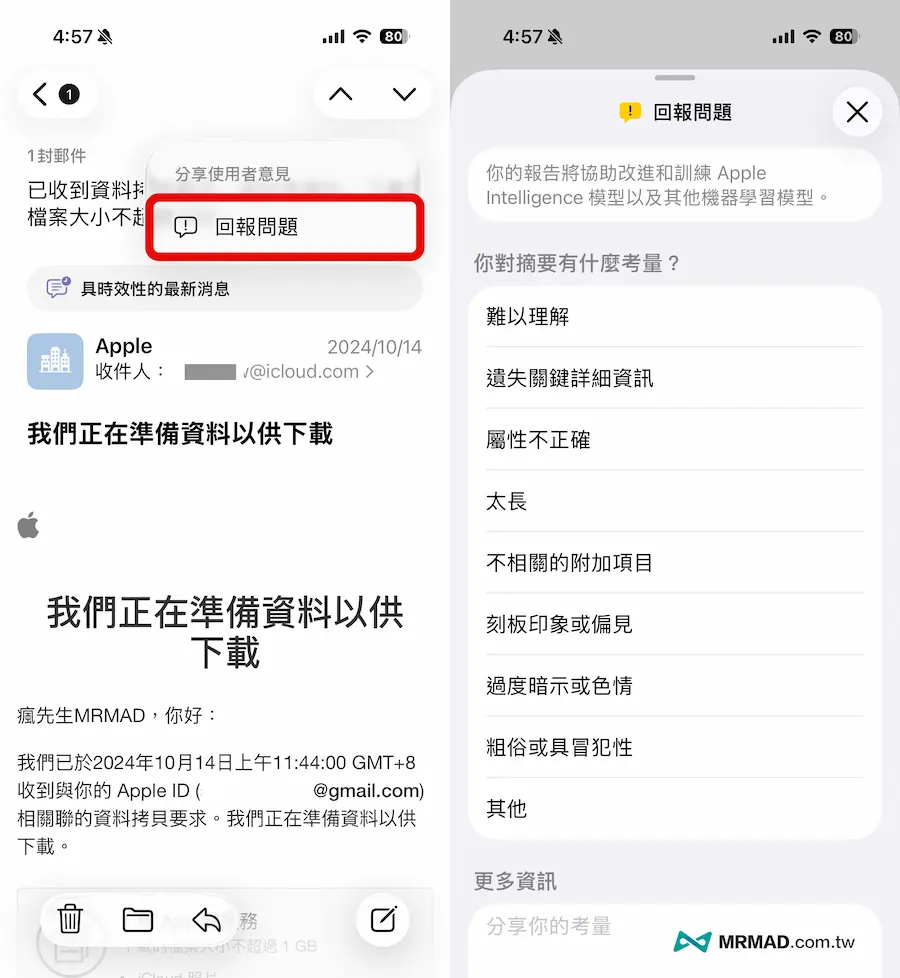
If you find that the content of the Apple Intelligence summary is incorrect, Apple also provides an instant reporting mechanism. You can see the “Report a Problem” option on the summary screen. Report the error information to Apple to help further optimize the accuracy of Apple’s AI model.
Summarize
Overall, the summary function of Apple Intelligence is really convenient. It not only helps you save time, but also allows you to focus on important things. No matter there are piles of letters, meeting notes, or endless conversations every day, you can now understand the key points in a few seconds.
For users who often need to organize information, reply to messages or write content, this function is like having an extra personal assistant. As long as Apple continues to optimize its accuracy, this AI brain will definitely become the most practical and intuitive daily helper on the iPhone in the future.
If you want to know more Apple information, iPhone teaching and 3C information skills, please follow us
Crazy Mr. FB fan group,
Subscribe to Mr. Crazy Google News,
Telegram,
Instagramas well as
Subscribe to Mr. Crazy YouTube.