After buying a new iPhone 17 or iPhone 17 Pro series, how should you transfer the original old phone to the new iPhone? In addition to being able to use iTunes backup or iCloud backup transfer, there is actually a faster way to transfer old iPhone mobile data to the new iPhone 17 mobile phone. You can easily achieve it through this four-step iPhone data transfer teaching guide.
11 major precautions for data transfer for iPhone 17 or iPhone 17 Pro
When changing to a new iPhone 17 or iPhone 17 Pro phone, you no longer need to restore it through the computer iTunes backup or iCloud backup. You can directly transfer the old iPhone mobile data to the new iPhone 17 phone. The information including address book, App records, photos, videos, music, LINE dialogue records and other information can be transferred without any pain. There is no need to worry that only some of the data will be transferred. The same is true for the concept of completely copying the data to the new phone, and the original old iPhone data will also exist at the same time and will not disappear.
However, to transfer old iPhone data to new iPhone 17 devices, it is recommended to confirm the following pre-transfer conditions:
- The original iPhone will be upgraded to iOS 26 first to avoid data transfer errors.
- The system version of the iPhone device is iOS 12.4 at the lowest, and it is recommended to upgrade to the latest iOS version to avoid errors.
- Confirm to connect to the same Wi-Fi environment (hot spots cannot be used).
- No network can be wired through physical.
- Confirm whether the remaining iPhone space capacity is sufficient.
- Bluetooth function needs to be kept on.
- Both devices remain charged (avoiding the transfer to halfway).
- If you upgrade to iOS 26 beta version, you must upgrade to the official version, and the beta version and the official version cannot be transferred to each other.
- The old iPhone system version to be transferred must not be higher than the new iPhone phone system version.
- iPadOS profile cannot be transferred to iPhone 17 devices.
- LINE must first open the transfer account (a brand new replacement process).
If you transfer Android data to iPhone 17 devices, you can refer to the “Quickly transfer Android data to iOS devices” operation.
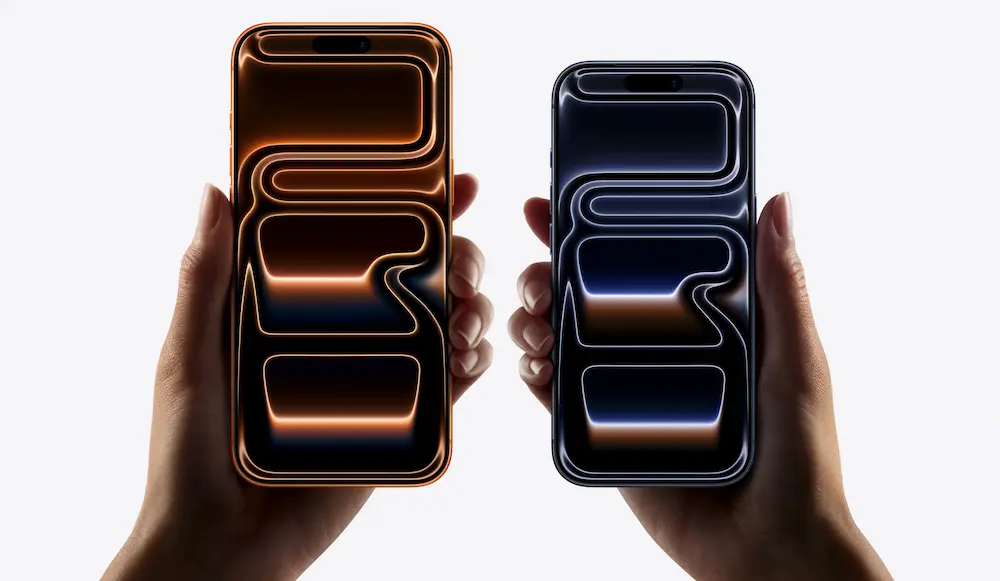
How to solve the problem of transferring iPhone data without WiFi?
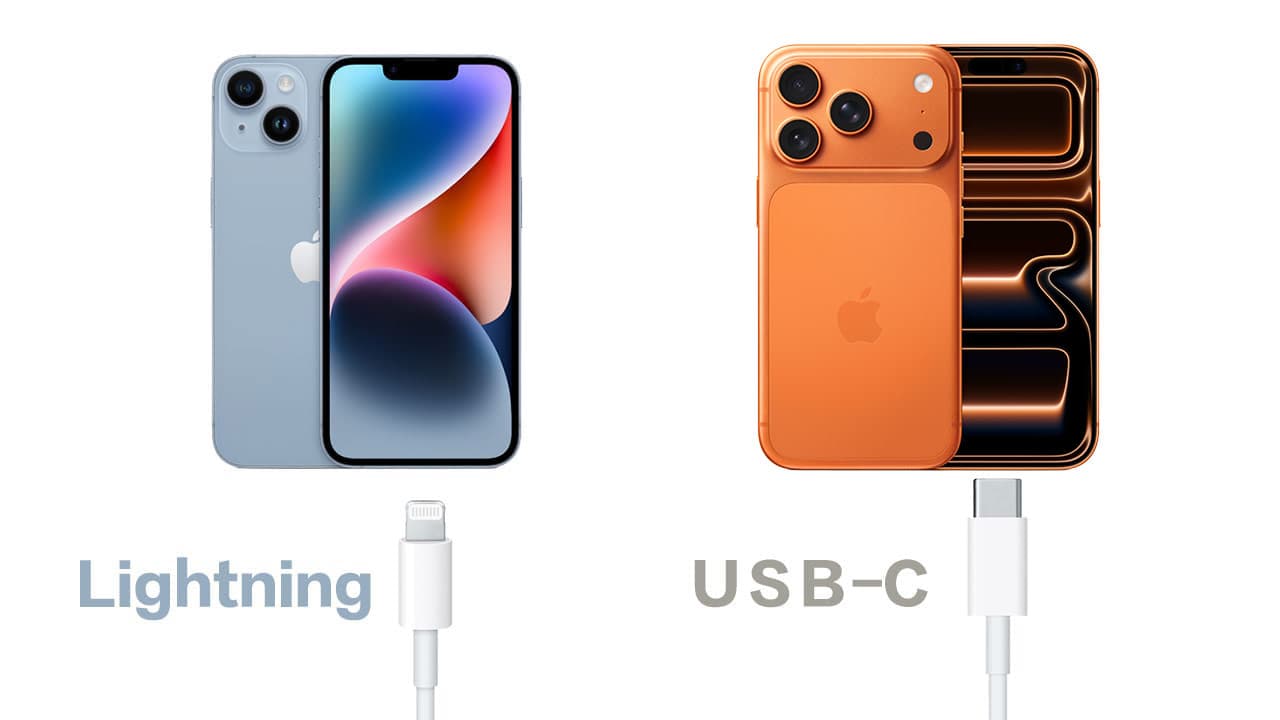
If there is no Wi-Fi network, you can also use USB-C wired connection, and use “Lightning to USB-C cable” or “USB-C to USB-C cable” to transfer iPhone system information in series. There are corresponding connection holes according to different devices. Whether it is WiFi or wired, the steps are roughly the same. However, this teaching will focus on Wi-Fi wireless mode.
iCloud temporary data transfer backup function
In addition, Apple is also targeting iPhone models above iOS 15. If users lack iCloud space, the system will actively provide free cloud capacity, initially providing 21 days, and can be extended for 21 days for free before expiration, totaling a 42-day buffer period.
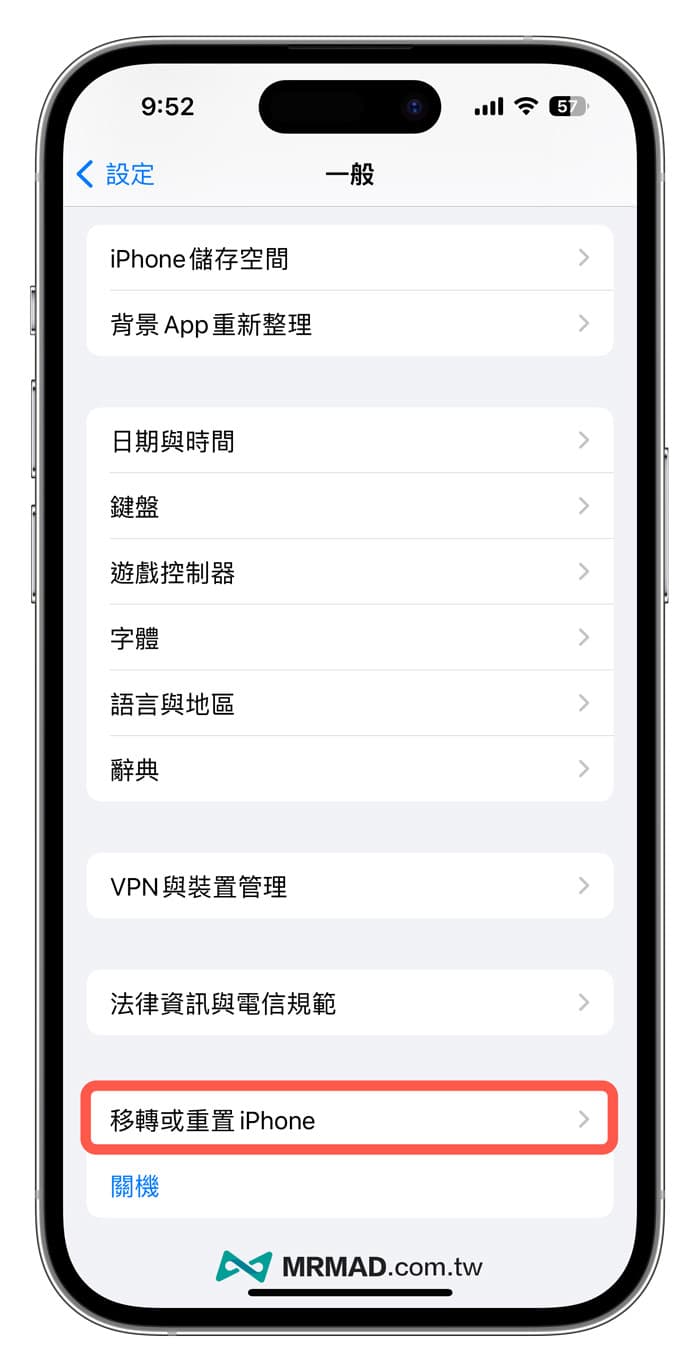
Below is to enable iCloud cloud temporary backup method. The operation method is “Settings” → “General” → “Move or Reset iPhone” → “Prepare for a new iPhone” → Click “Start Settings”. As long as the iPhone space is insufficient, the iOS 26 system will prompt the user to apply for a free credit with one click, and just click “Continue” to enable it.
4 steps to understand how to transfer data for iPhone 17
If you want to transfer old iPhone data to a new iPhone 17 device, you only need to use the “Quick Start” function to achieve it. The process does not require relying on iCloud or iTunes/Finder at all. As long as you use the Wi-Fi environment, you can quickly move old device data and content to a new iPhone device.
1. Enter iPhone to quickly start the process
Before transferring old iPhone data to the new iPhone 17, if it has been powered on and started to enter the iOS 26 system, you must first reset the iPhone 17 and clear all information and settings to return to the cleanest state of the original factory before you can transfer it.
As for iOS 26, the steps to reset and clear iPhone data can be used to “How to reset the iPhone back to the original preset value?” Quickly understand the reset function and use of “Teaching on” teaching.
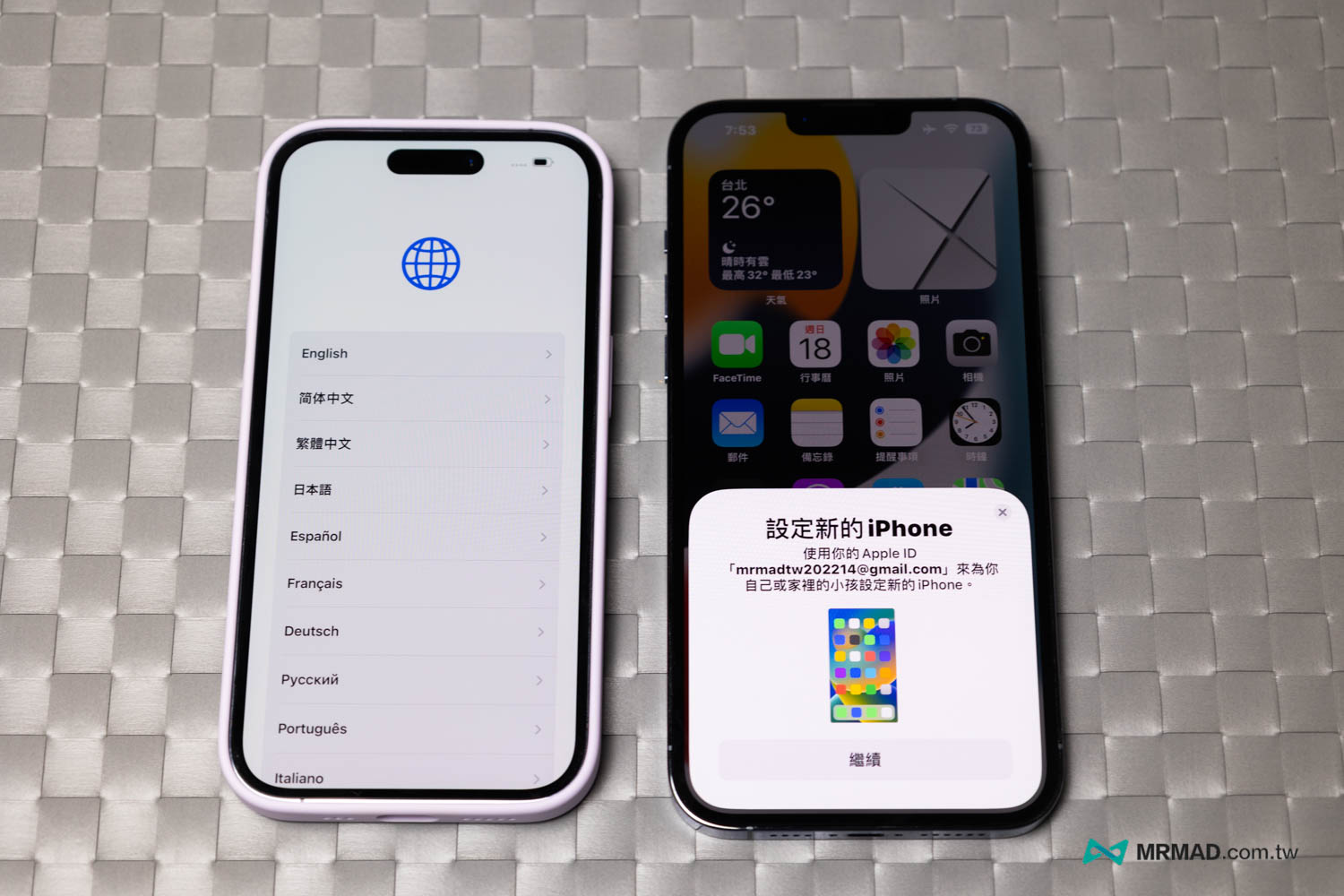
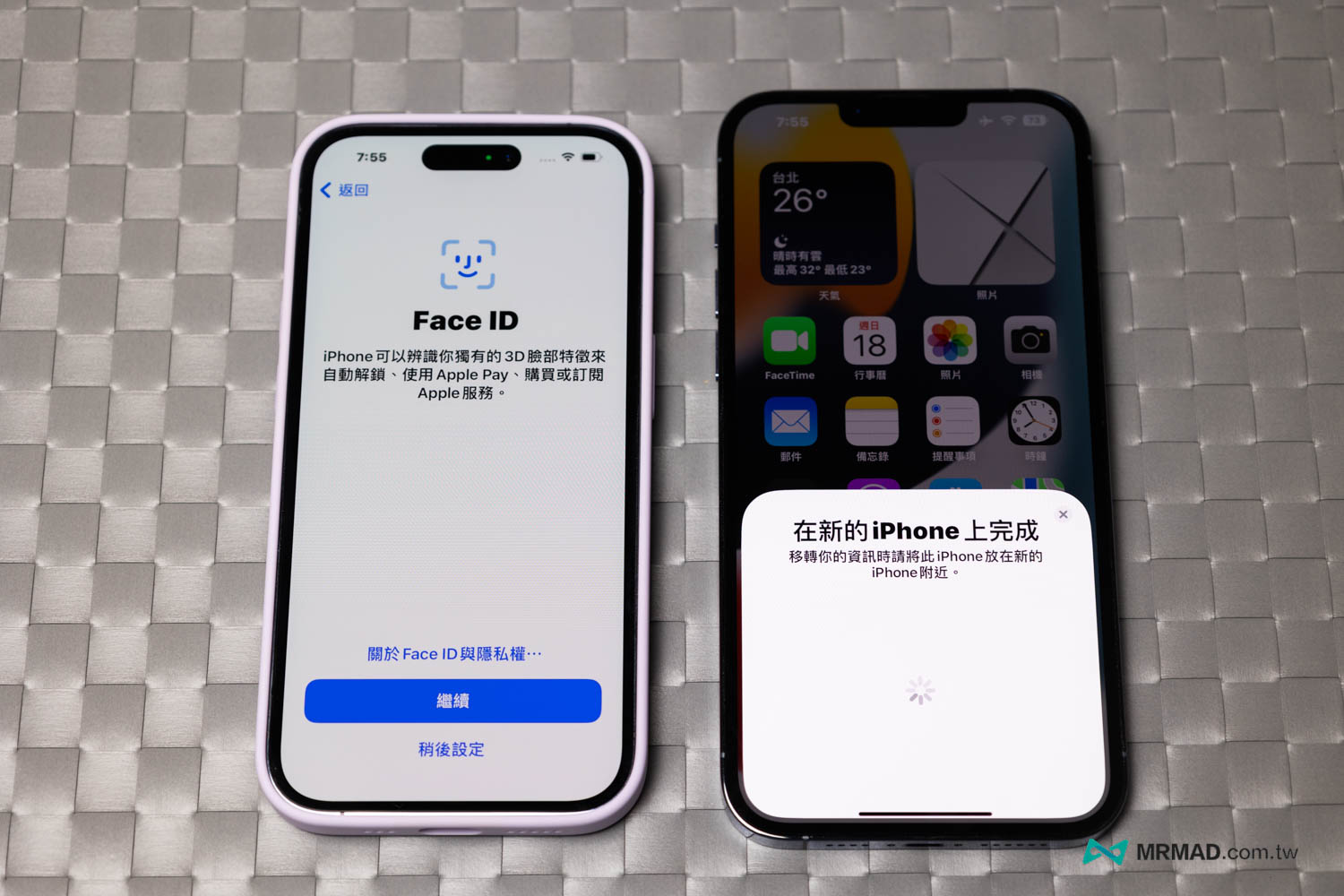
When iPhone 17 resets all information, you will first see the “Hello” and “Hello” welcome status. First enter the language selection page settings, and place the old iPhone next to it. The prompt to set the new iPhone by “Quick Start”.
If the setting new iPhone prompt screen does not pop up? Reboot both iPhones once and make sure that the old iPhone Bluetooth is turned on, and that both devices must be displayed in the same WiFi environment.
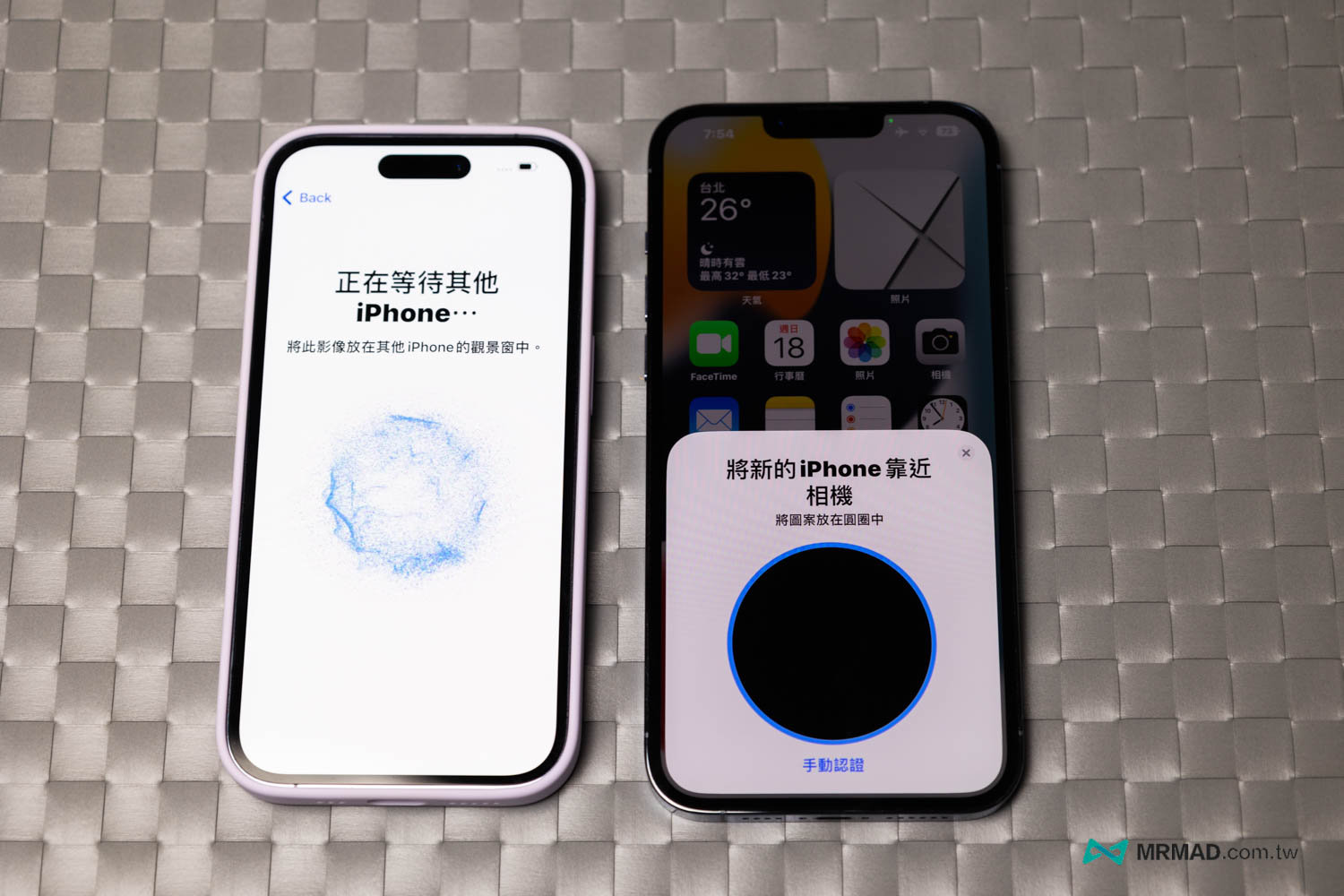
2. Scan the iPhone and the authentication settings
It will be displayed that you want to scan the sphere animation displayed on the new iPhone device through the old iPhone lens, and the pairing will be completed after scanning.
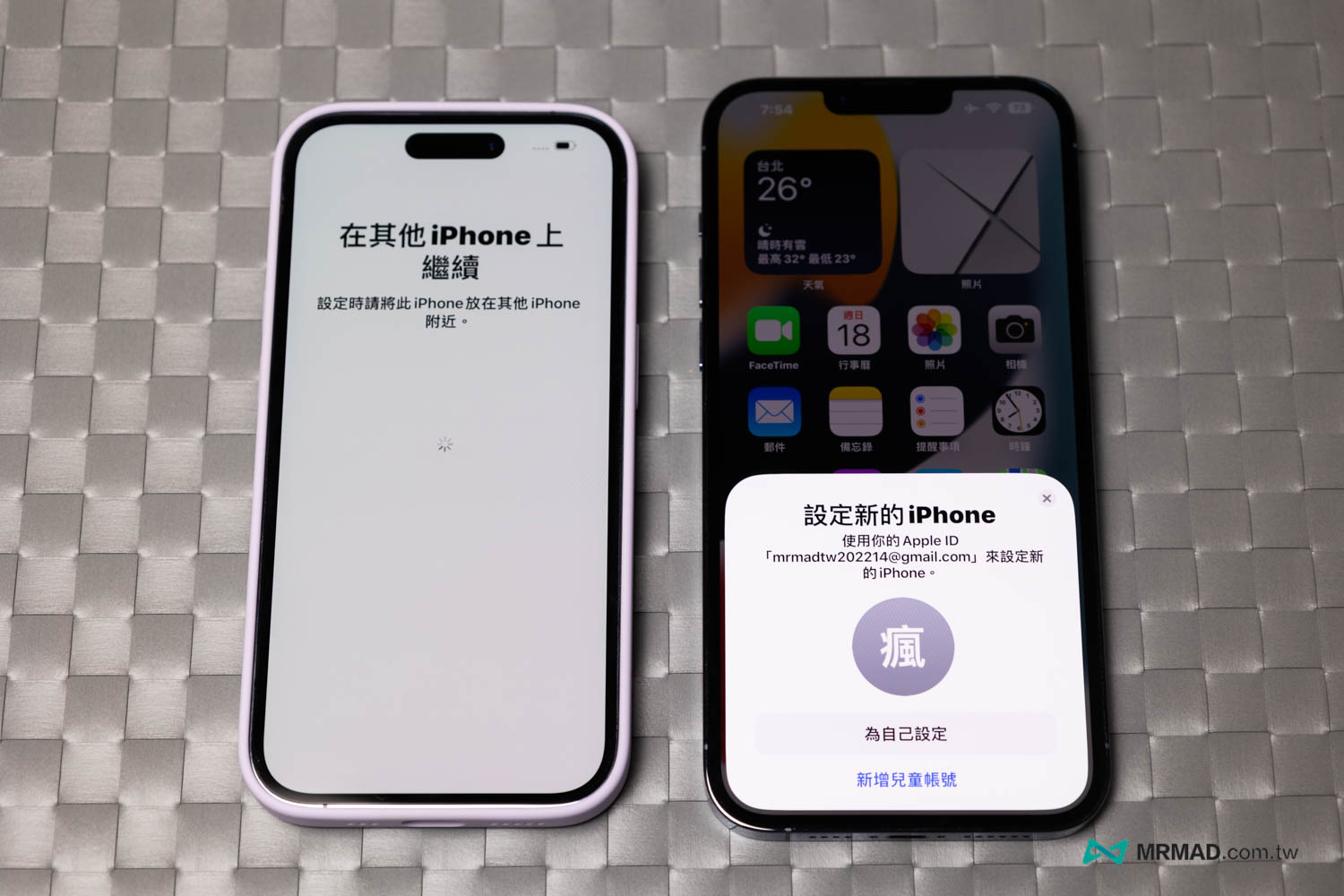
And you will also ask to select the iPhone identity to be set. If it is your phone, click “Set for yourself”. If it is a setting for your child, click “Add a new child account”.
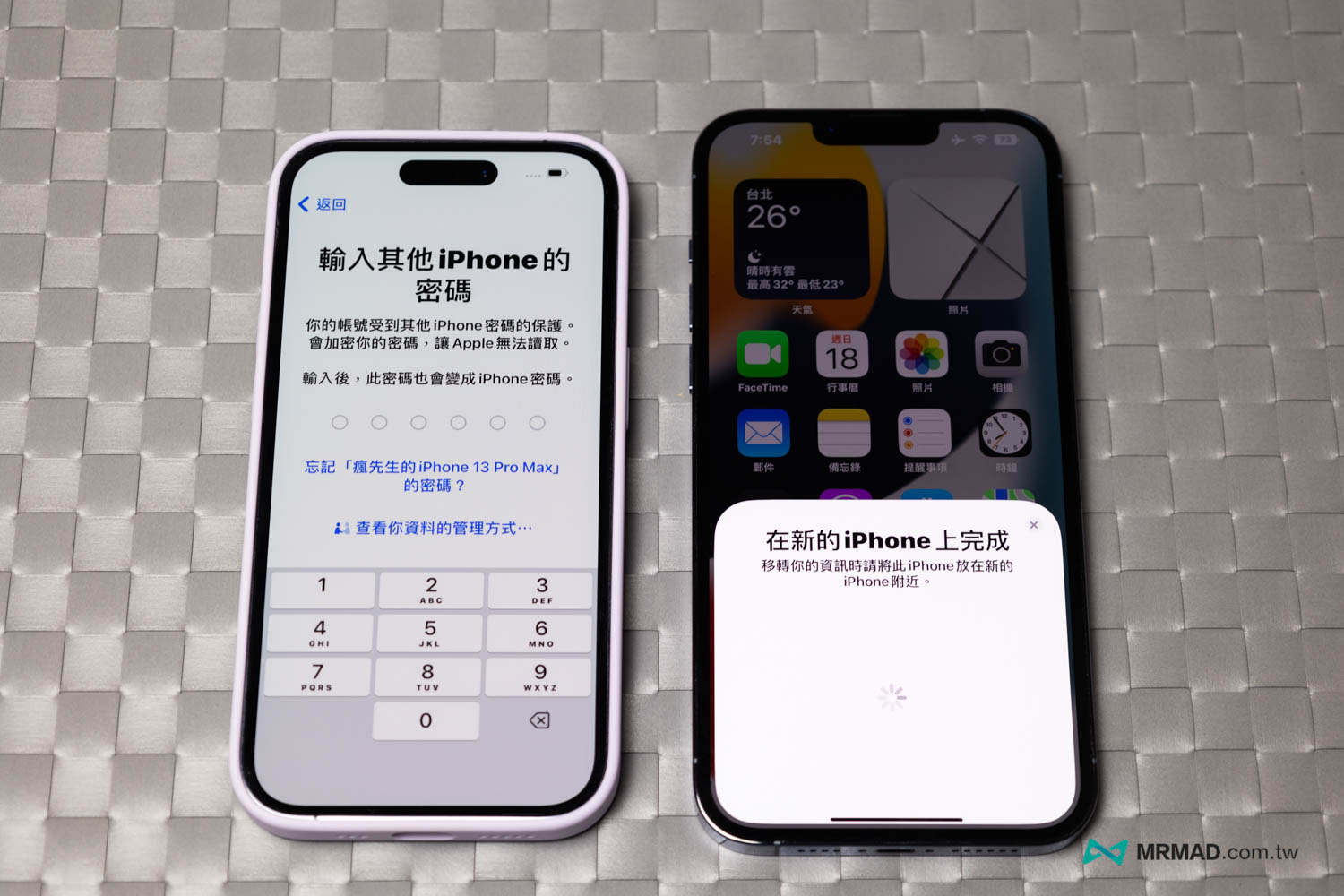
Finally, you will need to enter the unlock password of the original old iPhone, set the Face ID or Touch ID, etc.
3. Select to transfer data from iPhone
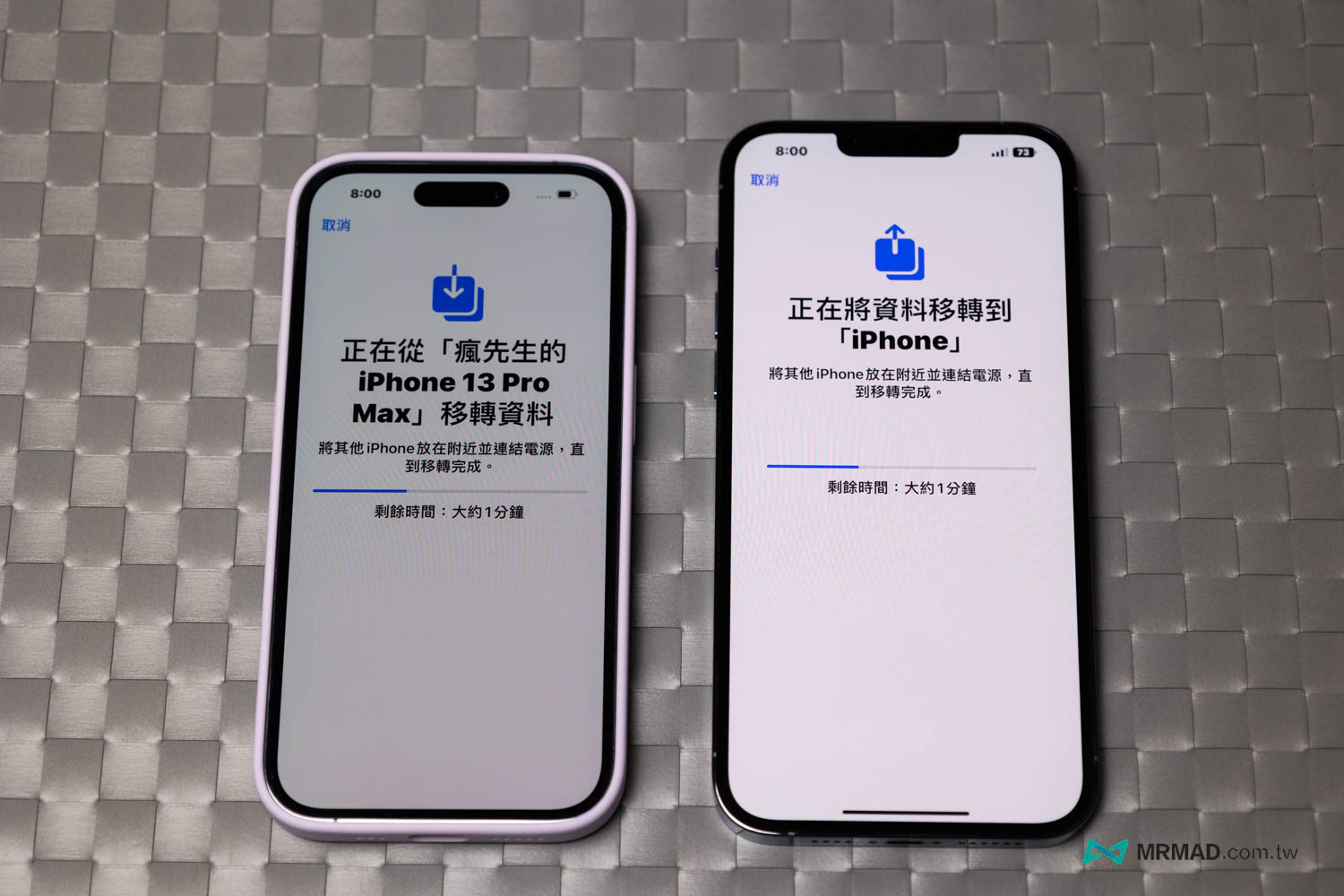
Next, the page for transferring your data will pop up, and you can directly select “Download from iCloud” or “Transfer from iPhone” to transfer information. The former is slower to download through iCloud. If you want to directly click “Transfer from iPhone” on WiFi or cable, the speed is relatively faster (the key point of this teaching).
The iPhone data transfer operation will start, and the number of device data transmission time will be different. It is normal for the new iPhone screen to dim during the transmission process. Just confirm whether the old iPhone progress bar has finished running.
4. Complete iPhone data transfer
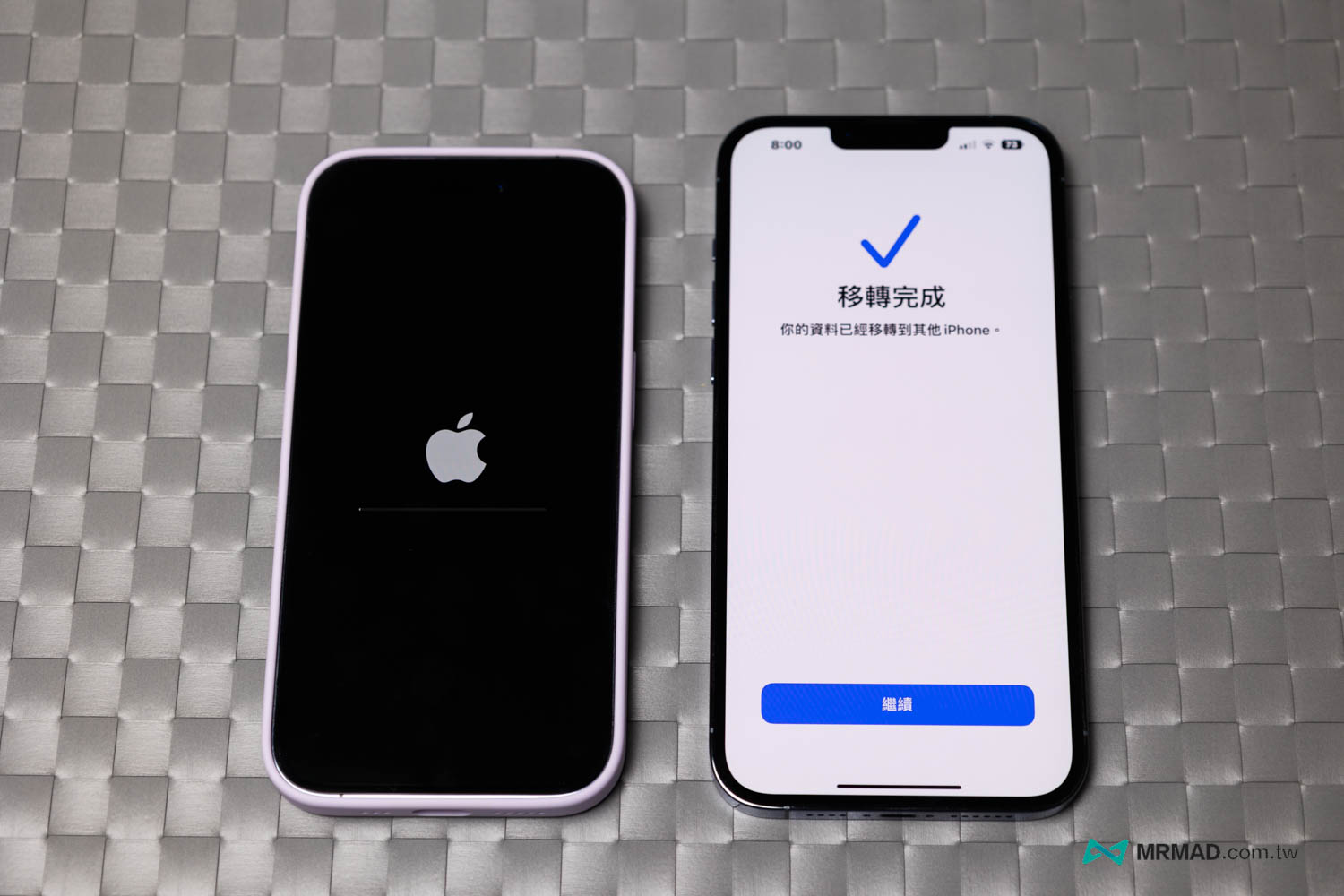
When all old iPhone data has been transferred, the “Transfer Completed” screen will pop up, and the new iPhone device will automatically reboot. If you unlock and slide, you will see that the old iPhone data has been successfully transferred to the new iPhone 17 device.
In addition, APPs such as Apple Pay, banking and finance related will have a security authentication mechanism. After transferring to a new iPhone device, they will enable the event and require verification again. Just run the authentication once. After all, it is to ensure that the device is owned by the person.
Finally, don’t forget to switch the SIM card to a new iPhone 17 device. How to transfer it if you use e-SIM? It can only be processed at the telecommunications company store, and it costs $300 per time to replace the eSIM.
LINE dialogue information transfer to new iPhone 17 method
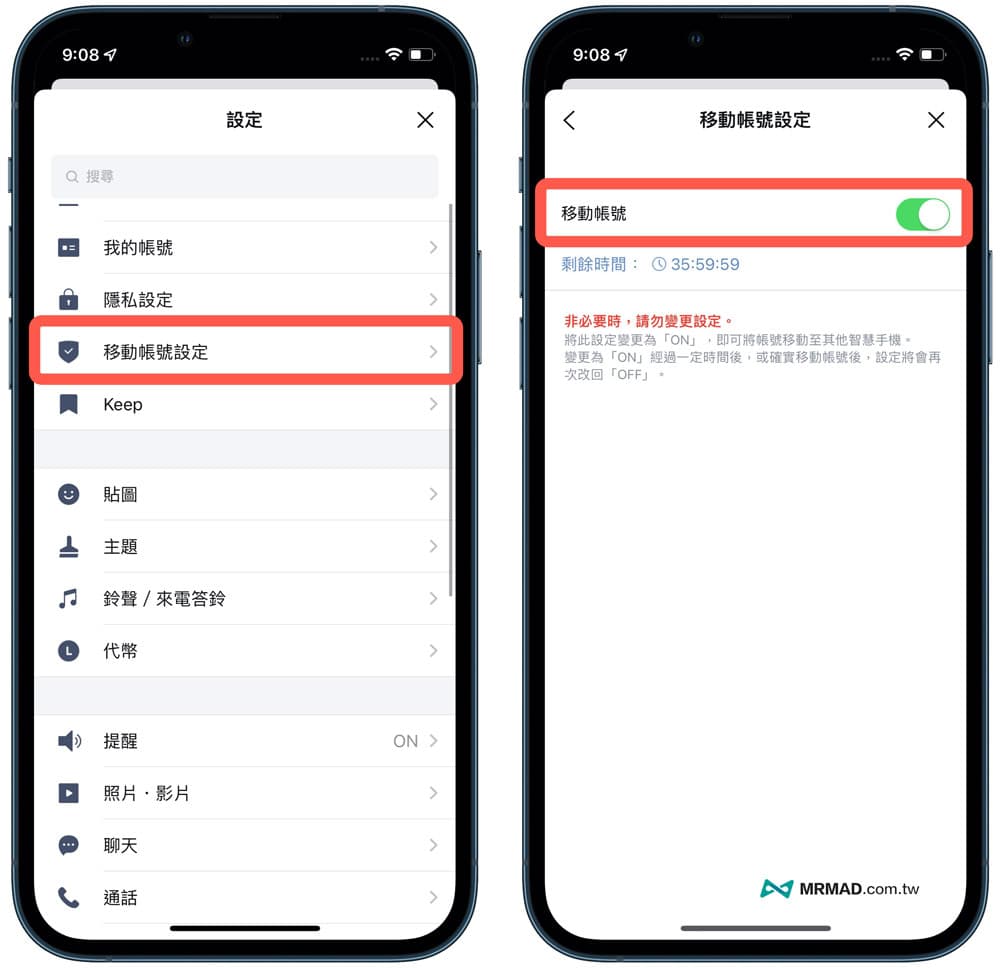
There are still issues with LINE data transfer. First, open the LINE App in the old iPhone. Click “Settings” > “Mobile Account Settings” in the upper right corner to enable it, and then confirm whether the LINE replacement process is set. You can open LINE through the new iPhone 17 device and log in to your account. All conversation records will also exist at the same time.
If you cannot use the LINE App to backup, you can also use the PC version of LINE backup tool to backup “Teaching for LINE chat history for iOS and Android across systems transferring LINE chat history”.
Transferring new and old iPhone data through the above methods can save a lot of backup and restore time through iTunes or iCloud, which is a very fast and convenient way.
Mr. Crazy still wants to remind everyone that you should backup your iPhone when you have time, but don’t think that all files are definitely fine if you put them in the iPhone. If there is a problem with the device one day! The photos and information inside are not synchronized with iCloud, so it will be difficult to rescue them at that time.
iOS 26 functions and operation skills teaching (continuously updated)
iOS 26 update tips and information:
Information on new iOS 26 features:
If you want to know more about Apple information, iPhone teaching and 3C information skills, please follow us
Crazy FB Fan Group,
Subscribe to Mad Google News,
Telegram,
Instagramas well as
Subscribe to Madness YouTube.