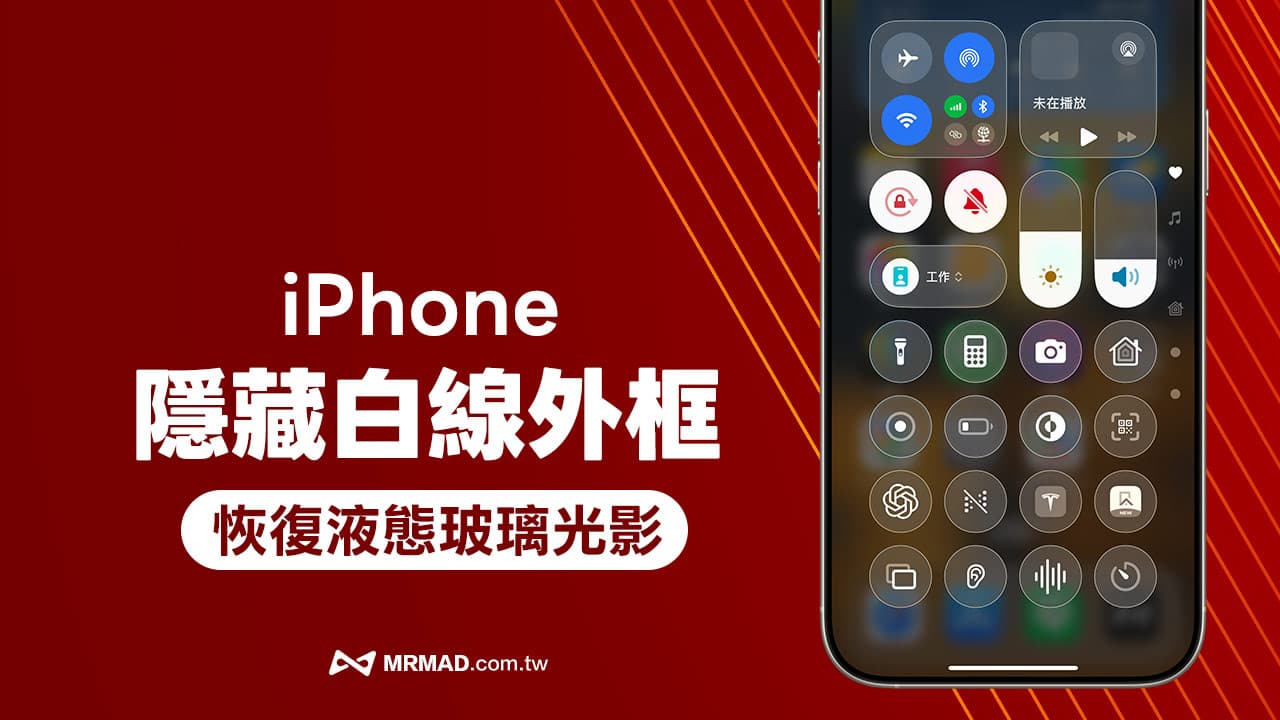
Just after the update of iOS 26, many iPhone users discovered why the Liquid Glass liquid glass light and shadow effect could not be seen, which caused a large number of white lines to appear in the control center, folder, main screen Dock and search screen? In fact, it is because of the accessibility function that the iOS 26 white lines directly replace the Liquid Glass effect.
How to disable iOS 26 White Line Assistance?
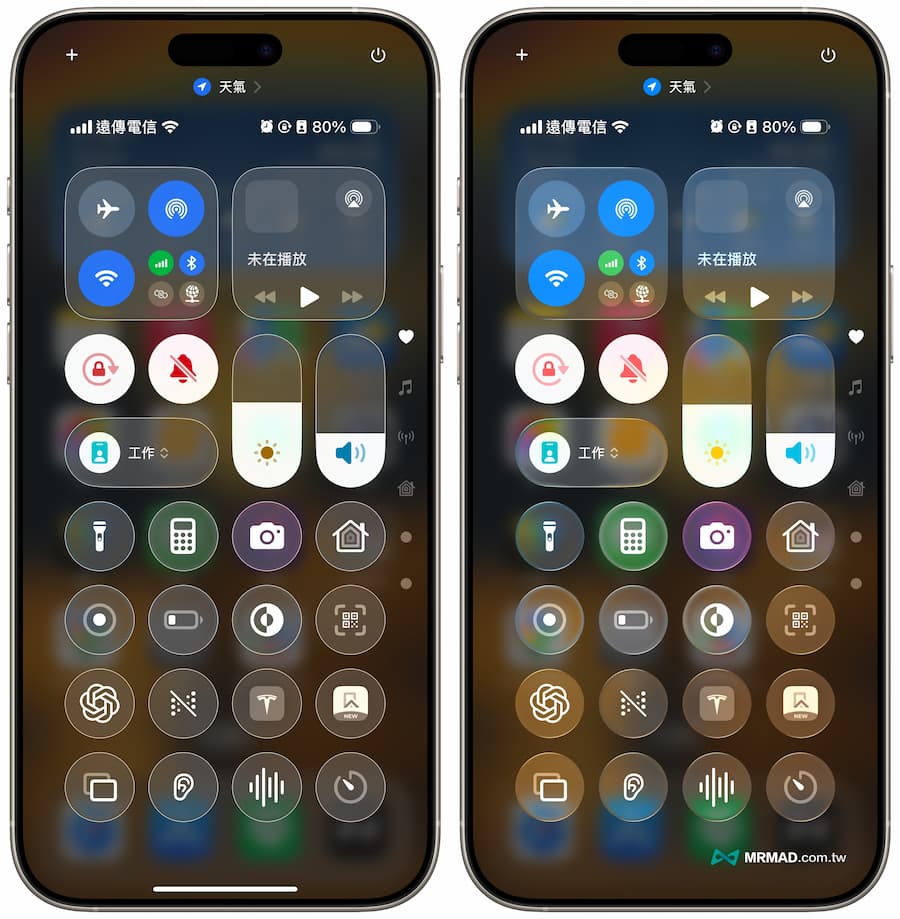
If you accidentally turn on the “Enhanced Contrast” function before upgrading iOS 26, the Liquid Glass liquid glass light and shadow special effects will be replaced directly by white lines. If there is no problem with visual recognition, it is recommended to turn off this function to see more effects.
Below we will teach you how to turn off the iPhone’s enhanced contrast function, which can prevent iOS 26 from easily seeing white lines in the control center, lock screen, and main screen.
Step 1. Turn on the built-in iOS “Settings”, select “Assisted Use”, and click “Show and Text Size”.
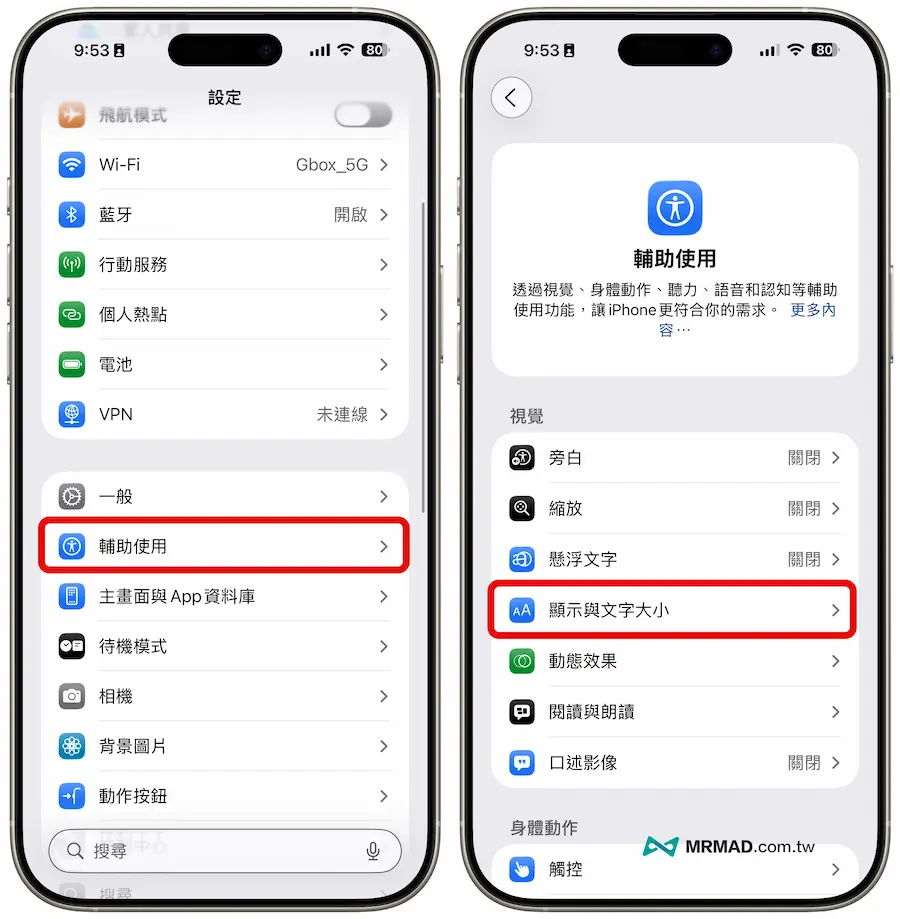
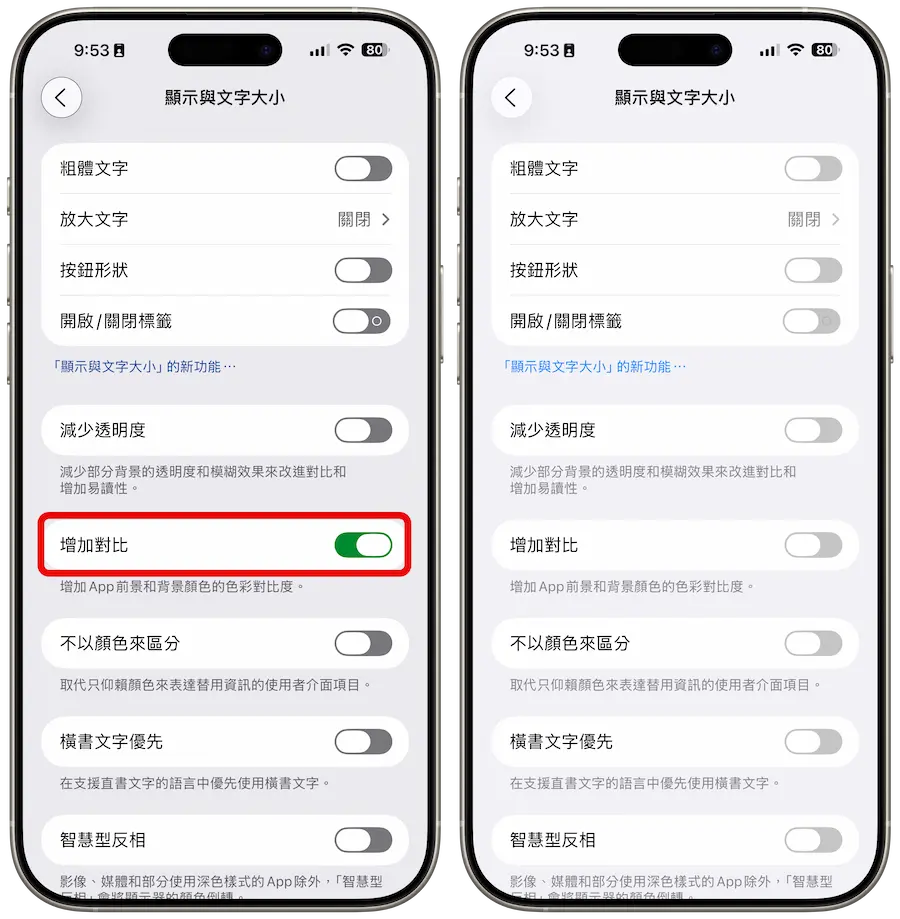
Step 2. Turn off “Enhanced Contrast” directly to restore the iOS 26 Liquid Glass light and shadow effect, and the white line assist will also be automatically turned off.
As long as the “Enhanced Contrast” effect is turned off, it will be like the original white lines of the picture on the left, and will be directly hidden, and will be changed back to the original iOS 26 liquid glass light and film visual effect.
What is the role of iOS 26 enhanced contrast function? Who needs to turn it on?
The built-in “Increase Contrast” function of iOS is mainly to enhance and improve screen readability and make iPhone users more clear in visual recognition. This function is also mainly aimed at users who have visual impairment, weak colors or feel that the interface color is too light.
The Liquid Glass liquid glass introduced in the latest iOS 26 may make it difficult for users to identify visually. Menu such as notification center, control center, notification and buttons have caused Apple to directly use white lines to replace iOS 26, which can easily distinguish the front and rear content.
If you are upgrading iOS 26, users below will recommend “Enhanced Comparison”. If it does not affect, you don’t need to enable this auxiliary function:
- Have visual impairment, weak color or feel that the interface color is too light
- Elders or users with weak eyesight
- When using iPhone under strong light, it is difficult to read the screen due to reflection or transparency
iOS 26 functions and operation skills teaching (continuously updated)
iOS 26 update tips and information:
Information on new iOS 26 features:
If you want to know more about Apple information, iPhone teaching and 3C information skills, please follow us
Crazy FB Fan Group,
Subscribe to Mad Google News,
Telegram,
Instagramas well as
Subscribe to Madness YouTube.