The side buttons on the iPhone 16 have been significantly updated from existing models, with many new features added.
The “action buttons” and “camera control buttons” are functions that make operation more comfortable.
It is possible to customize freely, so even beginners can use it with confidence.
In this article, we will explain the functions that can be used with the side buttons on the iPhone 16, how to use them, and how to customize them.
What is the side button function on the iPhone 16?
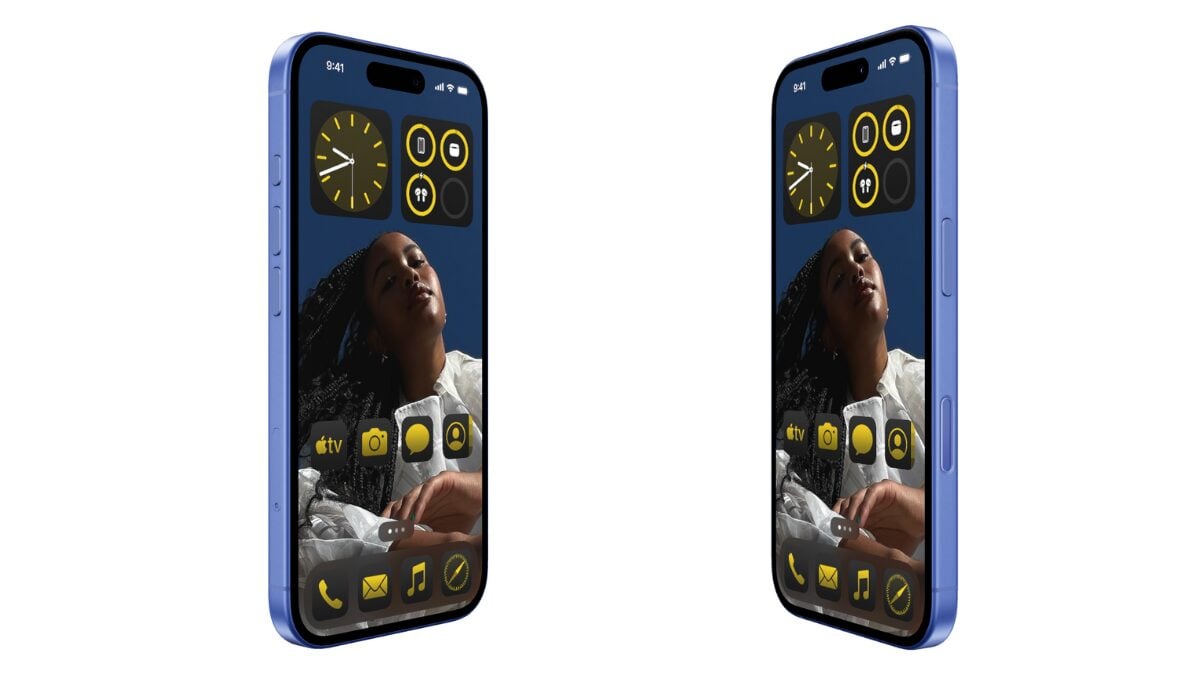
In addition to the previous buttons, two new buttons have been added to the side buttons of the iPhone 16. (※Action buttons are installed from iPhone 15Pro and iPhone 15ProMax.)
Let’s take a closer look at what functions each have.
Function 1: Action button
The action buttons are newly installed on the iPhone 15Pro and iPhone 15ProMax, and are also included in the iPhone 16 series.
It is located above the volume button and is customizable so you can assign any function you like to the action button.
There are various functions such as starting up the camera and recording voice memos, so you can freely set it according to your purpose.
If you would like to learn more about Action Buttons, please refer to the article below.
You may also want to read
[Latest 2025]What are the action buttons on the iPhone? A thorough explanation of how to set it up and how to use it. One of the iPhone’s most notable features is the action button. Instead of the traditional silent switch, this newly introduced button is customizable and can be used to suit the user’s needs.
Function 2: Camera control button
The Camera Control Button is a dedicated button that makes camera operation on your iPhone 16 more comfortable.
It is located under the power button, and you can perform various operations such as half-pressing the shutter and zooming it just by pressing it.
It is useful for quickly opening the iPhone 16 camera or taking photos or videos.
How to change the side button settings on your iPhone 16
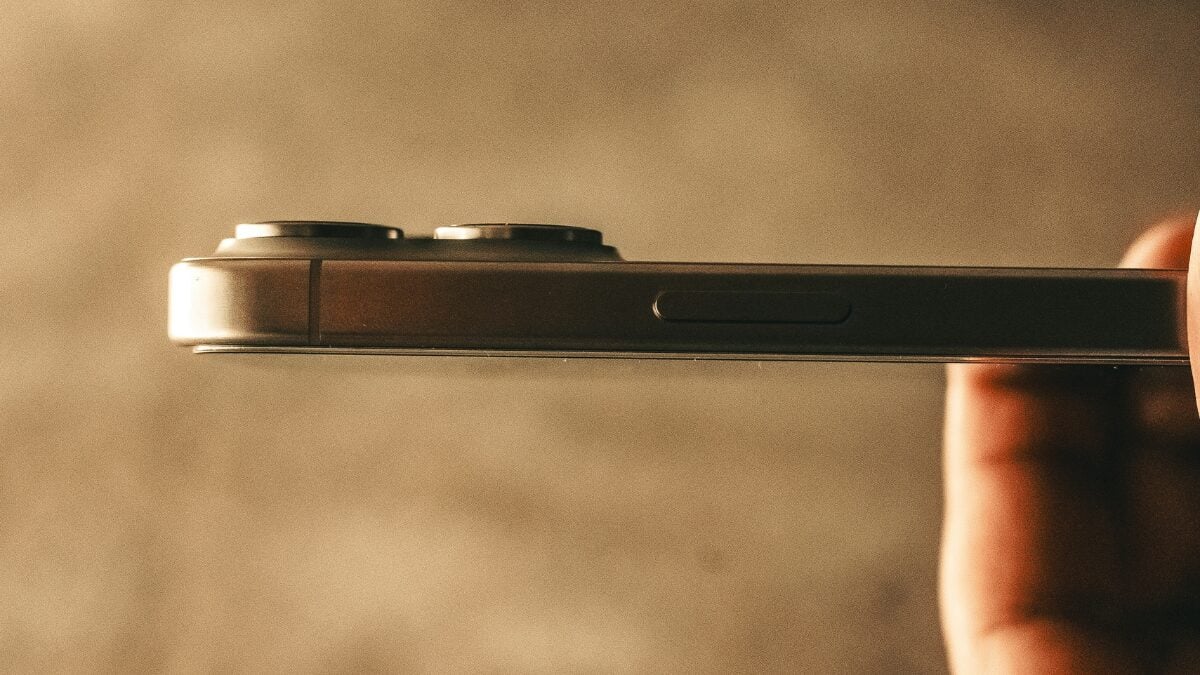
The side button on the iPhone 16 can be changed from the Settings app.
Here we will introduce how to change the settings of the action button and camera control button.
Change settings 1: Action button
You can open the action button from the Settings app on your iPhone 16 and set the functions you like.
The procedure for setting the action button is as follows:
- Select “Action Button” from the “Settings” app on your iPhone 16
- Set any function to “Action Button” on iPhone 16
- Press and hold the action button to perform the configured function
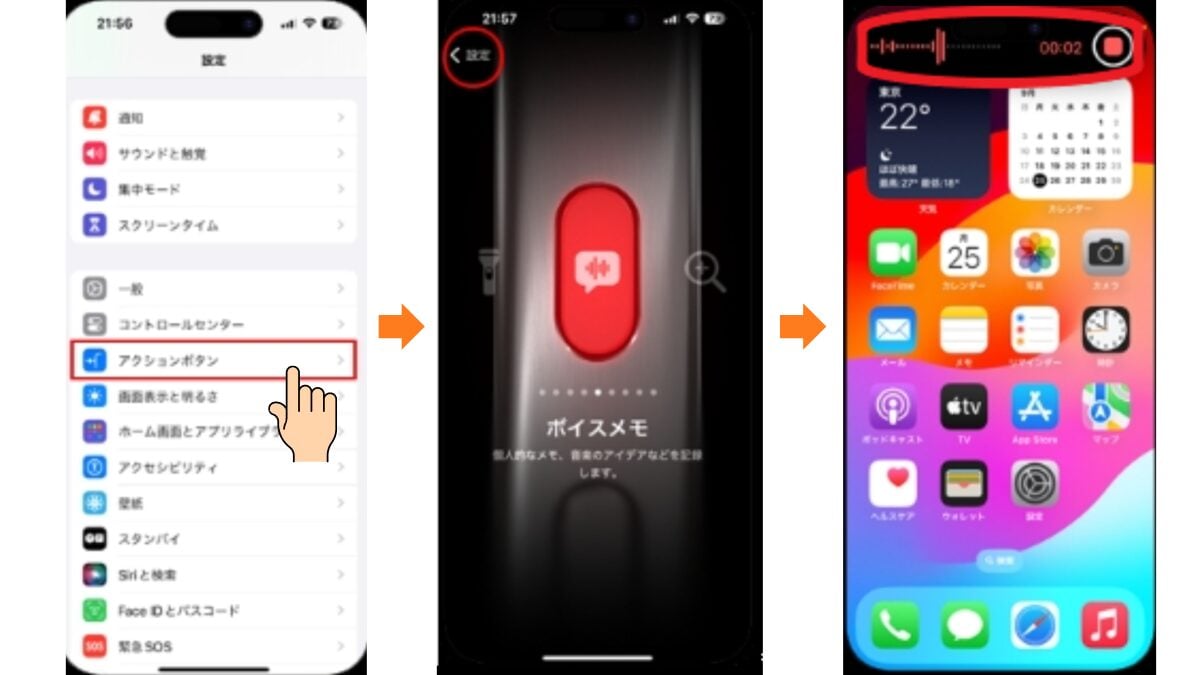
You can check whether this function can be assigned by swiping left or right on the action button settings screen.
Depending on the function you have set, you can also press and hold again to set it on/off.
Change settings 2: Camera control button
By default, the Camera app will be launched when you press the Camera Control button.
However, this function can be changed from the Camera Control Settings screen.
The procedure for setting the camera control button is as follows:
- Select the app you want to open from the Camera Control Settings screen.
- Click the camera control button
- Now that you have completed the settings, launch the configured app
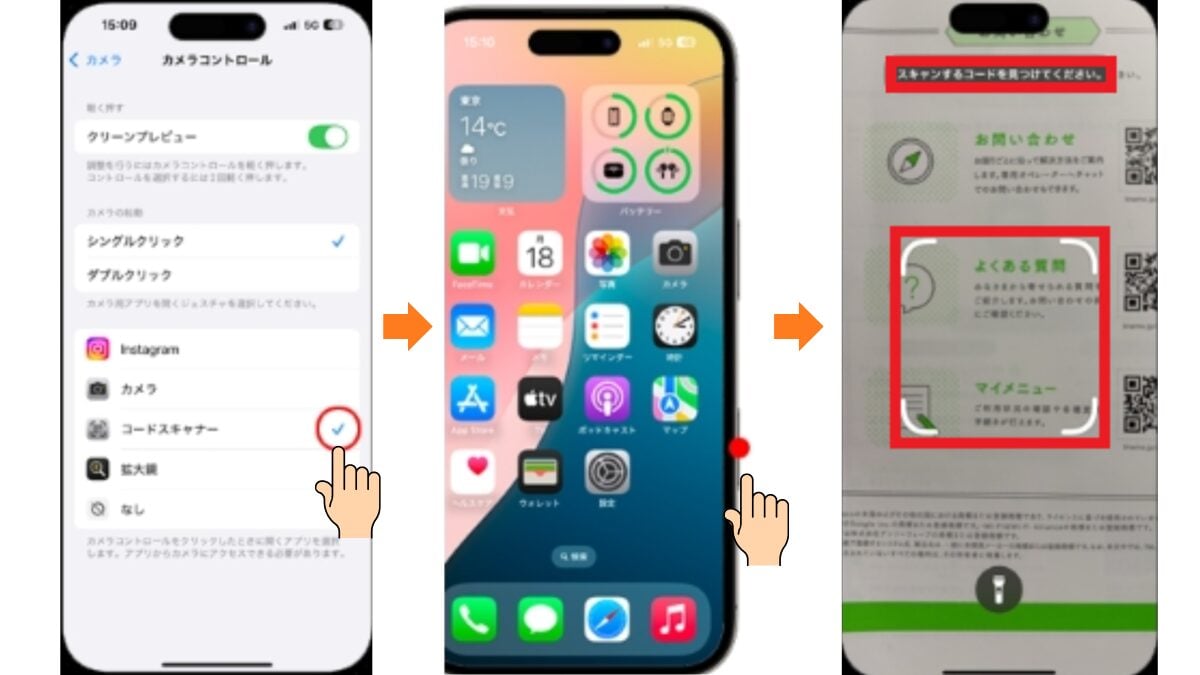
It can be launched with just one click, so set it up so that you can use your favorite app at any time.
FAQ

Here we will introduce three frequently asked questions when using the side buttons on your iPhone 16.
Q1: What should I do if I press the side button unintentionally?
A: If your iPhone 16 is pressed in your pocket or bag, the action button and camera control button may be pressed unintentionally.
For those who use it without a case, it can be said that mistaken operation of their smartphone is something they want to avoid.
First, try to figure out how to hold it or change the direction you put it in, and it may be less likely to cause erroneous operations.
If you still experience frequent misoperations, it is effective to change the setting to “No Action” from the Action Button menu.
Q2: What should I do if the side button doesn’t respond?
A: The side buttons are also physical, so there is a high possibility that they will break down due to impact from falling or wear due to years of use.
In particular, the camera control buttons have built-in touch and pressure sensors, making them more likely to break than other buttons.
If the side buttons do not respond, try the “Assistive Touch” feature, which will restart or display virtual buttons.
If the problem still doesn’t respond, you should definitely send it to a specialist store such as the Apple Store for repairs.
Q3: What if the side buttons move strangely after the update?
A: In a rare case, the side buttons may move strangely right after updating iOS.
First, check if your iPhone 16 is the latest iOS version, and if it is an older version, try applying the update.
This may fix the bug and cause the side buttons to move back.
If that doesn’t work, you can also reset all settings.
However, please refrain from using it as a last resort as your password or other registered information will be deleted.
summary
We have thoroughly explained the functions that can be used with the side buttons on the iPhone 16, how to use them, and how to customize them.
In addition to the traditional buttons, the iPhone 16 has new action buttons and camera control buttons. (※Action buttons are installed from iPhone 15Pro and iPhone 15ProMax.)
It is very easy to operate and is opened quickly, making it convenient for taking photos and videos.
It is also highly customizable, and you can assign functions such as voice memos from the Settings app and launch them with just one click.
If you set the functions you like according to your purpose, you will be able to enjoy editing photos and videos.
With new features, use the side buttons of your iPhone 16 to make shooting more comfortable.
Source: iPhone Mania