
 With iOS 26, Apple not only modernized the appearance of the iPhone, but also revised small everyday functions – including the design of the alarm clock on the lock screen. What initially acts like an optical refresher carries a risk in everyday life.
New look with problems
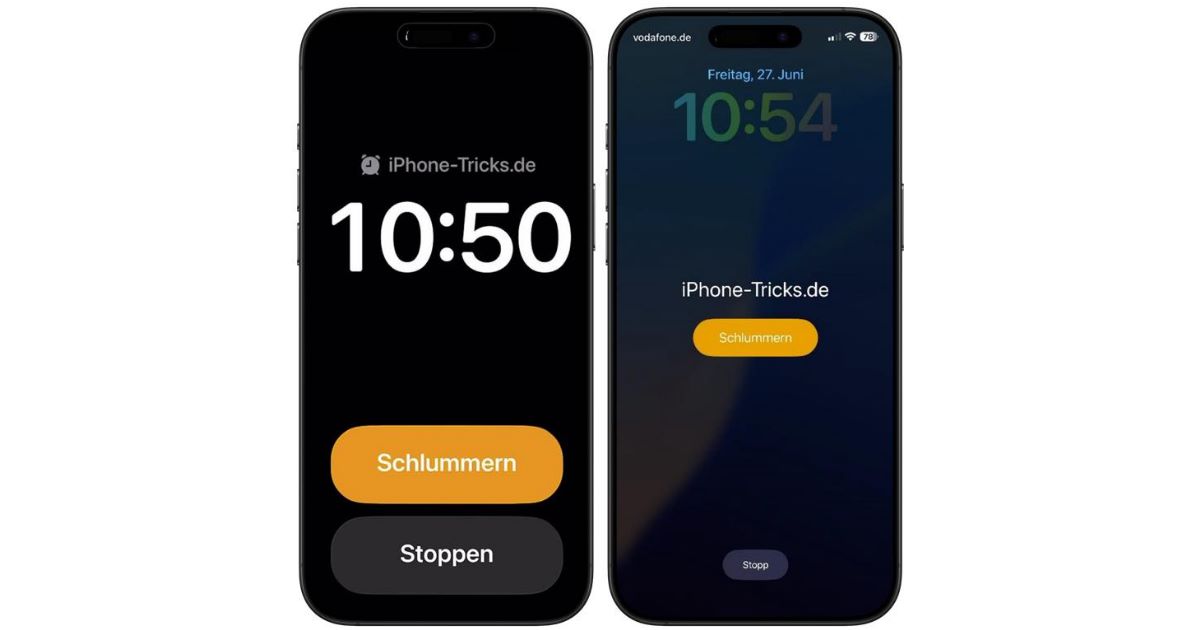
If the iPhone is switched off and the alarm clock rings, then we now display it in iOS 26 significantly larger on the lock screen. The current wake -up time is shown in the middle of the screen, the name of the alarm clock appears a little smaller. Below are appearing, much larger than before in iOS 18, the two buttons to slumber and stop the alarm.
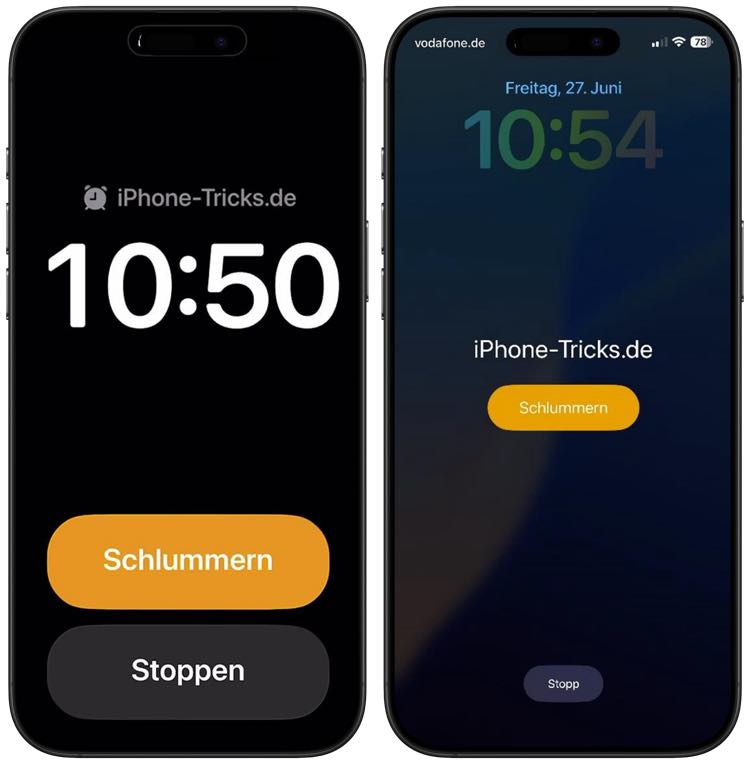
In the new view, however, the “slumber” and “stop” buttons are placed right next to each other – a clear break with the previous separation under iOS 18, in which “slumber” centered on the lock screen and “stop” at the bottom, significantly smaller and at a large distance, below on the screen.
The risk: Anyone who is half asleep on the screen in the morning could accidentally stop the alarm clock – and continue to sleep or sleep without further memory. This is a real stumbling block, especially for multi -slumber.
A design error with consequences?
In social networks and user forums there are increasing reports from iOS-26 testers that have overslept for this reason. The lack of safety distance between the two buttons ensures uncertainty – and so far there is no way to restore the old behavior or layout.
Our tip: Simply put the ringing alarm clock from the iPhone into slumber mode via the switch -on button, so there is no risk of getting the wrong button.
What was intended as a subtle design update has potentially serious consequences in everyday life. Apple should rethink the new button layout-or the user: at least leave the choice of how you want to interact with the alarm clock. Until then it says: Caution when waking up with iOS 26.
Source: iPhone Tricks