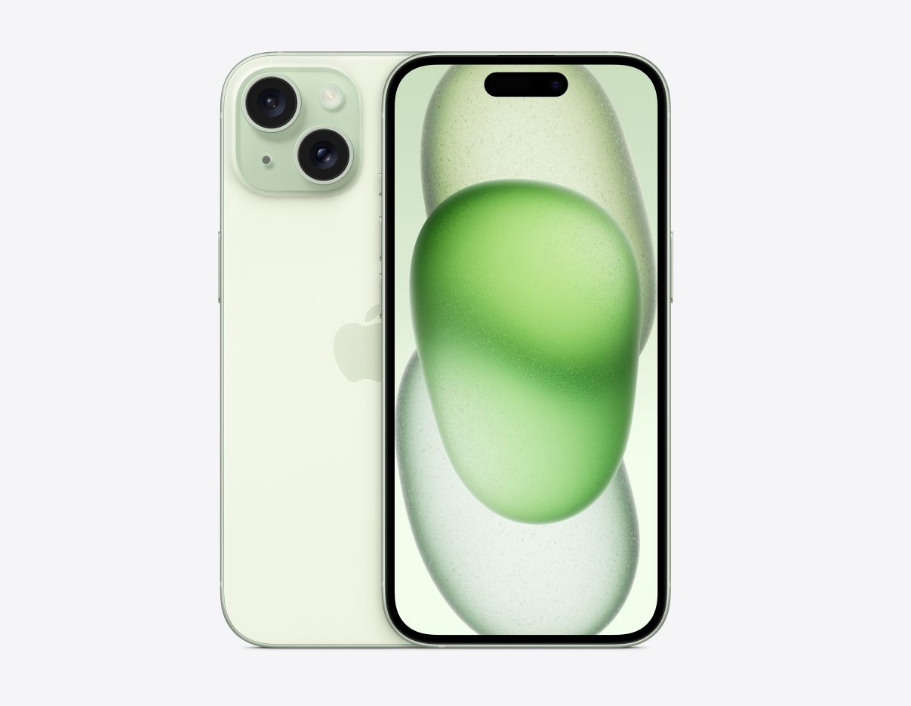
How to lock apps using Face ID on iPhone? If you’ve ever felt your privacy was compromised because you lent your phone to a friend or family member, you know there are some apps you’d rather keep locked away. Fortunately, Apple has taken a major step forward in this regard and allows us to add apps. Extra layers of security lock down our favorite apps so no one snoops where they shouldn’t.
The most exciting part is that we are no longer entirely dependent on app developers to add locking functionality. Thanks to the latest technological developments, we now have complete control. Restrict access via our facial recognition or device codes, ensuring sensitive information stays where it needs to be.
Native methods for iOS 18
With the release of iOS 18, locking apps becomes a piece of cake. No more having to go into the settings menu, it can now be done directly from the home screen. Here’s how to do it… Press and hold the icon to select the app you want to protect until the context menu appears.
Among the options, you will see an option that says: Require Face ID After selecting, you will be asked for final confirmation. Once confirmed, the iPhone will scan your face and the app will remain secure from that point on. If facial recognition fails for any reason, the phone will ask you for additional information. Access PIN lets you in.
A key detail is that this blocking will not only prevent apps from opening, but also hide content from notifications and Spotlight searches, preventing private data from being leaked without unlocking the app.
How to hide apps completely
Sometimes, it’s not enough for an app to simply request Face ID; we want it to be completely invisible. For this case, there is an option… Hide and require Face ID After selecting this option from the drop-down menu, the app will disappear from your home screen and move to another location. Hidden folders are located at the bottom of the app library.
However, keep in mind that the app won’t disappear completely as its name will still appear in certain sections such as… App Store Purchase History or view it in “Battery Usage Statistics & Screen Time” in System Settings.
Tips for using versions before iOS 18
If your iPhone hasn’t been updated to the latest system, or you have an older model, don’t despair, as there are ways to find fairly effective workarounds. One of the neatest methods is to use… App Shortcuts to create an automation that stops your phone from running when a specific app is opened.
To set up this system, you must go to the Automation tab, create a new automation item, and select this option. Once you have selected the app you want to protect, you must add the following actions: Lock screen This way, as soon as someone tries to open the app, the iPhone will automatically jump to the lock screen, forcing the user to unlock it. Use Face ID to authenticate and re-enter.
Implement alternatives through use of time and guided access
For those looking for tighter parental controls or restrictive controls, this feature is an old and reliable product. You can set communication limits and prevent apps from creating codes that differ from the phone and place a one-minute limit on the apps you want to restrict use of. After the time has passed, the app will lock and require a password to continue using it.
If what you need is to let someone (like a child) use the iPhone, but I can’t exit any of the apps. The solution is Guided Access. This feature can be activated in Settings > Accessibility and once configured, simply press the side button three times to pin the app to the screen, preventing any external navigation.
Application specific security
We must not forget that some applications have security systems built into them. The most obvious example is… WhatsApp This way you can activate the screen lock from the privacy menu, allowing the app to request Face ID independently of the general system.
The same applies to most people. Banking Apps Due to security regulations, these countries have made facial recognition or fingerprint scanning a requirement for handling cash.
Whether you’re taking advantage of the power of iOS 18, getting creative with shortcuts, or limiting access through Screen Time, you now have all the tools you need to turn your iPhone into a secure fortress. From hiding apps in secret folders to forcing specific apps to use Face ID to enabling Guided Access for your kids, the privacy of your device now depends entirely on how you configure it.