When using an iPhone, it may become slow or you may need to restart it to resolve a temporary problem.
Restarting the iPhone is a bit troublesome as you have to press and hold the side button after the power is completely turned off.
In fact, by using the shortcut app, you can restart your computer without any troublesome operations.
This time I will show you how to add a restart button to your iPhone using the Shortcuts app.
How to restart iPhone normally
There are three normal ways to restart your iPhone.
use physical buttons
For iPhones without a home button, such as iPhone X or later, press and hold the side button and either volume button until the “Slide to power off” screen appears.
For iPhones with a home button, such as iPhone 8 or earlier or iPhone SE, press and hold the side button or top button until the “Slide to power off” screen appears.
You can turn off your iPhone by swiping the icon on the left side of “Slide to power off” to the right.
Then, wait about 30 seconds, then press and hold the side button or top button until the Apple logo appears.
Shut down the system from the Settings app
You can turn off the power by opening the Settings app, tapping “General” → “Shut down”, and swiping the icon to the left of “Slide to power off” to the right.
Wait about 30 seconds, then press and hold the side button or top button until the Apple logo appears.
Force restart
If your iPhone freezes or won’t turn on, you may want to use a forced restart.
Frequent forced restarts can cause data corruption, failure to start (apple loop), and stress on the battery, so we recommend using this as a last resort when your computer freezes.
On an iPhone with Face ID, press and hold the volume + button once, the volume – button once, and the side button until the Apple logo appears.
For iPhone 7 series, press and hold the side button and volume button at the same time until the Apple logo appears.
For iPhone 6s and earlier, press and hold the home button and side button or top button at the same time until the Apple logo appears.
How to create a restart button shortcut
Open the Shortcuts app and tap the “+” in the top right corner.
Tap “Search for Actions,” type “system,” then tap “Shut Down.”
Tap the blue text “Shutdown” and select “Restart”.
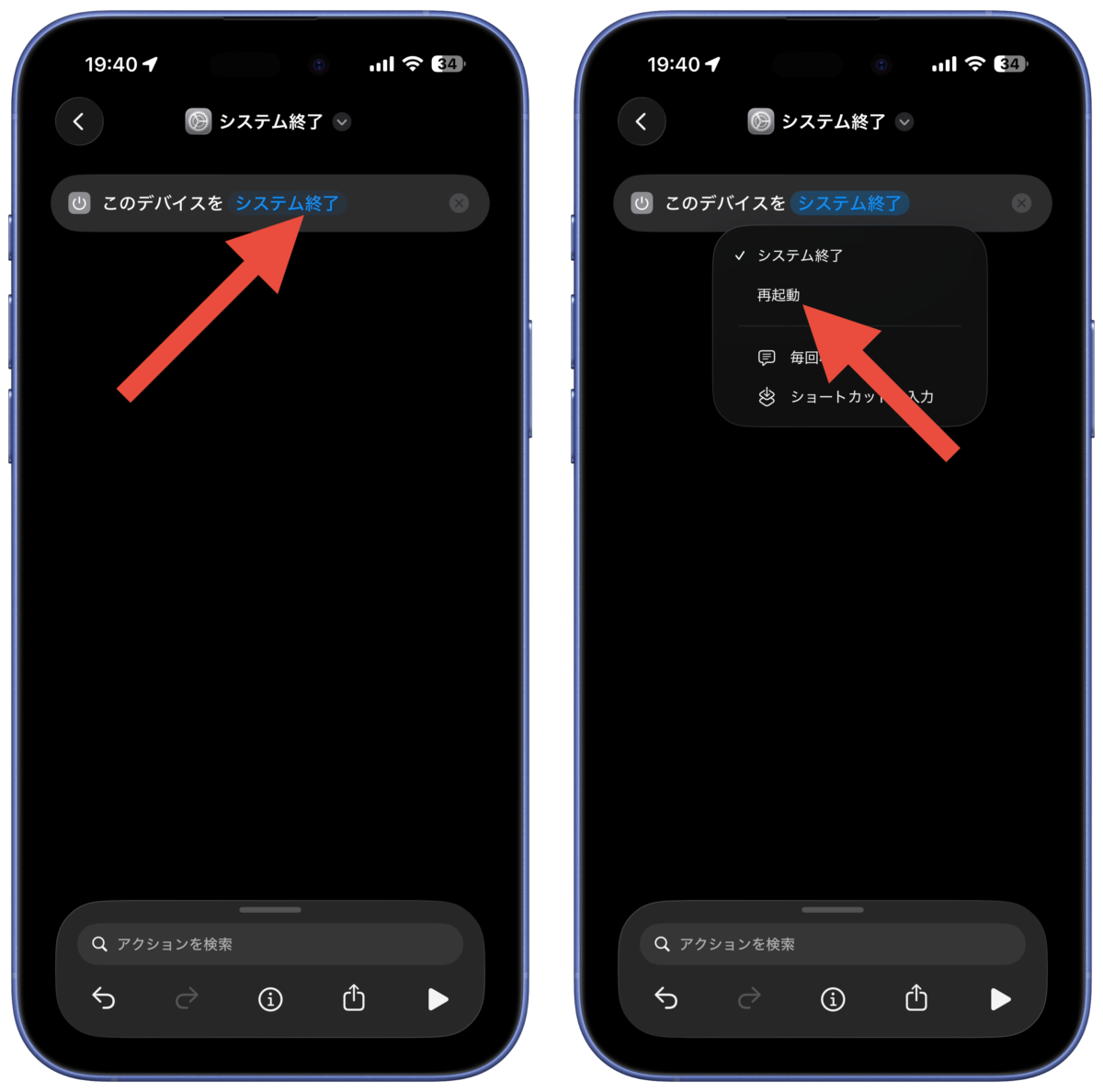
Tap “System Shutdown” at the top, select “Rename” to name the shortcut, and select “Choose Icon” to set the icon.
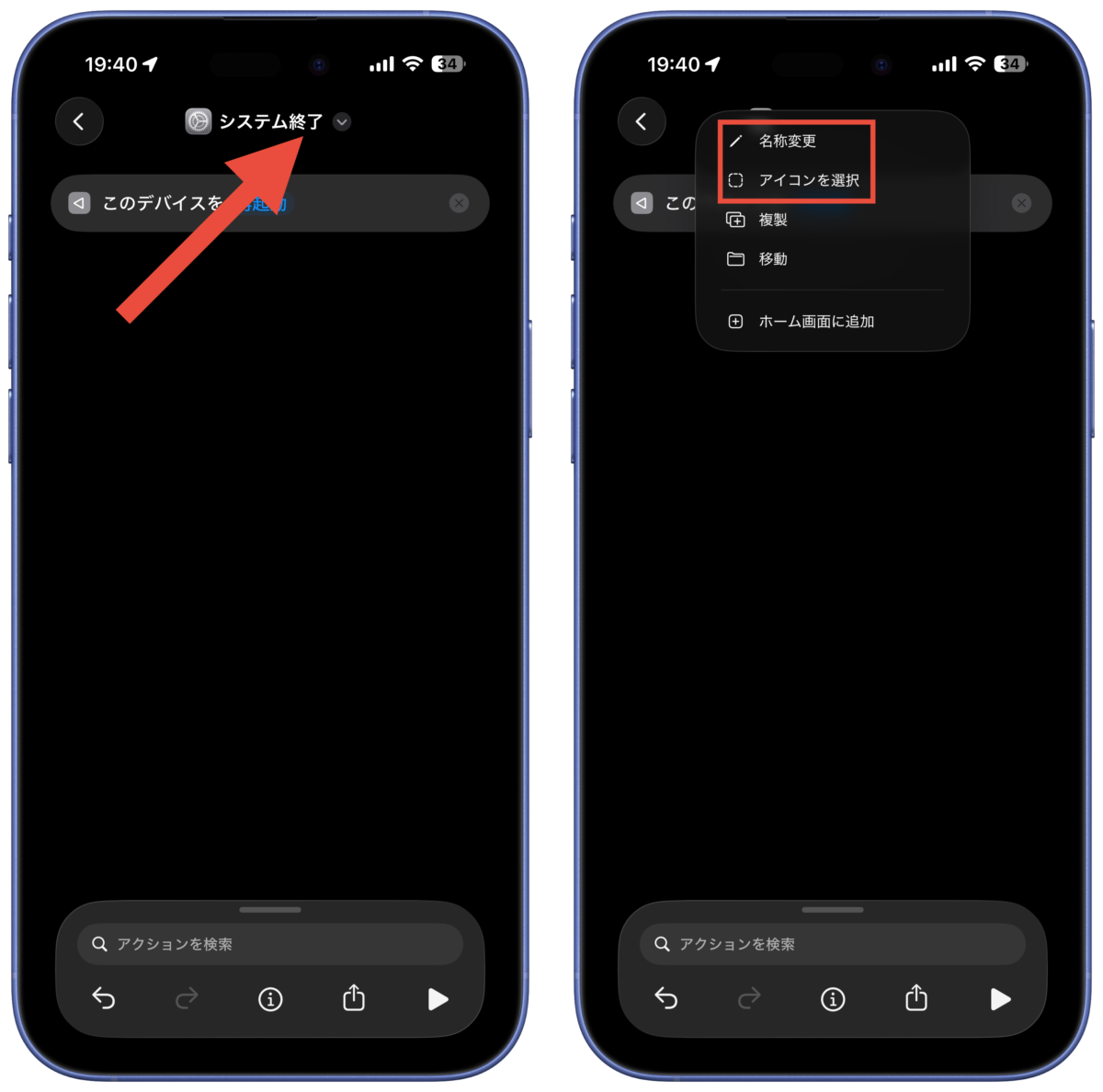
Once the shortcut is complete, tap “<" in the top left to return.
Add restart button to home screen
Open the Shortcuts app, press and hold the restart shortcut you created, and select Share.
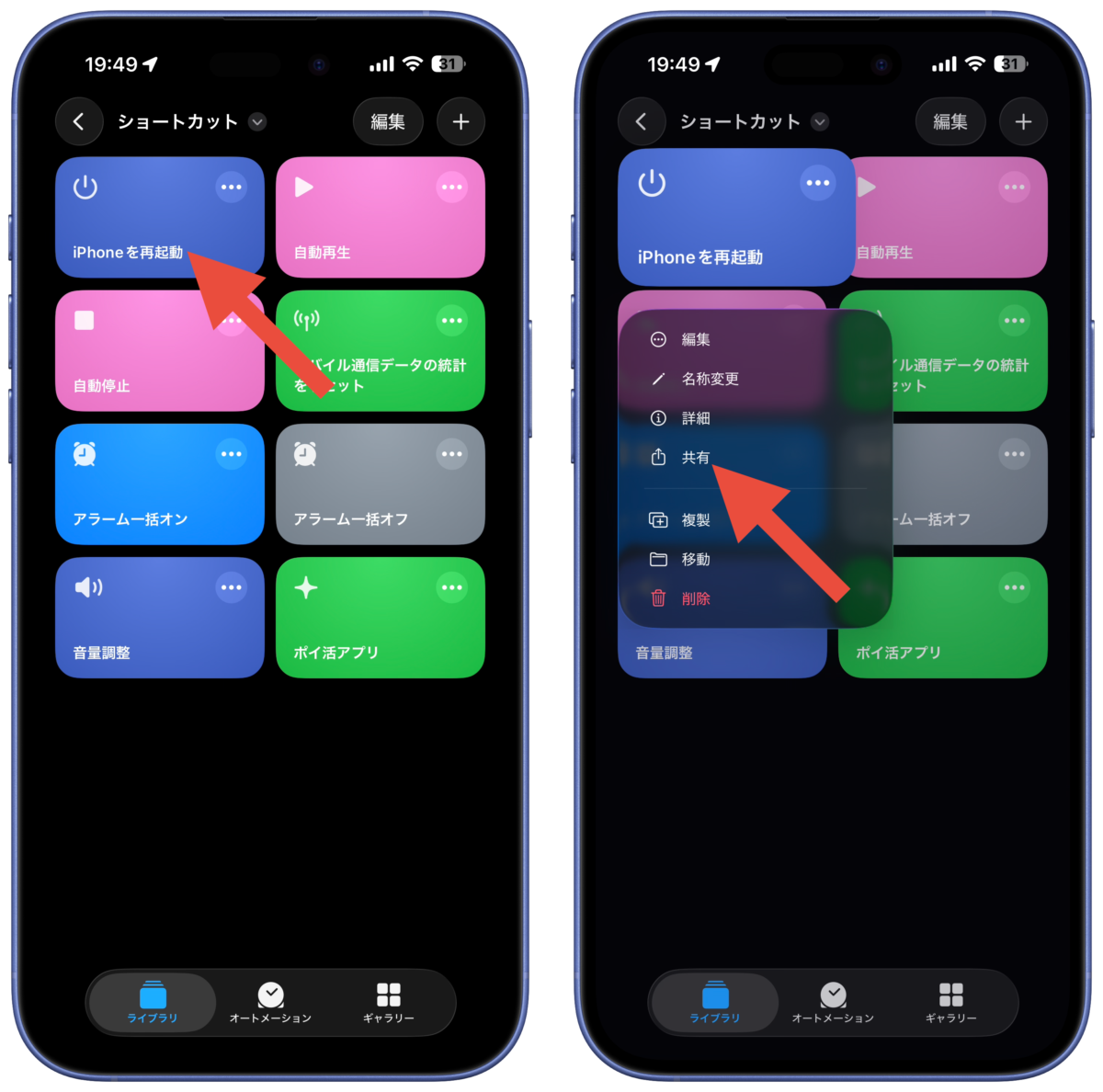
You can add the restart icon to your home screen by tapping “Add to home screen” and then “Add” in the top right corner.
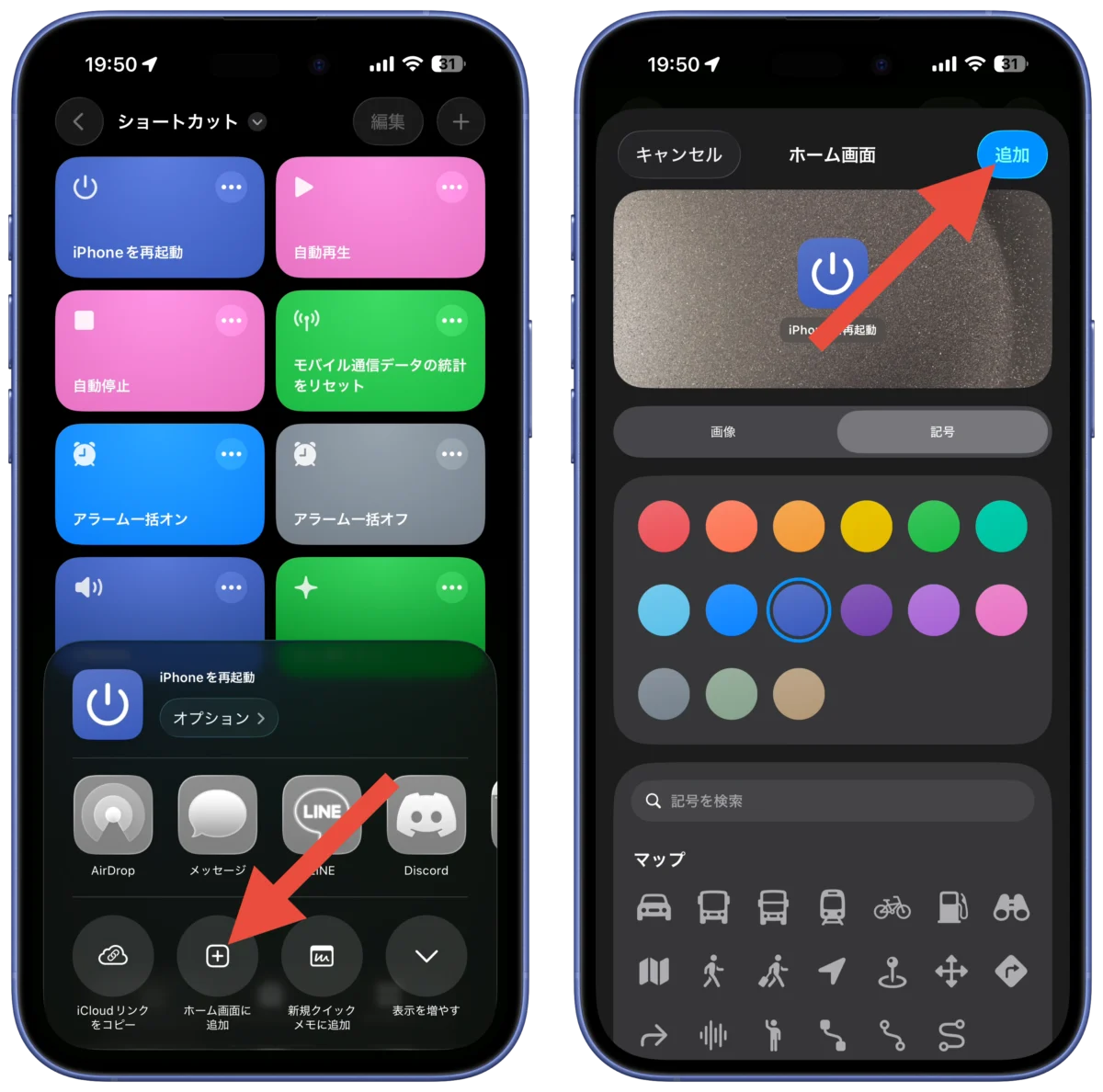
Add restart button to control center
You can also add a restart button to Control Center.
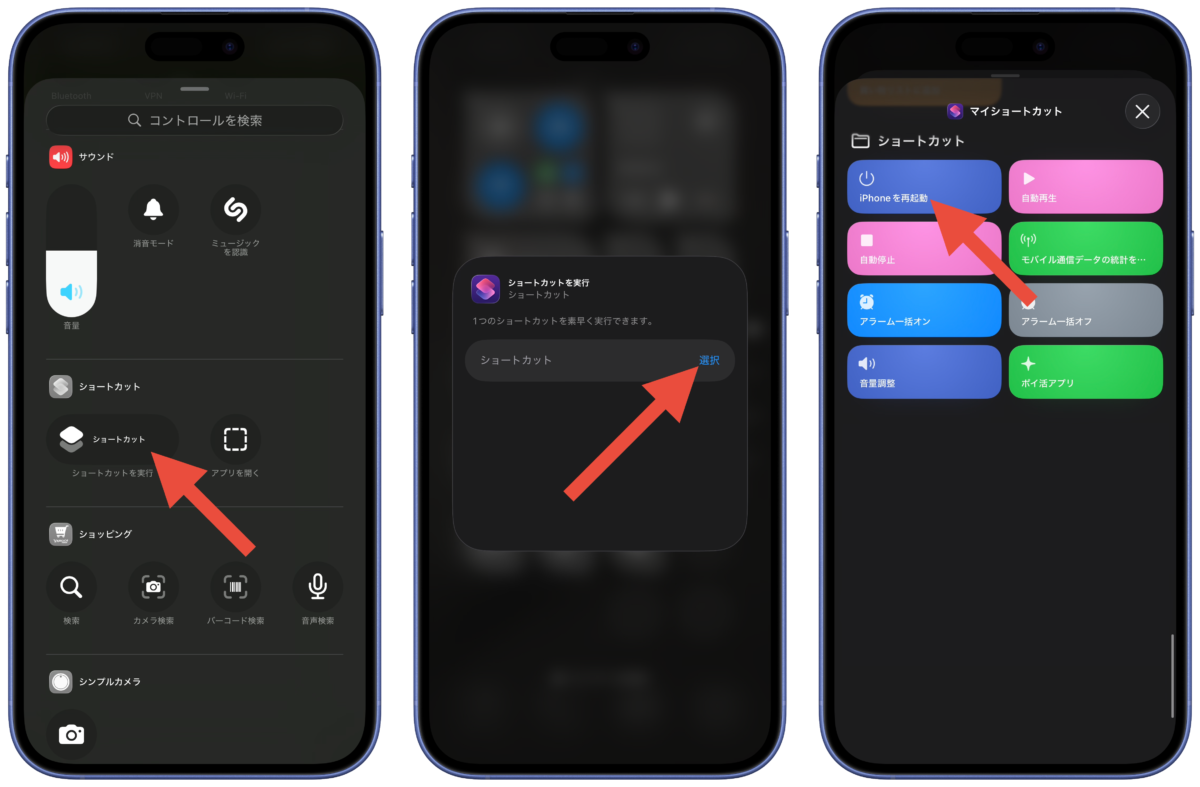
Open Control Center, press and hold an empty area to enter edit mode, and tap Add Control.
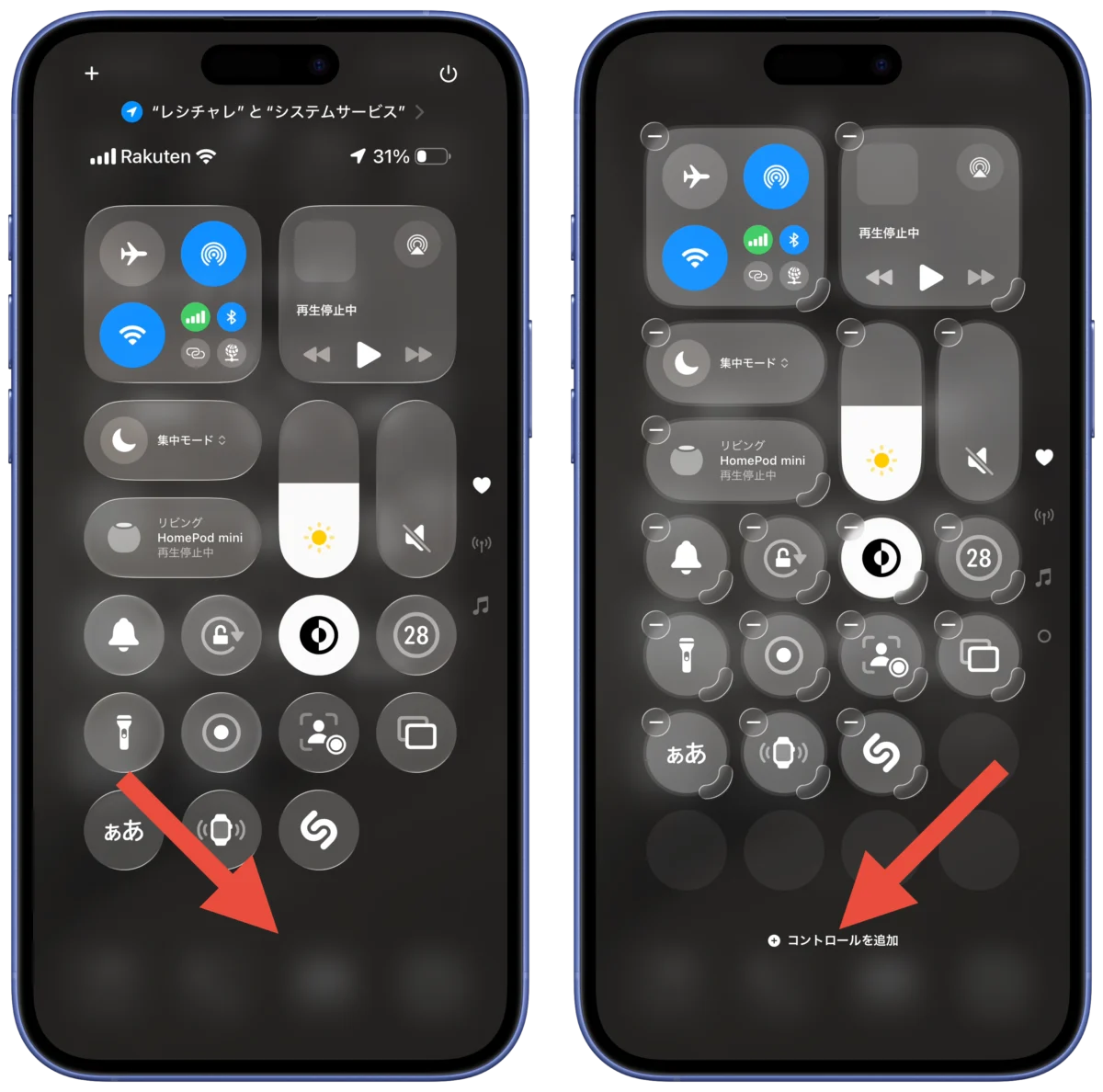
Tap “Run Shortcut” → “Select” and select the restart shortcut you created from “My Shortcuts”.
How to restart
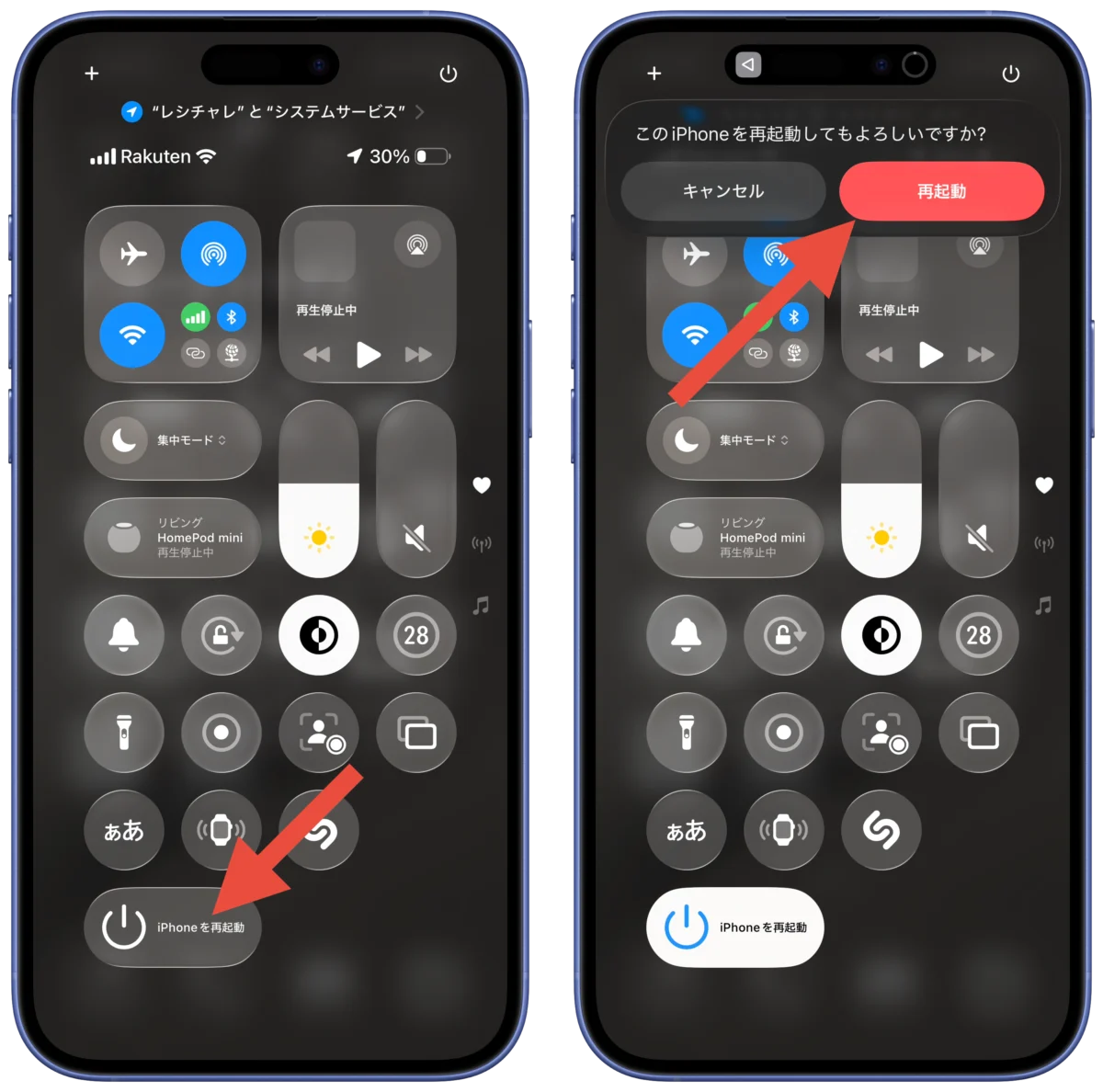
Run the restart shortcut you added to your home screen or Control Center.
When the message “Are you sure you want to restart this iPhone?” appears, select “Restart” and the iPhone will turn off and restart automatically.
Please take a look at the recommended shortcuts below.
How to make your iPhone automatically play music when you start your car
How to automatically reset mobile communication usage on iPhone every month
Shortcut recipe to turn iPhone alarms on and off all at once! How to turn it on automatically
How to create a shortcut recipe that allows you to finely adjust the volume on your iPhone
Source: iPhone Mania