Shortcut recipe and automatic setting method to turn on and off alarms all at once on iPhone
Isn’t it a pain to turn on and off one by one when you have multiple alarms set?
Actually, there is a way to turn on and off multiple alarms at once using shortcuts.
This time, I will show you how to create a shortcut to change multiple alarm settings.
We also show you how to use the automation feature to automatically turn on alarms, so be sure to read until the end.
How to create a shortcut recipe to turn on and off multiple alarms at once
This time, we will create two shortcuts: one to turn on the alarm and one to turn off the alarm.
Shortcut recipe to turn on alarms all at once
Please set the alarm from the clock app first.
Open the Shortcuts app and tap the “+” in the top right corner.
Tap “Search for Actions,” enter “alarm,” then select “Toggle Alarm.”
Tap the blue text “Alarm” and select the alarm you want to set.
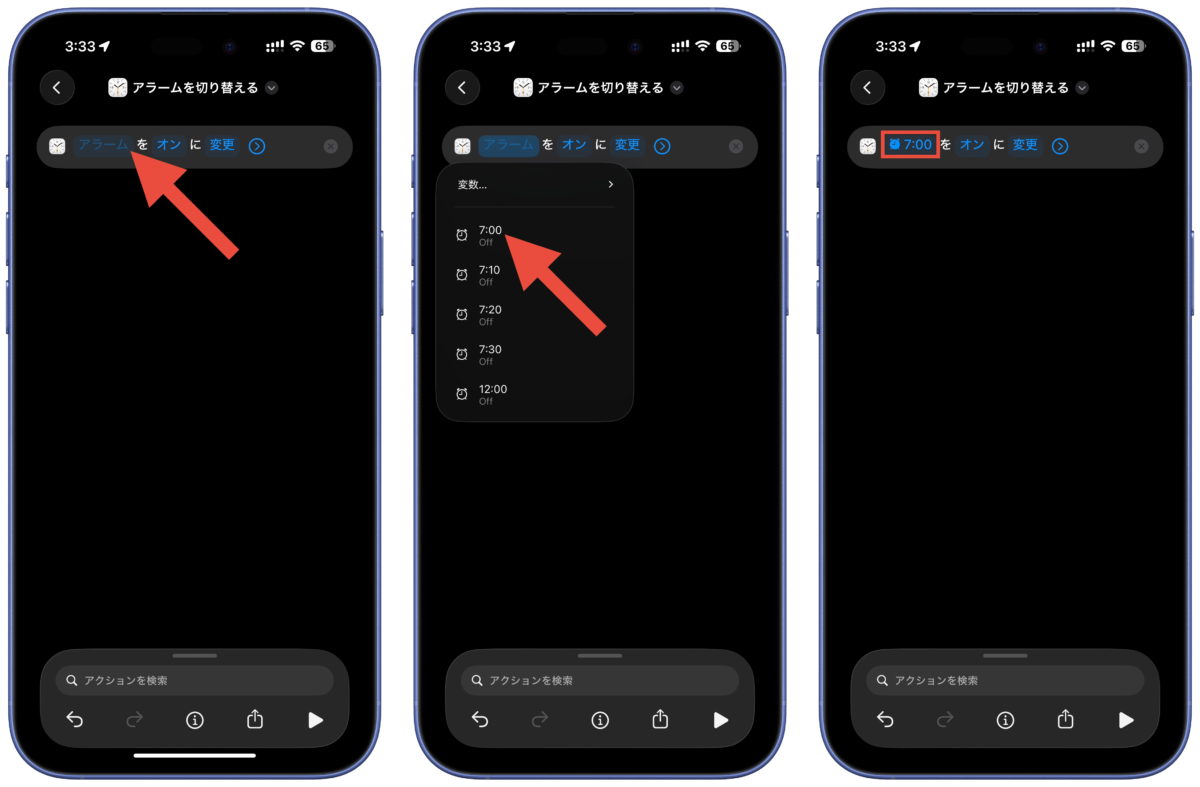
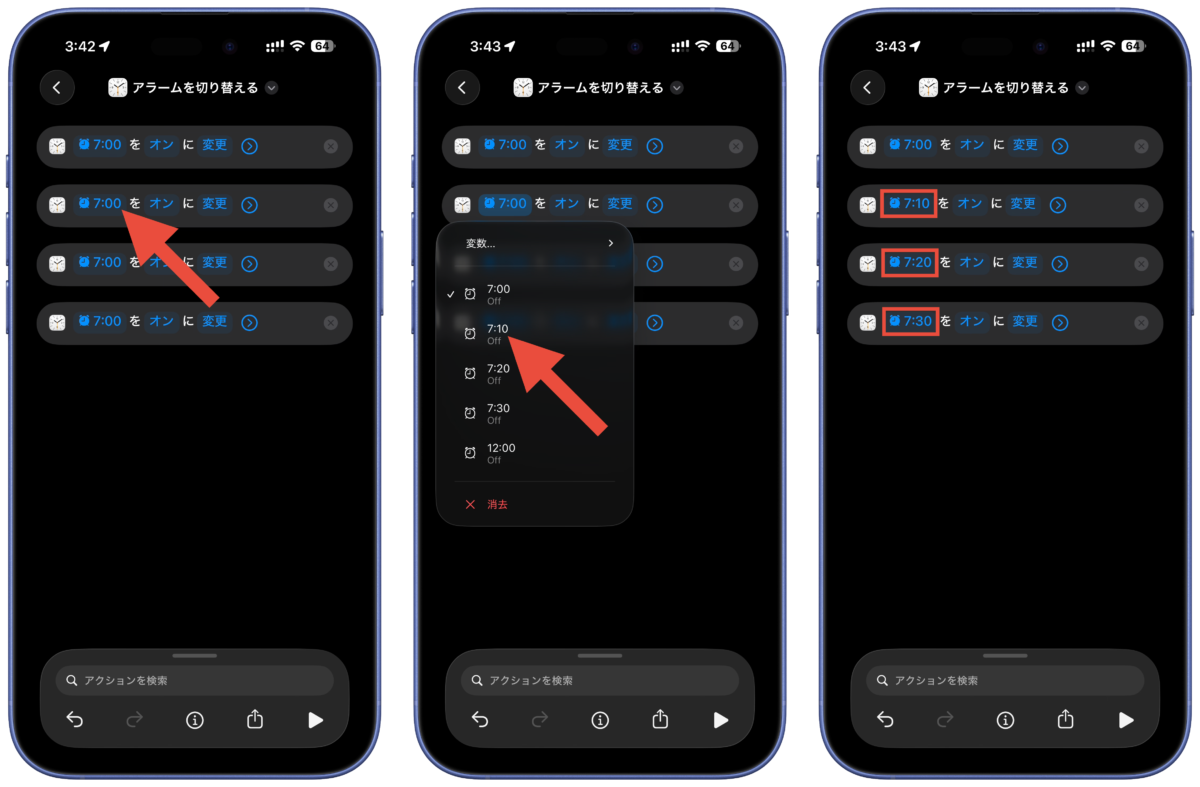
Tap the clock icon to the left of the alarm action and select Duplicate to increase the number of alarms you want to set.
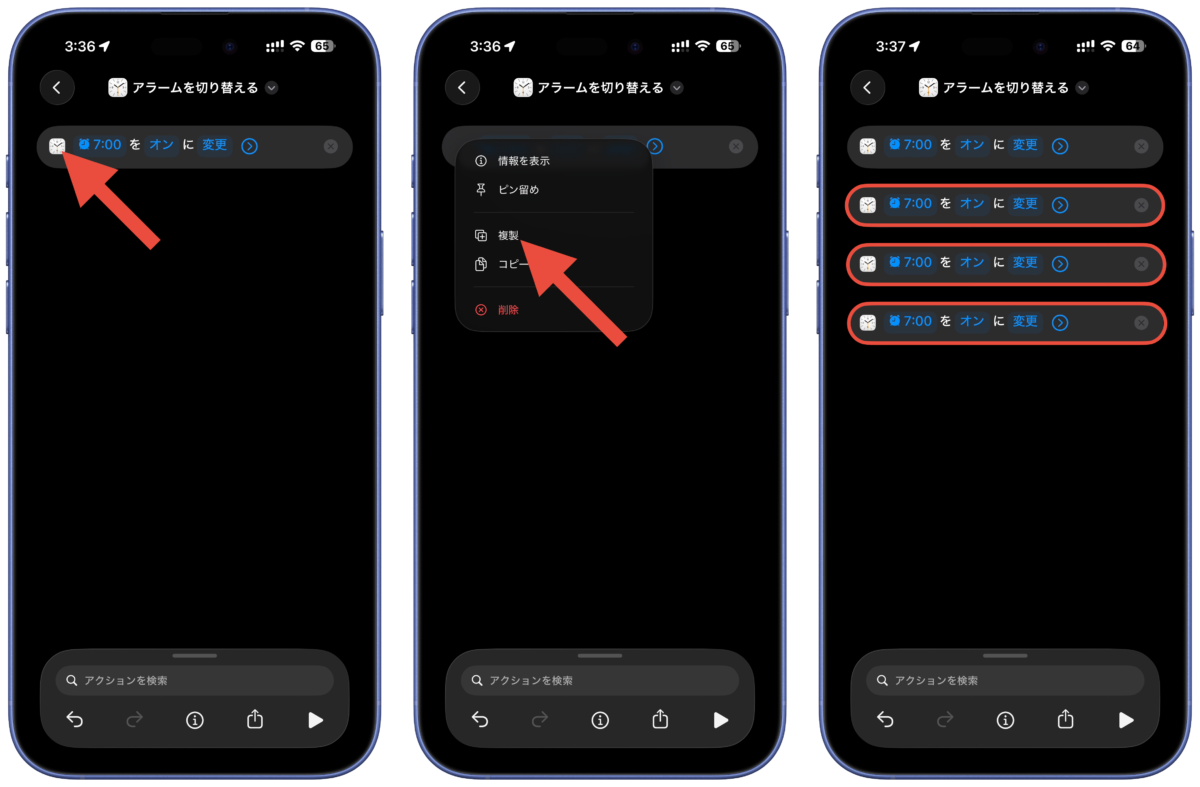
Tap the time of the duplicated action to select an alarm for a different time.
Tap “Switch alarms” at the top, then select “Rename” and change the shortcut name to “Alarm batch on” or something similar.
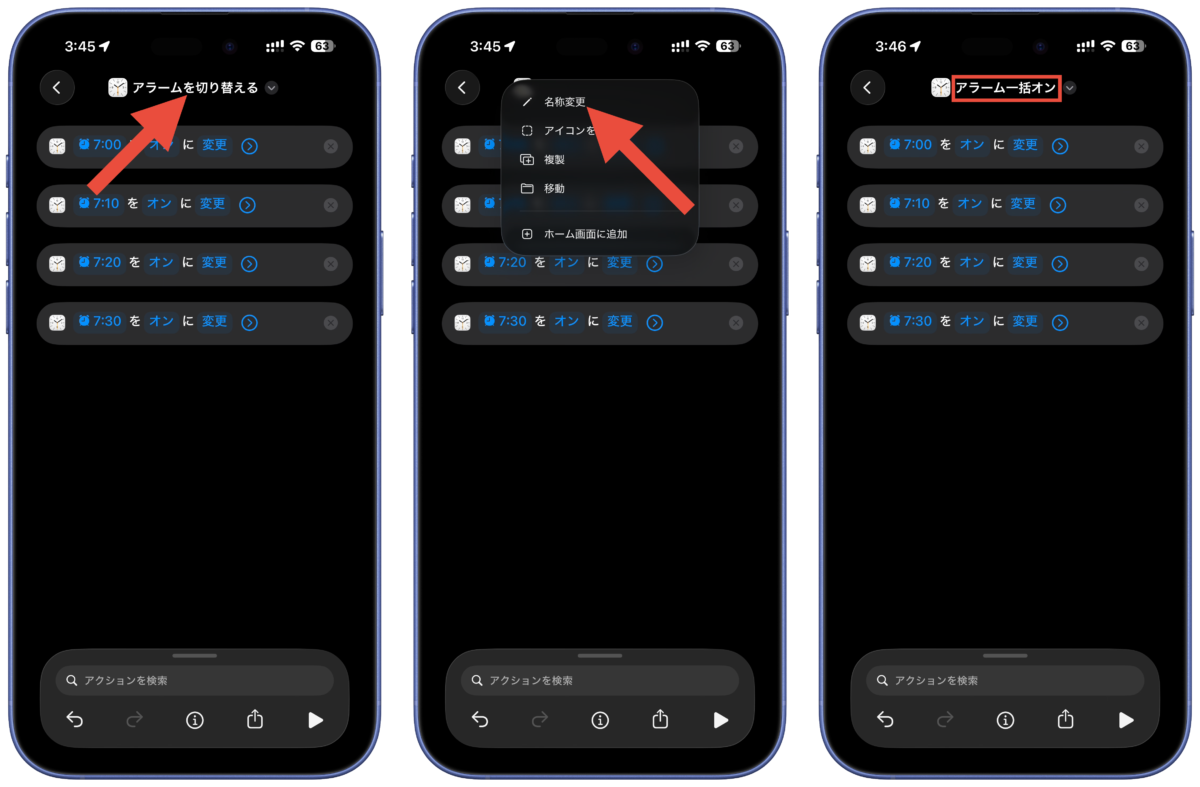
The shortcut recipe for turning on alarms all at once is now complete.
Shortcut recipe to turn off alarms all at once
Open the shortcut list screen, press and hold the “Alarm batch on” shortcut you created earlier, and select “Duplicate”.
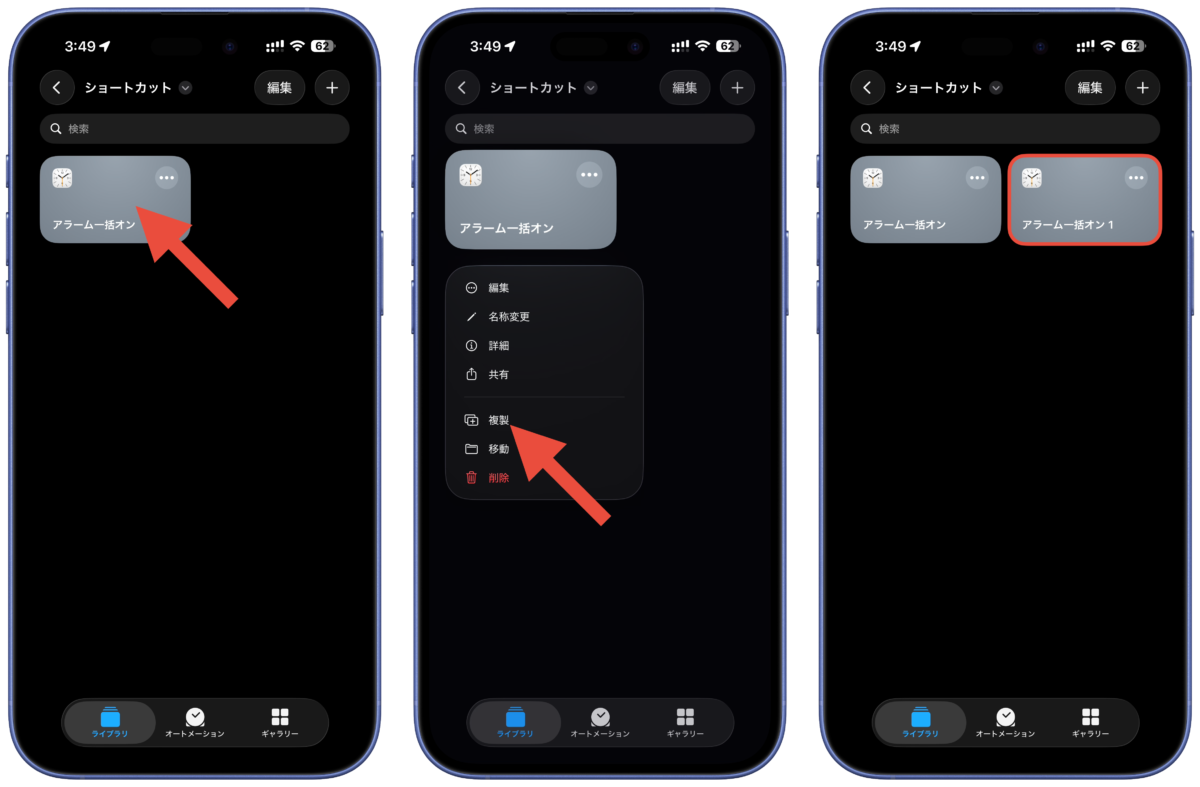
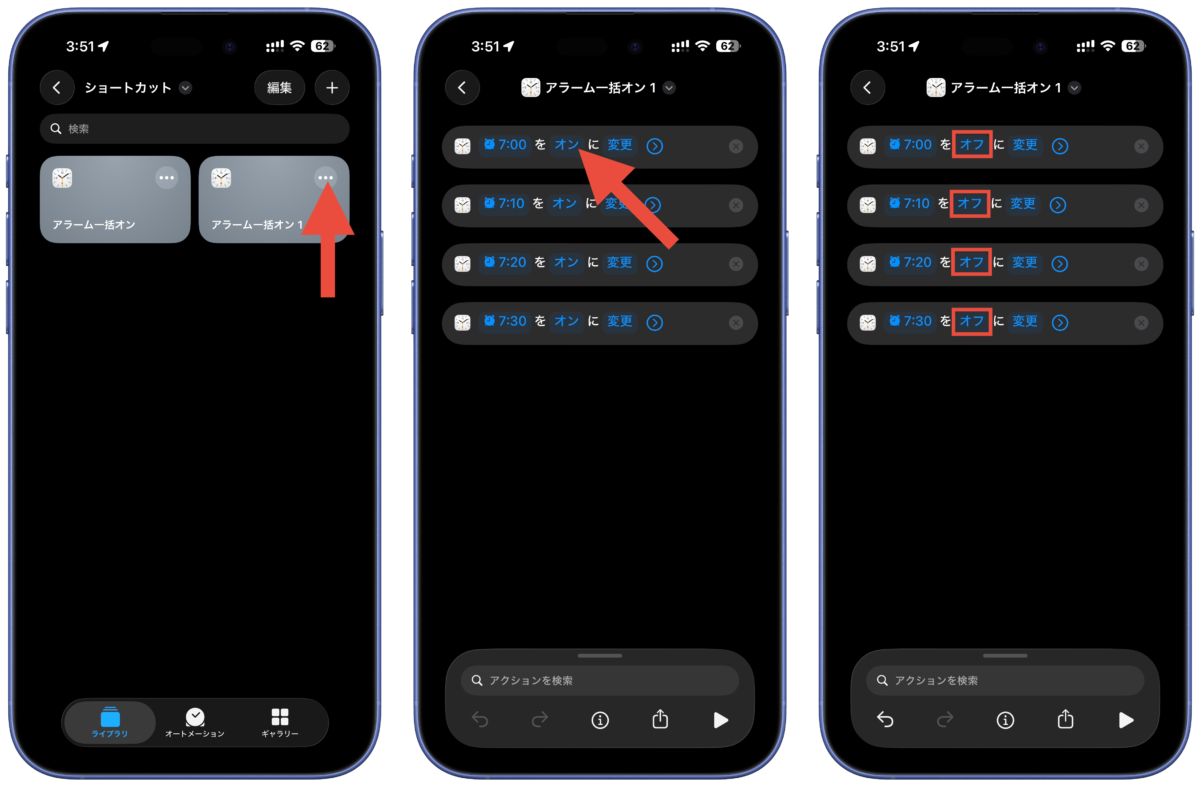
Tap “…” on the duplicated shortcut to display the shortcut editing screen.
Tap the blue text “On” to change it to “Off”.
Change all alarms for other times to “off” as well.
Tap the shortcut name at the top and change the name of the shortcut from “Rename”.
Set it to “All alarms off” etc.
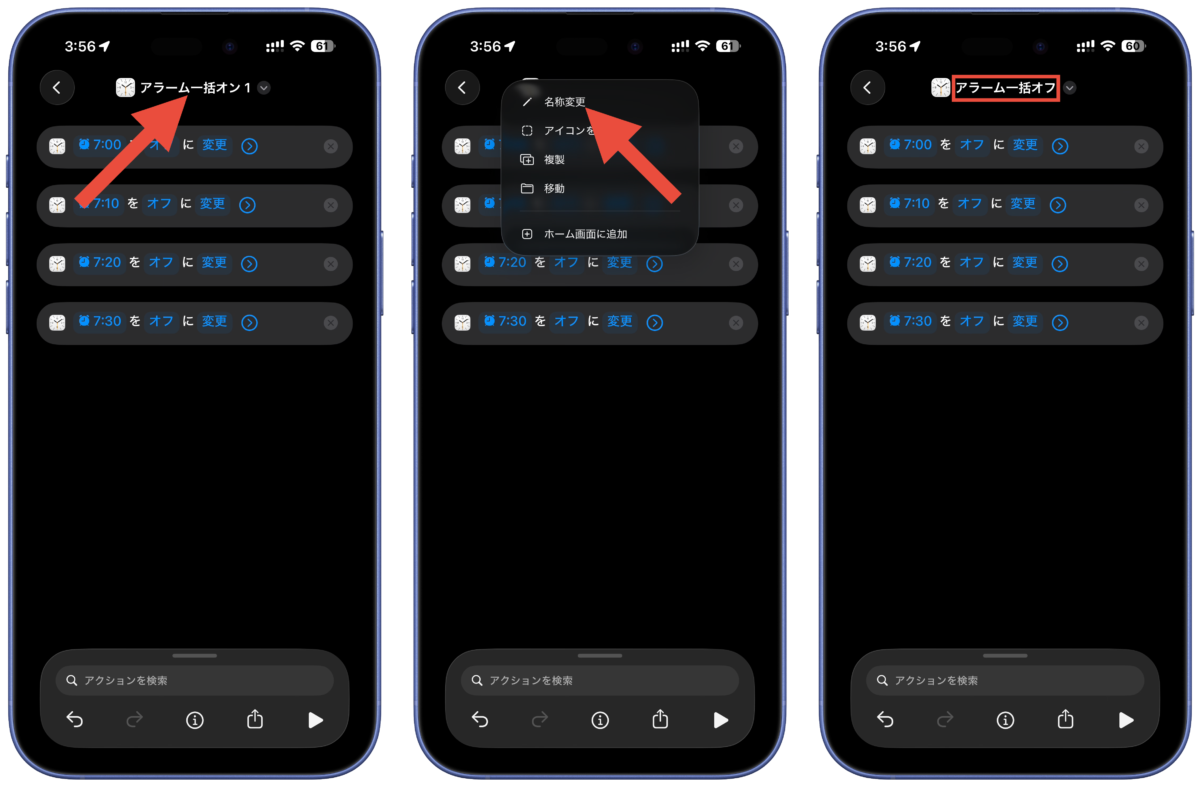
This completes the shortcut recipe for turning off alarms all at once.
How to set up automation to automatically turn on alarms
You can use automation to automatically turn on alarms.
This prevents you from forgetting to turn on the alarm and helps prevent oversleeping.
This time, we will set up an automation that will turn on the alarm at a specified time.
Open the Shortcuts app and select the Automation tab.
Tap “+” in the upper right corner and select “Time”.
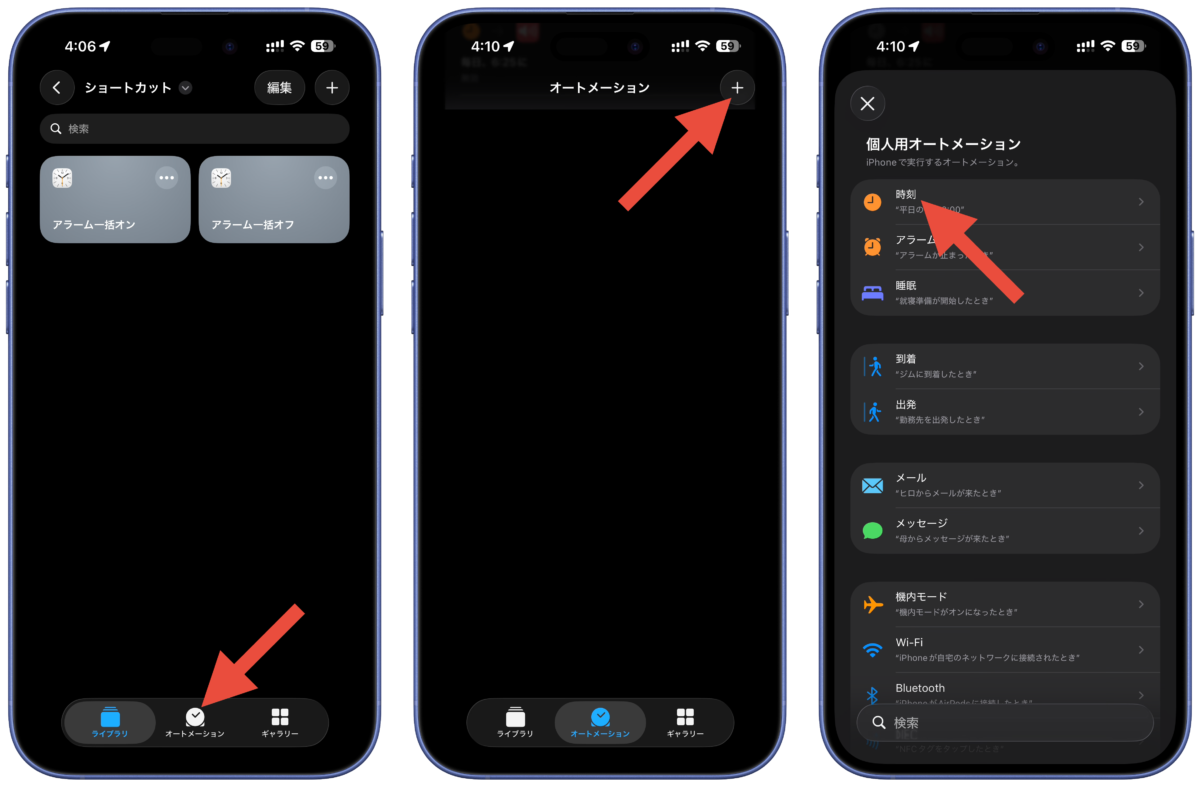
Set the time you want the alarm to turn on, select “Daily” and “Run Immediately” for the repeat.
If you want to be notified whether the alarm is turned on or not, turn on “Notify me when running”.
Tap “Next” in the top right corner and select the “Alarm batch on” shortcut you created earlier.
Verify that the automation has been created.
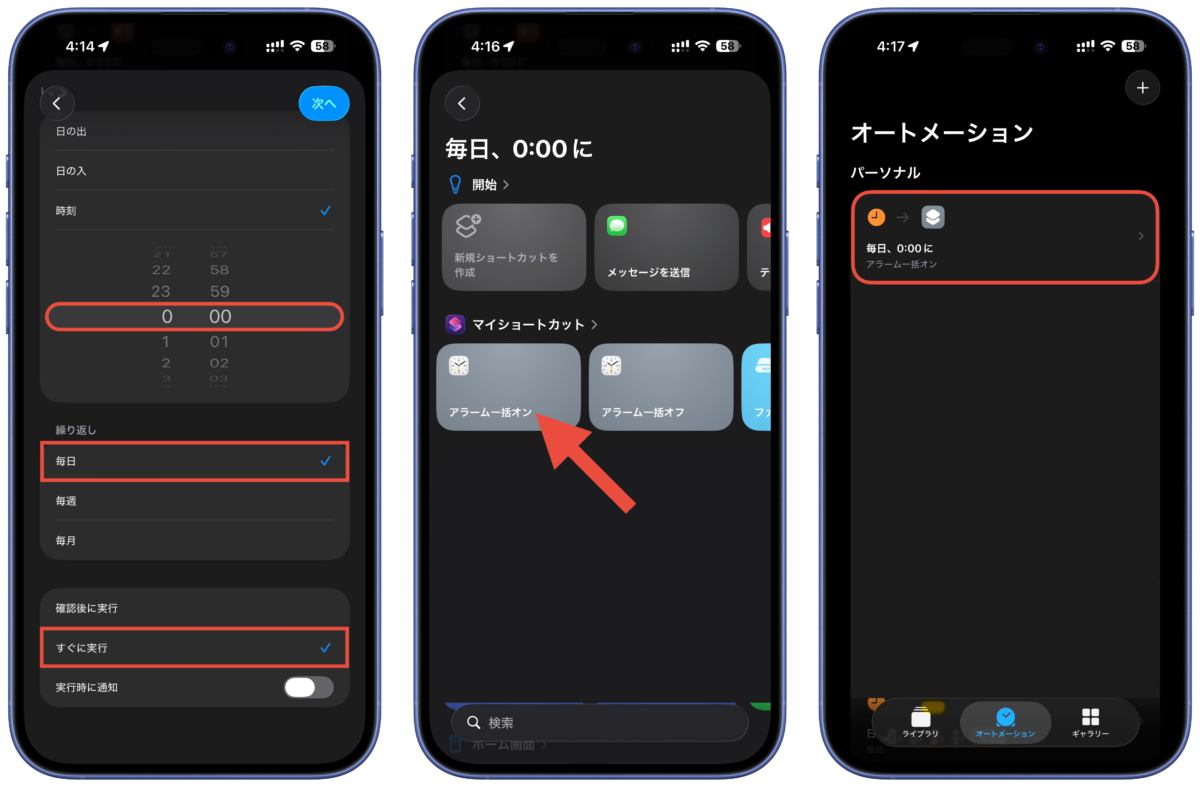
The automation that turns on the alarm every day at 0:00 is now complete.
Turn off other alarms instantly! Automatically turns on to prevent forgetting to put it on
The benefits of shortcuts and automation are:
- You can quickly turn off other alarms when you are fully awake.
- Automatically turning on the alarm prevents you from forgetting to set it.
There are two points.
If you usually set multiple alarms every 10 minutes, it can be annoying if the first alarm wakes you up completely and the second or third alarm goes off.
It can be a pain to turn off the alarm every time you are busy in the morning, but with this shortcut, you can turn it off by simply activating the shortcut from the home screen.
Additionally, if you forget to turn on an alarm that has been turned off, it will not go off the next day, so by automatically turning on the alarm using automation, you will be able to prevent forgetting to turn it on.
Source: iPhone Mania